audio TOYOTA VENZA 2016 Owner's Manual
[x] Cancel search | Manufacturer: TOYOTA, Model Year: 2016, Model line: VENZA, Model: TOYOTA VENZA 2016Pages: 688, PDF Size: 18.51 MB
Page 325 of 688
3253-2. Using the audio system (Entune Audio)
VENZA_OM_OM73030U_(U) 3
Interior features
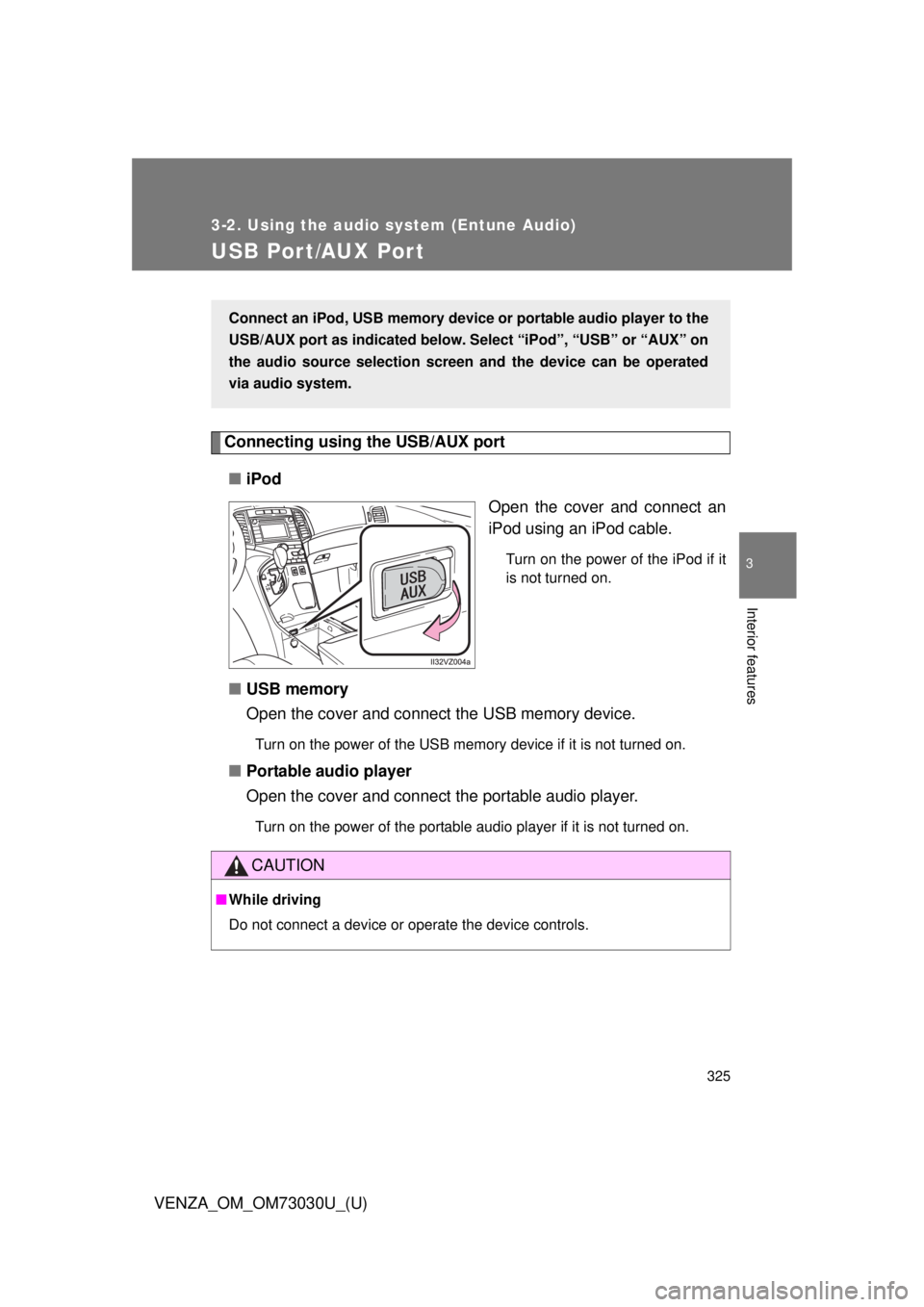
USB Por t/AUX Por t Connecting using the USB/AUX port
■ iPod
Open the cover and connect an
iPod using an iPod cable. Turn on the power of the iPod if it
is not turned on.
■ USB memory
Open the cover and connect the USB memory device. Turn on the power of the USB memory device if it is not turned on.
■ Portable audio player
Open the cover and connect the portable audio player. Turn on the power of the portable audio player if it is not turned on.Connect an iPod, USB memory device or portable audio player to the
USB/AUX port as indicated below. Se lect “iPod”, “USB” or “AUX” on
the audio source selection screen and the device can be operated
via audio system.
CAUTION■ While driving
Do not connect a device or operate the device controls.
Page 326 of 688
3263-2. Using the audio system (Entune Audio)
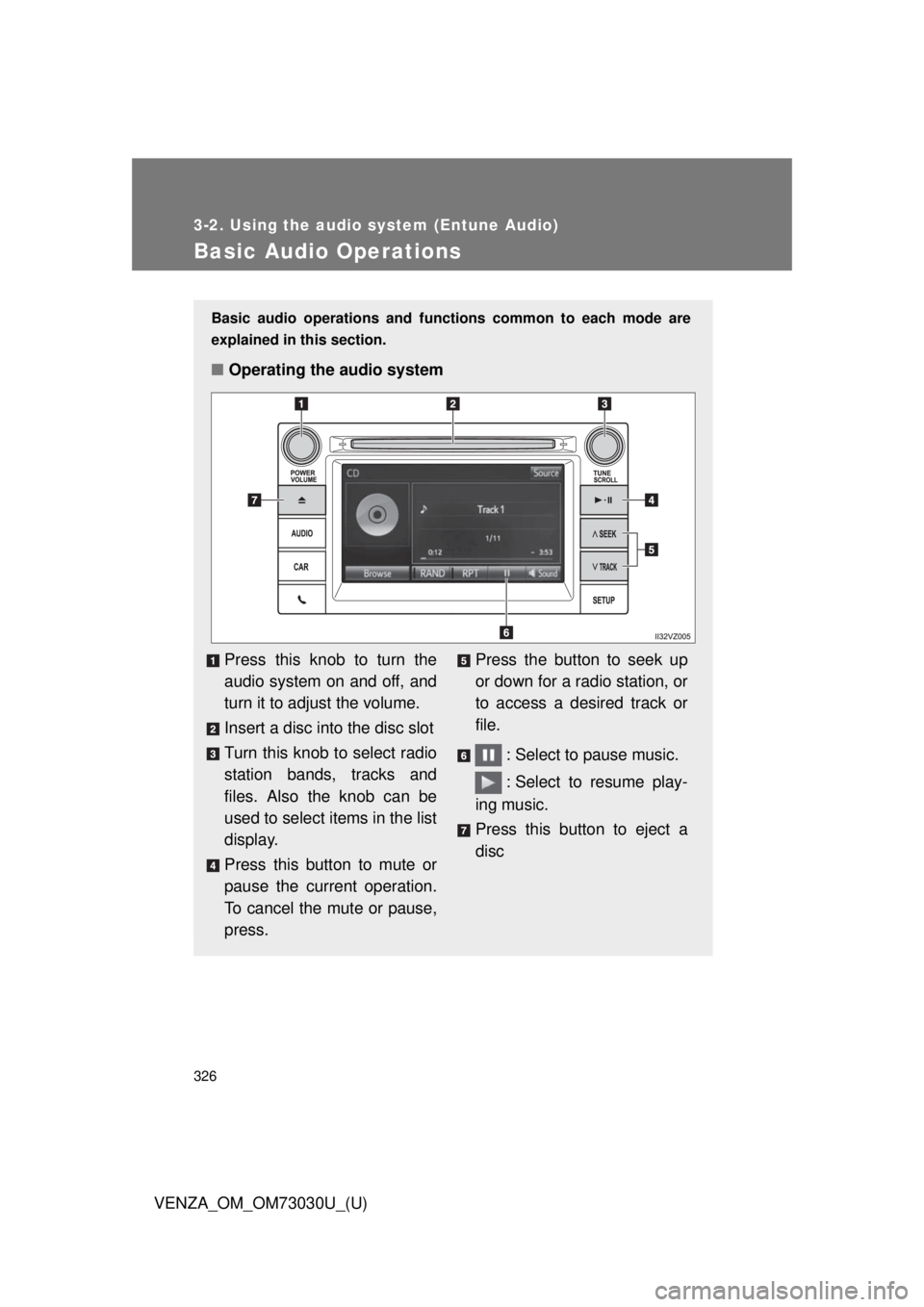
VENZA_OM_OM73030U_(U)Basic Audio Operations Basic audio operations and functions common to each mode are
explained in this section.
■ Operating the audio system
Press this knob to turn the
audio system on and off, and
turn it to adjust the volume.
Insert a disc into the disc slot
Turn this knob to select radio
station bands, tracks and
files. Also the knob can be
used to select items in the list
display.
Press this button to mute or
pause the current operation.
To cancel the mute or pause,
press. Press the button to seek up
or down for a radio station, or
to access a desired track or
file.
: Select to pause music.
: Select to resume play-
ing music.
Press this button to eject a
disc
Page 327 of 688
3273-2. Using the audio system (Entune Audio)
VENZA_OM_OM73030U_(U) 3
Interior features Random playback
Select to change on/off.
Repeat play
Select to change on/off. ■ Using cellular phones
Interference may be heard through the audio system’s speakers if a cellular
phone is being used inside or close to the vehicle while the audio system is
operating.
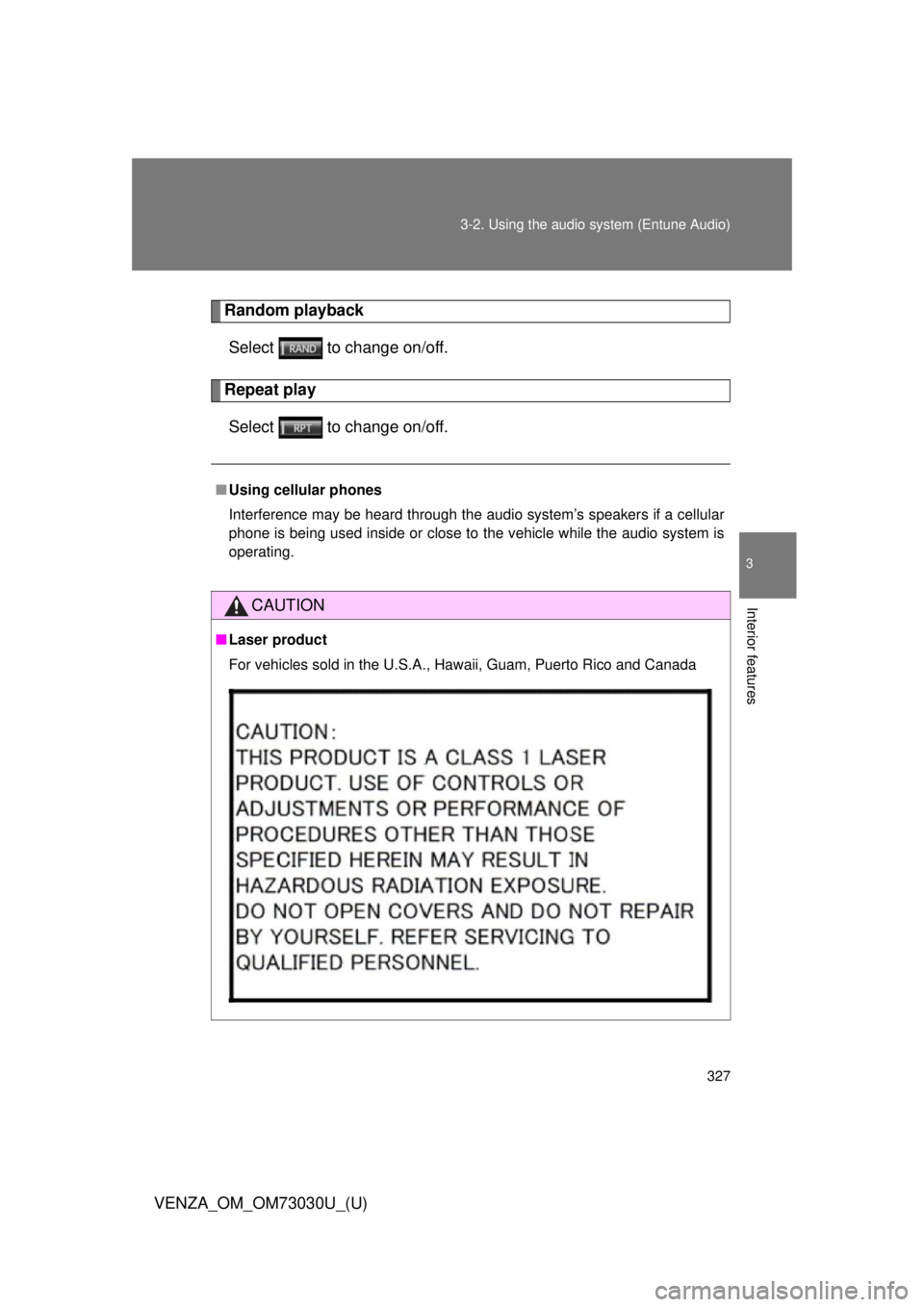
CAUTION■ Laser product
For vehicles sold in the U.S.A., Hawaii, Guam, Puerto Rico and Canada
Page 328 of 688

3283-2. Using the audio system (Entune Audio)
VENZA_OM_OM73030U_(U) NOTICE■ To prevent battery discharge
Do not leave the audio system on longer than necessary when the engine is
off.
■ To avoid damaging the audio system
Take care not to spill drinks or other fluids on the audio system.
Page 329 of 688
3293-2. Using the audio system (Entune Audio)
VENZA_OM_OM73030U_(U) 3
Interior features
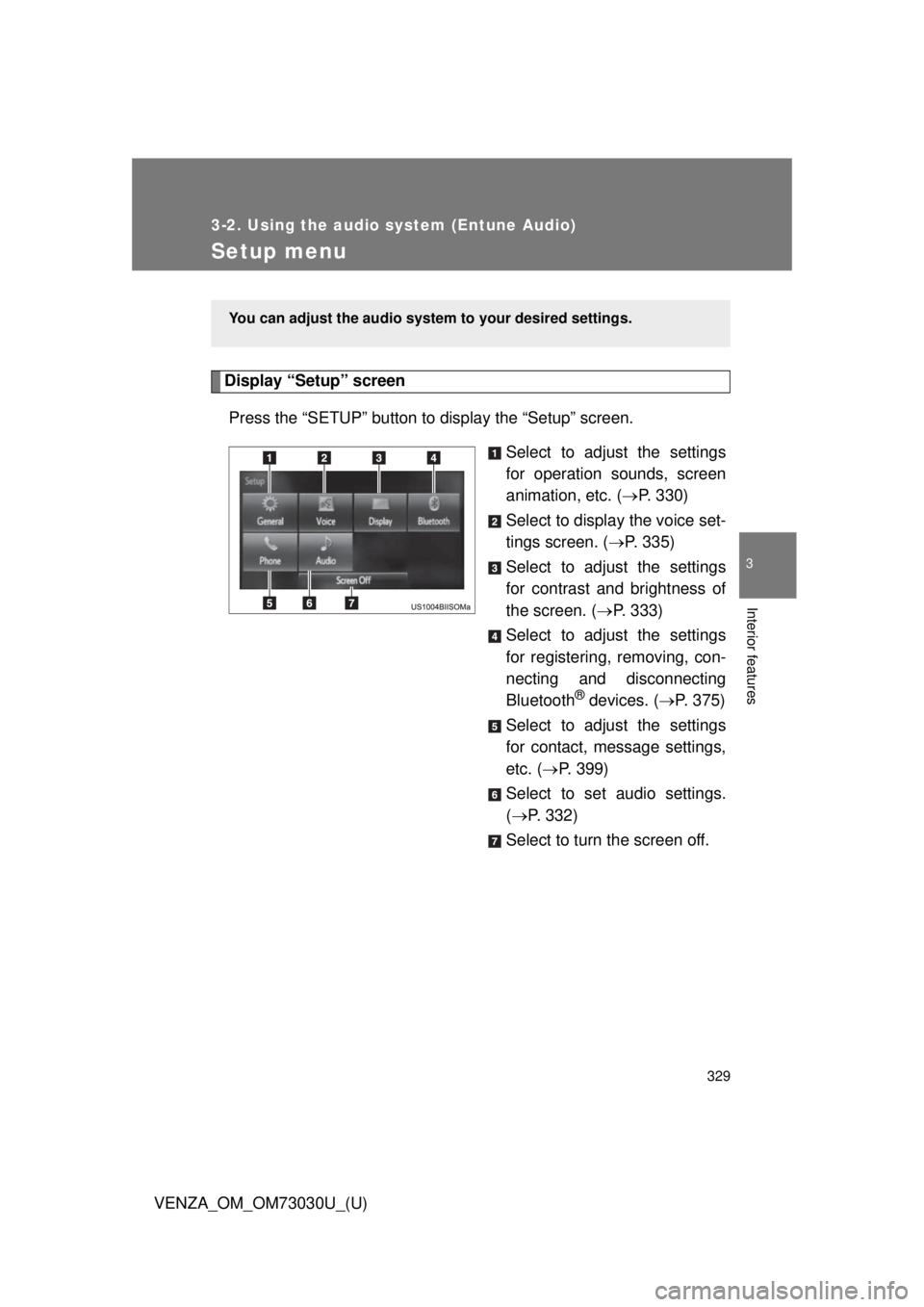
Setup menu Display “Setup” screen
Press the “SETUP” button to display the “Setup” screen.
Select to adjust the settings
for operation sounds, screen
animation, etc. ( P. 330)
Select to display the voice set-
tings screen. ( P. 335)
Select to adjust the settings
for contrast and brightness of
the screen. ( P. 333)
Select to adjust the settings
for registering, removing, con-
necting and disconnecting
Bluetooth ®
devices. ( P. 375)
Select to adjust the settings
for contact, message settings,
etc. ( P. 399)
Select to set audio settings.
( P. 332)
Select to turn the screen off. You can adjust the audio system to your desired settings.
Page 330 of 688
3303-2. Using the audio system (Entune Audio)
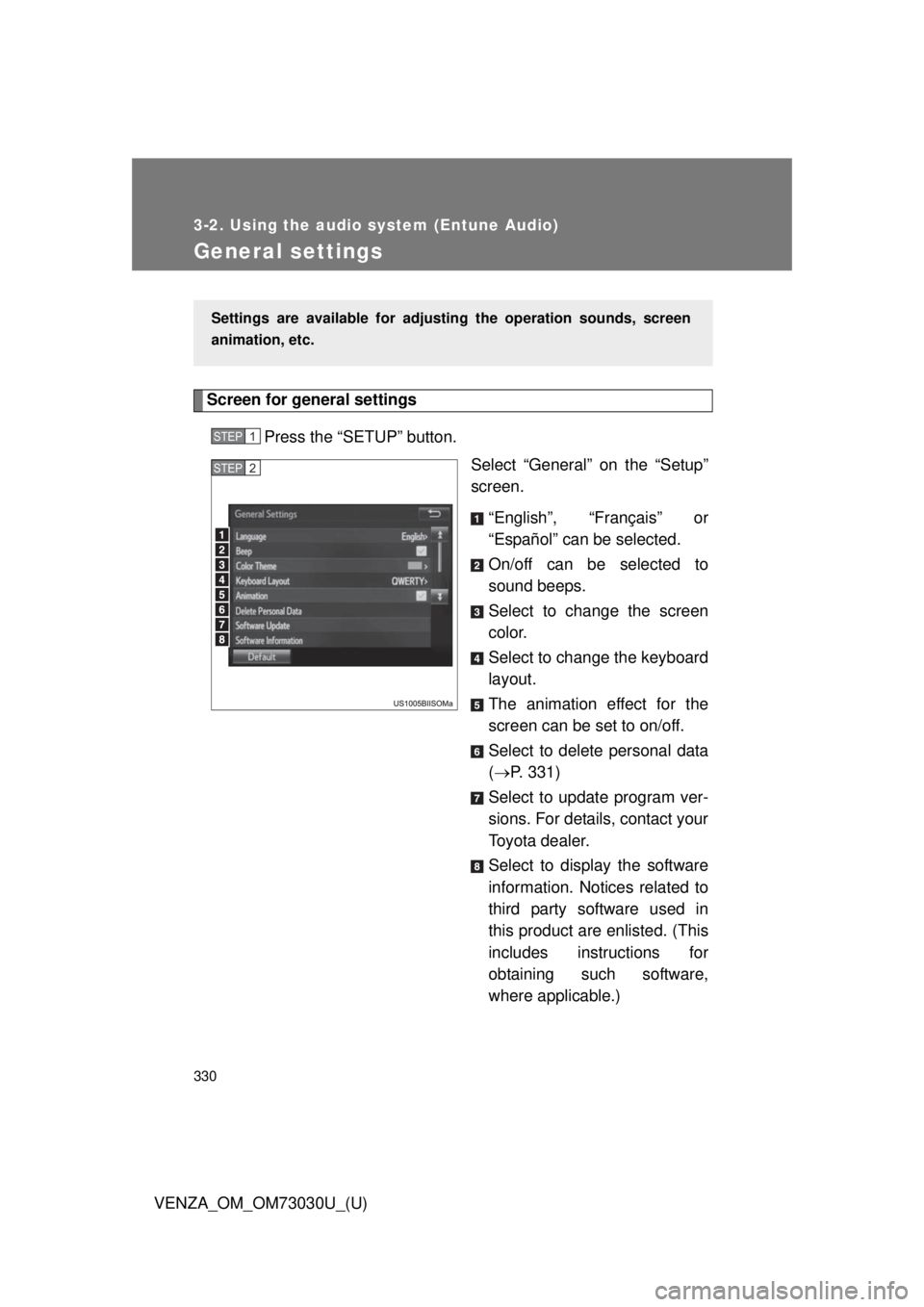
VENZA_OM_OM73030U_(U)General settings Screen for general settings
Press the “SETUP” button.
Select “General” on the “Setup”
screen.
“English”, “Français” or
“Español” can be selected.
On/off can be selected to
sound beeps.
Select to change the screen
color.
Select to change the keyboard
layout.
The animation effect for the
screen can be set to on/off.
Select to delete personal data
( P. 331)
Select to update program ver-
sions. For details, contact your
Toyota dealer.
Select to display the software
information. Notices related to
third party software used in
this product are enlisted. (This
includes instructions for
obtaining such software,
where applicable.)Settings are available for adjusting the operation sounds, screen
animation, etc. STEP 1
STEP 2
Page 331 of 688
3313-2. Using the audio system (Entune Audio)
VENZA_OM_OM73030U_(U) 3
Interior features Delete personal data
Select “Delete Personal Data” on the “General Settings”
screen.
Select “Delete”. Check carefully beforehand, as data cannot be retrieved once
deleted.
A confirmation screen will be displayed. Select “Yes”.
The following personal data will be deleted or changed to its
default settings. • General settings
• Audio settings
• Phone settings■ To return to the default settings
Select “Default”, and then “Yes”. STEP 1
STEP 2
STEP 3
Page 332 of 688
3323-2. Using the audio system (Entune Audio)
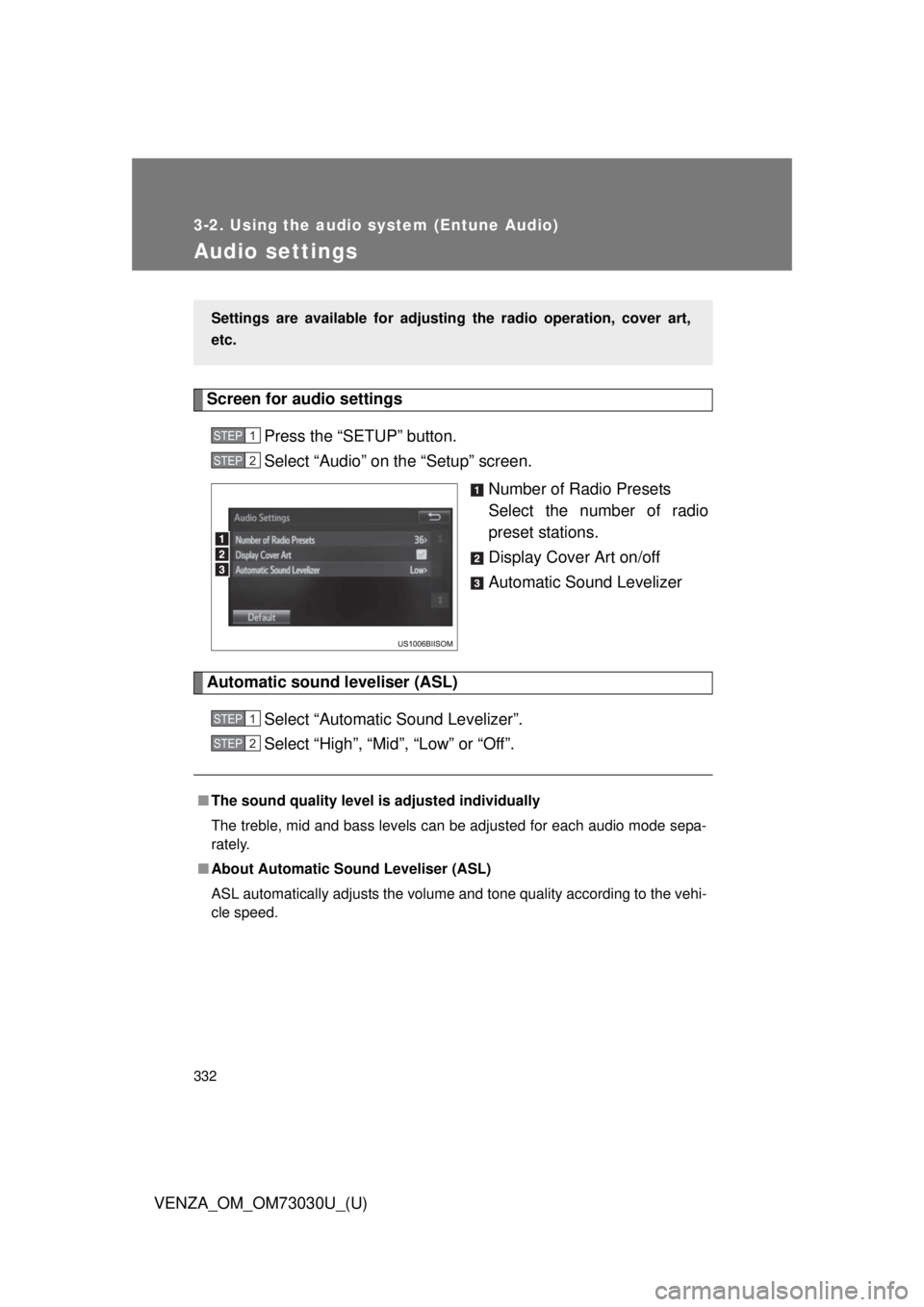
VENZA_OM_OM73030U_(U)Audio settings Screen for audio settings
Press the “SETUP” button.
Select “Audio” on the “Setup” screen.
Number of Radio Presets
Select the number of radio
preset stations.
Display Cover Art on/off
Automatic Sound Levelizer
Automatic sound leveliser (ASL)
Select “Automatic Sound Levelizer”.
Select “High”, “Mid”, “Low” or “Off”.Settings are available for adjusting the radio operation, cover art,
etc. STEP 1
STEP 2
■ The sound quality level is adjusted individually
The treble, mid and bass levels can be adjusted for each audio mode sepa-
rately.
■ About Automatic Sound Leveliser (ASL)
ASL automatically adjusts the volume and tone quality according to the vehi-
cle speed. STEP 1
STEP 2
Page 333 of 688
3333-2. Using the audio system (Entune Audio)
VENZA_OM_OM73030U_(U) 3
Interior features
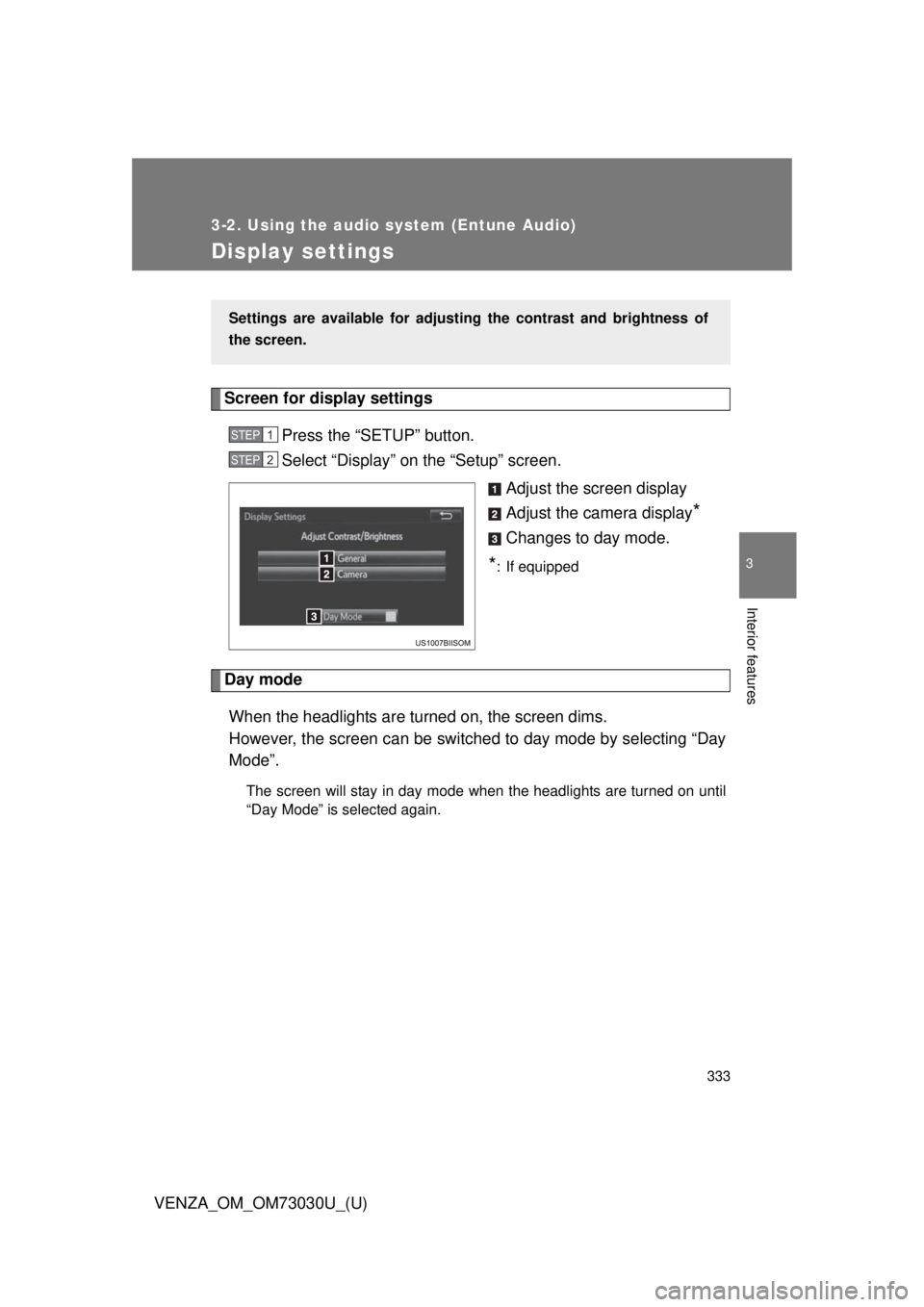
Display settings Screen for display settings
Press the “SETUP” button.
Select “Display” on the “Setup” screen.
Adjust the screen display
Adjust the camera display
*Changes to day mode.
* : If equipped
Day mode
When the headlights are turned on, the screen dims.
However, the screen can be switc hed to day mode by selecting “Day
Mode”. The screen will stay in day mode when the headlights are turned on until
“Day Mode” is selected again.Settings are available for adjusti ng the contrast and brightness of
the screen. STEP 1
STEP 2
Page 334 of 688
3343-2. Using the audio system (Entune Audio)
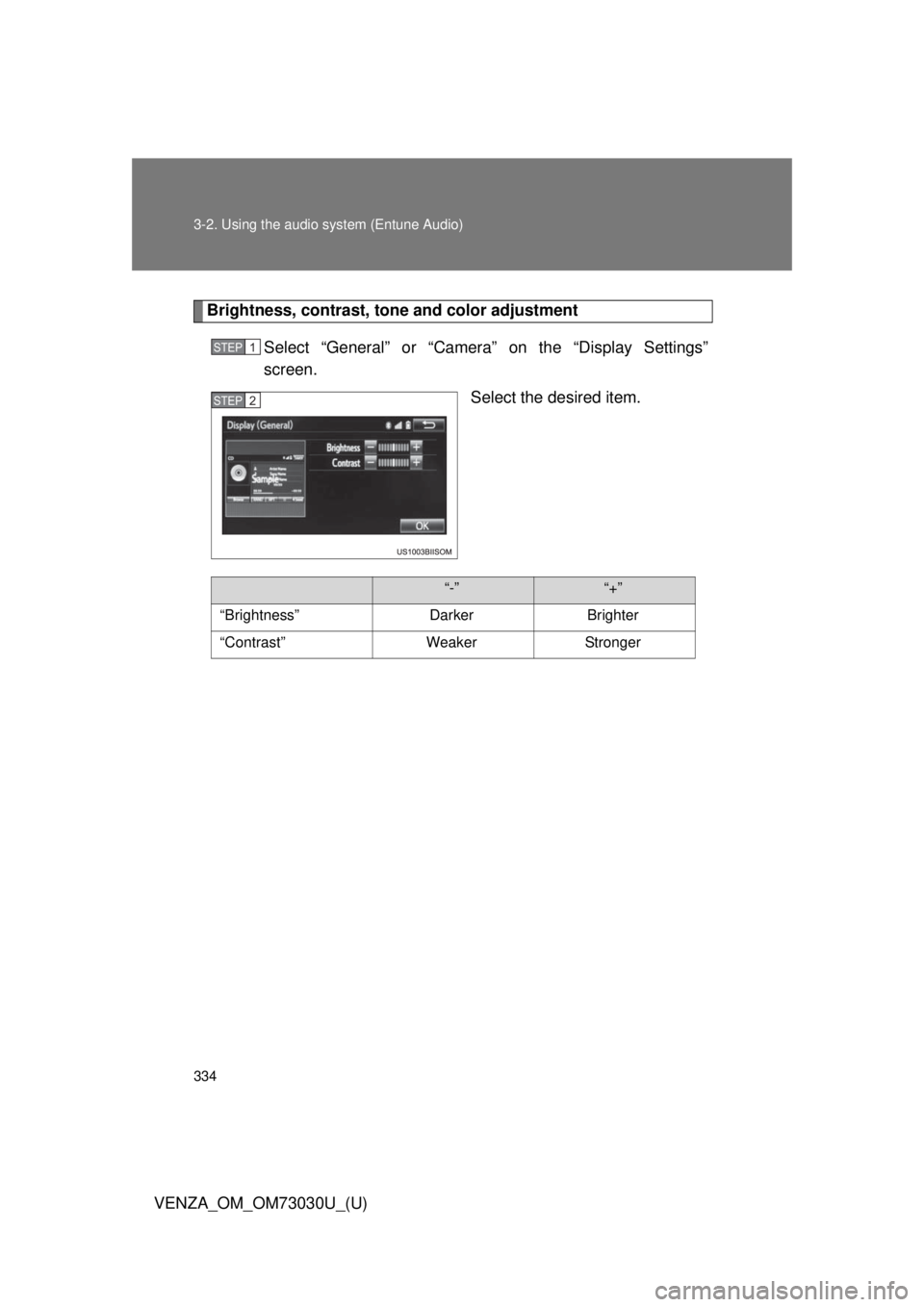
VENZA_OM_OM73030U_(U) Brightness, contrast, t one and color adjustment
Select “General” or “Camera” on the “Display Settings”
screen.
Select the desired item.STEP 1
STEP 2
“-” “+”
“Brightness” Darker Brighter
“Contrast” Weaker Stronger