audio TOYOTA YARIS 2017 Owner's Guide
[x] Cancel search | Manufacturer: TOYOTA, Model Year: 2017, Model line: YARIS, Model: TOYOTA YARIS 2017Pages: 549, PDF Size: 33.09 MB
Page 297 of 549
297
5
5-5. Using an external device
Audio system
YARIS_F_OM_Europe_OM52J20E
Listening to an iPod
P. 2 8 1
: If equipped
Connecting an iPod enables you to enjoy music from the vehicle
speakers. Press until “iPod” is displayed.
Connecting an iPod
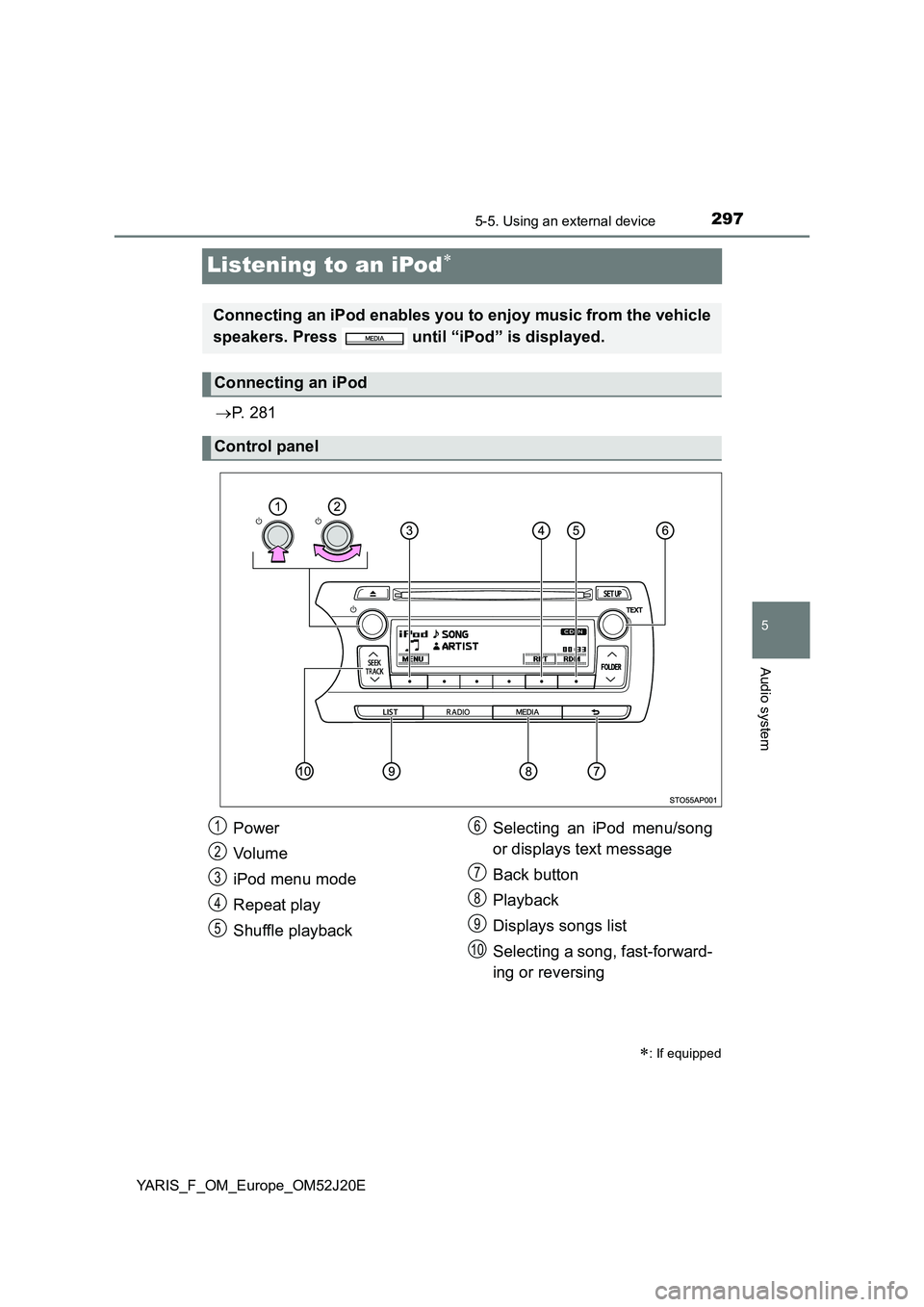
Control panel
Power
Vo lu m e
iPod menu mode
Repeat play
Shuffle playback
Selecting an iPod menu/song
or displays text message
Back button
Playback
Displays songs list
Selecting a song, fast-forward-
ing or reversing
1
2
3
4
5
6
7
8
9
10
Page 298 of 549
2985-5. Using an external device
YARIS_F_OM_Europe_OM52J20E
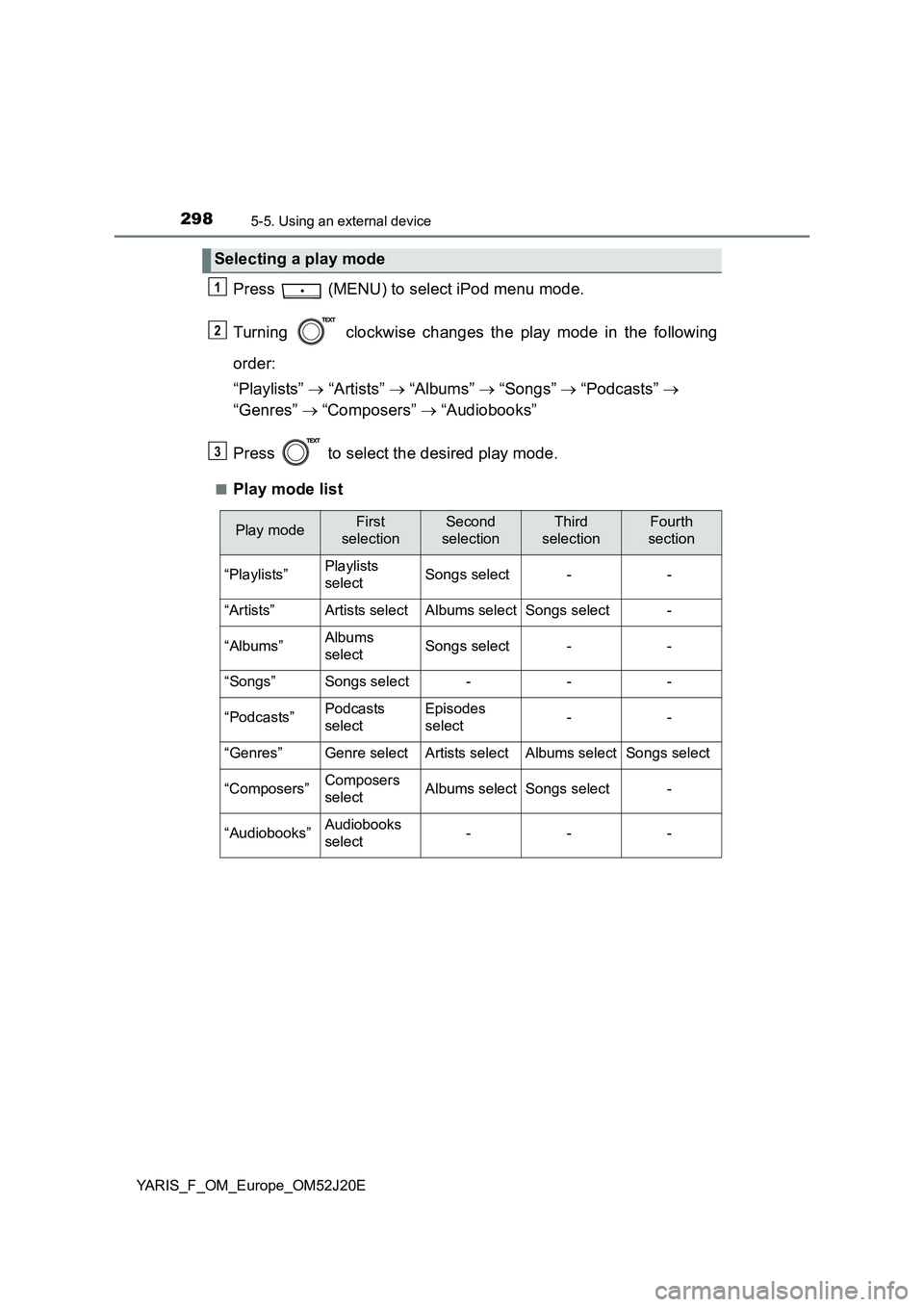
Press (MENU) to select iPod menu mode.
Turning clockwise changes the play mode in the following
order:
“Playlists” “Artists” “Albums” “Songs” “Podcasts”
“Genres” “Composers” “Audiobooks”
Press to select the desired play mode.
■Play mode list
Selecting a play mode
1
2
3
Play modeFirst
selection
Second
selection
Third
selection
Fourth
section
“Playlists”Playlists
selectSongs select--
“Artists”Artists selectAlbums selectSongs select-
“Albums”Albums
selectSongs select--
“Songs”Songs select---
“Podcasts”Podcasts
select
Episodes
select--
“Genres”Genre selectArtists selectAlbums selectSongs select
“Composers”Composers
selectAlbums selectSongs select-
“Audiobooks”Audiobooks
select---
Page 299 of 549
2995-5. Using an external device
5
Audio system
YARIS_F_OM_Europe_OM52J20E
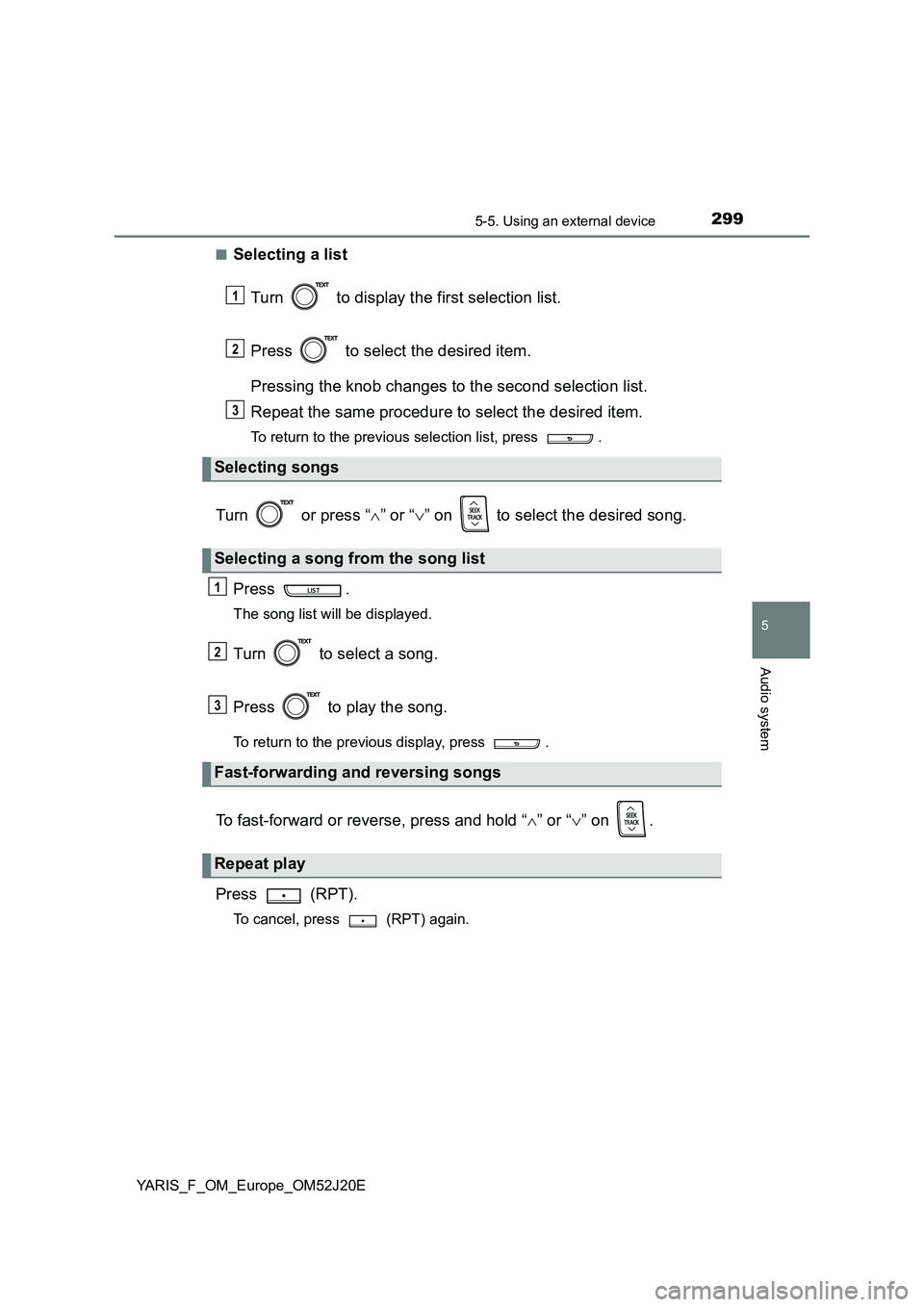
■Selecting a list
Turn to display the first selection list.
Press to select the desired item.
Pressing the knob changes to the second selection list.
Repeat the same procedure to select the desired item.
To return to the previous selection list, press .
Turn or press “ ” or “” on to select the desired song.
Press .
The song list will be displayed.
Turn to select a song.
Press to play the song.
To return to the previous display, press .
To fast-forward or reverse, press and hold “ ” or “” on .
Press (RPT).
To cancel, press (RPT) again.
Selecting songs
Selecting a song from the song list
Fast-forwarding and reversing songs
Repeat play
1
2
3
1
2
3
Page 301 of 549
3015-5. Using an external device
5
Audio system
YARIS_F_OM_Europe_OM52J20E
■ iPod functions
● When an iPod is connected and the audio source is changed to iPod mode,
the iPod will resume play from the same point in which it was last used.
● Depending on the iPod that is connected to the system, certain functions
may not be available. If a function is unavailable due to a malfunction (as
opposed to a system specification), disconnecting the device and recon-
necting it once again may resolve the problem.
● While connected to the system, the iPod cannot be operated with its own
controls. It is necessary to use the controls of the vehicle’s audio system
instead.
● When the battery level of an iPod is very low, the iPod may not operate. If
so, charge the iPod before use.
● Supported models (P. 302)
■ iPod problems
To resolve most problems encountered when using your iPod, disconnect
your iPod from the vehicle iPod connection and reset it.
For instructions on how to reset your iPod, refer to your iPod Owner’s Man-
ual.
■ Display
P. 292
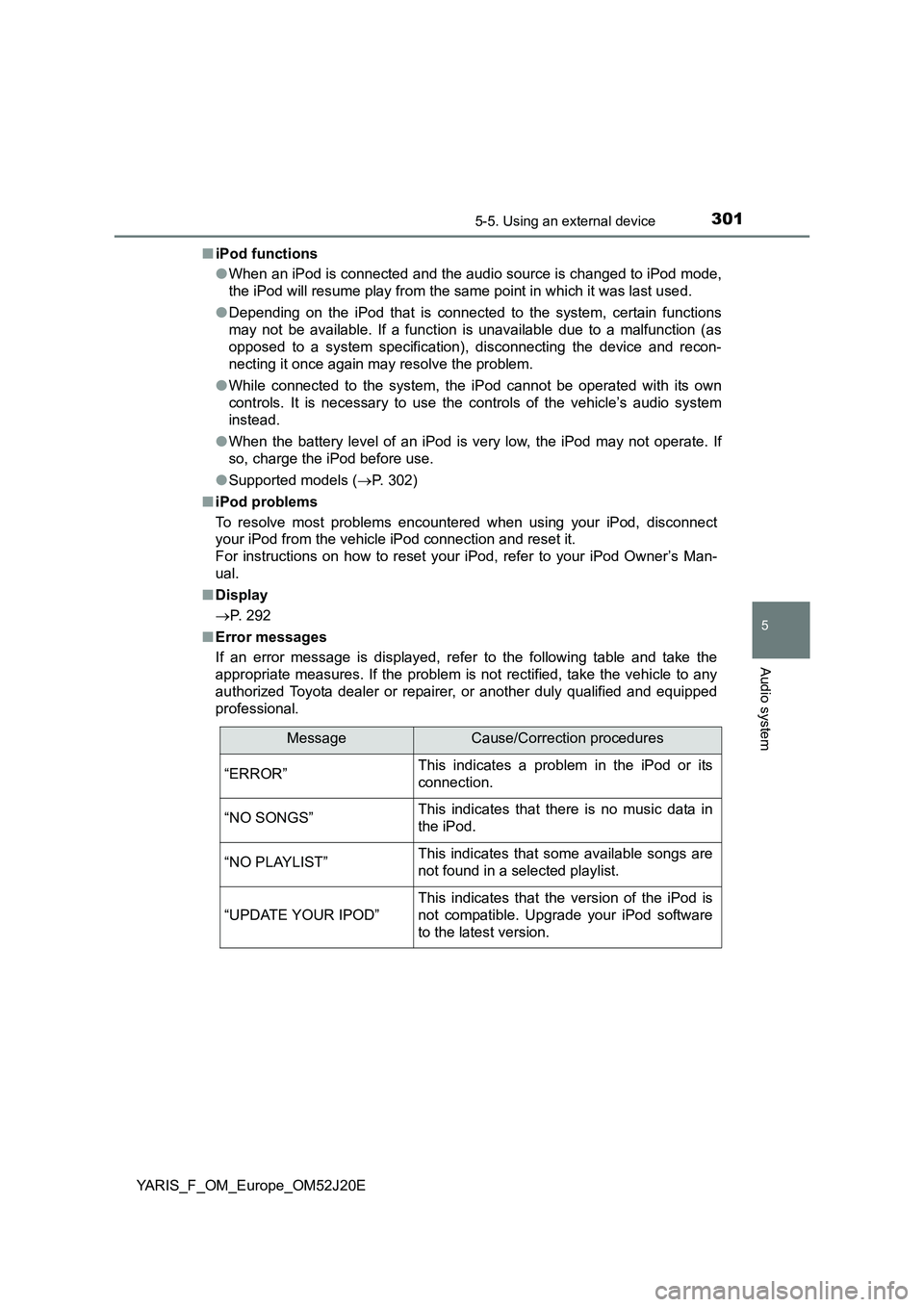
■ Error messages
If an error message is displayed, refer to the following table and take the
appropriate measures. If the problem is not rectified, take the vehicle to any
authorized Toyota dealer or repair er, or another duly qualified and equipped
professional.
MessageCause/Correction procedures
“ERROR”This indicates a problem in the iPod or its
connection.
“NO SONGS”This indicates that there is no music data in
the iPod.
“NO PLAYLIST”This indicates that some available songs are
not found in a selected playlist.
“UPDATE YOUR IPOD”
This indicates that the version of the iPod is
not compatible. Upgrade your iPod software
to the latest version.
Page 303 of 549
3035-5. Using an external device
5
Audio system
YARIS_F_OM_Europe_OM52J20E
WARNING
■Caution while driving
Do not connect iPod or operate the controls.
NOTICE
■ To prevent damage to iPod
● Do not leave iPod in the vehicle. The temperature inside the vehicle may
become high, resulting in damage to the iPod.
● Do not push down on or apply unnecessary pressure to the iPod while it is
connected as this may damage the iPod or its terminal.
● Do not insert foreign objects into the port as this may damage the iPod or
its terminal.
Page 305 of 549
3055-5. Using an external device
5
Audio system
YARIS_F_OM_Europe_OM52J20E
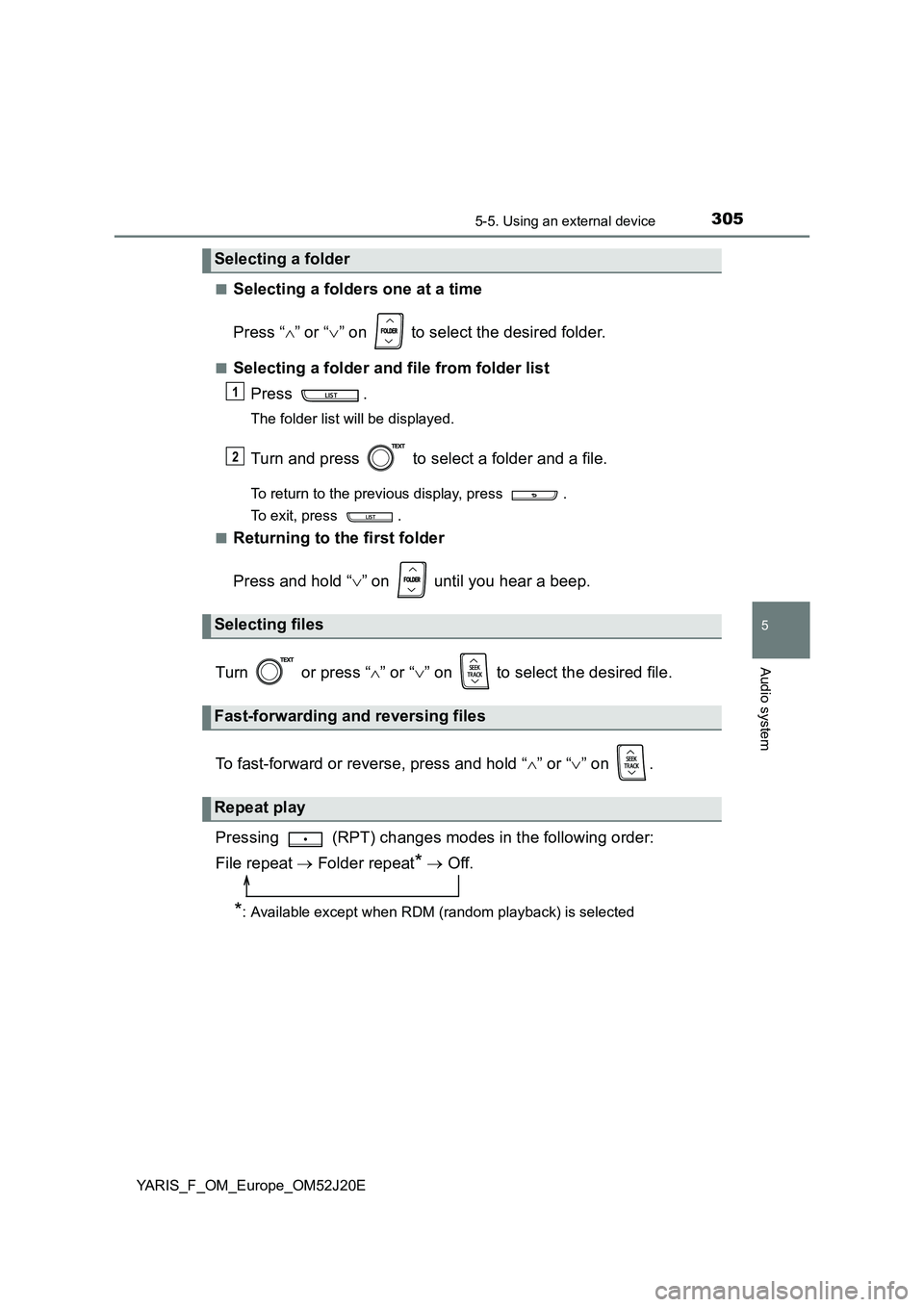
■Selecting a folders one at a time
Press “ ” or “” on to select the desired folder.
■Selecting a folder and file from folder list
Press .
The folder list will be displayed.
Turn and press to select a folder and a file.
To return to the previous display, press .
To exit, press .
■Returning to the first folder
Press and hold “ ” on until you hear a beep.
Turn or press “ ” or “” on to select the desired file.
To fast-forward or reverse, press and hold “ ” or “” on .
Pressing (RPT) changes modes in the following order:
File repeat Folder repeat* Off.
*: Available except when RDM (random playback) is selected
Selecting a folder
Selecting files
Fast-forwarding and reversing files
Repeat play
1
2
Page 307 of 549
3075-5. Using an external device
5
Audio system
YARIS_F_OM_Europe_OM52J20E
■ USB memory
● Compatible devices
USB memory that can be used for MP3 and WMA playback
● Compatible device formats
The following device formats can be used:
• USB communication formats: USB2.0 FS (12 Mbps)
• File formats: FAT12/16/32 (Windows)
• Correspondence class: Mass storage class
MP3 and WMA files written in any format other than those listed above may
not play correctly, and their file names and folder names may not be dis-
played correctly.
Items related to standards and limitations are as follows:
• Maximum directory hierarchy: 8 levels
• Maximum number of folders in a device: 999 (including the root)
• Maximum number of files in a device: 9999
• Maximum number of files per folder: 255
● MP3 and WMA files
MP3 (MPEG Audio LAYER 3) is a standard audio compression format.
Files can be compressed to approximately 1/10 of their original size using
MP3 compression.
WMA (Windows Media Audio) is a Mi crosoft audio compression format.
This format compresses audio data to a size smaller than that of the MP3
format.
There is a limit to the MP3 and WMA file standards that can be used and to
the media/formats on which the files are recorded.
● MP3 file compatibility
• Compatible standards
MP3 (MPEG1 AUDIO LAYERII, III, MPEG2 AUDIO LAYERII, III, MPEG2.5)
• Compatible sampling frequencies
MPEG1 AUDIO LAYERII, III: 32, 44.1, 48 (kHz)
MPEG2 AUDIO LAYERII, III: 16, 22.05, 24 (kHz)
MPEG2.5: 8, 11.025, 12 (kHz)
• Compatible bit rates (compatible with VBR)
MPEG1 AUDIO LAYERII, III: 32-320 (kbps)
MPEG2 AUDIO LAYERII, III: 32-160 (kbps)
MPEG2.5: 32-160 (kbps)
• Compatible channel modes: stereo, joint stereo, dual channel and mon-
aural
Page 308 of 549
3085-5. Using an external device
YARIS_F_OM_Europe_OM52J20E
● WMA file compatibility
• Compatible standards
WMA Ver. 9
• Compatible sampling frequencies
HIGH PROFILE 32, 44.1, 48 (kHz)
• Compatible bit rates
HIGH PROFILE 32-320 (kbps, VBR)
● File names
The only files that can be recognized as MP3/WMA and played are those
with the extension .mp3 or .wma.
● ID3 and WMA tags
ID3 tags can be added to MP3 files, making it possible to record the track
title, artist name, etc.
The system is compatible with ID3 Ver. 1.0, 1.1, and Ver. 2.2, 2.3, 2.4 ID3
tags. (The number of characters is based on ID3 Ver. 1.0 and 1.1.)
WMA tags can be added to WMA files, making it possible to record the
track title and artist name in the same way as with ID3 tags.
● MP3 and WMA playback
• When a device containing MP3 or WMA files is connected, all files in the
USB memory are checked. Once the file check is finished, the first MP3
or WMA file is played. To make the file check finish more quickly, we rec-
ommend that you do not include any files other than MP3 or WMA files or
create any unnecessary folders.
• When the USB memory is connected and the audio source is changed to
USB memory mode, the USB memory will start playing the first file in the
first folder. If the same device is removed and reinserted (and the con-
tents have not been changed), the USB memory will resume play from
the same point in which it was last used.
● Extensions
If the file extensions .mp3 and .wma are used for files other than MP3 and
WMA files, they will be skipped (not played).
● Playback
• To play MP3 files with steady s ound quality, we recommend a fixed bit
rate of at least 128 kbps and a sampling frequency of 44.1 kHz.
• There is a wide variety of freeware and other encoding software for MP3
and WMA files on the market, and depending on the status of the encod-
ing and the file format, poor sound quality or noise at the start of playback
may result. In some cases, playback may not be possible at all.
• Microsoft, Windows, and Windows Media are registered trademarks of
Microsoft Corporation in the U.S.A. and other countries.
Page 309 of 549
3095-5. Using an external device
5
Audio system
YARIS_F_OM_Europe_OM52J20E
WARNING
■Caution while driving
Do not connect USB memory or operate the controls.
NOTICE
■ To prevent damage to USB memory
● Do not leave USB memory in the vehicle. The temperature inside the vehi-
cle may become high, resulting in damage to the player.
● Do not push down on or apply unnecessary pressure to the USB memory
while it is connected as this may damage the USB memory or its terminal.
● Do not insert foreign objects into the port as this may damage the USB
memory or its terminal.
Page 355 of 549
3557-1. Maintenance and care
7
Maintenance and care
YARIS_F_OM_Europe_OM52J20E
NOTICE
■Cleaning detergents
● Do not use the following types of detergent, as they may discolor the vehi-
cle interior or cause streaks or damage to painted surfaces:
• Non-seat portions: Organic substances such as benzene or gasoline,
alkaline or acidic solutions, dye, and bleach
• Seats: Alkaline or acidic solutions, such as thinner, benzene, and alco-
hol
● Do not use polish wax or polish cleaner. The instrument panel’s or other
interior part’s painted surface may be damaged.
■ Preventing damage to leather surfaces
Observe the following precautions to avoid damage to and deterioration of
leather surfaces:
● Remove any dust or dirt from leather surfaces immediately.
● Do not expose the vehicle to direct sunlight for extended periods of time.
Park the vehicle in the shade, especially during summer.
● Do not place items made of vinyl, plastic, or containing wax on the uphol-
stery, as they may stick to the leather surface if the vehicle interior heats
up significantly.
■ Water on the floor
Do not wash the vehicle floor with water.
Vehicle systems such as the audio system may be damaged if water comes
into contact with electrical components such as the audio system above or
under the floor of the vehicle. Water may also cause the body to rust.
■ When cleaning the inside of the windshield (vehicles with front sensor)
Be careful not to touch the front sensor ( P. 222).
If the camera is accidentally scratched or hit, PCS, LDA and Automatic High
Beam may not operate properly or may cause a malfunction.
■ Cleaning the inside of the rear window
● Do not use glass cleaner to clean the rear window, as this may cause
damage to the rear window defogger heater wires. Use a cloth dampened
with lukewarm water to gently wipe the window clean. Wipe the window in
strokes running parallel to the heater wires.
● Be careful not to scratch or damage the heater wires.