display TOYOTA YARIS 2020 Owners Manual
[x] Cancel search | Manufacturer: TOYOTA, Model Year: 2020, Model line: YARIS, Model: TOYOTA YARIS 2020Pages: 692, PDF Size: 68.71 MB
Page 391 of 692
3915-5. Using an external device
5
Audio system
YARIS_F_OM_Europe_OM52A54E■iPod functions
●When an iPod is connected and the audio source is changed to iPod mode,
the iPod will resume play from the same point in which it was last used.
●Depending on the iPod that is connected to the system, certain functions
may not be available. If a function is unavailable due to a malfunction (as
opposed to a system specification), disconnecting the device and recon-
necting it once again may resolve the problem.
●While connected to the system, the iPod cannot be operated with its own
controls. It is necessary to use the controls of the vehicle’s audio system
instead.
●When the battery level of an iPod is very low, the iPod may not operate. If
so, charge the iPod before use.
●Supported models (P. 393)
■iPod problems
To resolve most problems encountered when using your iPod, disconnect
your iPod from the vehicle iPod connection and reset it.
For instructions on how to reset your iPod, refer to your iPod Owner’s Man-
ual.
■Display
P. 381
Page 392 of 692
3925-5. Using an external device
YARIS_F_OM_Europe_OM52A54E■Error messages
If an error message is displayed, refer to the following table and take the
appropriate measures. If the problem is not rectified, take the vehicle to any
authorized Toyota retailer or Toyota authorized repairer, or any reliable
repairer.
MessageCause/Correction procedures
“iPod error”This indicates that the data in the iPod cannot
be read.
“Error 3”This indicates that the iPod may be malfunc-
tioning.
“Error 4”This indicates that an over current error has
occurred.
“Error 5”This indicates that an iPod communication
error has occurred.
“Error 6”This indicates that an authentication error
has occurred.
“No songs”This indicates that there is no music data in
the iPod.
“No playlists”This indicates that some available songs are
not found in a selected playlist.
“Update your iPod”
This indicates that the version of the iPod is
not compatible. Upgrade your iPod software
to the latest version.
Page 395 of 692
395
5
5-5. Using an external device
Audio system
YARIS_F_OM_Europe_OM52A54E
Listening to a USB memory device
P. 3 7 1
: If equipped
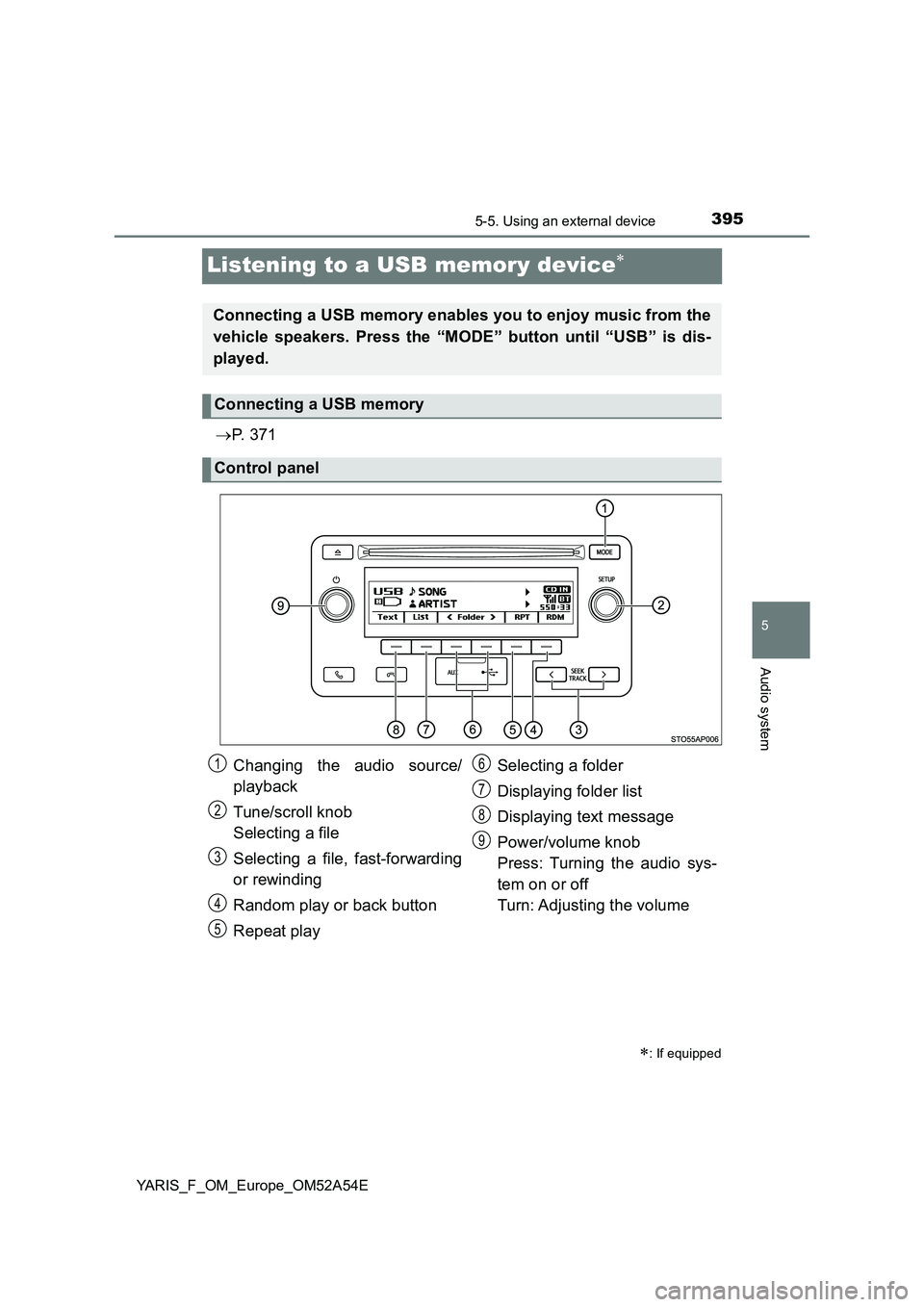
Connecting a USB memory enables you to enjoy music from the
vehicle speakers. Press the “MODE” button until “USB” is dis-
played.
Connecting a USB memory
Control panel
Changing the audio source/
playback
Tune/scroll knob
Selecting a file
Selecting a file, fast-forwarding
or rewinding
Random play or back button
Repeat playSelecting a folder
Displaying folder list
Displaying text message
Power/volume knob
Press: Turning the audio sys-
tem on or off
Turn: Adjusting the volume1
2
3
4
5
6
7
8
9
Page 396 of 692
3965-5. Using an external device
YARIS_F_OM_Europe_OM52A54E■
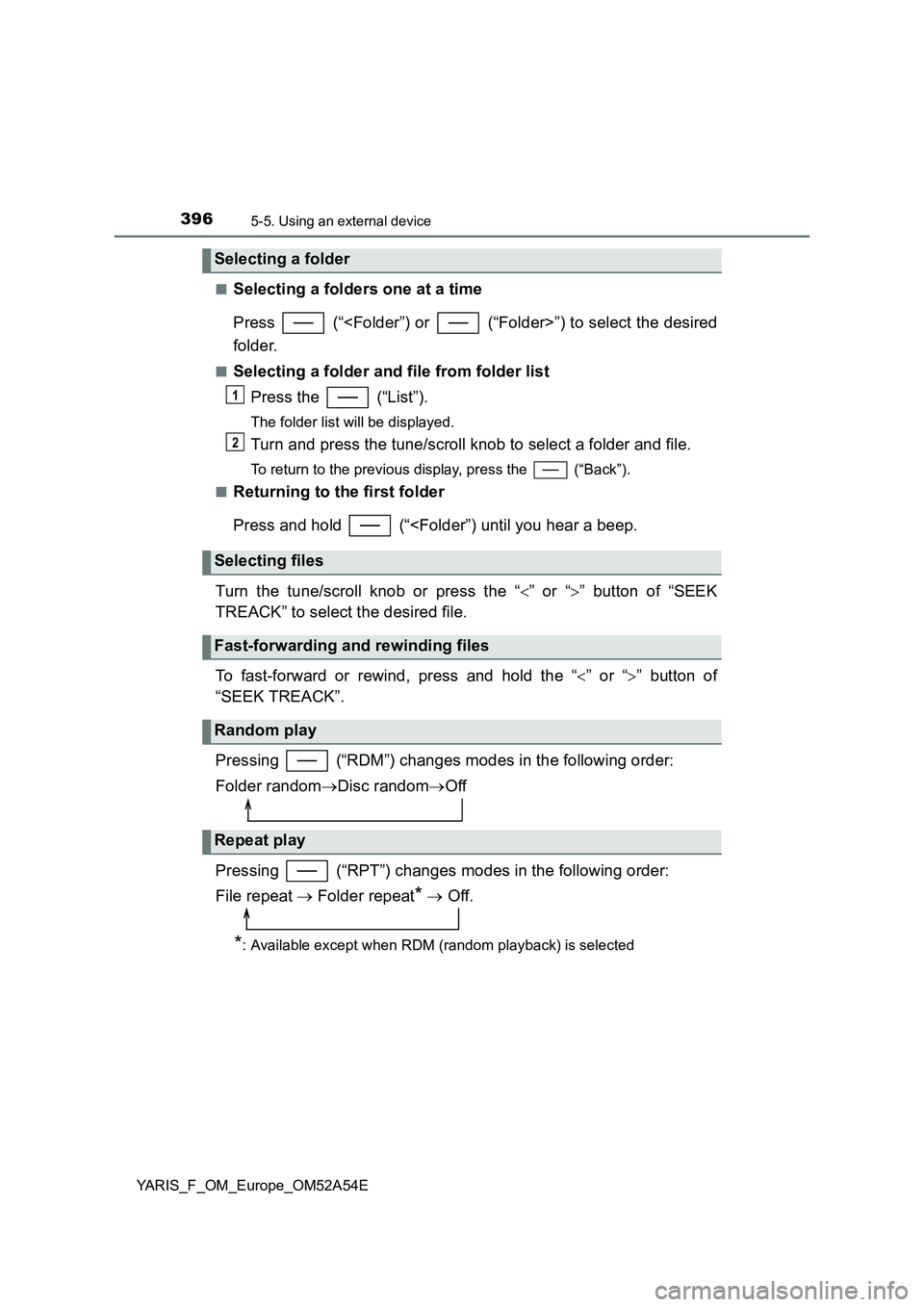
Selecting a folders one at a time
Press (“
folder.
■Selecting a folder and file from folder list
Press the (“List”).
The folder list will be displayed.
Turn and press the tune/scroll knob to select a folder and file.
To return to the previous display, press the (“Back”).
■
Returning to the first folder
Press and hold (“
TREACK” to select the desired file.
To fast-forward or rewind, press and hold the “” or “” button of
“SEEK TREACK”.
Pressing (“RDM”) changes modes in the following order:
Folder randomDisc randomOff
Pressing (“RPT”) changes modes in the following order:
File repeat Folder repeat
* Off.
*: Available except when RDM (random playback) is selected
Selecting a folder
Selecting files
Fast-forwarding and rewinding files
Random play
Repeat play
1
2
Page 397 of 692
3975-5. Using an external device
5
Audio system
YARIS_F_OM_Europe_OM52A54E
Press (“Text”) display or hide the album title.
If there are continuing texts, is displayed.
Press and hold the button to display the remaining texts.
■USB memory functions
●Depending on the USB memory that is connected to the system, the device
itself may not be operable and certain functions may not be available.
If the device is inoperable or a function is unavailable due to a malfunction
(as opposed to a system specification), disconnecting the device and recon-
necting it once again may resolve the problem.
●If the USB memory still does not begin operation after being disconnected
and reconnected, format the memory.
■Display
P. 381
■Error messages
If an error message is displayed, refer to the following table and take the
appropriate measures. If the problem is not rectified, take the vehicle to any
authorized Toyota retailer or Toyota authorized repairer, or any reliable
repairer.
Switching the display
MessageCause/Correction procedures
“USB error”This indicates that the data in the USB mem-
ory cannot be read.
“Error 3”This indicates that the USB memory may be
malfunctioning.
“Error 4”This indicates that an over current error has
occurred.
“Error 5”This indicates that the USB memory commu-
nication error has occurred.
“No music”This indicates that no MP3/WMA files are
included on the USB memory device.
Page 402 of 692
4025-5. Using an external device
YARIS_F_OM_Europe_OM52A54E
Using the AUX port
P. 3 7 1
■Operating portable audio devices connected to the audio system
The volume can be adjusted using the vehicle’s audio controls. All other
adjustments must be made on the portable audio device itself.
■When using a portable audio device connected to the power outlet
Noise may occur during playback. Use the power source of the portable
audio device.
: If equipped
This port can be used to connect a portable audio device and lis-
ten to it using the vehicle’s speakers. Press the “MODE” button
until “AUX” is displayed.
Connecting a portable player
Page 405 of 692
4055-6. Using Bluetooth® devices
5
Audio system
YARIS_F_OM_Europe_OM52A54E
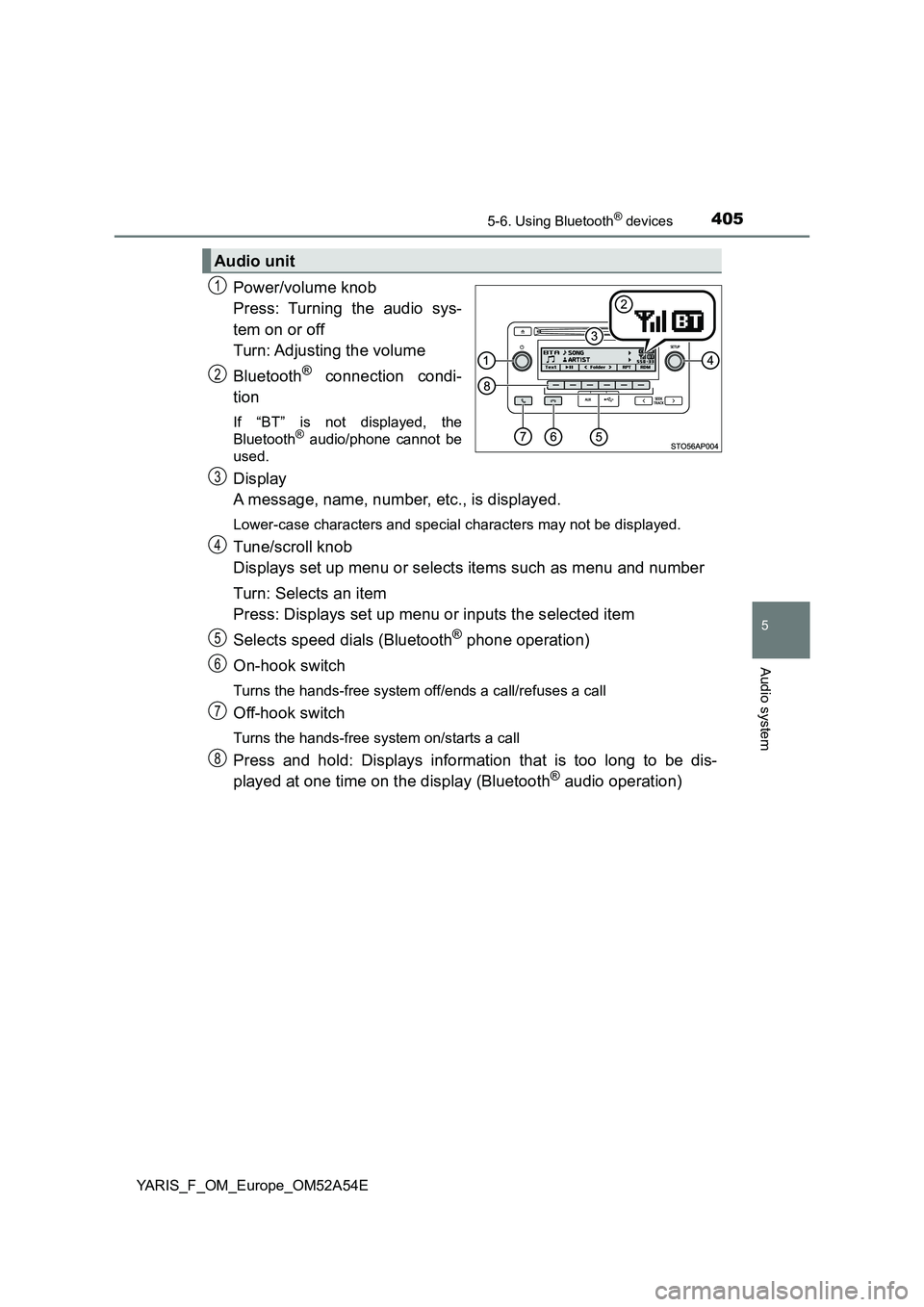
Power/volume knob
Press: Turning the audio sys-
tem on or off
Turn: Adjusting the volume
Bluetooth® connection condi-
tion
If “BT” is not displayed, the
Bluetooth® audio/phone cannot be
used.
Display
A message, name, number, etc., is displayed.
Lower-case characters and special characters may not be displayed.
Tune/scroll knob
Displays set up menu or selects items such as menu and number
Turn: Selects an item
Press: Displays set up menu or inputs the selected item
Selects speed dials (Bluetooth® phone operation)
On-hook switch
Turns the hands-free system off/ends a call/refuses a call
Off-hook switch
Turns the hands-free system on/starts a call
Press and hold: Displays information that is too long to be dis-
played at one time on the display (Bluetooth® audio operation)
Audio unit
1
2
3
4
5
6
7
8
Page 407 of 692
4075-6. Using Bluetooth® devices
5
Audio system
YARIS_F_OM_Europe_OM52A54E
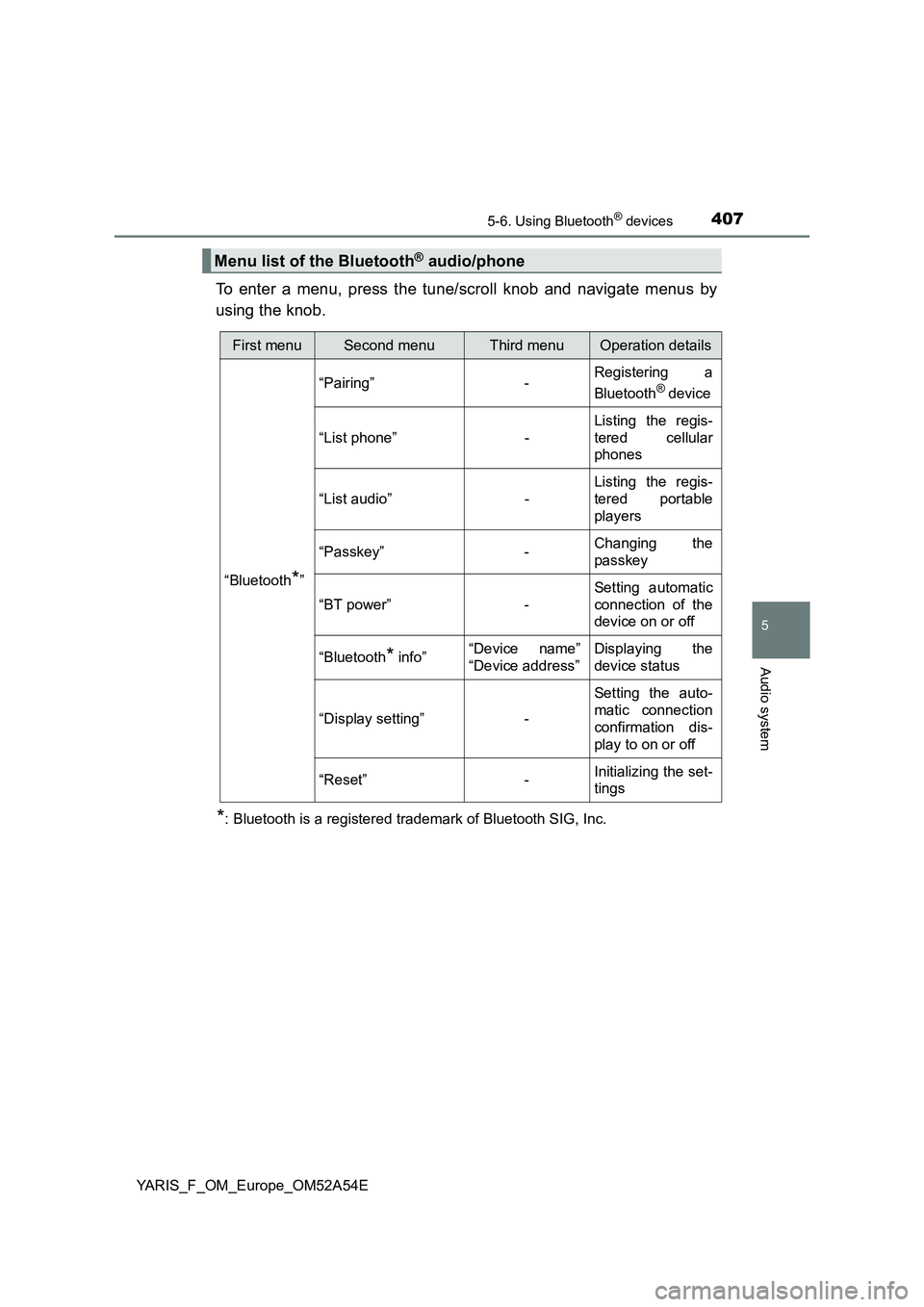
To enter a menu, press the tune/scroll knob and navigate menus by
using the knob.
*: Bluetooth is a registered trademark of Bluetooth SIG, Inc.
Menu list of the Bluetooth® audio/phone
First menuSecond menuThird menuOperation details
“Bluetooth
*”“Pairing” -Registering a
Bluetooth
® device
“List phone” -Listing the regis-
tered cellular
phones
“List audio” -Listing the regis-
tered portable
players
“Passkey” -Changing the
passkey
“BT power” -Setting automatic
connection of the
device on or off
“Bluetooth
* info”“Device name”
“Device address”Displaying the
device status
“Display setting” -Setting the auto-
matic connection
confirmation dis-
play to on or off
“Reset” -Initializing the set-
tings
Page 410 of 692
4105-6. Using Bluetooth® devices
YARIS_F_OM_Europe_OM52A54E
Registering a Bluetooth® device
Press the tune/scroll knob and select “Bluetooth*” using the knob.
Press the knob and select “Pairing” using the knob.
A passkey will be displayed.
SSP (Secure Simple Pairing) incompatible Bluetooth
® devices:
Input the passkey into the device.
SSP (Secure Simple Pairing) compatible Bluetooth
® devices:
Select “Yes” to register the device. Depending on the type of
device, it may register automatically.
If a Bluetooth
® device has both music player and cellular phone func-
tions, both functions will be registered at the same time. When delet-
ing the device, both functions will be deleted at the same time.
If the off-hook switch is pressed and the “Phone” mode is entered
when no phones have been registered, the registration screen will be
automatically displayed.
*: Bluetooth is a registered trademark of Bluetooth SIG, Inc.
: If equipped
Before using the Bluetooth® audio/phone, it is necessary to reg-
ister a Bluetooth® device in the system. You can register up to 5
Bluetooth® devices.
How to register a Bluetooth® device
1
2
3
Page 411 of 692
4115-7. “SETUP” menu
5
Audio system
YARIS_F_OM_Europe_OM52A54E
Using the “SETUP” menu (“Bluetooth*”
menu)
Select “Pairing” using the tune/scroll knob (P. 407), and perform the
procedure for registering a portable player. (P. 410)
Select “List phone” using the tune/scroll knob. (P. 407) The list of
registered cellular phones will be displayed.
●Connecting the registered cellular phone to the audio system
Select the name of the cellular phone to be connected using the
tune/scroll knob.
Select “Select” using the knob.
●Deleting a registered cellular phone
Select the name of the cellular phone to be deleted using the
tune/scroll knob.
Select “Delete” using the knob.
Press (“Yes”).
*: Bluetooth is a registered trademark of Bluetooth SIG, Inc.
: If equipped
Registering a Bluetooth® device in the system allows the system
to function. The following functions can be used for registered
devices:
Registering a portable player
Listing the registered cellular phones
1
2
1
2
3