navigation system TOYOTA YARIS 2022 User Guide
[x] Cancel search | Manufacturer: TOYOTA, Model Year: 2022, Model line: YARIS, Model: TOYOTA YARIS 2022Pages: 590, PDF Size: 128.6 MB
Page 115 of 590
113
2
HV Owner's Manual_Europe_M52N30_en
2-1. Instrument cluster
Vehicle status information and indicators
equipped) (P.220)
Dynamic radar cruise control
with full-speed range (if
equipped) ( P.230)
■Navigation system-linked dis-
play (if equipped)
Select to display the following navi-
gation system-linked information:
Route guidance to destination (if
equipped)
Compass display (heading-up
display)
Select to enable selection of an
audio source or track on the meter
using the meter control switches.
This menu icon can be set to be dis-
played/not displayed in .
■Display items
Drive information
Energy monitor (P. 1 2 0 )
■Drive information
2 items that are selected using the
“Drive Info Items” setting (average
speed, distance and total time) can
be displayed vertically.
The displayed information changes
according to the “Drive Info Type”
setting (since the system was
started or between resets).
( P. 1 1 3 )
Use the displayed information as a
reference only.
Following items will be displayed.
“Trip”
• “Average Speed”: Displays the aver-
age vehicle speed since hybrid sys-
tem start*
• “Distance”: Displays the distance
driven since hybrid system start*
• “Total Time”: Displays the elapsed
time since hybrid system start*
*: These items are reset each time the
hybrid system stops.
“Total”
• “Average Speed”: Displays the aver-
age vehicle speed since the display
was reset*
• “Distance”: Displays the distance
driven since the display was reset*
• “Total Time”: Displays the elapsed
time since the display was reset*
*: To reset, display the desired item and
press and hold the meter control
switch.
■Meter display settings that can
be changed
Clock setting (vehicles without 7-
inch/8-inch display multimedia
system)
P. 1 0 2
Language
Select to change the language dis-
played.
Audio system-linked dis-
play (if equipped)
Vehicle information display
Settings display
Page 118 of 590
116
HV Owner's Manual_Europe_M52N30_en
2-1. Instrument cluster
*: If equipped
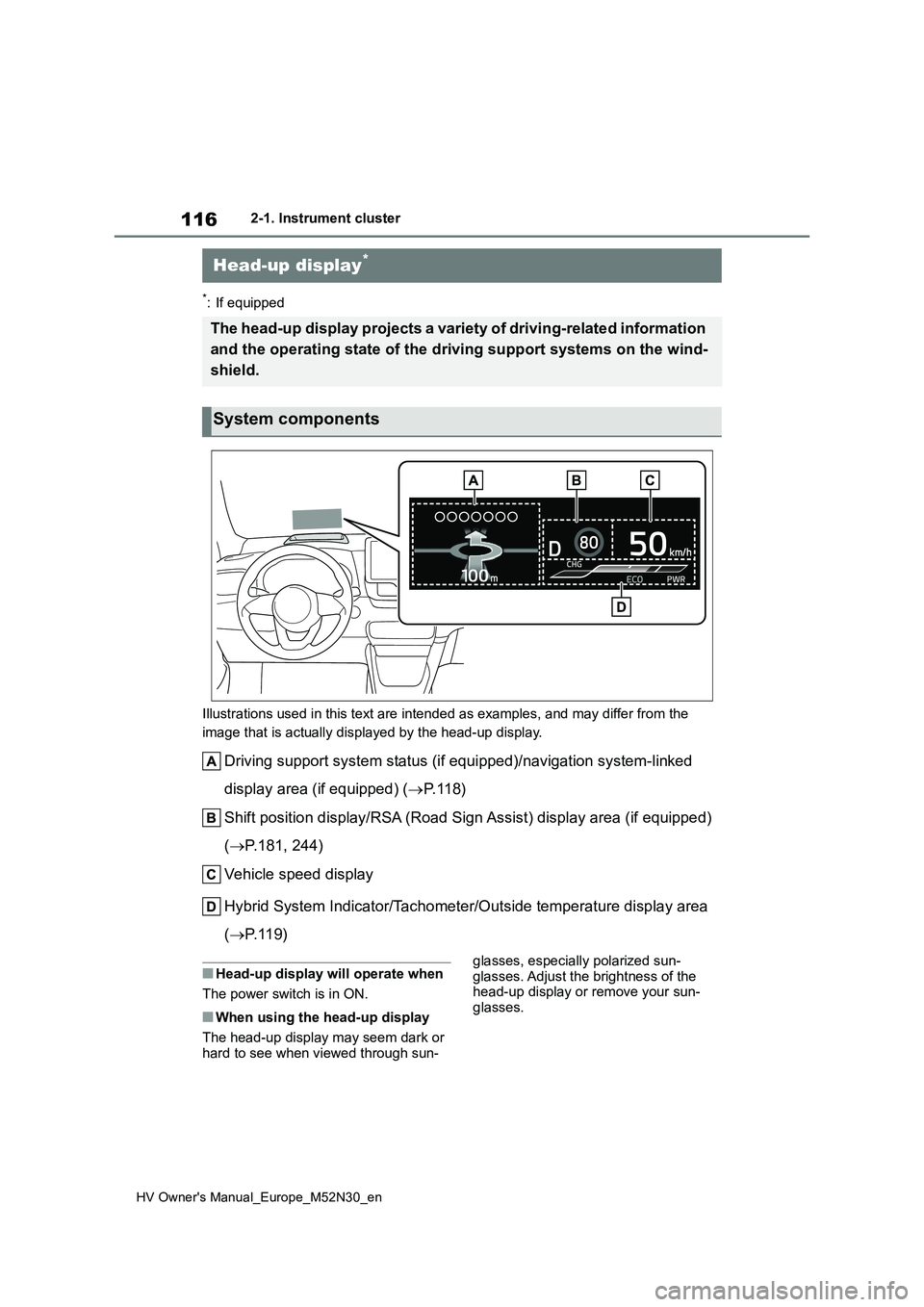
Illustrations used in this text are intended as examples, and m ay differ from the
image that is actually displayed by the head-up display.
Driving support system status (if equipped)/navigation system-l inked
display area (if equipped) ( P. 1 1 8 )
Shift position display/RSA (Road Sign Assist) display area (if equipped)
( P.181, 244)
Vehicle speed display
Hybrid System Indicator/Tachometer/Outside temperature display area
( P. 1 1 9 )
■Head-up display will operate when
The power switch is in ON.
■When using the head-up display
The head-up display may seem dark or hard to see when viewed through sun-
glasses, especially polarized sun-
glasses. Adjust the brightness of the head-up display or remove your sun-glasses.
Head-up display*
The head-up display projects a variety of driving-related infor mation
and the operating state of the d riving support systems on the wind-
shield.
System components
Page 119 of 590
117
2
HV Owner's Manual_Europe_M52N30_en
2-1. Instrument cluster
Vehicle status information and indicators
■Street name display (vehicles with
navigation system)
Only street names which are included in the map data will be displayed.Select on the multi-information
display ( P.431) and then “HUD
Main”.
■Enabling/disabling the head-
up display
Press the meter control switch
to enable/disable the head-up dis-
play.
■Changing the head-up display
settings
Press and hold the meter con-
trol switch to change the following
settings:
Brightness and vertical position
of the head-up display
Select to adjust the brightness or verti-
cal position of the head-up display.
Display content
Select to change the display between
the following:
• No content
• Hybrid System Indicator
• Tachometer
Select to enable/disable the fol-
lowing items:
• Route guidance to destination (if
equipped)
• Driving support system display (if
equipped)
• Compass (heading-up display) (if
equipped)
• Audio system operation status (if
equipped)
WARNING
■When using the head-up display
●Check that the position and bright- ness of the head-up display image
does not interfere with safe driving. Incorrect adjustment of the image’s position or brightness may obstruct
the driver’s view and lead to an accident, resulting in death or seri-ous injury.
●Do not continuously look at the head-up display while driving as
you may fail to see pedestrians, objects on the road, etc., ahead of the vehicle.
NOTICE
■Head-up display projector
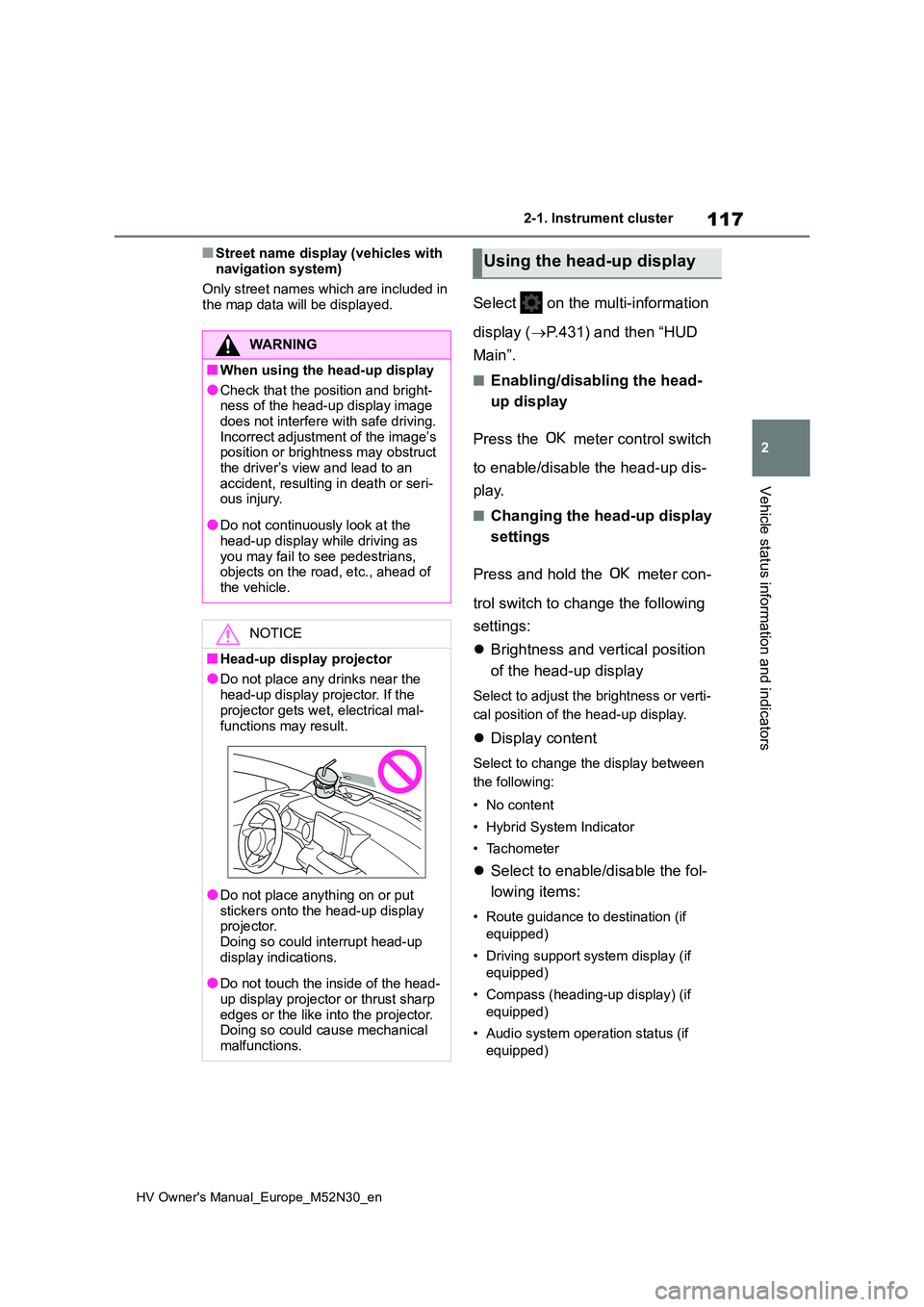
●Do not place any drinks near the
head-up display projector. If the projector gets wet, electrical mal-
functions may result.
●Do not place anything on or put
stickers onto the head-up display projector. Doing so could interrupt head-up
display indications.
●Do not touch the inside of the head-
up display projector or thrust sharp edges or the like into the projector. Doing so could cause mechanical
malfunctions.
Using the head-up display
Page 120 of 590
118
HV Owner's Manual_Europe_M52N30_en
2-1. Instrument cluster
Display angle
Select to adjust the angle of the head-
up display.
■Enabling/disabling of the head-up
display
If the head-up display is disabled, it will remain disabled when the power switch
is turned off then back to ON.
■Display brightness
The brightness of the head-up display
can be adjusted on of the multi-
information display. Also, it is automati-
cally adjusted according to the ambient
brightness.
■Driving support system status
display
Displays the operational status of
the following systems:
Dynamic radar cruise control
with full-speed range (if
equipped) ( P.230)
LTA (Lane Tracing Assist) (if
equipped) ( P.220)
Details of content displayed on the
head-up display may differ from that
displayed on the multi-information dis-
play. For details, refer to the explana-
tion of each system.
■Navigation system-linked dis-
play area (if equipped)
Displays the following items which
are linked to the navigation system:
Street name
Route guidance to destination (if
equipped)
Compass (heading-up display)
Pop-up displays for the following
systems will be displayed when
necessary:
■Driving support systems
Displays a warning/sugges-
tion/advice message or the operat-
ing state of a relevant system.
PCS (Pre-Collision System) (if
WARNING
■Caution for changing settings of the head-up display
If the hybrid system is operating while
changing certain settings on the set- tings display, ensure that the vehicle is parked in a place with adequate
ventilation. In a closed area such as a garage, exhaust gases including harmful carbon monoxide (CO) may
collect and enter the vehicle. This may lead to death or a serious health hazard.
NOTICE
■When changing the settings of the head-up display
To prevent 12-volt battery discharge, ensure that the hybrid system is oper-ating while changing the settings of
the head-up display.
Driving support system sta-
tus/navigation system-
linked display area
Pop-up display
Page 123 of 590
121
2
HV Owner's Manual_Europe_M52N30_en
2-1. Instrument cluster
Vehicle status information and indicators
meter control switches on the steer-
ing wheel and select , press
/ (vertical display) or /
(horizontal display) of the meter
control switches and select the
energy monitor.
7-inch/8-inch display multimedia
system
1 Press the “MENU” button.
2 Select “Info” on the “Menu”
screen.
3 Select “ECO” on the “Informa-
tion” screen.*
*: Models with navigation function only
If a screen other than “Energy monitor” is displayed, select “Energy”.
9-inch display multimedia system
1 Press the “HOME” button.
2 Select “Vehicle” on the “Home”
screen.
If a screen other than “Energy monitor” is displayed, select “Energy flow”.
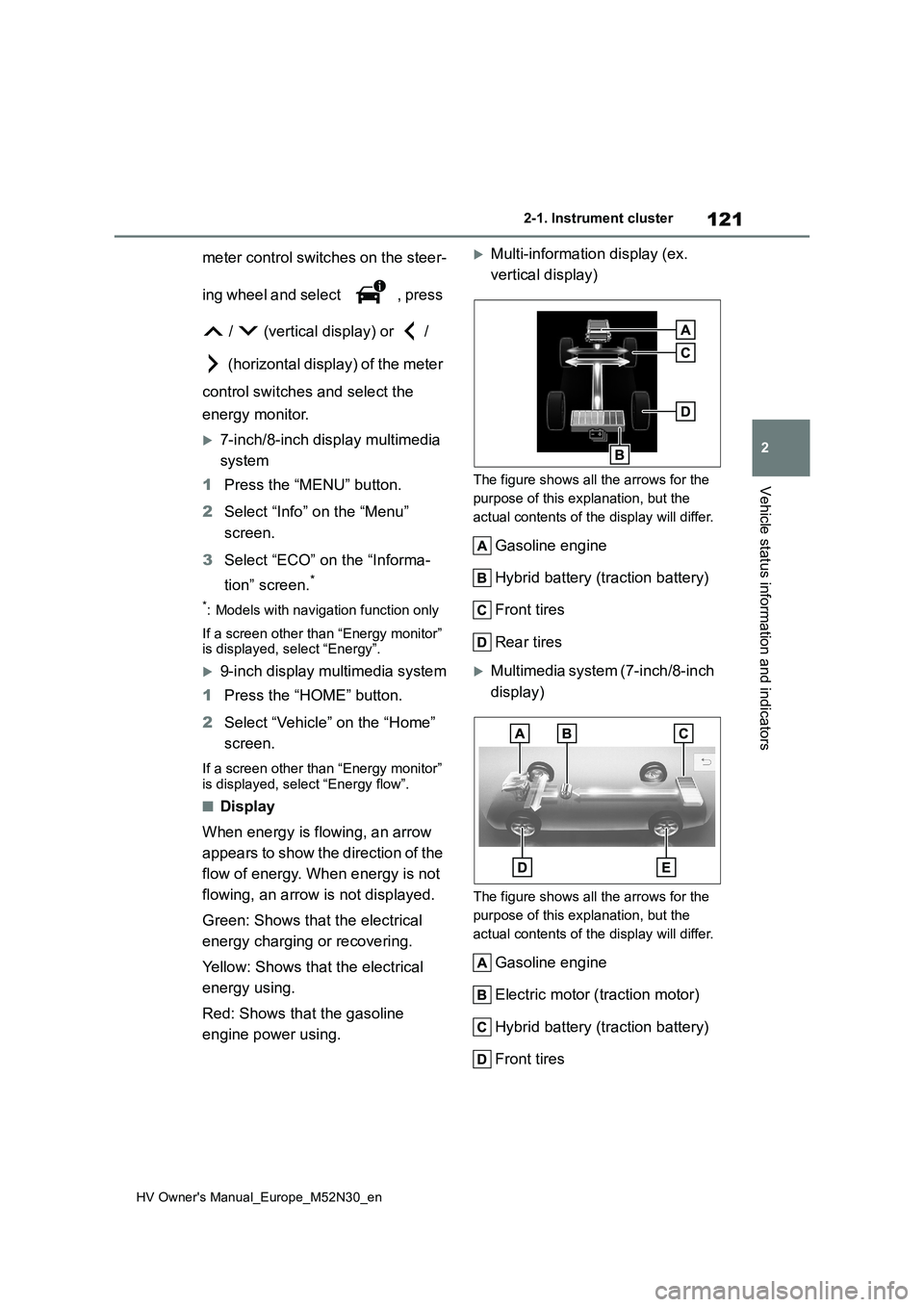
■Display
When energy is flowing, an arrow
appears to show the direction of the
flow of energy. When energy is not
flowing, an arrow is not displayed.
Green: Shows that the electrical
energy charging or recovering.
Yellow: Shows that the electrical
energy using.
Red: Shows that the gasoline
engine power using.
Multi-information display (ex.
vertical display)
The figure shows all the arrows for the
purpose of this explanation, but the
actual contents of the display will differ.
Gasoline engine
Hybrid battery (traction battery)
Front tires
Rear tires
Multimedia system (7-inch/8-inch
display)
The figure shows all the arrows for the
purpose of this explanation, but the
actual contents of the display will differ.
Gasoline engine
Electric motor ( traction motor)
Hybrid battery (traction battery)
Front tires
Page 126 of 590
124
HV Owner's Manual_Europe_M52N30_en
2-1. Instrument cluster
deleted by selecting “Clear”.
■Cruising range
Displays the estimated maximum dis- tance that can be driven with the quan-tity of fuel remaining.
This distance is computed based on your average fuel consumption. As a result, the actual distance that can
be driven may differ from that displayed.
■“Home” screen
The average fuel consumption and dis- tance to empty can be displayed on the
“Home” screen of the multimedia dis- play.
For details of the “Home” screen, refer
to the separate “Navigation and multi- media system Owner’s manual”.
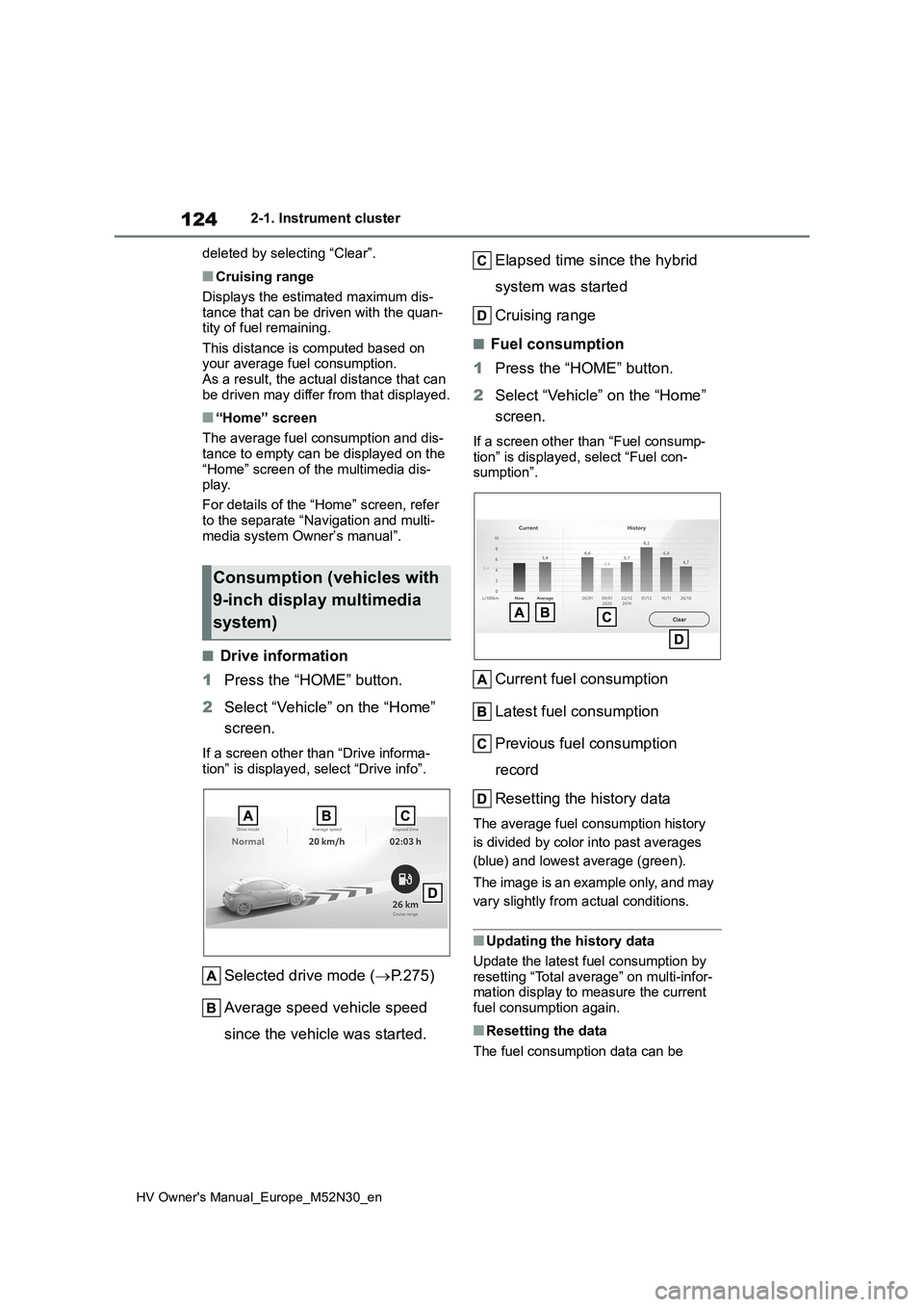
■Drive information
1 Press the “HOME” button.
2 Select “Vehicle” on the “Home”
screen.
If a screen other than “Drive informa- tion” is displayed, select “Drive info”.
Selected drive mode ( P.275)
Average speed vehicle speed
since the vehicle was started.
Elapsed time since the hybrid
system was started
Cruising range
■Fuel consumption
1 Press the “HOME” button.
2 Select “Vehicle” on the “Home”
screen.
If a screen other than “Fuel consump-
tion” is displayed, select “Fuel con- sumption”.
Current fuel consumption
Latest fuel consumption
Previous fuel consumption
record
Resetting the history data
The average fuel consumption history
is divided by color into past averages
(blue) and lowest average (green).
The image is an example only, and may
vary slightly from actual conditions.
■Updating the history data
Update the latest fuel consumption by
resetting “Total average” on multi-infor- mation display to measure the current fuel consumption again.
■Resetting the data
The fuel consumption data can be
Consumption (vehicles with
9-inch display multimedia
system)
Page 246 of 590
244
HV Owner's Manual_Europe_M52N30_en
4-5. Using the driving support systems
*: If equipped
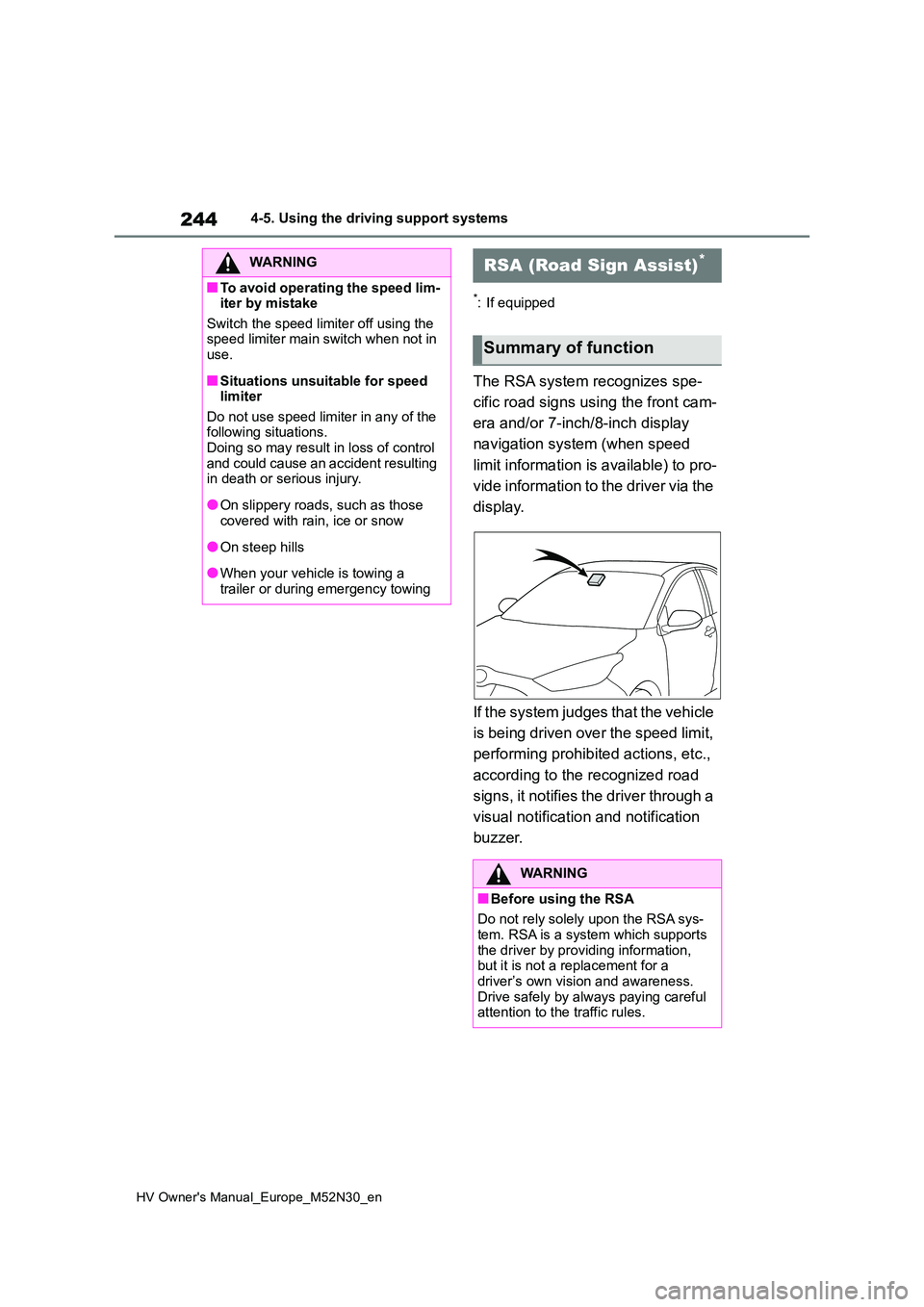
The RSA system recognizes spe-
cific road signs using the front cam-
era and/or 7-inch/8-inch display
navigation system (when speed
limit information is available) to pro-
vide information to the driver via the
display.
If the system judges that the vehicle
is being driven over the speed limit,
performing prohibited actions, etc.,
according to the recognized road
signs, it notifies the driver through a
visual notification and notification
buzzer.
WARNING
■To avoid operating the speed lim- iter by mistake
Switch the speed limiter off using the speed limiter main switch when not in use.
■Situations unsuitable for speed limiter
Do not use speed limiter in any of the following situations.Doing so may result in loss of control
and could cause an accident resulting in death or serious injury.
●On slippery roads, such as those covered with rain, ice or snow
●On steep hills
●When your vehicle is towing a
trailer or during emergency towing
RSA (Road Sign Assist)*
Summary of function
WARNING
■Before using the RSA
Do not rely solely upon the RSA sys- tem. RSA is a system which supports
the driver by providing information, but it is not a replacement for a driver’s own vision and awareness.
Drive safely by always paying careful attention to the traffic rules.
Page 247 of 590
245
4
HV Owner's Manual_Europe_M52N30_en
4-5. Using the driving support systems
Driving
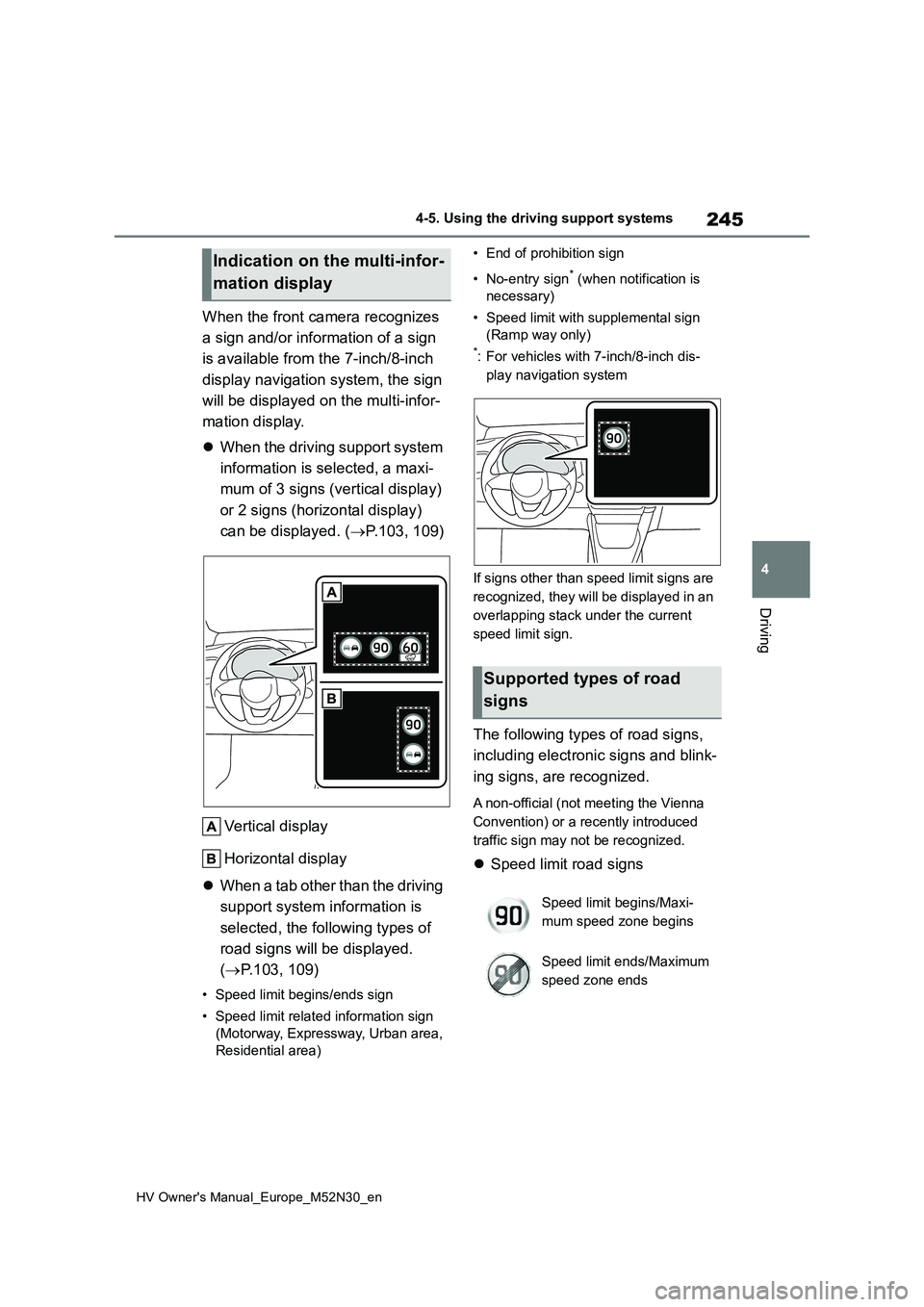
When the front camera recognizes
a sign and/or information of a sign
is available from the 7-inch/8-inch
display navigation system, the sign
will be displayed on the multi-infor-
mation display.
When the driving support system
information is selected, a maxi-
mum of 3 signs (vertical display)
or 2 signs (horizontal display)
can be displayed. ( P.103, 109)
Vertical display
Horizontal display
When a tab other than the driving
support system information is
selected, the following types of
road signs will be displayed.
( P.103, 109)
• Speed limit begins/ends sign
• Speed limit related information sign
(Motorway, Expressway, Urban area,
Residential area)
• End of prohibition sign
• No-entry sign* (when notification is
necessary)
• Speed limit with supplemental sign
(Ramp way only)
*: For vehicles with 7-inch/8-inch dis-
play navigation system
If signs other than speed limit signs are
recognized, they will be displayed in an
overlapping stack under the current
speed limit sign.
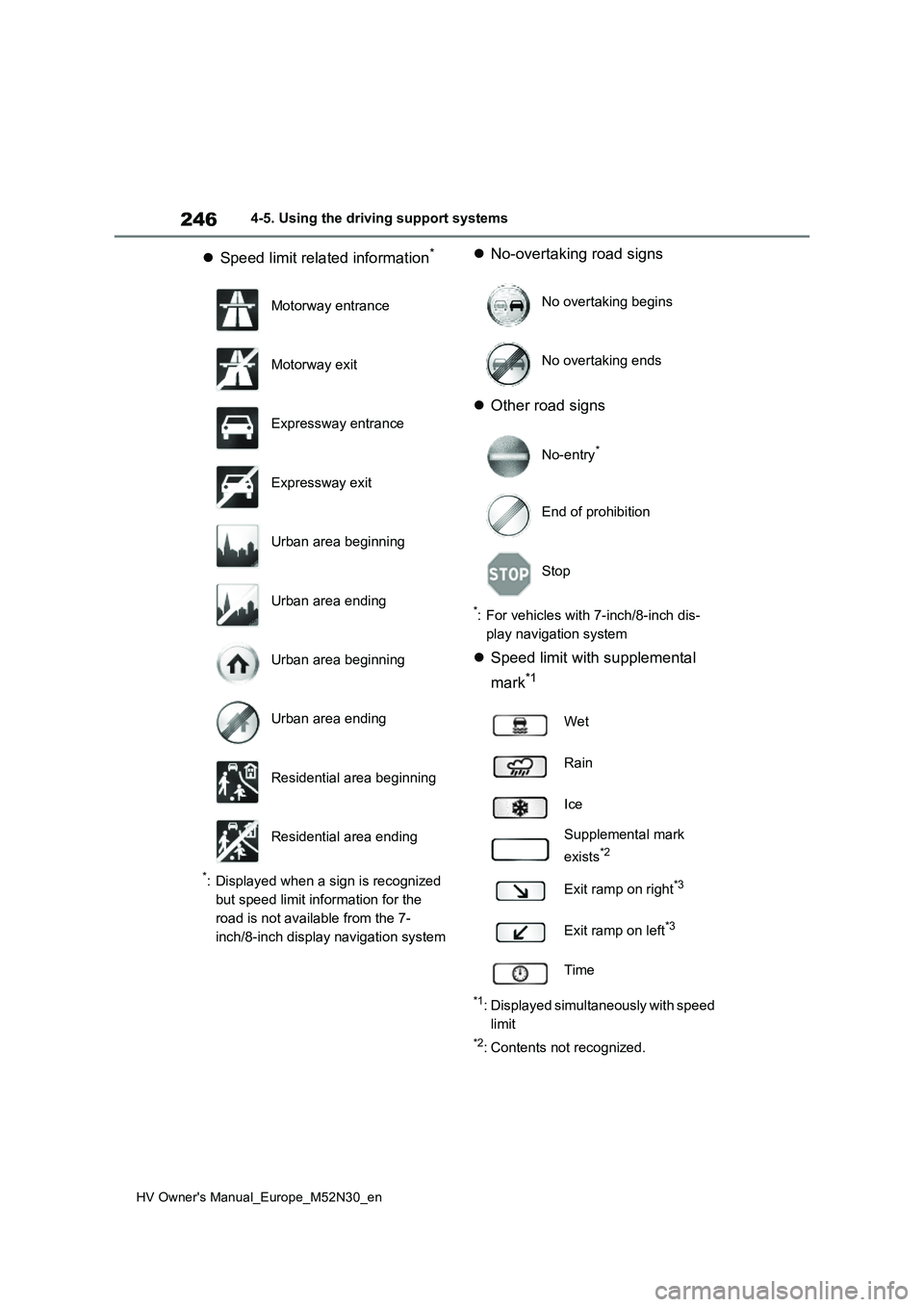
The following types of road signs,
including electronic signs and blink-
ing signs, are recognized.
A non-official (not meeting the Vienna
Convention) or a recently introduced
traffic sign may not be recognized.
Speed limit road signs
Indication on the multi-infor-
mation display
Supported types of road
signs
Speed limit begins/Maxi-
mum speed zone begins
Speed limit ends/Maximum
speed zone ends
Page 248 of 590
246
HV Owner's Manual_Europe_M52N30_en
4-5. Using the driving support systems
Speed limit related information*
*: Displayed when a sign is recognized
but speed limit information for the
road is not available from the 7-
inch/8-inch display navigation system
No-overtaking road signs
Other road signs
*: For vehicles with 7-inch/8-inch dis-
play navigation system
Speed limit with supplemental
mark*1
*1: Displayed simultaneously with speed
limit
*2: Contents not recognized.
Motorway entrance
Motorway exit
Expressway entrance
Expressway exit
Urban area beginning
Urban area ending
Urban area beginning
Urban area ending
Residential area beginning
Residential area ending
No overtaking begins
No overtaking ends
No-entry*
End of prohibition
Stop
Wet
Rain
Ice
Supplemental mark
exists*2
Exit ramp on right*3
Exit ramp on left*3
Time
Page 249 of 590
247
4
HV Owner's Manual_Europe_M52N30_en
4-5. Using the driving support systems
Driving
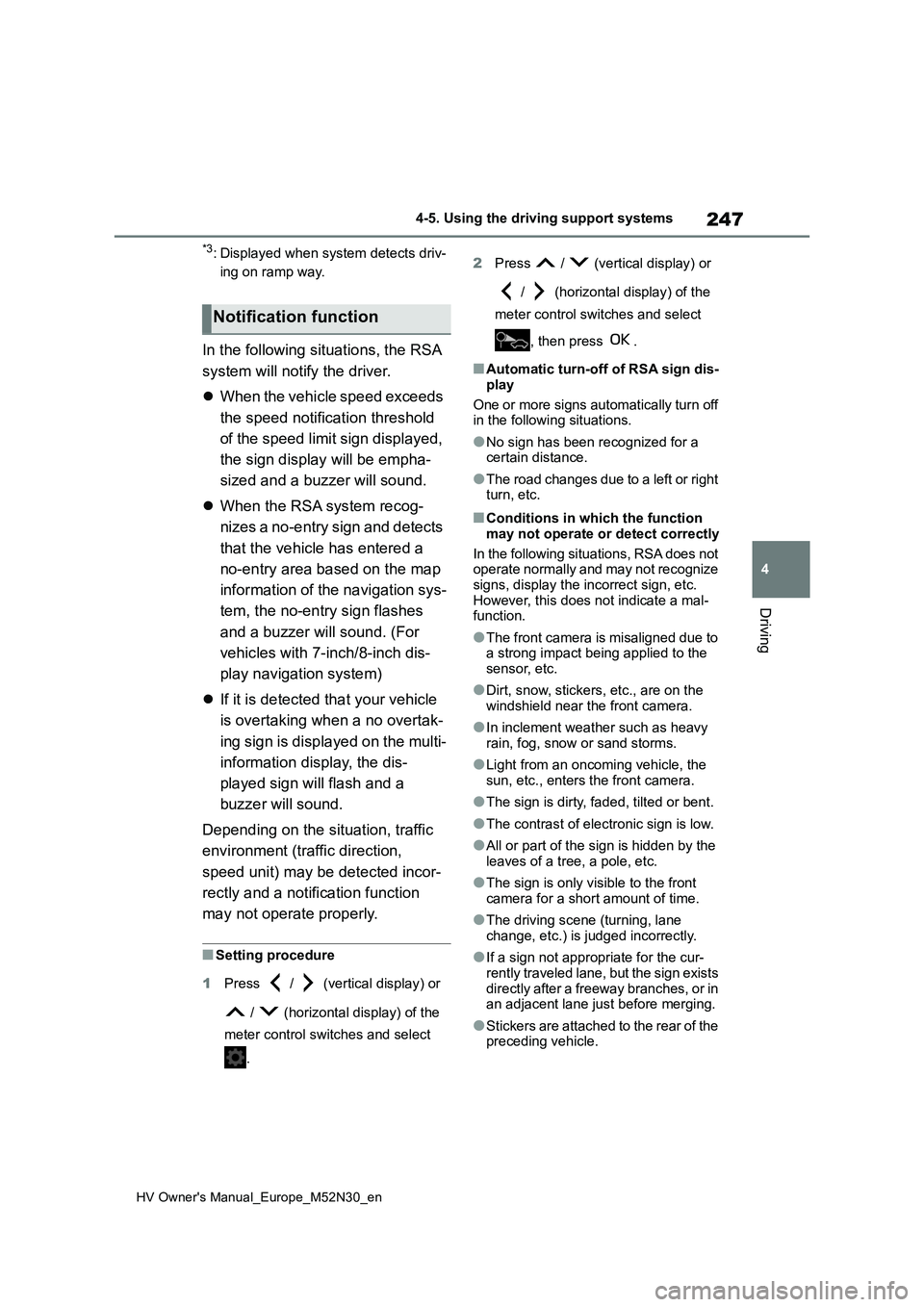
*3: Displayed when system detects driv-
ing on ramp way.
In the following situations, the RSA
system will notify the driver.
When the vehicle speed exceeds
the speed notification threshold
of the speed limit sign displayed,
the sign display will be empha-
sized and a buzzer will sound.
When the RSA system recog-
nizes a no-entry sign and detects
that the vehicle has entered a
no-entry area based on the map
information of the navigation sys-
tem, the no-entry sign flashes
and a buzzer will sound. (For
vehicles with 7-inch/8-inch dis-
play navigation system)
If it is detected that your vehicle
is overtaking when a no overtak-
ing sign is displayed on the multi-
information display, the dis-
played sign will flash and a
buzzer will sound.
Depending on the situation, traffic
environment (traffic direction,
speed unit) may be detected incor-
rectly and a notification function
may not operate properly.
■Setting procedure
1 Press / (vertical display) or
/ (horizontal display) of the
meter control switches and select
.
2 Press / (vertical display) or
/ (horizontal display) of the
meter control switches and select
, then press .
■Automatic turn-off of RSA sign dis-
play
One or more signs automatically turn off in the following situations.
●No sign has been recognized for a certain distance.
●The road changes due to a left or right turn, etc.
■Conditions in which the function
may not operate or detect correctly
In the following situations, RSA does not operate normally and may not recognize
signs, display the incorrect sign, etc. However, this does not indicate a mal-function.
●The front camera is misaligned due to a strong impact being applied to the
sensor, etc.
●Dirt, snow, stickers, etc., are on the
windshield near the front camera.
●In inclement weather such as heavy
rain, fog, snow or sand storms.
●Light from an oncoming vehicle, the
sun, etc., enters the front camera.
●The sign is dirty, faded, tilted or bent.
●The contrast of electronic sign is low.
●All or part of the sign is hidden by the leaves of a tree, a pole, etc.
●The sign is only visible to the front camera for a short amount of time.
●The driving scene (turning, lane change, etc.) is judged incorrectly.
●If a sign not appropriate for the cur-rently traveled lane, but the sign exists
directly after a freeway branches, or in an adjacent lane just before merging.
●S t ic ke r s a r e a t t ac he d to t he r e ar o f th e preceding vehicle.
Notification function