USB VAUXHALL MOVANO_B 2015.5 Infotainment system
[x] Cancel search | Manufacturer: VAUXHALL, Model Year: 2015.5, Model line: MOVANO_B, Model: VAUXHALL MOVANO_B 2015.5Pages: 139, PDF Size: 1.84 MB
Page 34 of 139

34Introduction
Audio settings
Select Audio to display the following
options:
■ Vol/Speed (Off/1/2/3/4/5)
Set the degree of volume
adaptation.
■ Loudness (On/Off)
■ Sound
Refer to (NAVI 50) "Tone settings"
3 31.
System settings
R15 BT USB, R16 BT USB, CD16 BT USB, CD18 BT USB -System settings Press the SETUP button and access
the settings menu by turning and pressing the OK rotary knob.
When system setting adjustments
have been made, press SETUP to
exit the menu and save changes. The system also saves and exits
automatically after a delay.Change system language
Change the display language by accessing the Language menu.
Select a language from the list by
turning and pressing the OK knob.Restore default system settings
To restore system settings to their
default values, select Default
settings by turning and pressing the
OK knob. Confirm modification when
prompted by pressing the OK knob
again.
CD35 BT USB - System settings
Press the SETUP / TEXT button to
access the settings menu.
When system setting adjustments
have been made, press
SETUP / TEXT to exit the menu and
save changes. The system also
saves and exits automatically after a
delay.
Set the clock
To set the time, access the Clock
menu. Turn the central rotary knob to adjust the Hours setting, then pressthe knob to confirm. Turn the knob to
adjust the Minutes setting and press
to confirm.Change system language
Change the display language by accessing the Language menu. Turn
the central rotary knob to select one
of the 9 languages from the list, then
press the knob to confirm.Restore default system settings
To restore system settings to their
default values, select Default
settings by turning and pressing the
central rotary knob. Confirm
modification when prompted by
pressing the knob again.
NAVI 50 - System settings
To access the settings menu at anytime, press the Home button ;
followed by SETTINGS on the display
screen.
Page 39 of 139

Radio39RadioUsage.......................................... 39
Station search .............................. 41
Autostore lists .............................. 44
Radio data system (RDS) ............45
Digital audio broadcasting ...........48Usage
Radio reception
Radio reception may be disrupted by static, noise, distortion or loss of
reception due to:
■ changes in distance from the transmitter,
■ multi-path reception due to reflection,
■ shadowing.
R15 BT USB, R16 BT USB, CD16 BT USB, CD18 BT USB -
Controls
The most important buttons for
control of the radio are:
■ RADIO : Activate radio, change
waveband
■ 2 3 : Station search
■ OK rotary knob: Change frequency
■ Station buttons 1...6: Preset station
buttons■ SETUP : System settings,
automatic station storing
■ TEXT : Display radio text
information
Activating the radio
Press the RADIO button to switch the
audio source to radio.
The station previously selected will be received.
Selecting the waveband
Press the RADIO button repeatedly to
switch between the available
wavebands (e.g. FM1, FM2, AM).
The station previously selected in that waveband will be received.
CD35 BT USB - Controls
The most important buttons for
control of the radio are:
■ RADIO : Activate radio, change
waveband
■ 2 3 : Change frequency, station
search
■ Central rotary knob: Access stored radio station list
Page 41 of 139

Radio41
NAVI 80 - ControlsUse the touchscreen to operate the
radio.
The main controls are: ■ FM /AM : Press tab in top left corner
of the display and switch between
FM and AM wavebands.
■ Y /Z : Press to start automatic
search for next/previous radio
station.
■ : Press to change to next/
previous frequency in increments of
0.1 MHz.
■ 4/1 : Press to scroll through a list of
stations.
Activating the radio
To access the Radio from the Home
page, press MENU then Multimedia ,
followed by Radio on the display
screen.
The following modes are available: ■ Preset :
Displays stored favourite radio
stations.■ List :
Displays an alphabetical list of
available radio stations (maximum
50 stations).
Notice
Radio stations without RDS: Only
the frequency is displayed. These
stations appear at the end of the list.
■ Frequency :
Search manually or automatically
by scanning the selected range of
frequencies.
Selecting the waveband
Press FM/AM tab in top left corner of
the display and switch between
wavebands.
The station previously selected in that
waveband will be received.Station search
Automatic station search
R15 BT USB, R16 BT USB,
CD16 BT USB, CD18 BT USB -
Automatic station search
Briefly press button 2 or 3 to
search for the next receivable station
in the current waveband.
If no station is found, automatic
searching continues until 2 or 3 is
pressed again.
CD35 BT USB - Automatic station
search
Press button 2 or 3 for approx.
2 seconds to search for the next
receivable station in the current
waveband.
If no station is found, automatic
searching continues until 2 or 3 is
pressed again.
NAVI 50 - Automatic station search
Press l or m in the display to
search for the next receivable station
in the current waveband.
Page 42 of 139

42Radio
If no station is found, automatic
searching continues until l or m is
pressed again.
NAVI 80 - Automatic station search
Press Y or Z in the display to search
for the next receivable station in the
current waveband.
If no station is found, automatic
searching continues until Y or Z is
pressed again.
Manual station search R15 BT USB, R16 BT USB,
CD16 BT USB, CD18 BT USB -
Manual station search
Select the desired waveband then
press and hold button 2 or 3 to
scan the selected waveband.
Release the button when close to the
required frequency. An automatic
search is then made for the next
receivable station and it is played
automatically.
Turn the OK rotary knob to change
the frequency in increments.Stored station search
This allows you to recall radio stations that you have previously stored.
To store a station, select the desired
waveband and station then press
station button 1...6 until an audible
signal sounds, confirming that the
station has been stored to the
appropriate station button. 6 stations
per waveband can be stored.Recalling a stored station
To recall a station, select the desired
waveband then briefly press station
button 1...6.Search radio station name (FM only) Select the FM waveband then
highlight the station name in the
display using button _ or 6.
Press button 1 or 4 repeatedly to
manually search for the required
station name. The frequency may be
displayed instead if the station name
is unavailable.
The alphabetical list contains up to
60 FM radio stations with the best
reception. This list can be updated at
any time. Autostore lists 3 44.CD35 BT USB - Manual station
search
Select the desired waveband then
press and hold button 2 or 3 to
scan the selected waveband.
Release the button when close to the required frequency. An automatic
search is then made for the next receivable station and it is playedautomatically.
Press button 2 or 3 briefly to
change the frequency in increments.Stored station search
This allows you to recall radio stations that you have previously stored.
To store a station, select the desired
waveband and station then press
station button 1...6 until an audible
signal sounds, confirming that the
station has been stored to the
appropriate station button. 6 stations
per waveband can be stored.Recalling a stored station
To recall a station, select the desired
waveband then briefly press station
button 1...6.
Page 44 of 139

44Radio
Recalling a stored station
To recall a station, select the desired
waveband then press Preset to
display the stored favourites. Briefly
press the desired favourite radio
station.Search radio station name (FM only)
Select the FM waveband then press
List to display an alphabetical list of
available radio stations.
Press button 4 or 1 to manually
search for the required station name.
The frequency may be displayed
instead if the station name is
unavailable.
The alphabetical list contains up to
50 radio stations with the best
reception. This list can be updated at any time. Autostore lists 3 44.
Autostore lists
The stations with the best reception in
a waveband can be searched for and
stored automatically via the autostore
function.
Automatic station storing
R15 BT USB, R16 BT USB,
CD16 BT USB, CD18 BT USB -
Automatic station storing
The FM waveband has an autostore
list (AST ), on which 6 stations can be
stored.
While listening to the radio, press and hold the SETUP button: The
6 stations with the strongest reception
will be automatically stored on AST.
Notice
Due to signal strength, it is possible
that less than 6 stations will be
stored.
CD35 BT USB - Automatic station storing
Depending on vehicle, up to 50 radio
stations are continually updated and
stored automatically by the system.Recalling a station
R15 BT USB, R16 BT USB,
CD16 BT USB, CD18 BT USB -
Recalling a station
Select the desired waveband, then
briefly press station button 1...6 to
recall a stored station.
To recall a station on the autostore list
(AST), while listening to the radio
briefly press the SETUP button to
activate AST mode. The station
previously selected will be received.
Briefly press station button 1...6 to
recall another stored station on the
autostore list.
CD35 BT USB - Recalling a station
Select the desired waveband, then
briefly press station button 1...6 to
recall a stored station.
Alternatively, select the FM
waveband and open the FM radio
station list by turning the central rotary
knob. Turn the knob to manually
search for the required station name
and press the knob to select.
Page 45 of 139

Radio45
Updating stations list manuallyStations can also be stored manually
in the autostore list 1)
.
To update the list of stations and
obtain the most recent ones, activate
the system update manually.
Depending on system, the sound may be muted during a manual update.
CD35 BT USB - Updating stations list
manually
Press the SETUP / TEXT button and
turn the central rotary knob to access Radio functions .
Turn the rotary knob to select Update
FM list and press to confirm update.
NAVI 50 - Updating stations list
manually
Press Options then Start alongside
Update List ; Updating ... appears on
the display until the update is
complete.NAVI 80 - Updating stations list
manually
From the Home page, press MENU
then Multimedia , followed by Radio
on the display screen.
Select any the following modes: ■ Preset
■ List
■ Frequency
Press < to open a pop-up menu, then
select Update radio list .
Radio data system (RDS) RDS is an FM station service that
helps you find the desired station and ensures its fault-free reception.Advantages of RDS
■ The programme name of the chosen station appears on the
display screen instead of its
frequency.
■ During an automatic station search,
the Infotainment system tunes into RDS stations only.
■ The Infotainment system always tunes into the best receivable
broadcasting frequency of the
chosen station, by means of AF
(Alternative Frequency).
R15 BT USB, R16 BT USB, CD16 BT USB, CD18 BT USB -RDS functions
Configuring RDS
Press the SETUP button and turn the
OK rotary knob to access the RDS
menu. Press knob to select.
Turn the rotary knob to select RDS
SETUP .1)
Only CD35 BT USB, NAVI 50, NAVI 80.
Page 46 of 139

46Radio
Switching RDS on and off
Press Options on the display screen.
The following settings can be
changed:
Switch on/off RDS-AF by pressing the
OK rotary knob. AF is shown on the
display screen when RDS is active.
Text information (Radio text)
Certain FM radio stations issue text
information relating to the broadcast
program (e.g. song name).
Press the SETUP button and turn the
OK rotary knob to access the Radio
texts menu.
Turn the rotary knob to select Radio
and press the knob to see this
information.
CD35 BT USB - RDS functions
Configuring RDS
Press the SETUP / TEXT button and
turn the central rotary knob to access the Radio functions menu. Press
knob to select.
Turn the rotary knob to select
RDS-AF .Switching RDS on and off
Switch on/off RDS-AF by pressing the
central rotary knob.
I-Traffic service (Traffic information)
Radio traffic service stations are FM
RDS stations that broadcast traffic
news.Switching the I-Traffic service on and
off
To switch the traffic announcement
on and off:
Press the SETUP / TEXT button and
turn the central rotary knob to access the Radio functions menu. Press
knob to select.
Turn the rotary knob to select i
Traffic and switch on/off by pressing
the knob.
■ If the radio traffic service is switched on, CD/MP3 playback is
interrupted for the duration of the traffic announcement.
■ Traffic announcements will not be broadcast automatically when the
LW or MW waveband is selected.
Change the audio source orwaveband to FM to ensure traffic
announcements are broadcast
automatically.Blocking out traffic announcements
To block out a traffic announcement
e.g. during CD/MP3 playback: Press
the central rotary knob (or the /
button).
The traffic announcement is
interrupted, but the radio traffic
service remains switched on.
Text information (Radio text)
Certain FM radio stations issue text
information relating to the broadcast
program (e.g. song name).
Press and hold the SETUP / TEXT
button to see this information.
Press the / button or wait for
30 seconds to return to the original
display screen.
Page 51 of 139

CD Player51
■ The following restrictions apply forMP3/WMA CDs:
Only MP3 files and WMA files can
be read.
Maximum folder structure depth:
11 levels
Maximum number of MP3 and/or
WMA files that can be saved:
1000 files
Applicable playlist
extensions: .m3u, .pls
Playlist entries must be in the form
of relative paths.
■ The operation of MP3 and WMA files is identical. When a CD with
WMA files is loaded, MP3-related
menus are displayed.Usage
CD16 BT USB, CD18 BT USB -
CD player usage
Starting CD playback
Switch on the Infotainment system
(by pressing the m knob) and push the
CD with the printed side up into the
CD slot until it is pulled in: CD
playback starts automatically.
If there is already a CD in the unit,
press the MEDIA button repeatedly to
select the desired audio source: CD
playback is started.
Notice
Depending on the data stored on the audio CD or MP3 CD, differing
information about the CD and the current music track will be shown on the display.
Selecting an album or track
Turn the OK rotary knob to select an
album or track from the list.Skipping to the next track or previous
track
Briefly press button 2 or 3 once or
several times.
Fast forward or rewind
Press and hold button 2 or 3 to
fast forward or rewind the current track.
Random playback
During CD playback, press and hold
the numbered button 2 or 4 (from the
Station buttons 1...6) to activate
random playback.
MIX appears on the display when
random playback is active.
Notice
On an MP3 CD, the random
playback function applies only to the
current album.
Press and hold the numbered button
2 or 4 again to deactivate.
MIX disappears from the display.
Random playback can also be
deactivated by ejecting the CD.
Page 55 of 139

AUX input55
by objects being thrown around in
the event of hard braking, a sudden
change in direction or an accident.
R15 BT USB, R16 BT USB, CD16 BT USB, CD18 BT USB-AUX input usage Press the MEDIA or
AUDIO/SOURCE button to change
the audio source to AUX mode, then switch on the auxiliary device. AUX
appears on the display screen.
AUX settings
Press the SETUP button to access
the settings menu.
Select AUX IN and turn the OK rotary
knob until the desired setting is
selected from:
■ HI (300 mV)
■ MID (600 mV)
■ LO (1200 mV)CD35 BT USB - AUX input
usage Press the MEDIA button to activate
the AUX mode, then switch on the
auxiliary device. Jack appears on the
display screen.
NAVI 50 - AUX input usage
To access the media menu at any
time, press the Home button ;
followed by MEDIA on the display
screen.
To switch between auxiliary sources,
press S in top left corner. The
following options are available:
■ USB : Refer to (NAVI 50) "USB port"
3 56.
■ iPod : Refer to (NAVI 50) "USB port"
3 56.
■ BT : Refer to (NAVI 50) "Bluetooth
music" 3 60.
■ AUX : Select to change the audio
source to AUX mode, then switch
on the auxiliary device.NAVI 80 - AUX input usage
Change the audio source to AUX
mode to playback content from a
connected auxiliary device.
To access the media menu from the
Home page, press MENU then
Multimedia , followed by Media on the
display screen.
Press < to open a pop-up menu. The
following options are available:
■ Auxiliary socket : Change the audio
source to AUX mode, then switch
on the auxiliary device.
■ USB : Refer to (NAVI 80) "USB port"
3 56
■ Bluetooth connection : Refer to
(NAVI 80) "Bluetooth music"
3 60
■ SD card
■ CD player
Page 56 of 139
56USB portUSB portGeneral information.....................56
Playing saved audio files .............57General information
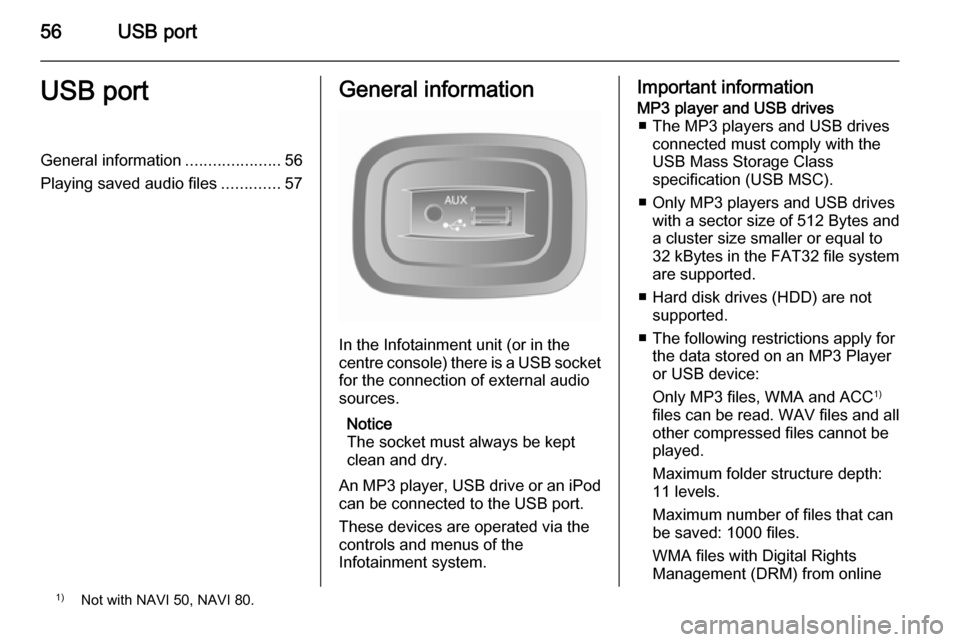
In the Infotainment unit (or in the
centre console) there is a USB socket
for the connection of external audio
sources.
Notice
The socket must always be kept
clean and dry.
An MP3 player, USB drive or an iPod
can be connected to the USB port.
These devices are operated via the
controls and menus of the
Infotainment system.
Important informationMP3 player and USB drives ■ The MP3 players and USB drives connected must comply with the
USB Mass Storage Class
specification (USB MSC).
■ Only MP3 players and USB drives with a sector size of 512 Bytes and
a cluster size smaller or equal to 32 kBytes in the FAT32 file system
are supported.
■ Hard disk drives (HDD) are not supported.
■ The following restrictions apply for the data stored on an MP3 Player
or USB device:
Only MP3 files, WMA and ACC 1)
files can be read. WAV files and all other compressed files cannot be
played.
Maximum folder structure depth:
11 levels.
Maximum number of files that can
be saved: 1000 files.
WMA files with Digital Rights
Management (DRM) from online1) Not with NAVI 50, NAVI 80.