USB VAUXHALL MOVANO_B 2015.5 Infotainment system
[x] Cancel search | Manufacturer: VAUXHALL, Model Year: 2015.5, Model line: MOVANO_B, Model: VAUXHALL MOVANO_B 2015.5Pages: 139, PDF Size: 1.84 MB
Page 90 of 139

90Navigation
■Car symbol :
Change the vehicle icon used on
the 3D navigation map.
■ Advanced :
Select from the following advanced options:
◆ Map information :
Show/hide information displayed
on the map, e.g. address number
before street name, street
names/current street name,
name of street after current
street.
◆ Map behaviour :
Change how the map operates
with the following options:
Show lane images (e.g. at
motorway junctions), rotate map
with vehicle direction (2D mode
only), switch to 3D mode
automatically during guidance,
zoom automatically (2D mode,
3D mode).
◆ Traffic source :
Choose a traffic information
source from the available list.Destination input
CD35 BT USB NAVI -
Destination input
Select a destination
From the main menu, select Navigate
to... , then choose from the following
options:Home
Guides you to your home.
To store the address of your home
location, see Add and save a
favourite .Favourite
A stored list of frequently visited
destinations.
■ Select Favourite and confirm.
■ Select the required destination from
the list and confirm.
To store a destination in the
favourites list, see Add and save a
favourite .
Notice
The Favourite icon will be greyed out
if no destinations have been saved
as a Favourite.Address
Enter either all or part of the address
(i.e. city and street or city centre, area
code etc.).
Notice
Only addresses known to the system through the digital map are
accepted.
■ When using for the first time, set the
destination country.
■ Enter the name of the desired city. The system may suggest several
cities (the first line is always
highlighted in yellow).
■ Select the desired city from the list of suggestions and select Done
using the soft button.
■ Proceed in the same way for Street: and House number: .
Page 91 of 139
Navigation91
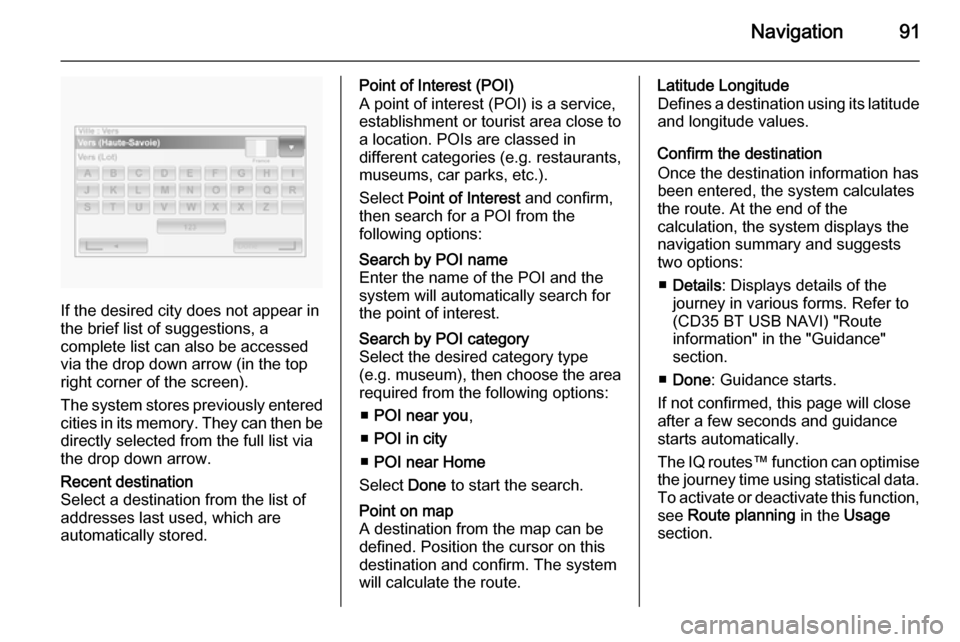
If the desired city does not appear in
the brief list of suggestions, a
complete list can also be accessed via the drop down arrow (in the top
right corner of the screen).
The system stores previously entered
cities in its memory. They can then be directly selected from the full list via
the drop down arrow.
Recent destination
Select a destination from the list of
addresses last used, which are
automatically stored.Point of Interest (POI)
A point of interest (POI) is a service,
establishment or tourist area close to
a location. POIs are classed in
different categories (e.g. restaurants,
museums, car parks, etc.).
Select Point of Interest and confirm,
then search for a POI from the
following options:Search by POI name
Enter the name of the POI and the
system will automatically search for
the point of interest.Search by POI category
Select the desired category type
(e.g. museum), then choose the area
required from the following options:
■ POI near you ,
■ POI in city
■ POI near Home
Select Done to start the search.Point on map
A destination from the map can be defined. Position the cursor on this
destination and confirm. The system
will calculate the route.Latitude Longitude
Defines a destination using its latitude
and longitude values.
Confirm the destination
Once the destination information has
been entered, the system calculates the route. At the end of the
calculation, the system displays the
navigation summary and suggests
two options:
■ Details : Displays details of the
journey in various forms. Refer to
(CD35 BT USB NAVI) "Route
information" in the "Guidance"
section.
■ Done : Guidance starts.
If not confirmed, this page will close
after a few seconds and guidance
starts automatically.
The IQ routes™ function can optimise the journey time using statistical data.
To activate or deactivate this function, see Route planning in the Usage
section.
Page 98 of 139

98Navigation
Latitude Longitude
Enter the co-ordinates of the
destination.
Confirm the destination
When a destination has been
selected, the route appears on the
map and a route summary is provided in the y tab.
Press the LIVE tab to view real-time
traffic information. For further
information, refer to (NAVI 80) "LIVE
services" in the "Usage" section
3 73.
Press Done to confirm the route.
Add and save a favouriteAdd to saved locations
From the Home page, press MENU
then Navigation followed by Drive
to... on the display screen.
Select Recent destinations and
choose a destination from the
displayed list.
Press < (to open a pop-up menu)
then Add to saved locations , give a
name to the destination using the
keyboard, then press Next.A message is displayed asking if the
saved address should be set as the
Home address. Select Yes or No. A
message is displayed confirming that
the address has been saved.Add Favourite
On the Home page, press f to open
the favourites menu and select
Navigation .
To set a saved destination as a
favourite, press < (to open a pop-up
menu), then Add Favourite .
Choose from the displayed list to add a saved destination to the favourites.
For further information, refer to
(NAVI 80) "Favourites" in the
"Introduction" section 3 22.
Delete a favourite
On the Home page, press f to open
the favourites menu and select
Navigation .
Press < and select Remove all
Favourites or select a favourite from
the displayed list then press Remove
a Favourite . A confirmation message
is displayed. Press Delete to confirm.
For further information, refer to
(NAVI 80) "Favourites" in the
"Introduction" section 3 22.
Guidance ROUTE INFORMATION CD35 BT USB NAVI - Route
information
To view the route before guidance
begins, select View route after a
destination has been entered.
Select the details of the route from the
following options:Browse as text
Shows the route plan. Several details of the route will appear:
■ direction change arrows,
■ road types,
■ road names,
■ distance before a junction.Browse as images
Shows changes in direction as
images.
Page 100 of 139

100Navigation
Notice
These options can also be accessed during route guidance by pressing
on the 'Journey information' (e.g.
estimated arrival time, total
remaining distance) area of the
display screen.
Refer to (NAVI 50) "Information on
the display" in the "Usage" section 3 73.Simulate navigation
This function enables you to see a
rapid view of the suggested route.
The following options are available:r=Start or pause the route simulationf=Move to previous
manoeuvree=Move to next
manoeuvre1x / 4x / 8x=Increase the speed of
the route simulationr=Return to previous
screenNAVI 80 - Route information
To view the route before guidance
begins, press < (to open a pop-up
menu), then select Route details after
a destination has been entered.
The following options are available: ■ Display instructions :
Displays the route plan. The following details are shown: ◆ direction change arrows
◆ road types
◆ road names
◆ distance before a fork in the road
(km/miles)
■ Display route map :
View a map of the route.
■ Display route demo :
View a demonstration of the route.
■ Route summary :
Return to the previous screen.
The details of the journey time, distance and the type of journey are
displayed. Refer to (NAVI 80)
"IQ routes™" in the "Destination
input" section 3 90.■ Display destination :
View changes in direction as
images.
■ Display traffic on route :
Displays an overview of all traffic incidents affecting the current
journey, with a detailed incident by
incident view.
With a subscription to LIVE
services, the "Live" tab provides a
more detailed overview of the
journey (e.g. traffic delays, fixed
and mobile speed cameras).
For further information, refer to
(NAVI 80) "LIVE services" in the
"Usage" section 3 73.
EDIT ITINERARY
CD35 BT USB NAVI - Edit Itinerary
To modify the route, select Find
alternative from the main menu. The
following options are available:Calculate alternative
Calculates an alternative to the route
already planned. The system will look
for another route from your current
location to the destination.
Page 103 of 139

Navigation103
To restart guidance, press Drive to..,
followed by Recent destinations on
the display screen and select the
route again.Travel via (waypoints)
Select to change the calculated route to your destination so that it includes
a particular location (waypoint).
The location to be included is entered
the same way as entering a
destination.
Select from the same list of options,
e.g. "Address", "Saved locations",
"Point of Interest", "Point on map".
Refer to (NAVI 80) "Destination input"
3 90.Avoid roadblock
Select this option in the event a
roadblock is not currently indicated by
the Traffic information service.
Refer to (NAVI 80) "Traffic
information" below.
Choose the distance (in metres) of
the route ahead to be avoided, e.g.
"100m", "500m", "2000m", "5000m".The route is recalculated to avoid a
section of the route for the distance
selected.Avoid part of route
Select to avoid a part of the route.
Choose the road to be avoided from
the list of roads along the route.Minimise delays
Select to plan the route based on the
latest traffic information.
DEACTIVATING GUIDANCE
CD35 BT USB NAVI - Deactivating
guidance
To stop guidance when in progress,
select Clear route (or Cancel route ) in
the main menu and confirm. To resume guidance, select Navigate
to... , then Recent destination .
NAVI 50 - Deactivating guidance
To stop guidance when in progress,
press the Home button ; followed by
Route then Cancel Route on the
display screen.
NAVI 80 - Deactivating guidance
To stop guidance when in progress,
press < followed by Delete route on
the display screen.
BROWSE MAP CD35 BT USB NAVI - Browse map
Select Browse map from the main
menu or use one of the direction
buttons on the control. The right soft
button zooms using the up and down
keys. To access the options, press
the OK button, then the right soft
button.Options
Access the option from the map
browser. This menu allows the
selection of information that will be
shown on the browser. To change the
display preferences for points of
interest (POI), press the left soft
button. To confirm the selection,
press the right soft button.
Page 105 of 139

Navigation105
■ Add a point on the map to the POIlist
■ Correct the position of your vehicleFind
Select this option to centre the map
on:
■ your home
■ a saved address
■ an address
■ a recent destination
■ a local search
■ a point of interestChange the map details
Select this option to switch on/off the
following map settings:
■ traffic
■ names
■ points of interest (POI)
■ satellite image map background ■ GPS co-ordinatesAdd to saved locations
Select this option to add the current
position on the map as a saved
destination. Use the keyboard to
enter a name or confirm the
suggested name.
For keyboard operation, refer to
(NAVI 80) " Operating keyboards in
the display " in the "Usage" section
3 73.
HELP!
CD35 BT USB NAVI - Help!
Use Help me! to find and contact
assistance. The following options can
be selected:Emergency phone numbers
The Emergency phone numbers
menu gives different service centres:
■ Nearest police station ,
■ Nearest doctor ,
■ Nearest hospital ,
■ Nearest public transport ,
■ Nearest car repair services ,
■ Nearest dentist ,■Nearest pharmacy ,
■ Nearest vet .
When a service centre is selected, the
location and phone number are
displayed. Select the service centre
as a destination by pressing the soft
button.Drive to help
Use the system to navigate by road
to:
■ Nearest car repair services ,
■ Nearest hospital ,
■ Nearest doctor ,
■ Nearest police station ,
■ Nearest pharmacy ,
■ Nearest dentist .Where am I?
The system shows your current
location (address) and gives the GPS coordinates (latitude/longitude).
NAVI 50 - Help!
When the map screen is displayed,
press Options followed by Where am
I? on the display screen to check
Page 106 of 139

106Navigation
helpful information about the currentlocation and to search for Points of
Interest (POI) nearby.
To access the map screen at any
time, press the Home button ;
followed by MAP on the display
screen.Where am I?
This menu option contains the
following information:
■ Current location (address)
■ Latitude
■ Longitude
■ Altitude
■ GPS status
Press Options to display the following
options:
■ Add to favourites
Refer to (NAVI 50) "Destination
input", "Add and save a favourite"
for further information 3 90.
■ Country information : Refer to
"Country information" below.Country information
This function allows you to check
country information and legislation for
the current location.
When the Where am I? screen is
displayed, press Options followed by
Country information on the display
screen.
This menu option contains the
following information:
■ Speed limits
■ Phone country code (International dialling code, e.g. +49)
■ Emergency number (e.g. 112)
■ Legal restrictions, e.g.: ◆Vehicle equipment requirements,
e.g. warning triangle, first aid kit,
fire extinguisher, spare bulbs, high-visibility jacket etc.
◆ Headlights legislation
◆ Maximum blood alcohol level
◆ Snow chains legislation
◆ Winter tyres legislationHelp Nearby
This function allows you to search for
assistance near your current location.When the Where am I? screen is
displayed, press Help Nearby on the
display screen.
This menu option contains the
following information:
■ Car repair around here (Vehicle
repair services)
■ Health around here (Medical and
emergency services)
■ Police around here (Police stations)
■ Petrol station around here (Fuel
stations)
Select the appropriate option to
access a list of local Points of Interest
(POI).
For information on Points of Interest
(POI), refer to (NAVI 50) "Destination
input" 3 90.
TomTom SAFETY CAMERAS
CD35 BT USB NAVI
The system can provide alerts of
safety or speed cameras on route.
For options select TomTom Safety
Cameras in the main menu:
Page 107 of 139

Navigation107
Report safety camera
If the system does not indicate a
camera that is on the journey, its
details can be entered manually by
selecting Report safety camera .
The type of camera has to be entered (fixed or mobile). The system opens a
map page and using the directional
controls, place the red marker on the
location of the camera and confirm
using the soft buttons.
Confirm the type of camera, and if
Speed camera is chosen, the speed
limit must also be entered and confirmed.
For the system to integrate cameras
entered manually by other users, you must be subscribed to the camera
updates in TomTom HOME . The
camera alert will only become active
after the location is confirmed by the
TomTom technical department.
The quick menu can also be used to
report a camera. Select Report safety
camera . The system requires the type
of camera to be entered, then which
side of the road it is on. Confirm with
the right soft button.Change warning preferences
Use to delete or modify the warning time before the camera and the sound of the warning.
To add camera alerts (mobile
camera, toll road camera etc.), check
the types of camera required. Select
the type of camera to modify, then to
delete the warning, use the soft
buttons to confirm yes or no. If No is
chosen, enter the warning time before the camera and Done using the soft
button.
Select the desired sound to warn of
an upcoming camera. Test the sound
using the left soft button and confirm
with the right soft button.Disable alerts
The camera warnings can be
enabled/disabled. Select Disable
alerts in the main menu if the
warnings are enabled or Enable
alerts if the warnings are disabled.
Notice
In certain countries it is illegal to
download and activate the camera
warning option and this could lead to prosecution.TRAFFIC INFORMATION
CD35 BT USB NAVI - Traffic
information
Allows up-to-date traffic information from local sources to be received.
Traffic information can include:
■ accidents and incidents,
■ traffic volumes,
■ roadworks,
■ weather conditions,
■ lane closures.
The Traffic info service is not
available in all countries and regions.
Traffic incidents are notified by verbal messages and by symbols on the
map - refer to "Symbols overview"
3 109.
To show the status of the Traffic info
service, the following icons are
displayed on the traffic sidebar:A=The device is searching for an
FM station broadcasting traffic
information.$=Traffic information is up-to-date
or being updated.
Page 110 of 139

110Voice recognitionVoice recognitionGeneral information...................110
Navigation control ......................111
Phone control ............................ 111General information
The voice recognition function allows
you to operate certain functions via
voice input.
To ensure that conversations held
inside the vehicle do not start
unintentional calls to a saved contact, the voice recognition function must
first be activated via button 5 on the
steering column controls.
Control elements overview 3 6.
CD35 BT USB The voice recognition function of thehandsfree phone system allows you
to operate certain functions of the
mobile phone via voice input.
Voice tags can be created for the
contacts in the vehicle phonebook
enabling you to call a contact without
manually selecting the caller name or
number.
In the event of incorrect operation, the voice recognition function requests
you to repeat the desired command,
or plays back the available options.NAVI 80
The voice recognition function allows
you to operate certain functions via
voice input, including:
■ Navigation
Refer to "Navigation control" in this
section 3 111.
■ Phone
Refer to "Phone control" in this section 3 111.
■ Applications
Press button 5 on the steering
column controls to open the Voice
control main menu. After the tone,
say " Applications " followed by the
name of the desired application to start it.
When activated, the Voice control
main menu is displayed and the voice
recognition indicator in the top right
corner indicates system status and
optimisation levels:
Page 111 of 139

Voice recognition111
Green=optimal voice
recognitionOrange=good voice
recognitionRed=average voice
recognitionMicrophone é=System is ready to
receive a voice
commandLoudspeaker
l=Voice instructions
are currently being
given by the systemLoading icon=Data currently
loading
Navigation control
NAVI 80
Activating voice recognition
To activate the voice recognition
function:
Press button 5 on the steering
column controls to open the Voice
control main menu.
After the tone, say " Destination" to
enter a new address. Say " Address"
then say the full destination of a new
address (number, street name,
destination town/city).
The address recognised by the
system is displayed. Confirm
destination when prompted to begin guidance.
Alternatively, after the tone say
" Recent destinations " to access a list
of the most recent destinations
entered and select the desired
destination.
For further information, refer to
(NAVI 80) "Destination input" in the
"Navigation" section 3 90.
Phone control CD35 BT USB Creating voice tags
In addition to names and numbers,
voice tags can be created when new
contacts are added to the vehicle
phonebook. Refer to "Operation" in
the "Phone" section 3 122.Voice tags can also be added or
modified afterwards by selecting the following menus and options:
■ Directory Management ,
■ Vehicle phonebook ,
■ Modify this contact .
Select the contact to be modified from the list of contacts, then select the
following menu options by turning and
pressing the rotary knob:
■ (voice tag) ,
■ Launch voice tag recording ,
When prompted to record a voice tag,
speak after the tone. A message asks for the voice tag to be repeated. If the
system does not recognise the
repeated voice tag, it will request it to
be repeated again. A message
confirms that the voice tag has been
recorded successfully.
Upon completion, ensure the voice
tag is stored along with other contact
details by selecting Memorise.
Activating voice recognition
To activate the voice recognition
function: