service VAUXHALL MOVANO_B 2016.5 Infotainment system
[x] Cancel search | Manufacturer: VAUXHALL, Model Year: 2016.5, Model line: MOVANO_B, Model: VAUXHALL MOVANO_B 2016.5Pages: 129, PDF Size: 1.74 MB
Page 76 of 129

76NavigationAfter the entry of the destination
address or point of interest (nearest
petrol station, hotel, etc.) the route is
calculated from the current location to the selected destination.
Route guidance is provided by voice
output and the display screen.9 Warning
Areas such as one-way streets
and pedestrian zones are not
marked on the navigation system map. In such areas, the system
may issue a warning that must be
accepted. Therefore, pay
particular attention to one-way
streets and other roads and
entrances that must not be driven
into.
Notice
Depending on Infotainment system, radio reception may be interrupted
during voice guidance and before
each change of direction.
USB memory stick
(NAVI 50 IntelliLink)
A USB memory stick is required for
the Navigation system, to contain,
among other things, a digital map of
the towns and roads in your country.
Notice
Use a USB memory stick, formatted to FAT32 format, with a minimum
4 GB and maximum 32 GB of
storage capacity.
After delivery of a new vehicle, there
is a maximum of 90 days in which to
update the digital map for free. After
this time has elapsed, a fee is
charged for map updates.
Notice
To avoid possible technical issues,
only use a compatible USB memory
stick for operating and updating the
Navigation system. Do not insert USB memory stick in any other
device (e.g. digital camera, mobile
phone, etc.), or in another vehicle.Software installation
To update the digital maps and to
benefit from exclusive downloadable
services, an account must be created
on the vauxhall.naviextras.com
website and the free software must be
installed.Creating an account
Create your internet account via the
vauxhall.naviextras.com website. Select e.g., the "Register" option on
the web page and enter the
appropriate details.Installing the software
Install the software on your computer
by downloading from
vauxhall.naviextras.com.
Follow the on-screen instructions to
install the software and launch the
online application.Registering the Navigation system
The Navigation system must be
registered with your new internet
account.
Insert an empty USB memory stick in the Navigation system's USB slot.
Press 7 then select yNAVI / ýNav ,
followed by Options then Map update .
Page 84 of 129
84Navigation●Switch map
● Change map colours
● Car symbol
● Advanced
6. NAVIGATION SERVICES
Refer to (NAVI 80 IntelliLink)
"LIVE services" below.
● Traffic
● Speed Cameras
● Local search /TomTom
places
● My TomTom live
● Weather
7. ITINERARIES
Refer to (NAVI 80 IntelliLink) "Edit Itinerary" in the "Guidance"
section 3 96.
8. r : Return to previous screenMap screen
To access the map screen without
navigation, on the Home page press
MENU , then Navigation followed by
View Map on the display screen.Press anywhere on the map. The
cursor indicates the current selected
position. To scroll within the map,
drag the cursor in the required
direction.
To access the map screen with
navigation, on the Home page press
MENU followed by Navigation on the
display screen and enter a
destination. Refer to
(NAVI 80 IntelliLink) "Destination
input" 3 90.
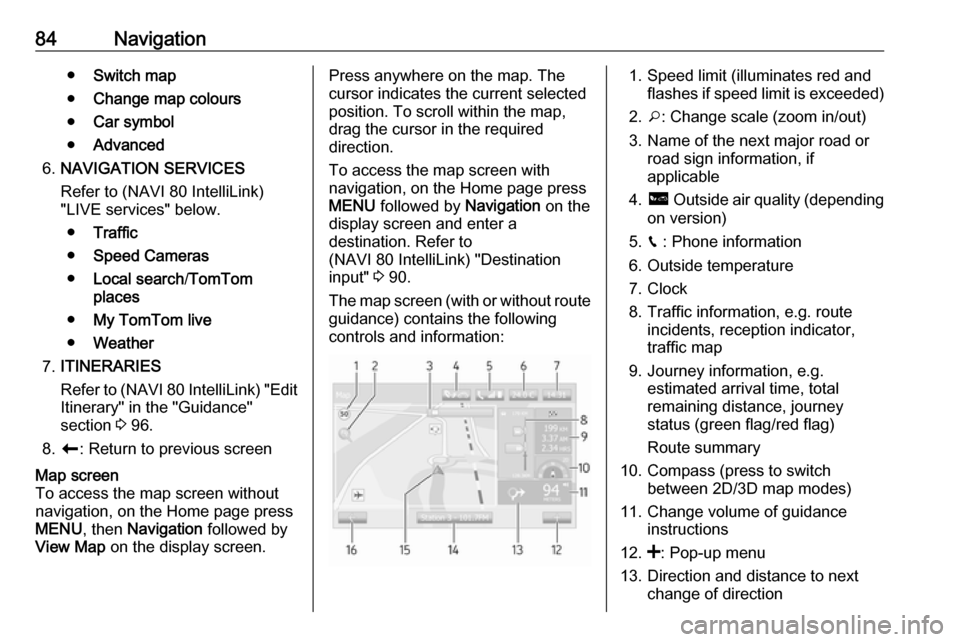
The map screen (with or without route
guidance) contains the following
controls and information:1. Speed limit (illuminates red and flashes if speed limit is exceeded)
2. o: Change scale (zoom in/out)
3. Name of the next major road or road sign information, if
applicable
4. ô Outside air quality (depending
on version)
5. g : Phone information
6. Outside temperature
7. Clock
8. Traffic information, e.g. route incidents, reception indicator,
traffic map
9. Journey information, e.g. estimated arrival time, total
remaining distance, journey
status (green flag/red flag)
Route summary
10. Compass (press to switch between 2D/3D map modes)
11. Change volume of guidance instructions
12. <: Pop-up menu
13. Direction and distance to next change of direction
Page 85 of 129

Navigation8514. Audio system information
15. K: Current location (cursor)
Route calculated and direction
changes
16. r: Return to previous screenLane images
During route guidance, before each
major road change, a 3D view of the
junction (with a turn arrow and road signs) is automatically displayed. The
normal view is resumed after passing the junction.
To switch off the lane images view,
refer to (NAVI 80 IntelliLink)
"Advanced Settings" in "Setting up
the navigation system" below.Automatic zoom
During route guidance, before each
change of direction a close-up view of
the junction is automatically
displayed. The normal view is
resumed after passing the junction.
To switch off the automatic zoom
feature, refer to (NAVI 80 IntelliLink)
"Advanced Settings" in "Setting up
the navigation system" below.Operating keyboards in the
display
NAVI 50 IntelliLink - Operating keyboards in the display
To move within and to enter
characters in both the alphabetical
and numerical keyboards, make the
appropriate selection by touching the
display screen.
● Select Options to change the
keyboard type (e.g. Qwerty,
ABC).
● Select 1^& to switch to numbers
and symbols.
● Select the drop down menu icon ó to display a list of results for the
current operation (e.g.
destination input).
● Entries can be corrected during input with the k keyboard
character.
● Press r to stop using the
keyboard and return to the
previous screen.Notice
When making an entry, certain
letters and numbers are unavailable
for selection (greyed-out) based on
the information stored in the
Navigation system.
NAVI 80 IntelliLink - Operating
keyboards in the display
To move within and to enter
characters in both the alphabetical and numerical keyboards, make the
appropriate selection by touching the
display screen.
● Entries can be corrected during input with the k keyboard
character.
● Press r to stop using the
keyboard and return to the
previous screen.
Live services
NAVI 80 IntelliLink - Live services
In addition to the free navigation
services (e.g. traffic information, fixed
speed cameras), extra features can be added by subscribing to paid LIVE services.
Page 86 of 129

86NavigationLIVE services include up-to-date
traffic information with "HD Traffic™ ",
updates and locations of fixed and
mobile speed cameras, local search,
weather forecast and the "My
TomTom LIVE" subscription status.
Notice
LIVE services are not available in
some countries or regions.
From the Home page, press MENU
then Navigation , followed by
Navigation Services on the display
screen.
The following menus are displayed: ● Traffic /HD Traffic
Select to receive up-to-date, real-
time traffic information.
Notice
The HD Traffic service is named
Traffic if a subscription has not been
activated.
● Speed cameras
Displays alerts and location of
mobile speed cameras in real-
time, fixed speed cameras and
accident blackspots.Switch function off via the "Speed Cameras" menu in "LIVE
services", if required.
Notice
In certain countries it is illegal to
download and activate the camera warning option and this could lead to prosecution.
● Local search /TomTom places
This service allows you to use a
keyword to quickly find any Point of Interest (POI) and set it as a
destination.
● My TomTom LIVE
Displays expiry date of
subscribed services.
● Weather
The weather forecast service
provides up to 5 days of weather
reports for your current location
and your chosen destination.Setting up the navigation system
NAVI 50 IntelliLink - Setting up the
navigation system
Press 7 followed by yNAVI / ýNav
then Options . This menu screen
allows you to check and update the
following map and navigation
settings:
● Warnings
● Route settings
● Map settings
● Voice settings
● Coordinate format
● GPS
● Map update
● Traffic (depending on version)Warnings
Select Warnings to access the
following settings (switch off if not
required):
● Warn when speeding (On/Off)
● Speed limit always visible (On/
Off)
Page 95 of 129

Navigation95Notice
When entering an address, certain
letters and numbers are unavailable
for selection (greyed-out) based on
the addresses recognised by the
Navigation system.
Proceed in the same way to enter a Postcode or enter details for Town/
City , Street and Number .
Notice
When entering a Postcode, insert a
space after the first part of the
postcode.
The address is automatically stored in the memory, available for future
selection.
For keyboard operation, refer to
(NAVI 80 IntelliLink) "Operating keyboards in the display" in the
"Usage" section 3 78.Recent destinations
Select from a list of previous
destinations that have been
automatically stored.Local search/TomTom places
Select a nearby Point of Interest (POI)
by entering key words using the
keyboard.Notice
This feature is only available by
subscribing to paid LIVE services.
For further information, refer to
(NAVI 80 IntelliLink) "LIVE services"
in the "Usage" section 3 78.Point of Interest
POIs can be selected as a destination
using the following search options:
● POI categories: Select a POI category type (e.g.petrol station, restaurant,
parking), then select a search area (e.g. POI nearby , POI in
town , POI at home .
Enter a town/city name and press Done to confirm selection.
● POI names: Enter name of a POI and select
to begin a search.Point on Map
Select a destination by using the
digital map.
To scroll within the map, drag the
cursor in the required direction, then
confirm the position as a destination.Latitude Longitude
Enter the co-ordinates of the
destination.
Confirm the destination
When a destination has been
selected, the route appears on the
map and a route summary is provided in the y tab.
Press the LIVE tab to view real-time traffic information. For further
information, refer to
(NAVI 80 IntelliLink) "LIVE services"
in the "Usage" section 3 78.
Press Done to confirm the route.
Add and save a favouriteAdd to saved locations
From the Home page, press MENU
then Navigation followed by Drive
to... on the display screen.
Select Recent destinations and
choose a destination from the
displayed list.
Press < (to open a pop-up menu)
then Add to saved locations , give a
name to the destination using the
keyboard, then press Next.
Page 97 of 129

Navigation97When the Overview screen is
displayed, press Options to access
the following submenus:
● Alternative routes
Refer to (NAVI 50 IntelliLink)
"Edit Itinerary" below.
● Itinerary
Refer to (NAVI 50 IntelliLink)
"Edit Itinerary" below.
● Route settings
Refer to (NAVI 50 IntelliLink)
"Setting up the Navigation
system" 3 78.
● Simulate navigation
See below.
Notice
These options can also be accessed
during route guidance by pressing
on the 'Journey information' (e.g.
estimated arrival time, total
remaining distance) area of the
display screen.
Refer to (NAVI 50 IntelliLink)
"Information on the display" in the
"Usage" section 3 78.Simulate navigation
This function enables you to see a
rapid view of the suggested route.
The following options are available:r:Start or pause the route simulationf:Move to previous
manoeuvree:Move to next
manoeuvre1x / 4x / 8x:Increase the speed of
the route simulationr /q:Return to previous
screen
NAVI 80 IntelliLink - Route
information
To view the route before guidance
begins, press < (to open a pop-up
menu), then select Route details after
a destination has been entered.
The following options are available: ● Display instructions :
Displays the route plan. The following details are shown: ● direction change arrows
● road types
● road names
● distance before a fork in the road (km/miles)
● Display route map :
View a map of the route.
● Display route demo :
View a demonstration of the
route.
● Route summary :
Return to the previous screen.
The details of the journey time, distance and the type of journey
are displayed. Refer to
(NAVI 80 IntelliLink)
"IQ routes™" in the "Destination input" section 3 90.
● Display destination :
View changes in direction as images.
● Display traffic on route :
Displays an overview of all traffic
incidents affecting the current
journey, with a detailed incident
by incident view.
With a subscription to LIVE
services, the "Live" tab provides
Page 98 of 129

98Navigationa more detailed overview of the
journey (e.g. traffic delays, fixed
and mobile speed cameras).
For further information, refer to (NAVI 80 IntelliLink) "LIVE
services" in the "Usage" section
3 78.
Edit itinerary
NAVI 50 IntelliLink - Edit Itinerary This function makes it possible to
view and change the route plan to the destination entered.
To access at any time, press 7
followed by yNAVI / ýNav then
Route . Select Itinerary /Route .
The following information will appear: ● direction change arrows
● road number
● distance before a direction change
Press Options to change and sort the
details of the route.The following options are available:
● Summary
Shows each waypoint and the
destination, including the
waypoint distance, time left to
next waypoint and arrival time.
● Normal
Shows each manoeuvre, with street or place names, distance,
and route section numbers.
This option also shows signpost
information, access and
manoeuvre restrictions,
warnings and system preference
information.
● Road list
Shows only the main sections of
the route using road names/
numbers.
This option also shows the length of each section, time left to next
section, arrival time and average
direction.
Alternatively, these itinerary/route
options can be changed by pressing
the "Direction and distance to next change of direction" tab on the displayduring route guidance. Press
Options to change and sort the details
of the route.
Refer to (NAVI 50 IntelliLink)
"Information on the display", "Map
screen" in the Usage section 3 78.Edit route
To edit the route by modifying the list
of waypoints, press 7 followed by
y NAVI / ýNav , Route then Edit
Route on the display screen.
The following options are available:Top <:Add waypointBottom <:Add new destinationë:Delete destinationy:Change the route
departure address
(available depending on
version)
To change the order of the waypoints in the list, press Options followed by
Re-order then move the waypoints
up/down.
For the various methods of entering a
destination, refer to
(NAVI 50 IntelliLink) "Destination
input" 3 90.
Page 100 of 129

100NavigationSelect from the same list of options,
e.g. "Address", "Saved locations",
"Point of Interest", "Point on map".
Refer to (NAVI 80 IntelliLink)
"Destination input" 3 90.Avoid roadblock
Select this option in the event a
roadblock is not currently indicated by
the Traffic information service.
Refer to (NAVI 80 IntelliLink) "Traffic information" below.
Choose the distance (in metres) of
the route ahead to be avoided, e.g.
"100m", "500m", "2000m", "5000m".
The route is recalculated to avoid a
section of the route for the distance
selected.Avoid part of route
Select to avoid a part of the route.
Choose the road to be avoided from
the list of roads along the route.Minimise delays
Select to plan the route based on the
latest traffic information.Deactivating guidance
NAVI 50 IntelliLink - Deactivating
guidance
To stop route guidance when in
progress, press 7 followed by
y NAVI / ýNav , Route then Cancel
Route on the display screen.
NAVI 80 IntelliLink - Deactivating
guidance
To stop guidance when in progress,
press < followed by Delete route on
the display screen.
Browse map
NAVI 50 IntelliLink - Browse map
To access the map screen at any
time, press 7 followed by sMAP on
the display screen.
Press anywhere on the map. The
cursor indicates the current selected
position. To scroll within the map,
drag the cursor in the required
direction.
For further control operations, refer to (NAVI 50 IntelliLink) "Map screen" in
the "Usage" section 3 78.Options menu
When the map screen is displayed,
press Options to display the following:
● Route settings :
Refer to (NAVI 50 IntelliLink) "Setting up the navigation
system" in the "Usage" section
3 78.
● Map settings :
Refer to (NAVI 50 IntelliLink) "Setting up the navigation
system" in the "Usage" section
3 78.
● Where am I? :
Refer to (NAVI 50 IntelliLink)
"HELP!" below.
NAVI 80 IntelliLink - Browse map
To access the map screen without
navigation, on the Home page press
MENU , then Navigation followed by
View Map on the display screen.
Press anywhere on the map. The
cursor indicates the current selected
position. To scroll within the map,
drag the cursor in the required
direction.
Page 102 of 129

102NavigationCountry information
This function allows you to check
country information and legislation for
the current location.
When the Where am I? screen is
displayed, press Options followed by
Country information on the display
screen.
This menu option contains the
following information:
● speed limits
● phone country code (International dialling code, e.g.
+49)
● emergency number (e.g. 112)
● legal restrictions, e.g.: ● vehicle equipment requirements, e.g. warning
triangle, first aid kit, fire
extinguisher, spare bulbs,
high-visibility jacket etc.
● headlights legislation
● maximum blood alcohol level
● snow chains legislation
● winter tyres legislationHelp Nearby
This function allows you to search for
assistance near your current location.
When the Where am I? screen is
displayed, press Help Nearby on the
display screen.
This menu option contains the
following information:
● Car repair around here (Vehicle
repair services)
● Health around here (Medical and
emergency services)
● Police around here (Police
stations)
● Petrol/Service station around
here (Fuel stations)
Select the appropriate option to
access a list of local Points of Interest (POI).
For information on Points of Interest
(POI), refer to (NAVI 50 IntelliLink)
"Destination input" 3 90.Traffic information
NAVI 50 IntelliLink - Traffic
information
Available depending on version, up-
to-date traffic information from local
sources can be received. Information
is provided for the current route or for the current vehicle location.
During route guidance, press
Options then select Current traffic , or
press the traffic icon Ö on the map
screen. Traffic incidents along the route and estimated delay times are
displayed.
The following options are available: ● Event list : Select to change event
display settings.
● Offer detour : Create an
alternative route to the selected
destination.
● Options : Access traffic options.
To access these traffic options at any
time, press 7 followed by yNAVI /
ý Nav then Options . Then select
Ö Traffic .
Press q to return to route guidance.
Page 103 of 129

Navigation103NAVI 80 IntelliLink - Traffic
information
Allows up-to-date traffic information
from local sources to be received.
From the Home page, press MENU
then Navigation , followed by
Navigation Services . Then select
Traffic /HD Traffic on the display
screen.
The navigation system indicates
traffic incidents with voice messages,
the traffic information bar and also by
displaying symbols on the map.
Refer to "Symbols overview" 3 103.
The system receives updates approx.
every 15 minutes and traffic incidents are shown for major roads only.
The Traffic service is named HD
Traffic if a subscription to LIVE
services has been activated. With HD
Traffic , updates are received approx.
every 3 minutes and traffic incidents
are shown for minor roads also.
For further information, refer to
(NAVI 80 IntelliLink) "LIVE services"
in the "Usage" section 3 78.Depending on the current traffic
situation, the traffic information bar
can include the following information:
● heavy delays on the route (given in minutes)
● unknown or indeterminate situation (grey)
● slow traffic (orange)
● traffic jam (red)
● stationary traffic or road closed (dark red)
● distance before next incident (in km/miles)
To manage the Traffic information
service, select from the following
options:
● Minimise delays
Alter journey based on the latest
traffic information.
● Display traffic on route
Displays an overview of all traffic
incidents on the current route.
Press incident icons for more
detailed information.● Explore map
Select to explore the map and
stay up-to-date with the traffic
situation in the area.
The map displays the last
searched location. Press incident icons for more detailed
information.
● Read traffic information aloud
during the route
Activates voice guidance for
traffic information.Traffic service settings
Select Traffic Settings and tick the
box alongside the required
preferences (e.g. automatically
minimise delays after every traffic
update) and select Done to confirm.
Symbols overview
L:AccidentM:Traffic jamG:One or more lanes closedF:Road closedN:Traffic incident