navigation system VAUXHALL MOVANO_B 2016.5 Infotainment system
[x] Cancel search | Manufacturer: VAUXHALL, Model Year: 2016.5, Model line: MOVANO_B, Model: VAUXHALL MOVANO_B 2016.5Pages: 129, PDF Size: 1.74 MB
Page 4 of 129

4IntroductionIntroductionGeneral information.......................4
Control elements overview ............6
Theft-deterrent feature .................29
Usage .......................................... 30
Tone settings ............................... 40
Volume settings ........................... 41
System settings ........................... 42General information
The Infotainment system provides
state-of-the-art in-car information and
entertainment.
The radio is equipped with assignable channel presets for FM, AM and also
DAB wavebands (depending on
version).
The audio player can play audio CDs, MP3 CDs and also WMA CDs
(depending on version).
External data storage devices, e.g.
iPod, MP3 player or USB stick, or a
portable player can be connected to
the Infotainment system. External
audio sources can also be connected
via Bluetooth.
The digital sound processor provides
several preset equalizer modes for
sound optimisation.
The navigation system's dynamic route planning will reliably guide you
to your destination and can help avoid
traffic jams and other traffic problems.
Optionally, the Infotainment system
can be operated using controls on the steering column or via the voice
recognition system.In addition, the Infotainment system can be equipped with a handsfree
phone system.
The well-thought-out design of the
controls and the clear displays enable
you to control the system easily and
intuitively.
Notice
This manual describes all options
and features available for the
various Infotainment systems.
Certain descriptions, including those for display and menu functions, may
not apply to your vehicle due to
model variant, country
specifications, special equipment or
accessories.
Important information on
operation and traffic safety9 Warning
Drive safely at all times when
using the Infotainment system.
If in doubt, stop the vehicle before operating the Infotainment
system.
Page 15 of 129
![VAUXHALL MOVANO_B 2016.5 Infotainment system Introduction151m: Switch on/off ....................30
2 ]: Decrease volume .............30
3 <: Increase volume ............... 30
4 M USB port ............................ 63
5 AUX input ...........](/img/38/19558/w960_19558-14.png "VAUXHALL MOVANO_B 2016.5 Infotainment system Introduction151m: Switch on/off ....................30
2 ]: Decrease volume .............30
3 <: Increase volume ............... 30
4 M USB port ............................ 63
5 AUX input ...........")
Introduction151m: Switch on/off ....................30
2 ]: Decrease volume .............30
3 <: Increase volume ............... 30
4 M USB port ............................ 63
5 AUX input .............................. 61
6 Clock ..................................... 30
7 yPHONE : Telephone
menu ................................... 108
8 ÿSETTINGS : Audio
settings, e.g. "Tone
settings" ................................ 40
"Volume settings" ..................41
Bluetooth settings .................30
Display settings .....................30
System settings ..................... 42
9 æDark : Darken screen
(only clock and audio
system information are
displayed) .............................. 30
10 yNAVI : Navigation menu ......75
11 sMAP : View map .................75
12 èRADIO : Change audio
source to radio ......................4813tMEDIA : Change audio
source - USB, iPod ...............63
BT (Bluetooth) ....................... 67
AUX ....................................... 61
Page 17 of 129
![VAUXHALL MOVANO_B 2016.5 Infotainment system Introduction171m: Switch on/off ....................30
2 ]: Decrease volume .............30
3 <: Increase volume ............... 30
4 M USB port ............................ 63
5 AUX input ...........](/img/38/19558/w960_19558-16.png "VAUXHALL MOVANO_B 2016.5 Infotainment system Introduction171m: Switch on/off ....................30
2 ]: Decrease volume .............30
3 <: Increase volume ............... 30
4 M USB port ............................ 63
5 AUX input ...........")
Introduction171m: Switch on/off ....................30
2 ]: Decrease volume .............30
3 <: Increase volume ............... 30
4 M USB port ............................ 63
5 AUX input .............................. 61
6 Clock ..................................... 30
7 Outside temperature .............30
8 Ý: Phone reception ...........108
Ü : Battery life .................... 108
9 yPhone : Telephone menu . 108
10 ÿSetting : Audio settings,
e.g. "Tone settings" ...............40
"Volume settings" ..................41
Bluetooth settings .................30
Display settings .....................30
System settings ..................... 42
11 ýNav : Navigation menu ........75
12 (Depending on current
mode) ßSet Time :
Remote engine start-up ........30
7 : Go to Home page ............30q/r : Press to return to
previous screen - or -
press and hold to go to
Home page ........................... 30
y : Return to Navigation
menu ..................................... 78
13 ðDriving eco2 : Driving
economy ............................... 30
14 ñRadio : Change audio
source to radio ......................48
15 üMedia : Change audio
source - USB, iPod ...............63
BT (Bluetooth) .......................67
AUX ....................................... 61
AhaⓇ application ..................30
16 æDark : Darken screen
(only clock and audio
system information are
displayed) .............................. 30
Page 19 of 129

Introduction191Audio information, e.g.
Radio ..................................... 48
Auxiliary devices ...................61
M USB devices ...................... 63
Bluetooth music ....................67
2 H: System notifications ..........30
3 r: Outside air quality,
Eco Function (available
depending on version) ..........30
4 y: Telephone status ...........108
Call log ................................ 116
5 Outside temperature .............30
6 Clock ..................................... 30
7 Traffic information .................96
8 R: Display lists - Scroll up ....30
Map: Change scale ...............96
9 Enter menus, confirm
actions ................................... 30
10 S: Display lists - Scroll
down ..................................... 30
Map: Change scale ...............96
11 ;: Home page ...................... 3012 m - Press: Switch on/off ........30
Turn: Change volume ...........30
13 Navigation: Direction and
distance to next change of
direction ................................ 75
14 <: Pop-up menu ...................30
15 Navigation display .................75
Map ....................................... 96
16 f: Favourites, e.g. for
Navigation ............................ 75
Media (e.g. Radio) ................48
Phone .................................. 108
Services ................................ 78
17 Driving economy ...................30
18 Menu : Access Main menu ..... 30
Page 21 of 129

Introduction211Audio information, e.g.
Radio ..................................... 48
Auxiliary devices ...................61
M USB devices ...................... 63
Bluetooth music ....................67
2 H: System notifications ..........30
3 y: Telephone status ...........108
Call log ................................ 116
4 Outside temperature .............30
5 Clock ..................................... 30
6 Traffic information .................96
7 Navigation: Direction and
distance to next change of
direction ................................ 75
8 <: Pop-up menu ...................30
9 Navigation display .................75
Map ....................................... 96
10 f: Favourites, e.g. for
Navigation ............................ 75
Media (e.g. Radio) ................48
Phone .................................. 108
Services ................................ 7811Driving economy ...................30
12 Menu : Access Main menu ..... 30
Page 25 of 129

Introduction251Audio information, e.g.
Radio ..................................... 48
Auxiliary devices ...................61
M USB devices ...................... 63
Bluetooth music ....................67
2 H: System notifications ..........30
3 y: Telephone status ...........108
Call log ................................ 116
4 Outside temperature .............30
5 Clock ..................................... 30
6 Traffic information .................96
7 Navigation: Direction and
distance to next change of
direction ................................ 75
8 <: Pop-up menu ...................30
9 Navigation display .................75
Map ....................................... 96
10 f: Favourites, e.g. for
Navigation ............................ 75
Media (e.g. Radio) ................48
Phone .................................. 108
Services ................................ 7811Driving economy ...................30
12 Menu : Access Main menu ..... 30
Page 31 of 129

Introduction31Notice
The clock and/or outside
temperature may be displayed when
the Infotainment system is switched
off (depending on version).NAVI 50 IntelliLink:
The Infotainment system
automatically switches on/off when
the ignition is switched on/off. Press
X instead, if required.NAVI 80 IntelliLink:
The Infotainment system
automatically switches on when the ignition is switched on. Press X
instead, if required.
The following options may be
displayed (depending on version):
● Change settings (to authorise or
reject data sharing)
Notice
When data sharing is switched off, certain features may not operate
correctly.
● Language (to change the system
language)
● Done (to continue to the Home
page)The Infotainment system
automatically switches off when the
ignition is switched off and the driver's door is opened. Press X instead, if
required.
Automatic switch-off
With the ignition off, if the
Infotainment system is switched on
with X, it will switch-off automatically
a short period after the last user input.
Depending on Infotainment system,
automatic switch-off occurs after approx. 5 to 20 minutes.
Pressing X again will allow the
Infotainment system to remain on for
a further 5 to 20 minutes.
Setting the volumeTurn X/volume rotary knob, or press
< or ].
Alternatively (with the steering
column controls), press ! or #.NAVI 50 IntelliLink:
Depending on version, it is possible to
set various volume levels individually
(including audio players, trafficannouncements, navigation
instructions, phone calls and
ringtone).
From the Home page, press
ÿ Settings then Audio followed by
Sound on the display screen.
Refer to (NAVI 50 IntelliLink) "Volume
settings" 3 41.NAVI 80 IntelliLink:
To set various volume levels
individually (e.g. navigation
instructions, traffic announcements,
phone calls) from the Home page,
press MENU then System followed by
Sound on the display screen.
Refer to (NAVI 80 IntelliLink) "System
settings" 3 42.
Stored volume
When the Infotainment system is
switched off, the current volume is
stored.
Speed dependent volume
When speed dependent volume
( 3 41) is activated, the volume is
adapted automatically to compensate
for road and wind noise.
Page 32 of 129

32IntroductionMute
To mute the current audio source (depending on Infotainment system),press X briefly or turn knob fully
anticlockwise.
Alternatively (with the steering
column controls), press @ or 8 or
press ! and # simultaneously.
Unmute
To unmute (depending on
Infotainment system), briefly press
X again or turn clockwise.
Alternatively (with the steering
column controls): Press @ again or
press ! and # simultaneously again.
Notice
When a traffic announcement is
broadcast, the system is
automatically unmuted.
For further information, refer to
"Radio data system" 3 53.Display screen operation
R15 BT USB, R16 BT USB,
CD16 BT USB, CD18 BT USB -
Display screen operation
● To move up/down in the display: Turn OK.
● To confirm actions: Press OK.
● To cancel actions (and return to previous menu): Press /.
NAVI 50 IntelliLink - Display screen operation
Use the touchscreen for the following displayed menus as described in
each section:
● è/ñ RADIO
Refer to "Radio" section 3 48.
● t/ü MEDIA
Refer to "USB port" section
3 63.
● yPHONE
Refer to "Phone" section 3 108.
● sMAP
Refer to "Navigation" section
3 75.● yNAVI / ýNav
Refer to "Navigation" section
3 75.
● ðDriving eco2
Refer to "Additional features
(NAVI 50 IntelliLink)" in the
"Modes of operation" section
below.
● ÿSETTINGS
Refer to (NAVI 50 IntelliLink)
"Tone settings" 3 40, "Volume
settings" 3 41 and "System
settings" 3 42.
When the Home page 7 is displayed,
it is possible to hide these menus from
the display (only clock and audio
system information may be shown) by
pressing æDark . Press anywhere on
the screen to display these menus
again.
NAVI 80 IntelliLink - Display screen operation
Use the touchscreen for the following displayed menus as described in
each section.
Page 33 of 129
Introduction33(Type A)
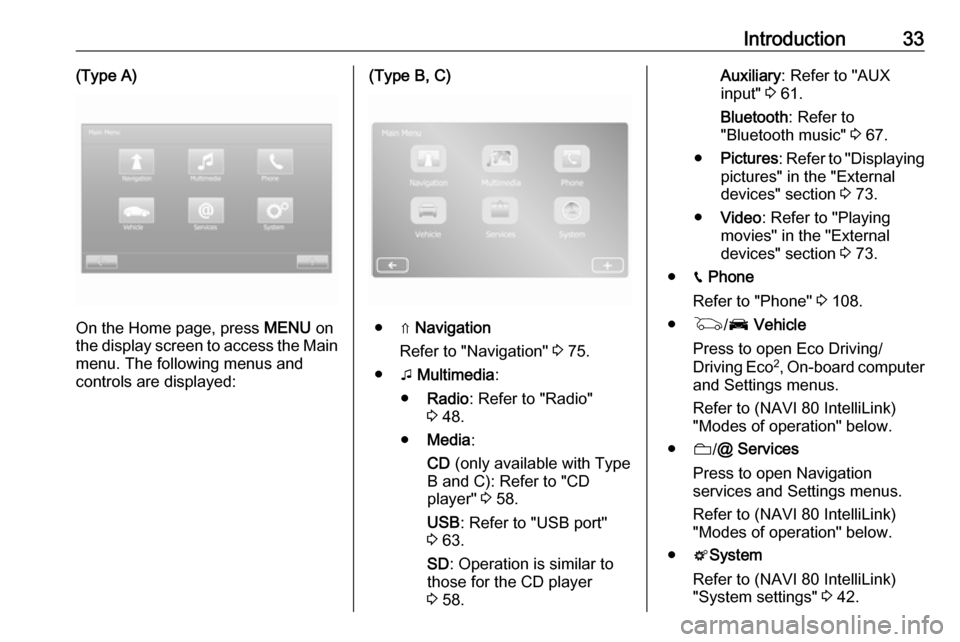
On the Home page, press MENU on
the display screen to access the Main
menu. The following menus and
controls are displayed:
(Type B, C)
● ⇑ Navigation
Refer to "Navigation" 3 75.
● t Multimedia :
● Radio : Refer to "Radio"
3 48.
● Media :
CD (only available with Type
B and C): Refer to "CD
player" 3 58.
USB : Refer to "USB port"
3 63.
SD : Operation is similar to
those for the CD player
3 58.
Auxiliary : Refer to "AUX
input" 3 61.
Bluetooth : Refer to
"Bluetooth music" 3 67.
● Pictures : Refer to "Displaying
pictures" in the "External
devices" section 3 73.
● Video : Refer to "Playing
movies" in the "External
devices" section 3 73.
● g Phone
Refer to "Phone" 3 108.
● G /J Vehicle
Press to open Eco Driving/
Driving Eco 2
, On-board computer
and Settings menus.
Refer to (NAVI 80 IntelliLink)
"Modes of operation" below.
● N/@ Services
Press to open Navigation
services and Settings menus.
Refer to (NAVI 80 IntelliLink)
"Modes of operation" below.
● tSystem
Refer to (NAVI 80 IntelliLink)
"System settings" 3 42.
Page 35 of 129

Introduction35NAVI 50 IntelliLink
Detailed descriptions of:
● AUX input functions 3 61
● USB port (including iPod) functions 3 63
● Bluetooth music operation 3 67NAVI 80 IntelliLink
Detailed descriptions of:
● CD functions (Type B and C only)
3 58
● AUX input functions 3 61
● USB port functions 3 63
● Bluetooth music operation 3 67
Navigation, Map (NAVI 50 IntelliLink,
NAVI 80 IntelliLink)
Detailed description of the Navigation system 3 75, Browse map 3 96.
Phone
Use the display options in the
following menus to connect mobile
phones, make telephone calls, create
contacts lists and adjust various
settings.
Detailed description of the handsfree
phone system functions 3 108.R15 BT USB, R16 BT USB,
CD16 BT USB, CD18 BT USB -
Phone
To access the Phone menu: Press
6 or TEL .
To access the phone settings menu: Press TEL and select Phone settings .NAVI 50 IntelliLink - Phone
To access the Phone menu at any
time: Press 7 followed by yPhone on
the display screen.NAVI 80 IntelliLink - Phone
To access the Phone menu from the
Home page, press MENU followed by
Phone on the display screen.
Vehicle information
(NAVI 80 IntelliLink)
To access the Vehicle menu from the Home page, press MENU followed by
Vehicle on the display screen.
Depending on vehicle, the following
menus are displayed:
● Eco Driving /Driving Eco 2
● On-board computer
● SettingsEco Driving/Driving Eco 2
The following features are available: ● Trip report
Displays the following data from
the last journey:
Average fuel consumption,
average speed, total fuel
consumption, total distance.
Within the trip report, Eco
scoring provides an overall score
out of 100 for driving economy.
Higher figures indicate better
driving economy. Ratings are
also given for average
environmental driving
performance (Acceleration),
gearchanging efficiency
(Gearbox) and brake control
(Anticipation).
To save journey data: Press
'Save' then select the journey
type from the following list: