buttons VAUXHALL MOVANO_B 2016 Infotainment system
[x] Cancel search | Manufacturer: VAUXHALL, Model Year: 2016, Model line: MOVANO_B, Model: VAUXHALL MOVANO_B 2016Pages: 147
Page 67 of 147

Bluetooth music67Select the desired device from the list
and confirm by pressing OK. A
display message confirms
connection.
Disconnecting an audio device
To disconnect an audio device from
the Infotainment system, press TEL
(or SETUP ) and select Bluetooth
connection . Select the desired device
from the device list then select
Disconnect the device by turning and
pressing OK. A display message
confirms disconnection.
Switching off the audio device or
deactivating the Bluetooth function on
the audio device also disconnects the device from the Infotainment system.
Unpairing an auxiliary audio device
from the Infotainment system
If the list of paired audio devices is full,
a new device can only be paired if an
existing device is unpaired.
To unpair, i.e. to delete an audio
device from the system memory,
press TEL and select Delete device .
Select the desired audio device from
the list and press OK to confirm
deletion when prompted.Operation via Infotainment system
When paired and connected
wirelessly, audio playback begins
automatically.
The audio device can then be
operated via the Infotainment system
function buttons, rotary knobs and
display menus.
The range of accessible functions
that can be operated via the
Infotainment system depends on the
type of audio player.
The operation of the audio device when connected wirelessly is similarto the operations for the CD player
3 56.
CD35 BT USB - Playing music via
Bluetooth
Bluetooth connection
A connection must be set up between the audio device and the Infotainmentsystem via Bluetooth, i.e. the device
must be paired to the vehicle before
using it.
Refer to (CD35 BT USB) "Bluetooth
connection" in the "Phone" section
3 127.● A maximum of 5 audio devices
can be paired and saved in the
device list, but only one can be
connected at a time.
● If the device has both audio player and telephone functions,
one or both functions can be
paired. Pairing a mobile phone
3 124.
● Phone functions will remain active while the audio player is inuse, and audio playback will be
suspended during phone use.
Pairing an auxiliary audio device to
the Infotainment system
To pair the audio device, press
SETUP / TEXT and select Bluetooth
connection . Select an empty slot by
turning the central rotary knob and press the knob to display the next
menu.
Select Pair device by turning and
pressing the rotary knob, then, on the
audio device, search for Bluetooth
equipment in the vicinity of the device.
Select My_Radio (i.e. the name of the
system) from the list on the audio
device, then, if applicable, on the
Page 68 of 147

68Bluetooth musicaudio device keypad enter the pairingcode shown on the Infotainment
system display screen.
Notice
If the audio device does not have a
screen, enter the default pairing
code on the device, then on the
Infotainment system. Refer to the
operating instructions for this default
audio device pairing code, usually
0000 . Depending on the device, the
pairing code may need to be entered
in reverse order, i.e. on the
Infotainment system first.
If pairing fails, the message Pairing
failed is displayed. Repeat procedure
if necessary.
When pairing is completed, a
confirmation message followed by the
name of the paired audio device is
shown on the Infotainment system
display screen.
Notice
When a Bluetooth connection is active, controlling the audio device
via the Infotainment system will
discharge the audio device battery more rapidly.Connecting an audio device
Audio devices are automatically
connected to the Infotainment system after the pairing procedure is
completed.
To connect any audio device that has
been paired, or to connect to a
different paired audio device than the
current one, press SETUP / TEXT
and select Bluetooth connection (or
press TEL when no device is
connected). The device list shows the audio devices already paired.
Select the desired device from the list
and confirm by pressing the central
rotary knob. A display message
confirms connection.
Disconnecting an audio device
To disconnect an audio device from
the Infotainment system, select the
desired device from the Bluetooth
connection menu then select
Disconnect the device by turning and
pressing the central rotary knob. A display message confirms
disconnection.Switching off the audio device or
deactivating the Bluetooth function on the audio device also disconnects the
device from the Infotainment system.
Unpairing an auxiliary audio device
from the Infotainment system
If the list of paired audio devices is full,
a new device can only be paired if an
existing device is unpaired.
To unpair, i.e. to delete an audio
device from the system memory,
press SETUP / TEXT and select
Bluetooth connection . Select the
desired audio device from the list,
press the central rotary knob and
select Delete .
Operation via Infotainment system When paired and connected
wirelessly, audio playback begins
automatically.
The audio device can then be
operated via the Infotainment system
function buttons, rotary knobs and
display menus.
Page 79 of 147
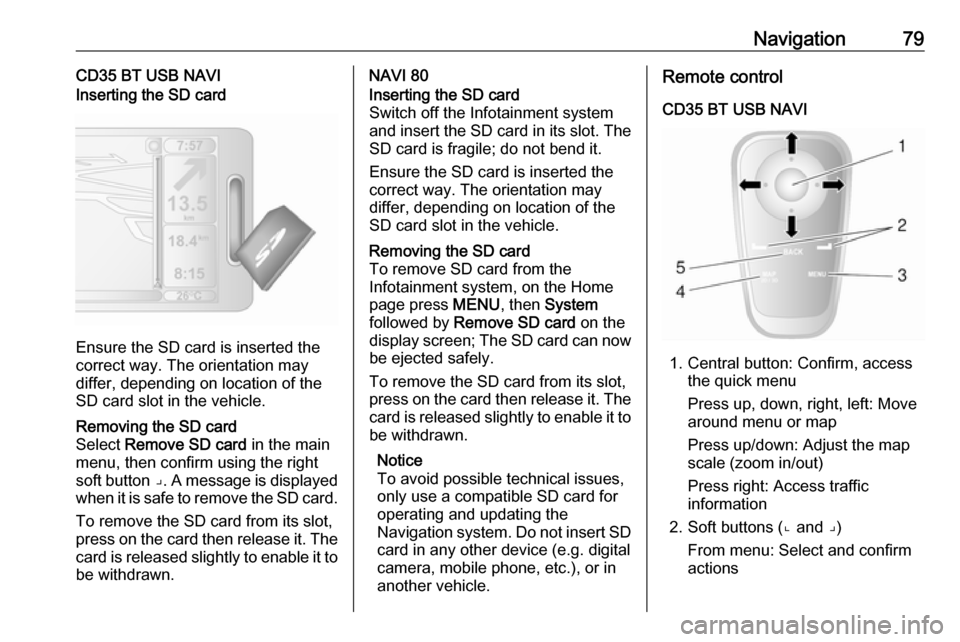
Navigation79CD35 BT USB NAVIInserting the SD card
Ensure the SD card is inserted the
correct way. The orientation may
differ, depending on location of the
SD card slot in the vehicle.
Removing the SD card
Select Remove SD card in the main
menu, then confirm using the right
soft button ⌟. A message is displayed
when it is safe to remove the SD card.
To remove the SD card from its slot,
press on the card then release it. The
card is released slightly to enable it to be withdrawn.NAVI 80Inserting the SD card
Switch off the Infotainment system and insert the SD card in its slot. The SD card is fragile; do not bend it.
Ensure the SD card is inserted the
correct way. The orientation may
differ, depending on location of the
SD card slot in the vehicle.Removing the SD card
To remove SD card from the
Infotainment system, on the Home
page press MENU, then System
followed by Remove SD card on the
display screen; The SD card can now
be ejected safely.
To remove the SD card from its slot,
press on the card then release it. The
card is released slightly to enable it to be withdrawn.
Notice
To avoid possible technical issues,
only use a compatible SD card for
operating and updating the
Navigation system. Do not insert SD
card in any other device (e.g. digital
camera, mobile phone, etc.), or in
another vehicle.Remote control
CD35 BT USB NAVI
1. Central button: Confirm, access the quick menu
Press up, down, right, left: Move
around menu or map
Press up/down: Adjust the map
scale (zoom in/out)
Press right: Access traffic
information
2. Soft buttons (⌞ and ⌟) From menu: Select and confirm
actions
Page 80 of 147
80NavigationFrom map: Left button (⌞) -repeats a voice instruction;
Right button (⌟) - displays route
summary
3. MENU : Access the main menu
4. MAP 2D/3D
From menu: Displays map
From map: Switches map to 2D/
3D mode
5. BACK : Back to previous screen
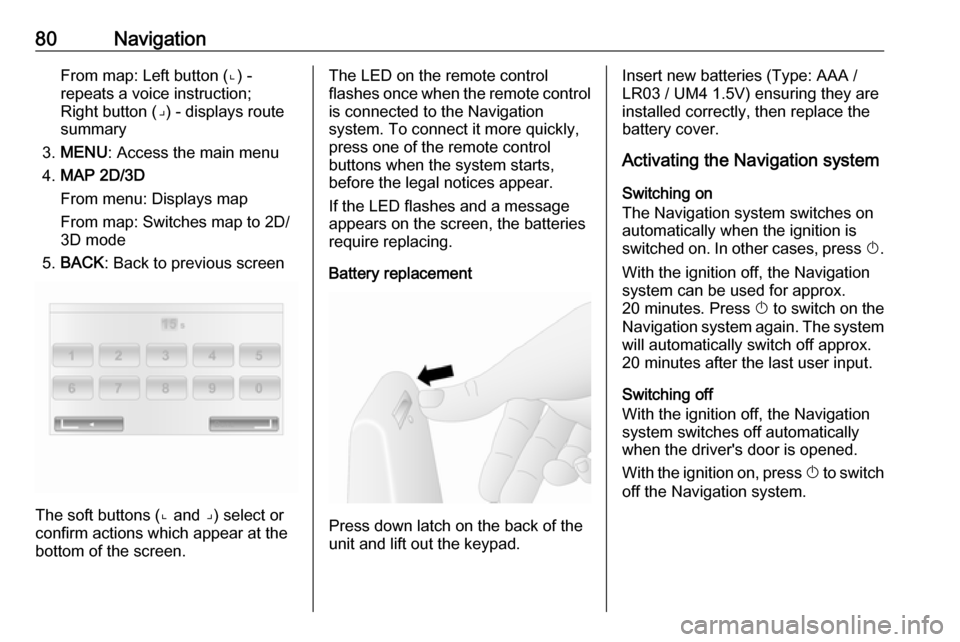
The soft buttons (⌞ and ⌟) select or
confirm actions which appear at the
bottom of the screen.
The LED on the remote control
flashes once when the remote control is connected to the Navigation
system. To connect it more quickly,
press one of the remote control
buttons when the system starts,
before the legal notices appear.
If the LED flashes and a message
appears on the screen, the batteries
require replacing.
Battery replacement
Press down latch on the back of the
unit and lift out the keypad.
Insert new batteries (Type: AAA / LR03 / UM4 1.5V) ensuring they are
installed correctly, then replace the
battery cover.
Activating the Navigation system
Switching on
The Navigation system switches on
automatically when the ignition is
switched on. In other cases, press X.
With the ignition off, the Navigation
system can be used for approx.
20 minutes. Press X to switch on the
Navigation system again. The system
will automatically switch off approx.
20 minutes after the last user input.
Switching off
With the ignition off, the Navigation
system switches off automatically
when the driver's door is opened.
With the ignition on, press X to switch
off the Navigation system.
Page 82 of 147
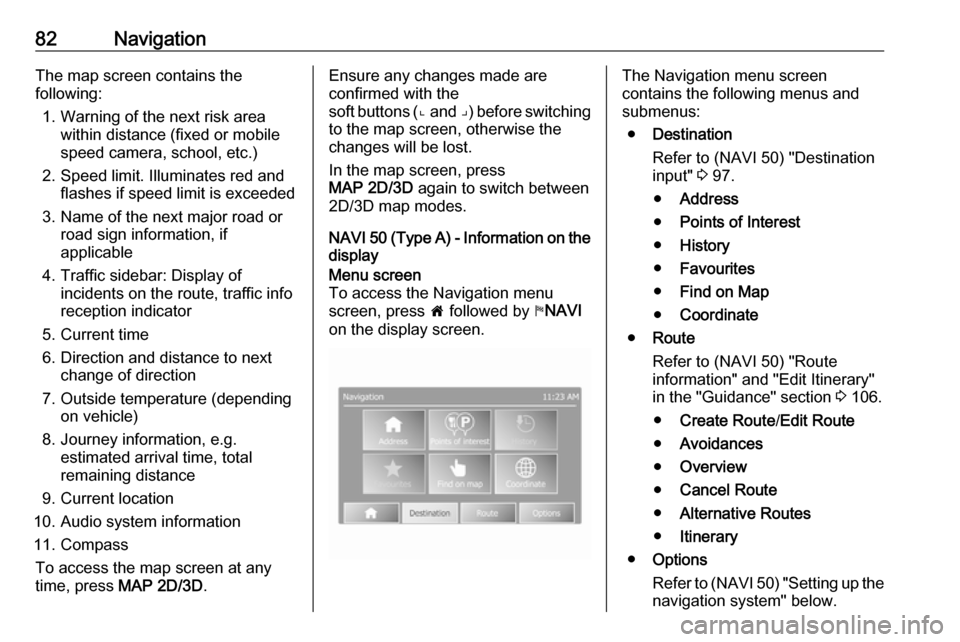
82NavigationThe map screen contains the
following:
1. Warning of the next risk area within distance (fixed or mobile
speed camera, school, etc.)
2. Speed limit. Illuminates red and flashes if speed limit is exceeded
3. Name of the next major road or road sign information, if
applicable
4. Traffic sidebar: Display of incidents on the route, traffic info
reception indicator
5. Current time
6. Direction and distance to next change of direction
7. Outside temperature (depending on vehicle)
8. Journey information, e.g. estimated arrival time, total
remaining distance
9. Current location
10. Audio system information
11. Compass To access the map screen at anytime, press MAP 2D/3D .Ensure any changes made are
confirmed with the
soft buttons ( ⌞ and ⌟) before switching
to the map screen, otherwise the changes will be lost.
In the map screen, press
MAP 2D/3D again to switch between
2D/3D map modes.
NAVI 50 (Type A) - Information on the
displayMenu screen
To access the Navigation menu
screen, press 7 followed by yNAVI
on the display screen.The Navigation menu screen
contains the following menus and
submenus:
● Destination
Refer to (NAVI 50) "Destination
input" 3 97.
● Address
● Points of Interest
● History
● Favourites
● Find on Map
● Coordinate
● Route
Refer to (NAVI 50) "Route
information" and "Edit Itinerary" in the "Guidance" section 3 106.
● Create Route /Edit Route
● Avoidances
● Overview
● Cancel Route
● Alternative Routes
● Itinerary
● Options
Refer to (NAVI 50) "Setting up the
navigation system" below.
Page 91 of 147

Navigation91Image viewerCD35 BT USB NAVI - Image viewer
The system can be used to view
images. Select Image viewer in the
main menu; the image gallery opens
and an image can be selected.
To scroll through the images in
slideshow mode, select Slideshow
using the right soft button ⌟ and set
the seconds-per-slide when
prompted, using the directional
buttons.
To set the slideshow to manual mode,
select Manual by moving to the far
right of the seconds-per-slide display,
then use the directional buttons to
scroll through the images manually.
Start the slideshow by pressing the
right soft button ⌟.
Images can be added or deleted when updating the Navigation
system.
Compatible image formats are: ● JPG: Greyscale and RGB
● BMP: 1-bit, 2 colours; 4-bit, 16 colours; 8-bit, 256 colours and
24-bit, 16.7 million coloursSetting up the navigation system
CD35 BT USB NAVI - Setting up the
navigation systemNavigation volume
To change the volume during a voice
instruction, turn X or press < or ].
Alternatively, press ! or # on the
steering column controls to change
the volume.
To repeat a voice instruction, press
the left soft button ⌞.System preferences
The system can be adjusted to suit
personal requirements. Select
Change preferences in the main
menu to view the adjustable
preferences.
Certain menu items can also be found more quickly in the Quick menu.
Press the central button on the
remote control to open the Quick
menu .Change Home location
To change the location of your
designated home.Manage favourites
To delete stored favourite
destinations. Select the desired entry followed by Done using the soft
button to delete the entry.Switch map
Used if installing several maps on the
SD card. To change map, select
Switch map , then select the map
required.Voice preferences
To select a voice used to give voice
instructions and to select either
human or synthesised voices.
The human voice instructions provide
simplified guidance only, while the
synthesised voice instructions
provide road directions plus
additional information (e.g. traffic
signs and traffic information etc.).Disable voice
To deactivate the voice instructions
and use only the map screen for
guidance.
Page 93 of 147

Navigation93Name preferences
To display street and house numbers
on the map.Use day/night colours
In the default automatic mode, the
system will automatically switch
between day and night modes.
If manual mode is preferred,
automatic mode can be deactivated by selecting Use day colours or Use
night colours .
Automatic switching can be
reactivated using the Brightness
preferences menu.Change map colours
New colours can also be
downloaded. To select a downloaded colour, select an additional colour
scheme, then the colour required.Brightness preferences
Adjust the screen brightness to suit
the external lighting conditions.Set clock
When the clocks change in summer
or winter, or when travelling abroad,
the time on the system will need
adjusting. Select Set clock; the
system offers three display modes.Select the desired mode, then Done
using the soft button. Set the clock,
then select Done.
Clock synchronisation: The
synchronisation option allows the time to be set directly using GPS
information. Select the Sync option
with the left soft button ⌞.Start-up preferences
Used to change the system start-up
settings and also the start-up page by
customising it with a chosen photo.Show fewer menu options
Allows simplification of the menu to
facilitate better use. To reactivate all
options, select this icon again.Change language
To change language, select
Language: , the required language
can then be selected from the list.Reset factory settings
To reset all system parameters and delete all personal data.
Select Reset factory settings in the
main menu, then follow the on-screen instructions using the soft buttons.Partial reset: allows the deletion of allpersonal data (favourites, recent
destinations, etc.).
After resetting, the system will restart
in English.
NAVI 50 - Setting up the navigation
system
Press 7 followed by yNAVI / ýNav
then Options . This menu screen
allows you to check and update the
following map and navigation
settings:
● Warnings
● Route settings
● Map settings
● Voice settings
● Coordinate format
● GPS
● Map update
● Traffic (depending on version)
Page 111 of 147

Navigation111NAVI 50 - Deactivating guidance
To stop route guidance when in
progress, press 7 followed by
y NAVI / ýNav , Route then Cancel
Route on the display screen.
NAVI 80 - Deactivating guidance
To stop guidance when in progress,
press < followed by Delete route on
the display screen.
Browse map
CD35 BT USB NAVI - Browse map
Select Browse map from the main
menu or use one of the direction
buttons on the control. The right soft
button zooms using the up and down
keys. To access the options, press
OK , then the right soft button.Options
Access the option from the map
browser. This menu allows the
selection of information that will be
shown on the browser. To change the
display preferences for points of
interest (POI), press the left soft
button. To confirm the selection, press the right soft button.Find
The map can be centred on a specific
location; press the left soft button and this menu can centre:
● your home
● a favourite
● an address
● a recent destination
● a point of interest
● your current locationCursor position:
To access the Cursor position: from
the map browser, press OK. Use this
menu to:
● centre the map on the vehicle location
● navigate to a point on the map
● search for a point on the map
● add a point on the map to the favourites
● add a point on the map to the POI
● correct the location of the vehicleNAVI 50 - Browse map
To access the map screen at any
time, press 7 followed by sMAP on
the display screen.
Press anywhere on the map. The
cursor indicates the current selected
position. To scroll within the map,
drag the cursor in the required
direction.
For further control operations, refer to (NAVI 50) "Map screen" in the
"Usage" section 3 78.Options menu
When the map screen is displayed,
press Options to display the following:
● Route settings :
Refer to (NAVI 50) "Setting up the
navigation system" in the
"Usage" section 3 78.
● Map settings :
Refer to (NAVI 50) "Setting up the
navigation system" in the
"Usage" section 3 78.
● Where am I? :
Refer to (NAVI 50) "HELP!"
below.
Page 114 of 147

114NavigationThis menu option contains the
following information:
● Car repair around here (Vehicle
repair services)
● Health around here (Medical and
emergency services)
● Police around here (Police
stations)
● Petrol/Service station around
here (Fuel stations)
Select the appropriate option to
access a list of local Points of Interest
(POI).
For information on Points of Interest
(POI), refer to ( NAVI 50) "Destination
input" 3 97.
TomTom Safety Cameras
CD35 BT USB NAVI
The system can provide alerts of
safety or speed cameras on route.
For options select TomTom Safety
Cameras in the main menu:Report safety camera
If the system does not indicate a
camera that is on the journey, its
details can be entered manually by
selecting Report safety camera .
The type of camera has to be entered (fixed or mobile). The system opens a
map page and using the directional
controls, place the red marker on the
location of the camera and confirm
using the soft buttons.
Confirm the type of camera, and if
Speed camera is chosen, the speed
limit must also be entered and
confirmed.
For the system to integrate cameras
entered manually by other users, you
must be subscribed to the camera
updates in TomTom HOME . The
camera alert will only become active
after the location is confirmed by the
TomTom technical department.
The quick menu can also be used to
report a camera. Select Report safety
camera . The system requires the type
of camera to be entered, then which
side of the road it is on. Confirm with
the right soft button.Change warning preferences
Use to delete or modify the warning
time before the camera and the sound
of the warning.
To add camera alerts (mobile
camera, toll road camera etc.), check the types of camera required. Select
the type of camera to modify, then to
delete the warning, use the soft
buttons to confirm yes or no. If No is
chosen, enter the warning time before the camera and Done using the soft
button.
Select the desired sound to warn of
an upcoming camera. Test the sound
using the left soft button and confirm
with the right soft button.Disable alerts
The camera warnings can be
enabled/disabled. Select Disable
alerts in the main menu if the
warnings are enabled or Enable
alerts if the warnings are disabled.
Notice
In certain countries it is illegal to
download and activate the camera
warning option and this could lead to prosecution.
Page 115 of 147

Navigation115Traffic informationCD35 BT USB NAVI - Traffic
information
Allows up-to-date traffic information
from local sources to be received.
Traffic information can include:
● accidents and incidents
● traffic volumes
● roadworks
● weather conditions
● lane closures
The Traffic info service is not
available in all countries and regions.
Traffic incidents are notified by verbal messages and by symbols on the
map - refer to "Symbols overview"
3 117.
To show the status of the Traffic info
service, the following icons are
displayed on the traffic sidebar:A:The device is searching for an
FM station broadcasting traffic
information.$:Traffic information is up-to-date
or being updated.%:Information not updated for at
least 9 minutes.^:Information not updated for at
least 14 minutes.&:Information not updated for at
least 19 minutes.*:Information not updated for at
least 24 minutes.
To manage the Traffic info service,
select Traffic info (or HD Traffic ) from
the main menu and select from the
following options:
Minimise traffic delays
Select this menu to plan the route
based on the latest traffic information.Show traffic on route
Select this menu to see an overview
of all traffic incidents on the route. Use the soft buttons on the resulting
screen to see more detailed
information about each incident.Browse map
This menu enables the map to be
explored and to keep up-to-date with
the traffic situation in the area. The
map displays the last location shown.For information relating to the
incidents shown on the map, select
the incident using the right and left
buttons, then confirm.
To access an area you are searching for more quickly, add it to your
favourites.Change Traffic info preferences
The following can be changed:
● automatically minimise delays after every traffic update
● beep to notify when traffic situation on route changesRead aloud traffic info
Select this menu for traffic incidents to
be read aloud on the route.
NAVI 50 - Traffic information
Available depending on version, up-
to-date traffic information from local
sources can be received. Information is provided for the current route or forthe current vehicle location.
During route guidance, press
Options then select Current traffic , or
press the traffic icon Ö on the map