warning VOLKSWAGEN T-ROC 2021 Owner´s Manual
[x] Cancel search | Manufacturer: VOLKSWAGEN, Model Year: 2021, Model line: T-ROC, Model: VOLKSWAGEN T-ROC 2021Pages: 502, PDF Size: 9.42 MB
Page 30 of 502
Time
First read and observe the introductory information and safety warnings⇒Introduction
Press the button or function button.
Press the Vehicle and function buttons.
Select the Time and date menu option to set the time ⇒ Vehicle settings menu .
To set the time (on all vehicle clocks), press and hold the button in the instrument cluster until
the word Time appears in the display ⇒ Analogue instrument cluster .
Release the button. The time is shown in the instrument cluster display and the hour setting is
marked.
Then press the button repeatedly until the required hour value is displayed. Press and hold the
button to scroll through quickly.
Once you have set the hour, wait until the minutes display is marked in the instrument cluster
display.
Then press the button repeatedly until the required minute value is displayed. Press and hold the
button to scroll through quickly.
Release the button to finish setting the clock.
Select the Range information profile.
Press and hold the button on the multifunction steering wheel until the Service menu is available
on the instrument cluster display ⇒ Service menu .
Select the Time menu.
Set the correct time with the arrow buttons or .
Lap timer
First read and observe the introductory information and safety warnings⇒Introduction
With the appropriate equipment the lap timer can be shown on the instrument cluster display
⇒ Instrument cluster menus .
The lap timer has the option of timing your own laps manually in the vehicle on a race track, to store
the times and to compare them with best times.
Page 31 of 502

The following higher-level menus can be displayed:
Lap timer
Lap (with the current lap number)
Statistics
Switching between the menus
Vehicles without multifunction steering wheel:
Press the rocker switch on the wiper lever ⇒ Operating the instrument cluster .
Vehicles with multifunction steering wheel:
Press the or button ⇒ Operating the instrument cluster .
The following list shows an example of how the menus in the instrument cluster display are
structured. The actual scope of the menus and the names of the individual menu options vary
according to the instrument cluster design and the vehicle electronics.
Menu displays and functions
Lap timer menu
StartStarts the lap timer.Since startTiming starts when the vehicle drives off. If the vehicle is already
in motion, timing will begin when the vehicle has come to a temporary standstill.StatisticsAn
overview of the laps driven until now are displayed.
Lap menu
Stop!Active timing is interrupted. This will not end the lap.ContinuePaused timing resumes.Split
time:A split time will be displayed for approximately five seconds. Active timing continues parallel to
this.New lapTiming of the current lap will then be interrupted and a new lap will begin. The time of
the completed lap will be carried over to the statistics.Abort lapThe timing is ended and disregarded.
The current lap is not entered into the statistics.EndTiming is ended. The lap is entered into the
statistics.
Statistics menu
BackIt will be reset to the previous menu.ResetAll stored statistics data will be reset.
In the Statistics menu, the lap times most recently achieved are shown. If the maximum number of
99 laps or the maximum time of 99 hours, 59 minutes and 59 seconds has been reached, a new
timing can only be started after the statistics have been reset.
WARNING
Accidents and injuries can occur if the driver is distracted.
Make lap timer settings and access statistics only when the vehicle is stationary.
Page 32 of 502
When the vehicle is in motion, use the lap timer only in driving situations which are easy to control.
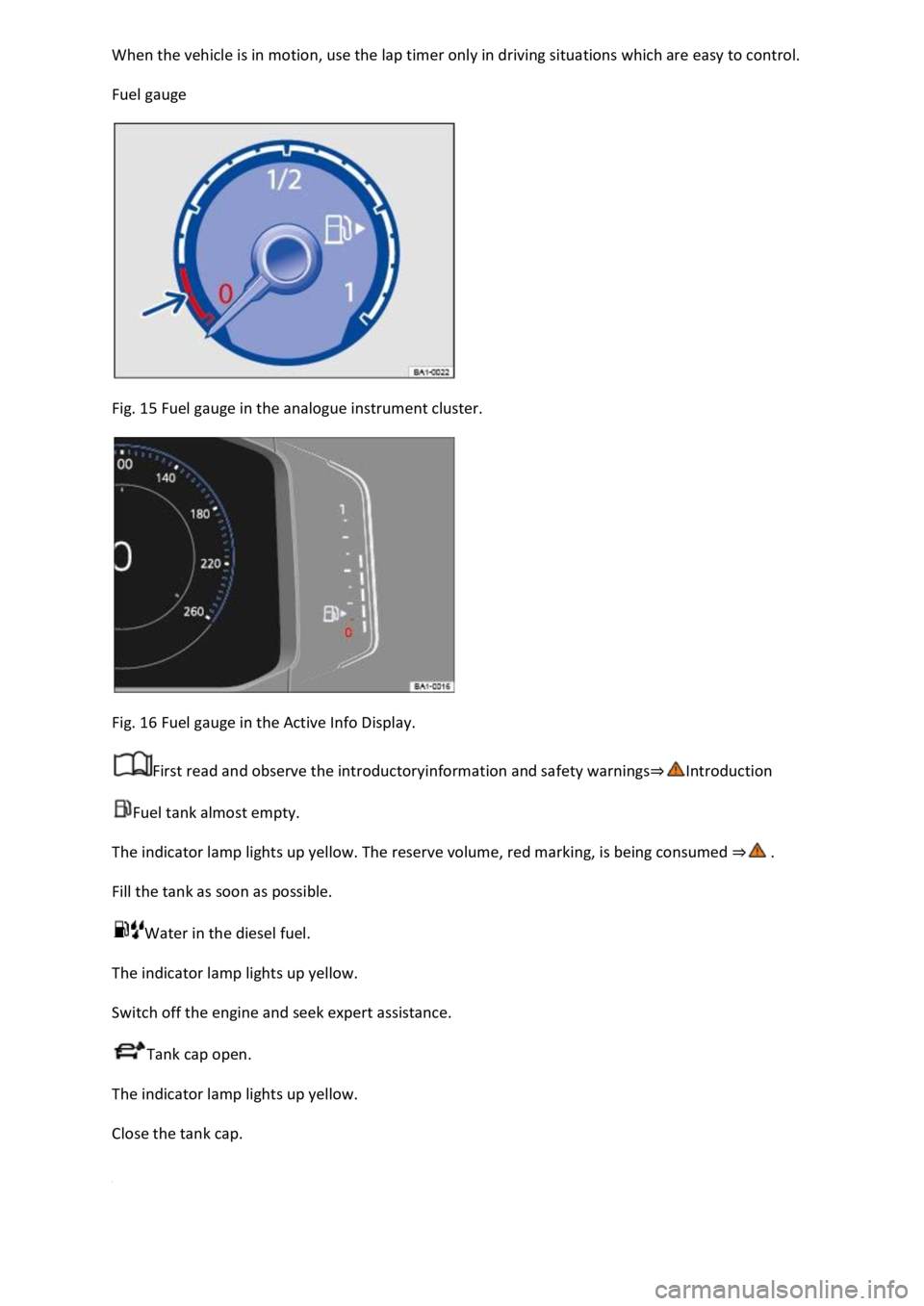
Fuel gauge
Fig. 15 Fuel gauge in the analogue instrument cluster.
Fig. 16 Fuel gauge in the Active Info Display.
First read and observe the introductoryinformation and safety warnings⇒Introduction
Fuel tank almost empty.
The indicator lamp lights up yellow. The reserve volume, red marking, is being consumed ⇒ .
Fill the tank as soon as possible.
Water in the diesel fuel.
The indicator lamp lights up yellow.
Switch off the engine and seek expert assistance.
Tank cap open.
The indicator lamp lights up yellow.
Close the tank cap.
Page 33 of 502
WARNING
Driving when the fuel level is too low can lead to the vehicle coming to a standstill in traffic,
potentially causing accidents and serious injuries.
When the fuel level is too low, the fuel supply to the engine could be irregular, especially when
driving up or down hills and inclines.
The steering, all driver assist systems and brake support systems stop working if the engine sputters
or goes off due to fuel shortage or irregular fuel supply.
Always fill the tank when it is still 1/4 full. This reduces the risk of running out of fuel and breaking
down.
NOTICE
Do not run the tank empty. The irregular fuel supply can cause misfiring and allow unburnt fuel to
enter the exhaust system. The catalytic converter or particulate filter could be damaged as a result.
The small arrow next to the petrol pump symbol in the fuel gauge shows you the side of the vehicle
on which the tank flap is located.
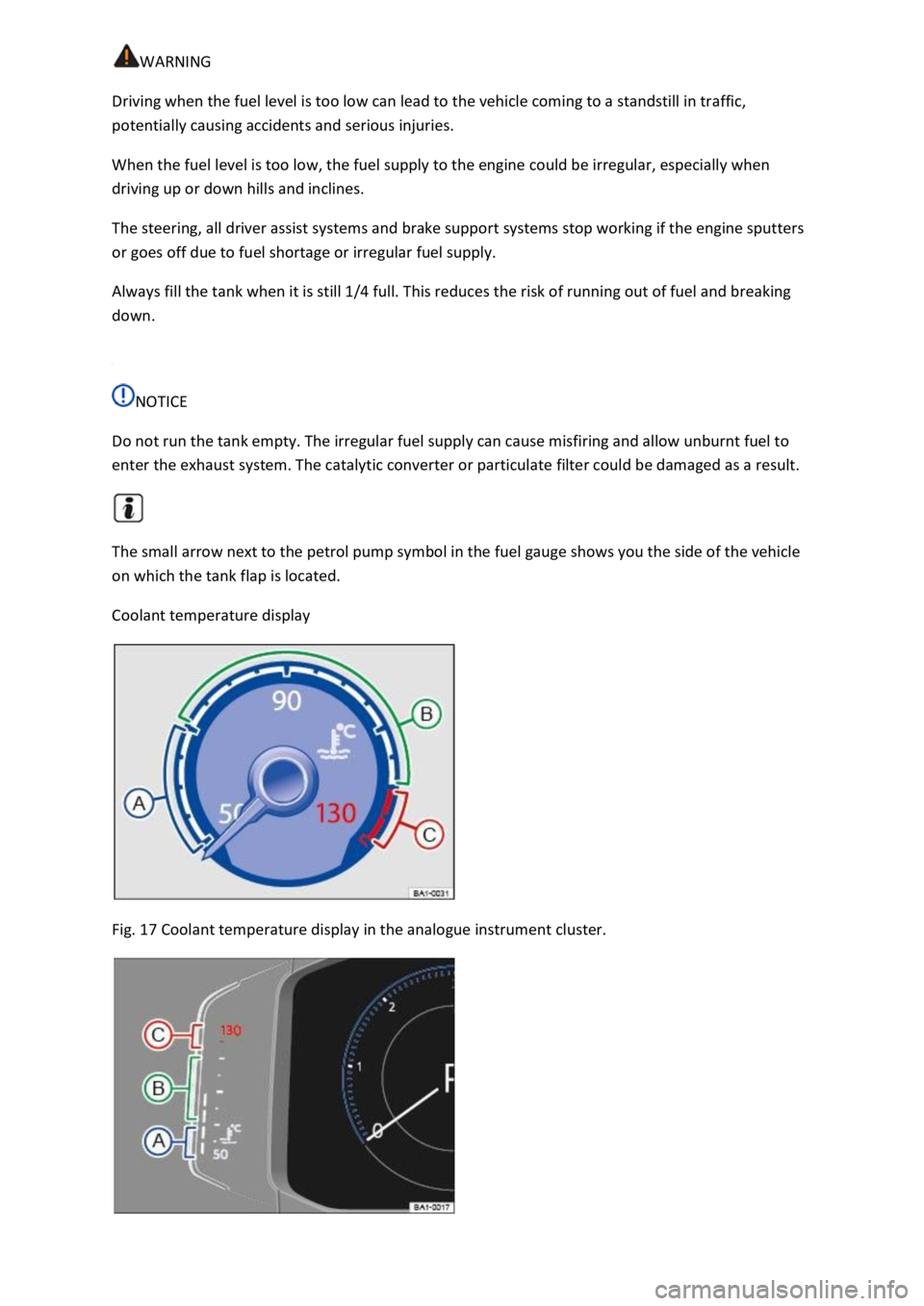
Coolant temperature display
Fig. 17 Coolant temperature display in the analogue instrument cluster.
Page 34 of 502
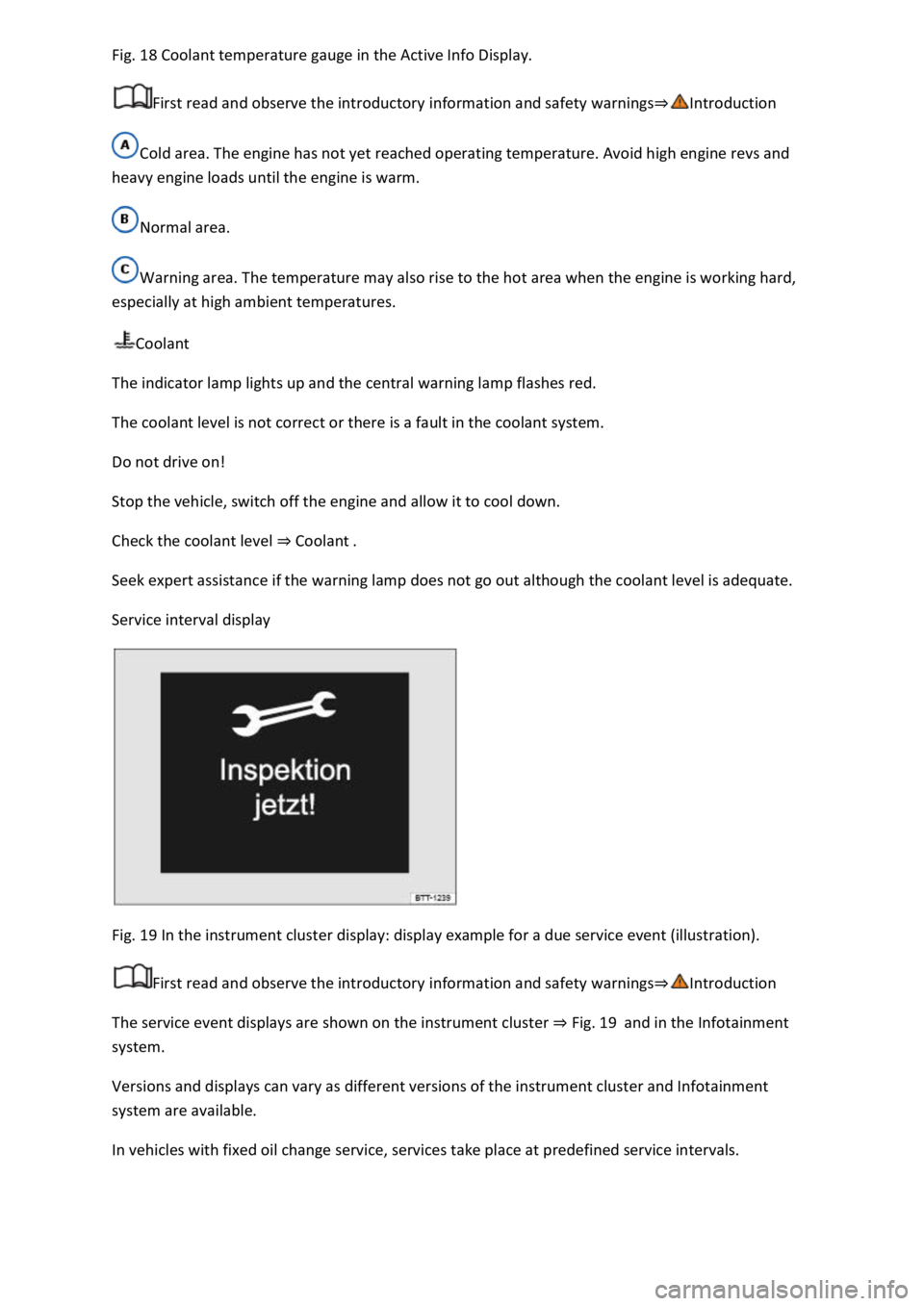
Fig. 18 Coolant temperature gauge in the Active Info Display.
First read and observe the introductory information and safety warnings⇒Introduction
Cold area. The engine has not yet reached operating temperature. Avoid high engine revs and
heavy engine loads until the engine is warm.
Normal area.
Warning area. The temperature may also rise to the hot area when the engine is working hard,
especially at high ambient temperatures.
Coolant
The indicator lamp lights up and the central warning lamp flashes red.
The coolant level is not correct or there is a fault in the coolant system.
Do not drive on!
Stop the vehicle, switch off the engine and allow it to cool down.
Check the coolant level ⇒ Coolant .
Seek expert assistance if the warning lamp does not go out although the coolant level is adequate.
Service interval display
Fig. 19 In the instrument cluster display: display example for a due service event (illustration).
First read and observe the introductory information and safety warnings⇒Introduction
The service event displays are shown on the instrument cluster ⇒ Fig. 19 and in the Infotainment
system.
Versions and displays can vary as different versions of the instrument cluster and Infotainment
system are available.
In vehicles with fixed oil change service, services take place at predefined service intervals.
Page 37 of 502
The buttons on the wiper lever are omitted in vehicles equipped with a multifunction steering wheel
⇒ Operating using the wiper lever .
WARNING
Accidents and injuries can occur if the driver is distracted.
Never operate the menus on the instrument cluster display while the vehicle is in motion.
Check the system settings after charging or replacing the 12-volt vehicle battery. System settings
may be changed or deleted if the power supply is interrupted.
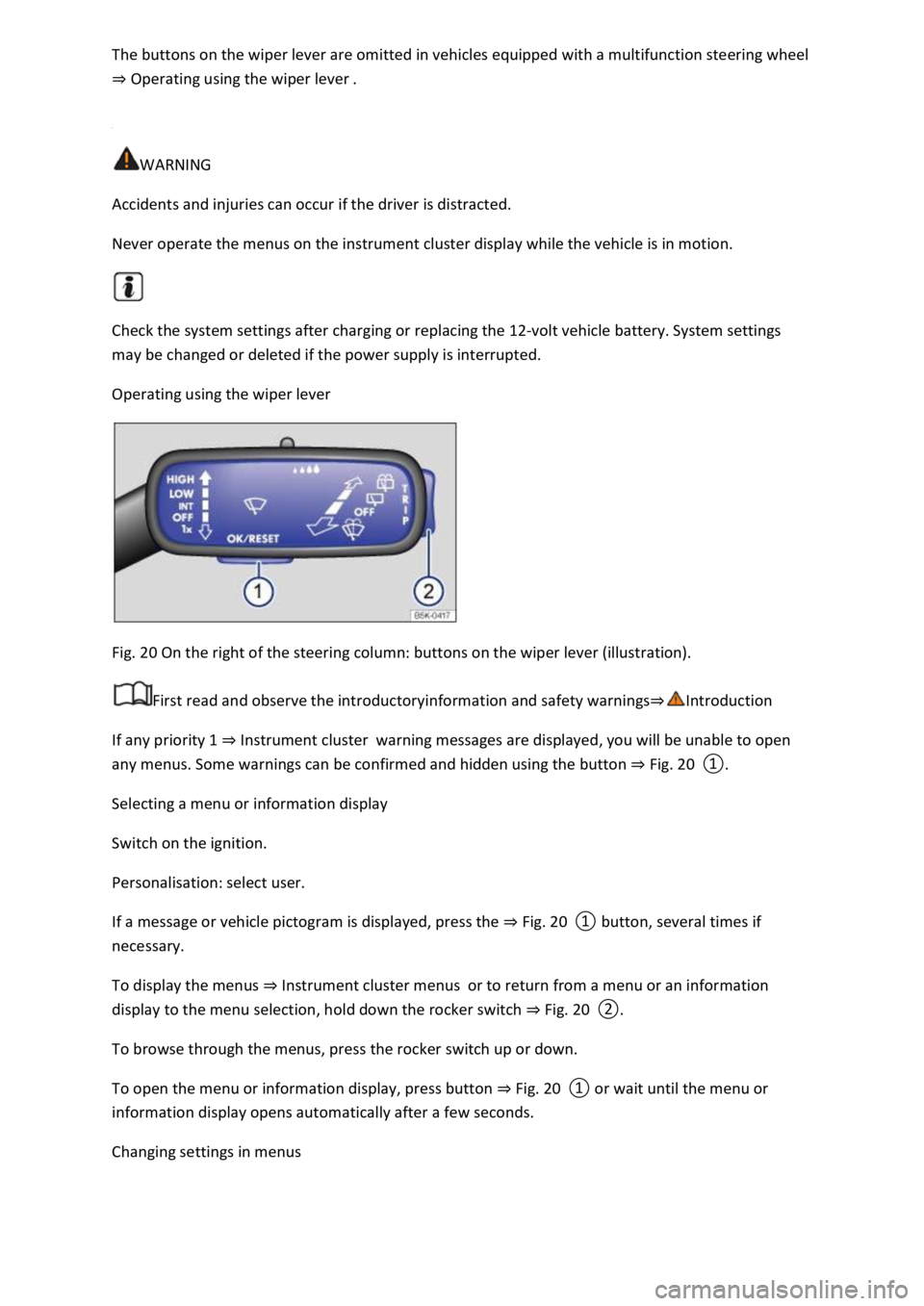
Operating using the wiper lever
Fig. 20 On the right of the steering column: buttons on the wiper lever (illustration).
First read and observe the introductoryinformation and safety warnings⇒Introduction
If any priority 1 ⇒ Instrument cluster warning messages are displayed, you will be unable to open
any menus. Some warnings can be confirmed and hidden using the button ⇒ Fig. 20 ①.
Selecting a menu or information display
Switch on the ignition.
Personalisation: select user.
If a message or vehicle pictogram is displayed, press the ⇒ Fig. 20 ① button, several times if
necessary.
To display the menus ⇒ Instrument cluster menus or to return from a menu or an information
display to the menu selection, hold down the rocker switch ⇒ Fig. 20 ②.
To browse through the menus, press the rocker switch up or down.
To open the menu or information display, press button ⇒ Fig. 20 ① or wait until the menu or
information display opens automatically after a few seconds.
Changing settings in menus
Page 38 of 502
In the menu displayed, press the rocker switch ⇒ Fig. 20 ② on the wiper lever upwards or
downwards until the desired menu option is marked. A frame appears around the selected option.
Press the ⇒ Fig. 20 ① button to make the required changes. A tick indicates that the particular
system or function is active.
Returning to menu selection
In the menu, select the Back menu option to exit the menu.
If warning messages about malfunctions are displayed when the ignition is switched on, it may not
be possible to adjust some settings as described, or the information display may appear differently.
If this is the case, take the vehicle to a qualified workshop to have the malfunction rectified.
Operating using the multifunction steering wheel
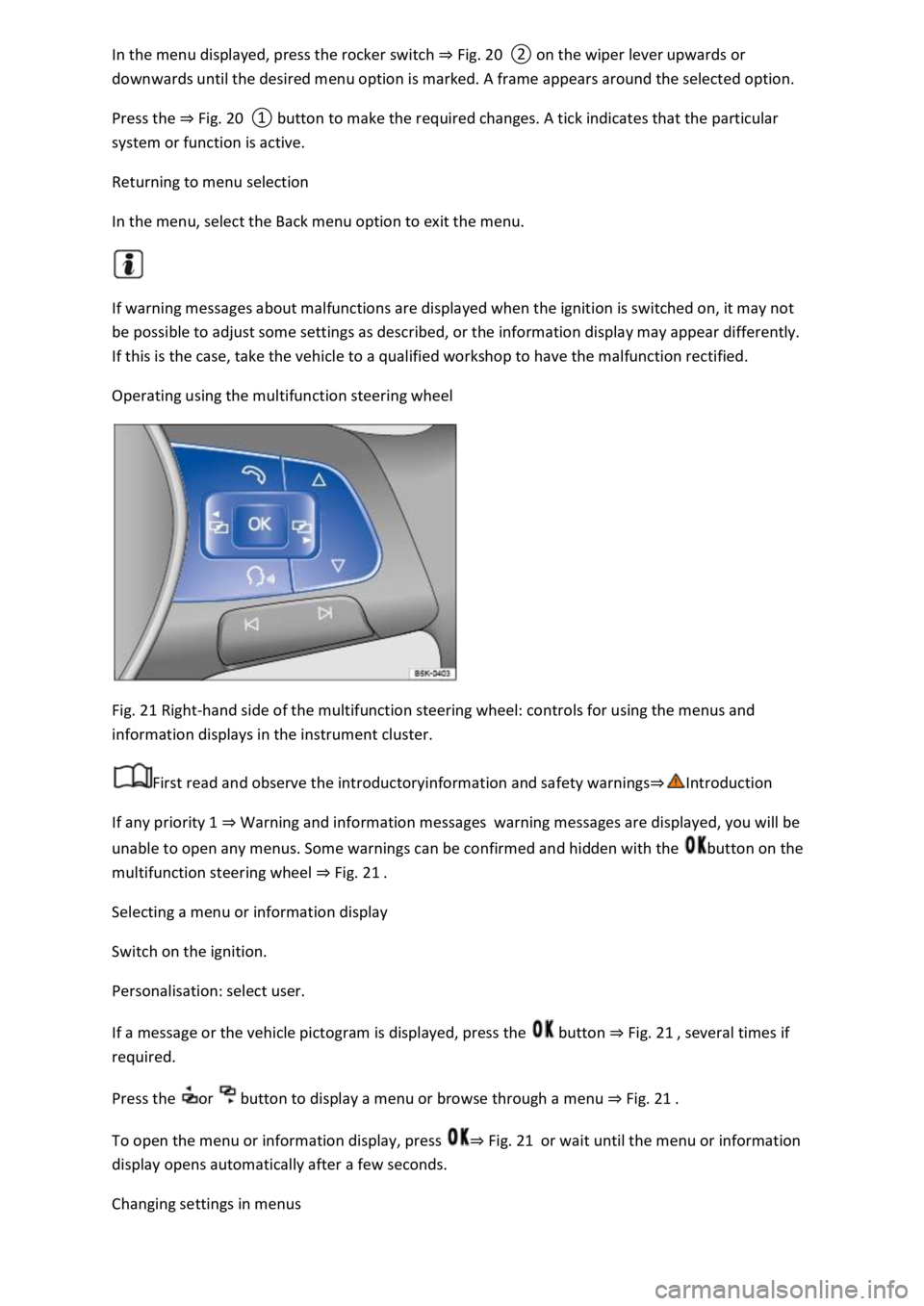
Fig. 21 Right-hand side of the multifunction steering wheel: controls for using the menus and
information displays in the instrument cluster.
First read and observe the introductoryinformation and safety warnings⇒Introduction
If any priority 1 ⇒ Warning and information messages warning messages are displayed, you will be
unable to open any menus. Some warnings can be confirmed and hidden with the button on the
multifunction steering wheel ⇒ Fig. 21 .
Selecting a menu or information display
Switch on the ignition.
Personalisation: select user.
If a message or the vehicle pictogram is displayed, press the button ⇒ Fig. 21 , several times if
required.
Press the or button to display a menu or browse through a menu ⇒ Fig. 21 .
To open the menu or information display, press ⇒ Fig. 21 or wait until the menu or information
display opens automatically after a few seconds.
Changing settings in menus
Page 39 of 502
In the displayed menu, press the arrow keys or ⇒ Fig. 21 until the desired menu option is
marked. A frame appears around the selected option.
Press the button ⇒ Fig. 21 to make the required changes. A tick indicates that the particular
system or function is active.
Returning to menu selection
Press the or button ⇒ Fig. 21 .
If warning messages about malfunctions are displayed when the ignition is switched on, it may not
be possible to adjust some settings as described, or the information display may appear differently.
If this is the case, take the vehicle to a qualified workshop to have the malfunction rectified.
Button for driver assist systems
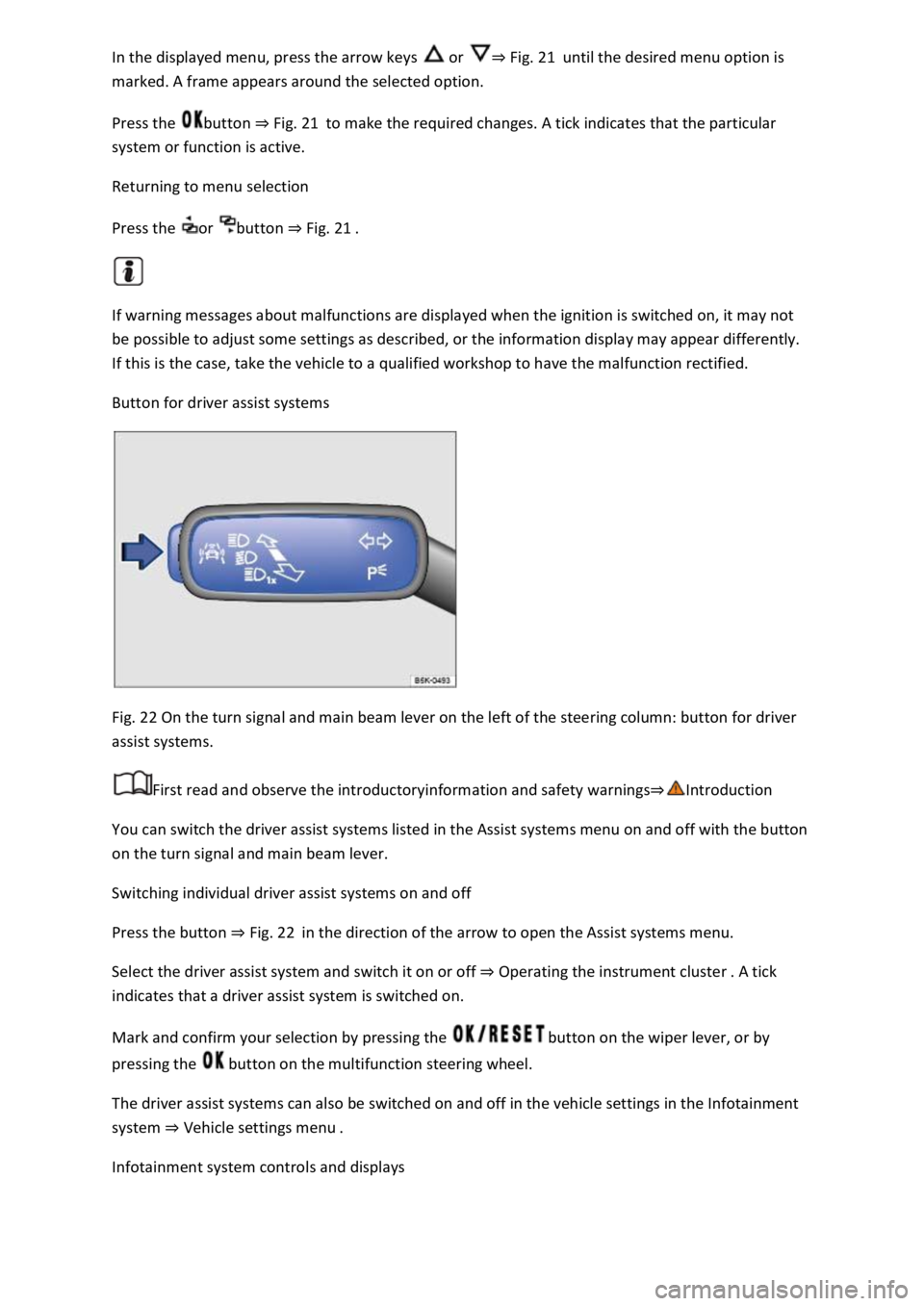
Fig. 22 On the turn signal and main beam lever on the left of the steering column: button for driver
assist systems.
First read and observe the introductoryinformation and safety warnings⇒Introduction
You can switch the driver assist systems listed in the Assist systems menu on and off with the button
on the turn signal and main beam lever.
Switching individual driver assist systems on and off
Press the button ⇒ Fig. 22 in the direction of the arrow to open the Assist systems menu.
Select the driver assist system and switch it on or off ⇒ Operating the instrument cluster . A tick
indicates that a driver assist system is switched on.
Mark and confirm your selection by pressing the button on the wiper lever, or by
pressing the button on the multifunction steering wheel.
The driver assist systems can also be switched on and off in the vehicle settings in the Infotainment
system ⇒ Vehicle settings menu .
Infotainment system controls and displays
Page 40 of 502

Introduction
This chapter contains information on the followingsubjects:
⇒ Vehicle settings menu
⇒ Performance monitor
⇒ Lap timer
⇒ Personalisation
The Infotainment system combines key vehicle systems in a central operating unit, e.g. menu
settings, radio or navigation system.
General information on operation
The following section contains relevant information on the settings that can be adjusted in the
Vehicle settings menu. Basic information on operating the Infotainment system and on warning and
safety instructions is contained in a separate manual ⇒BookletInfotainment system,.
Systems settings and vehicle information display
After pressing the button or touching the function button followed by the Vehicle function
button, touch the corresponding function buttons to display information or make settings. The
current status of systems can be checked or system faults displayed by touching the function
button in the Vehicle status menu.
Vehicle settings (setup) ⇒ Vehicle settings menu .
Think Blue. Trainer. ⇒ Think Blue. Trainer.
Performance monitor ⇒ Performance monitor .
Lap timer ⇒ Lap timer .
Offroad display ⇒ Offroad driving situations .
Auxiliary heater settings ⇒ Auxiliary heater and ventilation .
Active media.
Driving data.
Vehicle status.
Convenience consumers.
Radio station selection.
WARNING
Accidents and injuries can occur if the driver is distracted. Operating the Infotainment system can
distract you from the road.
Page 41 of 502
Always drive carefully and responsibly.
When you start the engine after the 12-volt vehicle battery has been totally discharged or changed,
you may find that system settings (time, date, personal convenience settings and programming) and
user accounts have been changed or deleted. Check and correct the settings as necessary once the
12-volt vehicle battery has been sufficiently charged.
Vehicle settings menu
First read and observe the introductoryinformation and safety warnings⇒Introduction
You can switch individual functions and systems on and off and make settings in the vehicle settings
of the Infotainment system.
Opening the Vehicle settings menu
Switch on the ignition.
Switch on Infotainment system if necessary.
Press the button or function button.
Touch the Vehicle and function buttons to open the Vehicle settings menu.
Touch the corresponding function buttons to open additional menus in the Vehicle settings menu or
to make settings in the menu options.
If the checkbox in the function button is ticked , the respective function is switched on.
Touch the function button to return to the previous menu.
Performance monitor
First read and observe the introductoryinformation and safety warnings⇒Introduction
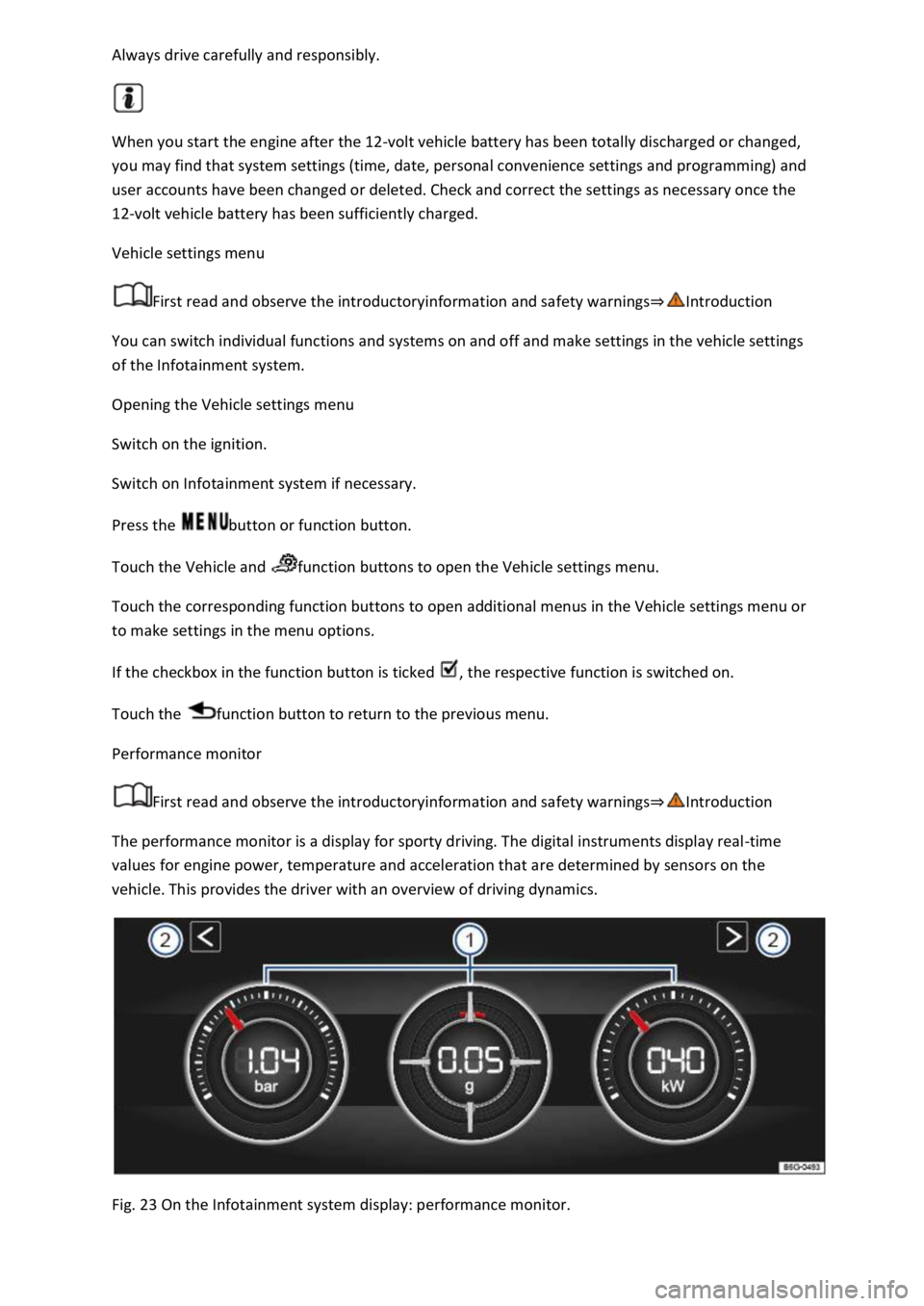
The performance monitor is a display for sporty driving. The digital instruments display real-time
values for engine power, temperature and acceleration that are determined by sensors on the
vehicle. This provides the driver with an overview of driving dynamics.
Fig. 23 On the Infotainment system display: performance monitor.