INFOTAINMENT VOLKSWAGEN T-ROC 2021 Owner´s Manual
[x] Cancel search | Manufacturer: VOLKSWAGEN, Model Year: 2021, Model line: T-ROC, Model: VOLKSWAGEN T-ROC 2021Pages: 502, PDF Size: 9.42 MB
Page 211 of 502
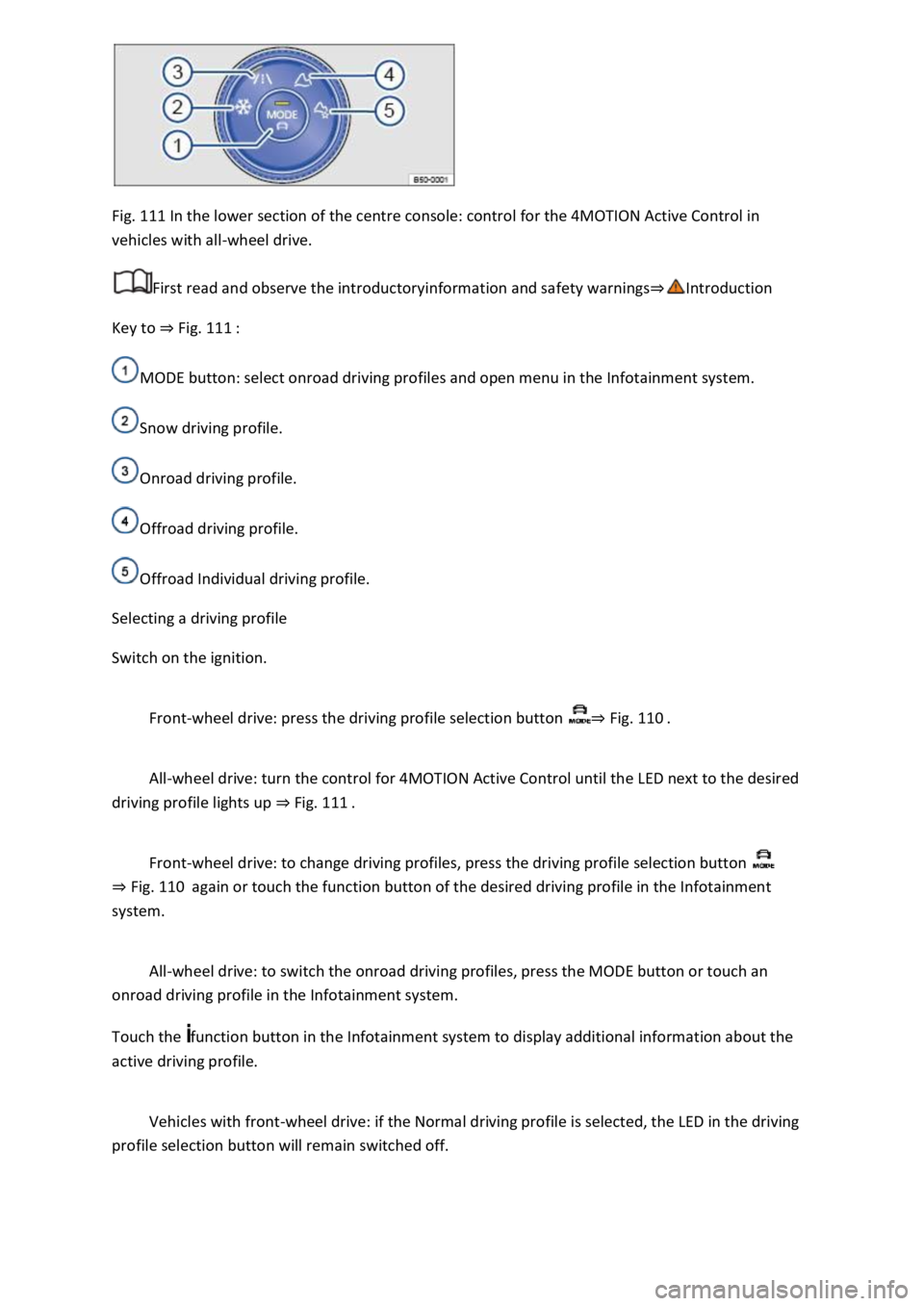
Fig. 111 In the lower section of the centre console: control for the 4MOTION Active Control in
vehicles with all-wheel drive.
First read and observe the introductoryinformation and safety warnings⇒Introduction
Key to ⇒ Fig. 111 :
MODE button: select onroad driving profiles and open menu in the Infotainment system.
Snow driving profile.
Onroad driving profile.
Offroad driving profile.
Offroad Individual driving profile.
Selecting a driving profile
Switch on the ignition.
Front-wheel drive: press the driving profile selection button ⇒ Fig. 110 .
All-wheel drive: turn the control for 4MOTION Active Control until the LED next to the desired
driving profile lights up ⇒ Fig. 111 .
Front-wheel drive: to change driving profiles, press the driving profile selection button
⇒ Fig. 110 again or touch the function button of the desired driving profile in the Infotainment
system.
All-wheel drive: to switch the onroad driving profiles, press the MODE button or touch an
onroad driving profile in the Infotainment system.
Touch the function button in the Infotainment system to display additional information about the
active driving profile.
Vehicles with front-wheel drive: if the Normal driving profile is selected, the LED in the driving
profile selection button will remain switched off.
Page 213 of 502
Individual: individual vehicle systems can be adjusted to suit personal requirements ⇒ Individually
adapting a driving profile .
WARNING
The vehicle handling may change as a result of the different driving profiles. Never allow driving
profile selection to tempt you into taking any risks when driving.
Always adapt your speed and driving style to the current visibility, weather and road or traffic
conditions.
In vehicles with a DSG® dual clutch gearbox, the system automatically changes to gear position S
when the Sport driving profile is selected. The system automatically change to gear position D when
the Eco driving profile is selected. Since coasting is active in the Eco driving profile, the gearbox
programme E is additionally displayed on the instrument cluster display.
Individually adapting a driving profile
First read and observe the introductoryinformation and safety warnings⇒Introduction
Selecting the Individual driving profile
Switch on the ignition.
Switch on the Infotainment system.
Press the driving profile selection button or turn the control for 4MOTION Active Control until
the LED next to the Onroad driving profile ⇒ Fig. 111 ③ lights up.
Touch the Adjust function button to open the Individual menu.
Selecting the Offroad Individual driving profile
Switch on the ignition.
Switch on the Infotainment system.
Turn the control for the 4MOTION Active Control until the LED next to the Offroad Individual driving
profile ⇒ Fig. 111 ⑤ lights up.
If the Offroad Individual driving profile is already selected, press the MODE button on the
control ⇒ Fig. 111 .
Touch the Adjust function button to open the Individual menu.
Troubleshooting
First read and observe the introductoryinformation and safety warnings⇒Introduction
Fault in the adaptive chassis control (DCC)
Page 214 of 502
The indicator lamp lights up yellow.
Go to a qualified workshop and have the system checked.
Fault in Hill Start Assist
Go to a qualified workshop and have the system checked.
Offroad display
The offroad display contains digital instruments that show additional information about the vehicle
and its surroundings. This makes it possible to assess the current driving situation more precisely.
Fig. 112 In the Infotainment system: offroad display.
Opening the offroad display
Press the button on the Infotainment system.
Touch the Vehicle function button.
Touch the Selection function button.
Touch the Offroad function button.
Selecting instruments and setting units
The Infotainment system displays various instruments ⇒ Fig. 112 .
To change instruments, swipe vertically over the display.
The units can be adjusted for some instruments in the Infotainment system ⇒ Infotainment system
controls and displays .
Instruments in the offroad display:
Altimeter: the altimeter shows the current height above sea level.
Steering angle display: the steering angle of the vehicle is displayed in the range between -49° and
49°. The value is positive for a left steering angle and negative for a right steering angle.
Compass: the compass shows the current driving direction.
Page 234 of 502

Changing to Adaptive Cruise Control (ACC)
Press the button.
The speed limiter is switched off.
Troubleshooting
First read and observe the introductoryinformation and safety warnings⇒Introduction
Control is automatically interrupted.
Malfunction. Switch off the speed limiter and go to a qualified workshop.
For safety reasons, the speed limiter does not fully deactivate itself until you release the accelerator
once or switch the system off manually.
Adaptive Cruise Control (ACC)
Introduction
This chapter contains information on the followingsubjects:
⇒ Special driving situations
⇒ Limits of ACC
⇒ Switching ACC on and off
⇒ Setting ACC
⇒ Troubleshooting
The Adaptive Cruise Control (ACC) maintains a speed selected by the driver. If the vehicle
approaches a vehicle in front, the ACC automatically adapts the speed so that a distance you have
selected is maintained.
Speed range
ACC controls the vehicle in the speed range between 30 km/h (20 mph) and 160 km/h (100 mph)
or 210 km/h (130 mph). This speed range may differ in certain markets.
Driving with ACC
You can override the ACC at any time. Control will be interrupted when you brake. If you accelerate,
control will be interrupted for the duration of the acceleration process and will then continue again.
Control by ACC is less dynamic when towing a trailer ⇒ . The ACC will not perform control operation
if the trailer's brake lights are faulty.
Does the vehicle have ACC?
The vehicle is equipped with ACC if you can make settings for ACC in the vehicle settings of the
Infotainment system ⇒ Vehicle settings menu .
Brake request
Page 240 of 502
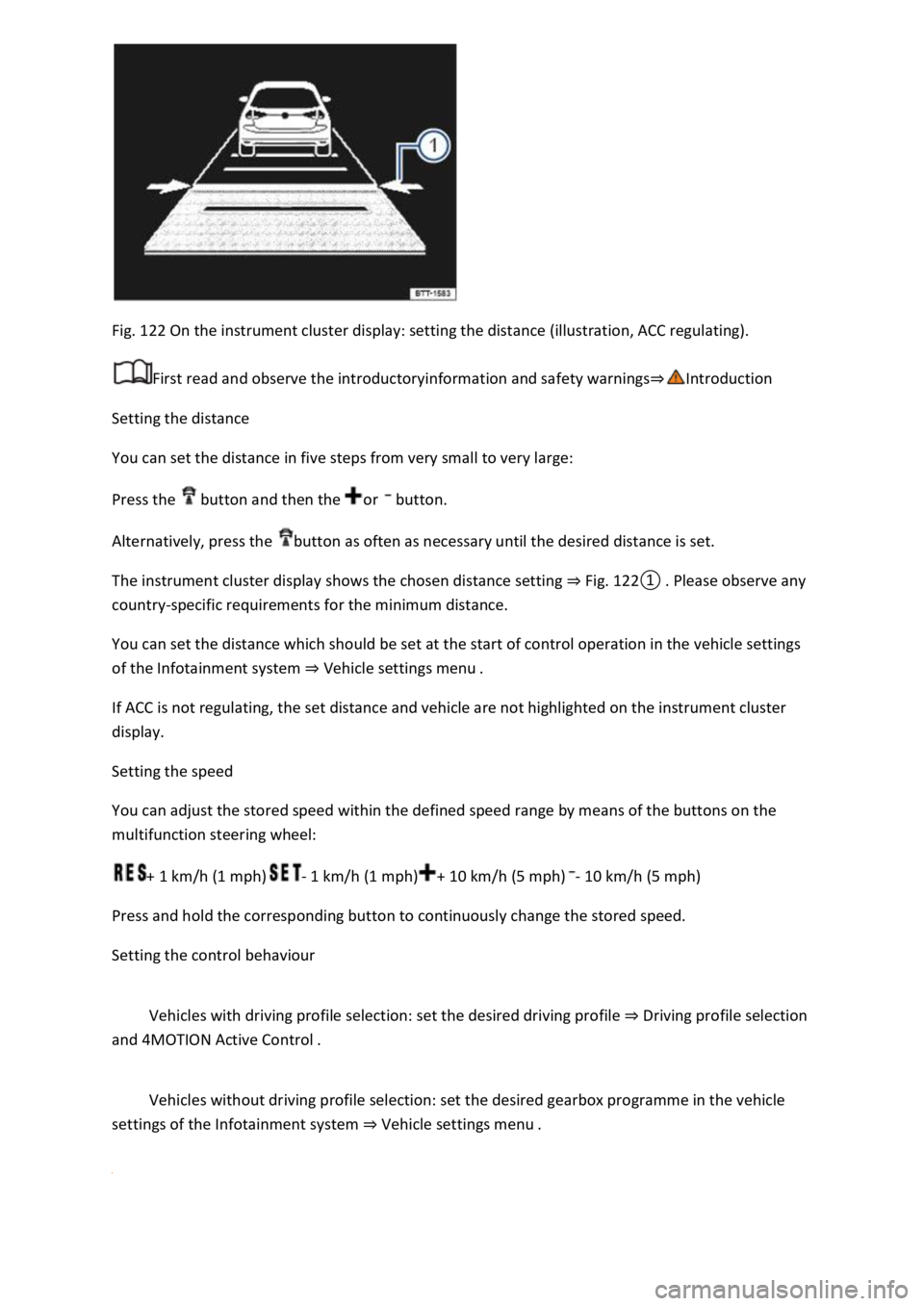
Fig. 122 On the instrument cluster display: setting the distance (illustration, ACC regulating).
First read and observe the introductoryinformation and safety warnings⇒Introduction
Setting the distance
You can set the distance in five steps from very small to very large:
Press the button and then the or button.
Alternatively, press the button as often as necessary until the desired distance is set.
The instrument cluster display shows the chosen distance setting ⇒ Fig. 122① . Please observe any
country-specific requirements for the minimum distance.
You can set the distance which should be set at the start of control operation in the vehicle settings
of the Infotainment system ⇒ Vehicle settings menu .
If ACC is not regulating, the set distance and vehicle are not highlighted on the instrument cluster
display.
Setting the speed
You can adjust the stored speed within the defined speed range by means of the buttons on the
multifunction steering wheel:
+ 1 km/h (1 mph)- 1 km/h (1 mph)+ 10 km/h (5 mph)- 10 km/h (5 mph)
Press and hold the corresponding button to continuously change the stored speed.
Setting the control behaviour
Vehicles with driving profile selection: set the desired driving profile ⇒ Driving profile selection
and 4MOTION Active Control .
Vehicles without driving profile selection: set the desired gearbox programme in the vehicle
settings of the Infotainment system ⇒ Vehicle settings menu .
Page 247 of 502

Volkswagen recommends that Front Assist and also the distance and advance warnings are switched
on at all times. Exceptions ⇒ Limits of Front Assist .
Switching on and off
Switch Front Assist on and off in the vehicle settings of the Infotainment system ⇒ Vehicle settings
menu .
Or: switch Front Assist on and off in the instrument cluster menus ⇒ Instrument cluster menus .
If you switch off Front Assist, the advance warning and distance warning will also be switched off.
The yellow indicator lamp lights up in the instrument cluster display. .
Setting the distance and advance warnings
Switch on Front Assist.
Switch the desired function on and off in the vehicle settings of the Infotainment system ⇒ Vehicle
settings menu .
Depending on the vehicle equipment, you can also set the warning time for the advance warning.
Some settings can be stored in the user accounts of the personalisation function and therefore
change automatically when the user account changes ⇒ Personalisation .
Troubleshooting
First read and observe the introductoryinformation and safety warnings⇒Introduction
Front Assist is not available, the radar sensor does not have sufficient visibility.
The radar sensor is dirty. Clean the radar sensor ⇒ Vehicle care .
The visibility of the radar sensor is impaired due to the weather conditions, e.g. snow, or due to
detergent deposits or coatings. Clean the radar sensor ⇒ Vehicle care .
The visibility of the radar sensor is impaired by add-on parts, the trim frames of number plate
holders or stickers. Keep the area around the radar sensor free.
The radar sensor has been displaced or damaged, e.g. due to damage to the front of the vehicle.
Check whether damage is visible ⇒ Repairs and technical modifications .
Structural modifications have been made to the front of the vehicle.
The genuine Volkswagen badge is not used.
If the problem persists, switch off Front Assist and go to a qualified workshop.
Front Assist does not function as expected or is triggered unnecessarily several times.
The radar sensor is dirty. Clean the radar sensor ⇒ Vehicle care .
The system limits are not met ⇒ Limits of Front Assist .
Page 248 of 502

If the problem persists, switch off Front Assist and go to a qualified workshop.
Lane keeping system (Lane Assist)
Introduction
This chapter contains information on the followingsubjects:
⇒ Driving with the lane keeping system
⇒ Troubleshooting
The lane keeping system (Lane Assist) helps the driver stay in lane.
Using a camera in the windscreen, the lane departure warning system detects lane markings on the
road. If your vehicle moves too close to a recognised lane marking, the system will warn the driver
with a corrective steering intervention. The corrective steering intervention can be overridden by
the driver at any time.
Adaptive lane guidance (depending on vehicle equipment)
The adaptive lane guidance system detects the preferred position in a lane and keeps the vehicle in
this position.
Adaptive lane guidance is switched on and off in the Driver assistance menu in the Infotainment
system ⇒ Vehicle settings menu .
System limits
Use the lane keeping system only on motorways and good main roads.
The system is not active under the following conditions:
The lane keeping system has not detected any lane markings.
WARNING
The intelligent technology used in the lane keeping system cannot overcome the laws of physics, and
functions only within the limits of the system. Always take care when using the lane departure
warning system otherwise you could cause accidents or injuries. The system is not a substitute for
the full concentration of the driver.
Adapt your speed and distance from the vehicles ahead to suit visibility, weather, road and traffic
conditions.
Your hands should always be on the steering wheel so that you can steer at any time. The driver is
always responsible for staying in lane.
The lane keeping system cannot recognise all lane markings. Poor road surfaces, road structures or
objects could be recognised incorrectly as lane markings by the lane keeping system. The lane
keeping system should be switched off immediately in these situations.
Follow the information on the instrument cluster display and respond according to the commands.
Page 249 of 502
Always pay close attention to the surroundings of the vehicle.
If the camera's field of view is dirty, covered or damaged, the function of the lane keeping system
may be impaired.
Some settings can be saved in the user accounts of the personalisation function and can therefore
change automatically when the user account is changed ⇒ Personalisation .
Driving with the lane keeping system
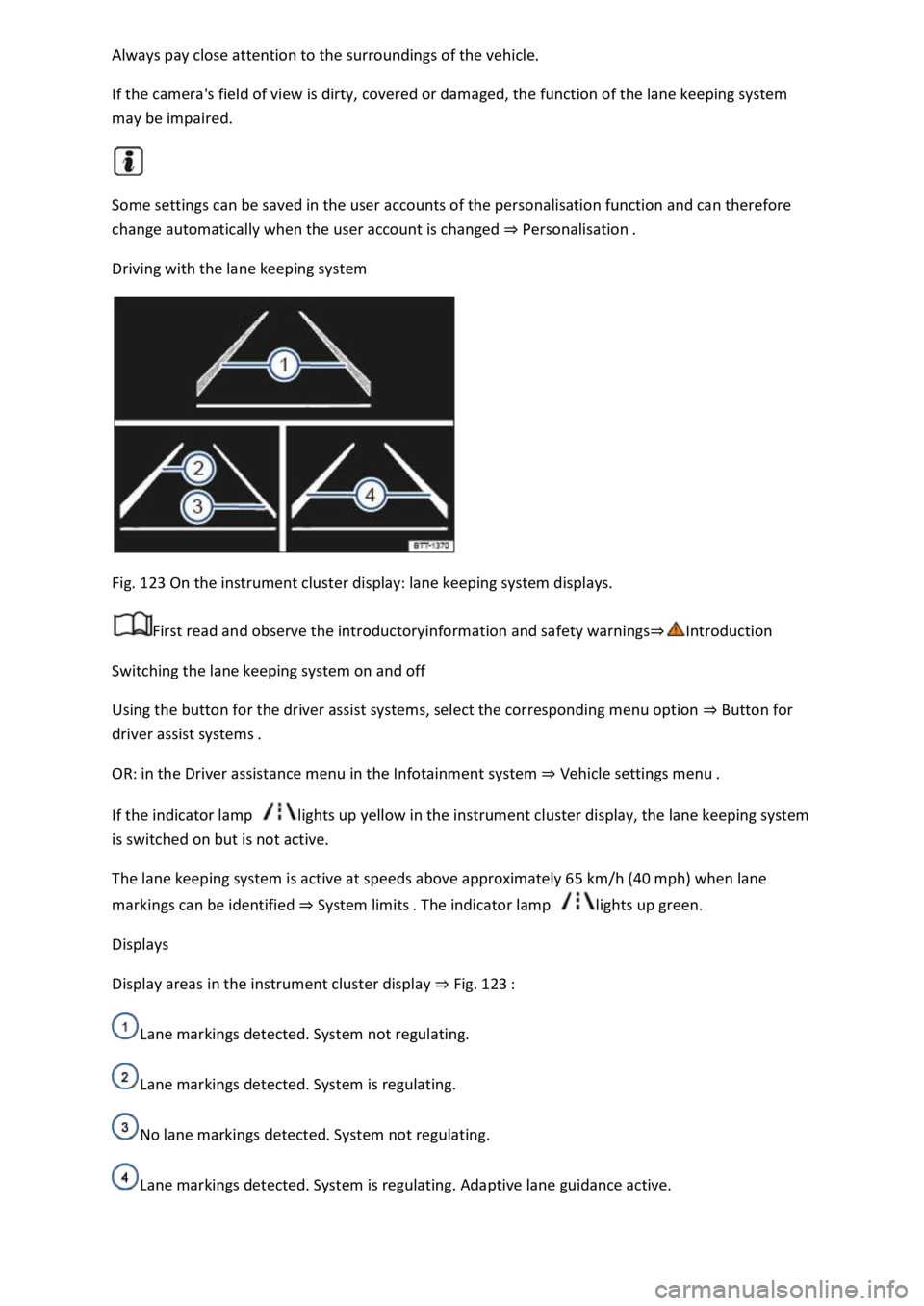
Fig. 123 On the instrument cluster display: lane keeping system displays.
First read and observe the introductoryinformation and safety warnings⇒Introduction
Switching the lane keeping system on and off
Using the button for the driver assist systems, select the corresponding menu option ⇒ Button for
driver assist systems .
OR: in the Driver assistance menu in the Infotainment system ⇒ Vehicle settings menu .
If the indicator lamp lights up yellow in the instrument cluster display, the lane keeping system
is switched on but is not active.
The lane keeping system is active at speeds above approximately 65 km/h (40 mph) when lane
markings can be identified ⇒ System limits . The indicator lamp lights up green.
Displays
Display areas in the instrument cluster display ⇒ Fig. 123 :
Lane markings detected. System not regulating.
Lane markings detected. System is regulating.
No lane markings detected. System not regulating.
Lane markings detected. System is regulating. Adaptive lane guidance active.
Page 251 of 502

Traffic Jam Assist is an extension of the lane keeping system (Lane Assist) for vehicles with DSG ® and
combines its functions with the Adaptive Cruise Control (ACC). Please therefore read both these
chapters and observe the information about the system limits and warnings.
Traffic Jam Assist function
Traffic Jam Assist can maintain a time interval set by the driver to a vehicle in front and help the
vehicle to stay in lane ⇒ .
The system automatically controls acceleration, braking, steering and, if required, will decelerate to
a stop behind a vehicle that is stopping, and then pull away again automatically.
Use Traffic Jam Assist only on motorways and good main roads. Do not use Traffic Jam Assist in
urban traffic.
Switching Traffic Jam Assist on and off
Traffic Jam Assist is switched on and off together with the adaptive lane guidance of the lane
keeping system in the Infotainment system ⇒ Vehicle settings menu .
Traffic Jam Assist can also be switched off together with the lane keeping system via the button for
driver assist systems ⇒ Button for driver assist systems .
Technical requirements for using Traffic Jam Assist
The lane keeping system is switched on and active together with adaptive lane guidance ⇒ Driving
with the lane keeping system .
Adaptive Cruise Control (ACC) is switched on and active ⇒ Switching ACC on and off .
The selector lever is in position D/S or in the Tiptronic gate.
The system has detected a lane marking on both the right and left sides of the vehicle ⇒ Fig. 123① .
The speed is under 60 km/h (35 mph).
Traffic Jam Assist is not active (indicator lamp for the lane keeping system lights up yellow)
As soon as one of the conditions indicated in ⇒ Technical requirements for using Traffic Jam Assist is
no longer fulfilled.
If one of the conditions for the proper functioning of the lane keeping system is no longer fulfilled
⇒ .
If one of the conditions for the proper functioning of the Adaptive Cruise Control (ACC) is no longer
fulfilled ⇒ Limits of ACC .
Switch off Traffic Jam Assist in the following situations
Traffic Jam Assist should always be switched off in the following situations due to system limitations:
When a high level of concentration is required by the driver.
Very sporty driving.
In poor weather conditions, e.g. snow or heavy rain.
Page 255 of 502
Spot Monitor tempt you into taking any safety risks when driving. Careless or unintentional use of
the Blind Spot Monitor can cause accidents and serious injuries. The system is not a substitute for
the full concentration of the driver.
Adapt your speed and distance from the vehicles ahead to suit visibility, weather, road and traffic
conditions.
Your hands should always be on the steering wheel so that you can steer at any time.
Pay attention to the indicator lamps in the exterior mirrors and in the instrument cluster display and
respond according to the commands.
Always pay close attention to the surroundings of the vehicle.
Never use the Blind Spot Monitor if the radar sensors are dirty, covered or damaged. These
conditions can impair the proper functioning of the system.
It may be hard to see the indicator lamp in the exterior mirror in direct sunlight.
Some settings can be saved in the user accounts of the personalisation function and can therefore
change automatically when the user account is changed ⇒ Personalisation .
Driving with the Blind Spot Monitor
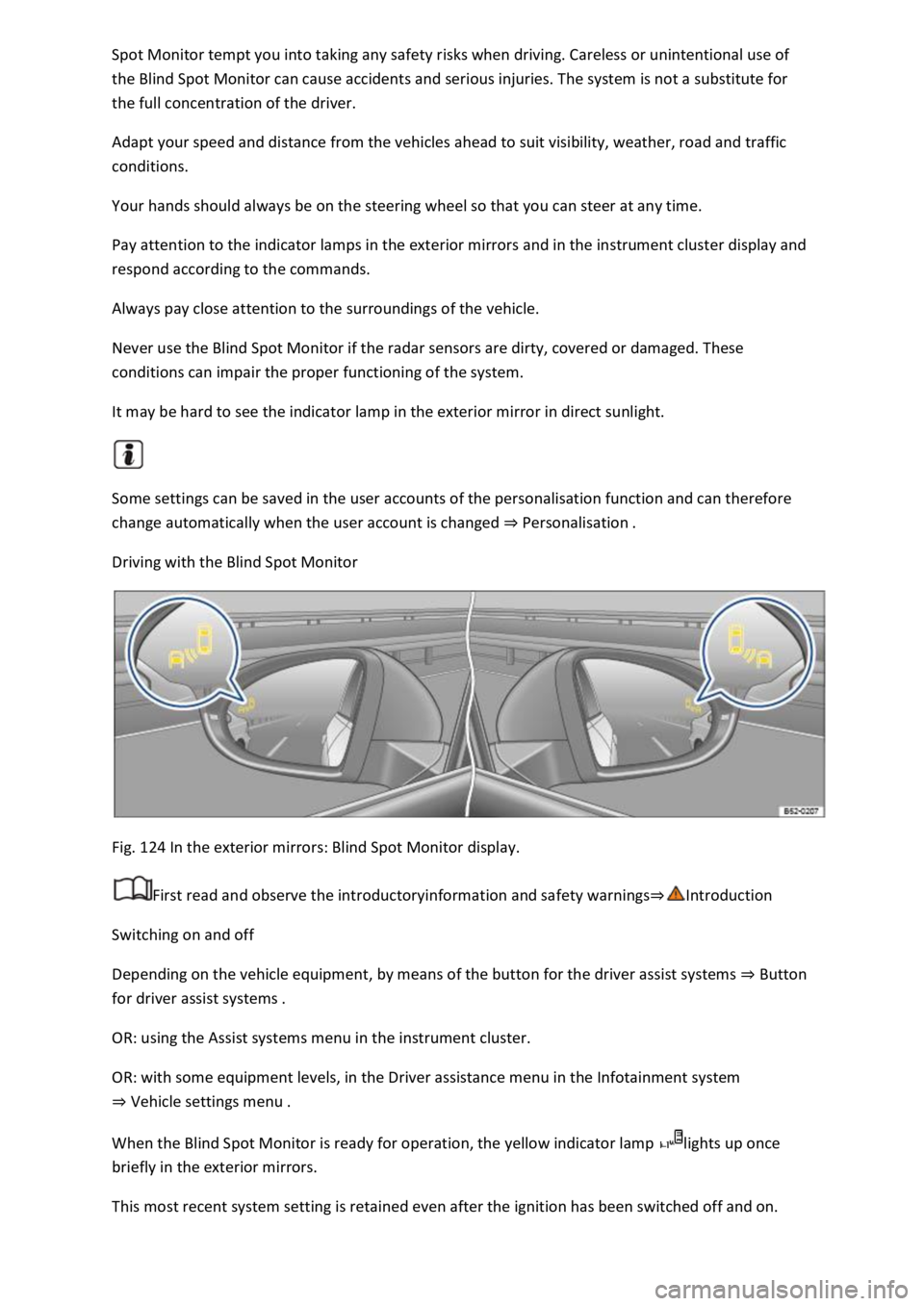
Fig. 124 In the exterior mirrors: Blind Spot Monitor display.
First read and observe the introductoryinformation and safety warnings⇒Introduction
Switching on and off
Depending on the vehicle equipment, by means of the button for the driver assist systems ⇒ Button
for driver assist systems .
OR: using the Assist systems menu in the instrument cluster.
OR: with some equipment levels, in the Driver assistance menu in the Infotainment system
⇒ Vehicle settings menu .
When the Blind Spot Monitor is ready for operation, the yellow indicator lamp lights up once
briefly in the exterior mirrors.
This most recent system setting is retained even after the ignition has been switched off and on.