menu VOLKSWAGEN TIGUAN 2017 Owner´s Manual
[x] Cancel search | Manufacturer: VOLKSWAGEN, Model Year: 2017, Model line: TIGUAN, Model: VOLKSWAGEN TIGUAN 2017Pages: 341, PDF Size: 9.14 MB
Page 157 of 341
•Off-road Individual: Enhanced version of the off-road driving profile that can be adjusted to the
driver's needs ⇒ Adjusting the driving profile to suit your requirements. When the driving profile
is active, the instrument cluster displays the symbol m/k/s562MK.
•Onroad:The Onroad driving profile enables you to choose between Eco, Comfort, Normal,
Sport and Individual.
Adjusting the driving profile to suit your requirements
First read and observe the introductoryinformation and safety warnings⇒
Introduction
Selecting the Individual driving profile
•Switch on the ignition.
•Switch on the Infotainment system.
•Press the driving profile selection button or turn the control for 4MOTION Active Control
until the LED next to the Onroad driving profile ⇒ Fig. 129③ lights up.
•Touch the Change function button to open the Individual menu.
Selecting the Off-road Individual driving profile
•Switch on the ignition.
•Switch on the Infotainment system.
•If necessary, turn the control ⇒ Fig. 129 for the 4MOTION Active Control until the LED next to
the Off-road Individual driving profile ⇒ Fig. 129⑤ lights up.
•If the Off-road Individual driving profile is already selected, press the MODE button on the
control ⇒ Fig. 129.
•Touch the Change function button to open the Individual menu.
Troubleshooting
First read and observe the introductoryinformation and safety warnings⇒
Introduction
Fault in adaptive chassis control (DCC): go to a qualified workshop and have the system checked.
If there is a fault in the adaptive chassis control (DCC), the message Fault: damping control may
be shown on the instrument cluster display.
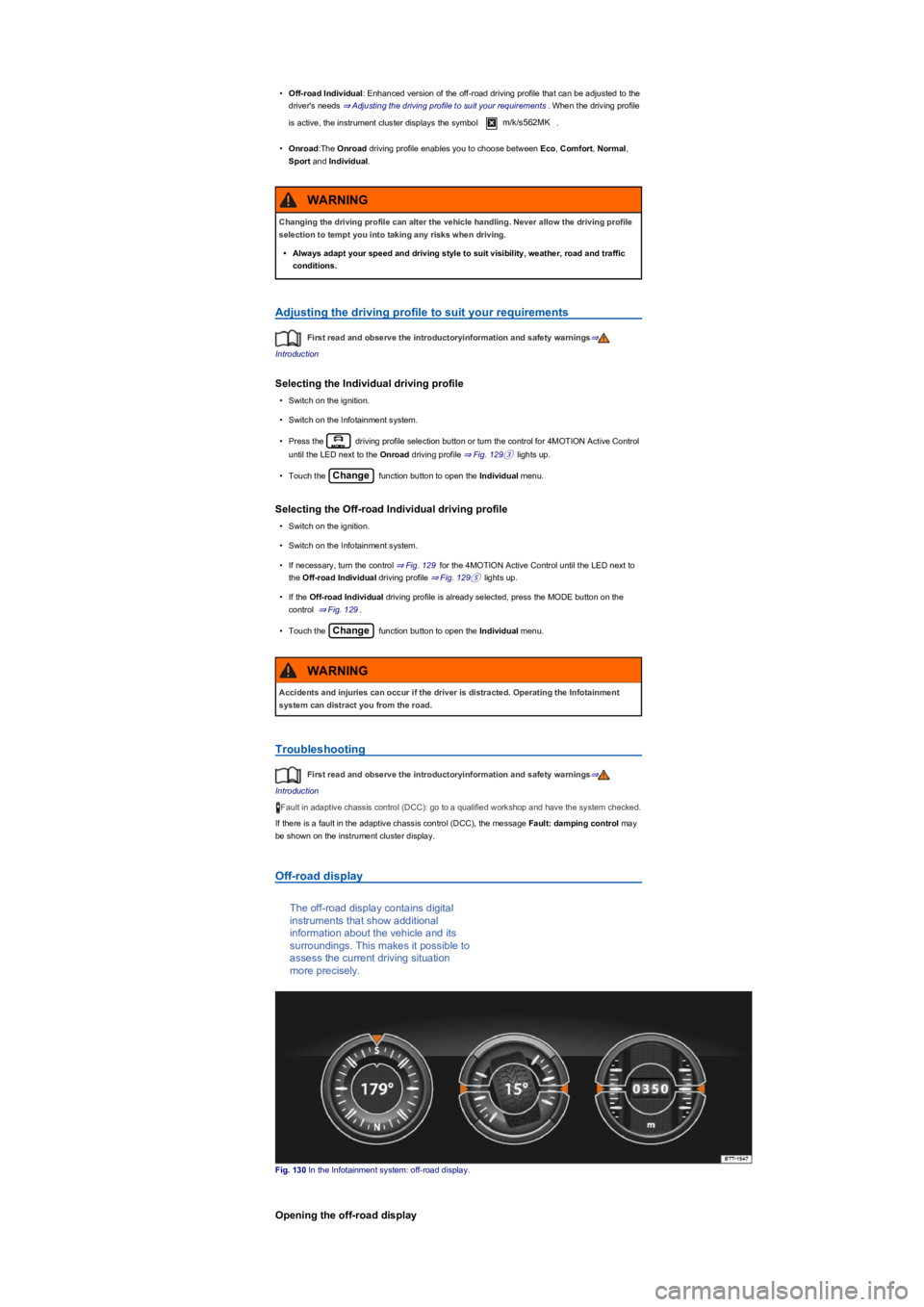
Off-road display
The off-road display contains digital
instruments that show additional
information about the vehicle and its
surroundings. This makes it possible to
assess the current driving situation
more precisely.
Fig. 130 In the Infotainment system: off-road display.
Opening the off-road display
Changing the driving profile can alter the vehicle handling. Never allow the driving profile
selection to tempt you into taking any risks when driving.
•Always adapt your speed and driving style to suit visibility, weather, road and traffic
conditions.
WARNING
Accidents and injuries can occur if the driver is distracted. Operating the Infotainment
system can distract you from the road.
WARNING
Page 174 of 341
Speed range
ACC controls the vehicle in the speed range between 30 km/h (20 mph) and 160 km/h (100 mph)
or 210 km/h (130 mph). This speed range may differ in certain markets.
Radar sensor
ACC detects driving situations by means of the radar sensor at the front of the vehicle ⇒ Front
view. The range of the radar sensor is up to approximately 120 m.
Does the vehicle have ACC?
The vehicle is equipped with ACC if you can make settings for ACC in the vehicle settings of the
Infotainment system ⇒ Vehicle settings menu.
If the vehicle has ACC, the cruise control system is not available as an independent system.
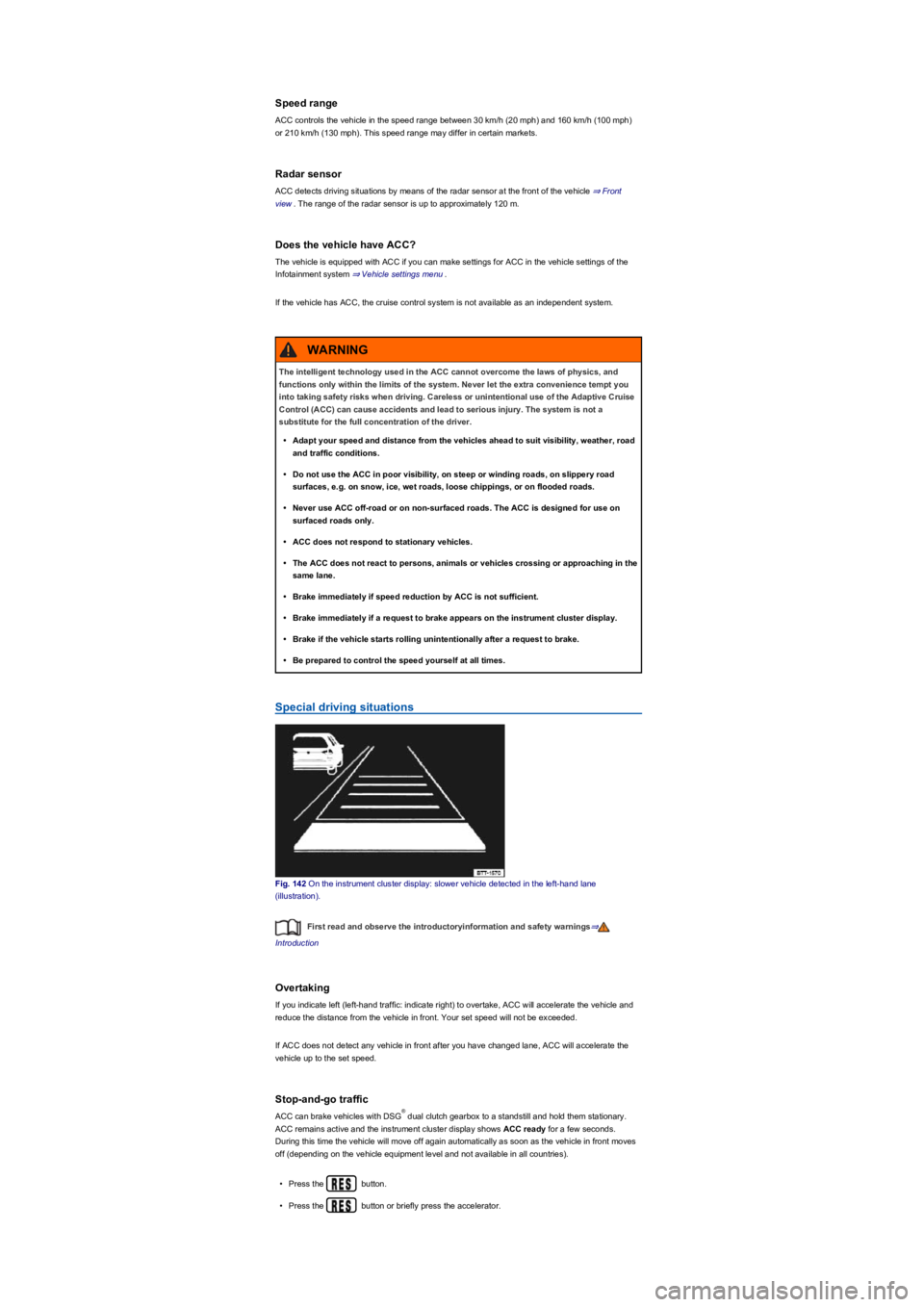
Special driving situations
Fig. 142 On the instrument cluster display: slower vehicle detected in the left-hand lane
(illustration).
First read and observe the introductoryinformation and safety warnings⇒
Introduction
Overtaking
If you indicate left (left-hand traffic: indicate right) to overtake, ACC will accelerate the vehicle and
reduce the distance from the vehicle in front. Your set speed will not be exceeded.
If ACC does not detect any vehicle in front after you have changed lane, ACC will accelerate the
vehicle up to the set speed.
Stop-and-go traffic
ACC can brake vehicles with DSG dual clutch gearbox to a standstill and hold them stationary.
ACC remains active and the instrument cluster display shows ACC ready for a few seconds.
During this time the vehicle will move off again automatically as soon as the vehicle in front moves
off (depending on the vehicle equipment level and not available in all countries).
•Press the button.
•Press the button or briefly press the accelerator.
The intelligent technology used in the ACC cannot overcome the laws of physics, and
functions only within the limits of the system. Never let the extra convenience tempt you
into taking safety risks when driving. Careless or unintentional use of the Adaptive Cruise
Control (ACC) can cause accidents and lead to serious injury. The system is not a
substitute for the full concentration of the driver.
•Adapt your speed and distance from the vehicles ahead to suit visibility, weather, road
and traffic conditions.
•Do not use the ACC in poor visibility, on steep or winding roads, on slippery road
surfaces, e.g. on snow, ice, wet roads, loose chippings, or on flooded roads.
•Never use ACC off-road or on non-surfaced roads. The ACC is designed for use on
surfaced roads only.
•ACC does not respond to stationary vehicles.
•The ACC does not react to persons, animals or vehicles crossing or approaching in the
same lane.
•Brake immediately if speed reduction by ACC is not sufficient.
•Brake immediately if a request to brake appears on the instrument cluster display.
•Brake if the vehicle starts rolling unintentionally after a request to brake.
•Be prepared to control the speed yourself at all times.
WARNING
®
Page 177 of 341
•Press the button.
ACC is switched off.
Setting ACC
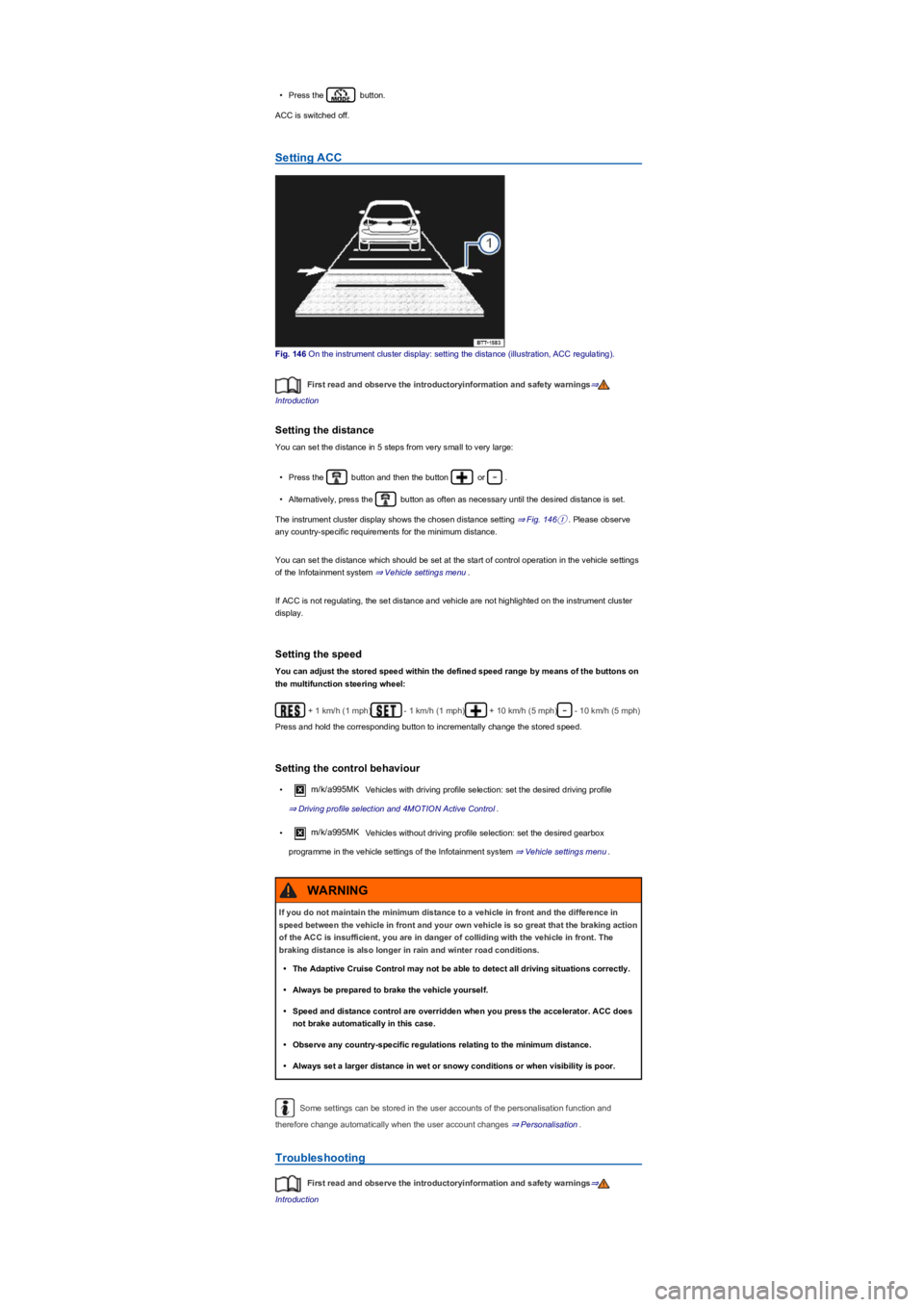
Fig. 146 On the instrument cluster display: setting the distance (illustration, ACC regulating).
First read and observe the introductoryinformation and safety warnings⇒
Introduction
Setting the distance
You can set the distance in 5 steps from very small to very large:
•Press the button and then the button or .
•Alternatively, press the button as often as necessary until the desired distance is set.
The instrument cluster display shows the chosen distance setting ⇒ Fig. 146①. Please observe
any country-specific requirements for the minimum distance.
You can set the distance which should be set at the start of control operation in the vehicle settings
of the Infotainment system ⇒ Vehicle settings menu.
If ACC is not regulating, the set distance and vehicle are not highlighted on the instrument cluster
display.
Setting the speed
You can adjust the stored speed within the defined speed range by means of the buttons on
the multifunction steering wheel:
+ 1 km/h (1 mph)- 1 km/h (1 mph)+ 10 km/h (5 mph)- 10 km/h (5 mph)
Press and hold the corresponding button to incrementally change the stored speed.
Setting the control behaviour
•m/k/a995MK Vehicles with driving profile selection: set the desired driving profile
⇒ Driving profile selection and 4MOTION Active Control.
•m/k/a995MK Vehicles without driving profile selection: set the desired gearbox
programme in the vehicle settings of the Infotainment system ⇒ Vehicle settings menu.
Some settings can be stored in the user accounts of the personalisation function and
therefore change automatically when the user account changes ⇒ Personalisation.
Troubleshooting
First read and observe the introductoryinformation and safety warnings⇒
Introduction
If you do not maintain the minimum distance to a vehicle in front and the difference in
speed between the vehicle in front and your own vehicle is so great that the braking action
of the ACC is insufficient, you are in danger of colliding with the vehicle in front. The
braking distance is also longer in rain and winter road conditions.
•The Adaptive Cruise Control may not be able to detect all driving situations correctly.
•Always be prepared to brake the vehicle yourself.
•Speed and distance control are overridden when you press the accelerator. ACC does
not brake automatically in this case.
•Observe any country-specific regulations relating to the minimum distance.
•Always set a larger distance in wet or snowy conditions or when visibility is poor.
WARNING
Page 180 of 341
City Emergency Braking System
The City Emergency Braking System is part of Front Assist. If the driver does not react to a possible
collision, the system can also automatically brake the vehicle with increasing braking force without
any advance warning.
The warning lamp .
Speed range: around 5 km/h (3 mph) to 30 km/h (20 mph).
Operating the area monitoring system (Front Assist)
First read and observe the introductoryinformation and safety warnings⇒
Introduction
Front Assist and the advance warning are automatically switched on when you switch on the
ignition.
Volkswagen recommends that Front Assist and also the distance and advance warnings are
switched on at all times. Exceptions ⇒ System limits.
Switching on and off
•Switch Front Assist on and off in the vehicle settings of the Infotainment system ⇒ Vehicle
settings menu.
•OR: switch Front Assist on and off in the instrument cluster menus ⇒ Instrument cluster
menus.
If you switch off Front Assist, the advance warning and distance warning will also be switched off.
The indicator lamp m/k/n998MK.
Setting the distance and advance warnings
•Switch the desired function on or off in the vehicle settings of the Infotainment system ⇒ Vehicle
settings menu.
Depending on the vehicle equipment, you can also set the warning time for the advance warning.
Some settings can be stored in the user accounts of the personalisation function and
therefore change automatically when the user account changes ⇒ Personalisation.
Pedestrian Monitoring
First read and observe the introductoryinformation and safety warnings⇒
Introduction
The Pedestrian Monitoring system can
help to avoid accidents with pedestrians
crossing the vehicle's path, or to
mitigate the consequences of an
accident.
The Pedestrian Monitoring system is not available in all countries, depending on the vehicle
equipment level.
The system gives a warning when there is a risk of collision, prepares the vehicle for emergency
braking, helps to brake the vehicle or performs an automatic brake intervention.
When the system warns the driver by means of an advance warning, the warning lamp .
When Front Assist is switched on, Pedestrian Monitoring is active as part of Front Assist in a
vehicle speed range from around 5 km/h (3 mph) to 65 km/h (40 mph).
Page 182 of 341
Troubleshooting
First read and observe the introductoryinformation and safety warnings⇒
Introduction
A message is displayed on the instrument cluster display in the event of malfunctions.
If the malfunction cannot be rectified by one of the listed measures, switch off Front Assist and go
to a qualified workshop. Volkswagen recommends using a Volkswagen dealership for this purpose.
Front Assist is not available, the radar sensor does not have sufficient
visibility
•The radar sensor is dirty. Clean the radar sensor ⇒ Vehicle care.
•The visibility of the radar sensor is impaired by add-on parts, the trim frames of number plate
holders or stickers. Keep the area around the radar sensor free.
•The radar sensor has been displaced or damaged, e.g. due to damage to the front of the
vehicle. Check whether damage is visible ⇒ Repairs and technical modifications.
•Structural modifications have been made to the front of the vehicle.
•The genuine Volkswagen badge is not used.
Front Assist does not function as expected or is triggered unnecessarily
several times
•The radar sensor is dirty. Clean the radar sensor ⇒ Vehicle care.
•The visibility of the radar sensor is impaired due to the weather conditions, e.g. snow, or due to
detergent deposits or coatings. Clean the radar sensor ⇒ Vehicle care.
•The system limits are not met ⇒ System limits.
Lane keeping system (Lane Assist)
Introduction
This chapter contains information on the followingsubjects:
⇒ Driving with the lane keeping system
⇒ Troubleshooting
The lane keeping system (Lane Assist)
helps the driver stay in lane.
Using a camera in the windscreen ⇒ Vehicle overviews, the lane keeping system detects lane
markings on the road. If your vehicle moves too close to a recognised lane marking, the system will
warn the driver with a corrective steering intervention. The corrective steering intervention can be
overridden by the driver at any time.
Adaptive lane guidance (depending on vehicle equipment)
The adaptive lane guidance system detects the preferred position in a lane and keeps the vehicle in
this position.
Adaptive lane guidance is switched on and off in the Driver assistance menu in the Infotainment
system ⇒ Operation and display in the Infotainment system.
System limits
Use the lane keeping system only on motorways and good main roads.
The system is not active under the following conditions:
•Vehicle speed is less than 60 km/h (37 mph).
•Lane keeping system has not detected any lane markings or lane boundaries.
Page 183 of 341
Driving with the lane keeping system
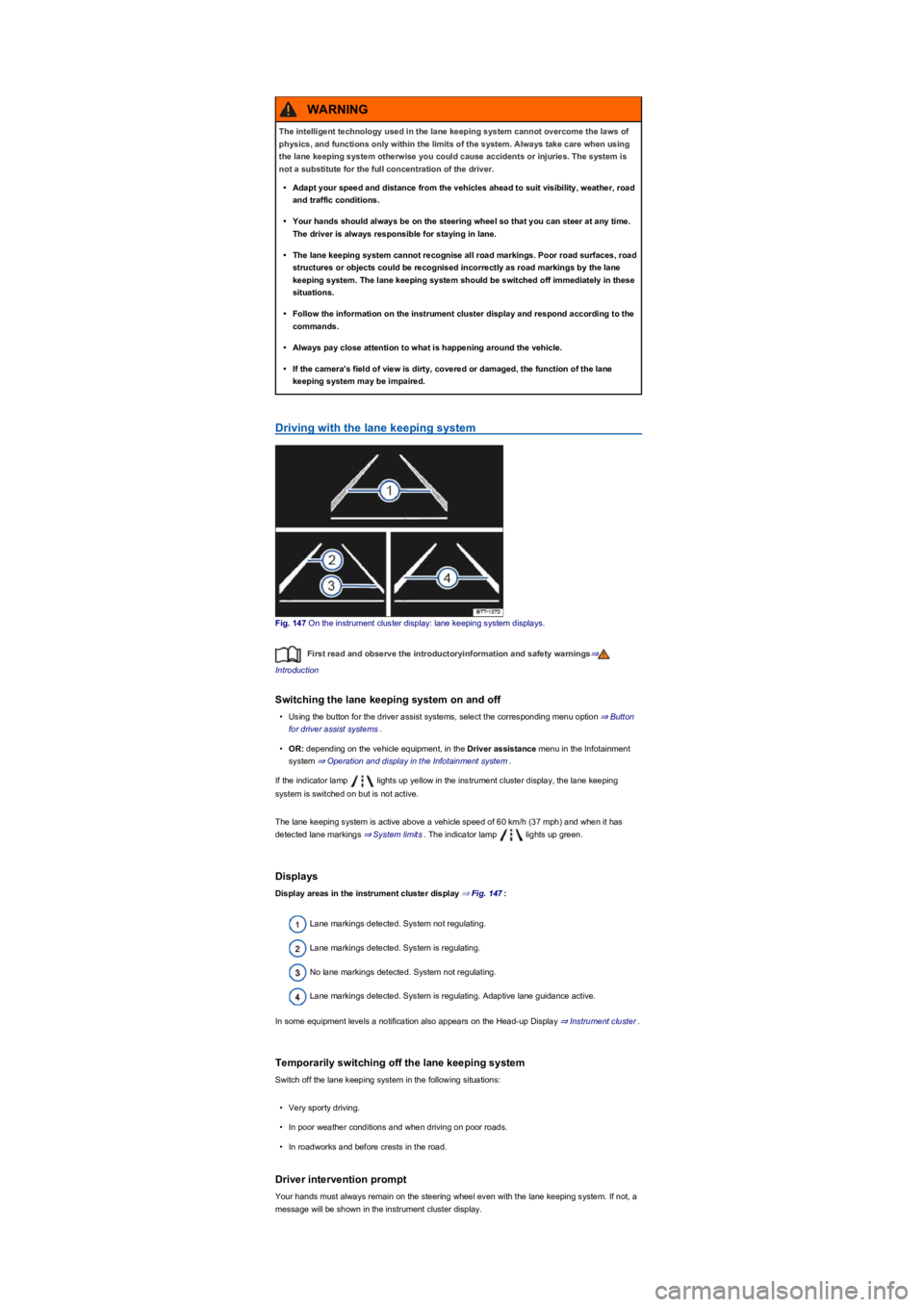
Fig. 147 On the instrument cluster display: lane keeping system displays.
First read and observe the introductoryinformation and safety warnings⇒
Introduction
Switching the lane keeping system on and off
•Using the button for the driver assist systems, select the corresponding menu option ⇒ Button
for driver assist systems.
•OR: depending on the vehicle equipment, in the Driver assistance menu in the Infotainment
system ⇒ Operation and display in the Infotainment system.
If the indicator lamp lights up yellow in the instrument cluster display, the lane keeping
system is switched on but is not active.
The lane keeping system is active above a vehicle speed of 60 km/h (37 mph) and when it has
detected lane markings ⇒ System limits. The indicator lamp lights up green.
Displays
Display areas in the instrument cluster display ⇒ Fig. 147:
Lane markings detected. System not regulating.
Lane markings detected. System is regulating.
No lane markings detected. System not regulating.
Lane markings detected. System is regulating. Adaptive lane guidance active.
In some equipment levels a notification also appears on the Head-up Display ⇒ Instrument cluster.
Temporarily switching off the lane keeping system
Switch off the lane keeping system in the following situations:
•Very sporty driving.
•In poor weather conditions and when driving on poor roads.
•In roadworks and before crests in the road.
Driver intervention prompt
Your hands must always remain on the steering wheel even with the lane keeping system. If not, a
message will be shown in the instrument cluster display.
The intelligent technology used in the lane keeping system cannot overcome the laws of
physics, and functions only within the limits of the system. Always take care when using
the lane keeping system otherwise you could cause accidents or injuries. The system is
not a substitute for the full concentration of the driver.
•Adapt your speed and distance from the vehicles ahead to suit visibility, weather, road
and traffic conditions.
•Your hands should always be on the steering wheel so that you can steer at any time.
The driver is always responsible for staying in lane.
•The lane keeping system cannot recognise all road markings. Poor road surfaces, road
structures or objects could be recognised incorrectly as road markings by the lane
keeping system. The lane keeping system should be switched off immediately in these
situations.
•Follow the information on the instrument cluster display and respond according to the
commands.
•Always pay close attention to what is happening around the vehicle.
•If the camera's field of view is dirty, covered or damaged, the function of the lane
keeping system may be impaired.
WARNING
Page 187 of 341
The integrated Rear Traffic Alert provides assistance when reversing out of a parking space and
manoeuvring.
System limits
Use the lane keeping system only on paved roads.
The lane change system may interpret the traffic situation incorrectly in the following driving
situations, for example:
•In tight bends.
•When driving in the middle of two lanes.
•When road lanes are of varying width.
•At the brow of a hill.
•In poor weather conditions.
•Where there are special roadside structures, e.g. high or offset crash barriers.
You can save some settings in the user accounts of the personalisation function
⇒ Personalisation.
Driving with the lane change system
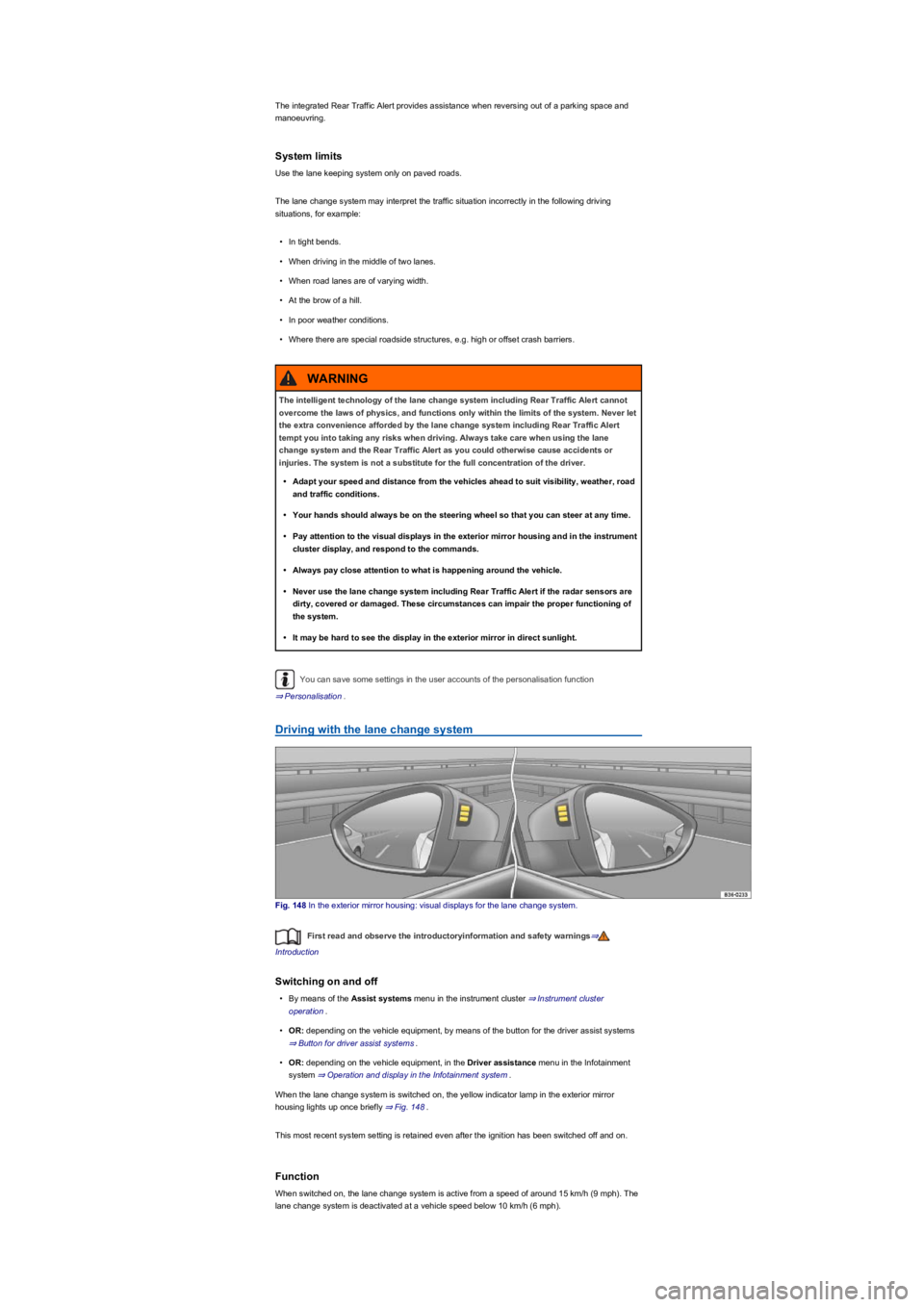
Fig. 148 In the exterior mirror housing: visual displays for the lane change system.
First read and observe the introductoryinformation and safety warnings⇒
Introduction
Switching on and off
•By means of the Assist systems menu in the instrument cluster ⇒ Instrument cluster
operation.
•OR: depending on the vehicle equipment, by means of the button for the driver assist systems
⇒ Button for driver assist systems.
•OR: depending on the vehicle equipment, in the Driver assistance menu in the Infotainment
system ⇒ Operation and display in the Infotainment system.
When the lane change system is switched on, the yellow indicator lamp in the exterior mirror
housing lights up once briefly ⇒ Fig. 148.
This most recent system setting is retained even after the ignition has been switched off and on.
Function
When switched on, the lane change system is active from a speed of around 15 km/h (9 mph). The
lane change system is deactivated at a vehicle speed below 10 km/h (6 mph).
The intelligent technology of the lane change system including Rear Traffic Alert cannot
overcome the laws of physics, and functions only within the limits of the system. Never let
the extra convenience afforded by the lane change system including Rear Traffic Alert
tempt you into taking any risks when driving. Always take care when using the lane
change system and the Rear Traffic Alert as you could otherwise cause accidents or
injuries. The system is not a substitute for the full concentration of the driver.
•Adapt your speed and distance from the vehicles ahead to suit visibility, weather, road
and traffic conditions.
•Your hands should always be on the steering wheel so that you can steer at any time.
•Pay attention to the visual displays in the exterior mirror housing and in the instrument
cluster display, and respond to the commands.
•Always pay close attention to what is happening around the vehicle.
•Never use the lane change system including Rear Traffic Alert if the radar sensors are
dirty, covered or damaged. These circumstances can impair the proper functioning of
the system.
•It may be hard to see the display in the exterior mirror in direct sunlight.
WARNING
Page 188 of 341
In the following driving situations, the yellow indicator lamp lights up in the housing of the respective
exterior mirror:
•If your vehicle is being overtaken.
•When overtaking another vehicle with a speed difference of up to approximately 15 km/h
(9 mph). No display will be shown if the takeover manoeuvre is much faster.
The yellow indicator lamp flashes if a possible critical situation is detected when you indicate in the
direction of the detected vehicle.
The quicker another vehicle approaches, the earlier there is a corresponding display in the exterior
mirror.
Lane change system Side Assist Plus
If the vehicle is equipped with a lane keeping system and the system is switched on, the driver is
warned by a corrective steering intervention when changing lanes during a possible critical situation
(information level, warning level). The steering intervention also occurs when the turn signal is
activated for the corresponding direction. If the steering intervention is overridden by the driver, the
steering wheel vibrates to give an additional warning.
Automatic deactivation
The lane change system will switch off automatically if the radar sensors are permanently covered.
This can be caused by a layer of ice or snow in front of the radar sensor, for example.
A text message will be shown on the instrument cluster display.
If the lane change system sensor has been automatically deactivated, the system cannot be
activated until the ignition has been switched off and back on again.
The lane change system and Rear Traffic Alert are switched off automatically when the factory-
fitted towing bracket is electrically connected with a trailer or similar ⇒ Trailer towing. The lane
change system and Rear Traffic Alert are automatically switched on again when the trailer is
unhitched from the vehicle. The lane change system and Rear Traffic Alert must be switched off
manually if a non-factory-fitted towing bracket is used.
Brightness
The brightness of the visual display will automatically adapt to the light levels.
The basic brightness level can be set in the Infotainment system ⇒ Operation and display in the
Infotainment system.
The lane change system is not active during the setting procedure.
Rear Traffic Alert
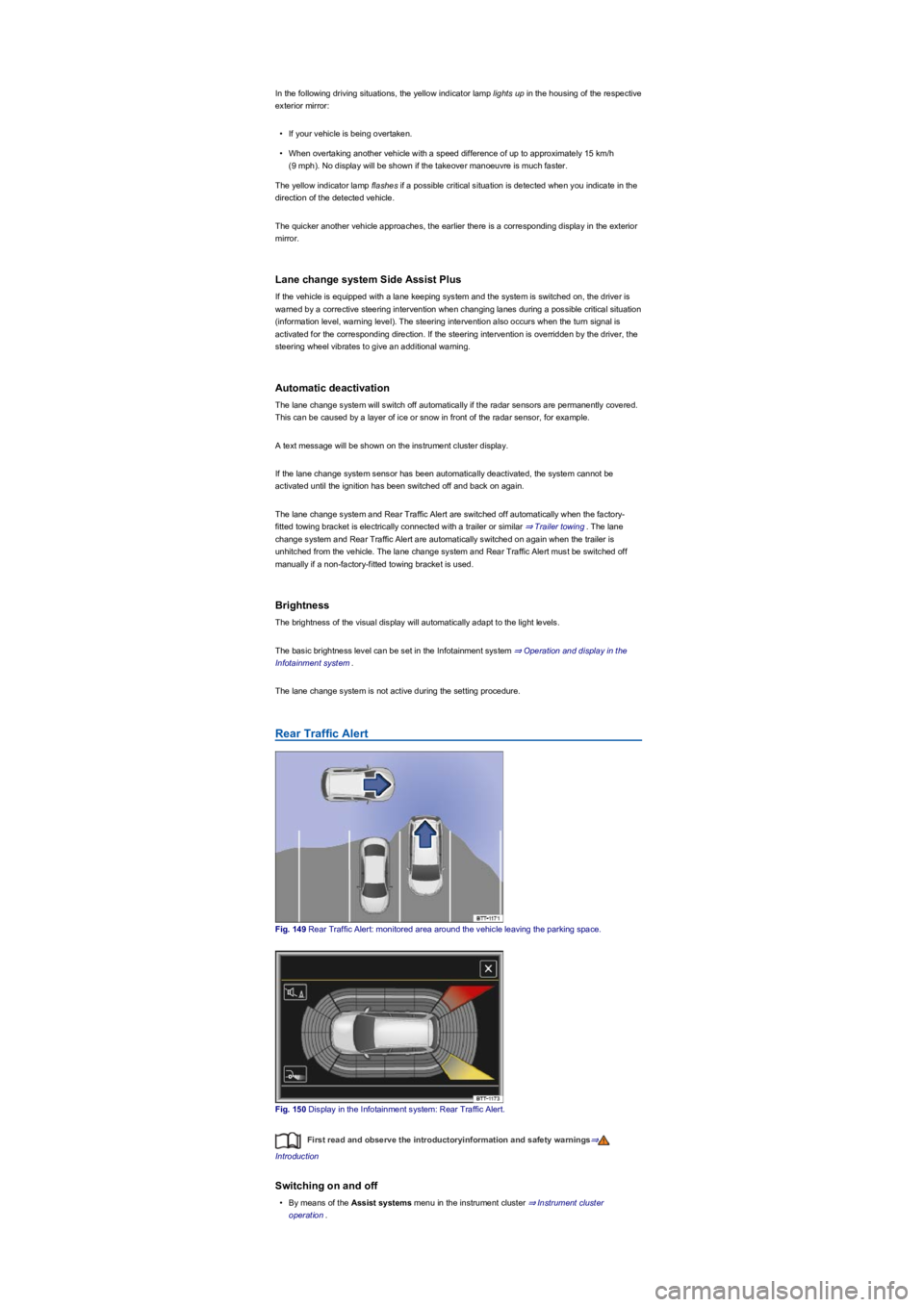
Fig. 149 Rear Traffic Alert: monitored area around the vehicle leaving the parking space.
Fig. 150 Display in the Infotainment system: Rear Traffic Alert.
First read and observe the introductoryinformation and safety warnings⇒
Introduction
Switching on and off
•By means of the Assist systems menu in the instrument cluster ⇒ Instrument cluster
operation.
Page 189 of 341
•OR: depending on the vehicle equipment, by means of the button for the driver assist systems
⇒ Button for driver assist systems.
•OR: depending on the vehicle equipment, in the Driver assistance menu in the Infotainment
system ⇒ Operation and display in the Infotainment system.
Function
Rear Traffic Alert monitors the traffic crossing behind the vehicle when reversing out of a parking
space or manoeuvring. Rear Traffic Alert functions using radar sensors in the rear bumper.
Key to ⇒ Fig. 150:
Critical situation. Do not drive on!Possible critical situation.
Detection of a critical situation can also take place acoustically:
•A warning signal will sound and a text message will be displayed in the instrument cluster for
vehicles without Park Distance Control.
•A warning signal will sound with the continuous Park Distance Control tone if Park Distance
Control is installed in the vehicle. If the Park Distance Control is deactivated, no warning can be
given to the driver and the Rear Traffic Alert system will also be switched off temporarily.
If there is a fault in the system's scanned area, the yellow indicator lamp lights up .
Automatic braking intervention to minimise damage
If Rear Traffic Alert detects an approaching road user and the driver has not pressed the brake, the
system can brake automatically.
The Rear Traffic Alert helps the driver to prevent damage by initiating an automatic braking
intervention. Automatic braking intervention takes place when reversing at speeds of between
1-12 km/h (1-7 mph). The vehicle is held stationary for up to two seconds after vehicle standstill has
been detected.
After automatic braking intervention is activated to prevent damage to the vehicle, the system
requires approximately ten seconds before it can activate another automatic braking intervention.
The automatic braking intervention can be interrupted by pressing the accelerator or brake pedal
sharply and taking control of the vehicle.
Troubleshooting
First read and observe the introductoryinformation and safety warnings⇒
Introduction
No sensor visibility, error message, system switches itself off
•Clean the radar sensors or remove stickers or accessories from the radar sensors ⇒ Caring for
and cleaning the vehicle exterior.
•Check whether any damage is visible.
The system is not responding as expected
•The radar sensors are dirty ⇒ Caring for and cleaning the vehicle exterior. The sensor visibility
may be impaired by dirt and snow or also residue from cleaning agents or coatings.
•The prerequisites for system operation must be met ⇒ System limits.
•The radar sensors are covered by water.
•The vehicle is damaged in the area of the radar sensors, e.g. caused by parking collisions.
•The detection ranges of the radar sensors are blocked by add-on parts, e.g. bicycle carriers.
•Changes have been made to the paintwork in the area of the radar sensors or structural
modifications have been made, e.g. on the vehicle front end or the running gear.
•Tinting foils have been retrofitted on the side windows.
The intelligent technology of the lane change system including Rear Traffic Alert cannot
overcome the laws of physics, and functions only within the limits of the system. Do not
let the auxiliary function of the Rear Traffic Alert tempt you to take any risks while driving
– this can cause accidents. The system is not a substitute for the full concentration of the
driver.
•Never use the system with impaired vision or in unpredictable traffic situations, e.g. on
extremely busy roads or across several lanes.
•Always pay attention to the area around the vehicle – cyclists and pedestrians are
often not clearly detected.
•The Rear Traffic Alert will not always independently bring the vehicle to a complete
stop.
WARNING
Page 205 of 341
•Left screen: the vehicle is shown in the bird's eye view. The view in the right area of the screen
changes when you touch an individual area.
•Right screen: the individual camera images are displayed corresponding to the area selected in
the left screen.
In addition, the available menu options and camera views for the corresponding camera are shown
at the right-hand side of the screen.
Displays the bird's eye view.Hides the bird's eye view.Switches sound on and off.
Adjusts brightness, contrast and colour.3D views.xCloses the current display.
The auxiliary lines and boxes are shown by the system independently of the vehicle surroundings.
There is no detection of obstacles. Drivers must judge for themselves whether the vehicle will fit
into the parking space.
Area View hides all the auxiliary orientation lines in the area of the rear camera when the factory-
fitted towing bracket is electrically connected to a trailer ⇒ Trailer towing.
Operating camera views
First read and observe the introductoryinformation and safety warnings⇒
Introduction
•Touch the area next to the vehicle.
•Select a corresponding view by means of the function buttons at the edge of the image.
The displayed red lines indicate a distance of approximately 40 cm from the vehicle.
Camera views in front of the vehicle
Crossing traffic.Perpendicular parking. Orientation lines are displayed as a guide. See
rear view camera system mode 1 ⇒ Rear view camera system (Rear View).Off-road.
Camera views next to the vehicle
Both areas next to the vehicle simultaneously.Driver side only.Front passenger side only.
Camera views behind the vehicle
Perpendicular parking. Orientation lines are displayed as a guide. See rear view camera
system mode 1 ⇒ Rear view camera system (Rear View).Parallel parking. The coloured
auxiliary boxes and lines are provided for orientation. See rear view camera system mode 2 ⇒ Rear
view camera system (Rear View).Trailer support. See rear view camera system mode 3
⇒ Rear view camera system (Rear View).Crossing traffic. See rear view camera system mode
4 ⇒ Rear view camera system (Rear View).
3D views
Top view of the vehicle and surroundings. Depending on the vehicle equipment level, the
Park Distance Control vehicle path display may also be shown.Top view of the vehicle and
surroundings.Vehicle and surrounding area are shown at an angle from above.
Vehicle and surrounding area are shown from the side.
The viewing angle can be changed by swiping in the direction of the arrows.
Troubleshooting
First read and observe the introductoryinformation and safety warnings⇒
Introduction
No camera visibility, error message, system switches itself off
•Clean the camera or remove the stickers or camera accessories ⇒ Caring for and cleaning the
vehicle exterior.
•Check whether any damage is visible.
The system is not responding as expected
•The cameras are dirty ⇒ Caring for and cleaning the vehicle exterior. The camera visibility may
be impaired by dirt and snow or also residue from cleaning agents or coatings.
•The system requirements must be met ⇒ Prerequisites.
•The cameras are covered by water.
•The vehicle is damaged in the area around the camera, e.g. caused by parking collisions.
•The detection range of the cameras is blocked by add-on parts, e.g. bicycle carriers.
•Changes have been made to the paintwork around the camera or the construction has been
modified, e.g. vehicle front end or the running gear.
Response to all circumstances
•Switch off the system temporarily.
•Check whether any of the causes described below apply.
•You can switch the system back on again once you have rectified the cause of the problem.