turn signal VOLVO S60 2015 Owner´s Manual
[x] Cancel search | Manufacturer: VOLVO, Model Year: 2015, Model line: S60, Model: VOLVO S60 2015Pages: 406, PDF Size: 11.26 MB
Page 162 of 406
04 Driver support
Adaptive Cruise Control (ACC)*
04
160* Option/accessory, for more information, see Introduction.
WARNING
Please be aware that this function will also cause the vehicle to accelerate briefly incertain situations other than passinganother vehicle, for example using the leftturn signal to indicate a lane change or aturn toward a highway exit at speedsabove approximately 45 mph (70 km/h).
Turning ACC off completely
•
From standby mode, press once.
• From active mode, press
twice.
The set speed and time interval are then cleared from the system's memory and can- not be resumed by pressing
.
Toggling between ACC and CC (standard Cruise Control)
Switching from ACC to CCThis may be useful if, for example, the radar sensor is obstructed in some way. See thesection "The radar sensor and its limitations"on page 162 for additional information.
• Press and hold the
button; the symbol
in the instrument panel will switch from
to .
> This activates the standard cruise control function (see page 153).
WARNING
Switching from ACC to CC means that:
• Your vehicle will
no longer automati-
cally maintain a set distance to a vehi- cle ahead.
• Only the set speed will be maintainedand the driver will have to apply thebrakes when needed.
Switching from CC to ACC
Switch off cruise control by pressing once
or twice as needed according to the instruc- tions in the previous section "Turning ACC offcompletely." The next time the system isswitched on, ACC will be reactivated.
Queue Assist
IntroductionQueue Assist is an added ACC feature that is linked to your vehicle's automatic transmis-sion. Queue Assist consists of the following func- tions: • Enhanced speed interval (including when the vehicle is at a complete stop or is moving at speed below 18 mph(30 km/h))
• Automatic standby mode when ACCchanges target vehicles
• No automatic braking when at a standstill
• The parking brake is applied automati-cally
Please note that the lowest speed that can be set is 18 mph (30 km/h), although ACC canmaintain a set speed/distance to a vehicleahead down to a standstill. Queue Assistconsists of the following features:
Enhanced speed interval
NOTE
The driver's door must be closed and the driver's seat belt must be fastened beforeACC can be put in active mode. If the driv-er's seat belt is taken off or if the driver'sdoor is opened, ACC will return to standbymode.
Your vehicle can maintain the set time interval to the vehicle ahead at any permissiblespeed, including a complete stop. In order to activate ACC at speeds below 18 mph (30 km/h):
Page 165 of 406
04 Driver support
Adaptive Cruise Control (ACC)*
04
}}
* Option/accessory, for more information, see Introduction.163
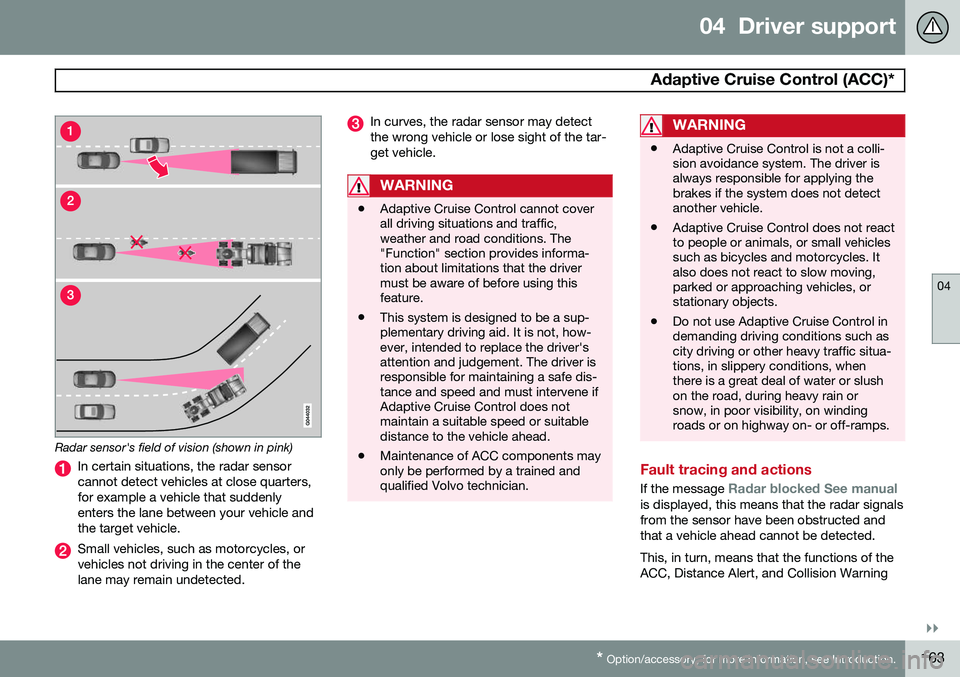
Radar sensor's field of vision (shown in pink)
In certain situations, the radar sensor cannot detect vehicles at close quarters,for example a vehicle that suddenlyenters the lane between your vehicle andthe target vehicle.
Small vehicles, such as motorcycles, or vehicles not driving in the center of thelane may remain undetected.
In curves, the radar sensor may detect the wrong vehicle or lose sight of the tar-get vehicle.
WARNING
• Adaptive Cruise Control cannot cover all driving situations and traffic,weather and road conditions. The"Function" section provides informa-tion about limitations that the drivermust be aware of before using thisfeature.
• This system is designed to be a sup-plementary driving aid. It is not, how-ever, intended to replace the driver'sattention and judgement. The driver isresponsible for maintaining a safe dis-tance and speed and must intervene ifAdaptive Cruise Control does notmaintain a suitable speed or suitabledistance to the vehicle ahead.
• Maintenance of ACC components mayonly be performed by a trained andqualified Volvo technician.
WARNING
•Adaptive Cruise Control is not a colli- sion avoidance system. The driver isalways responsible for applying thebrakes if the system does not detectanother vehicle.
• Adaptive Cruise Control does not reactto people or animals, or small vehiclessuch as bicycles and motorcycles. Italso does not react to slow moving,parked or approaching vehicles, orstationary objects.
• Do not use Adaptive Cruise Control indemanding driving conditions such ascity driving or other heavy traffic situa-tions, in slippery conditions, whenthere is a great deal of water or slushon the road, during heavy rain orsnow, in poor visibility, on windingroads or on highway on- or off-ramps.
Fault tracing and actions
If the message Radar blocked See manualis displayed, this means that the radar signals from the sensor have been obstructed andthat a vehicle ahead cannot be detected. This, in turn, means that the functions of the ACC, Distance Alert, and Collision Warning
Page 175 of 406
04 Driver support
City Safety™
04
}}
173
Maximum pulse energy2.64 μJ
Maximum average output45 mW
Pulse length33 ns
Divergence (horizontal × verti- cal)28° × 12°
NOTE
The function of aftermarket laser detectors may be affected by City Safety's laser sen-sor.
WARNING
The laser sensor emits light when the igni- tion is in mode II or higher, even if City
Safety™ has been switched off.
WARNING
Eye injury may occur if any of the following points are not followed: • It is essential that all pertinent instruc- tions be followed when handling laserinstruments. Testing, repairing, remov-ing, adjusting and/or replacing anycomponents in the laser sensor mayonly be done by a trained and qualifiedVolvo service technician.
• Do not remove the laser sensor(including removal of the lenses). Alaser sensor that has been removedbelongs to laser class 3B according tostandard IEC 60825-1. Devices in laserclass 3B present a risk of injury to theeyes.
• The laser sensor’s connector must bedisconnected before the sensor isremoved from the windshield.
• The laser sensor must be mounted inplace on the windshield before con-necting the sensor’s connector.
• Do not view the laser sensor (whichemits spreading, invisible laser beams)with optical instruments from a dis-tance of less than 4 inches (100 mm).Symbols and messages in the display
When City Safety™ automatically applies the brakes, one or more of the symbols in themain instrument panel may illuminate and itsassociated message will be displayed. A text message can be erased by pressing briefly on the
OK button on the turn signal
lever.
Page 178 of 406
04 Driver support
Pedestrian and Cyclist Detection with Full Auto Brake*
04
176* Option/accessory, for more information, see Introduction.
WARNING
• Pedestrian and Cyclist Detection with Full Auto Brake will not provide awarning or brake the vehicle forpedestrians in darkness or in tunnels,even if there is street lighting in thearea.
• The auto-brake function can help pre-vent a collision or reduce the speed atimpact but the driver should alwaysapply the brakes for the best possiblebraking effect, even if auto-brake isactively applying the brakes.
• Never wait for a collision warning. Thissystem is designed to be a supple-mentary driving aid. It is not, however,intended to replace the driver's atten-tion and judgement. The driver isresponsible for maintaining a safe dis-tance and speed, even when the colli-sion warning system is in use.
• Maintenance of the Pedestrian andCyclist Detection with Full Auto Brakesystem's components must only beperformed by a trained and qualifiedVolvo technician.
Function
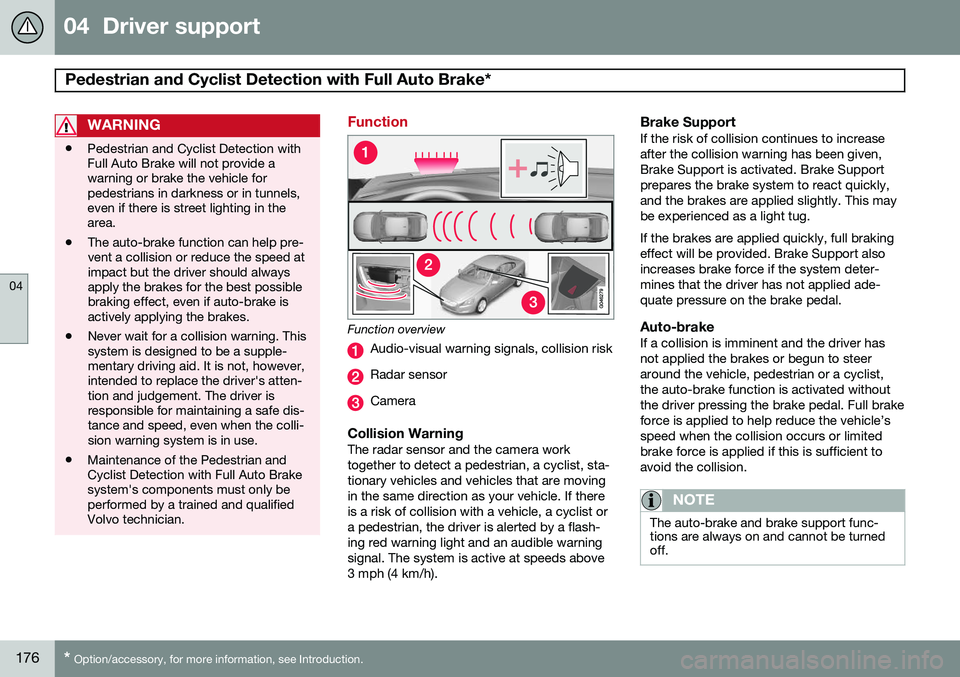
Function overview
Audio-visual warning signals, collision risk
Radar sensor
Camera
Collision WarningThe radar sensor and the camera work together to detect a pedestrian, a cyclist, sta-tionary vehicles and vehicles that are movingin the same direction as your vehicle. If thereis a risk of collision with a vehicle, a cyclist ora pedestrian, the driver is alerted by a flash-ing red warning light and an audible warningsignal. The system is active at speeds above3 mph (4 km/h).
Brake SupportIf the risk of collision continues to increaseafter the collision warning has been given,Brake Support is activated. Brake Supportprepares the brake system to react quickly,and the brakes are applied slightly. This maybe experienced as a light tug. If the brakes are applied quickly, full braking effect will be provided. Brake Support alsoincreases brake force if the system deter-mines that the driver has not applied ade-quate pressure on the brake pedal.
Auto-brakeIf a collision is imminent and the driver hasnot applied the brakes or begun to steeraround the vehicle, pedestrian or a cyclist,the auto-brake function is activated withoutthe driver pressing the brake pedal. Full brakeforce is applied to help reduce the vehicle’sspeed when the collision occurs or limitedbrake force is applied if this is sufficient toavoid the collision.
NOTE
The auto-brake and brake support func- tions are always on and cannot be turnedoff.
Page 190 of 406
04 Driver support
Driver Alert System*
04
188* Option/accessory, for more information, see Introduction.
WARNING
This feature is only intended to assist the driver and does not function in all driving,weather, traffic or road conditions. As the driver, you have full responsibility for operating the vehicle in a safe manner.
Operation and function
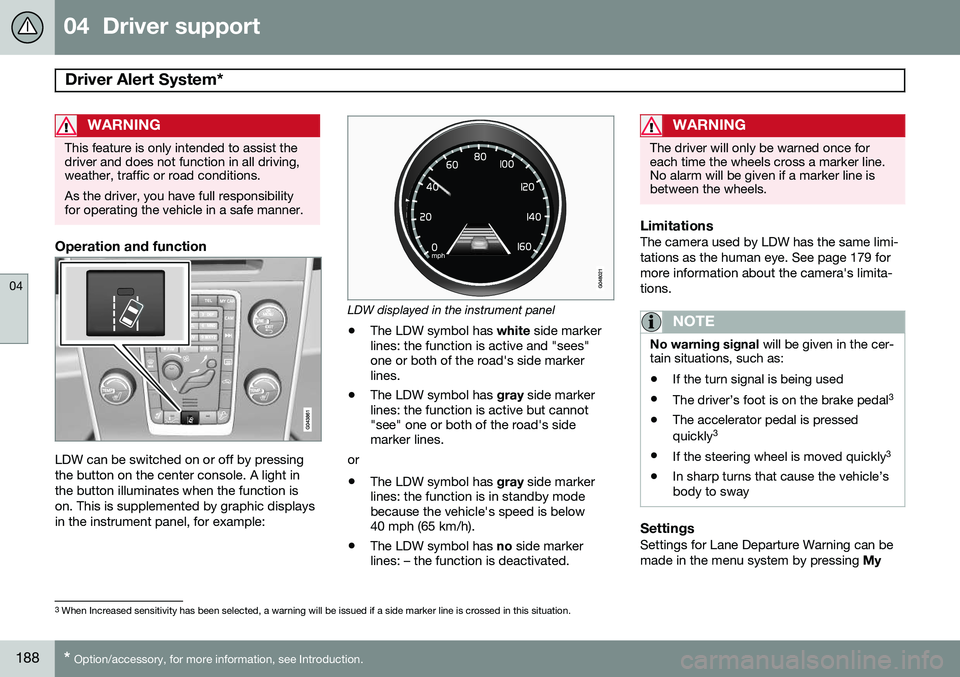
LDW can be switched on or off by pressing the button on the center console. A light inthe button illuminates when the function ison. This is supplemented by graphic displaysin the instrument panel, for example:
LDW displayed in the instrument panel
• The LDW symbol has
white side marker
lines: the function is active and "sees" one or both of the road's side markerlines.
• The LDW symbol has
gray side marker
lines: the function is active but cannot"see" one or both of the road's sidemarker lines.
or
• The LDW symbol has
gray side marker
lines: the function is in standby modebecause the vehicle's speed is below40 mph (65 km/h).
• The LDW symbol has
no side marker
lines: – the function is deactivated.
WARNING
The driver will only be warned once for each time the wheels cross a marker line.No alarm will be given if a marker line isbetween the wheels.
LimitationsThe camera used by LDW has the same limi- tations as the human eye. See page 179 formore information about the camera's limita-tions.
NOTE
No warning signal will be given in the cer-
tain situations, such as:
• If the turn signal is being used
• The driver’s foot is on the brake pedal 3
• The accelerator pedal is pressed quickly 3
• If the steering wheel is moved quickly 3
• In sharp turns that cause the vehicle’s body to sway
SettingsSettings for Lane Departure Warning can be made in the menu system by pressing
My
3
When Increased sensitivity has been selected, a warning will be issued if a side marker line is crossed in this situation.
Page 193 of 406
04 Driver support
Driver Alert System*
04
}}
* Option/accessory, for more information, see Introduction.191
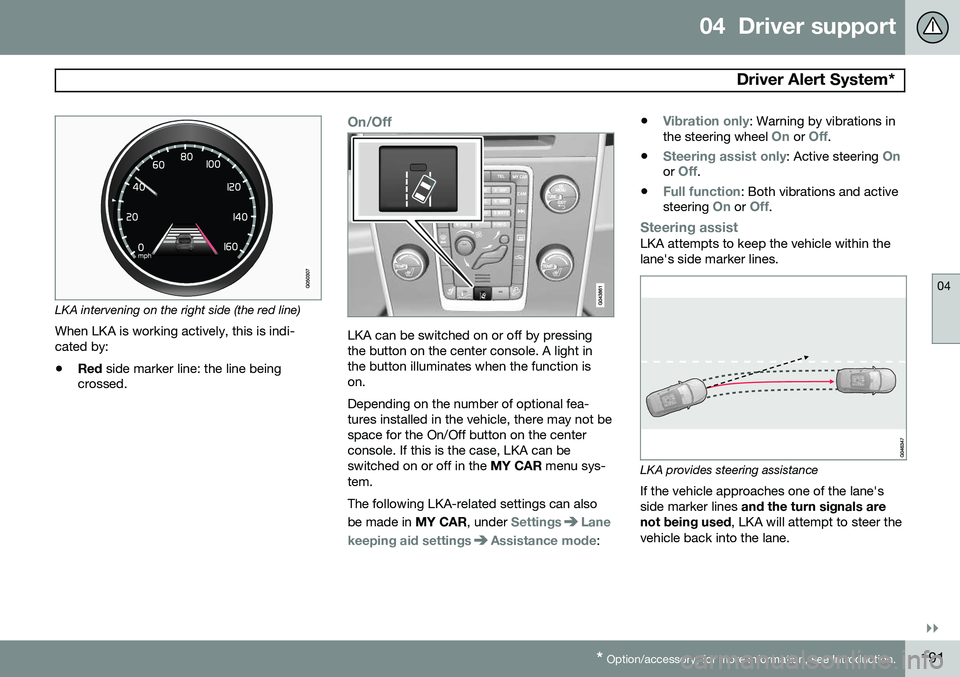
LKA intervening on the right side (the red line)
When LKA is working actively, this is indi- cated by:
• Red
side marker line: the line being
crossed.
On/Off
LKA can be switched on or off by pressing the button on the center console. A light inthe button illuminates when the function ison. Depending on the number of optional fea- tures installed in the vehicle, there may not bespace for the On/Off button on the centerconsole. If this is the case, LKA can beswitched on or off in the MY CAR menu sys-
tem. The following LKA-related settings can also be made in MY CAR, under
SettingsLane
keeping aid settings
Assistance mode: •
Vibration only: Warning by vibrations in
the steering wheel On or Off.
•
Steering assist only: Active steering Onor Off.
•
Full function: Both vibrations and active
steering On or Off.
Steering assistLKA attempts to keep the vehicle within the lane's side marker lines.
LKA provides steering assistance
If the vehicle approaches one of the lane's side marker lines and the turn signals are
not being used , LKA will attempt to steer the
vehicle back into the lane.
Page 205 of 406
04 Driver support
Park Assist Pilot (PAP)*
04
}}
* Option/accessory, for more information, see Introduction.203
the illustration in the section "2: Backing into the parking space" on page 203.
3. Adjusting the vehicle's position in the parking space by moving forward andrearward. See also steps E and F in the
illustration in the section "3: Adjusting thevehicle's position" on page 204.
Operation
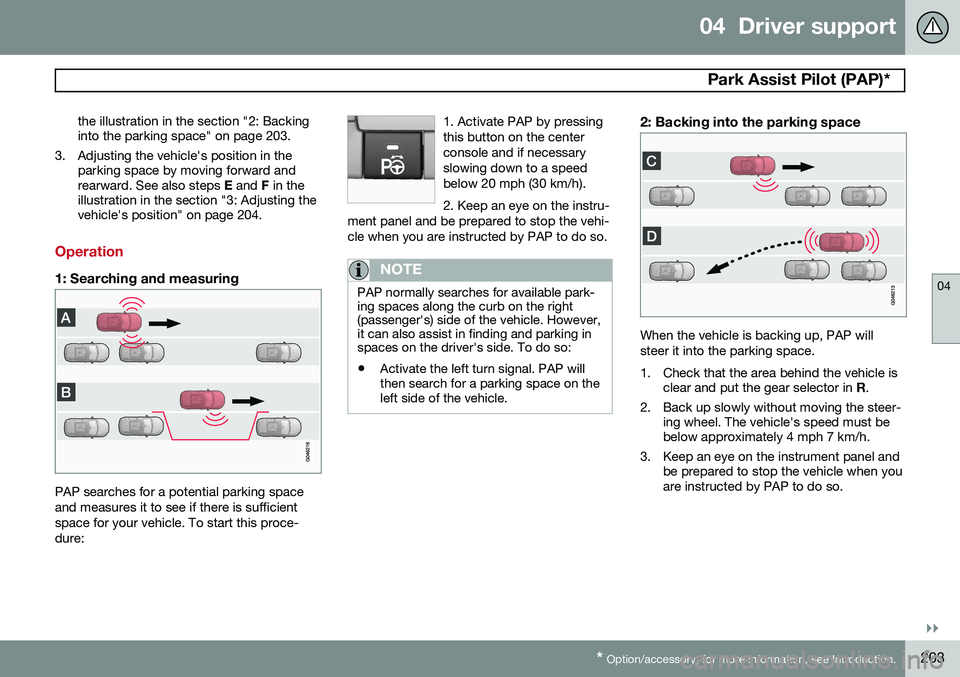
1: Searching and measuring
PAP searches for a potential parking space and measures it to see if there is sufficientspace for your vehicle. To start this proce-dure: 1. Activate PAP by pressingthis button on the centerconsole and if necessaryslowing down to a speedbelow 20 mph (30 km/h). 2. Keep an eye on the instru-
ment panel and be prepared to stop the vehi- cle when you are instructed by PAP to do so.
NOTE
PAP normally searches for available park- ing spaces along the curb on the right(passenger's) side of the vehicle. However,it can also assist in finding and parking inspaces on the driver's side. To do so: • Activate the left turn signal. PAP will then search for a parking space on theleft side of the vehicle.
2: Backing into the parking space
When the vehicle is backing up, PAP will steer it into the parking space.
1. Check that the area behind the vehicle is
clear and put the gear selector in R.
2. Back up slowly without moving the steer- ing wheel. The vehicle's speed must be below approximately 4 mph 7 km/h.
3. Keep an eye on the instrument panel and be prepared to stop the vehicle when youare instructed by PAP to do so.
Page 209 of 406
04 Driver support
Blind Spot Information System (BLIS)*
04
}}
* Option/accessory, for more information, see Introduction.207
Activating/deactivating BLIS
Button for activating/deactivating BLIS BLIS can be deactivated/reactivated by pressing the button on the center console. The number or combinations of options on the vehicle may not leave a space availableon the center console for the BLIS button. Ifthis is the case, BLIS can be deactivated/reactivated in the MY CAR menu system (see
page 215)
• Select Off or On in
SettingsCar
settings
BLIS.
When BLIS is deactivated/reactivated, the indicator lights will go out/illuminate (the indi-cators will also flash once when the functionis reactivated) and a message will appear inthe instrument panel. To erase the message: •
Press the
OK button on the left steering
wheel lever
or
• Wait for approx. 5 seconds for the mes- sage to disappear
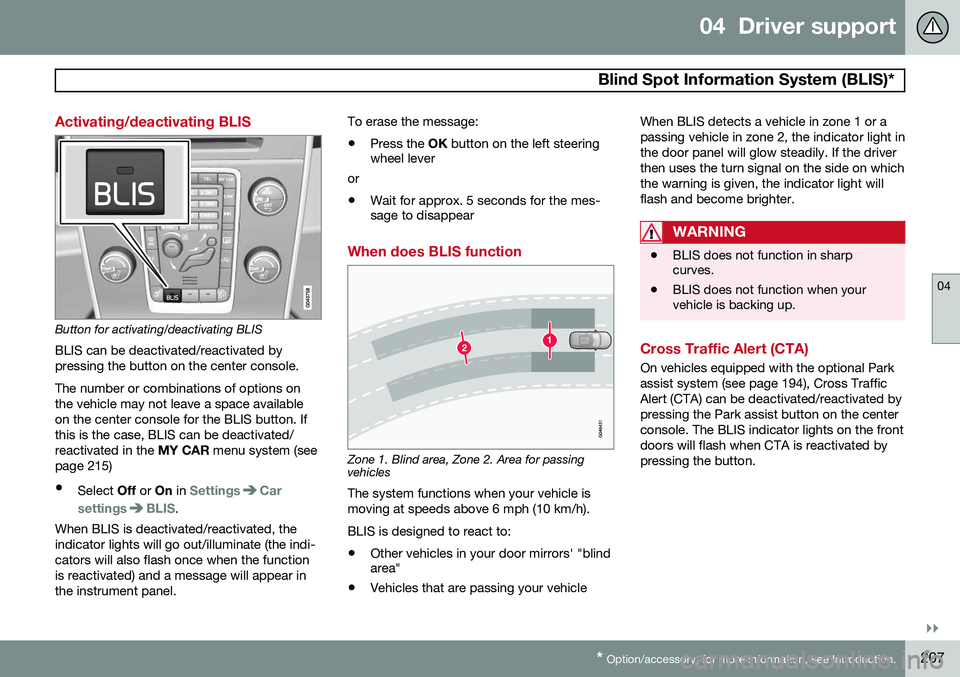
When does BLIS function
Zone 1. Blind area, Zone 2. Area for passing vehicles
The system functions when your vehicle is moving at speeds above 6 mph (10 km/h). BLIS is designed to react to:
• Other vehicles in your door mirrors' "blind area"
• Vehicles that are passing your vehicle When BLIS detects a vehicle in zone 1 or a passing vehicle in zone 2, the indicator light inthe door panel will glow steadily. If the driverthen uses the turn signal on the side on whichthe warning is given, the indicator light willflash and become brighter.
WARNING
•
BLIS does not function in sharp curves.
• BLIS does not function when yourvehicle is backing up.
Cross Traffic Alert (CTA)
On vehicles equipped with the optional Park assist system (see page 194), Cross TrafficAlert (CTA) can be deactivated/reactivated bypressing the Park assist button on the centerconsole. The BLIS indicator lights on the frontdoors will flash when CTA is reactivated bypressing the button.
Page 255 of 406
06 Infotainment
Radio
06
}}
* Option/accessory, for more information, see Introduction.253
General functions
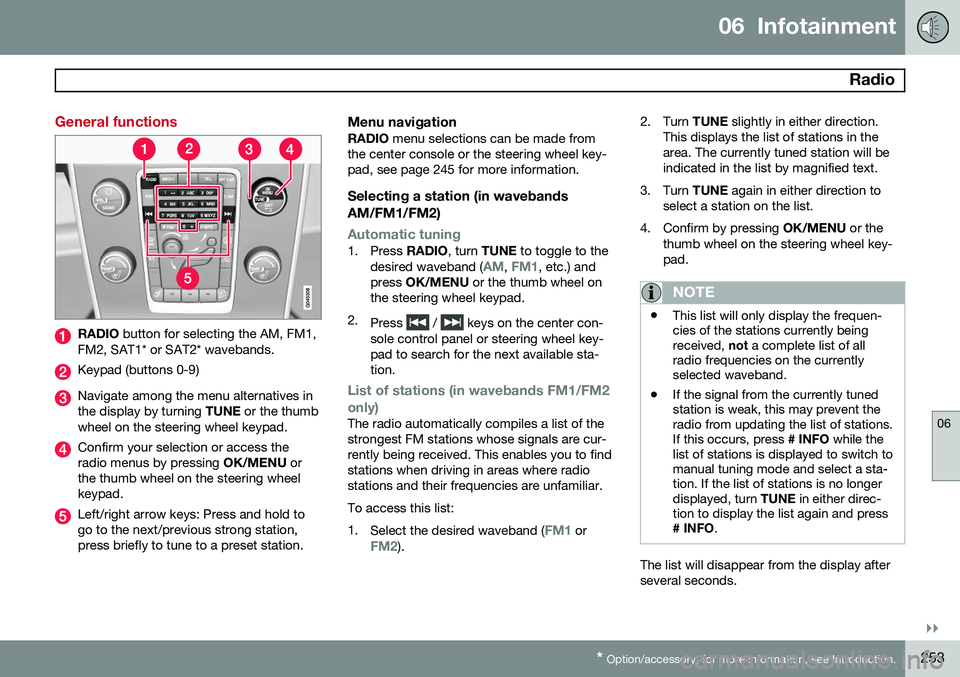
RADIO button for selecting the AM, FM1,
FM2, SAT1* or SAT2* wavebands.
Keypad (buttons 0-9)
Navigate among the menu alternatives in the display by turning TUNE or the thumb
wheel on the steering wheel keypad.
Confirm your selection or access the radio menus by pressing OK/MENU or
the thumb wheel on the steering wheelkeypad.
Left/right arrow keys: Press and hold to go to the next/previous strong station,press briefly to tune to a preset station.
Menu navigationRADIO menu selections can be made from
the center console or the steering wheel key-pad, see page 245 for more information.
Selecting a station (in wavebands AM/FM1/FM2)
Automatic tuning1. Press RADIO, turn TUNE to toggle to the
desired waveband (AM, FM1, etc.) and
press OK/MENU or the thumb wheel on
the steering wheel keypad.
2. Press
/ keys on the center con-
sole control panel or steering wheel key- pad to search for the next available sta-tion.
List of stations (in wavebands FM1/FM2 only)
The radio automatically compiles a list of the strongest FM stations whose signals are cur-rently being received. This enables you to findstations when driving in areas where radiostations and their frequencies are unfamiliar. To access this list:1. Select the desired waveband (
FM1 orFM2). 2. Turn
TUNE slightly in either direction.
This displays the list of stations in the area. The currently tuned station will beindicated in the list by magnified text.
3. Turn TUNE again in either direction to
select a station on the list.
4. Confirm by pressing OK/MENU or the
thumb wheel on the steering wheel key-pad.
NOTE
• This list will only display the frequen- cies of the stations currently beingreceived,
not a complete list of all
radio frequencies on the currentlyselected waveband.
• If the signal from the currently tunedstation is weak, this may prevent theradio from updating the list of stations.If this occurs, press
# INFO while the
list of stations is displayed to switch tomanual tuning mode and select a sta-tion. If the list of stations is no longerdisplayed, turn TUNE in either direc-
tion to display the list again and press
# INFO .
The list will disappear from the display after several seconds.
Page 258 of 406
06 Infotainment
Radio
06
256
strength), the receiver will determine which signal to receive.
Limitations
•Main channel vs. sub-channels (FM only)
: The main channel is the only chan-
nel that can receive in hybrid mode (both digital and analogue). If a frequency hassub-channels, they are broadcast in digi-tal mode only. The main FM channel willbe displayed as, for example, 93.9 WNYC(Volvo uses the symbol ">" to indicatethere are sub-channels available) Thesub-FM channels will be displayed as93.9 – 2 WNYC, 93.9 - 3 WNYC, etc.
• Reception coverage area
: Due to cur-
rent IBOC transmitter power limitations,the reception coverage area in digitalmode is somewhat more limited than thestation's analogue coverage area. Pleasebe aware that as with any radio broadcasttechnology, terrain, time of day, foliagelevel and building location can have posi-tive or negative effects on radio recep-tion.
• Analogue to digital/digital to analogue blending
: Analogue to digital blending
will occur as the signal strength reaches a preset threshold in the receiver. This willbe noticeable in fringe areas (areas withweak reception) and is normal.
NOTE
There may be a noticeable difference in sound quality when a change from ana-logue to digital or digital to analogueoccurs, such as:
• Volume increase or decrease
• Equalizer settings, i.e., Bass/ Mid- range/Treble cut or boost
• Time alignment (Digital program mate-rial in extreme cases can be as muchas 8 seconds behind the analogue).This will noticeable as a "stuttering"effect.
The above items are dependant on the broadcaster's equipment settings and do not indicate a fault in the vehicle's radio receiver or antenna systems .
Switching HD on or offThe factory setting for HD radio is off. If acti-
vated when driving through areas with weak HD signals (fringe areas), you may experiencethat the radio repeatedly switches betweenanalogue/digital and digital/analogue recep-tion. If this happens, it may be desirable toswitch HD off. To do so: 1. Be sure the infotainment system is
switched on and in one of the AM or FM modes.
2. Press OK/MENU in the center console
control panel.
3. Turn TUNE and move the marker to
HD
Radio.
4. Press OK/MENU to turn HD off (the X will
disappear from the box on the display screen).
This will disable the radio's capability to receive digital broadcasts but it will continueto function as a conventional (analogue)AM/FM receiver. Please note that when HD isswitched off, it will not be possible to tune tosub-channels (see the following section for amore detailed explanation of sub-channels). Repeat steps 2-4 above to reactivate HD (an X will appear in the box on the displayscreen). Please note that this will only switchHD on or off for the selected waveband (AM,FM1, etc.).