radio VOLVO S60 TWIN ENGINE 2019 Owner's Guide
[x] Cancel search | Manufacturer: VOLVO, Model Year: 2019, Model line: S60 TWIN ENGINE, Model: VOLVO S60 TWIN ENGINE 2019Pages: 645, PDF Size: 13.96 MB
Page 465 of 645

AUDIO, MEDIA AND INTERNET
}}
* Option/accessory.463
Settings for SiriusXM® Satellite radio*(p. 463)
Connecting a device via the USB port(p. 477)
Settings for SiriusXM® Satellite
radio*
There are numerous settings that can be made
to enhance your SiriusXM® Satellite radio listen-ing experience.
Settings
Drag down the top view and tap on Settings
MediaSiriusXM. The following alternativeswill be displayed:
Traffic Jump
Tap to display a list of cities from which you canchoose to get traffic/weather information (orTraffic jump off to deactivate the feature). Tapto select a city (JUMP will be displayed on theHome screen next to Library). Tap Back toreturn to the list of settings or Close to return tothe Home screen.
From the Home screen, tap JUMP to activate thefunction. When traffic/weather information isavailable from the selected city, the radio willautomatically tune to the channel providing theinformation. When the information/announce-ment is finished, the radio will automaticallyreturn to the channel that you were previously lis-tening to.
During an announcement, tap JUMP to interruptthe message and return to the station that youwere currently listening to.
Alert Notifications
Tap the box to activate/deactivate. When acti-vated, you will be notified if a song, artist, etc. thatyou have selected is playing. You will be asked ifyou want to listen.
Alert Notifications Sound
Opt to receive an audible alert when one of yourselected choices is being played.
Sort Channels
Select how to sort your channels list.
iTunes Tagging
Tap to display a menu with the options: iTunesTagging and Tags List. With this feature acti-vated, songs can be tagged for later purchasefrom the iTunes store.
Page 466 of 645

||
AUDIO, MEDIA AND INTERNET
* Option/accessory.464
Game Alerts
Tap to display a list of sports.
Tap a sport to display a list of teams and tap abox on the right side of the screen to select ateam as a favorite. An alert will then be providedwhen information about the team is being broad-cast.
Tap Confirm below the list to return to the list ofsports.
Tap Back to return to the list of settings orClose to return to the main screen.
Unsubscribed Services
If you have a SiriusXM® Satellite radio subscrip-tion, any channels not included in the subscrip-tion will be listed here. Call SiriusXM™ to sub-scribe. The phone number will be shown on thescreen. If a cell phone is paired and connected tothe vehicle, tap the phone number to make thecall.
Skipped Stations
Tap to display a list of channels that you wouldlike to skip (hide). Hide channels from the chan-nel list by tapping the boxes to the right of thescreen. Skipped (hidden) channels will not beshown in the channel list. However, a channelpreviously selected as a favorite will still be dis-played in the list of favorites, even it has beenadded to the skip list.
Skipped Categories
Tap to display a list of categories. Tap a categoryto skip (hide) it. It will not be displayed in the listof categories.
Related information
SiriusXM® Satellite radio* (p. 460)
Using SiriusXM® Satellite radio* (p. 461)
SiriusXM Travel Link®*
SiriusXM Travel Link is a subscription feature
offered by SiriusXM® satellite radio* that canprovide information about e.g., weather fore-casts, weather alerts, service stations, sports,etc. in the vicinity of the vehicle.
Starting SiriusXM Travel Link
NOTE
SiriusXM Travel Link services are only availa-ble in vehicles equipped with the SensusNavigation system.
From the center display's App view, tap TravelLink to activate the feature. A disclaimer text willbe displayed. Tap OK to display a list of SiriusXMTravel Link services:
Alerts
Fuel
Sports
Weather
Favorites
In order to use one or more of these services, theuser has to subscribe to the ones desired.
To subscribe to a SiriusXM Travel Link service:
1.Open the center display's Top view.
2.Tap Settings.
Page 467 of 645
AUDIO, MEDIA AND INTERNET
* Option/accessory.465
3.Press SiriusXM Travel Link andSubscription Status.
>To subscribe, call the phone number listedon the screen.
Any services not subscribed will be grayed outand contain the text Service not subscribed.
When the services have been activated (subscri-bed), tap the one of your choice to start it.
The following applies for all of the SiriusXMTravel Link services:
Pressing the Back button will take you backto the previous screen
Pressing the Close button will take you tothe SiriusXM Travel Link home screen.
NOTE
If the Close button is used to return to theSiriusXM Travel Link home screen, the fol-lowing applies (the Weather service is usedhere as an example):
If you have already used the Weatherfunction, tapping Weather again in theSiriusXM Travel Link home screenbefore using any other SiriusXMTravel Link service will return you to thepoint where you left the Weather service.
If another SiriusXM Travel Link serviceis used (e.g., Fuel, Sports, etc.) beforeyou return to the Weather service, youwill be returned to the default Weatherview (in this case, Local).
The same principle applies to all of theSiriusXM Travel Link services.
Favorites
Many SiriusXM Travel Link selections can besaved for easy access as favorites by tapping the"star" icon next to the selection where applicable.
To display a list of your favorites, tap theFavorites application in the SiriusXM Travel Linkhome screen.
Related information
SiriusXM® Satellite radio* (p. 460)
SiriusXM Travel Link®* - Fuel (p. 468)
SiriusXM Travel Link®* - Sports (p. 469)
SiriusXM Travel Link®* - Weather (p. 466)
SiriusXM Travel Link®* - Notifications(p. 467)
Page 471 of 645
AUDIO, MEDIA AND INTERNET
* Option/accessory.469
2. Tap a brand to display a list of service sta-tions affiliated with that brand (BP, Exxon,etc.).
3. Tap the name of a service station to displaymore detailed information.
In addition to the Select fuel type button at thebottom of the screen, tap the Sort button toarrange the list according to Nearest orCheapest/Recommended. Tap Done toreturn to the previous screen.
Related information
SiriusXM Travel Link®* (p. 464)
SiriusXM Travel Link®* - Notifications(p. 467)
SiriusXM Travel Link®* - Sports (p. 469)
SiriusXM Travel Link®* - Weather (p. 466)
SiriusXM Travel Link®* - Sports
This SiriusXM Travel Link service provides infor-mation about sporting events, tournaments,teams, leagues, etc.
From the SiriusXM Travel Link home screen, todisplay sports information:
–Tap the Sports button to display the mainsports screen.
A number of sports categories will be listed(Football, Baseball, Basketball, etc.)
Tap a sport to select a league in that sport (NFL,MLB, etc.) or a sport organization (PGA, LPGA,etc.).
The following is an example of the result oftapping Baseball:
1.MLB (Major League Baseball) will be dis-played.
2. Tap MLB to display the two leagues in MajorLeague Baseball (American League orNational League).
3. Tap one of the league names to display thedivisions in the league.
4. Tap one of the divisions to display:
In progress: play-by-play informationabout a match/game/tournament cur-rently in progress. Continue tapping todisplay. In the detailed view, you can alsoselect a radio station that is currentlybroadcasting an ongoing sporting event
Headlines for MLB: Tap to display briefheadline information
Scheduled: schedules for comingmatches, games, etc.
Scores: match/game results
The same principle applies to all sports.
Related information
SiriusXM Travel Link®* (p. 464)
SiriusXM Travel Link®* - Notifications(p. 467)
SiriusXM Travel Link®* - Fuel (p. 468)
SiriusXM Travel Link®* - Weather (p. 466)
Page 472 of 645
AUDIO, MEDIA AND INTERNET
* Option/accessory.470
Media player
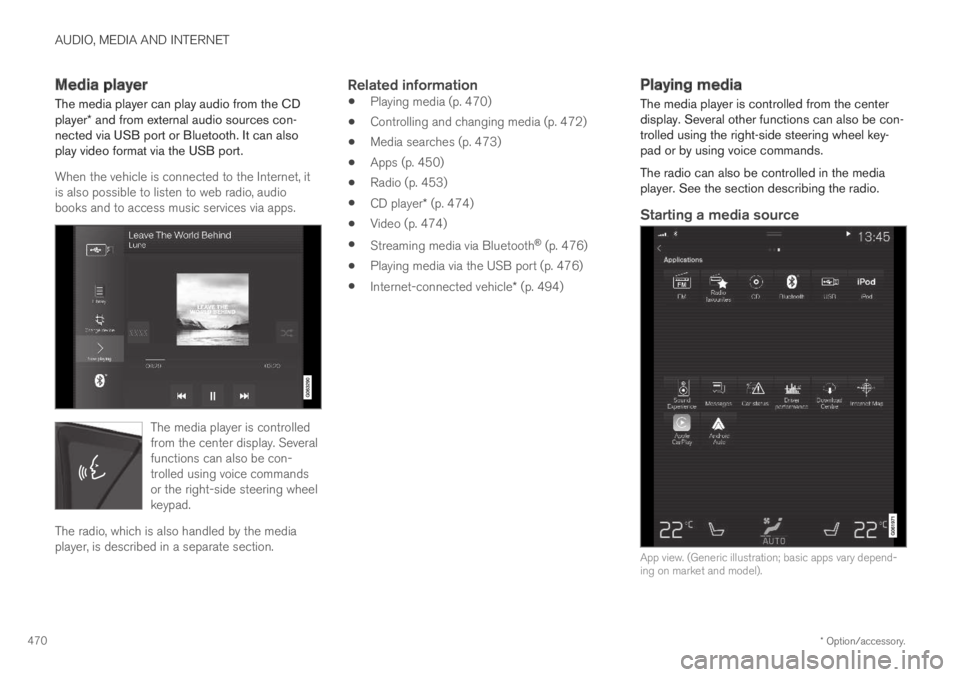
The media player can play audio from the CDplayer* and from external audio sources con-nected via USB port or Bluetooth. It can alsoplay video format via the USB port.
When the vehicle is connected to the Internet, itis also possible to listen to web radio, audiobooks and to access music services via apps.
The media player is controlledfrom the center display. Severalfunctions can also be con-trolled using voice commandsor the right-side steering wheelkeypad.
The radio, which is also handled by the mediaplayer, is described in a separate section.
Related information
Playing media (p. 470)
Controlling and changing media (p. 472)
Media searches (p. 473)
Apps (p. 450)
Radio (p. 453)
CD player* (p. 474)
Video (p. 474)
Streaming media via Bluetooth® (p. 476)
Playing media via the USB port (p. 476)
Internet-connected vehicle* (p. 494)
Playing media
The media player is controlled from the centerdisplay. Several other functions can also be con-trolled using the right-side steering wheel key-pad or by using voice commands.
The radio can also be controlled in the mediaplayer. See the section describing the radio.
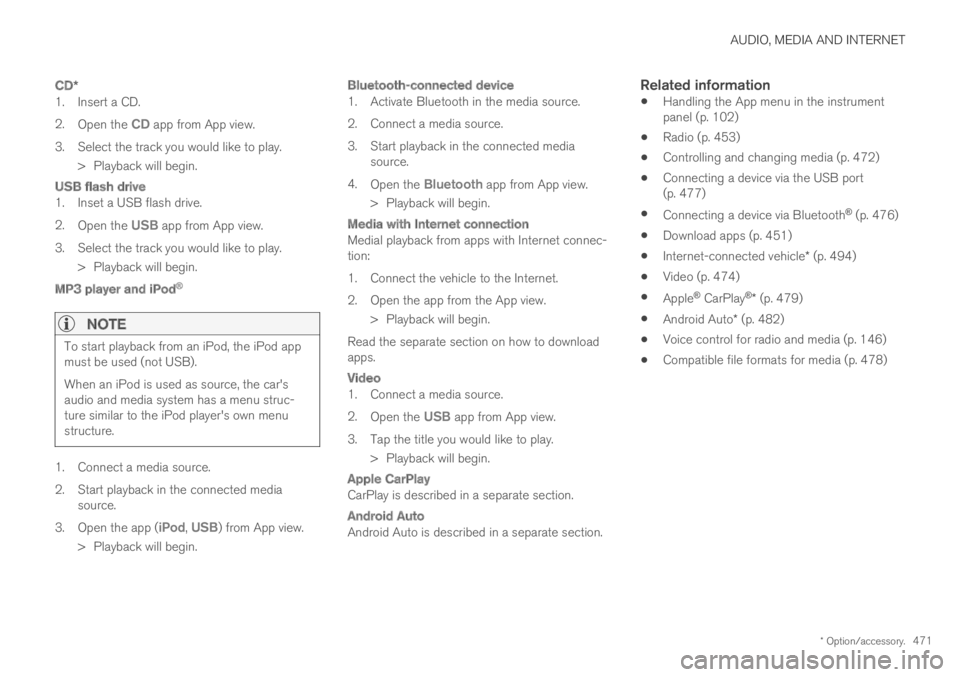
Starting a media source
App view. (Generic illustration; basic apps vary depend-ing on market and model).
Page 473 of 645
AUDIO, MEDIA AND INTERNET
* Option/accessory.471
CD *
1. Insert a CD.
2.Open the CD app from App view.
3.Select the track you would like to play.
> Playback will begin.
USB flash drive
1. Inset a USB flash drive.
2.Open the USB app from App view.
3.Select the track you would like to play.
> Playback will begin.
MP3 player and iPod ®
NOTE
To start playback from an iPod, the iPod appmust be used (not USB).
When an iPod is used as source, the car'saudio and media system has a menu struc-ture similar to the iPod player's own menustructure.
1. Connect a media source.
2.Start playback in the connected mediasource.
3.Open the app (iPod, USB) from App view.
>Playback will begin.
Bluetooth-connected device
1. Activate Bluetooth in the media source.
2. Connect a media source.
3. Start playback in the connected mediasource.
4.Open the Bluetooth app from App view.
>Playback will begin.
Media with Internet connection
Medial playback from apps with Internet connec-tion:
1. Connect the vehicle to the Internet.
2. Open the app from the App view.
> Playback will begin.
Read the separate section on how to downloadapps.
Video
1. Connect a media source.
2.Open the USB app from App view.
3.Tap the title you would like to play.
> Playback will begin.
Apple CarPlay
CarPlay is described in a separate section.
Android Auto
Android Auto is described in a separate section.
Related information
Handling the App menu in the instrumentpanel (p. 102)
Radio (p. 453)
Controlling and changing media (p. 472)
Connecting a device via the USB port(p. 477)
Connecting a device via Bluetooth® (p. 476)
Download apps (p. 451)
Internet-connected vehicle* (p. 494)
Video (p. 474)
Apple® CarPlay®* (p. 479)
Android Auto* (p. 482)
Voice control for radio and media (p. 146)
Compatible file formats for media (p. 478)
Page 474 of 645

AUDIO, MEDIA AND INTERNET
472
Controlling and changing media
Media playback can be controlled using voicecommands, the steering wheel keypad or thecenter display.
The media player can be con-trolled using voice commands,the right-side steering wheelkeypad or the center display.
Volume - turn the knob under the center display
or tap on the right-side steering wheelkeypad to raise or lower the volume.
Play/pause - tap the image for the track youwould like to play, or press the button below the
center display or on the right-side steeringwheel keypad.
Changing track/song - tap the desired track in
the center display, or press or belowthe center display or on the right-side steeringwheel keypad.
Rewinding/fast-forwarding - tap the time axis inthe center display and drag it sideways, or press
and hold or below the center display oron the right-side steering wheel keypad.
Changing media source - select from among pre-vious sources in the app, tap the desired app inApp view or use the right-side steering wheel
keypad to select the app in the app menu .
Library - tap the button to playfrom the library.
Shuffle - tap the button to playtracks in a random order.
Similar - tap the button to useGracenote to search for similarmusic on the USB device andcreate a playlist from the musicfound. The playlist can containup to 50 tracks.
Change device - tap the but-ton to toggle between USBdevices when more than one isconnected.
Related information
Media player (p. 470)
Media searches (p. 473)
Sound settings (p. 448)
Apps (p. 450)
Gracenote® (p. 473)
Voice control for radio and media (p. 146)
Page 476 of 645
||
AUDIO, MEDIA AND INTERNET
* Option/accessory.474
Updating Gracenote
The contents of the Gracenote database are con-tinuously updated. For optimal functionality,update to the latest version. Seesupport.volvocars.com for information and down-loads.
Related information
Playing media (p. 470)
License agreement for audio and media(p. 501)
Voice control for radio and media (p. 146)
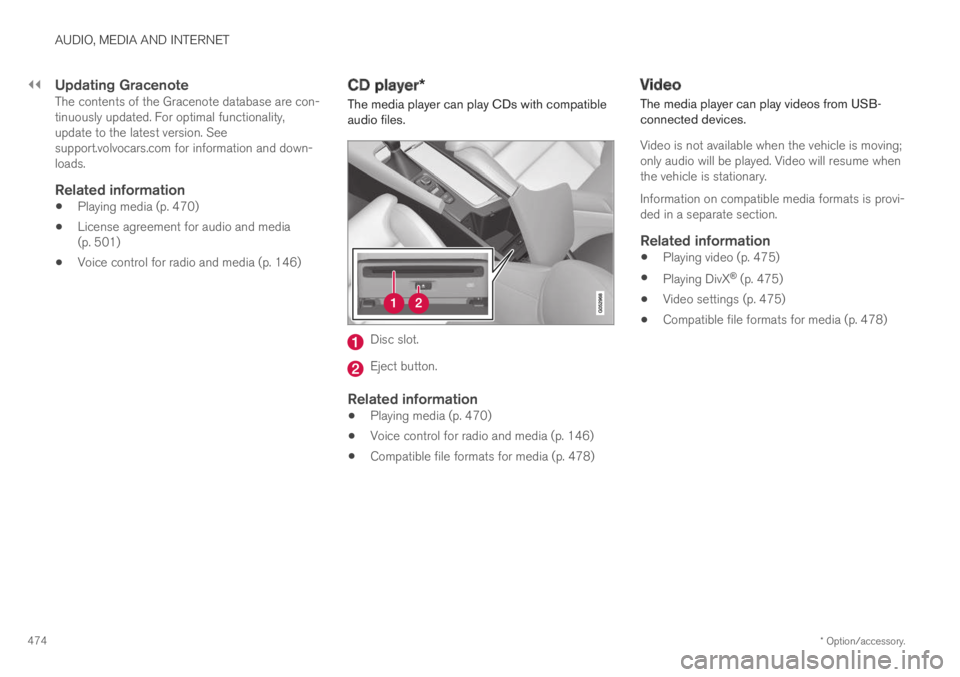
CD player*
The media player can play CDs with compatibleaudio files.
Disc slot.
Eject button.
Related information
Playing media (p. 470)
Voice control for radio and media (p. 146)
Compatible file formats for media (p. 478)
Video
The media player can play videos from USB-connected devices.
Video is not available when the vehicle is moving;only audio will be played. Video will resume whenthe vehicle is stationary.
Information on compatible media formats is provi-ded in a separate section.
Related information
Playing video (p. 475)
Playing DivX® (p. 475)
Video settings (p. 475)
Compatible file formats for media (p. 478)
Page 496 of 645
AUDIO, MEDIA AND INTERNET
* Option/accessory.494
Internet-connected vehicle*
When the vehicle is connected to the Internet, itis possible to use web radio and music servicesvia apps, download software and contact retail-ers from the vehicle.
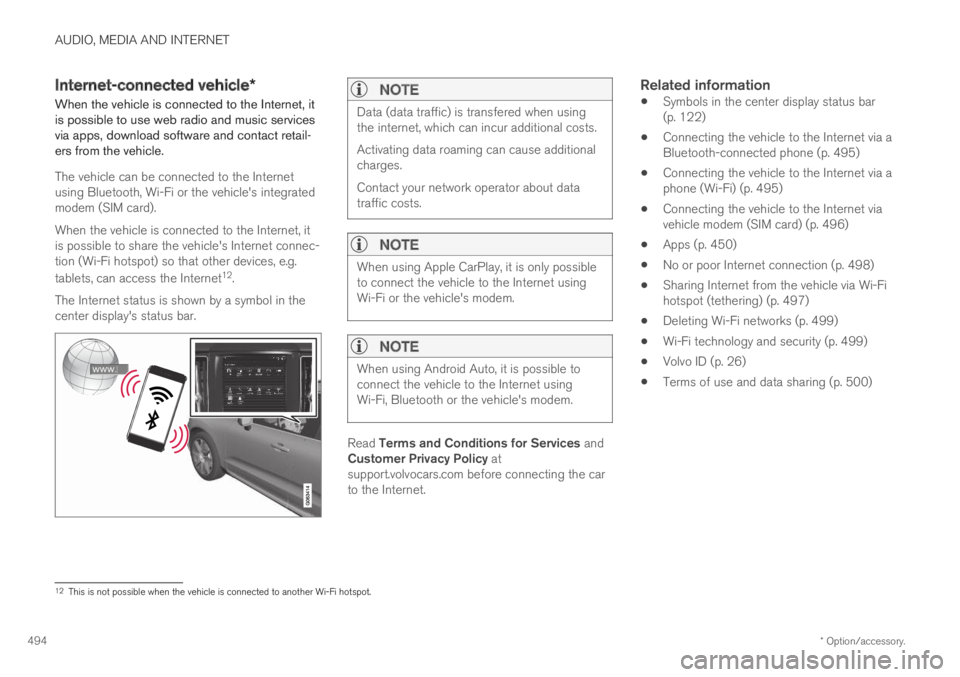
The vehicle can be connected to the Internetusing Bluetooth, Wi-Fi or the vehicle's integratedmodem (SIM card).
When the vehicle is connected to the Internet, itis possible to share the vehicle's Internet connec-tion (Wi-Fi hotspot) so that other devices, e.g.
tablets, can access the Internet12.
The Internet status is shown by a symbol in thecenter display's status bar.
NOTE
Data (data traffic) is transfered when usingthe internet, which can incur additional costs.
Activating data roaming can cause additionalcharges.
Contact your network operator about datatraffic costs.
NOTE
When using Apple CarPlay, it is only possibleto connect the vehicle to the Internet usingWi-Fi or the vehicle's modem.
NOTE
When using Android Auto, it is possible toconnect the vehicle to the Internet usingWi-Fi, Bluetooth or the vehicle's modem.
Read Terms and Conditions for Services andCustomer Privacy Policy atsupport.volvocars.com before connecting the carto the Internet.
Related information
Symbols in the center display status bar(p. 122)
Connecting the vehicle to the Internet via aBluetooth-connected phone (p. 495)
Connecting the vehicle to the Internet via aphone (Wi-Fi) (p. 495)
Connecting the vehicle to the Internet viavehicle modem (SIM card) (p. 496)
Apps (p. 450)
No or poor Internet connection (p. 498)
Sharing Internet from the vehicle via Wi-Fihotspot (tethering) (p. 497)
Deleting Wi-Fi networks (p. 499)
Wi-Fi technology and security (p. 499)
Volvo ID (p. 26)
Terms of use and data sharing (p. 500)
12This is not possible when the vehicle is connected to another Wi-Fi hotspot.
Page 508 of 645
||
AUDIO, MEDIA AND INTERNET
506
Country/Area
Brazil:
Este equipamento opera em caráter secundário isto e, náo tem direito a protecão contra interferéncia prejudicial, mesmo tipo, e não podecausar interferéncia a sistemas operando em caráter primário.
Para consultas, visite: www.anatel.gov.br
EU:
Manufacturer: Mitsubishi Electric Corporation Sanda Works 2-3-33, Miwa, Sanda-city. Hyogo, 669-1513, Japan
Mitsubishi Electric Corporation hereby declares that this type of radio equipment [Audio Navigation Unit] conforms with directive 2014/53/EU.
For more information, see support.volvocars.com.
UnitedArab Emi-rates: