sim VOLVO S90 2017 Owner´s Manual
[x] Cancel search | Manufacturer: VOLVO, Model Year: 2017, Model line: S90, Model: VOLVO S90 2017Pages: 548, PDF Size: 11.42 MB
Page 226 of 548
||
LOCKS AND ALARM
* Option/accessory.
224
Locking
All of the doors have to be closed before the vehicle can be locked but the trunk can be open. Lock the doors and trunk by pressing the pres- sure sensitive indentation on the outside of anyof the door handles. The lock indicator light onthe dashboard will begin to flash to show that thevehicle is locked and the alarm has been armed.
NOTE
Only one of a door handle's lock/unlock sur- faces should be pressed at a time. If bothareas are pressed simultaneously, the desiredlocking/unlocking action may not occur ormay be delayed.
To close windows or the moonroof * when locking
the vehicle, hold the pressure sensitive surface on the outside of a door handle until the win-dow(s)/moonroof have closed completely. Thewindows/moonroof will stop if the button isreleased before they are fully closed.
Unlocking
Pull a door handle to unlock and open the door or press the rubberized button under the trunkopening control. The lock indicator light on thedashboard will go out to show that the vehicle isunlocked and the alarm has been disarmed. The lock/unlock settings can be changed in the center display's Top view: Go to:
SettingsMy CarKeyless Unlockand select All Doors or Single Door.
Automatic relockingIf no door or the trunk is opened within two minutes after being unlocked, the vehicle willautomatically relock.
Remote door unlockThe vehicle can be unlocked using the Volvo OnCall app.
Related information
•
Remote key (p. 217)
• Remote key's range (p. 219)
• Detachable key blade (p. 221)
• Alarm (p. 236)
• Locking/unlocking from inside the vehicle(p. 224)
• Foot movement trunk operation
* (p. 232)
• Locking/unlocking the trunk (p. 228)
Locking/unlocking from inside the vehicle The lock buttons on either of the front doors can be used to lock or unlock all doors and the trunkat the same time. The rear doors can be locked using their respective lock buttons
*.
The central locking system
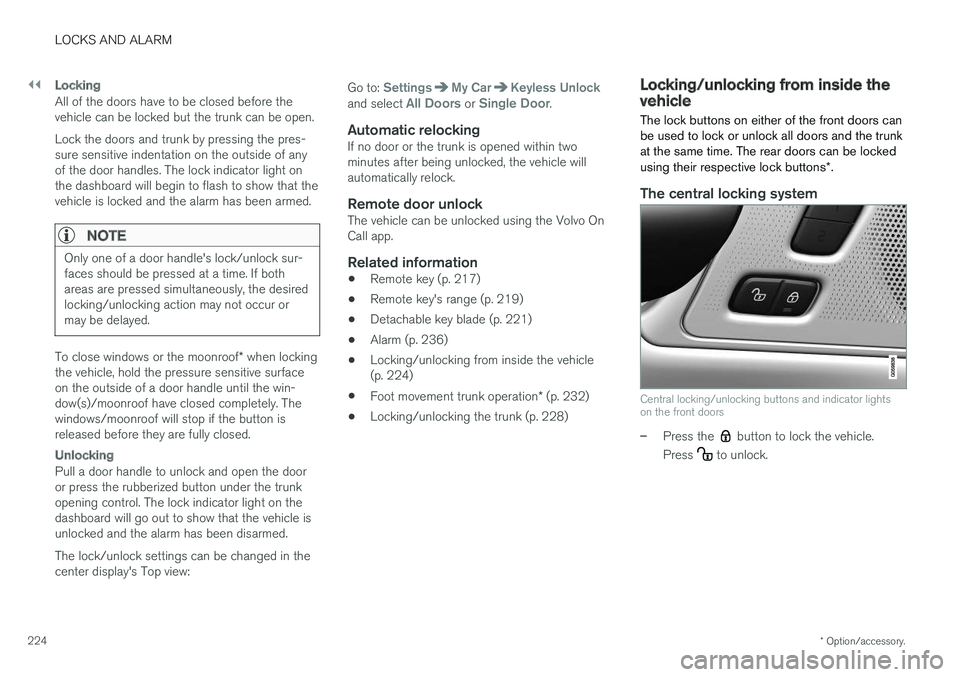
Central locking/unlocking buttons and indicator lights on the front doors
–Press the button to lock the vehicle.
Press
to unlock.
Page 234 of 548
||
LOCKS AND ALARM
* Option/accessory.
232 •
While opening: the trunk lid will stop moving and an audible signal will sound.
• While closing: the trunk lid will stop andreturn to the currently programmed maximumopening position. An audible signal willsound.
WARNING
Pay attention to the risk of injury when open- ing/ closing the trunk. Before opening/clos-ing: Make sure that no one is in the path ofthe trunk lid as an injury could occur.
Preloaded springs
Preloaded springs for the power trunk release
WARNING
Never touch or attempt to access the preloa- ded springs for the trunk lid release function.Doing so could result in serious injury.
Related information
•
Foot movement trunk operation
* (p. 232)
• Locking/unlocking the trunk (p. 228)
Foot movement trunk operation
*
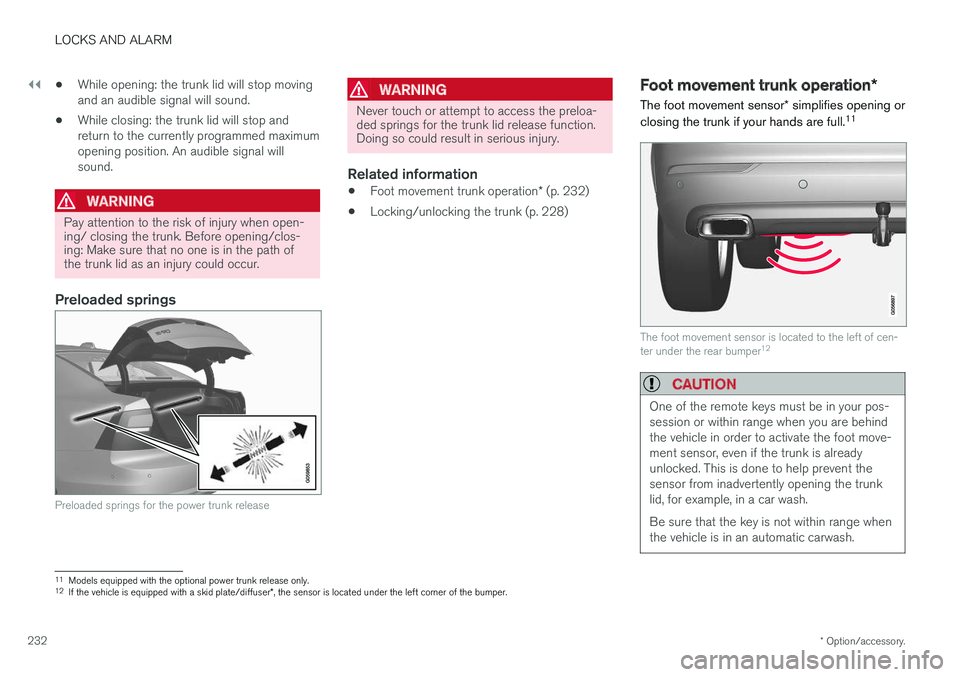
The foot movement sensor * simplifies opening or
closing the trunk if your hands are full. 11
The foot movement sensor is located to the left of cen- ter under the rear bumper
12
CAUTION
One of the remote keys must be in your pos- session or within range when you are behindthe vehicle in order to activate the foot move-ment sensor, even if the trunk is alreadyunlocked. This is done to help prevent thesensor from inadvertently opening the trunklid, for example, in a car wash. Be sure that the key is not within range when the vehicle is in an automatic carwash.
11
Models equipped with the optional power trunk release only.
12 If the vehicle is equipped with a skid plate/diffuser *, the sensor is located under the left corner of the bumper.
Page 307 of 548

DRIVER SUPPORT
}}
305
Camera and radar sensor's field of vision
The camera and radar sensor have limited fields of vision. In some situations they may detect avehicle, large animal, pedestrian or cyclist laterthan expected or not detect them at all. Other vehicles that are dirty may be detected later than others and in dark conditions, motorcy-cles may be detected late or not at all. If a text message is displayed in the instrument panel indicates that the camera or radar sensorare blocked, it may be difficult for City Safety todetect a vehicle, pedestrian or cyclist and thesystem's functionality may be reduced.
WARNING
Text messages may not be displayed in all sit- uations in which the camera and/or radarsensor are blocked. It is therefore essential tokeep the windshield in front the camera/radarsensor clean and free from snow, ice, etc. Camera and radar sensor components should only be serviced or replaced by a trained andqualified Volvo service technician.
Action by the driver
Backing up
City Safety is temporarily deactivated while the vehicle is backing up.
Low speed
City Safety is not activated at very low speeds (under approx. 3 mph (4 km/h). This means thatthe system will not be triggered if your vehicleapproaches a vehicle ahead at very low speed,such as when parking.
Active driver
Action by the driver always has priority. For this reason, City Safety may not react or react laterthan expected in situations in which the driver isactively operating the vehicle, even if a collision isimminent. This is also done to help eliminateexcessive warnings.
Other limitations
City Safety uses the vehicle's camera and radar sensor, which have certain general limitations.See the articles "Camera limitations" and "Radarsensor limitations" for additional information.
WARNING
•
Warnings and braking may be delayed or not occur at all if traffic, weather or otherconditions prevent the camera and/orradar sensor from detecting pedestrians,cyclists, large animals or other vehiclescorrectly.
• Other vehicles can only be detected indarkness if their headlights and taillightsare clearly visible.
• The sensors have a limited range forpedestrians and cyclists. The systemfunctions best at relative speeds up to30 mph (50 km/h). For stationary orslow-moving vehicles, the system func-tions best at speeds up to approx.43 mph (70 km/h).
• If there is a risk of colliding with a largeanimal, City Safety can reduce the vehi-cle's speed by up to 9 mph (15 km/h).Warnings and braking are most effectiveat speeds above 43 mph (70 km/h) andless effective at lower speeds.
Page 328 of 548
||
DRIVER SUPPORT
* Option/accessory.
326 The setting selected when the engine was switched off will be used the next time theengine is started.
LimitationsIn certain situations, it may be difficult for Run-offMitigation to assist the driver. In such cases, it isadvisable to deactivate the function. Examples of these situations include:
• road construction
• winter driving conditions
• poor road surfaces
• narrow roads
• a very active driving style
• bad weather with reduced visibility
• edges or lines other than the lane's marker lines
• roads with indistinct or no lane marker lines
The Run-off Mitigation function use the vehicle'scamera, which has general limitations. See thearticle "Camera limitations".
WARNING
• Run-off Mitigation is only intended to assist the driver and does not function inall driving, weather, traffic or road condi-tions.
• This function cannot detect barriers, railsor similar obstructions at the side of aroad or traffic lane.
• As the driver, you have full responsibilityfor operating the vehicle in a safe man-ner.
Related information
•
Run-off Mitigation
* symbols and messages
(p. 327)
• Driving lane assistance (p. 320)
• Camera limitations (p. 293)
Page 332 of 548
DRIVER SUPPORT
* Option/accessory.
330
Park Assist limitations
The Park Assist system has certain limitations.
NOTE
A trailer hitch whose wiring is integrated with the vehicle's electrical system will be takeninto account when measuring the availablespace behind the vehicle.
NOTE
• The system will not detect high objects, such as a loading dock, etc.
• Certain materials or fabrics may not bedetected by the sensors. Objects made ofthese materials or people wearing cloth-ing made of these fabrics may not bedetected.
• Children or animals near the vehicle maynot always be detected.
• Objects such as chains, thin shiny polesor low objects may temporarily not bedetected by the system. This may resultin the pulsing tone unexpectedly stoppinginstead of changing to a constant tone asthe vehicle approaches the object. Insuch cases, use caution when backing upor stop the vehicle to help avoid damage.
• In certain circumstances, the park assistsystem may give unexpected warning sig-nals that can be caused by externalsound sources that use the same ultra-sound frequencies as the system. Thismay include such things as the horns ofother vehicles, wet tires on asphalt, pneu-matic brakes, motorcycle exhaust pipes,other vehicles with similar ultrasound sys-tems, etc. This does not indicate a fault inthe system.
Cleaning the sensors
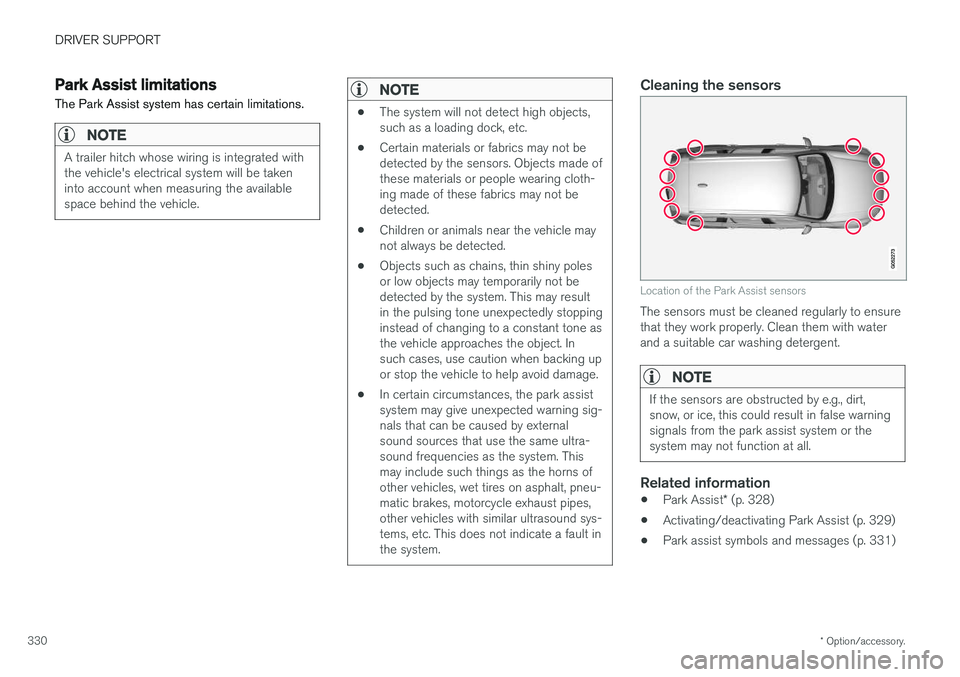
Location of the Park Assist sensors
The sensors must be cleaned regularly to ensure that they work properly. Clean them with waterand a suitable car washing detergent.
NOTE
If the sensors are obstructed by e.g., dirt, snow, or ice, this could result in false warningsignals from the park assist system or thesystem may not function at all.
Related information
•
Park Assist
* (p. 328)
• Activating/deactivating Park Assist (p. 329)
• Park assist symbols and messages (p. 331)
Page 336 of 548
DRIVER SUPPORT
* Option/accessory.
334 •
Park Assist
* (p. 328)
• Cross Traffic Alert (CTA)
* (p. 311)
• Park Assist Pilot (PAP)
* (p. 338)
Park Assist Camera (PAC) *
trajectory lines and fields
The Park Assist Camera system uses trajectory lines and fields to indicate the vehicle's positionin relation to its immediate surroundings.
Trajectory lines
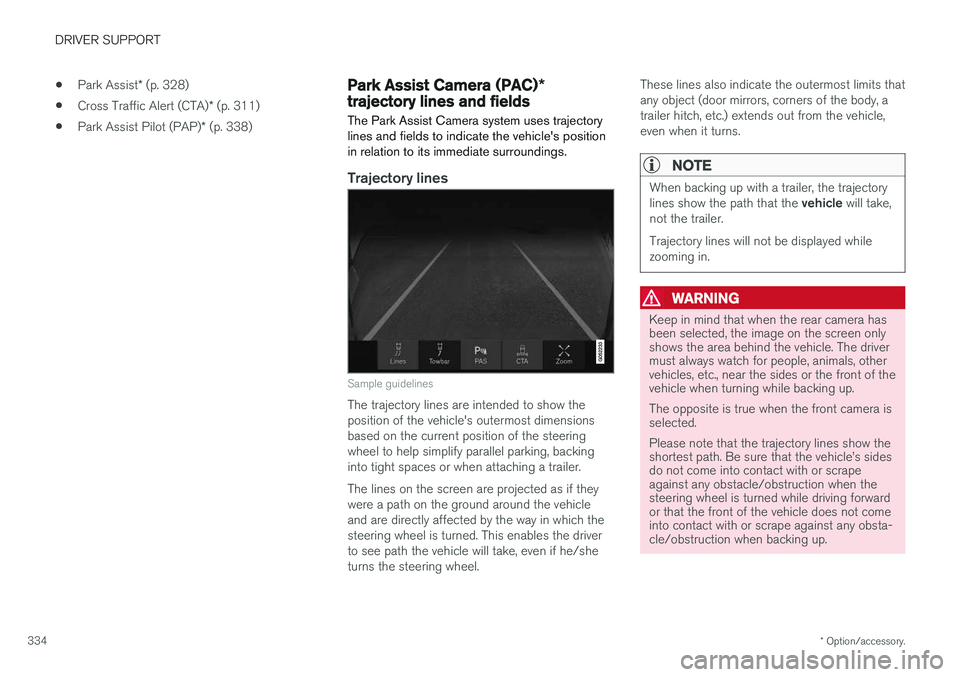
Sample guidelines
The trajectory lines are intended to show the position of the vehicle's outermost dimensionsbased on the current position of the steeringwheel to help simplify parallel parking, backinginto tight spaces or when attaching a trailer. The lines on the screen are projected as if they were a path on the ground around the vehicleand are directly affected by the way in which thesteering wheel is turned. This enables the driverto see path the vehicle will take, even if he/sheturns the steering wheel. These lines also indicate the outermost limits thatany object (door mirrors, corners of the body, atrailer hitch, etc.) extends out from the vehicle,even when it turns.
NOTE
When backing up with a trailer, the trajectory lines show the path that the
vehicle will take,
not the trailer. Trajectory lines will not be displayed while zooming in.
WARNING
Keep in mind that when the rear camera has been selected, the image on the screen onlyshows the area behind the vehicle. The drivermust always watch for people, animals, othervehicles, etc., near the sides or the front of thevehicle when turning while backing up. The opposite is true when the front camera is selected. Please note that the trajectory lines show the shortest path. Be sure that the vehicle
Page 361 of 548
STARTING AND DRIVING
}}
359
Towing recommendations
Always check with state and local authorities before attempting to tow another vehiclebecause this type of towing is subject to regula-tions regarding maximum towing speed, lengthand type of towing device, lighting, etc.
Towing your vehicle behind another vehicle
1. After securely attaching the towing line to both vehicles, put the gear selector in posi- tion N and release the parking brake.
2. Put the ignition in mode II by turning the
start knob to START (without depressing
the brake pedal) and hold it in this position
for approx. 4 seconds. Release the knob.
3. Put the gear selector in position N and
release the parking brake.
4. The towing vehicle can now begin driving.
5. Keep the tow rope taut when the towing vehicle slows down by applying light pressure on the brake pedal. This will help prevent jar-ring movements of the vehicle being towed.
6. Be prepared to apply the brakes to stop the vehicle being towed.
CAUTION
General towing precautions:
• If the vehicle's battery is dead, an auxiliary battery will be necessary to provide cur-rent for releasing the electric parkingbrake and to move the gear selector from the
P position to N. If this is not possible,
use the shiftlock override procedure tomanually release the gear selector from P
and move it to N.
• Maximum speed: 50 mph (80 km/h). Do not exceed the maximum allowable tow-ing speed.
• Maximum distance with front wheels onground: 50 miles (80 km).
• The vehicle should only be towed in theforward direction.
WARNING
• When the vehicle is being towed, the igni- tion should be in mode
II (in mode I, all of
the vehicle's airbags are deactivated).
• The remote key must remain inside the vehicle.
• The power brakes and power steering willnot function when the engine is not run-ning. Approximately 5 times more pres-sure will be required on the brake pedaland the steering wheel will be considera-bly harder to turn.
• The towing eyelets must not be used forpulling the vehicle out of a ditch or forany similar purpose involving severestrain.
Page 386 of 548
||
STARTING AND DRIVING
* Option/accessory.
384 from the
P or D positions into N so that the vehi-
cle can be moved. To do so:
Lift away the rubber mat on the bottom of the storage compartment in front of the gearselector to expose the small hole for overrid-ing the shiftlock feature.
Press a small screwdriver or similar item into the hole and hold it down.
Press the button on the front side of the gear selector and move the selector to the N
position. Release the button and remove the screwdriver from the hole.
4. Put the rubber mat back into place.
Related information
• Gear selector positions (p. 384)
• Automatic transmission (p. 382)
Gear shift indicator
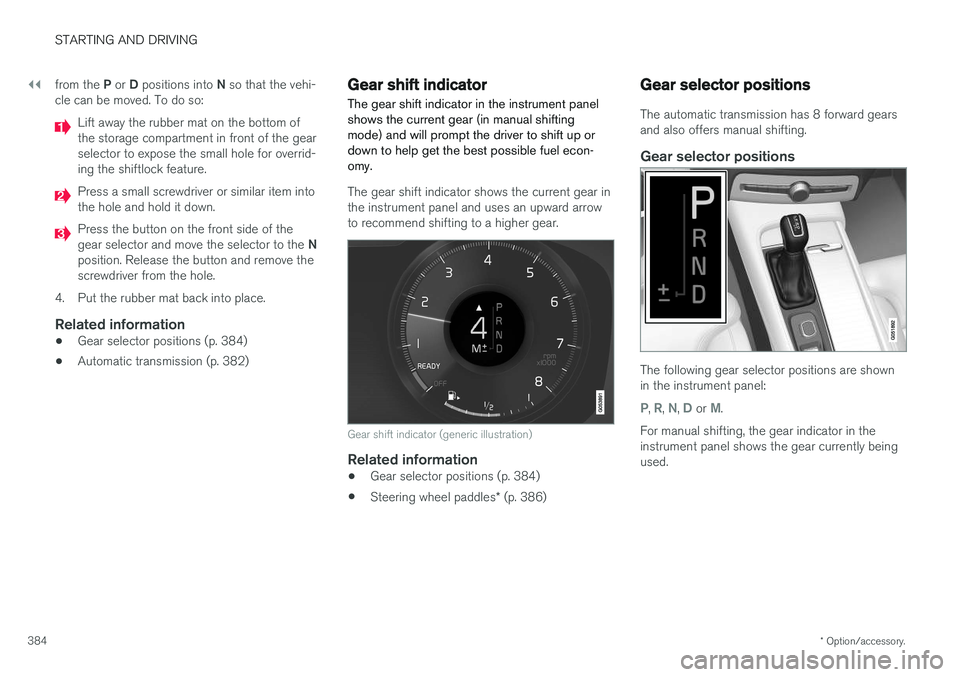
The gear shift indicator in the instrument panel shows the current gear (in manual shiftingmode) and will prompt the driver to shift up ordown to help get the best possible fuel econ-omy.
The gear shift indicator shows the current gear in the instrument panel and uses an upward arrowto recommend shifting to a higher gear.
Gear shift indicator (generic illustration)
Related information
• Gear selector positions (p. 384)
• Steering wheel paddles
* (p. 386)
Gear selector positions
The automatic transmission has 8 forward gears and also offers manual shifting.
Gear selector positions
The following gear selector positions are shown in the instrument panel:
P, R, N, D or M.
For manual shifting, the gear indicator in the instrument panel shows the gear currently beingused.
Page 397 of 548
INFOTAINMENT
* Option/accessory.395
The IBOC system is referred to as a "hybrid" since it is both analogue and digital. Duringhybrid operation, receivers still continue toreceive the analogue (non-digital) signal. HDRadio receivers incorporate both modes ofreception, where the receiver will automaticallyswitch to the analogue signal if the digital signalcannot be decoded or is lost by the receiver. When you have tuned to an HD Radio station, the
symbol will appear in the infotainment sys-
tem display. The symbol will be displayed in dif- ferent colors:
• Grayed-out symbol
: NoHD Radio broadcast
reception
• White symbol
: the radio is actively receiving
an HD broadcast
• Orange symbol
: the radio is receiving an
HD broadcast with digital sound
More information about HD Radio and IBOC canbe found on Ibiquity's website, www.hdradio.comand www.ibiquity.com.
Artist Experience ™A radio station's logo and album art can be dis-played. If a station opts to provide this informa-tion, it is broadcast once every 12 minutes, whichmeans that there may be a delay before thelogo/album art appear on the screen. The radiocan store 100 station logos so the next time theradio is tuned to the same station, the logo will be displayed immediately. Album art is synchedwith the artist that you are currently listening to.
iTunes taggingThis feature is common to both HD Radio and SiriusXM
®
Satellite radio *. See the section
"iTunes tagging" in the article "SiriusXM satellite radio settings" for more detailed information.
Ball game modeThis feature means that a main FM station (HD1)will broadcast live events, where the content ofthe programming is more important than soundquality, in analog mode only to help prevent thedelay between analog and digital broadcasting.The HD Radio symbol will be white during livebroadcasts and "Live" will be displayed next tothe symbol.
Benefits of digital broadcasting
• Better sound (FM sounds near CD qualityand AM as analogue FM).
• Some FM frequencies offer a greater num-ber of listening choices through “multicast-ing” (consisting of a frequency's main chan-nel and any sub-channels that may also beavailable on that particular frequency.)
• When receiving a digital signal there is nomultipath disturbance or hisses/pops/crack-ling due to outside influences.
How HD Radio
™ Technology
broadcasting works
HD Radio works similarly to conventional radioand broadcasts of this type are available in manyareas of the United States. However, there are afew key differences:
• Instead of transmitting one analogue signal,stations send out a bundled signal – bothanalogue and digital.
• An HD Radio receiver can receive both digi-tal and analogue broadcasts. Depending onthe terrain and location of the vehicle (whichwill influence the signal strength), thereceiver will determine which signal toreceive.
Related information
•
Switching HD Radio on and off (p. 396)
• HD Radio sub-channels (p. 396)
• HD Radio limitations (p. 397)
• Radio (p. 392)
• Changing and searching for radio stations(p. 393)
Page 423 of 548
INFOTAINMENT
}}
421
CD
1. Insert a CD. 2.Open the
CD app in the center display's App
view.
3. Select a track. > Playback will begin.
USB flash drive
1. Insert the flash drive in the USB socket. 2. Open the
USB app in the center display's
App view.
3. Select a track. > Playback will begin.
Mp3 player and iPod®
NOTE
Use the iPod app ( not the USB app) to start playback. When an iPod is the media source, the info- tainment system will use a menu structuresimilar to the iPod's own menu structure.
1. Connect the device.
2. Start playback in the connected device.3.
Open the
iPod, USB, AUX) app in the cen-
ter display's App view.
> Playback will begin.
Bluetooth-connected device
1. Connect the device.
2. Activate Bluetooth in the device.
3. Start playback from the connected device.4. Open the
Bluetooth app in the center dis-
play's App view.
> Playback will begin.
Internet media
1. Connect the vehicle to the Internet.
2. Open the app in the center display's App view.
> Playback will begin.
Video
1. Connect the device. 2.Open the
USB app in the center display's
App view.
3. Tap the title of the video content to be played.
> Playback will begin.
Apple CarPlay
Apple CarPlay is described in a separate article.
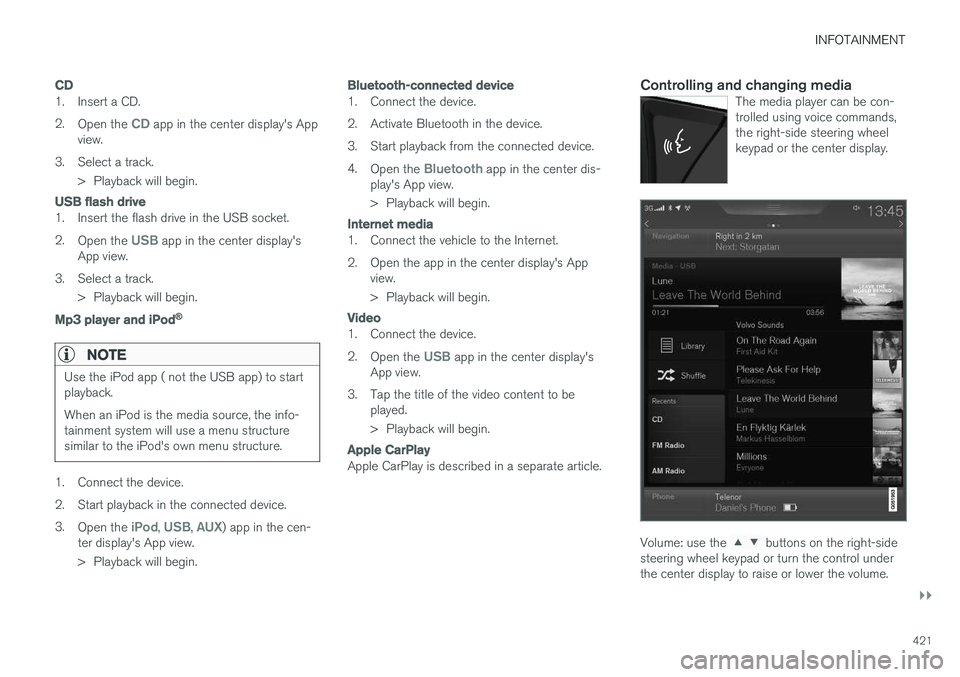
Controlling and changing mediaThe media player can be con- trolled using voice commands,the right-side steering wheelkeypad or the center display.
Volume: use the buttons on the right-side
steering wheel keypad or turn the control under the center display to raise or lower the volume.