radio VOLVO S90 2017 Owner´s Manual
[x] Cancel search | Manufacturer: VOLVO, Model Year: 2017, Model line: S90, Model: VOLVO S90 2017Pages: 548, PDF Size: 11.42 MB
Page 5 of 548
3
Top tether anchors86
Integrated booster cushion *
87
Raising the integrated booster cushion *
89
Stowing the integrated booster cushion *
91
INSTRUMENTS AND CONTROLS
Instruments and controls
94
Trip computer 95
Displaying trip computer information 96
Displaying trip statistics 97
HomeLink ®
Wireless Control System *98
Programming the HomeLink ®
Wire-
less Control System * 99
Adjusting the power door mirrors 102
Moonroof *
103
Operating the moonroof *
104
Power windows 106
Operating the power windows 106
Rearview mirror 107
Using sun curtains *
108
Settings view 109
Categories in Settings view 110
Changing system settings in Set- tings view 112
Changing settings in apps 113
Resetting the settings view 113
Resetting user data when the vehiclechanges owners 114
Ambient temperature sensor 114
Clock 115
Head-up display (HUD) *
116
Voice control
119
Using voice commands 119
Voice control for cell phones 120
Voice control for radio and media 121
Climate system voice commands 122
Navigation system voice commands 123
Voice control settings 124
Instrument panel 124
Instrument panel settings 126
Indicator symbols in the instrument panel 127
Instrument panel licenses 130
Warning symbols in the instrument panel 135
Compass 136
Calibrating the compass 137
Lighting panel and controls 138
Parking lights 140
Daytime Running Lights (DRL) 140
Low beam headlights 141
High and low beam headlights 142
Active Bending Lights *
143
Front fog lights *
144
Rear fog lights (certain models only) 145
Brake lights 146
Hazard warning flashers 146
Page 10 of 548
8
STARTING AND DRIVING
Starting and driving346
Brakes 346
Brake functions 348
Auto-hold brake function 348
Brake assist system 349
Braking effect after a collision 349
Emergency brake lights 350
Hill Start Assist 350
Parking brake 350
Using the parking brake 351
Parking brake malfunctions 353
Before a long distance trip 353
Driving economically 354
Driving through standing water 355
Overheating the engine and transmission 356
Winter driving 357
Towing eyelet 357
Towing recommendations 359
Fuel 361
Octane rating 362
Opening/closing the fuel filler door 363
Emission controls 364
Jump starting 364
Driving with a trailer 366
Detachable trailer hitch*
368
Trailer Stability Assist (TSA) 369
Ignition modes 370
Battery drain 372
Starting the engine 372
Turning the engine off 374
Drive modes *
374
ECO drive mode 377
Start/Stop 379
Using the Start/Stop function 379
Conditions for Start/Stop 381
Automatic transmission 382
Shiftlock 383
Gear shift indicator 384
Gear selector positions 384
Steering wheel paddles *
386
All Wheel Drive (AWD) 387
Leveling control * and suspension
388
INFOTAINMENT
The infotainment system
390
Apps (applications) 390
Sound settings 391
Radio 392
Radio settings 392
RBDS radio 393
Changing and searching for radio stations 393
HD Radio ™reception
394
Switching HD Radio on and off 396
HD Radio sub-channels 396
HD Radio limitations 397
SiriusXM ®
Satellite radio * 398
Using SiriusXM ®
Satellite radio *399
SiriusXM ®
Satellite radio * settings 400
SiriusXM Travel Link *
401
SiriusXM Travel Link - Weather 403
SiriusXM Travel Link - Alerts 404
SiriusXM Travel Link - Fuel 405
SiriusXM Travel Link - Sports 406
Phone 407
Pairing a cell phone 408
Connecting/disconnecting a cell phone 409
Handling phone calls 410
Page 26 of 548
||
INTRODUCTION
24
WARNING
The driver is always responsible for operating the vehicle in a safe manner and adhering tocurrent laws and traffic regulations. It is also important that the vehicle be oper- ated, maintained and serviced according toVolvo's recommendations/instructions in theowner's manual.
Changing the language used in the vehicle's center display
Changing languages in the center display could mean that some of the owner's information provi-ded may not comply with national or local stat-utes and regulations. Changing to a languagethat you do not understand may also make it diffi-cult to change back to the original language.
Related information
•Owner's manual in mobile devices (p. 20)
• Navigating in the digital owner's manual(p. 51)
• On-board digital owner's manual (p. 50)
• Navigating in the digital owner's manual(p. 51)
• Using the owner's manual (p. 48)
• Additional information about your vehicle(p. 14)
Driver distraction
Please keep the following warnings in mind when operating/servicing your vehicle.
A driver has a responsibility to do everything pos- sible to ensure his or her own safety and thesafety of passengers in the vehicle and otherssharing the roadway. Avoiding distractions is partof that responsibility. Driver distraction results from driver activities that are not directly related to controlling the vehiclein the driving environment. Your new Volvo is, orcan be, equipped with many feature-rich enter-tainment and communication systems. Theseinclude hands-free cellular telephones, navigationsystems, and multipurpose audio systems. Youmay also own other portable electronic devicesfor your own convenience. When used properlyand safely, they enrich the driving experience.Improperly used, any of these could cause a dis-traction. For all of these systems, we want to provide the following warning that reflects the strong Volvoconcern for your safety. Never use these devicesor any feature of your vehicle in a way that dis-tracts you from the task of driving safely. Distrac-tion can lead to a serious accident. In addition tothis general warning, we offer the following guid-ance regarding specific newer features that maybe found in your vehicle:
WARNING
• Never use a hand-held cellular telephone while driving. Some jurisdictions prohibitcellular telephone use by a driver whilethe vehicle is moving.
• If your vehicle is equipped with a naviga-tion system, set and make changes toyour travel itinerary only with the vehicleparked.
• Never program your audio system whilethe vehicle is moving. Program radio pre-sets with the vehicle parked, and use yourprogrammed presets to make radio usequicker and simpler.
• Never use portable computers or per-sonal digital assistants while the vehicleis moving.
Accessory installation
•We strongly recommend that Volvo ownersinstall only genuine, Volvo-approved acces-sories, and that accessory installations beperformed only by a trained and qualifiedVolvo service technician.
• Genuine Volvo accessories are tested toensure compatibility with the performance,safety, and emission systems in your vehicle.Additionally, a trained and qualified Volvoservice technician knows where accessoriesmay and may not be safely installed in yourVolvo. In all cases, please consult a trained
Page 31 of 548

INTRODUCTION
* Option/accessory.29
Function view: vehicle functions can be acti- vated/deactivated by tapping. Certain func-tions are called "trigger functions", which open settings windows, e.g.,
Camera and
parking functions. Settings for the head-up display * are also started from Function view
but the actual interaction is controlled from the steering wheel keypad buttons and theinstrument panel.
Home view: the initial view shown when the center display is started.
App (Application) view: shows apps that have been downloaded (third-party apps) as well as ones for integrated functions such as
FM
radio. Tap an icon to open the app.
Status bar: vehicle activities are shown at the top of the screen. Network/connection infor-mation is shown on the left side of the bar.Media-related information, the clock andinformation about background activities areshown to the right.
Top view: pull down the tab to open Top view. From here, you can access Settings,Owner's manual and stored messages.
Navigation: leads to map navigation. Tap the sub-view to expand it.
Media: the most recently used media-related apps. Tap the sub-view to expand it.
Phone: used to access phone-related func- tions. Tap the sub-view to expand it.
The extra sub-view: the most recently used apps/vehicle functions that do not belong inany of the other sub-views are listed here.Tap the sub-view to expand it.
Climate bar: information and direct access to settings such as temperature, seat heating *
and blower speed. Tap the symbol at the center of the Climate bar to open Climateview for additional settings.
Related information
• Using the center display (p. 44)
• Function view buttons (p. 36)
• Symbols in the center display status bar(p. 43)
• Settings view (p. 109)
• Media player (p. 415)
• Phone (p. 407)
• Climate system controls in the center display(p. 183)
• Cleaning the center display (p. 515)
Page 43 of 548
INTRODUCTION
}}
41
Going to Top view from an app
To pull down Top view when an app is running (e.g., FM radio):
• Tap
FM Radio Settings to display these
settings.
• Tap
Owner's manual to open an article
related to the specific app.
This applies only to your vehicle's factory- installed apps . This is not possible for third-
party apps that have been downloaded.
Climate viewThe climate bar, where the most common climatesystem settings can be made, is located at thebottom of the screen and is always visible.
Tap the symbol at the center of the cli-mate bar to open Climate view foraccess to additional climate systemsettings.
Tap the symbol to close Climate view and return to a previous view.
App view
App view (generic illustration)
Swipe the screen from right to left to access App view from Home view. This displays factory-instal- led apps such as
FM as well as any apps that
have been downloaded. Brief information will be displayed for certain apps, for example missedphone calls, etc. Tap an app to open it. When applicable, swipe downward to scroll in the list of apps (depending on the number of appscurrently running). To move an app, press and hold it. It will become slightly bigger and transparent and can then bedragged to the desired position and released. Return to Home view by swiping the screen from left to right or by pressing the Home button.
Function view
Function view (generic illustration)
Page 45 of 548

INTRODUCTION
43
Symbols in the center display status bar
The following table provides an overview of the symbols used in the center display's status bar.
The status bar shows current vehicle activities and in certain cases, also their status. Due to lim-ited space in the status bar, not all symbols willbe displayed at all times.
Symbol Meaning
Roaming activated.
Cell phone network signal strength.
Bluetooth device connected.
Bluetooth activated but no device connected.
Connected to a Wi-Fi network.
Tethering activated. (Wi-Fi hotspot).
Vehicle modem activated.
Remote diagnostics active.
Action in progress.
SymbolMeaning
Preconditioning A
in progress.
Audio source being played.
Audio source paused.
Phone call in progress.
Audio source muted.
News broadcasts from current radio station B
.
Traffic information being received B
.
Clock.
A Hybrid models only.
B Not available in all markets.
Related information
• Navigating in the center display's views (p. 38)
• Indicator symbols in the instrument panel(p. 127)
• Warning symbols in the instrument panel(p. 135)
• Messages in the instrument panel and centerdisplay (p. 150)
Changing settings in different types of apps
App view, which is one of the center display's basic views, contains all of the vehicle's apps(applications/programs). Access this view byswiping the screen from right to left.
Basic appsA number of apps are standard and are part of Volvo Sensus, such as FM Radio, USB and CD.
To change settings in a basic app: 1. Open the app, for example
Phone, either on
the home screen or full-screen from App view.
2. Pull down Top view. 3. Tap
Phone settings.
4. Change the desired settings and confirm.
5. Press the Home button, tap the screen out- side of Top view or pull Top view up.
Third-party appsThird party apps have to be selected and down- loaded. In these apps, setting are made fromwithin the app, not from Top view.
Page 100 of 548
||
INSTRUMENTS AND CONTROLS
* Option/accessory.
98
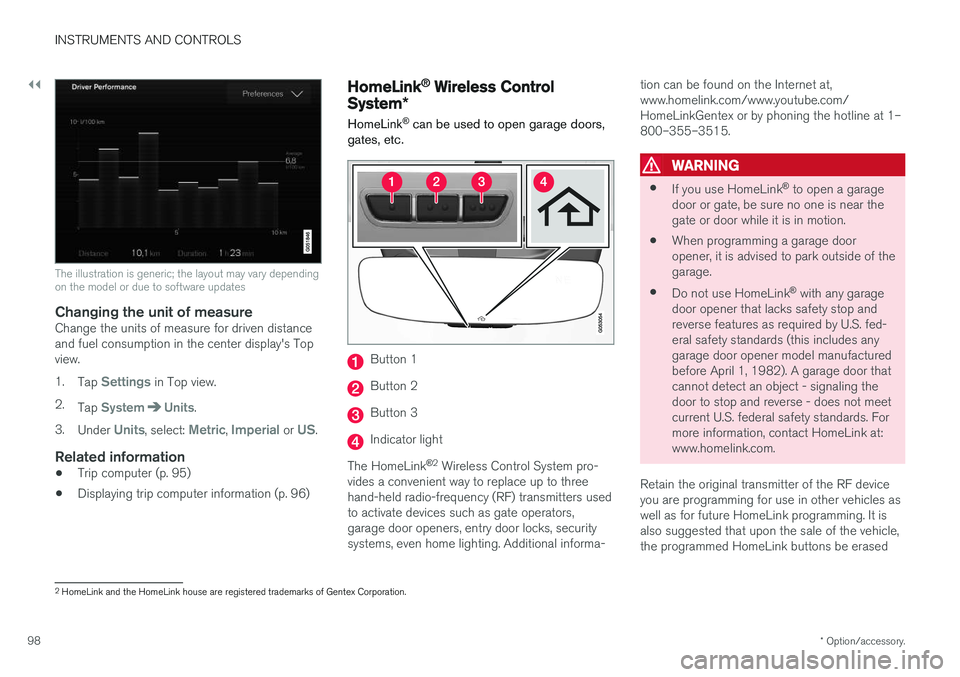
The illustration is generic; the layout may vary depending on the model or due to software updates
Changing the unit of measureChange the units of measure for driven distance and fuel consumption in the center display's Topview. 1.
Tap
Settings in Top view.
2. Tap
SystemUnits.
3. Under
Units, select: Metric, Imperial or US.
Related information
• Trip computer (p. 95)
• Displaying trip computer information (p. 96)
HomeLink ®
Wireless Control
System *
HomeLink ®
can be used to open garage doors,
gates, etc.
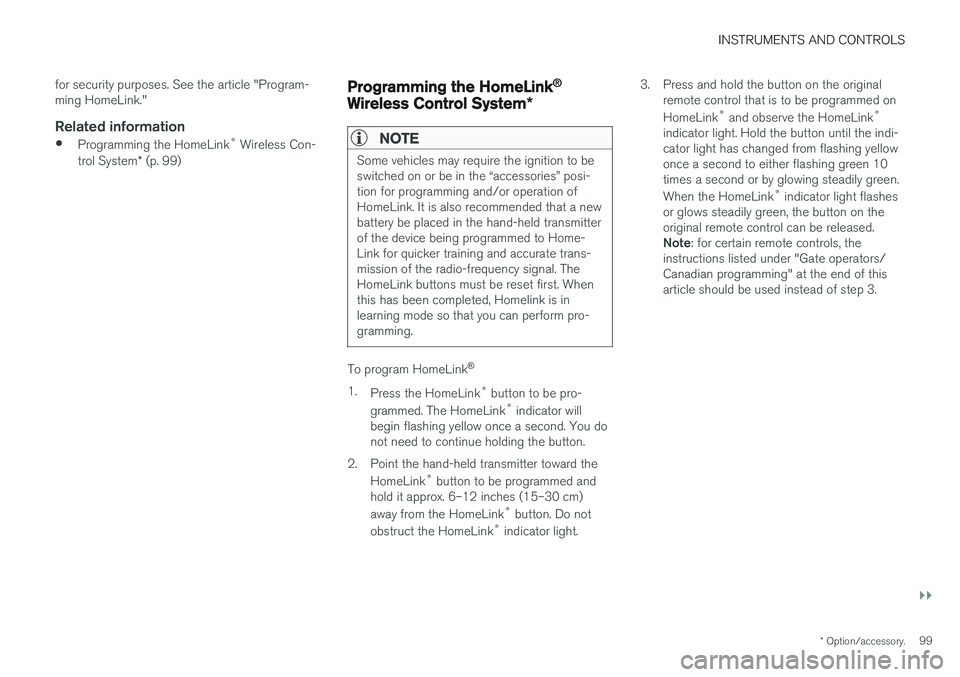
Button 1
Button 2
Button 3
Indicator light
The HomeLink ®
2
Wireless Control System pro-
vides a convenient way to replace up to three hand-held radio-frequency (RF) transmitters usedto activate devices such as gate operators,garage door openers, entry door locks, securitysystems, even home lighting. Additional informa- tion can be found on the Internet at,www.homelink.com/www.youtube.com/HomeLinkGentex or by phoning the hotline at 1–800–355–3515.
WARNING
•
If you use HomeLink ®
to open a garage
door or gate, be sure no one is near the gate or door while it is in motion.
• When programming a garage dooropener, it is advised to park outside of thegarage.
• Do not use HomeLink ®
with any garage
door opener that lacks safety stop andreverse features as required by U.S. fed-eral safety standards (this includes anygarage door opener model manufacturedbefore April 1, 1982). A garage door thatcannot detect an object - signaling thedoor to stop and reverse - does not meetcurrent U.S. federal safety standards. Formore information, contact HomeLink at:www.homelink.com.
Retain the original transmitter of the RF deviceyou are programming for use in other vehicles aswell as for future HomeLink programming. It isalso suggested that upon the sale of the vehicle,the programmed HomeLink buttons be erased
2 HomeLink and the HomeLink house are registered trademarks of Gentex Corporation.
Page 101 of 548
INSTRUMENTS AND CONTROLS
}}
* Option/accessory.99
for security purposes. See the article "Program- ming HomeLink."
Related information
•
Programming the HomeLink ®
Wireless Con-
trol System * (p. 99)
Programming the HomeLink ®
Wireless Control System *
NOTE
Some vehicles may require the ignition to be switched on or be in the “accessories” posi-tion for programming and/or operation ofHomeLink. It is also recommended that a newbattery be placed in the hand-held transmitterof the device being programmed to Home-Link for quicker training and accurate trans-mission of the radio-frequency signal. TheHomeLink buttons must be reset first. Whenthis has been completed, Homelink is inlearning mode so that you can perform pro-gramming.
To program HomeLink®
1. Press the HomeLink ®
button to be pro-
grammed. The HomeLink ®
indicator will
begin flashing yellow once a second. You do not need to continue holding the button.
2. Point the hand-held transmitter toward the HomeLink ®
button to be programmed and
hold it approx. 6–12 inches (15–30 cm) away from the HomeLink ®
button. Do not
obstruct the HomeLink ®
indicator light. 3. Press and hold the button on the original
remote control that is to be programmed onHomeLink ®
and observe the HomeLink ®
indicator light. Hold the button until the indi- cator light has changed from flashing yellowonce a second to either flashing green 10times a second or by glowing steadily green. When the HomeLink ®
indicator light flashes
or glows steadily green, the button on the original remote control can be released. Note : for certain remote controls, the
instructions listed under "Gate operators/ Canadian programming" at the end of thisarticle should be used instead of step 3.
Page 102 of 548
||
INSTRUMENTS AND CONTROLS
1004.
Press the programmed HomeLink ®
button
and check the indicator light. Indicator light glows steadily green: pro-
gramming has been completed. The garage door, gate, etc., should now be activatedwhen the programmed button is pressed. Indicator light flashes 10 times a second: press the HomeLink ®
button that is being
programmed. Hold it for 2 seconds and release it. Repeat the “press/hold/release”sequence a second time, and, depending onthe brand of the garage door opener, repeatthis sequence a third time to complete theprogramming process. Programming shouldnow be completed and the garage door,gate, etc., should now be activated when theprogrammed button is pressed. If the garage door, etc. still does not react: continue with steps 6-8 to complete
programming.
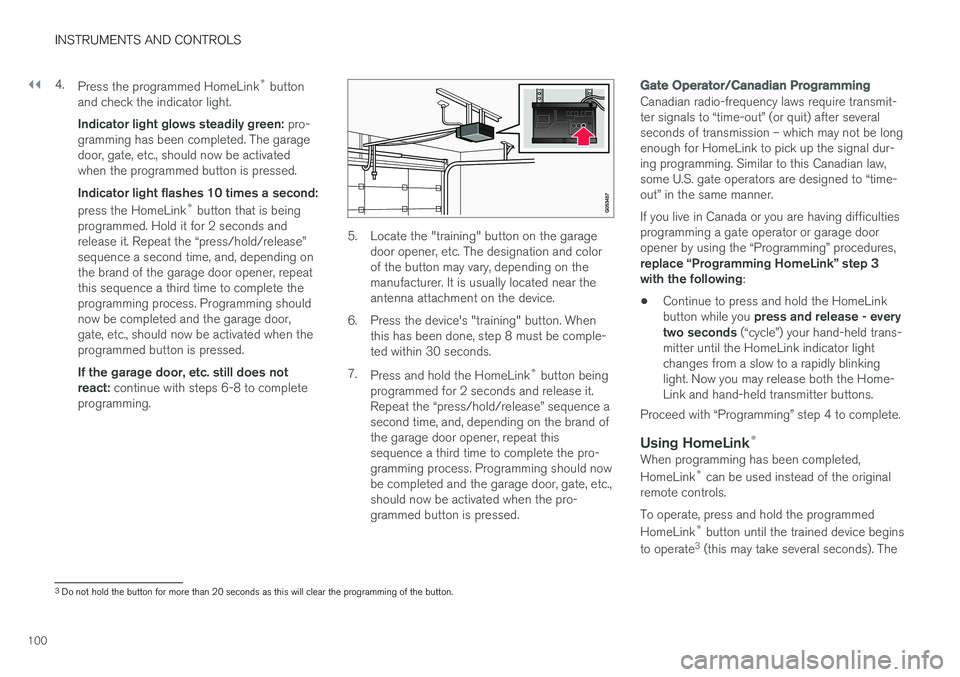
5. Locate the "training" button on the garage door opener, etc. The designation and color of the button may vary, depending on themanufacturer. It is usually located near theantenna attachment on the device.
6. Press the device's "training" button. When this has been done, step 8 must be comple-ted within 30 seconds.
7. Press and hold the HomeLink ®
button being
programmed for 2 seconds and release it.Repeat the “press/hold/release” sequence asecond time, and, depending on the brand ofthe garage door opener, repeat thissequence a third time to complete the pro-gramming process. Programming should nowbe completed and the garage door, gate, etc.,should now be activated when the pro-grammed button is pressed.
Gate Operator/Canadian Programming
Canadian radio-frequency laws require transmit- ter signals to “time-out” (or quit) after severalseconds of transmission – which may not be longenough for HomeLink to pick up the signal dur-ing programming. Similar to this Canadian law,some U.S. gate operators are designed to “time-out” in the same manner. If you live in Canada or you are having difficulties programming a gate operator or garage dooropener by using the “Programming” procedures, replace “Programming HomeLink” step 3 with the following :
• Continue to press and hold the HomeLink button while you
press and release - every
two seconds (“cycle”) your hand-held trans-
mitter until the HomeLink indicator light changes from a slow to a rapidly blinkinglight. Now you may release both the Home-Link and hand-held transmitter buttons.
Proceed with “Programming” step 4 to complete.
Using HomeLink ®When programming has been completed, HomeLink
®
can be used instead of the original
remote controls. To operate, press and hold the programmed HomeLink ®
button until the trained device begins
to operate 3
(this may take several seconds). The
3 Do not hold the button for more than 20 seconds as this will clear the programming of the button.
Page 112 of 548
||
INSTRUMENTS AND CONTROLS
* Option/accessory.
110
Types of settings
Type of setting Description
Trigger function Starts an app or a separate viewfor more advanced settings. Tapthe text to e.g., connect aBluetooth device.
Radiobutton Select one of the possible set-tings by tapping the desired radiobutton to e.g., change the systemlanguage.
Multi-selectionbutton Select a level for a particular set-ting by pressing the desired partof the button e.g., to set thedesired level for City Safety.
Checkbox Tap to activate/deactivate a func-tion e.g., to select automatic startfor steering wheel heating.
Slider Select a level for a function by pressing and dragging the slidercontrol e.g., to set a volume level.
Informa-tion dis-play This is not an actual setting butdisplays information such as thevehicle's VIN number.
Related information
•
Center display overview (p. 28)
• Navigating in the center display's views (p. 38)
• Using the center display (p. 44)
• Changing system settings in Settings view(p. 112)
• Categories in Settings view (p. 110)
Categories in Settings view
Settings view consists of a number of main cate- gories and sub-categories that contain settingsand information for many of the vehicle's fea-tures and functions.
The main categories in Settings view are: My
Car, Sound, Navigation, Media,Communication, Climate and System.
Each main category, in turn, contains several sub- categories with possible settings. The tableshows the first level of sub-categories. The possi-ble settings for a function or area are describedin greater detail in their respective articles in theowner's manual. For system settings not descri-bed in the respective articles, see "Changing sys-tem settings in Settings view."
My Car
Sub-categories Type of setting
DisplaysPersonal
IntelliSafeCombination
Park AssistGlobal
Drive Mode/Individual
Drive Mode* Combination
LightsCombination
MirrorsPersonal
LockingCombination