display VOLVO S90 2018 Owner´s Manual
[x] Cancel search | Manufacturer: VOLVO, Model Year: 2018, Model line: S90, Model: VOLVO S90 2018Pages: 640, PDF Size: 11.37 MB
Page 348 of 640
DRIVER SUPPORT
* Option/accessory.
346
Road Sign Information *
The Road Sign Information (RSI 91
) function noti-
fies the driver of speed-related road signs the vehicle is passing.
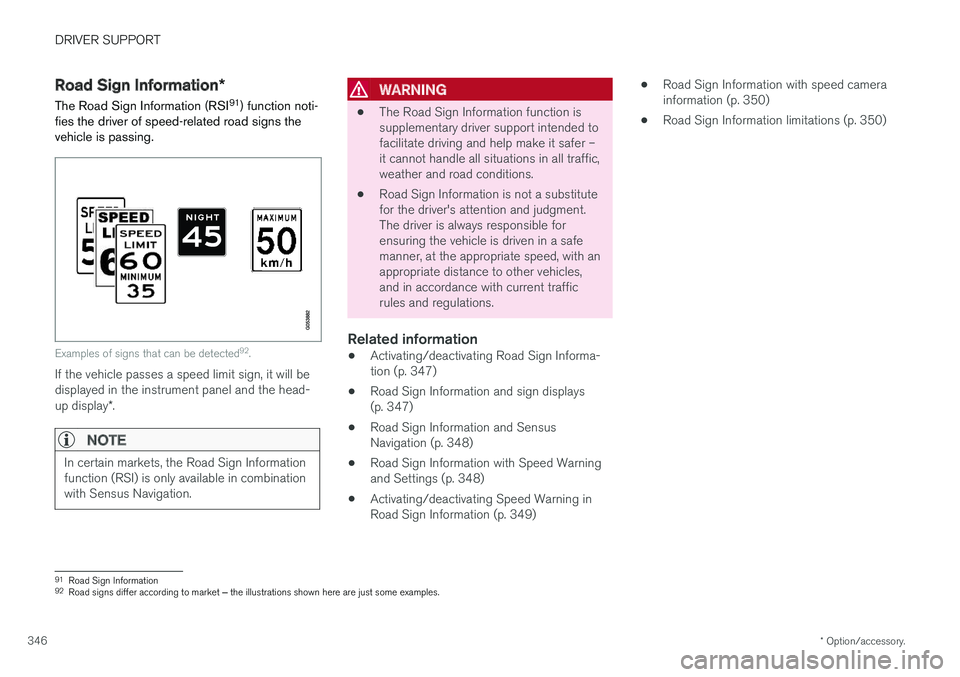
Examples of signs that can be detected 92
.
If the vehicle passes a speed limit sign, it will be displayed in the instrument panel and the head- up display *.
NOTE
In certain markets, the Road Sign Information function (RSI) is only available in combinationwith Sensus Navigation.
WARNING
• The Road Sign Information function is supplementary driver support intended tofacilitate driving and help make it safer –it cannot handle all situations in all traffic,weather and road conditions.
• Road Sign Information is not a substitutefor the driver's attention and judgment.The driver is always responsible forensuring the vehicle is driven in a safemanner, at the appropriate speed, with anappropriate distance to other vehicles,and in accordance with current trafficrules and regulations.
Related information
•Activating/deactivating Road Sign Informa-tion (p. 347)
• Road Sign Information and sign displays(p. 347)
• Road Sign Information and SensusNavigation (p. 348)
• Road Sign Information with Speed Warningand Settings (p. 348)
• Activating/deactivating Speed Warning inRoad Sign Information (p. 349) •
Road Sign Information with speed camerainformation (p. 350)
• Road Sign Information limitations (p. 350)
91
Road Sign Information
92 Road signs differ according to market ‒ the illustrations shown here are just some examples.
Page 349 of 640
DRIVER SUPPORT
}}
* Option/accessory.347
Activating/deactivating Road SignInformation
The Road Sign Information function can be switched On or Off .
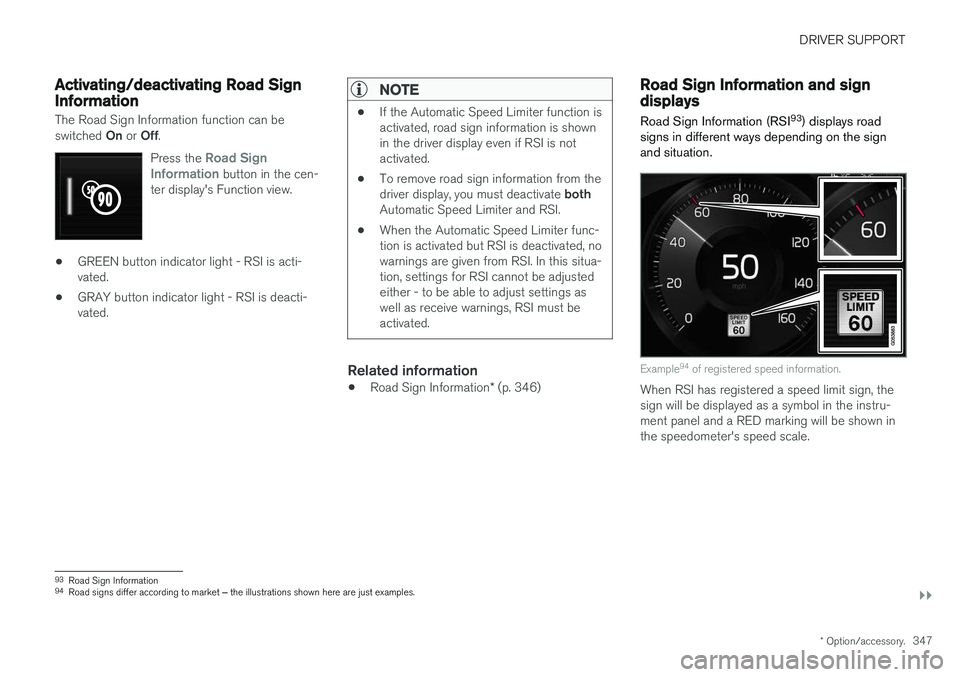
Press the
Road Sign
Information button in the cen-
ter display's Function view.
• GREEN button indicator light - RSI is acti- vated.
• GRAY button indicator light - RSI is deacti-vated.
NOTE
•If the Automatic Speed Limiter function is activated, road sign information is shownin the driver display even if RSI is notactivated.
• To remove road sign information from the driver display, you must deactivate
both
Automatic Speed Limiter and RSI.
• When the Automatic Speed Limiter func- tion is activated but RSI is deactivated, nowarnings are given from RSI. In this situa-tion, settings for RSI cannot be adjustedeither - to be able to adjust settings aswell as receive warnings, RSI must beactivated.
Related information
•
Road Sign Information
* (p. 346)
Road Sign Information and signdisplays
Road Sign Information (RSI 93
) displays road
signs in different ways depending on the sign and situation.
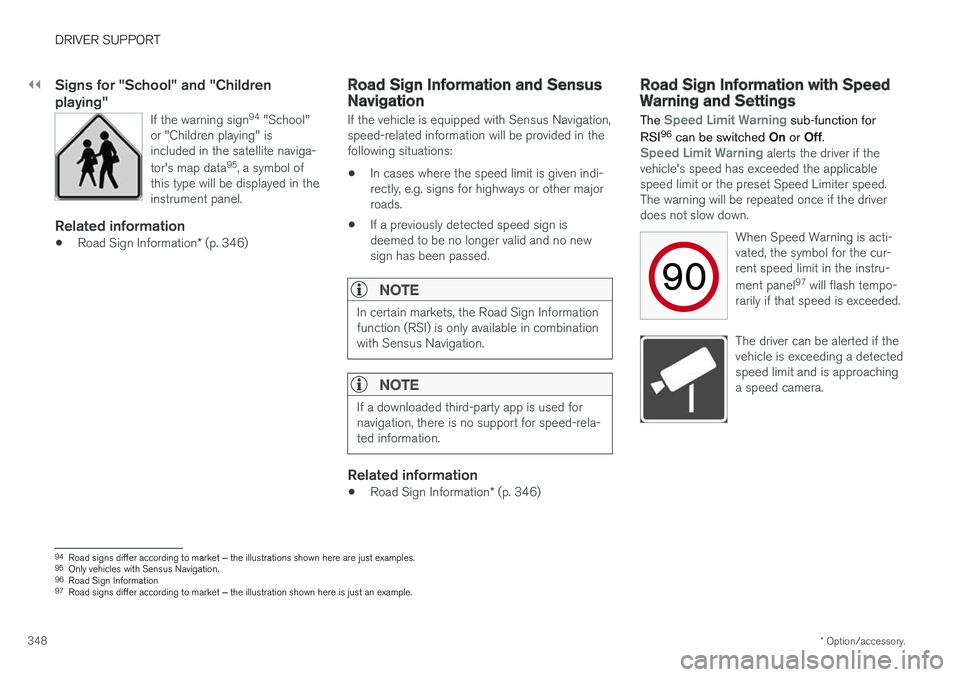
Example 94
of registered speed information.
When RSI has registered a speed limit sign, the sign will be displayed as a symbol in the instru-ment panel and a RED marking will be shown inthe speedometer's speed scale.
93 Road Sign Information
94 Road signs differ according to market ‒ the illustrations shown here are just examples.
Page 350 of 640
||
DRIVER SUPPORT
* Option/accessory.
348
Signs for "School" and "Children playing"
If the warning sign 94
"School"
or "Children playing" is included in the satellite naviga- tor's map data 95
, a symbol of
this type will be displayed in the instrument panel.
Related information
• Road Sign Information
* (p. 346)
Road Sign Information and SensusNavigation
If the vehicle is equipped with Sensus Navigation, speed-related information will be provided in thefollowing situations:
• In cases where the speed limit is given indi-rectly, e.g. signs for highways or other majorroads.
• If a previously detected speed sign isdeemed to be no longer valid and no newsign has been passed.
NOTE
In certain markets, the Road Sign Information function (RSI) is only available in combinationwith Sensus Navigation.
NOTE
If a downloaded third-party app is used for navigation, there is no support for speed-rela-ted information.
Related information
•
Road Sign Information
* (p. 346)
Road Sign Information with SpeedWarning and Settings
The
Speed Limit Warning sub-function for
RSI 96
can be switched On or Off.
Speed Limit Warning alerts the driver if the
vehicle's speed has exceeded the applicable speed limit or the preset Speed Limiter speed.The warning will be repeated once if the driverdoes not slow down.
When Speed Warning is acti-vated, the symbol for the cur-rent speed limit in the instru- ment panel97
will flash tempo-
rarily if that speed is exceeded.
The driver can be alerted if the vehicle is exceeding a detectedspeed limit and is approachinga speed camera.
94 Road signs differ according to market ‒ the illustrations shown here are just examples.
95 Only vehicles with Sensus Navigation.
96 Road Sign Information
97 Road signs differ according to market ‒ the illustration shown here is just an example.
Page 351 of 640
DRIVER SUPPORT
* Option/accessory.349
Settings
Adjusting the Speed Warning limit
The driver can adjust the settings to be alerted at a higher speed than the posted speed limit. To adjust the Speed Warning limit:
1. Select
SettingsMy CarIntelliSafe
Road Sign Information in the center
display's Top view.
2. Mark
Speed Limit Warning.
> The function is activated and a speed limit selector is displayed.
3. Tap the up/down arrows on the screen to adjust the speed at which the Speed Warn- ing will be given.
Please note that the set warn-ing limit will not be used whena speed camera symbol is dis-played in the instrument panel.
Audible alert On/Off
An audible alert can also be given along with the Speed Warning. To adjust the audible alert settings:
1. Select
SettingsMy CarIntelliSafe
Road Sign Information in the center
display's Top view. 2.
Select/deselect
Road Sign Audio Warningto activate/deactivate the audible alert.
When
Road Sign Audio Warning is activated,
the driver will also be alerted if the vehicle is approaching a one-way/"no-entry" road orentrance.
Related information
• Road Sign Information
* (p. 346)
Activating/deactivating SpeedWarning in Road Sign Information
To activate the Speed Limit Warning sub-func-
tion:
1. Select
SettingsMy CarIntelliSafe
Road Sign Information in the center
display's Top view.
2. Mark
Speed Limit Warning.
> The function is activated and a speed limit selector is displayed. (see description for "selecting speed limit" in section "Road Sign Informationwith Speed warning and Settings")
Related information
• Road Sign Information
* (p. 346)
• Road Sign Information with Speed Warningand Settings (p. 348)
Page 352 of 640
DRIVER SUPPORT
* Option/accessory.
350
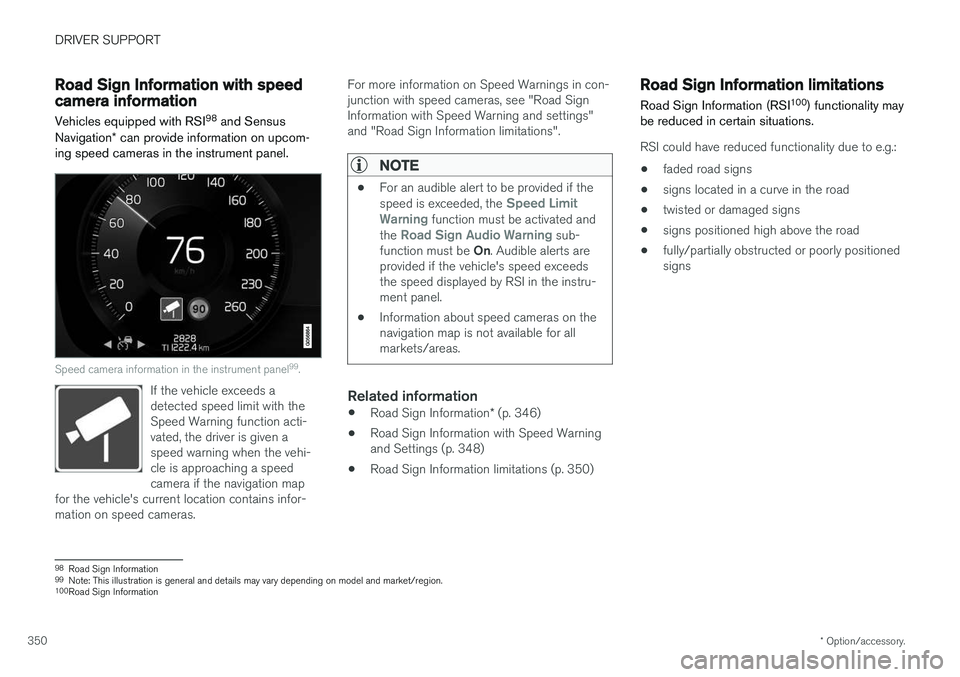
Road Sign Information with speedcamera information
Vehicles equipped with RSI 98
and Sensus
Navigation * can provide information on upcom-
ing speed cameras in the instrument panel.
Speed camera information in the instrument panel 99
.
If the vehicle exceeds a detected speed limit with theSpeed Warning function acti-vated, the driver is given aspeed warning when the vehi-cle is approaching a speedcamera if the navigation map
for the vehicle's current location contains infor-mation on speed cameras.
For more information on Speed Warnings in con- junction with speed cameras, see "Road SignInformation with Speed Warning and settings"and "Road Sign Information limitations".
NOTE
• For an audible alert to be provided if the speed is exceeded, the Speed Limit
Warning function must be activated and
the Road Sign Audio Warning sub-
function must be On. Audible alerts are
provided if the vehicle's speed exceeds the speed displayed by RSI in the instru-ment panel.
• Information about speed cameras on thenavigation map is not available for allmarkets/areas.
Related information
•
Road Sign Information
* (p. 346)
• Road Sign Information with Speed Warning and Settings (p. 348)
• Road Sign Information limitations (p. 350)
Road Sign Information limitations
Road Sign Information (RSI 100
) functionality may
be reduced in certain situations.
RSI could have reduced functionality due to e.g.:
• faded road signs
• signs located in a curve in the road
• twisted or damaged signs
• signs positioned high above the road
• fully/partially obstructed or poorly positioned signs
98
Road Sign Information
99 Note: This illustration is general and details may vary depending on model and market/region.
100 Road Sign Information
Page 354 of 640
||
DRIVER SUPPORT
352The warnings will be repeated after a short time if driving behavior does not improve.
WARNING
•
The Driver Alert Control function is sup- plementary driver support intended tofacilitate driving and help make it safer –it cannot handle all situations in all traffic,weather and road conditions.
• Driver Alert Control must not be used toextend a period of driving. The drivershould plan in breaks at regular intervalsand make sure they are well rested.
• Driver Alert Control is not a substitute forthe driver's attention and judgment. Thedriver is always responsible for ensuringthe vehicle is driven in a safe manner, atthe appropriate speed, with an appropri-ate distance to other vehicles, and inaccordance with current traffic rules andregulations.
WARNING
An alarm from Driver Alert Control should be taken very seriously since a sleepy driver isoften not aware of their own condition. If the alarm sounds or you feel fatigued:
• Stop the vehicle safely as soon as possi- ble and rest.
Studies have shown that it is just as danger- ous to drive while tired as it is to drive underthe influence of alcohol or other stimulants.
Related information
• Activating/deactivating Driver Alert Control (p. 352)
• Selecting guidance to a rest area if theDriver Alert Control warning has been given(p. 353)
• Driver Alert Control limitations (p. 353)
Activating/deactivating Driver AlertControl
The Driver Alert Control (DAC) function can be activated/deactivated.
On/OffTo change DAC settings: 1. Tap
Settings in the center display's Top
view.
2. Select
My CarIntelliSafeDriver Alert
Control.
3. Select/deselect
Alertness Warning to acti-
vate/deactivate DAC.
Related information
• Driver Alert Control (p. 351)
Page 355 of 640
DRIVER SUPPORT
}}
353
Selecting guidance to a rest area ifthe Driver Alert Control warning hasbeen givenThe
Rest Stop Guidance function can be
switched on or off.
When the guide is activated, it will automatically display suggestions for a suitable place to take abreak if the DAC warning is given. To select
Rest Stop Guidance:
1. Tap
Settings in the center display's Top
view.
2. Select
My CarIntelliSafeDriver Alert
Control.
3. Select/deselect
Rest Stop Guidance to
activate/deactivate the function.
Related information
• Driver Alert Control (p. 351)
Driver Alert Control limitations
Driver Alert Control (DAC) functionality may be reduced in certain situations.
In certain situations, the system may provide a warning even if it has not detected a change indriving behavior, e.g.:
• in strong crosswinds
• on grooved road surfaces.
WARNING
In certain cases, driving behavior might not be affected despite the driver's fatigue – whenusing the Pilot Assist function – resulting inthe driver not getting a warning from DAC. It is therefore very important to always stop and take a break at the slightest sign of fati-gue, regardless of whether the DAC functionhas issued a warning or not.
NOTE
The function uses the vehicle's camera unit, which has some general limitations – see thesection "Camera unit limitations".
Related information
• Driver Alert Control (p. 351)
Lane Keeping Aid
Lane Keeping Aid (LKA 103
) is designed to
actively steer the vehicle on freeways, highways and other major roads to help the driver reducethe risk of the vehicle unintentionally veering outof the lane.
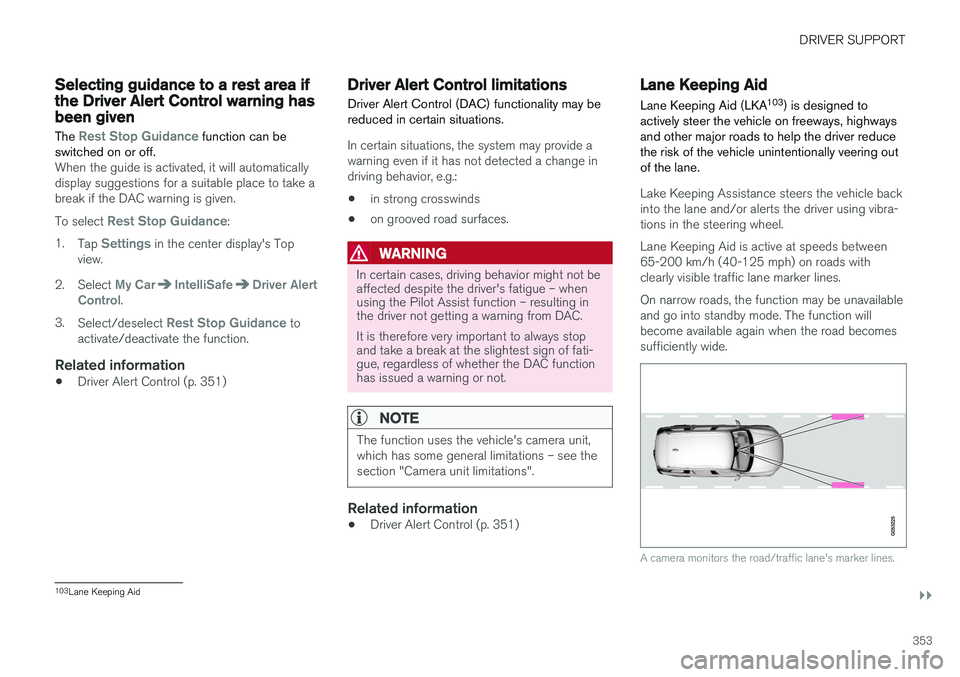
Lake Keeping Assistance steers the vehicle back into the lane and/or alerts the driver using vibra-tions in the steering wheel. Lane Keeping Aid is active at speeds between 65-200 km/h (40-125 mph) on roads withclearly visible traffic lane marker lines. On narrow roads, the function may be unavailable and go into standby mode. The function willbecome available again when the road becomessufficiently wide.
A camera monitors the road/traffic lane's marker lines.
103 Lane Keeping Aid
Page 357 of 640
DRIVER SUPPORT
355
Lane Keeping Aid does not intervene
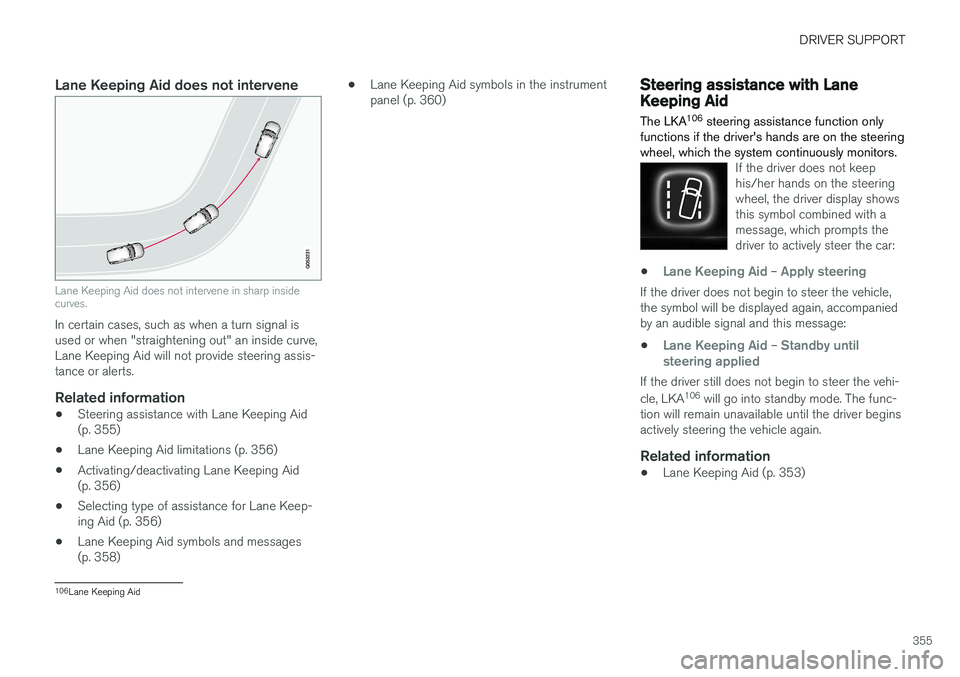
Lane Keeping Aid does not intervene in sharp inside curves.
In certain cases, such as when a turn signal is used or when "straightening out" an inside curve,Lane Keeping Aid will not provide steering assis-tance or alerts.
Related information
•Steering assistance with Lane Keeping Aid(p. 355)
• Lane Keeping Aid limitations (p. 356)
• Activating/deactivating Lane Keeping Aid(p. 356)
• Selecting type of assistance for Lane Keep-ing Aid (p. 356)
• Lane Keeping Aid symbols and messages(p. 358) •
Lane Keeping Aid symbols in the instrumentpanel (p. 360)
Steering assistance with LaneKeeping Aid The LKA 106
steering assistance function only
functions if the driver's hands are on the steering wheel, which the system continuously monitors.
If the driver does not keep his/her hands on the steeringwheel, the driver display showsthis symbol combined with amessage, which prompts thedriver to actively steer the car:
•Lane Keeping Aid – Apply steering
If the driver does not begin to steer the vehicle, the symbol will be displayed again, accompaniedby an audible signal and this message:
•
Lane Keeping Aid – Standby until
steering applied
If the driver still does not begin to steer the vehi- cle, LKA 106
will go into standby mode. The func-
tion will remain unavailable until the driver begins actively steering the vehicle again.
Related information
• Lane Keeping Aid (p. 353)
106
Lane Keeping Aid
Page 358 of 640
DRIVER SUPPORT
356
Activating/deactivating LaneKeeping Aid The Lane Keeping Aid (LKA107
) function can be
switched On or Off.
On/OffPress the Lane Keeping Aidbutton in the center display's Function view.
• GREEN button indicator light - LKA is acti- vated.
• GRAY button indicator light - LKA is deacti-vated.
Related information
•Lane Keeping Aid (p. 353)
Selecting type of assistance forLane Keeping Aid
The driver can determine what types of assis- tance LKA 108
should provide if the vehicle veers
from its lane.
1. Select SettingsMy CarIntelliSafe in
the center display's Top view.
2. Under
Lane Keeping Aid Mode, select
what assistance LKA should provide:
•
Assist the driver will receive steering
assistance but no warning.
•
Both - the driver will receive both steering
assistance and a warning.
•
Warning - the driver will only receive a
warning.
Related information
• Lane Keeping Aid (p. 353)
Lane Keeping Aid limitations
In certain demanding driving conditions, Lane Keeping Aid may not be able to properly assistthe driver. In these situations, it is recommendedthat the function be deactivated.
Examples of such situations include:
• road work
• winter driving conditions
• poor road surfaces
• a very sporty driving style
• bad weather with reduced visibility
• roads with indistinct or no lane markings
• sharp edges or lines other than the lane's side markings
• when the power steering works at reducedpower - e.g. during cooling due to overheat-ing (see section "Speed-dependent steeringforce").
NOTE
The function uses the vehicle's camera unit, which has some general limitations – see thesection "Camera unit limitations".
107
Lane Keeping Aid
108 Lane Keeping Aid
Page 360 of 640
DRIVER SUPPORT
358
Lane Keeping Aid symbols andmessages
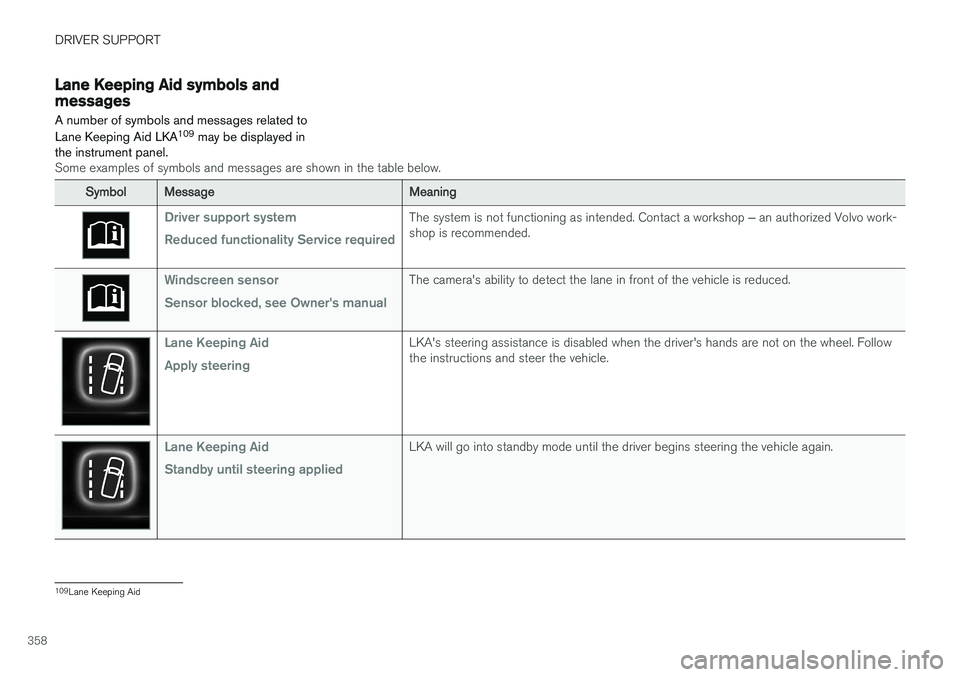
A number of symbols and messages related to Lane Keeping Aid LKA 109
may be displayed in
the instrument panel.
Some examples of symbols and messages are shown in the table below.
SymbolMessageMeaning
Driver support system Reduced functionality Service requiredThe system is not functioning as intended. Contact a workshop ‒ an authorized Volvo work-
shop is recommended.
Windscreen sensor Sensor blocked, see Owner's manualThe camera's ability to detect the lane in front of the vehicle is reduced.
Lane Keeping Aid Apply steeringLKA's steering assistance is disabled when the driver's hands are not on the wheel. Follow the instructions and steer the vehicle.
Lane Keeping Aid Standby until steering appliedLKA will go into standby mode until the driver begins steering the vehicle again.
109 Lane Keeping Aid