radio antenna VOLVO S90 2018 Owner´s Manual
[x] Cancel search | Manufacturer: VOLVO, Model Year: 2018, Model line: S90, Model: VOLVO S90 2018Pages: 640, PDF Size: 11.37 MB
Page 236 of 640
||
KEY, LOCKS AND ALARM
* Option/accessory.
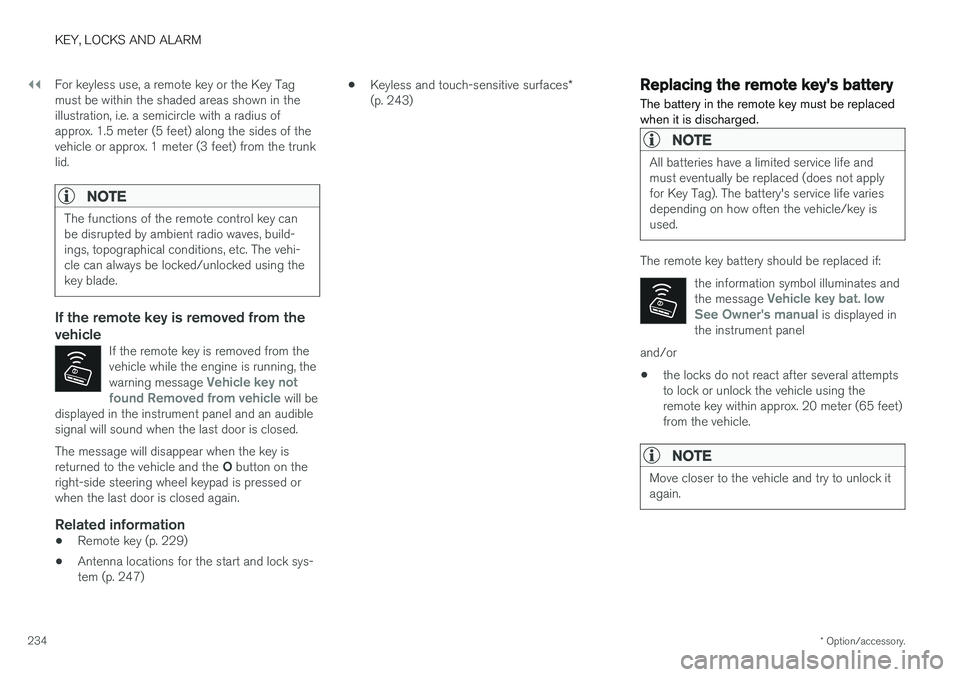
234 For keyless use, a remote key or the Key Tag must be within the shaded areas shown in theillustration, i.e. a semicircle with a radius ofapprox. 1.5 meter (5 feet) along the sides of thevehicle or approx. 1 meter (3 feet) from the trunklid.
NOTE
The functions of the remote control key can be disrupted by ambient radio waves, build-ings, topographical conditions, etc. The vehi-cle can always be locked/unlocked using thekey blade.
If the remote key is removed from the vehicle
If the remote key is removed from the vehicle while the engine is running, the warning message
Vehicle key not
found Removed from vehicle will be
displayed in the instrument panel and an audible signal will sound when the last door is closed.
The message will disappear when the key is returned to the vehicle and the O button on the
right-side steering wheel keypad is pressed or when the last door is closed again.
Related information
• Remote key (p. 229)
• Antenna locations for the start and lock sys-tem (p. 247) •
Keyless and touch-sensitive surfaces
*
(p. 243)
Replacing the remote key's battery
The battery in the remote key must be replaced when it is discharged.
NOTE
All batteries have a limited service life and must eventually be replaced (does not applyfor Key Tag). The battery's service life variesdepending on how often the vehicle/key isused.
The remote key battery should be replaced if:
the information symbol illuminates and the message
Vehicle key bat. low
See Owner's manual is displayed in
the instrument panel
and/or
• the locks do not react after several attempts to lock or unlock the vehicle using theremote key within approx. 20 meter (65 feet)from the vehicle.
NOTE
Move closer to the vehicle and try to unlock it again.
Page 457 of 640
AUDIO, MEDIA AND INTERNET
455
Selecting sub-channels
To listen to a station's sub-channel(s), tap the station on the screen or press the forward/backarrow keys on the right-side steering wheel key-pad or below the screen. Sub-channels can also be saved as radio favor- ites. If you tap a sub-channel favorite, it may take up to 6 seconds before the channel becomes audi-
ble. If you tap a station while you are out of digital range of the transmitter,
No reception will be
displayed.
Related information
• HD Radio
™ (p. 452)
• Activating and deactivating the HD Radio
™
(p. 454)
• Changing waveband and radio station (p. 449)
• Searching for a radio station (p. 450)
• HD Radio
™ limitations (p. 455)
HD Radio™ limitations
Limitations
• Main channel vs. sub-channels (FM only)
:
The main channel is the only channel that can receive in hybrid mode (both digital andanalog). If a frequency has sub-channels,they are broadcast in digital mode only. Themain FM channel will be displayed as, forexample, "WRIF-FM HD1". The sub-FMchannels will be displayed as"WRIF-FMHD2", "WRIF-FM HD3", etc.
• Reception coverage area
: Due to current
IBOC transmitter power limitations, thereception coverage area in digital mode issomewhat more limited than the station'sanalog coverage area. Be aware that, like allradio transmission technology, terrain, time ofday, vegetation and buildings can have apositive or negative effect on radio reception.
• Analog to digital/digital to analog blend-ing
: Analog to digital blending will occur as
the signal strength reaches a preset thresh-old in the receiver. This will be noticeable infringe areas (areas with weak reception) andis normal.
NOTE
There may be a noticeable difference in sound quality when a change from analogueto digital or digital to analogue occurs, suchas:
• Volume increase or decrease
• Equalizer settings, i.e., Bass/ Midrange/Treble cut or boost
• Time alignment (Digital program materialin extreme cases can be as much as 8seconds behind the analogue). This willnoticeable as a "stuttering" effect.
The above items are dependant on thebroadcaster's equipment settings and donot indicate a fault in the vehicle's radioreceiver or antenna systems .
Related information
•HD Radio
™ (p. 452)
• Activating and deactivating the HD Radio
™
(p. 454)
• HD Radio
™
sub-channels (p. 454)
Page 458 of 640
AUDIO, MEDIA AND INTERNET
* Option/accessory.
456
SiriusXM® Satellite radio *
The SiriusXM ®
Satellite system broadcasts from
of a number of high elevation satellites in geo- synchronous orbit.
Listening to satellite radioThe digital signals from the satellites are line-of- sight, which means that physical obstructionssuch as bridges, tunnels, etc, may temporarilyinterfere with signal reception. Avoid any obstructions, such as metallic objects transported on roof racks or in a ski box, or otherantennas that may impede signals from the SiriusXM ®
satellites.
Selecting SiriusXM ®
Satellite radio
mode
1. From the center display's Home view, swipe from right to left to come to App view.
2.Tap the SiriusXM ®
Satellite radio icon.
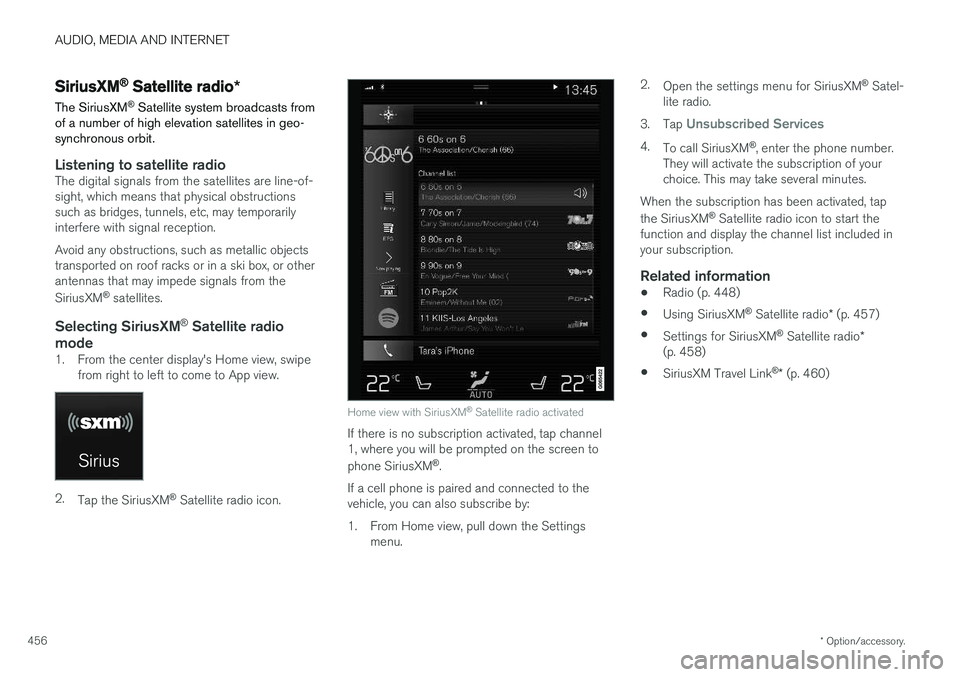
Home view with SiriusXM ®
Satellite radio activated
If there is no subscription activated, tap channel 1, where you will be prompted on the screen to phone SiriusXM ®
.
If a cell phone is paired and connected to the vehicle, you can also subscribe by:
1. From Home view, pull down the Settings menu. 2.
Open the settings menu for SiriusXM ®
Satel-
lite radio.
3. Tap
Unsubscribed Services
4.
To call SiriusXM ®
, enter the phone number.
They will activate the subscription of your choice. This may take several minutes.
When the subscription has been activated, tap the SiriusXM ®
Satellite radio icon to start the
function and display the channel list included in your subscription.
Related information
• Radio (p. 448)
• Using SiriusXM ®
Satellite radio * (p. 457)
• Settings for SiriusXM ®
Satellite radio *
(p. 458)
• SiriusXM Travel Link ®
* (p. 460)
Page 489 of 640
AUDIO, MEDIA AND INTERNET
}}
* Option/accessory.487
Settings for Bluetooth devices
Settings for Bluetooth-connected devices.
1. Tap Settings in the Top view.
2. Tap
CommunicationBluetooth
Devices and select settings:
•
Add device - start the procedure for pairing
a new device.
•
Previously paired devices - list con-
nected/paired devices.
•
Remove device - remove a connected
device.
•
Allowed services for this device - select
what the device will be used for: making calls, sending/receiving messages, stream-ing media, Internet connection.
•
Internet connection connect the vehicle to
the Internet using the device's Bluetooth connection.
Bluetooth ®
declaration of conformityUSA FCC CAUTION Changes or modifications not expressly approved by the party responsible for compliance couldvoid the user's authority to operate the equip-ment. This transmitter must not be co-located oroperated in conjunction with any other antennaor transmitter. Canada This device complies with Industry Canada license-exempt RSS standard(s). Operation issubject to the following two conditions: (1) this device may not cause interference, and(2) this device must accept any interference, including interference that may cause undesiredoperation of the device.
Related information
•
Phone (p. 478)
• Phone settings (p. 486)
• Internet-connected vehicle
* (p. 487)
• Connecting a phone to the car via Bluetoothfor the first time (p. 479)
Internet-connected vehicle
*
When the vehicle is connected to the Internet, it is possible to use web radio and music servicesvia apps, download software and contact retail-ers from the vehicle.
The vehicle can be connected to the Internet using Bluetooth, Wi-Fi or the vehicle's integratedmodem.
Page 625 of 640
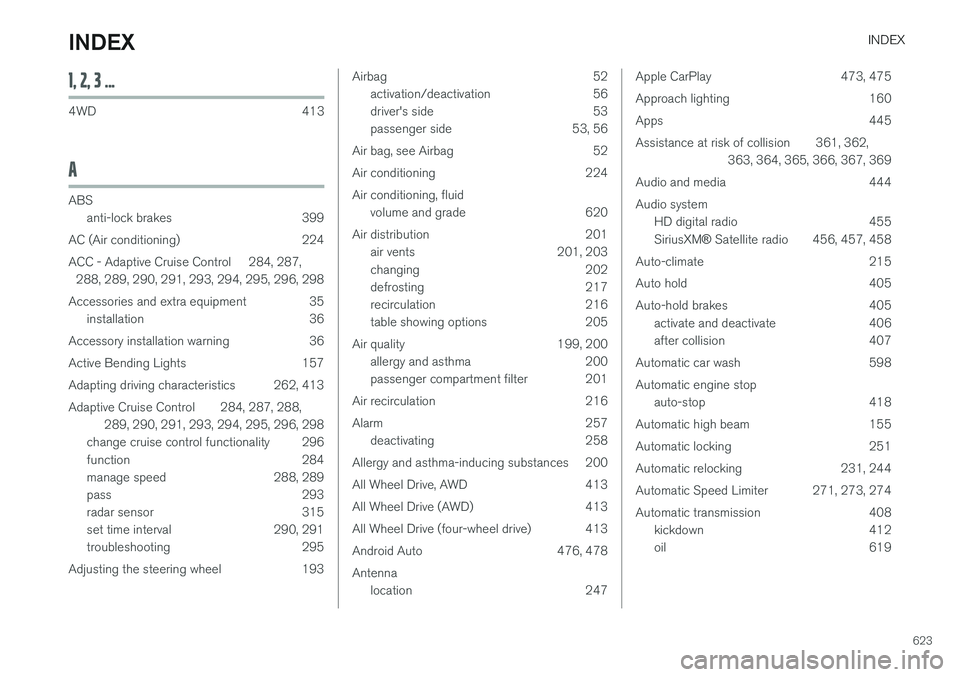
INDEX
623
1, 2, 3 ...
4WD 413
A
ABSanti-lock brakes 399
AC (Air conditioning) 224
ACC - Adaptive Cruise Control 284, 287, 288, 289, 290, 291, 293, 294, 295, 296, 298
Accessories and extra equipment 35 installation 36
Accessory installation warning 36
Active Bending Lights 157
Adapting driving characteristics 262, 413
Adaptive Cruise Control 284, 287, 288, 289, 290, 291, 293, 294, 295, 296, 298
change cruise control functionality 296
function 284
manage speed 288, 289
pass 293
radar sensor 315
set time interval 290, 291
troubleshooting 295
Adjusting the steering wheel 193
Airbag 52 activation/deactivation 56
driver's side 53
passenger side 53, 56
Air bag, see Airbag 52
Air conditioning 224Air conditioning, fluid volume and grade 620
Air distribution 201 air vents 201, 203
changing 202
defrosting 217
recirculation 216
table showing options 205
Air quality 199, 200 allergy and asthma 200
passenger compartment filter 201
Air recirculation 216
Alarm 257 deactivating 258
Allergy and asthma-inducing substances 200
All Wheel Drive, AWD 413
All Wheel Drive (AWD) 413
All Wheel Drive (four-wheel drive) 413
Android Auto 476, 478 Antenna location 247Apple CarPlay 473, 475
Approach lighting 160
Apps 445
Assistance at risk of collision 361, 362, 363, 364, 365, 366, 367, 369
Audio and media 444Audio system HD digital radio 455 SiriusXM ® Satellite radio 456, 457, 458
Auto-climate 215
Auto hold 405
Auto-hold brakes 405 activate and deactivate 406
after collision 407
Automatic car wash 598 Automatic engine stop auto-stop 418
Automatic high beam 155
Automatic locking 251
Automatic relocking 231, 244
Automatic Speed Limiter 271, 273, 274
Automatic transmission 408 kickdown 412
oil 619
INDEX