lock VOLVO V60 2015 Owner´s Manual
[x] Cancel search | Manufacturer: VOLVO, Model Year: 2015, Model line: V60, Model: VOLVO V60 2015Pages: 414, PDF Size: 11.44 MB
Page 236 of 414
05 Comfort and driving pleasure
Trip computer
05
234
Introduction
The content and appearance of the trip com- puter varies depending on whether the vehi-cle is equipped with an analog or digital
instrument panel. The instrument panel illuminates as soon as the vehicle is unlocked and trip computer set-tings can be made. If none of the trip com-puter's controls are used within 30 secondsafter the driver's door has been opened, theinstrument panel lighting will go out and thetrip computer cannot be used again until: • the ignition is put in mode II1
• the engine is started
NOTE
If a warning message appears while you are using the trip computer, this messagemust be acknowledged in order to returnto the trip computer function. Acknowl-edge a message by pressing
OK.
Trip computer in models with an analog instrument panel
The trip computer has two different menu groups: •
Trip computer functions
• Trip computer information headings in the instrument panel
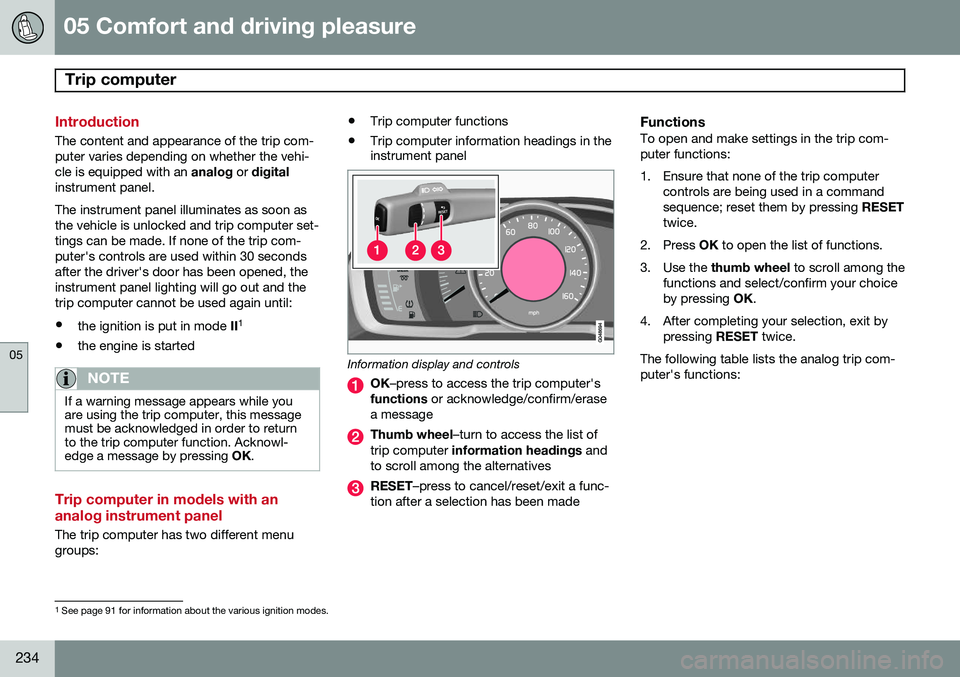
Information display and controls
OK
–press to access the trip computer's
functions or acknowledge/confirm/erase
a message
Thumb wheel –turn to access the list of
trip computer information headings and
to scroll among the alternatives
RESET –press to cancel/reset/exit a func-
tion after a selection has been made
FunctionsTo open and make settings in the trip com- puter functions:
1. Ensure that none of the trip computer controls are being used in a command sequence; reset them by pressing RESET
twice.
2. Press OK to open the list of functions.
3. Use the thumb wheel to scroll among the
functions and select/confirm your choiceby pressing OK.
4. After completing your selection, exit by pressing RESET twice.
The following table lists the analog trip com-puter's functions:
1 See page 91 for information about the various ignition modes.
Page 245 of 414
05 Comfort and driving pleasure
Passenger compartment convenience
05
}}
243
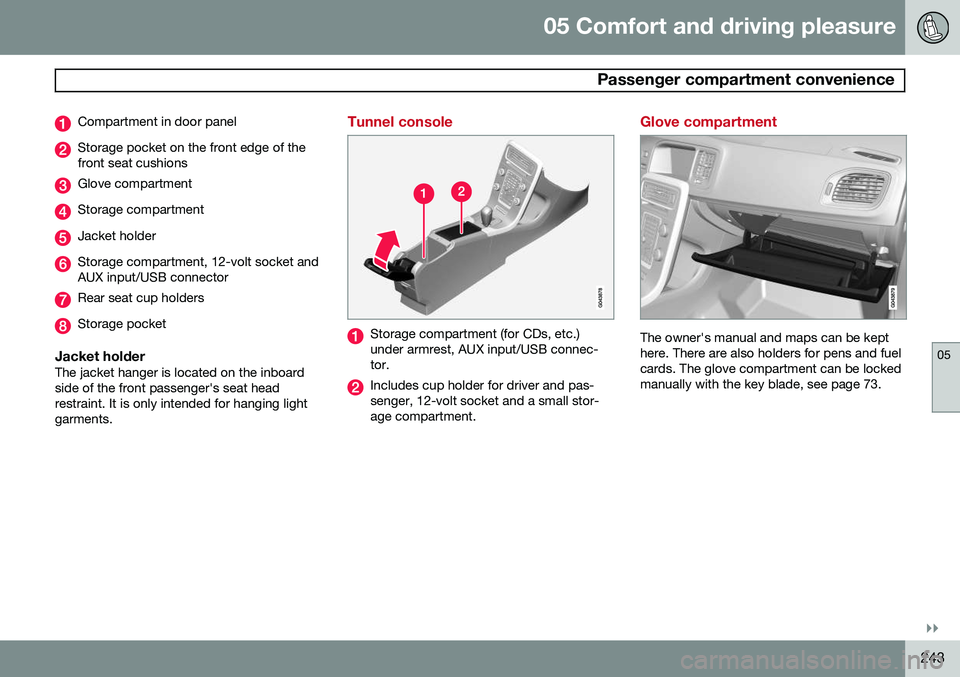
Compartment in door panel
Storage pocket on the front edge of the front seat cushions
Glove compartment
Storage compartment
Jacket holder
Storage compartment, 12-volt socket and AUX input/USB connector
Rear seat cup holders
Storage pocket
Jacket holderThe jacket hanger is located on the inboard side of the front passenger's seat headrestraint. It is only intended for hanging lightgarments.
Tunnel console
Storage compartment (for CDs, etc.) under armrest, AUX input/USB connec-tor.
Includes cup holder for driver and pas- senger, 12-volt socket and a small stor-age compartment.
Glove compartment
The owner's manual and maps can be kept here. There are also holders for pens and fuelcards. The glove compartment can be lockedmanually with the key blade, see page 73.
Page 257 of 414
06 Infotainment
Introduction
06
}}
255
Advanced SIRIUS settings
Skip optionsChannel skip list
Lock options Channel lock list Unlock all channelsTemporarily unlock all channels Change code
Audio settings 6
MEDIA menus
Main CD Audio menuDisc menu
Random Scan
Audio settings 6
Main CD/DVD 9
Data menuDisc menu
Play/Pause StopRandomRepeat folderChange subtitlesChange audio trackScan
Audio settings 6
Main DVD9
Video menuDVD Video Menu
DVD disc menuPlay/Pause/ContinueStopSubtitlesAudio tracksAdvanced settingsAngleDivX® VOD code
Audio settings 6
Main iPod menuiPod menu
RandomScan
Audio settings 6
Main USB menuUSB menu
Play/Pause
StopRandomRepeat folderSelect USB deviceChange subtitlesChange audio trackScan
Audio settings 6
Main AUX menuAUX menu
AUX input volume
Audio settings 6
6
The audio settings are the same for all infotainment system modes9
The media player can only play DVDs in models equipped with the optional navigation system. Images are only displayed when the vehicle is not in motion.
Page 264 of 414
06 Infotainment
Radio
06
262
Selecting SiriusXM™ radio mode
1. With the infotainment system switched
on, press RADIO.
2. Turn TUNE or the thumb wheel on the
steering wheel keypad to scroll to the desired waveband (
SAT1 or SAT2) and
press OK/MENU or the thumb wheel on
the steering wheel keypad.
Activating SiriusXM ™ radio
1. Tune to a satellite channel that has no
audio, which means that the channel is unsubscribed and the text
Subscription
update needed is displayed (see also
"Selecting a channel").
2. Call SiriusXM ™ at 1-888-539-SIRIUS
(7474).
3. If you tune to an unsubscribed channel, the SiriusXM ™ ID will be displayed. The
SiriusXM ™ ID can also be accessed from
the menu (press OK/MENU, turn TUNE
to scroll to the
Advanced settingsmenu, press OK/MENU, scroll to SIRIUS
ID and press OK/MENU to display the
number).
4.
Updating subscription will be displayed
while the subscription is being updated, after which the display will return to thenormal view.
SiriusXM™ ID
The SiriusXM ™ ID (sometimes referred to as
the Electronic Serial Number or ESN) is required when contacting the SiriusXM ™ Call
Center. It is used to activate your accountand when making any account transactions.
Selecting a channel category1. Turn TUNE to display a list of channels.
2. Press EXIT.
3. Turn TUNE to scroll through the list of
categories and press OK/MENU to make
a selection.
> The channels in the selected category are displayed.
NOTE
• The category All is default, which ena-
bles you to scroll through the entire list of available satellite channels.
• The channel categories are automati-cally updated several times a year.This takes approximately two minutesand will interrupt normal broadcasting.A message will be displayed whileupdating is in progress. Information onchannel or feature updates is availableat www.siriusxm.com.
Selecting a channelThere are three ways of tuning in a channel:
• Using the left and right arrow keys to go to the next channel. Skipped channels(see page 264) will be excluded.
• By turning the
TUNE control and select-
ing a channel from the list
• Through direct channel entry.
NOTE
•The numbers of skipped or locked channels will not be displayed.
• If a channel is locked, the access codemust be entered before the channelcan be selected. See "Unlocking achannel" on page 265.
Direct channel entryThe SiriusXM
™ satellite channels are in
numerical order throughout all of the catego- ries. To access a channel directly:
1. Turn TUNE to access the channel list.
2. Use the keypad buttons to enter the channel's number.
3. Press OK/MENU . The radio will tune to
this channel, even if it belongs to a cate- gory other than the currently selectedone.
Page 266 of 414
06 Infotainment
Radio
06
264
WARNING
Settings should be made when the vehicle is at a standstill.
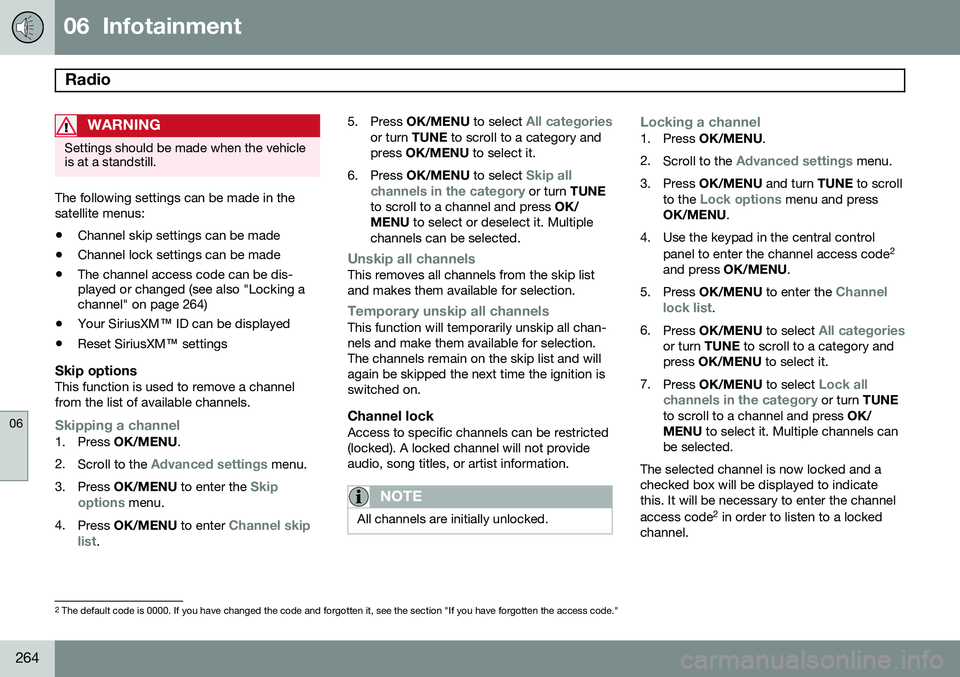
The following settings can be made in the satellite menus: •Channel skip settings can be made
• Channel lock settings can be made
• The channel access code can be dis- played or changed (see also "Locking achannel" on page 264)
• Your SiriusXM
™ ID can be displayed
• Reset SiriusXM
™ settings
Skip optionsThis function is used to remove a channel from the list of available channels.
Skipping a channel1. Press OK/MENU .
2. Scroll to the
Advanced settings menu.
3. Press OK/MENU to enter the
Skip
options menu.
4. Press OK/MENU to enter
Channel skip
list. 5.
Press OK/MENU to select
All categoriesor turn TUNE to scroll to a category and
press OK/MENU to select it.
6. Press OK/MENU to select
Skip all
channels in the category or turn TUNE
to scroll to a channel and press OK/
MENU to select or deselect it. Multiple
channels can be selected.
Unskip all channelsThis removes all channels from the skip list and makes them available for selection.
Temporary unskip all channelsThis function will temporarily unskip all chan- nels and make them available for selection.The channels remain on the skip list and willagain be skipped the next time the ignition isswitched on.
Channel lockAccess to specific channels can be restricted(locked). A locked channel will not provideaudio, song titles, or artist information.
NOTE
All channels are initially unlocked.
Locking a channel1. Press OK/MENU .
2. Scroll to the
Advanced settings menu.
3. Press OK/MENU and turn TUNE to scroll
to the
Lock options menu and press
OK/MENU .
4. Use the keypad in the central control panel to enter the channel access code 2
and press OK/MENU .
5. Press OK/MENU to enter the
Channel
lock list.
6. Press OK/MENU to select
All categoriesor turn TUNE to scroll to a category and
press OK/MENU to select it.
7. Press OK/MENU to select
Lock all
channels in the category or turn TUNE
to scroll to a channel and press OK/
MENU to select it. Multiple channels can
be selected.
The selected channel is now locked and a checked box will be displayed to indicatethis. It will be necessary to enter the channel access code 2
in order to listen to a locked
channel.
2 The default code is 0000. If you have changed the code and forgotten it, see the section "If you have forgotten the access code."
Page 267 of 414
06 Infotainment
Radio
06
265
Unlocking a channel
A channel's access code2
is required to
unlock a channel.
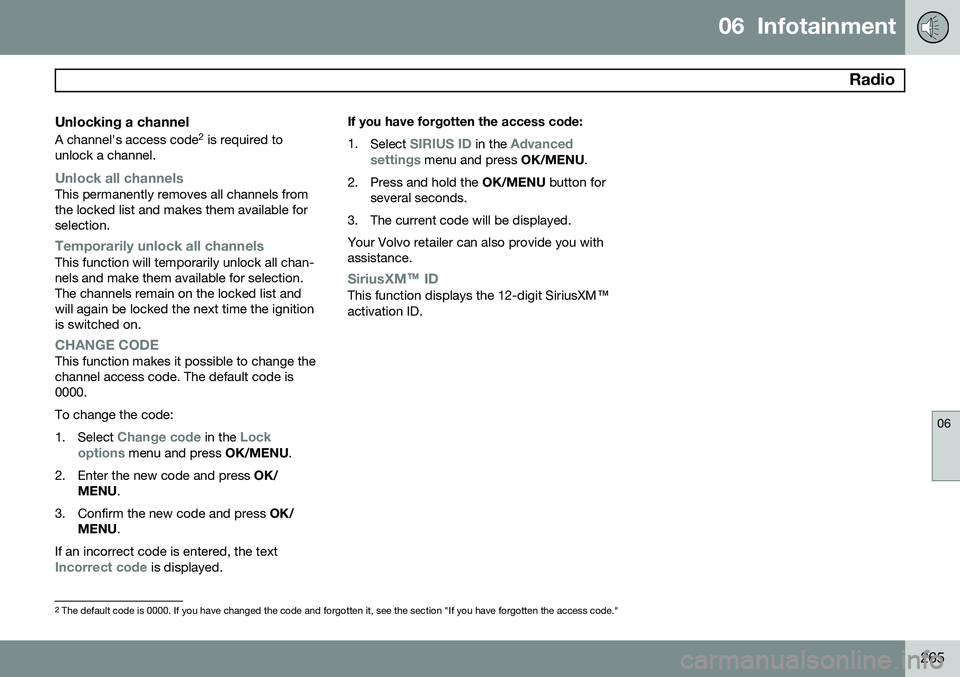
Unlock all channelsThis permanently removes all channels from the locked list and makes them available forselection.
Temporarily unlock all channelsThis function will temporarily unlock all chan- nels and make them available for selection.The channels remain on the locked list andwill again be locked the next time the ignitionis switched on.
CHANGE CODEThis function makes it possible to change the channel access code. The default code is0000. To change the code:1. Select
Change code in the Lock
options menu and press OK/MENU.
2. Enter the new code and press OK/
MENU .
3. Confirm the new code and press OK/
MENU .
If an incorrect code is entered, the text
Incorrect code is displayed. If you have forgotten the access code: 1.
Select
SIRIUS ID in the Advanced
settings menu and press OK/MENU.
2. Press and hold the OK/MENU button for
several seconds.
3. The current code will be displayed. Your Volvo retailer can also provide you with assistance.
SiriusXM™ ID
This function displays the 12-digit SiriusXM ™
activation ID.
2 The default code is 0000. If you have changed the code and forgotten it, see the section "If you have forgotten the access code."
Page 279 of 414
06 Infotainment
Bluetooth® hands-free connection
06
}}
277
Bluetooth ®
functions in the center
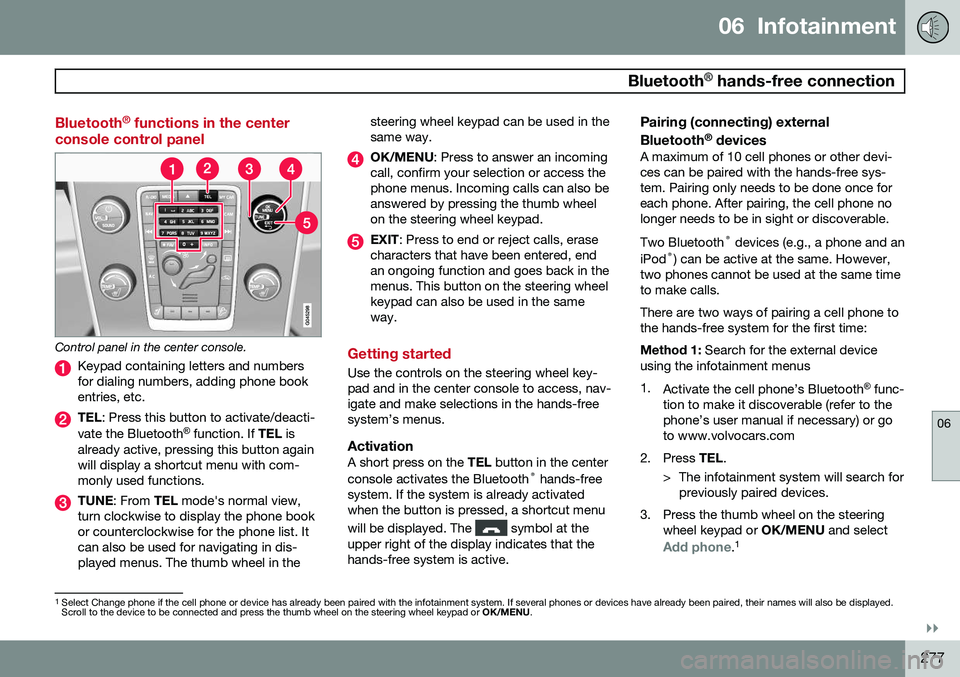
console control panel
Control panel in the center console.
Keypad containing letters and numbers for dialing numbers, adding phone bookentries, etc.
TEL : Press this button to activate/deacti-
vate the Bluetooth ®
function. If TEL is
already active, pressing this button again will display a shortcut menu with com-monly used functions.
TUNE : From TEL mode's normal view,
turn clockwise to display the phone book or counterclockwise for the phone list. Itcan also be used for navigating in dis-played menus. The thumb wheel in the steering wheel keypad can be used in thesame way.
OK/MENU
: Press to answer an incoming
call, confirm your selection or access the phone menus. Incoming calls can also beanswered by pressing the thumb wheelon the steering wheel keypad.
EXIT : Press to end or reject calls, erase
characters that have been entered, end an ongoing function and goes back in themenus. This button on the steering wheelkeypad can also be used in the sameway.
Getting started
Use the controls on the steering wheel key- pad and in the center console to access, nav-igate and make selections in the hands-freesystem’s menus.
ActivationA short press on the TEL button in the center
console activates the Bluetooth ®
hands-free
system. If the system is already activatedwhen the button is pressed, a shortcut menu will be displayed. The
symbol at the
upper right of the display indicates that the hands-free system is active.
Pairing (connecting) external Bluetooth ®
devices
A maximum of 10 cell phones or other devi- ces can be paired with the hands-free sys-tem. Pairing only needs to be done once foreach phone. After pairing, the cell phone nolonger needs to be in sight or discoverable. Two Bluetooth ®
devices (e.g., a phone and an
iPod ®
) can be active at the same. However,
two phones cannot be used at the same time to make calls. There are two ways of pairing a cell phone to the hands-free system for the first time: Method 1: Search for the external device
using the infotainment menus1. Activate the cell phone’s Bluetooth ®
func-
tion to make it discoverable (refer to the phone’s user manual if necessary) or goto www.volvocars.com
2. Press TEL.
> The infotainment system will search for previously paired devices.
3. Press the thumb wheel on the steering wheel keypad or OK/MENU and select
Add phone.1
1
Select Change phone if the cell phone or device has already been paired with the infotainment system. If several phones or devices have already been paired, their names will also be displayed. Scroll to the device to be connected and press the thumb wheel on the steering wheel keypad or OK/MENU.
Page 281 of 414
06 Infotainment
Bluetooth® hands-free connection
06
}}
279
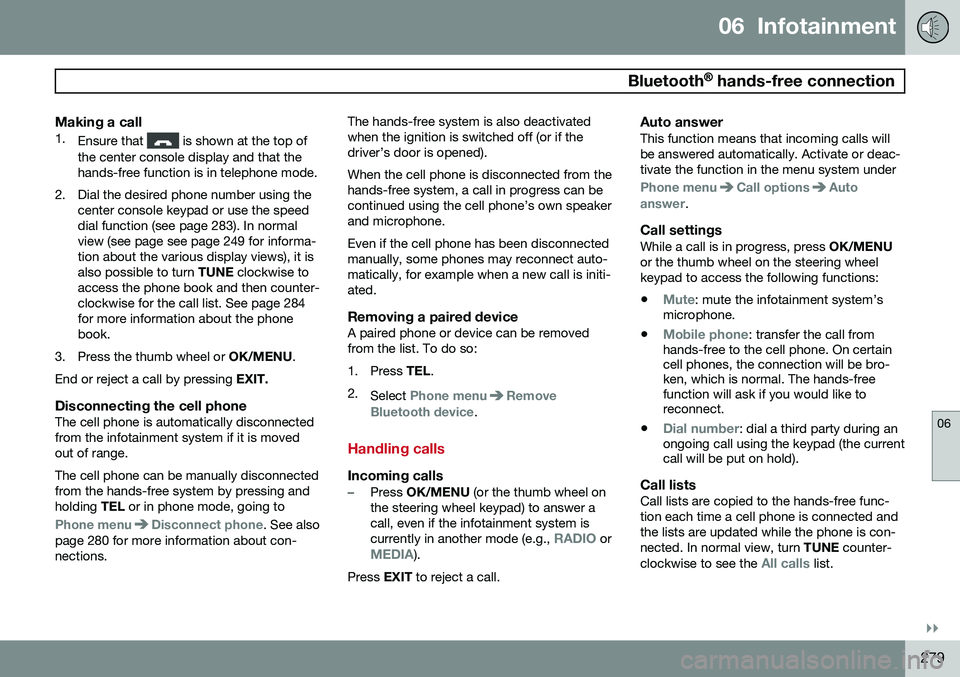
Making a call1. Ensure that is shown at the top of
the center console display and that the hands-free function is in telephone mode.
2. Dial the desired phone number using the center console keypad or use the speeddial function (see page 283). In normalview (see page see page 249 for informa-tion about the various display views), it isalso possible to turn TUNE clockwise to
access the phone book and then counter-clockwise for the call list. See page 284for more information about the phonebook.
3. Press the thumb wheel or OK/MENU.
End or reject a call by pressing EXIT.
Disconnecting the cell phoneThe cell phone is automatically disconnectedfrom the infotainment system if it is movedout of range. The cell phone can be manually disconnected from the hands-free system by pressing andholding TEL or in phone mode, going to
Phone menuDisconnect phone. See also
page 280 for more information about con- nections. The hands-free system is also deactivatedwhen the ignition is switched off (or if thedriver’s door is opened). When the cell phone is disconnected from the hands-free system, a call in progress can becontinued using the cell phone’s own speakerand microphone. Even if the cell phone has been disconnected manually, some phones may reconnect auto-matically, for example when a new call is initi-ated.
Removing a paired deviceA paired phone or device can be removedfrom the list. To do so:
1. Press
TEL.
2. Select
Phone menuRemove
Bluetooth device.
Handling calls
Incoming calls–Press OK/MENU (or the thumb wheel on
the steering wheel keypad) to answer a call, even if the infotainment system is currently in another mode (e.g.,
RADIO orMEDIA).
Press EXIT to reject a call.
Auto answerThis function means that incoming calls will be answered automatically. Activate or deac-tivate the function in the menu system under
Phone menuCall optionsAuto
answer.
Call settingsWhile a call is in progress, press OK/MENU
or the thumb wheel on the steering wheel keypad to access the following functions:
•
Mute: mute the infotainment system’s
microphone.
•
Mobile phone: transfer the call from
hands-free to the cell phone. On certain cell phones, the connection will be bro-ken, which is normal. The hands-freefunction will ask if you would like toreconnect.
•
Dial number: dial a third party during an
ongoing call using the keypad (the current call will be put on hold).
Call listsCall lists are copied to the hands-free func- tion each time a cell phone is connected andthe lists are updated while the phone is con-nected. In normal view, turn TUNE counter-
clockwise to see the
All calls list.
Page 283 of 414
06 Infotainment
Bluetooth® hands-free connection
06
}}
281
connected when the contact is saved. These contacts will be displayed regard-less of the cell phone that is connected. Ifa contact has been saved in the infotain- ment system, the
symbol will be
displayed next to it.
NOTE
Changes made from the infotainment sys- tem to a contact in the cell phone's phonebook will result in a new contact beingadded to the infotainment system's phonebook. However, this contact will not besaved in the cell phone's phone book. Theinfotainment system's display will showduplicate contacts with different icons. Please also note that if a speed dial num- ber is saved or if a contact's information isedited, this will result in a new contact inthe infotainment system's phone book.
The symbol must be displayed before
the phone book can be used and the hands- free function must be in phone mode. The infotainment system saves a copy of each paired cell phone's phone book. Thisphone book can be copied each time thephone is connected.
–Activate/deactivate this function in phone mode in
Phone menuPhone settings
Download phone book.
If the phone book contains information about someone who is trying to call you, this infor-mation will be shown in the display.
Contact shortcutsA quick way of searching the phone book forcontacts in normal view is to turn TUNE
clockwise to access the phone book and thencounter-clockwise to select a contact fromthe list. Press OK/MENU to call.
Each name in the phone book has a default phone number. If the
symbol is displayed
to the right of it, this indicates that there are additional phone numbers for this contact. Touse a phone number other than the default one, press the
button on the center
console control panel. Turn TUNE to select a
different phone number and press OK/MENU
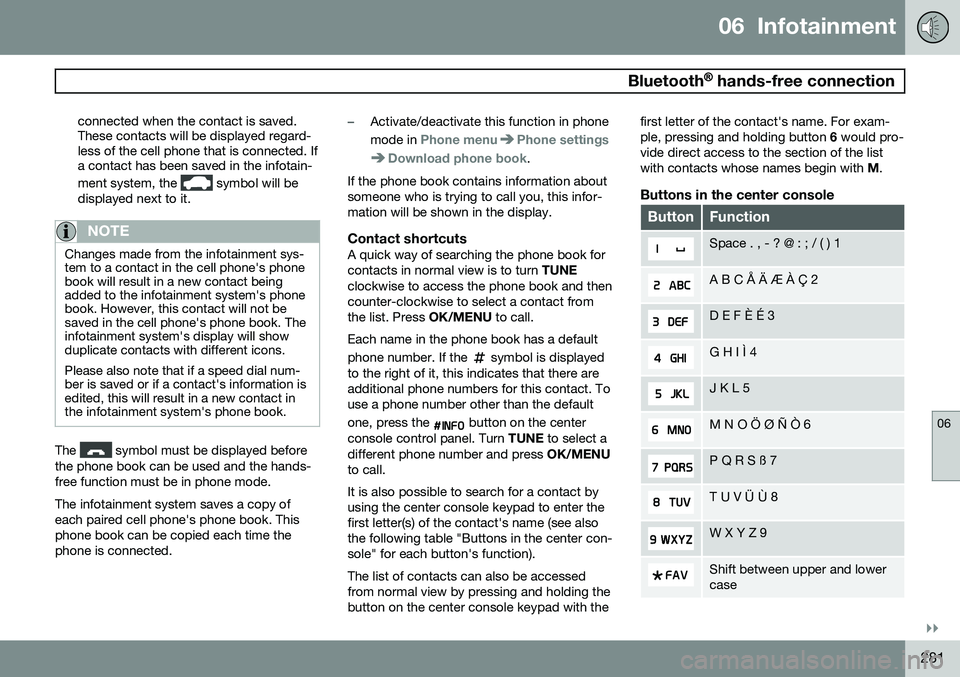
to call. It is also possible to search for a contact by using the center console keypad to enter thefirst letter(s) of the contact's name (see alsothe following table "Buttons in the center con-sole" for each button's function). The list of contacts can also be accessed from normal view by pressing and holding thebutton on the center console keypad with the first letter of the contact's name. For exam-ple, pressing and holding button
6 would pro-
vide direct access to the section of the listwith contacts whose names begin with M.
Buttons in the center console
ButtonFunction
Space . , - ? @ : ; / ( ) 1
A B C Å Ä Æ À Ç 2
D E F È É 3
G H I Ì 4
J K L 5
M N O Ö Ø Ñ Ò 6
P Q R S ß 7
T U V Ü Ù 8
W X Y Z 9
Shift between upper and lower case
Page 297 of 414
07 During your trip
Driving recommendations
07
295
improves cold-weather starting as well as decreasing fuel consumption while theengine is warming up. Full synthetic0W-30 oil is recommended for driving inareas with sustained low temperatures.
• The load placed on the battery is greaterduring the winter since the windshieldwipers, lighting, etc., are used moreoften. Moreover, the capacity of the bat-tery decreases as the temperature drops.In very cold weather, a poorly chargedbattery can freeze and be damaged. It istherefore advisable to check the state ofcharge more frequently and spray an anti-rust oil on the battery posts.
• Volvo recommends the use of snow tireson all four wheels for winter driving, seepage 328.
• To prevent the washer fluid reservoir fromfreezing, add washer solvents containingantifreeze. This is important since dirt isoften splashed on the windshield duringwinter driving, requiring the frequent useof the washers and wipers. Volvo WasherSolvent should be diluted as follows:Down to 14 °F (–10 °C): 1 part washersolvent and 4 parts water Down to 5 °F(–15 °C): 1 part washer solvent and3 parts water Down to 0 °F (–18 °C):1 part washer solvent and 2 parts waterDown to –18 °F (–28 °C): 1 part washersolvent and 1 part water. •
Use Volvo Teflon Lock Spray in the locks.
• Avoid using de-icing sprays as they cancause damage to the locks.