display VOLVO V60 2016 Owner´s Manual
[x] Cancel search | Manufacturer: VOLVO, Model Year: 2016, Model line: V60, Model: VOLVO V60 2016Pages: 402, PDF Size: 10.3 MB
Page 186 of 402
07 Driver support
07
184
Adaptive Cruise Control – setting time interval
Setting a time interval
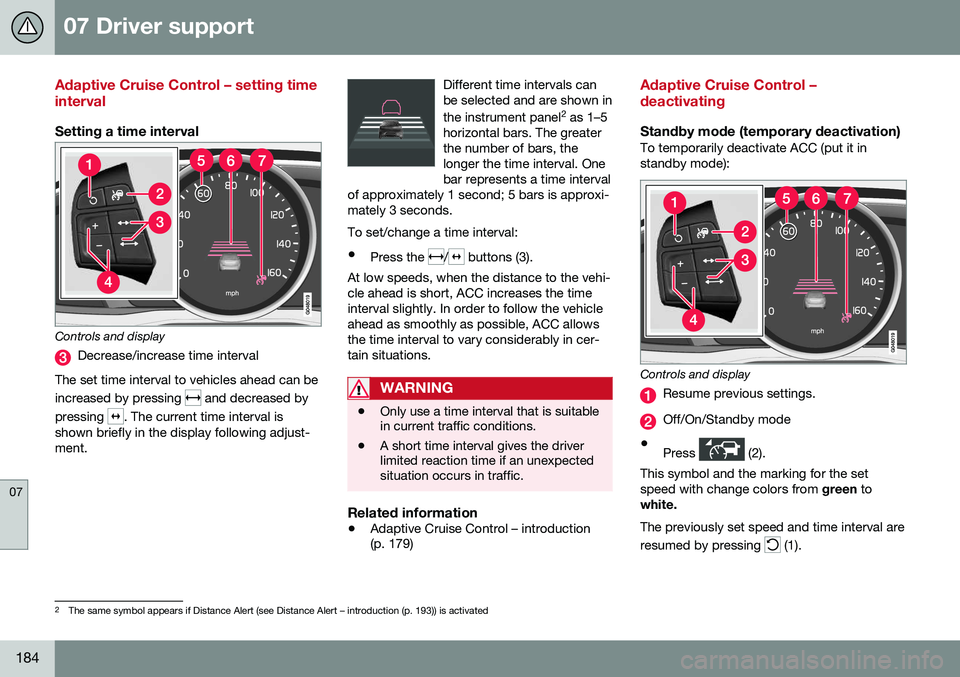
Controls and display
Decrease/increase time interval
The set time interval to vehicles ahead can be increased by pressing
and decreased by
pressing
. The current time interval is
shown briefly in the display following adjust- ment. Different time intervals canbe selected and are shown in the instrument panel
2
as 1–5
horizontal bars. The greater the number of bars, thelonger the time interval. Onebar represents a time interval
of approximately 1 second; 5 bars is approxi-mately 3 seconds.
To set/change a time interval:
• Press the
/ buttons (3).
At low speeds, when the distance to the vehi- cle ahead is short, ACC increases the timeinterval slightly. In order to follow the vehicleahead as smoothly as possible, ACC allowsthe time interval to vary considerably in cer-tain situations.
WARNING
• Only use a time interval that is suitable in current traffic conditions.
• A short time interval gives the driverlimited reaction time if an unexpectedsituation occurs in traffic.
Related information
•
Adaptive Cruise Control – introduction (p. 179)
Adaptive Cruise Control – deactivating
Standby mode (temporary deactivation)To temporarily deactivate ACC (put it in standby mode):
Controls and display
Resume previous settings.
Off/On/Standby mode
• Press
(2).
This symbol and the marking for the set speed with change colors from green to
white. The previously set speed and time interval are resumed by pressing
(1).
2 The same symbol appears if Distance Alert (see Distance Alert – introduction (p. 193)) is activated
Page 187 of 402
07 Driver support
07
185
WARNING
The vehicle may accelerate quickly after
has been pressed if its current speed is
considerably lower than the set speed.
Standby mode due to action by the driver
ACC is temporarily deactivated and put in standby mode:
• if the brakes are applied
• if the gear selector is moved to
N
• if the driver drives faster than the set speed for more than
1 minute.
In this happens, the driver will have to regu- late the vehicle's speed.
NOTE
If the accelerator pedal is only depressed for a short time, such as when passinganother vehicle, ACC is deactivated tem-porarily and is reactivated when the pedalis released.
Automatic standby modeACC is linked to other systems such as the stability system. If this system is not function-ing properly, ACC will switch off automati-cally. In the event of automatic deactivation, an audible signal will sound and the message
Cruise control Cancelled is shown in the
instrument panel. The driver must then inter- vene and adapt the vehicle's speed to thesurrounding traffic and regulate the distanceto the vehicle ahead. An automatic switch to standby mode may be caused if:
• engine speed (rpm) is too high/low
• The driver's door is opened
• The driver unbuckles his/her seat belt
• the vehicle's speed goes below 18 mph (30 km/h)
• the wheels lose traction
• brake temperature is high
• the radar sensor is obstructed by, forexample, wet snow or rain.
Resuming the set speedIf ACC is in standby mode, it can be reactiva- ted by pressing the
button on the steering
wheel keypad. The vehicle will return to the most recently set speed.
WARNING
The vehicle may accelerate quickly after
has been pressed if its current speed is
considerably lower than the set speed.
Turning ACC off completely
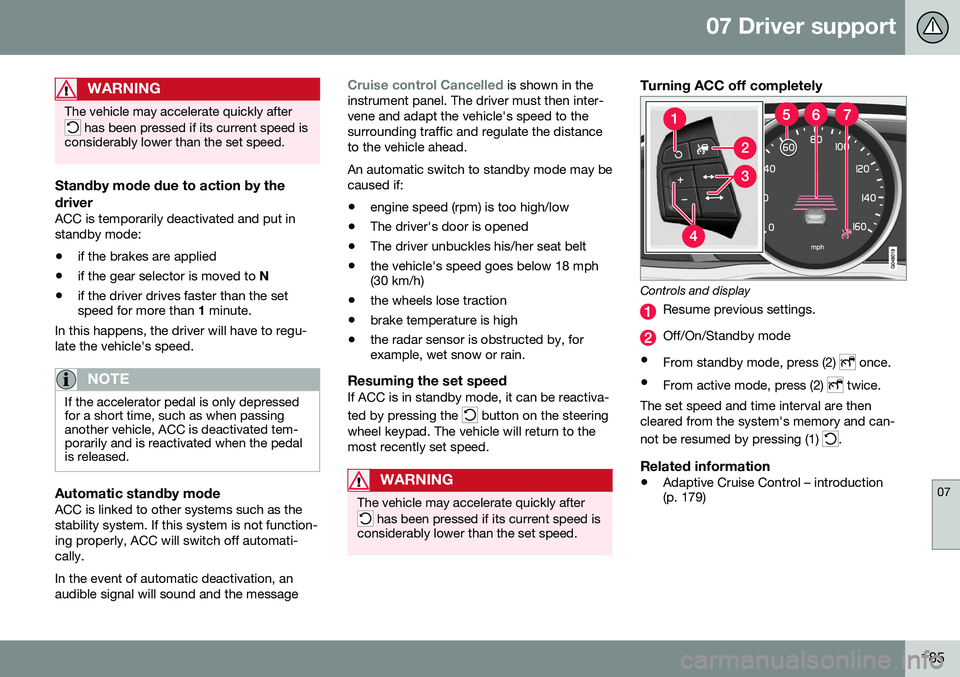
Controls and display
Resume previous settings.
Off/On/Standby mode
• From standby mode, press (2)
once.
• From active mode, press (2)
twice.
The set speed and time interval are then cleared from the system's memory and can- not be resumed by pressing (1)
.
Related information
• Adaptive Cruise Control – introduction (p. 179)
Page 192 of 402
07 Driver support
07
190
Adaptive Cruise Control – symbols and messages
Symbols and messages in the displayA text message can be erased by pressing briefly on the OK button on the turn signal
lever.
SymbolMessageDescription
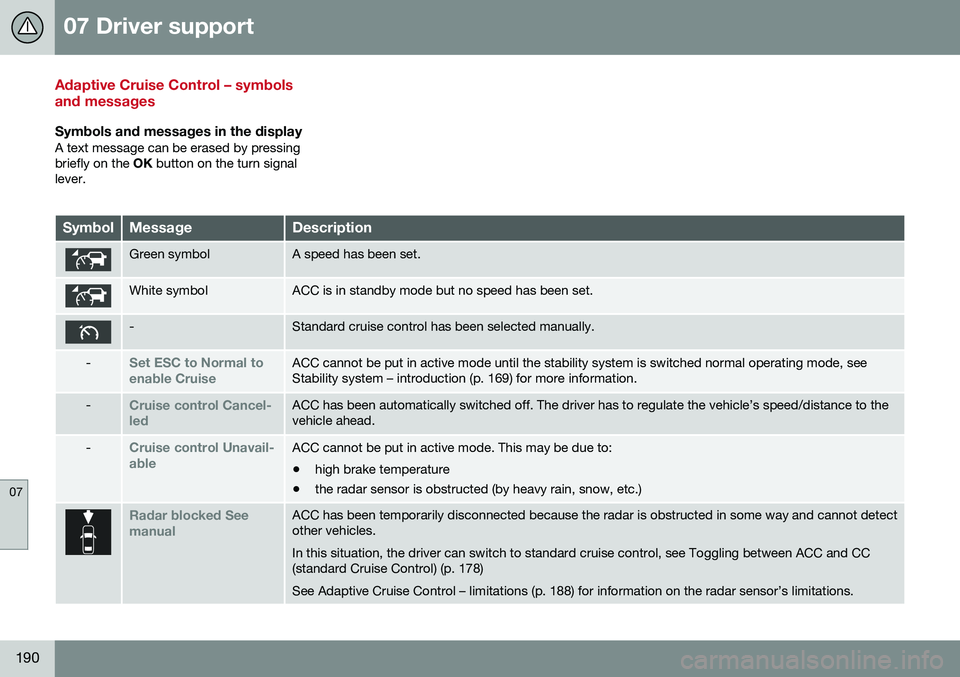
Green symbolA speed has been set.
White symbolACC is in standby mode but no speed has been set.
-Standard cruise control has been selected manually.
-Set ESC to Normal to enable CruiseACC cannot be put in active mode until the stability system is switched normal operating mode, see Stability system – introduction (p. 169) for more information.
-Cruise control Cancel- ledACC has been automatically switched off. The driver has to regulate the vehicle’s speed/distance to the vehicle ahead.
-Cruise control Unavail- ableACC cannot be put in active mode. This may be due to: • high brake temperature
• the radar sensor is obstructed (by heavy rain, snow, etc.)
Radar blocked See manualACC has been temporarily disconnected because the radar is obstructed in some way and cannot detect other vehicles. In this situation, the driver can switch to standard cruise control, see Toggling between ACC and CC (standard Cruise Control) (p. 178) See Adaptive Cruise Control – limitations (p. 188) for information on the radar sensor’s limitations.
Page 193 of 402
07 Driver support
07
191
SymbolMessageDescription
-Cruise control Service requiredACC is not functioning. Contact a trained and qualified Volvo service technician.
-Press Brake To hold +
an audible signalThe vehicle is at a standstill and ACC will release the brakes before the parking brake engages to keep the vehicle stopped but a problem with the parking brake means that the vehicle may begin to roll. The driver will have to apply the brakes. The message will remain in the display and the audible signal will continue until the driver applies the brakes or presses the accelerator pedal.
-Below 30 km/h Only followingThis is displayed if you try to activate ACC at speeds below approx. 18 mph (30 km/h) without a vehicle ahead within range (approx. 100 ft/30 meters).
Related information
• Adaptive Cruise Control – introduction (p. 179)
Page 194 of 402
07 Driver support
07
192
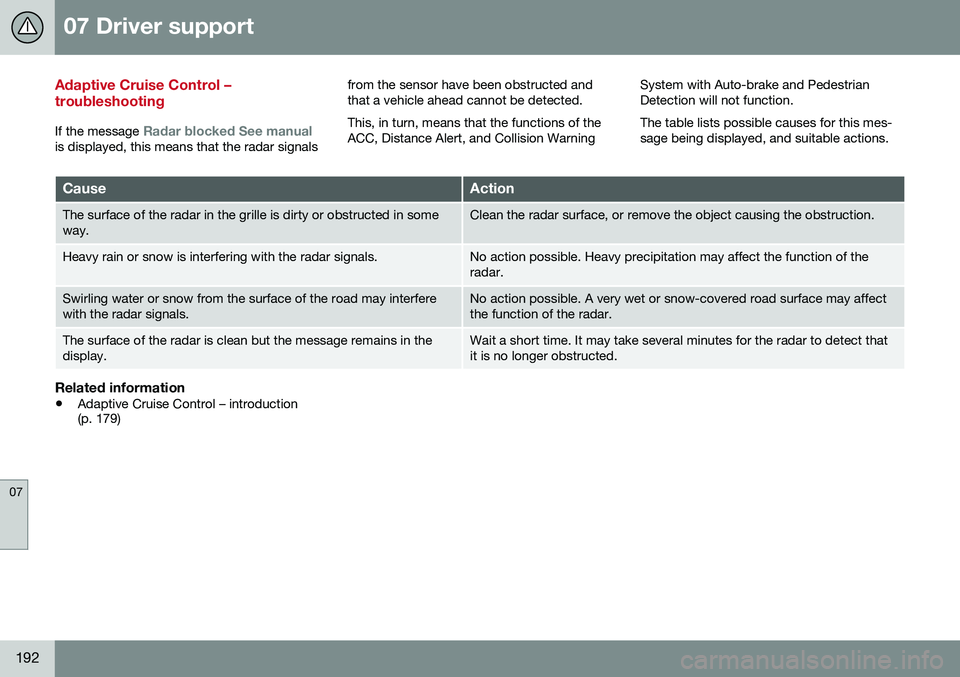
Adaptive Cruise Control – troubleshooting
If the message Radar blocked See manualis displayed, this means that the radar signalsfrom the sensor have been obstructed and that a vehicle ahead cannot be detected. This, in turn, means that the functions of the ACC, Distance Alert, and Collision Warning
System with Auto-brake and PedestrianDetection will not function. The table lists possible causes for this mes- sage being displayed, and suitable actions.
CauseAction
The surface of the radar in the grille is dirty or obstructed in some way.Clean the radar surface, or remove the object causing the obstruction.
Heavy rain or snow is interfering with the radar signals.No action possible. Heavy precipitation may affect the function of the radar.
Swirling water or snow from the surface of the road may interfere with the radar signals.No action possible. A very wet or snow-covered road surface may affect the function of the radar.
The surface of the radar is clean but the message remains in the display.Wait a short time. It may take several minutes for the radar to detect that it is no longer obstructed.
Related information
•
Adaptive Cruise Control – introduction (p. 179)
Page 196 of 402
||
07 Driver support
07
194
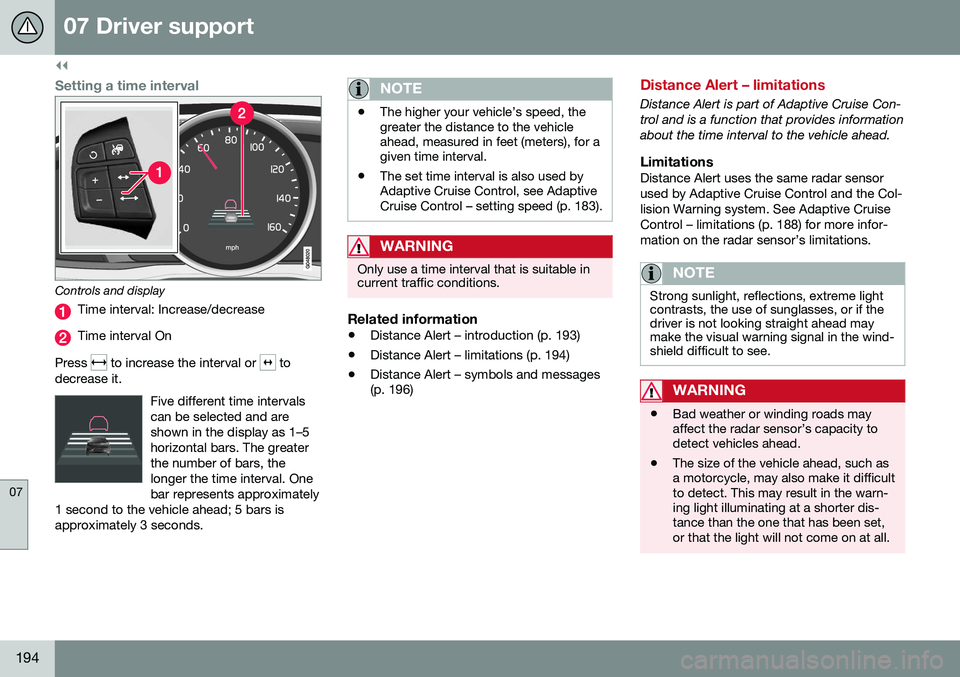
Setting a time interval
Controls and display
Time interval: Increase/decrease
Time interval On
Press
to increase the interval or to
decrease it.
Five different time intervals can be selected and areshown in the display as 1–5horizontal bars. The greaterthe number of bars, thelonger the time interval. Onebar represents approximately
1 second to the vehicle ahead; 5 bars isapproximately 3 seconds.
NOTE
• The higher your vehicle’s speed, the greater the distance to the vehicleahead, measured in feet (meters), for agiven time interval.
• The set time interval is also used byAdaptive Cruise Control, see AdaptiveCruise Control – setting speed (p. 183).
WARNING
Only use a time interval that is suitable in current traffic conditions.
Related information
•
Distance Alert – introduction (p. 193)
• Distance Alert – limitations (p. 194)
• Distance Alert – symbols and messages (p. 196)
Distance Alert – limitations
Distance Alert is part of Adaptive Cruise Con- trol and is a function that provides informationabout the time interval to the vehicle ahead.
LimitationsDistance Alert uses the same radar sensorused by Adaptive Cruise Control and the Col-lision Warning system. See Adaptive CruiseControl – limitations (p. 188) for more infor-mation on the radar sensor’s limitations.
NOTE
Strong sunlight, reflections, extreme light contrasts, the use of sunglasses, or if thedriver is not looking straight ahead maymake the visual warning signal in the wind-shield difficult to see.
WARNING
•Bad weather or winding roads may affect the radar sensor’s capacity todetect vehicles ahead.
• The size of the vehicle ahead, such asa motorcycle, may also make it difficultto detect. This may result in the warn-ing light illuminating at a shorter dis-tance than the one that has been set,or that the light will not come on at all.
Page 200 of 402
07 Driver support
07
198
•City Safety – troubleshooting (p. 200)
• City Safety – symbols and messages (p. 202)
• City Safety – Laser sensor (p. 203)City Safety – function
Function
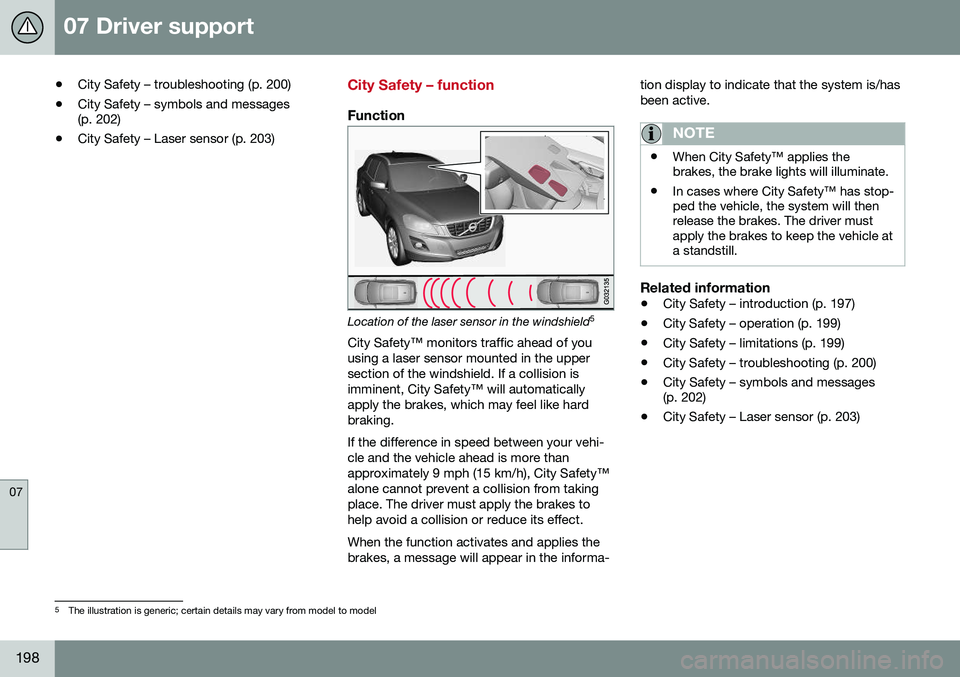
Location of the laser sensor in the windshield 5
City Safety™ monitors traffic ahead of you using a laser sensor mounted in the uppersection of the windshield. If a collision isimminent, City Safety™ will automaticallyapply the brakes, which may feel like hardbraking. If the difference in speed between your vehi- cle and the vehicle ahead is more thanapproximately 9 mph (15 km/h), City Safety™alone cannot prevent a collision from takingplace. The driver must apply the brakes tohelp avoid a collision or reduce its effect. When the function activates and applies the brakes, a message will appear in the informa- tion display to indicate that the system is/hasbeen active.
NOTE
•
When City Safety™ applies the brakes, the brake lights will illuminate.
• In cases where City Safety™ has stop-ped the vehicle, the system will thenrelease the brakes. The driver mustapply the brakes to keep the vehicle ata standstill.
Related information
•
City Safety – introduction (p. 197)
• City Safety – operation (p. 199)
• City Safety – limitations (p. 199)
• City Safety – troubleshooting (p. 200)
• City Safety – symbols and messages (p. 202)
• City Safety – Laser sensor (p. 203)
5
The illustration is generic; certain details may vary from model to model
Page 202 of 402
||
07 Driver support
07
200
Therefore, vehicles or objects with low-reflec- tive surfaces may not be detected. Normally,the license plate and taillight reflectors givethe rear section of a vehicle ahead sufficientreflective surfaces to be detected.
NOTE
•Keep the windshield in front of the laser sensor free of ice, snow, dirt,etc., see City Safety – function(p. 198).
• Snow or ice on the hood deeper than2 inches (5 cm) may obstruct the sen-sor. Keep the hood free of ice andsnow.
• Do not mount or in any way attachanything on the windshield that couldobstruct the laser sensor.
Related information
•
City Safety – introduction (p. 197)
• City Safety – function (p. 198)
• City Safety – operation (p. 199)
• City Safety – troubleshooting (p. 200)
• City Safety – symbols and messages (p. 202)
• City Safety – Laser sensor (p. 203)
City Safety – troubleshooting
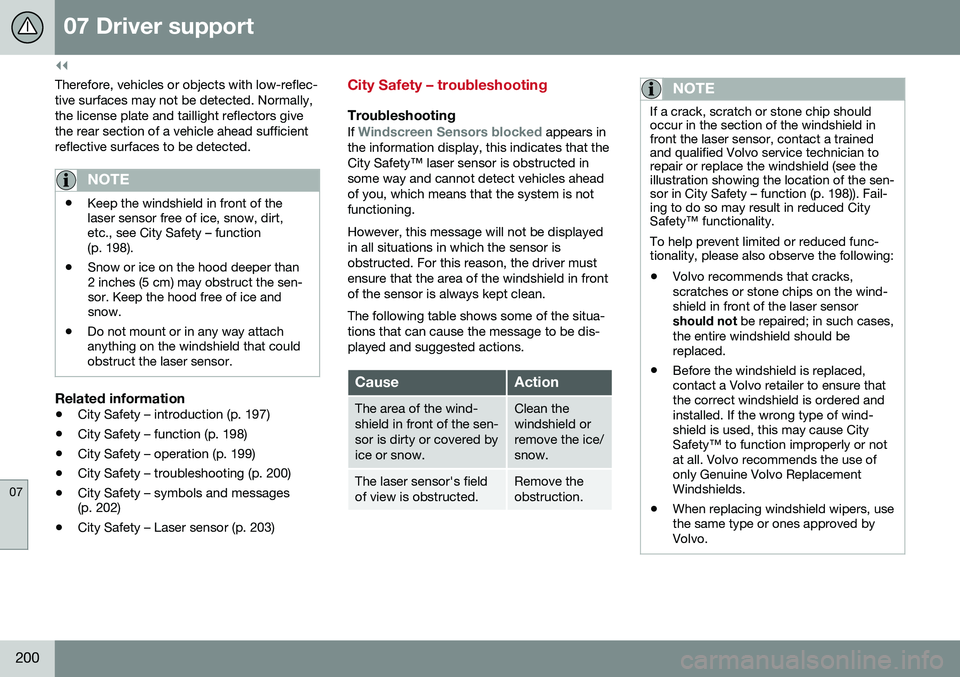
Troubleshooting
If Windscreen Sensors blocked appears in
the information display, this indicates that the City Safety™ laser sensor is obstructed insome way and cannot detect vehicles aheadof you, which means that the system is notfunctioning. However, this message will not be displayed in all situations in which the sensor isobstructed. For this reason, the driver mustensure that the area of the windshield in frontof the sensor is always kept clean. The following table shows some of the situa- tions that can cause the message to be dis-played and suggested actions.
CauseAction
The area of the wind- shield in front of the sen-sor is dirty or covered byice or snow.Clean the windshield orremove the ice/snow.
The laser sensor's field of view is obstructed.Remove the obstruction.
NOTE
If a crack, scratch or stone chip should occur in the section of the windshield infront the laser sensor, contact a trainedand qualified Volvo service technician torepair or replace the windshield (see theillustration showing the location of the sen-sor in City Safety – function (p. 198)). Fail-ing to do so may result in reduced CitySafety™ functionality. To help prevent limited or reduced func- tionality, please also observe the following:
• Volvo recommends that cracks, scratches or stone chips on the wind-shield in front of the laser sensorshould not
be repaired; in such cases,
the entire windshield should bereplaced.
• Before the windshield is replaced,contact a Volvo retailer to ensure thatthe correct windshield is ordered andinstalled. If the wrong type of wind-shield is used, this may cause CitySafety™ to function improperly or notat all. Volvo recommends the use ofonly Genuine Volvo ReplacementWindshields.
• When replacing windshield wipers, usethe same type or ones approved byVolvo.
Page 204 of 402
07 Driver support
07
202
City Safety – symbols and messages
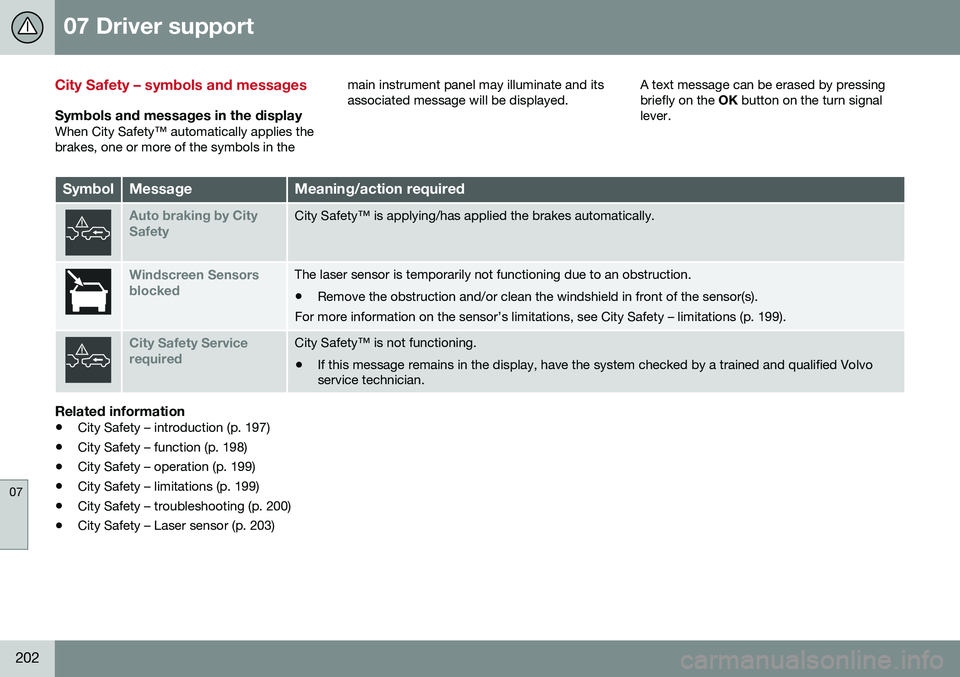
Symbols and messages in the displayWhen City Safety™ automatically applies the brakes, one or more of the symbols in themain instrument panel may illuminate and itsassociated message will be displayed.
A text message can be erased by pressingbriefly on the
OK button on the turn signal
lever.
SymbolMessageMeaning/action required
Auto braking by City SafetyCity Safety™ is applying/has applied the brakes automatically.
Windscreen Sensors blockedThe laser sensor is temporarily not functioning due to an obstruction.
• Remove the obstruction and/or clean the windshield in front of the sensor(s).
For more information on the sensor’s limitations, see City Safety – limitations (p. 199).
City Safety Service requiredCity Safety™ is not functioning.
• If this message remains in the display, have the system checked by a trained and qualified Volvo service technician.
Related information
• City Safety – introduction (p. 197)
• City Safety – function (p. 198)
• City Safety – operation (p. 199)
• City Safety – limitations (p. 199)
• City Safety – troubleshooting (p. 200)
• City Safety – Laser sensor (p. 203)
Page 209 of 402
07 Driver support
07
}}
* Option/accessory, for more information, see Introduction.207
Collision warning* – operation
Settings are made by pressing MY CAR on
the center console control panel and using the menus displayed.
Activating/deactivating both warning
signals
To switch the system's audible and visual
signals on or off at the same time, press MY
CAR on the center console control panel and
go to
SettingsCar settingsDriver
support systems
Collision Warning. If
Pedestrian and Cyclist Detection with Full Auto Brake is on, the system will perform aself-test each time the engine is started bybriefly illuminating the warning light. See MyCar – introduction (p. 74) for a description ofthe menu system. When the engine is switched on, the system setting that was being used when it wasswitched off will be the default setting.
NOTE
The auto-brake and pedestrian/cyclist detection features are always on, even ifthe audible and visual warning signalshave been deactivated.
Activating/deactivating the audible warning signal only
The audible warning signal can be activated/ deactivated by pressing MY CAR on the cen- ter console control panel and going to
SettingsCar settingsDriver support
systems
Warning sound if risk of
collision.
Setting a warning distanceThis setting determines the distance at which the visual and audible warnings are triggered. Select
Long, Normal or Short by pressing
MY CAR on the center console control panel
and going to
SettingsCar settings
Driver support systemsCollision
Warning
Warning distance.
The warning distance determines the level of sensitivity used by the system. The warning distance
Long provides an earlier warning.
Begin by using Long and if the system gives
too many warnings, try changing to Normal.
WARNING
• The setting Short should only be used
in situations where traffic is light and moving at low speeds.
• Pedestrian and Cyclist Detection withFull Auto Brake alerts the driver to therisk of a collision but this function can-not reduce the driver’s reaction time.
• For the system to be as effective aspossible, it is recommended that Dis-tance Alert be set to 4 or 5, see Dis-tance Alert – operation (p. 193).
NOTE
•When Adaptive Cruise Control is used, the warning light and signal will beused by that function, even if thewarnings provided by Pedestrian andCyclist Detection with Full Auto Brakehave been deactivated by the driver.
• In situations where traffic is moving atconsiderably different speeds, or if thevehicle ahead brakes suddenly, warn-ings may be considered to be late, even if the setting
Long has been
selected.
Checking settingsThe current system settings can be checked by pressing MY CAR on the center console
control panel and going to
SettingsCar
settings
Driver support systemsCollision Warning.
Related information
• Collision warning – introduction (p. 204)
• Collision warning* – function (p. 206)
• Collision warning* – Pedestrian detection (p. 209)
• Collision warning* – Cyclist detection(p. 208)
• Collision warning* – limitations (p. 210)
• The camera’s limitations (p. 212)