steering VOLVO V60 2021 Owner's Manual
[x] Cancel search | Manufacturer: VOLVO, Model Year: 2021, Model line: V60, Model: VOLVO V60 2021Pages: 661, PDF Size: 12.68 MB
Page 92 of 661
||
DISPLAYS AND VOICE CONTROL
903. Scroll down to the option buttons to
choose which information to show in the instrument panel: Odometer
Distance to empty tank
Tourist (alternative speedometer)
Mileage for trip odometer TM, TA or no display of mileage
Current fuel consumption, average fuelconsumption for TM or TA, or no dis-play of fuel consumption
Select or clear a selection using the O but-
ton (4). The change will apply immedi-ately.
Related information
Trip computer (p. 87)
Resetting the trip odometer (p. 90)
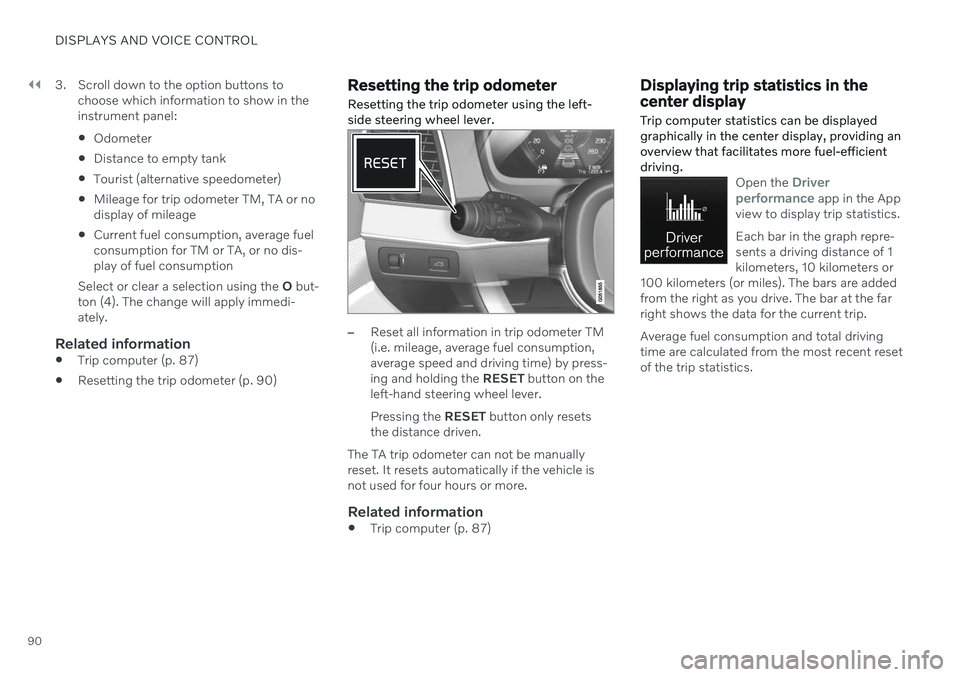
Resetting the trip odometer Resetting the trip odometer using the left- side steering wheel lever.
–Reset all information in trip odometer TM (i.e. mileage, average fuel consumption,average speed and driving time) by press-ing and holding the
RESET button on the
left-hand steering wheel lever. Pressing the RESET button only resets
the distance driven.
The TA trip odometer can not be manually reset. It resets automatically if the vehicle isnot used for four hours or more.
Related information
Trip computer (p. 87)
Displaying trip statistics in the center display Trip computer statistics can be displayed graphically in the center display, providing anoverview that facilitates more fuel-efficientdriving.
Open the Driver
performance app in the App
view to display trip statistics. Each bar in the graph repre- sents a driving distance of 1kilometers, 10 kilometers or
100 kilometers (or miles). The bars are addedfrom the right as you drive. The bar at the farright shows the data for the current trip. Average fuel consumption and total driving time are calculated from the most recent resetof the trip statistics.
Page 104 of 661
![VOLVO V60 2021 Owners Manual ||
DISPLAYS AND VOICE CONTROL
102
SGI Free Software B License Version 2.0.
SGI FREE SOFTWARE LICENSE B (Version 2.0, Sept. 18, 2008) Copyright (C) [dates of first publication] Silicon Graphics, Inc. A](/img/45/59290/w960_59290-103.png "VOLVO V60 2021 Owners Manual ||
DISPLAYS AND VOICE CONTROL
102
SGI Free Software B License Version 2.0.
SGI FREE SOFTWARE LICENSE B (Version 2.0, Sept. 18, 2008) Copyright (C) [dates of first publication] Silicon Graphics, Inc. A")
||
DISPLAYS AND VOICE CONTROL
102
SGI Free Software B License Version 2.0.
SGI FREE SOFTWARE LICENSE B (Version 2.0, Sept. 18, 2008) Copyright (C) [dates of first publication] Silicon Graphics, Inc. All Rights Reserved.Permission is hereby granted, free of charge,to any person obtaining a copy of thissoftware and associated documentation files(the "Software"), to deal in the Softwarewithout restriction, including withoutlimitation the rights to use, copy, modify,merge, publish, distribute, sublicense, and/orsell copies of the Software, and to permitpersons to whom the Software is furnished todo so, subject to the following conditions: Theabove copyright notice including the dates offirst publication and either this permissionnotice or a reference to http://oss.sgi.com/projects/FreeB/ shall be included in all copiesor substantial portions of the Software. THE SOFTWARE IS PROVIDED "AS IS", WITHOUT WARRANTY OF ANY KIND,EXPRESS OR IMPLIED, INCLUDING BUTNOT LIMITED TO THE WARRANTIES OFMERCHANTABILITY, FITNESS FOR APARTICULAR PURPOSE ANDNONINFRINGEMENT. IN NO EVENT SHALLSILICON GRAPHICS, INC. BE LIABLE FORANY CLAIM, DAMAGES OR OTHERLIABILITY, WHETHER IN AN ACTION OFCONTRACT, TORT OR OTHERWISE,ARISING FROM, OUT OF OR INCONNECTION WITH THE SOFTWARE ORTHE USE OR OTHER DEALINGS IN THESOFTWARE. Except as contained in this notice, the name of Silicon Graphics, Inc. shall not be used inadvertising or otherwise to promote the sale,use or other dealings in this Software withoutprior written authorization from SiliconGraphics, Inc.
Related information
Instrument panel (p. 82)
App menu in instrument panel
The App menu in the instrument panel pro- vides quick access to commonly used func-tions for certain apps.
The illustration is generic.
The App menu in the instrument panel can be used instead of the center display and is thencontrolled using the right-side steering wheelkeypad. The app menu makes it easier toswitch between different apps or functionswithin the apps without having to let go of thesteering wheel.
App menu functionsDifferent apps provide access to differenttypes of functions. The following apps andtheir functions can be controlled from the Appmenu:
Page 105 of 661
DISPLAYS AND VOICE CONTROL
}}
103
App Functions Trip com- puterSelect a trip odometer,change instrument panel dis-play settings, etc.
Mediaplayer Select active source formedia player.
Phone Call a contact from the call list.
Navigation Guide to destination, etc.
Related information
Instrument panel (p. 82)
Center display overview (p. 108)
Handling the App menu in the instrument panel (p. 103)
Handling the App menu in the instrument panel
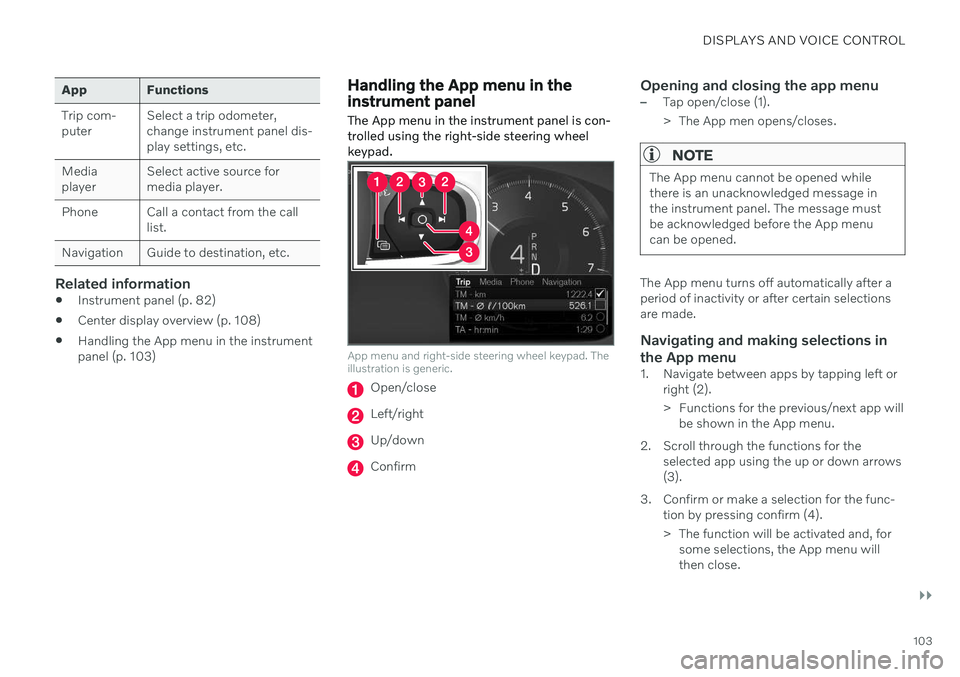
The App menu in the instrument panel is con- trolled using the right-side steering wheelkeypad.
App menu and right-side steering wheel keypad. The illustration is generic.
Open/close
Left/right
Up/down
Confirm
Opening and closing the app menu–Tap open/close (1).
> The App men opens/closes.
NOTE
The App menu cannot be opened while there is an unacknowledged message inthe instrument panel. The message mustbe acknowledged before the App menucan be opened.
The App menu turns off automatically after a period of inactivity or after certain selectionsare made.
Navigating and making selections in the App menu
1. Navigate between apps by tapping left or right (2).
> Functions for the previous/next app willbe shown in the App menu.
2. Scroll through the functions for the selected app using the up or down arrows (3).
3. Confirm or make a selection for the func- tion by pressing confirm (4).
> The function will be activated and, forsome selections, the App menu will then close.
Page 107 of 661
DISPLAYS AND VOICE CONTROL
}}
105
Service messages
The following table lists a selection of impor- tant service messages and what they mean.
Message Meaning
Stop safelyAStop and switch off the engine. Serious risk ofdamage - contact a workshop B
.
Turn off engineA Stop and switch off the engine. Serious risk ofdamage - contact a workshop
B
.
Service urgent Drive to work- shop
A Contact a workshop
B
to
have the vehicle inspec- ted immediately.
Service requiredA Contact a workshop
B
to
have the vehicle inspec- ted as soon as possible.
Regular main- tenance Book time for maintenanceTime for service - contact a workshop B
. Shown
before the next service date.
Regular main- tenance Time for main- tenanceTime for service - contact a workshop B
. Shown on
the next service date.
Message Meaning
Regular main- tenance Maintenance overdueTime for service - contact a workshop B
. Shown
when the date for service has passed.
Temporarily offA A function has been tem- porarily deactivated andwill be reactivated auto-matically while driving orafter the engine is restar-ted.
A
Part of message, shown along with information on the loca- tion of the problem.
B An authorized Volvo workshop is recommended.
Related information
Handling messages in the instrument panel (p. 105)
Handling messages saved from the instru- ment panel (p. 106)
Messages in the center display (p. 138)
Handling messages in the instrument panel
Messages in the instrument panel are con- trolled using the right-side steering wheelkeypad.
Examples of messages in the instrument panel 4
and
the right-side steering wheel keypad.
Page 108 of 661
||
DISPLAYS AND VOICE CONTROL
106
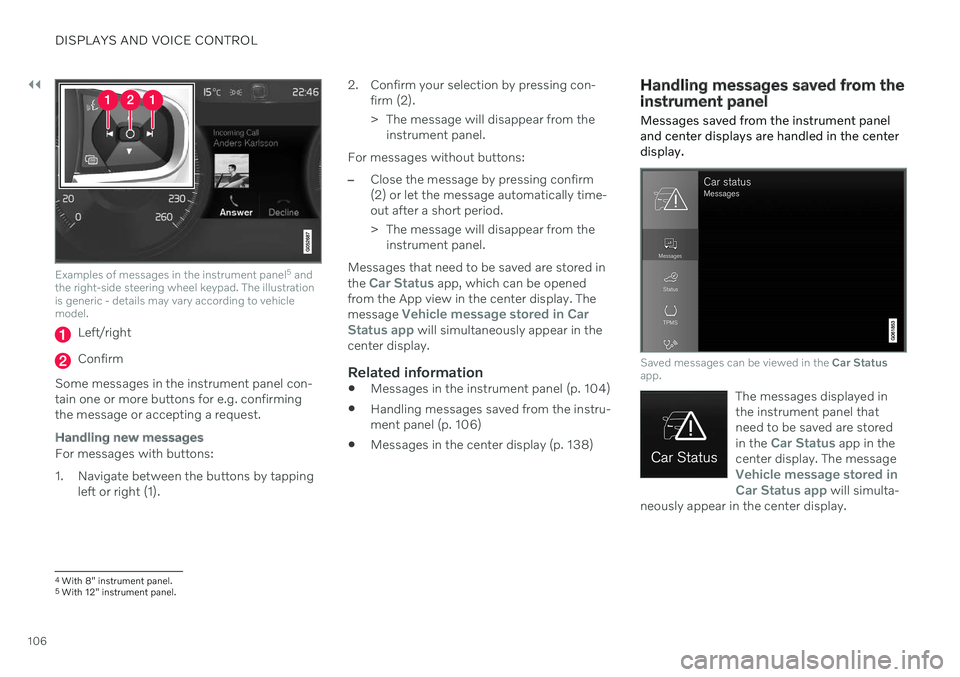
Examples of messages in the instrument panel5
and
the right-side steering wheel keypad. The illustration is generic - details may vary according to vehiclemodel.
Left/right
Confirm
Some messages in the instrument panel con- tain one or more buttons for e.g. confirmingthe message or accepting a request.
Handling new messages
For messages with buttons:
1. Navigate between the buttons by tapping left or right (1). 2. Confirm your selection by pressing con-
firm (2).
> The message will disappear from theinstrument panel.
For messages without buttons:
–Close the message by pressing confirm (2) or let the message automatically time-out after a short period.
> The message will disappear from the instrument panel.
Messages that need to be saved are stored in the
Car Status app, which can be opened
from the App view in the center display. The message
Vehicle message stored in Car
Status app will simultaneously appear in the
center display.
Related information
Messages in the instrument panel (p. 104)
Handling messages saved from the instru- ment panel (p. 106)
Messages in the center display (p. 138)
Handling messages saved from the instrument panel
Messages saved from the instrument panel and center displays are handled in the centerdisplay.
Saved messages can be viewed in the Car Status
app.
The messages displayed in the instrument panel thatneed to be saved are stored in the
Car Status app in the
center display. The message
Vehicle message stored in Car Status app will simulta-
neously appear in the center display.
4 With 8" instrument panel.
5 With 12" instrument panel.
Page 111 of 661
DISPLAYS AND VOICE CONTROL
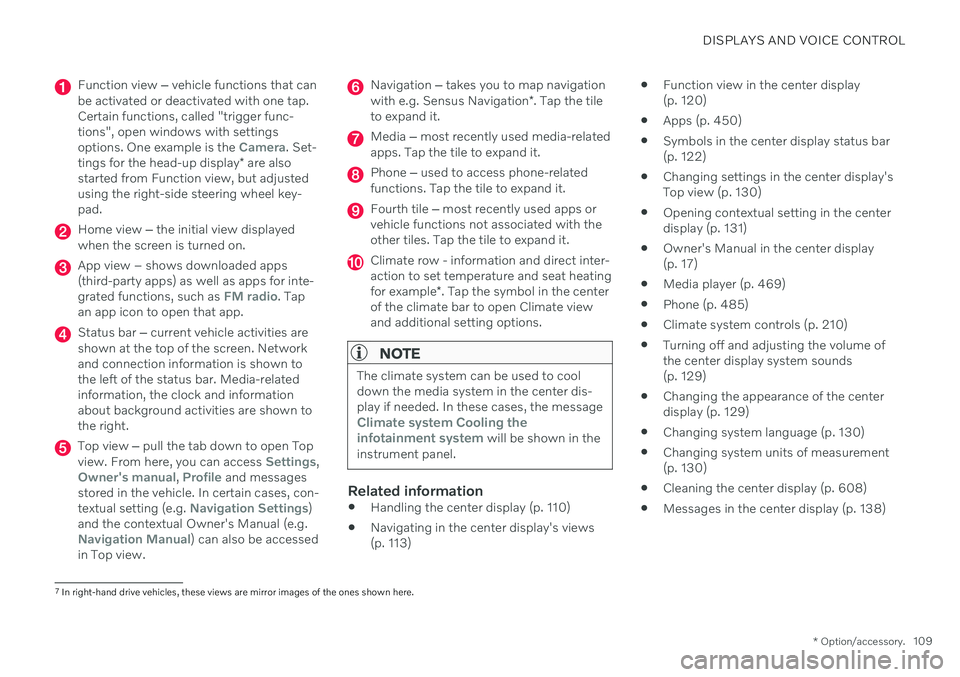
* Option/accessory.109
Function view ‒ vehicle functions that can
be activated or deactivated with one tap. Certain functions, called "trigger func-tions", open windows with settingsoptions. One example is the
Camera. Set-
tings for the head-up display * are also
started from Function view, but adjusted using the right-side steering wheel key-pad.
Home view ‒ the initial view displayed
when the screen is turned on.
App view – shows downloaded apps (third-party apps) as well as apps for inte-grated functions, such as
FM radio. Tap
an app icon to open that app.
Status bar ‒ current vehicle activities are
shown at the top of the screen. Network and connection information is shown tothe left of the status bar. Media-relatedinformation, the clock and informationabout background activities are shown tothe right.
Top view ‒ pull the tab down to open Top
view. From here, you can access Settings,Owner's manual, Profile and messages
stored in the vehicle. In certain cases, con- textual setting (e.g.
Navigation Settings)
and the contextual Owner's Manual (e.g.
Navigation Manual) can also be accessed
in Top view.
Navigation ‒ takes you to map navigation
with e.g. Sensus Navigation *. Tap the tile
to expand it.
Media ‒ most recently used media-related
apps. Tap the tile to expand it.
Phone ‒ used to access phone-related
functions. Tap the tile to expand it.
Fourth tile ‒ most recently used apps or
vehicle functions not associated with the other tiles. Tap the tile to expand it.
Climate row - information and direct inter- action to set temperature and seat heating for example *. Tap the symbol in the center
of the climate bar to open Climate view and additional setting options.
NOTE
The climate system can be used to cool down the media system in the center dis-play if needed. In these cases, the message
Climate system Cooling the
infotainment system will be shown in the
instrument panel.
Related information
Handling the center display (p. 110)
Navigating in the center display's views (p. 113)
Function view in the center display(p. 120)
Apps (p. 450)
Symbols in the center display status bar(p. 122)
Changing settings in the center display'sTop view (p. 130)
Opening contextual setting in the centerdisplay (p. 131)
Owner's Manual in the center display(p. 17)
Media player (p. 469)
Phone (p. 485)
Climate system controls (p. 210)
Turning off and adjusting the volume ofthe center display system sounds(p. 129)
Changing the appearance of the centerdisplay (p. 129)
Changing system language (p. 130)
Changing system units of measurement(p. 130)
Cleaning the center display (p. 608)
Messages in the center display (p. 138)
7
In right-hand drive vehicles, these views are mirror images of the ones shown here.
Page 144 of 661
DISPLAYS AND VOICE CONTROL
* Option/accessory.
142
Head-up display settings *
Adjusting settings for the head-up display.
Settings can be adjusted when the vehicle is started and a projected image is displayed onthe windshield.
Selecting display optionsSelect the functions to be shown in the head-up display. 1. Tap
Settings in the center display's Top
view.
2. Tap
My CarDisplaysHead-Up
Display Options.
3. Select one or more functions:
Show Navigation
Show Road Sign Information
Show Driver Support
Show Phone
This setting is stored as a personal setting in the driver profile.
Adjusting brightness and height position
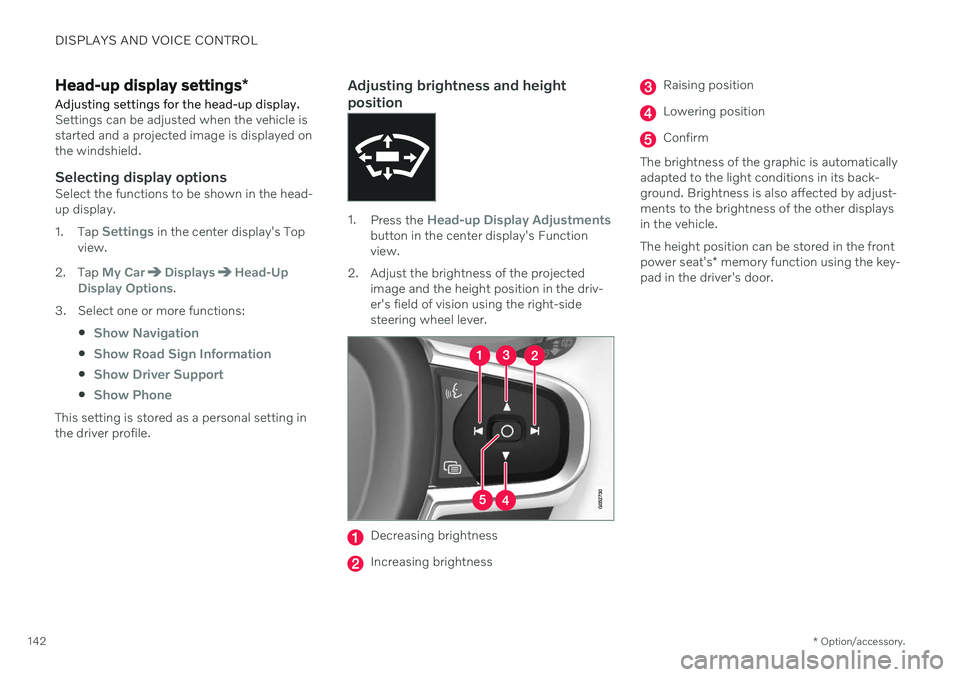
1.Press the Head-up Display Adjustmentsbutton in the center display's Function view.
2. Adjust the brightness of the projected image and the height position in the driv-er's field of vision using the right-sidesteering wheel lever.
Decreasing brightness
Increasing brightness
Raising position
Lowering position
Confirm
The brightness of the graphic is automatically adapted to the light conditions in its back-ground. Brightness is also affected by adjust-ments to the brightness of the other displaysin the vehicle. The height position can be stored in the front power seat's * memory function using the key-
pad in the driver's door.
Page 145 of 661
DISPLAYS AND VOICE CONTROL
}}
* Option/accessory.143
Calibrating the horizontal positionIf the windshield or display unit has been replaced, the head-up display's horizontalposition may need to be calibrated. Calibrationmeans that the projected image is rotatedclockwise or counterclockwise. 1.
Tap
Settings in the center display's Top
view.
2. Select
My CarDisplaysHead-Up
Display Options
Head-Up Display
Calibration.
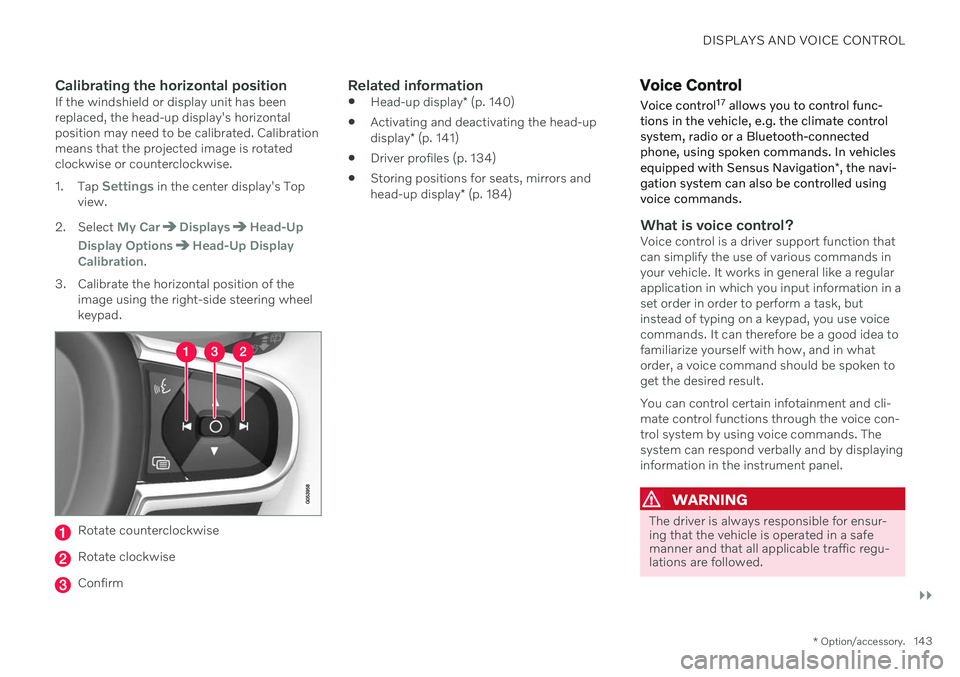
3. Calibrate the horizontal position of the image using the right-side steering wheel keypad.
Rotate counterclockwise
Rotate clockwise
Confirm
Related information
Head-up display
* (p. 140)
Activating and deactivating the head-up display
* (p. 141)
Driver profiles (p. 134)
Storing positions for seats, mirrors andhead-up display
* (p. 184)
Voice Control
Voice control 17
allows you to control func-
tions in the vehicle, e.g. the climate control system, radio or a Bluetooth-connectedphone, using spoken commands. In vehicles equipped with Sensus Navigation *, the navi-
gation system can also be controlled using voice commands.
What is voice control?Voice control is a driver support function that can simplify the use of various commands inyour vehicle. It works in general like a regularapplication in which you input information in aset order in order to perform a task, butinstead of typing on a keypad, you use voicecommands. It can therefore be a good idea tofamiliarize yourself with how, and in whatorder, a voice command should be spoken toget the desired result. You can control certain infotainment and cli- mate control functions through the voice con-trol system by using voice commands. Thesystem can respond verbally and by displayinginformation in the instrument panel.
WARNING
The driver is always responsible for ensur- ing that the vehicle is operated in a safemanner and that all applicable traffic regu-lations are followed.
Page 146 of 661
||
DISPLAYS AND VOICE CONTROL
144
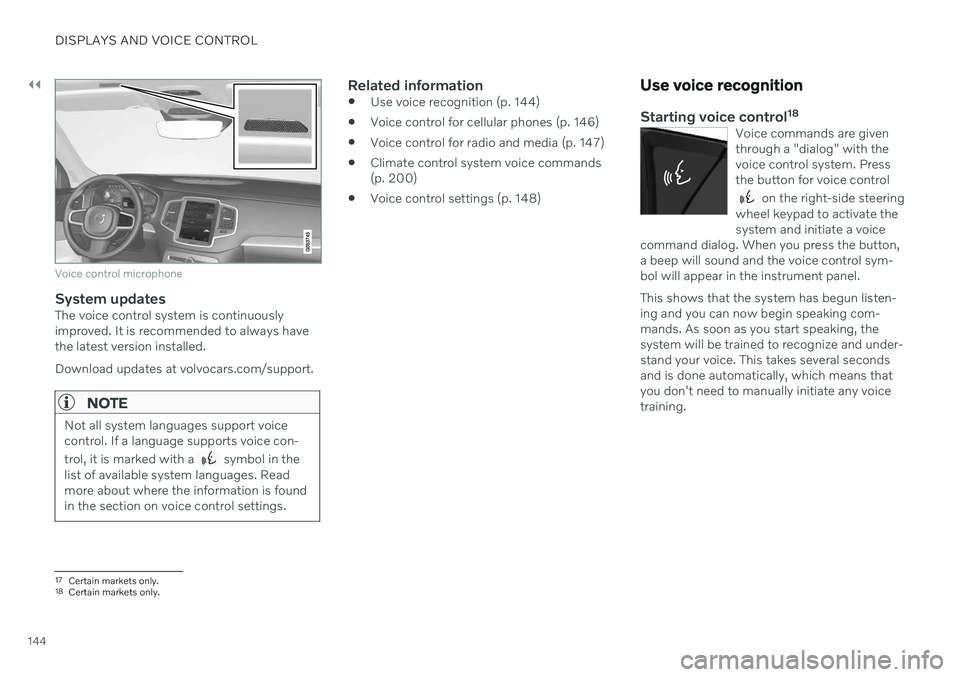
Voice control microphone
System updatesThe voice control system is continuously improved. It is recommended to always havethe latest version installed. Download updates at volvocars.com/support.
NOTE
Not all system languages support voice control. If a language supports voice con- trol, it is marked with a
symbol in the
list of available system languages. Read more about where the information is foundin the section on voice control settings.
Related information
Use voice recognition (p. 144)
Voice control for cellular phones (p. 146)
Voice control for radio and media (p. 147)
Climate control system voice commands (p. 200)
Voice control settings (p. 148)
Use voice recognition
Starting voice control 18Voice commands are given through a "dialog" with thevoice control system. Pressthe button for voice control
on the right-side steering
wheel keypad to activate the system and initiate a voice
command dialog. When you press the button,a beep will sound and the voice control sym-bol will appear in the instrument panel. This shows that the system has begun listen- ing and you can now begin speaking com-mands. As soon as you start speaking, thesystem will be trained to recognize and under-stand your voice. This takes several secondsand is done automatically, which means thatyou don't need to manually initiate any voicetraining.
17 Certain markets only.18Certain markets only.
Page 147 of 661
DISPLAYS AND VOICE CONTROL
}}
* Option/accessory.145
These may include:
Wait until after the tone, and then speak in your normal voice at a normal speed.
Do not speak while the system is respond-ing (the system is unable to process com-mands during this time).
Avoid background noises in the passengercompartment by keeping doors, windows and the panoramic roof
* closed.
NOTE
Not all system languages support voice control. If a language supports voice con- trol, it is marked with a
symbol in the
list of available system languages. Read more about where the information is foundin the section on voice control settings.
Generally, the system will listen for a basic command that is then followed by moredetailed commands specifying what you wantthe system to do. To change the audio volume of the system, turn the volume knob while the voice is speak-ing. It is possible to use other buttons whilevoice commands are being given. However,because other audio is silenced during dialogwith the system, it is not possible to perform any functions connected to audio using thebuttons.
Canceling voice controlTo cancel voice control, do one of the follow-ing:
Briefly press
and say "Cancel".
Press and hold the steering wheel key- pad's voice command button
until
two audible signals are given. This cancels voice control even when the system isspeaking.
Voice control will also be canceled if you donot respond during a dialog. The system willfirst ask three times for a response and if theresponse is still not given, voice control will beautomatically canceled. To speed up communication and skip prompts from the system, press the voice control but- ton
on the steering wheel keypad. This
will interrupt the system's response and you can say the next command.
Voice command examples
1. Tap . 2.
Say "
Call [First name] [Last name]
[number category]", e.g. "Call Robyn
Smith cellular".
> The system will call the selected con- tact from the phone book. If the contact has several phone numbers (e.g. home,cell, work), the right category must alsobe given.
Commands/phrasesThe following commands can usually be usedin any situation:
"
Repeat" - repeats the most recent voice
command in the current dialog.
"
Cancel" - cancels the dialog. 19
"
Help" - initiates a help dialog. The sys-
tem responds with commands that can be used in the current situation, an instruc-tion or an example.
Commands for specific functions, such as phone and audio, are described in the sections related to that function.
19 Note that this only cancels the dialog when the system is not speaking. To do this, press and hold until you hear two beeps.