key VOLVO V90 2017 Owners Manual
[x] Cancel search | Manufacturer: VOLVO, Model Year: 2017, Model line: V90, Model: VOLVO V90 2017Pages: 594, PDF Size: 15.07 MB
Page 446 of 594
||
AUDIO AND MEDIA
* Option/accessory.
444
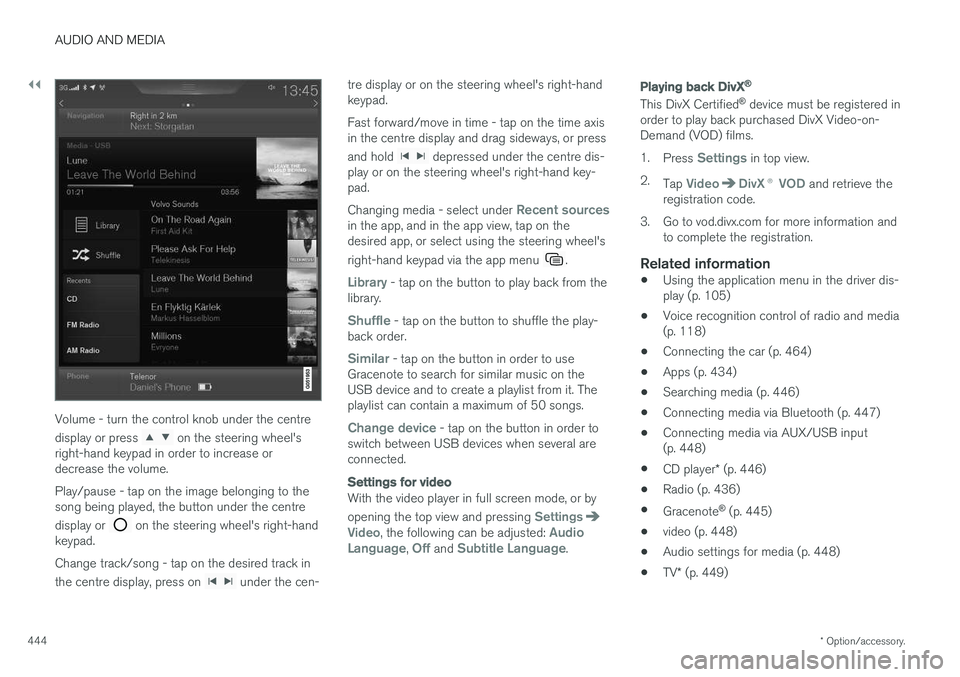
Volume - turn the control knob under the centre display or press
on the steering wheel's
right-hand keypad in order to increase or decrease the volume. Play/pause - tap on the image belonging to the song being played, the button under the centre display or
on the steering wheel's right-hand
keypad. Change track/song - tap on the desired track in the centre display, press on
under the cen- tre display or on the steering wheel's right-hand keypad. Fast forward/move in time - tap on the time axis in the centre display and drag sideways, or press and hold
depressed under the centre dis-
play or on the steering wheel's right-hand key- pad. Changing media - select under
Recent sourcesin the app, and in the app view, tap on the desired app, or select using the steering wheel's right-hand keypad via the app menu
.
Library - tap on the button to play back from the
library.
Shuffle - tap on the button to shuffle the play-
back order.
Similar - tap on the button in order to use
Gracenote to search for similar music on the USB device and to create a playlist from it. Theplaylist can contain a maximum of 50 songs.
Change device - tap on the button in order to
switch between USB devices when several are connected.
Settings for video
With the video player in full screen mode, or by opening the top view and pressing
SettingsVideo, the following can be adjusted: Audio
Language, Off and Subtitle Language.
Playing back DivX®
This DivX Certified ®
device must be registered in
order to play back purchased DivX Video-on- Demand (VOD) films. 1. Press
Settings in top view.
2. Tap
VideoDivX ® VOD and retrieve the
registration code.
3. Go to vod.divx.com for more information and to complete the registration.
Related information
• Using the application menu in the driver dis- play (p. 105)
• Voice recognition control of radio and media(p. 118)
• Connecting the car (p. 464)
• Apps (p. 434)
• Searching media (p. 446)
• Connecting media via Bluetooth (p. 447)
• Connecting media via AUX/USB input(p. 448)
• CD player
* (p. 446)
• Radio (p. 436)
• Gracenote ®
(p. 445)
• video (p. 448)
• Audio settings for media (p. 448)
• TV
* (p. 449)
Page 448 of 594
AUDIO AND MEDIA
* Option/accessory.
446
Searching media
It is possible to search by artist, composer, song (titles), album, video, audiobook, playlist and,when the car is online, podcasts (digital mediavia Internet).
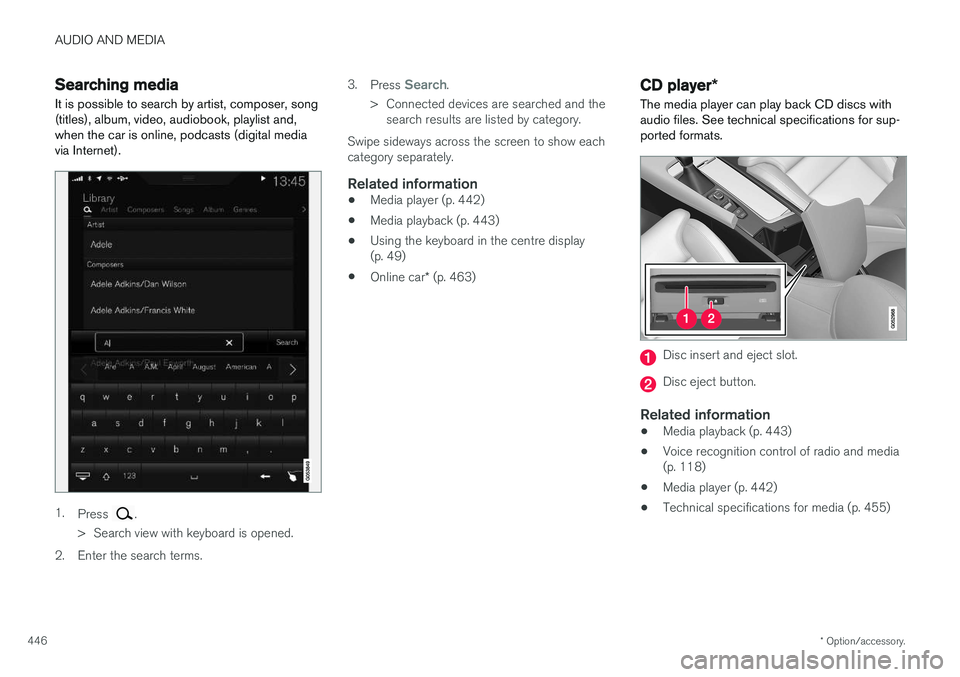
1. Press .
> Search view with keyboard is opened.
2. Enter the search terms. 3.
Press
Search.
> Connected devices are searched and the search results are listed by category.
Swipe sideways across the screen to show each category separately.
Related information
• Media player (p. 442)
• Media playback (p. 443)
• Using the keyboard in the centre display(p. 49)
• Online car
* (p. 463)
CD player *
The media player can play back CD discs with audio files. See technical specifications for sup-ported formats.
Disc insert and eject slot.
Disc eject button.
Related information
• Media playback (p. 443)
• Voice recognition control of radio and media (p. 118)
• Media player (p. 442)
• Technical specifications for media (p. 455)
Page 451 of 594
AUDIO AND MEDIA
}}
* Option/accessory.449
System volumes for media1.
Press Settings in top view.
2. Press
SoundSystem Volumes:
•
AUX - If an external audio source (e.g. an
MP3 player or iPod) is connected to the AUX input then the audio source that isconnected can have a different volumethan the audio system's internal volume(e.g. radio). Correct this by adjusting thevolume of the input. If the volume is toohigh or too low then the quality of thesound can be impaired.
•
Speed and Volume Compensation -
the audio system compensates for dis- rupting noises in the passenger compart-ment by increasing the volume in relationto the speed of the car. Compensationlevel can be set.
Related information
• Audio settings (p. 435)
• Media player (p. 442)
TV
*2
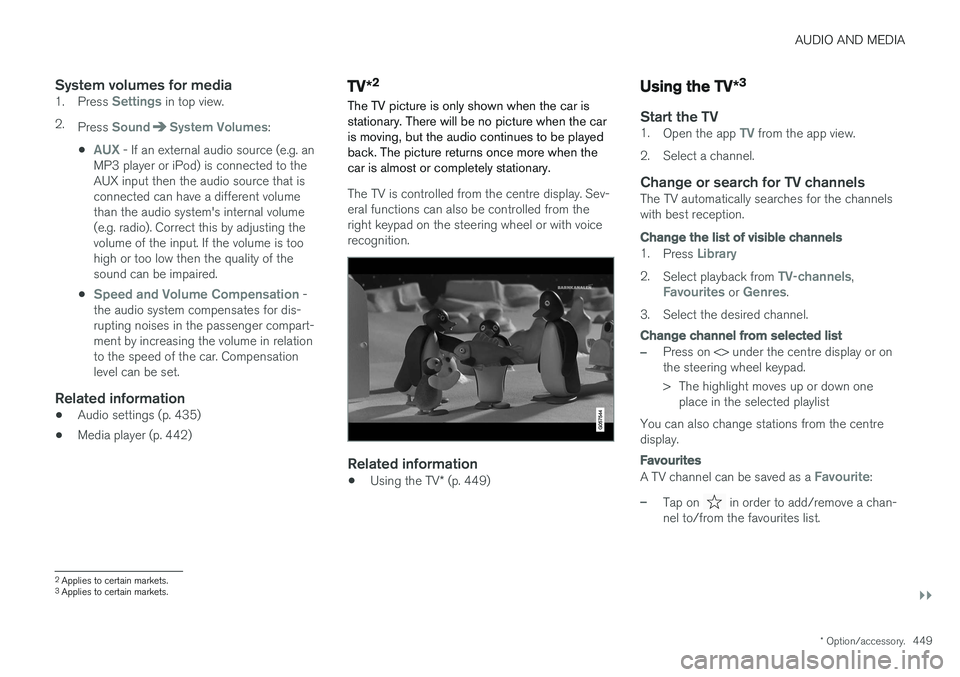
The TV picture is only shown when the car is stationary. There will be no picture when the caris moving, but the audio continues to be playedback. The picture returns once more when thecar is almost or completely stationary.
The TV is controlled from the centre display. Sev- eral functions can also be controlled from theright keypad on the steering wheel or with voicerecognition.
Related information
• Using the TV
* (p. 449)
Using the TV *3
Start the TV1.
Open the app TV from the app view.
2. Select a channel.
Change or search for TV channelsThe TV automatically searches for the channels with best reception.
Change the list of visible channels
1. Press Library
2.Select playback from TV-channels,Favourites or Genres.
3. Select the desired channel.
Change channel from selected list
–Press on <> under the centre display or on the steering wheel keypad.
> The highlight moves up or down one place in the selected playlist
You can also change stations from the centre display.
Favourites
A TV channel can be saved as a Favourite:
–Tap on in order to add/remove a chan-
nel to/from the favourites list.
2 Applies to certain markets.
3 Applies to certain markets.
Page 453 of 594
AUDIO AND MEDIA
}}
* Option/accessory.451
When using map navigation via Apple CarPlay there is no guidance in the driver display or head-up display, but only in the centre display. The Apple CarPlay apps can be controlled via the centre display, mobile phone or with the steeringwheel's right-hand keypad (applies to certainfunctions). The apps can also be voice-controlledusing Siri. A long press on the steering wheel button
starts voice control using Siri and a
short press activates the car's own voice control. If Siri breaks off too early, hold the steering wheel button
depressed.
By using Apple CarPlay you acknowledge the following: Apple CarPlay is a serviceprovided by Apple Inc. under its terms andconditions. Volvo Cars is thus notresponsible for Apple CarPlay or itsfeatures/applications. When using AppleCarPlay, certain information from your car(including its position) is transferred to youriPhone. In relation to Volvo Cars, you arefully responsible for your and any othersperson
Page 455 of 594
AUDIO AND MEDIA
}}
* Option/accessory.453
Android Auto *
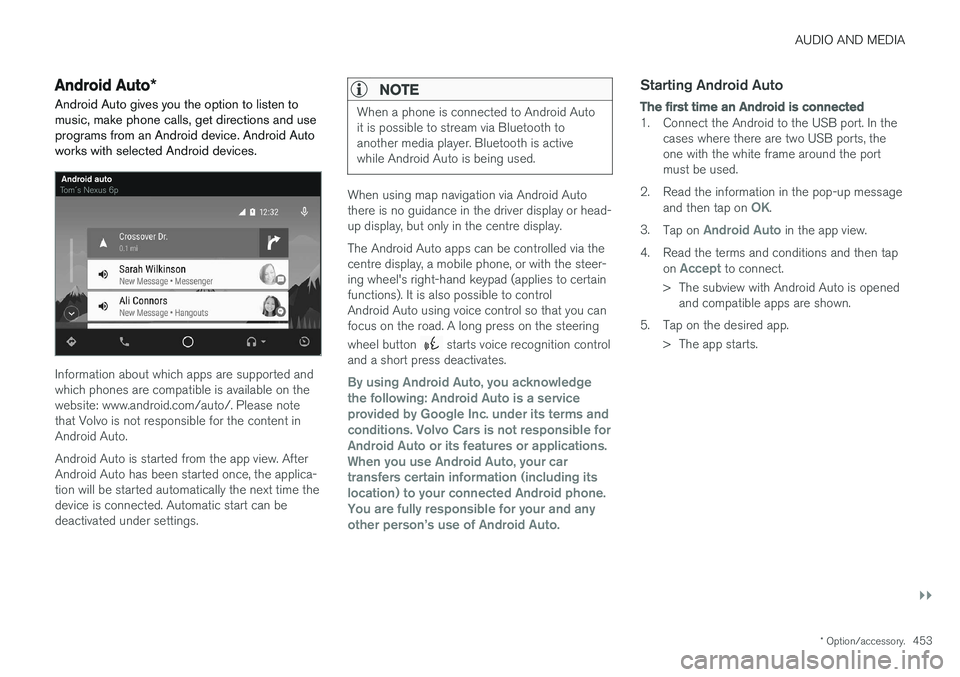
Android Auto gives you the option to listen to music, make phone calls, get directions and useprograms from an Android device. Android Autoworks with selected Android devices.
Information about which apps are supported and which phones are compatible is available on thewebsite: www.android.com/auto/. Please notethat Volvo is not responsible for the content inAndroid Auto. Android Auto is started from the app view. After Android Auto has been started once, the applica-tion will be started automatically the next time thedevice is connected. Automatic start can bedeactivated under settings.
NOTE
When a phone is connected to Android Auto it is possible to stream via Bluetooth toanother media player. Bluetooth is activewhile Android Auto is being used.
When using map navigation via Android Auto there is no guidance in the driver display or head-up display, but only in the centre display. The Android Auto apps can be controlled via the centre display, a mobile phone, or with the steer-ing wheel's right-hand keypad (applies to certainfunctions). It is also possible to controlAndroid Auto using voice control so that you canfocus on the road. A long press on the steering wheel button
starts voice recognition control
and a short press deactivates.
By using Android Auto, you acknowledge the following: Android Auto is a serviceprovided by Google Inc. under its terms andconditions. Volvo Cars is not responsible forAndroid Auto or its features or applications.When you use Android Auto, your cartransfers certain information (including itslocation) to your connected Android phone.You are fully responsible for your and anyother person
Page 458 of 594
||
AUDIO AND MEDIA
456
Technical specification for USB connector
•Type A socket
• Version 2.0
• Voltage supply 5 V
• Current supply max. 2.1 A
Related information
• Media player (p. 442)
• Media playback (p. 443)
Phone
A mobile phone equipped with Bluetooth can be connected wirelessly to the car's built-in hands-free system.
The audio and media system acts as a handsfree,
with the facility to remotely control a selection of the mobile phone's functions. The mobile phonecan still be operated with its own keys if it is con-nected to the car. When a mobile phone has been connected with the car and connected, it can be used make calls,send/receive messages, stream media and pro-vide an Internet connection.
The phone is operated from thecentre display, but some opera-tions are also available via voicerecognition and the app menu,which are accessed from theright-hand steering wheel key-pad.
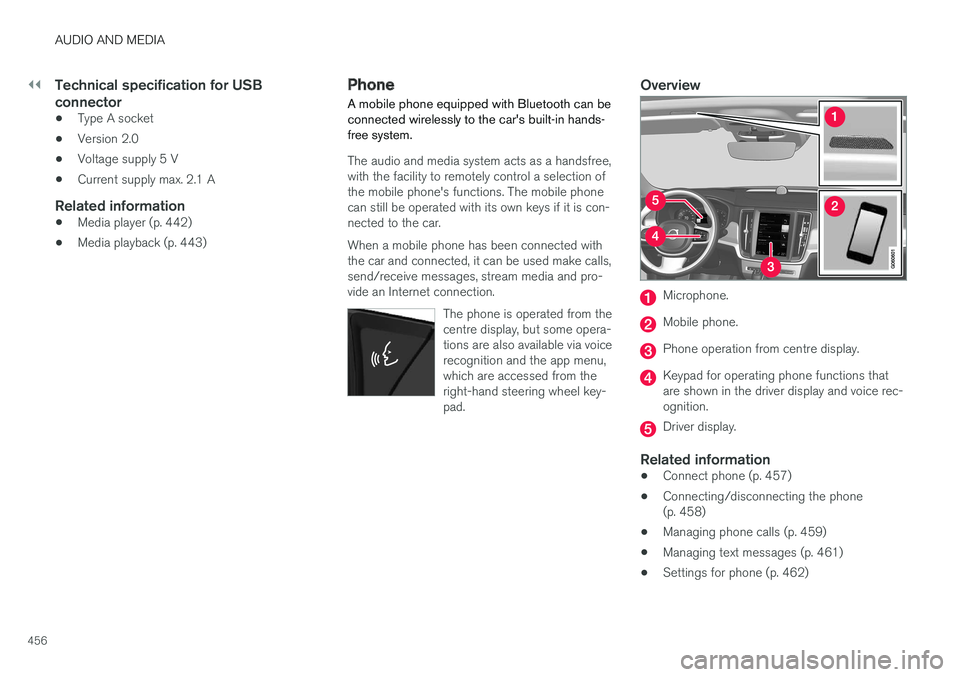
Overview
Microphone.
Mobile phone.
Phone operation from centre display.
Keypad for operating phone functions that are shown in the driver display and voice rec-ognition.
Driver display.
Related information
•Connect phone (p. 457)
• Connecting/disconnecting the phone (p. 458)
• Managing phone calls (p. 459)
• Managing text messages (p. 461)
• Settings for phone (p. 462)
Page 462 of 594
||
AUDIO AND MEDIA
4602. Select call from: call history, enter number
using the keypad or via the contact list. It is possible to search or browse in the contact list. Tap on
in the contact list in order to
add a contact under Favourites.
3. Tap on
Call or .
4. Tap on
End call to end the call.
You can also make calls from the call log via the app menu, which is accessed from the right-hand steering wheel keypad
.
Making multi-party calls
During a call: 1. Press
Add call.
2. Choose to make a call from the call log, favourites or the contact list.
3. Tap on an entry/row in the call log, or tap on
alongside the contact in the contact list.
4. Tap on
Swap call to switch between the
parties.
5. Tap on
End call to end the active call.
Conference calls
During an active multi-party call: 1. Tap on
Join calls to merge the active multi-
party call.
2. Tap on
End call to end the call.
Incoming phone callsIncoming phone calls are shown in the driver dis- play and the centre display. Manage the call onthe right-hand steering wheel keypad or in thecentre display. 1.Tap on
Answer/Reject.
2. Tap on
End call to end the call.
Incoming phone call during an active call
1.Tap on Answer/Reject.
2. Tap on
End call to end the call.
Private call
–During the current call, press Privacy and
select setting:
•
Switch to mobile phone - the hands-
free function is disconnected and the call continues on your mobile phone.
•
Driver focused - the microphone in the
roof on the passenger side is switched off and the call continues with the car'shandsfree function.
Related information
• Phone (p. 456)
• Voice recognition control of the phone(p. 118)
• Using the application menu in the driver dis-play (p. 105)
• Using the keyboard in the centre display(p. 49) •
Settings for phone (p. 462)
Page 463 of 594
AUDIO AND MEDIA
461
Managing text messages Message handling in the car for a Bluetooth- connected phone.
On certain phones the message function must be activated. Not all mobiles are fully compatible andcapable of displaying contacts and messages inthe car. For compatibility, seesupport.volvocars.com.
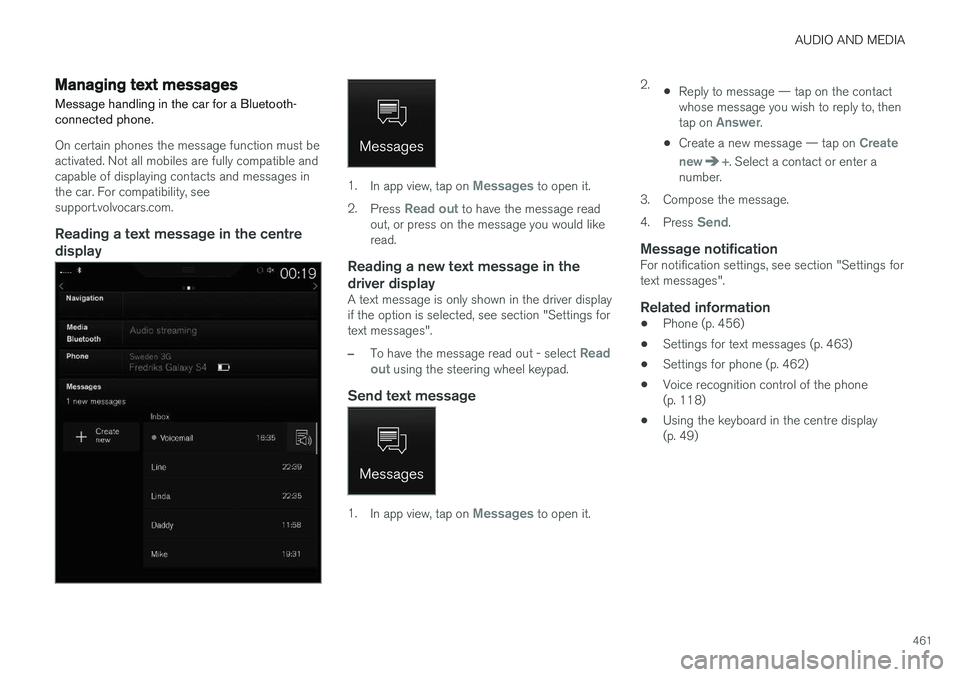
Reading a text message in the centredisplay
1. In app view, tap on Messages to open it.
2. Press
Read out to have the message read
out, or press on the message you would like read.
Reading a new text message in the driver display
A text message is only shown in the driver display if the option is selected, see section "Settings fortext messages".
–To have the message read out - select Read
out using the steering wheel keypad.
Send text message
1. In app view, tap on Messages to open it. 2.
•Reply to message — tap on the contact whose message you wish to reply to, then tap on
Answer.
• Create a new message — tap on
Create
new
+. Select a contact or enter a
number.
3. Compose the message. 4. Press
Send.
Message notificationFor notification settings, see section "Settings for text messages".
Related information
• Phone (p. 456)
• Settings for text messages (p. 463)
• Settings for phone (p. 462)
• Voice recognition control of the phone(p. 118)
• Using the keyboard in the centre display(p. 49)
Page 464 of 594
AUDIO AND MEDIA
* Option/accessory.
462
Managing the phone book
Contact handling in the car for a Bluetooth-con- nected phone.
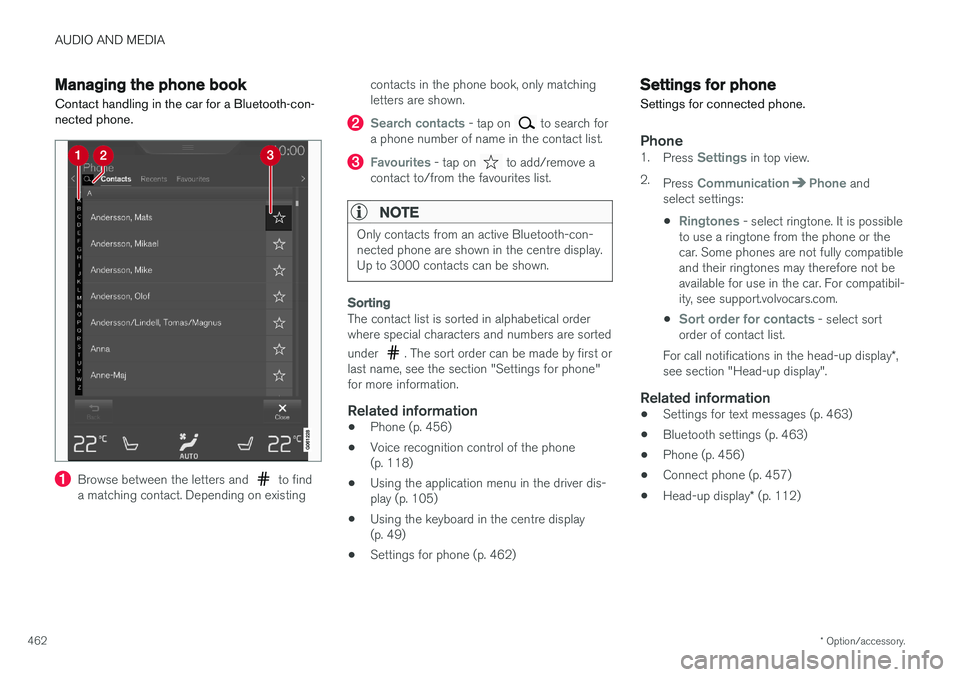
Browse between the letters and to find
a matching contact. Depending on existing contacts in the phone book, only matching letters are shown.
Search contacts - tap on to search for
a phone number of name in the contact list.
Favourites - tap on to add/remove a
contact to/from the favourites list.
NOTE
Only contacts from an active Bluetooth-con- nected phone are shown in the centre display.Up to 3000 contacts can be shown.
Sorting
The contact list is sorted in alphabetical order where special characters and numbers are sorted under
. The sort order can be made by first or
last name, see the section "Settings for phone" for more information.
Related information
• Phone (p. 456)
• Voice recognition control of the phone(p. 118)
• Using the application menu in the driver dis-play (p. 105)
• Using the keyboard in the centre display(p. 49)
• Settings for phone (p. 462)
Settings for phone
Settings for connected phone.
Phone1. Press Settings in top view.
2. Press
CommunicationPhone and
select settings:
•
Ringtones - select ringtone. It is possible
to use a ringtone from the phone or the car. Some phones are not fully compatibleand their ringtones may therefore not beavailable for use in the car. For compatibil-ity, see support.volvocars.com.
•
Sort order for contacts - select sort
order of contact list.
For call notifications in the head-up display *,
see section "Head-up display".
Related information
• Settings for text messages (p. 463)
• Bluetooth settings (p. 463)
• Phone (p. 456)
• Connect phone (p. 457)
• Head-up display
* (p. 112)
Page 465 of 594
AUDIO AND MEDIA
}}
* Option/accessory.463
Settings for text messages
Settings for text messages on connected phone.
Message1. Press Settings in top view.
2. Press
CommunicationText Messagesand select settings:
•
Notification in centre display - shows
message notifications in the centre dis- play's status bar.
•
Notification in driver display - shows
notifications in the driver display. When notifications in the driver display areactive, it is possible to manage incomingmessages with the steering wheel's right-hand keypad.
•
Text message tone - select tone for
incoming text message.
Related information
• Phone (p. 456)
• Connect phone (p. 457)
• Managing text messages (p. 461)
• Settings for phone (p. 462)
Bluetooth settings
Settings for Bluetooth-connected phone.
Bluetooth1. Press Settings in top view.
2. Press
CommunicationBluetooth
Devices and select settings:
•
Previously paired devices - lists con-
nected devices.
Remove device - removes the connected
device.
Allowed services for this device - phone
usage options: calling, sending/receiving messages, streaming media and as Internetconnection.
•
Internet connection - option for connecting
the car to the Internet via the device's Bluetooth connection.
•
Add device - starts the pairing of a new
device.
Related information
• Online car
* (p. 463)
• Phone (p. 456)
• Connect phone (p. 457)
• Media player (p. 442)
Online car
*
An online car provides the ability to use e.g. Internet radio and music services via apps aswell as contact dealers in the car and downloadsoftware.
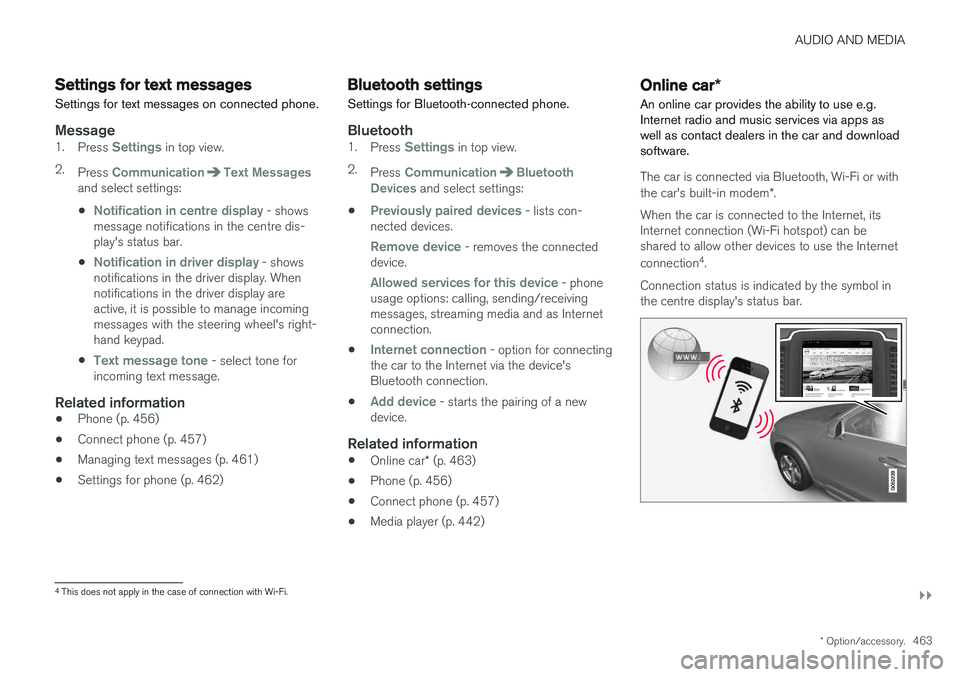
The car is connected via Bluetooth, Wi-Fi or with the car's built-in modem *.
When the car is connected to the Internet, its Internet connection (Wi-Fi hotspot) can beshared to allow other devices to use the Internet connection 4
.
Connection status is indicated by the symbol in the centre display's status bar.
4 This does not apply in the case of connection with Wi-Fi.