CD player VOLVO V90 2017 User Guide
[x] Cancel search | Manufacturer: VOLVO, Model Year: 2017, Model line: V90, Model: VOLVO V90 2017Pages: 594, PDF Size: 15.07 MB
Page 441 of 594
AUDIO AND MEDIA
439
Related information
•Radio (p. 436)
• Digital radio (p. 440)
• Voice recognition control of radio and media (p. 118)
RDS radio With RDS (Radio Data System) the radio can automatically change to the strongest transmit-ter. RDS provides the ability to receive e.g. trafficinformation and to search for certain programmetypes.
RDS links FM transmitters into a network. An FM transmitter in such a network sends informationthat gives an RDS radio the following functions:
• Switch automatically to a stronger transmitterif reception in the area is poor.
• Search for programme category, e.g. pro-gramme types or traffic information.
• Receive text information on current radioprogramme.
NOTE
Some radio stations do not use RDS or only selected parts of its functionality.
When broadcasting news or traffic messages, the radio can switch stations, interrupting the audiosource currently in use. For example, if the CDplayer is in use, it is paused. The radio returns tothe previous audio source and volume when theset programme type is no longer broadcast. To go back earlier, press
on the right-hand
steering wheel keypad or tap Cancel in the cen-
tre display.
Related information
• Radio (p. 436)
• Settings for radio (p. 441)
Page 444 of 594
AUDIO AND MEDIA
* Option/accessory.
442
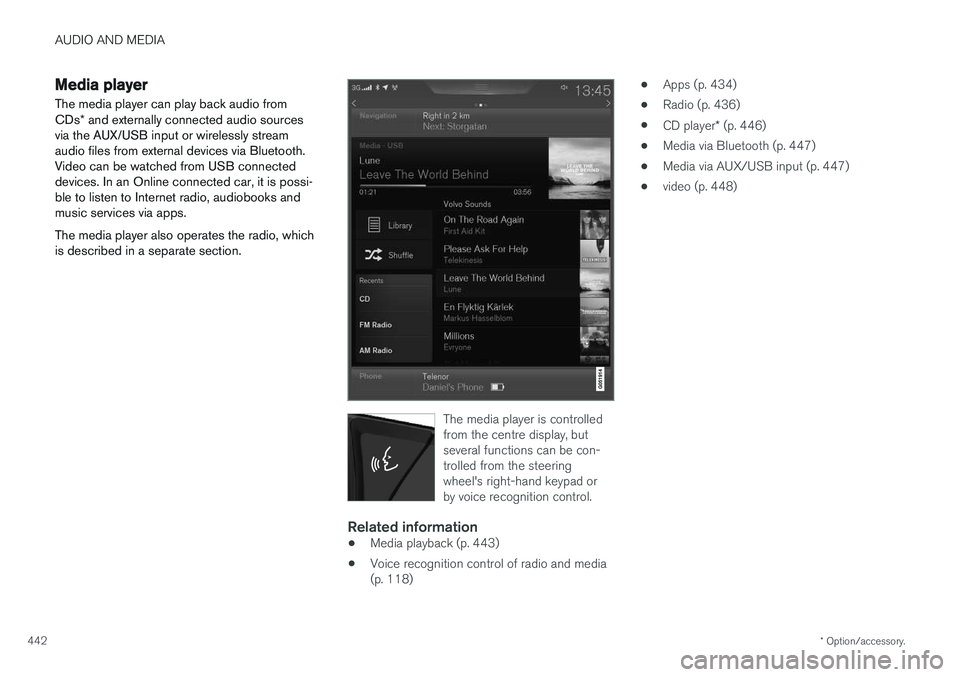
Media player
The media player can play back audio from CDs * and externally connected audio sources
via the AUX/USB input or wirelessly stream audio files from external devices via Bluetooth.Video can be watched from USB connecteddevices. In an Online connected car, it is possi-ble to listen to Internet radio, audiobooks andmusic services via apps. The media player also operates the radio, which is described in a separate section.
The media player is controlled from the centre display, butseveral functions can be con-trolled from the steeringwheel's right-hand keypad orby voice recognition control.
Related information
• Media playback (p. 443)
• Voice recognition control of radio and media (p. 118) •
Apps (p. 434)
• Radio (p. 436)
• CD player
* (p. 446)
• Media via Bluetooth (p. 447)
• Media via AUX/USB input (p. 447)
• video (p. 448)
Page 445 of 594
AUDIO AND MEDIA
}}
* Option/accessory.443
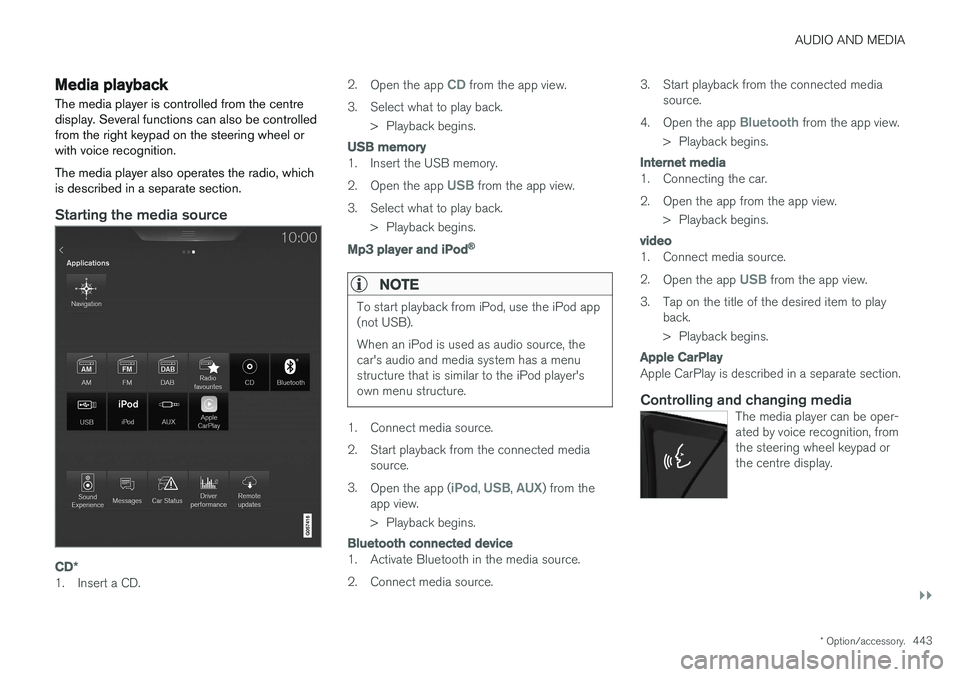
Media playback The media player is controlled from the centre display. Several functions can also be controlledfrom the right keypad on the steering wheel orwith voice recognition. The media player also operates the radio, which is described in a separate section.
Starting the media source
CD*
1. Insert a CD. 2.
Open the app
CD from the app view.
3. Select what to play back. > Playback begins.
USB memory
1. Insert the USB memory. 2.Open the app
USB from the app view.
3. Select what to play back. > Playback begins.
Mp3 player and iPod®
NOTE
To start playback from iPod, use the iPod app (not USB). When an iPod is used as audio source, the car's audio and media system has a menustructure that is similar to the iPod player'sown menu structure.
1. Connect media source.
2. Start playback from the connected media
source.
3. Open the app (
iPod, USB, AUX) from the
app view.
> Playback begins.
Bluetooth connected device
1. Activate Bluetooth in the media source.
2. Connect media source. 3. Start playback from the connected media
source.
4. Open the app
Bluetooth from the app view.
> Playback begins.
Internet media
1. Connecting the car.
2. Open the app from the app view. > Playback begins.
video
1. Connect media source. 2.Open the app
USB from the app view.
3. Tap on the title of the desired item to play back.
> Playback begins.
Apple CarPlay
Apple CarPlay is described in a separate section.
Controlling and changing mediaThe media player can be oper- ated by voice recognition, fromthe steering wheel keypad orthe centre display.
Page 446 of 594
||
AUDIO AND MEDIA
* Option/accessory.
444
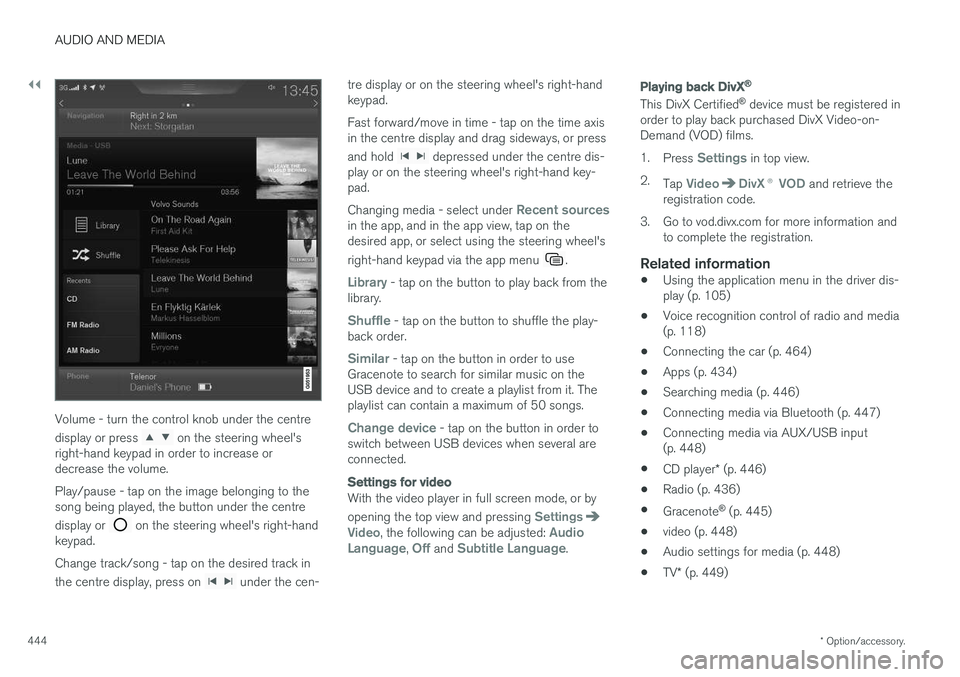
Volume - turn the control knob under the centre display or press
on the steering wheel's
right-hand keypad in order to increase or decrease the volume. Play/pause - tap on the image belonging to the song being played, the button under the centre display or
on the steering wheel's right-hand
keypad. Change track/song - tap on the desired track in the centre display, press on
under the cen- tre display or on the steering wheel's right-hand keypad. Fast forward/move in time - tap on the time axis in the centre display and drag sideways, or press and hold
depressed under the centre dis-
play or on the steering wheel's right-hand key- pad. Changing media - select under
Recent sourcesin the app, and in the app view, tap on the desired app, or select using the steering wheel's right-hand keypad via the app menu
.
Library - tap on the button to play back from the
library.
Shuffle - tap on the button to shuffle the play-
back order.
Similar - tap on the button in order to use
Gracenote to search for similar music on the USB device and to create a playlist from it. Theplaylist can contain a maximum of 50 songs.
Change device - tap on the button in order to
switch between USB devices when several are connected.
Settings for video
With the video player in full screen mode, or by opening the top view and pressing
SettingsVideo, the following can be adjusted: Audio
Language, Off and Subtitle Language.
Playing back DivX®
This DivX Certified ®
device must be registered in
order to play back purchased DivX Video-on- Demand (VOD) films. 1. Press
Settings in top view.
2. Tap
VideoDivX ® VOD and retrieve the
registration code.
3. Go to vod.divx.com for more information and to complete the registration.
Related information
• Using the application menu in the driver dis- play (p. 105)
• Voice recognition control of radio and media(p. 118)
• Connecting the car (p. 464)
• Apps (p. 434)
• Searching media (p. 446)
• Connecting media via Bluetooth (p. 447)
• Connecting media via AUX/USB input(p. 448)
• CD player
* (p. 446)
• Radio (p. 436)
• Gracenote ®
(p. 445)
• video (p. 448)
• Audio settings for media (p. 448)
• TV
* (p. 449)
Page 448 of 594
AUDIO AND MEDIA
* Option/accessory.
446
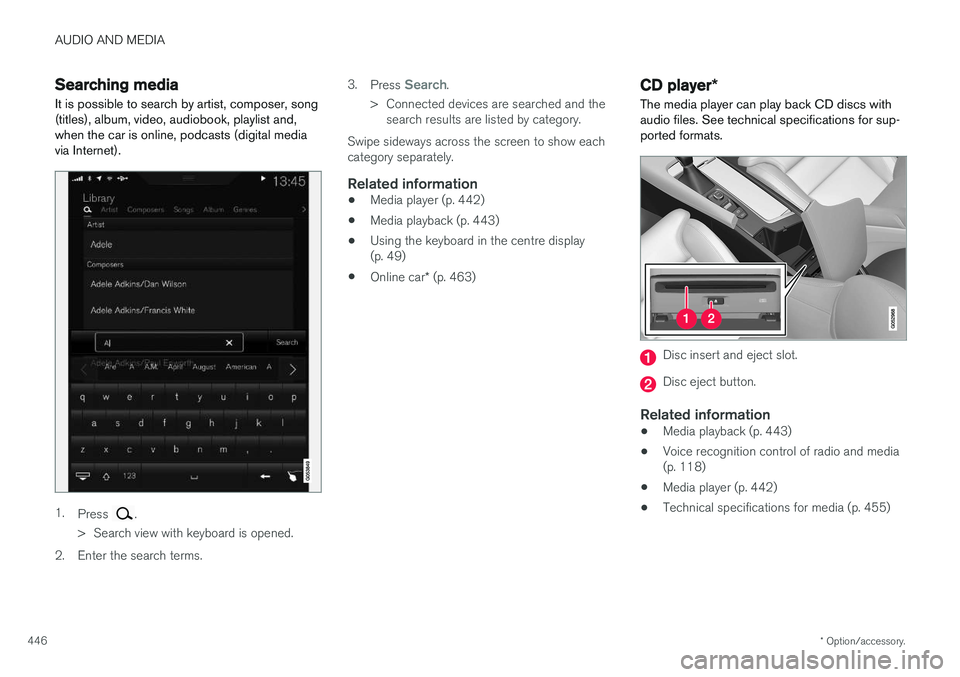
Searching media
It is possible to search by artist, composer, song (titles), album, video, audiobook, playlist and,when the car is online, podcasts (digital mediavia Internet).
1. Press .
> Search view with keyboard is opened.
2. Enter the search terms. 3.
Press
Search.
> Connected devices are searched and the search results are listed by category.
Swipe sideways across the screen to show each category separately.
Related information
• Media player (p. 442)
• Media playback (p. 443)
• Using the keyboard in the centre display(p. 49)
• Online car
* (p. 463)
CD player *
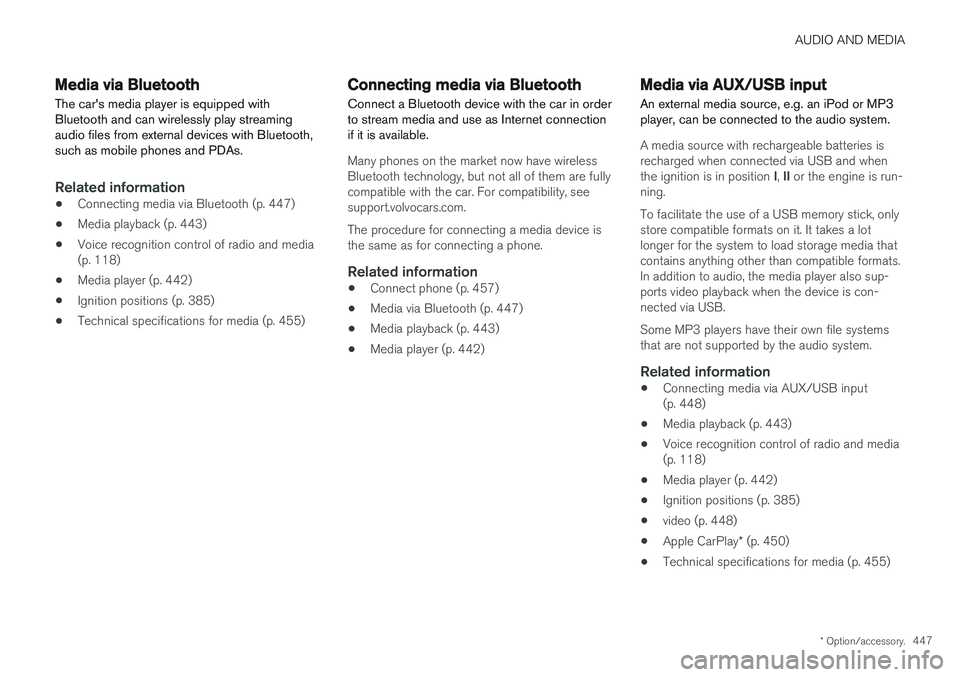
The media player can play back CD discs with audio files. See technical specifications for sup-ported formats.
Disc insert and eject slot.
Disc eject button.
Related information
• Media playback (p. 443)
• Voice recognition control of radio and media (p. 118)
• Media player (p. 442)
• Technical specifications for media (p. 455)
Page 449 of 594
AUDIO AND MEDIA
* Option/accessory.447
Media via Bluetooth The car's media player is equipped with Bluetooth and can wirelessly play streamingaudio files from external devices with Bluetooth,such as mobile phones and PDAs.
Related information
•Connecting media via Bluetooth (p. 447)
• Media playback (p. 443)
• Voice recognition control of radio and media (p. 118)
• Media player (p. 442)
• Ignition positions (p. 385)
• Technical specifications for media (p. 455)
Connecting media via Bluetooth
Connect a Bluetooth device with the car in order to stream media and use as Internet connectionif it is available.
Many phones on the market now have wireless Bluetooth technology, but not all of them are fullycompatible with the car. For compatibility, seesupport.volvocars.com. The procedure for connecting a media device is the same as for connecting a phone.
Related information
• Connect phone (p. 457)
• Media via Bluetooth (p. 447)
• Media playback (p. 443)
• Media player (p. 442)
Media via AUX/USB input An external media source, e.g. an iPod or MP3 player, can be connected to the audio system.
A media source with rechargeable batteries is recharged when connected via USB and when the ignition is in position
I, II or the engine is run-
ning. To facilitate the use of a USB memory stick, only store compatible formats on it. It takes a lotlonger for the system to load storage media thatcontains anything other than compatible formats.In addition to audio, the media player also sup-ports video playback when the device is con-nected via USB. Some MP3 players have their own file systems that are not supported by the audio system.
Related information
• Connecting media via AUX/USB input(p. 448)
• Media playback (p. 443)
• Voice recognition control of radio and media(p. 118)
• Media player (p. 442)
• Ignition positions (p. 385)
• video (p. 448)
• Apple CarPlay
* (p. 450)
• Technical specifications for media (p. 455)
Page 450 of 594
AUDIO AND MEDIA
* Option/accessory.
448
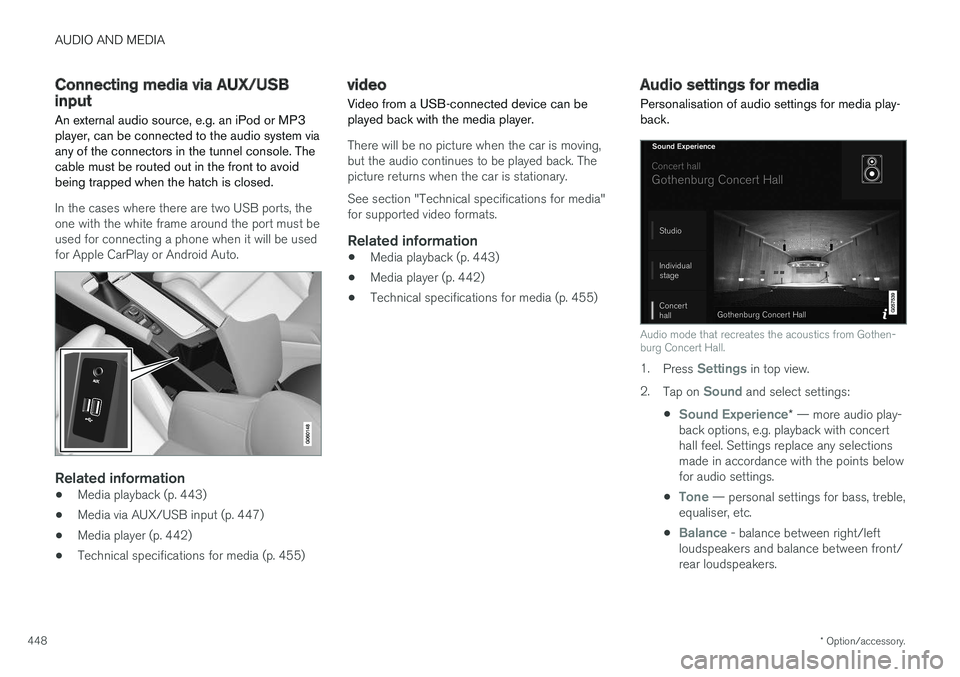
Connecting media via AUX/USB input An external audio source, e.g. an iPod or MP3 player, can be connected to the audio system viaany of the connectors in the tunnel console. Thecable must be routed out in the front to avoidbeing trapped when the hatch is closed.
In the cases where there are two USB ports, the one with the white frame around the port must beused for connecting a phone when it will be usedfor Apple CarPlay or Android Auto.
Related information
• Media playback (p. 443)
• Media via AUX/USB input (p. 447)
• Media player (p. 442)
• Technical specifications for media (p. 455)
video
Video from a USB-connected device can be played back with the media player.
There will be no picture when the car is moving, but the audio continues to be played back. Thepicture returns when the car is stationary. See section "Technical specifications for media" for supported video formats.
Related information
• Media playback (p. 443)
• Media player (p. 442)
• Technical specifications for media (p. 455)
Audio settings for media
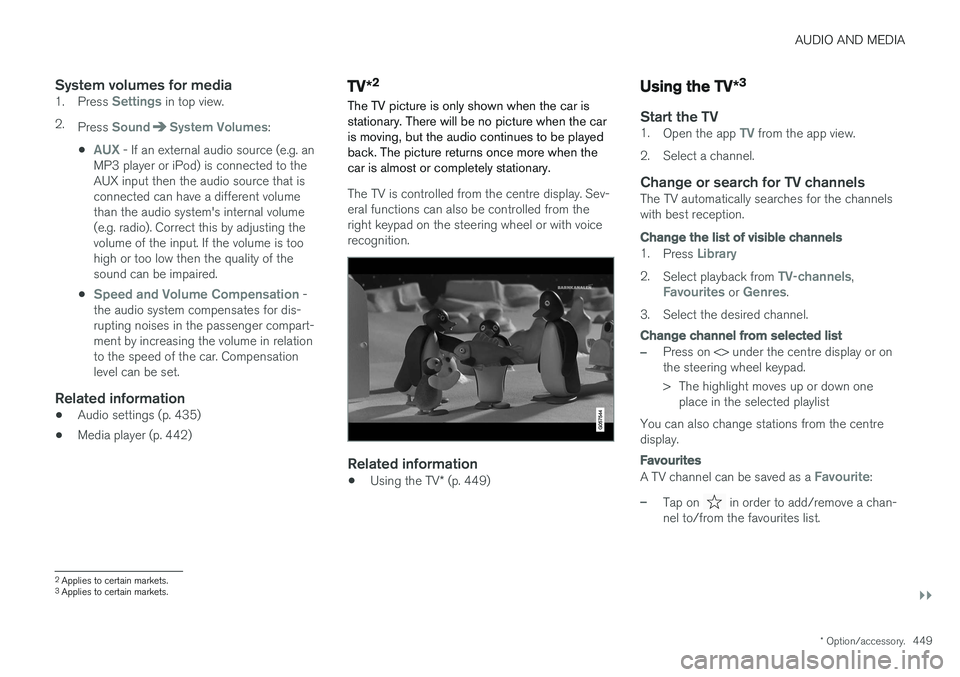
Personalisation of audio settings for media play- back.
Audio mode that recreates the acoustics from Gothen- burg Concert Hall.
1. Press Settings in top view.
2. Tap on
Sound and select settings:
•
Sound Experience* — more audio play-
back options, e.g. playback with concert hall feel. Settings replace any selectionsmade in accordance with the points belowfor audio settings.
•
Tone — personal settings for bass, treble,
equaliser, etc.
•
Balance - balance between right/left
loudspeakers and balance between front/ rear loudspeakers.
Page 451 of 594
AUDIO AND MEDIA
}}
* Option/accessory.449
System volumes for media1.
Press Settings in top view.
2. Press
SoundSystem Volumes:
•
AUX - If an external audio source (e.g. an
MP3 player or iPod) is connected to the AUX input then the audio source that isconnected can have a different volumethan the audio system's internal volume(e.g. radio). Correct this by adjusting thevolume of the input. If the volume is toohigh or too low then the quality of thesound can be impaired.
•
Speed and Volume Compensation -
the audio system compensates for dis- rupting noises in the passenger compart-ment by increasing the volume in relationto the speed of the car. Compensationlevel can be set.
Related information
• Audio settings (p. 435)
• Media player (p. 442)
TV
*2
The TV picture is only shown when the car is stationary. There will be no picture when the caris moving, but the audio continues to be playedback. The picture returns once more when thecar is almost or completely stationary.
The TV is controlled from the centre display. Sev- eral functions can also be controlled from theright keypad on the steering wheel or with voicerecognition.
Related information
• Using the TV
* (p. 449)
Using the TV *3
Start the TV1.
Open the app TV from the app view.
2. Select a channel.
Change or search for TV channelsThe TV automatically searches for the channels with best reception.
Change the list of visible channels
1. Press Library
2.Select playback from TV-channels,Favourites or Genres.
3. Select the desired channel.
Change channel from selected list
–Press on <> under the centre display or on the steering wheel keypad.
> The highlight moves up or down one place in the selected playlist
You can also change stations from the centre display.
Favourites
A TV channel can be saved as a Favourite:
–Tap on in order to add/remove a chan-
nel to/from the favourites list.
2 Applies to certain markets.
3 Applies to certain markets.
Page 452 of 594
||
AUDIO AND MEDIA
* Option/accessory.
450
TV guide
A programme guide is available with information about TV programmes for up to 48 hours.
–Tap on Guide to show information about TV
programmes.
NOTE
If the car is moved within the country, e.g. from city to city, it is not certain that
Favourites are available since the frequency
may have changed.
Change the format of the TV picture
Tapping on Picture format enables you to
choose which format the TV picture should be shown in. 1.
Auto - The TV picture is shown in the image
format being transmitted.
2.
Auto fill - The TV picture is maximised with-
out cropping.
Settings for TVThe option to make certain settings is available, both in the top view or when TV-viewing takesplace in full screen mode. With the video player in full screen mode, or by opening the top view and pressing
Settings
MediaTV, the following can be adjusted: •
Subtitle Language
•Audio Language
Related information
•
TV
* (p. 449)
• Voice recognition control of radio and media (p. 118)
• Media playback (p. 443)
• Navigating in the centre display's views(p. 40)
• License agreement for audio and media(p. 470)
Apple CarPlay
*
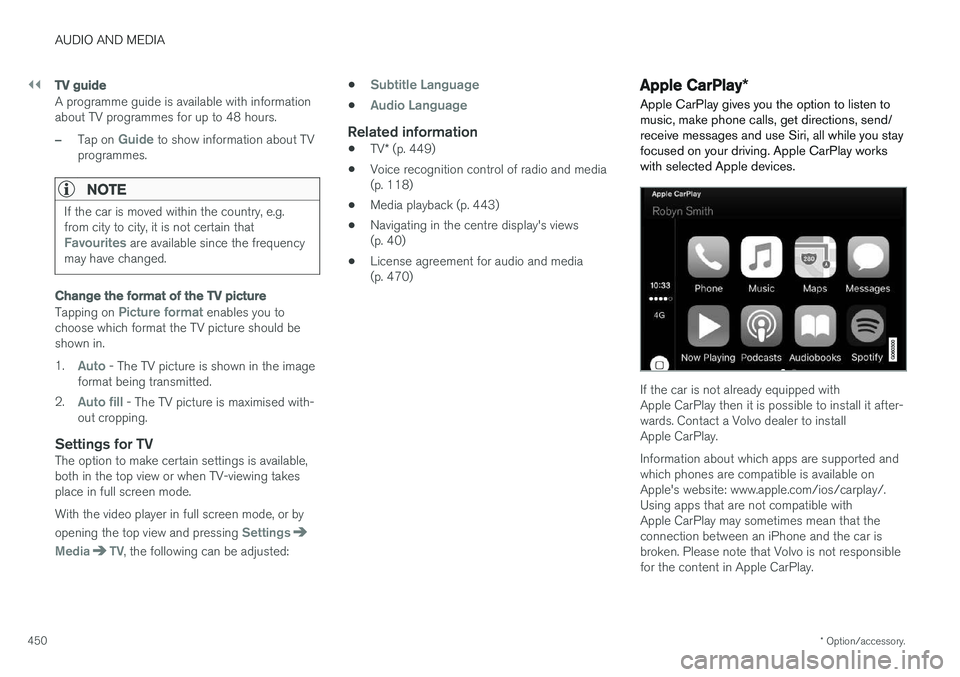
Apple CarPlay gives you the option to listen to music, make phone calls, get directions, send/receive messages and use Siri, all while you stayfocused on your driving. Apple CarPlay workswith selected Apple devices.
If the car is not already equipped with Apple CarPlay then it is possible to install it after-wards. Contact a Volvo dealer to installApple CarPlay. Information about which apps are supported and which phones are compatible is available onApple's website: www.apple.com/ios/carplay/.Using apps that are not compatible withApple CarPlay may sometimes mean that theconnection between an iPhone and the car isbroken. Please note that Volvo is not responsiblefor the content in Apple CarPlay.
Page 454 of 594
||
AUDIO AND MEDIA
* Option/accessory.
452
Switch the connection between Apple CarPlay and iPod
Apple CarPlay to iPod
1.
Press Settings in top view.
2. Press
CommunicationApple CarPlay.
3. Untick the box for the Apple device that shall no longer start Apple CarPlay automatically when the USB cable is connected.
4. Disconnect and connect the Apple device to the USB input.
5. Open the app
iPod from the app view.
iPod to Apple CarPlay
1.
Tap on Apple CarPlay in the app view.
2. Read the information in the pop-up message and then tap on
OK.
3. Disconnect and connect the Apple device to the USB input.
> The subview with Apple CarPlay is openedand compatible apps are shown.
Related information
• Media player (p. 442)
• Media playback (p. 443)
• Connecting media via AUX/USB input (p. 448)
• Settings for Apple CarPlay
* (p. 452)
• Connecting the car (p. 464)
Settings for Apple CarPlay
*
Settings for phone connected as Apple CarPlay.
Automatic start1. Press Settings in top view.
2. Press
CommunicationApple CarPlayand select setting: •Tick the box - Apple CarPlay starts auto- matically when the USB cable is con-nected.
• Untick the box - Apple CarPlay does notstart automatically when the USB cable isconnected.
A maximum of 20 Apple devices can be stored inthe list. When the list is full and a new device isconnected the oldest one is deleted. A factory reset is required in order to delete the list, see the section "Resetting settings in thesettings view".
System volumes1. Press Settings in top view.
2. Tap on
SoundSystem Volumes and
make the settings for the following:
•
Voice Control
•Navi Voice Guidance
•Phone Ringtone
Related information
• Apple CarPlay
* (p. 450)
• Resetting settings in the settings view (p. 173)