ECO mode VOLVO V90 2017 Owner's Manual
[x] Cancel search | Manufacturer: VOLVO, Model Year: 2017, Model line: V90, Model: VOLVO V90 2017Pages: 594, PDF Size: 15.07 MB
Page 165 of 594
INSTRUMENTS AND CONTROLS
}}
* Option/accessory.163
mended that the programming for the buttons is deleted when the car is sold; see the section "Programming HomeLink
®
".
Related information
• Programming HomeLink ®
* (p. 163)
Programming HomeLink ®
*32
Instructions for programming HomeLink ®
.
Programming HomeLink ®
NOTE
In certain vehicles the ignition must be switched on or in "accessory position" before HomeLink
®
can be programmed or used.
Preferably fit new batteries in the remote con-trol that will be replaced by HomeLink ®
for
faster programming and improved transmis-sion of the radio signal. The HomeLink ®
but-
tons should be reset before programming,see the heading "Resetting the HomeLink ®
buttons". When the reset is complete,HomeLink ®
is set in "learn mode" and ready
for programming.
1. Press the 33
button on HomeLink ®
you want
to program. The indicator lamp 33
on
HomeLink ®
should flash yellow once per
second. It is not necessary to hold the button depressed. 2. Aim the remote control towards the
HomeLink ®
button to be programmed and
hold it 2-8 cm from the button. Do not obstruct the indicator lamp on HomeLink ®
.
Note: Some remote controls can program
HomeLink ®
better at a distance of
15-20 cm. Bear this in mind if you encounter problems during programming.
3. Press and hold the button on the original remote control to be programmed on HomeLink ®
and keep an eye on the indicator
lamp. Do not release the button until the indicator lamp has switched from flashingyellow once per second to either flashinggreen 10 times per second or illuminating ina constant green glow. The button on theremote control can be released once theindicator lamp flashes or illuminates in green. Note: For some receivers, programming step
3 may need to be replaced with the instruc- tions in step 4.
4. Press and release the button on the original remote control every other second until theindicator lamp has changed from flashingyellow once per second to either flashinggreen 10 times per second or illuminating ina constant green glow.
32Applies to certain markets.
33 See section "HomeLink ®
*" for the location of buttons and indicator lamp.
Page 166 of 594
||
INSTRUMENTS AND CONTROLS
1645.
Depress the programmed HomeLink ®
button
and check the indicator lamp. > Constant green glow: If the indicator
lamp illuminates in a constant green glow, programming is complete . The garage
door, gate or similar should now be acti- vated when the programmed button isdepressed. Flashes green 10 times per second: Depress the button being programmed, hold it depressed for 2 seconds and then release it . Repeat the sequence of
pressing/holding/releasing a second timeand, depending on the receiver model,even a third time. Programming shouldnow be complete and the garage door,gate or similar should now be activatedwhen the programmed button isdepressed. If the receiver is still not activated: Continue with programming steps 6-8 to complete programming.
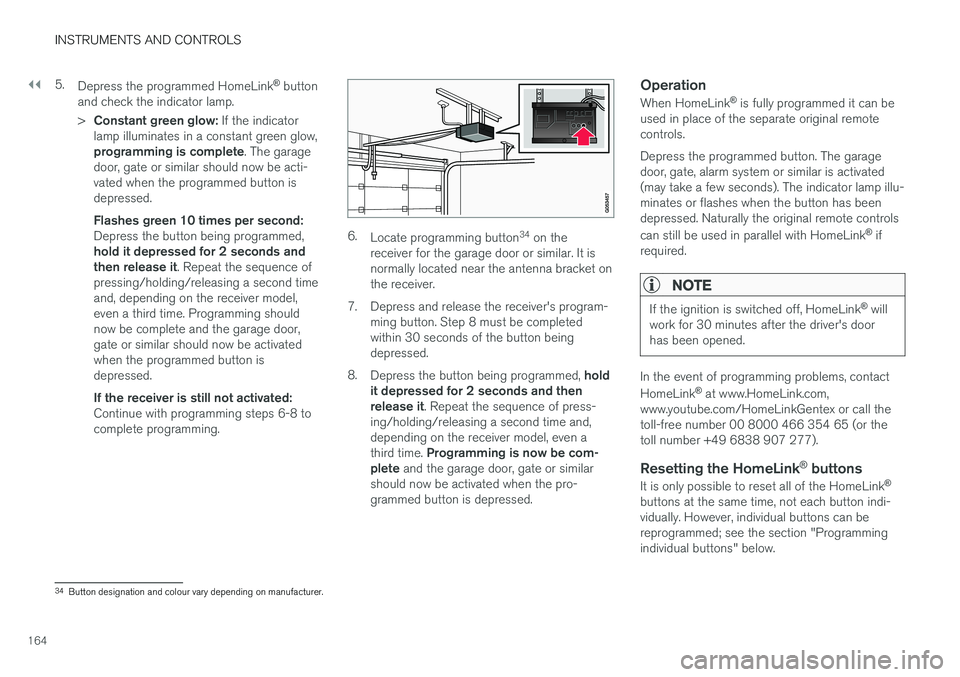
6. Locate programming button 34
on the
receiver for the garage door or similar. It is normally located near the antenna bracket onthe receiver.
7. Depress and release the receiver's program- ming button. Step 8 must be completedwithin 30 seconds of the button beingdepressed.
8. Depress the button being programmed, hold
it depressed for 2 seconds and thenrelease it . Repeat the sequence of press-
ing/holding/releasing a second time and,depending on the receiver model, even a third time. Programming is now be com-
plete and the garage door, gate or similar
should now be activated when the pro- grammed button is depressed.
Operation
When HomeLink ®
is fully programmed it can be
used in place of the separate original remotecontrols. Depress the programmed button. The garage door, gate, alarm system or similar is activated(may take a few seconds). The indicator lamp illu-minates or flashes when the button has beendepressed. Naturally the original remote controls can still be used in parallel with HomeLink ®
if
required.
NOTE
If the ignition is switched off, HomeLink ®
will
work for 30 minutes after the driver's door has been opened.
In the event of programming problems, contact HomeLink ®
at www.HomeLink.com,
www.youtube.com/HomeLinkGentex or call the toll-free number 00 8000 466 354 65 (or thetoll number +49 6838 907 277).
Resetting the HomeLink ®
buttons
It is only possible to reset all of the HomeLink ®
buttons at the same time, not each button indi-vidually. However, individual buttons can bereprogrammed; see the section "Programmingindividual buttons" below.
34 Button designation and colour vary depending on manufacturer.
Page 167 of 594
INSTRUMENTS AND CONTROLS
}}
* Option/accessory.165
1.
Depress buttons 1 and 3 on HomeLink ®
and
hold them depressed until the indicator lamp begins flashing green (about 10 seconds).
2. Release the buttons. >HomeLink ®
is now set to "learn mode"
and is ready to be reprogrammed; see the section "Programming HomeLink ®
"
above.
Programming individual buttons
To reprogram an individual HomeLink ®
button,
proceed as follows: 1. Depress the required button and do not
release .
2. After approx. 20 seconds when the indicator lamp on HomeLink ®
starts to flash yellow,
start with step 1 from the section "Program- ming HomeLink ®
" above.
Note: If the button to be reprogrammed is
not programmed with a new unit, it will resume the previously saved programming.
For more information or to provide feedback about HomeLink ®
, visit www.HomeLink.com,
www.youtube.com/HomeLinkGentex or call the toll-free number 00 8000 466 354 65 (or thetoll number +49 6838 907 277).
Related information
• HomeLink ®
* (p. 162)
Trip computer The car's trip computer records and calculates vales such as e.g. distance, fuel consumptionand average speed whilst driving.
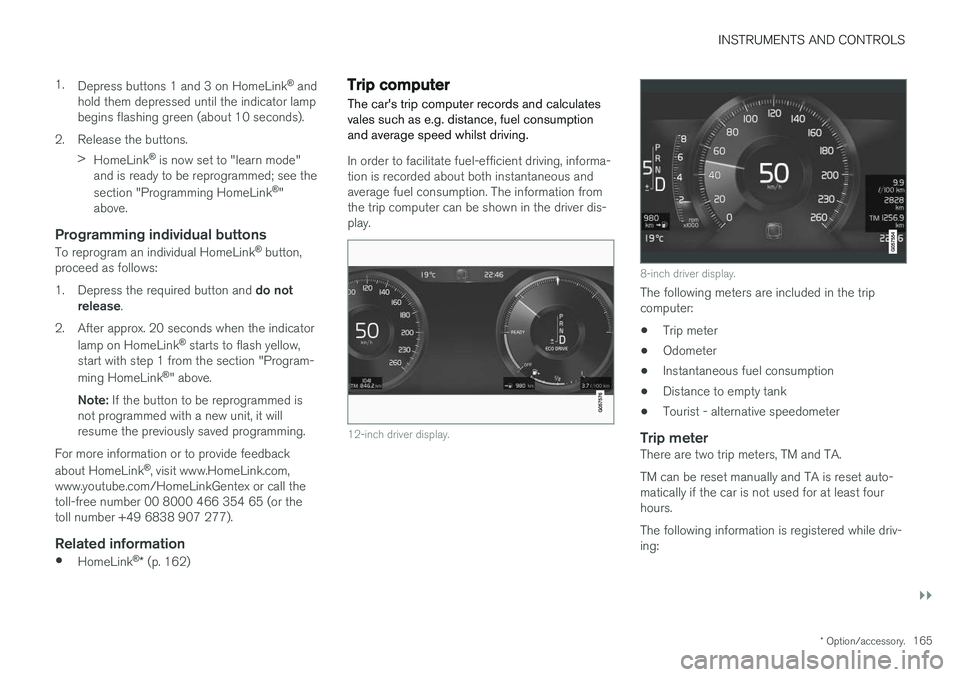
In order to facilitate fuel-efficient driving, informa- tion is recorded about both instantaneous andaverage fuel consumption. The information fromthe trip computer can be shown in the driver dis-play.
12-inch driver display.
8-inch driver display.
The following meters are included in the trip computer:
• Trip meter
• Odometer
• Instantaneous fuel consumption
• Distance to empty tank
• Tourist - alternative speedometer
Trip meterThere are two trip meters, TM and TA. TM can be reset manually and TA is reset auto- matically if the car is not used for at least fourhours. The following information is registered while driv- ing:
Page 210 of 594
||
CLIMATE CONTROL
* Option/accessory.
208 To be able to also cool the passenger compart- ment to the comfort temperature (with the car'sair conditioning) the engine remote start function Engine Remote Start - ERS
5
via the Volvo On
Call * app. can be used.
Related information
• Parking climate
* (p. 206)
• Timer for preconditioning
* (p. 208)
• Starting/switching off climate comfort reten- tion
* (p. 210)
• Symbols and messages for parking climatecontrol
* (p. 212)
• Heater
* (p. 213)
Timer for preconditioning *
The timer can be set so that the preconditioning is finished at a predetermined time.
The timer can handle up to 8 different settings for:
• A time on a single date
• A time on one or more days of the week, withor without repetition.
Related information
•
Parking climate
* (p. 206)
• Setting the timer for preconditioning
*
(p. 208)
• Activating/deactivating the timer for precon- ditioning
* (p. 210)
• Starting/stopping preconditioning
* (p. 207)
• Symbols and messages for parking climatecontrol
* (p. 212)
Setting the timer for preconditioning *
The timer for preconditioning can manage up to 8 time settings.
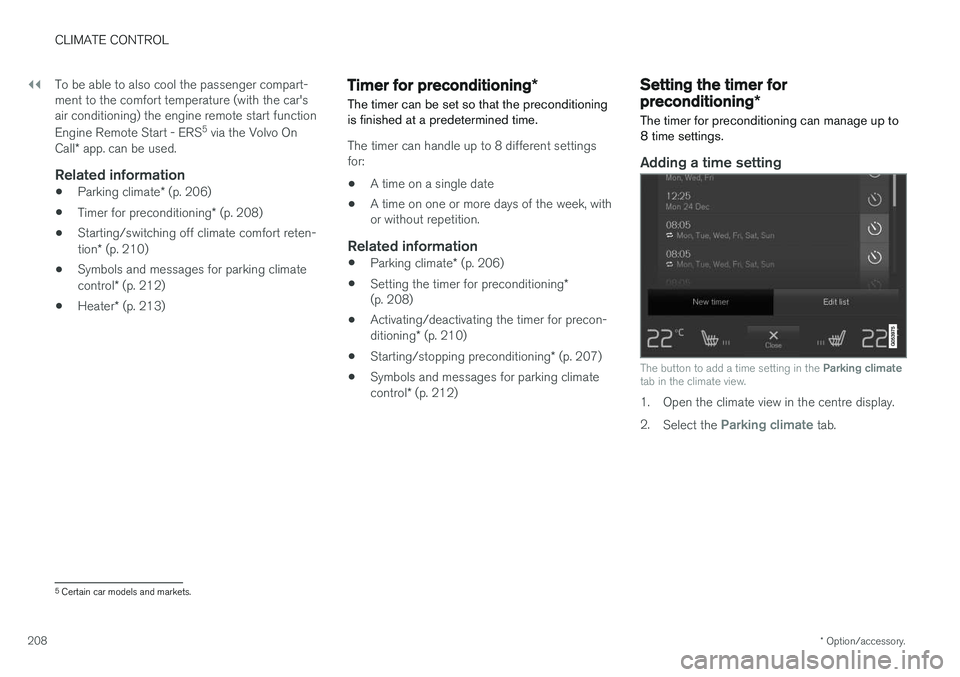
Adding a time setting
The button to add a time setting in the Parking climate
tab in the climate view.
1. Open the climate view in the centre display. 2. Select the
Parking climate tab.
5
Certain car models and markets.
Page 274 of 594
DRIVER SUPPORT
* Option/accessory.
272
Speed-dependent steering force Speed related power steering causes the steer- ing wheel force to increase with the speed of thecar in order to give the driver enhanced sensitiv-ity.
On motorways the steering feels firmer. When parking and at low speed steering is light andrequires only a slight effort.
NOTE
In certain situations the power steering may become too hot and then needs to be tempo-rarily cooled - during this time the powersteering operates with reduced power andturning the steering wheel may then be per-ceived to be slightly heavier. In parallel with the temporarily reduced steer- ing assistance, the driver display shows amessage.
Change the steering force level *To select the steering force level, go to the "Drive modes" section and see the description at thealternative INDIVIDUAL under the heading"Selectable drive modes". For the car models without a drive mode control with its INDIVIDUAL option, the selection ofsteering force is instead made via the centre dis-play's top view and the following search path:
SettingsMy CarDrive ModesSteering force
Selection of steering force is not accessible while turning is in progress.
Related information
•Drive modes
* (p. 400)
Roll Stability Control Roll Stability Control (RSC) is a stabiliser sys- tem that minimises the risk of overturning, forexample during sudden evasive manoeuvres or ifthe car skids.
The RSC system registers if and how much the car's lateral inclination changes. This informationis used to calculate the risk of the car overturn-ing. If the car is at risk, its electronic stability con-trol system engages, the engine torque isreduced and one or more wheels are braked untilthe car has regained its stability.
WARNING
Under normal driving conditions, the RSC sys- tem improves the car's road safety, but thismust not be taken as a reason to increasespeed. Always follow the normal precautionsfor safe driving.
Related information
• Electronic stability control (p. 273)
• Safety (p. 56)
Page 277 of 594
DRIVER SUPPORT
}}
275
Symbols and messages for electronic stability control
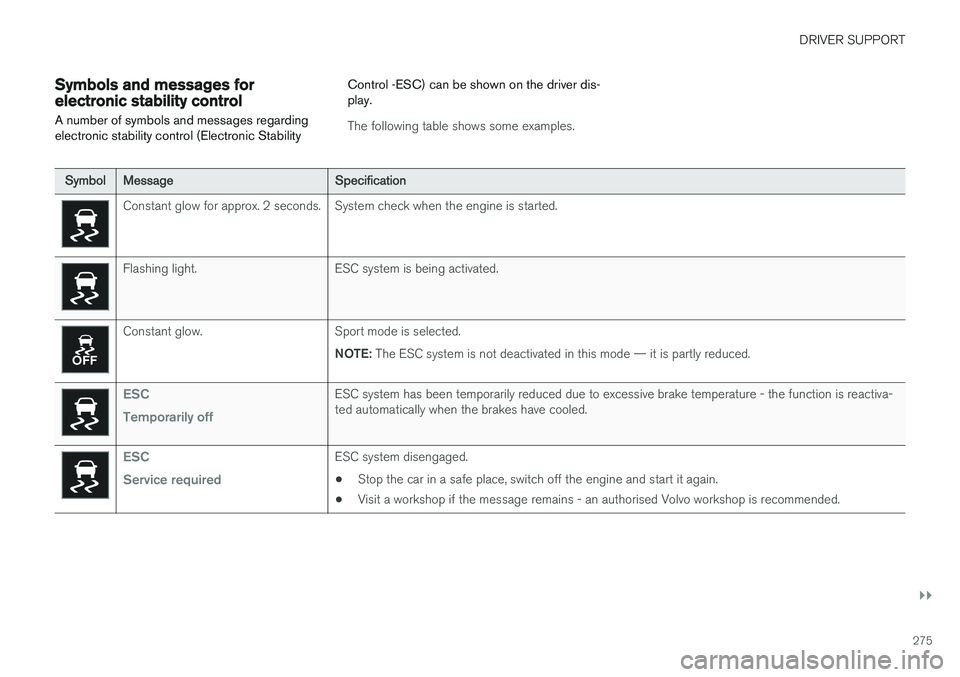
A number of symbols and messages regarding electronic stability control (Electronic Stability Control -ESC) can be shown on the driver dis-play.
The following table shows some examples.
Symbol
Message Specification
Constant glow for approx. 2 seconds. System check when the engine is started.
Flashing light. ESC system is being activated.
Constant glow. Sport mode is selected.
NOTE: The ESC system is not deactivated in this mode — it is partly reduced.
ESC Temporarily offESC system has been temporarily reduced due to excessive brake temperature - the function is reactiva- ted automatically when the brakes have cooled.
ESC Service requiredESC system disengaged.
• Stop the car in a safe place, switch off the engine and start it again.
• Visit a workshop if the message remains - an authorised Volvo workshop is recommended.
Page 283 of 594
DRIVER SUPPORT
}}
* Option/accessory.281
Automatic speed limiter *
The automatic speed limiter (Automatic Speed
Limiter - ASL) function helps the driver to adaptthe car's maximum speed to the speed shownon the road signs.
The speed limiter function (Speed Limiter — SL) can be changed to automatic speed limiter. The automatic speed limiter uses speed informa- tion from the Road Sign Information 3
function to
automatically adapt the car's maximum speed.
WARNING
The automatic speed limiter function is an aid, and does not work in all driving situations,traffic, weather and road conditions. The driveralways bears responsibility for maintaining thecorrect distance and speed, as well as whenthe automatic speed limiter is being used. Even if the driver clearly sees the speed-rela- ted road sign, the speed from the Road signinformation function many be incorrect - insuch cases the driver must intervene him/herself and accelerate or brake to a suitablespeed. See also the heading "Limitations for Road sign information".
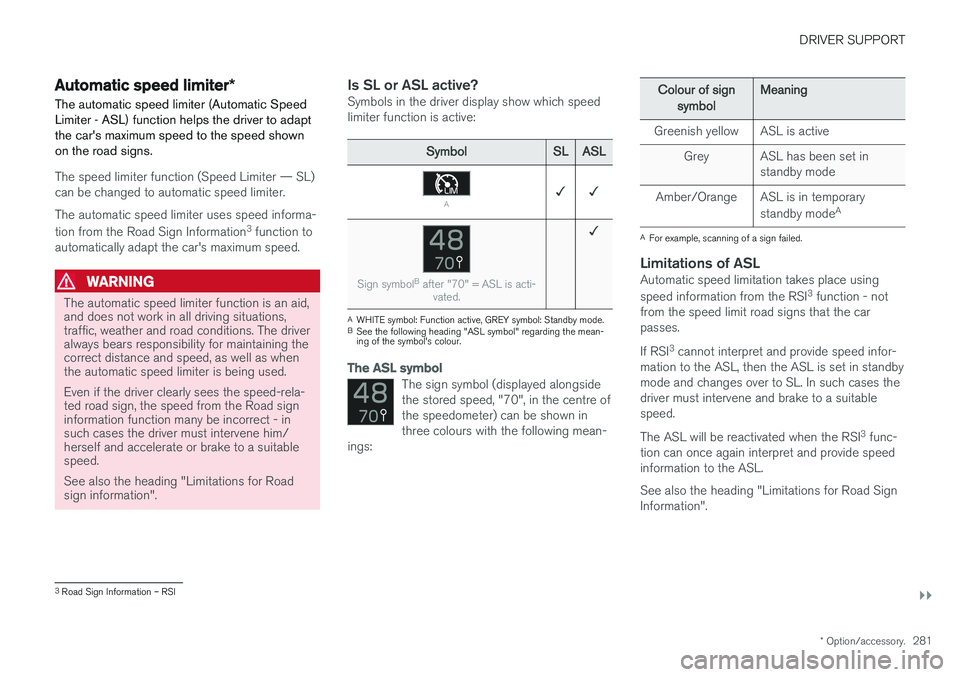
Is SL or ASL active?Symbols in the driver display show which speed limiter function is active:
Symbol SLASL
A✓ ✓
Sign symbol B
after "70" = ASL is acti-
vated.
✓
AWHITE symbol: Function active, GREY symbol: Standby mode.
B See the following heading "ASL symbol" regarding the mean- ing of the symbol's colour.
The ASL symbol
The sign symbol (displayed alongside the stored speed, "70", in the centre ofthe speedometer) can be shown inthree colours with the following mean-
ings:
Colour of sign
symbol Meaning
Greenish yellow ASL is active Grey ASL has been set in standby mode
Amber/Orange ASL is in temporary standby modeA
A
For example, scanning of a sign failed.
Limitations of ASLAutomatic speed limitation takes place using speed information from the RSI 3
function - not
from the speed limit road signs that the car passes. If RSI 3
cannot interpret and provide speed infor-
mation to the ASL, then the ASL is set in standby mode and changes over to SL. In such cases thedriver must intervene and brake to a suitablespeed. The ASL will be reactivated when the RSI 3
func-
tion can once again interpret and provide speed information to the ASL. See also the heading "Limitations for Road Sign Information".
3 Road Sign Information – RSI
Page 287 of 594
DRIVER SUPPORT
}}
285
–With the symbol/function displayed,
press the steering wheel button
(2).
> Cruise Control starts and the current speed becomes the stored speed.
NOTE
Cruise Control cannot be enabled at speeds below 30 km/h (20 mph).
Related information
• Cruise control (p. 284)
• Managing speed for the Cruise control (p. 285)
• Deactivating/reactivating the cruise control(p. 286)
• Deactivating Cruise Control (p. 287)
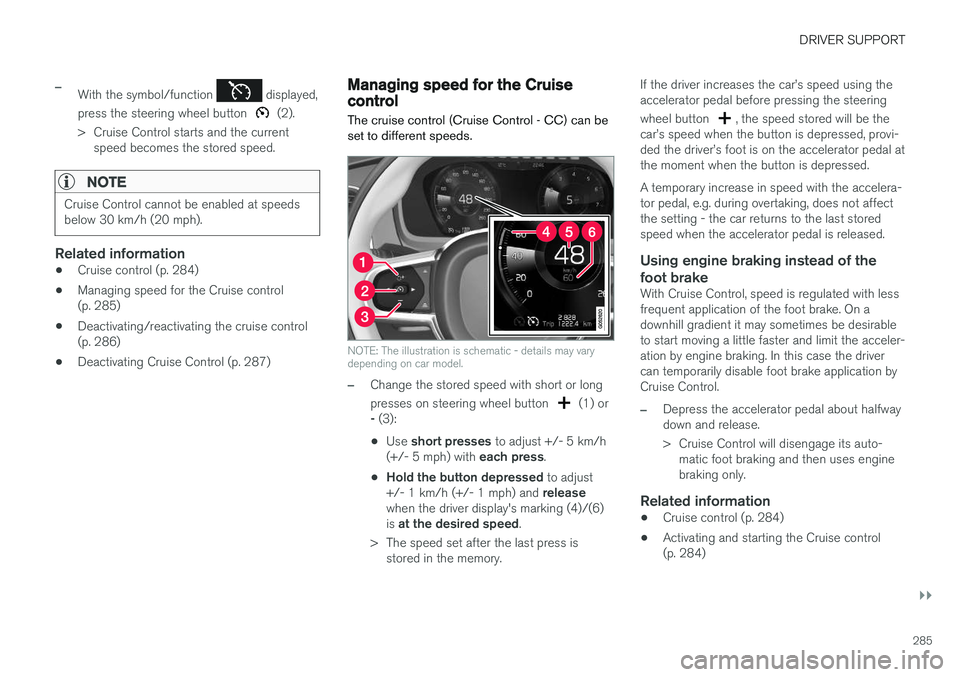
Managing speed for the Cruise control The cruise control (Cruise Control - CC) can be set to different speeds.
NOTE: The illustration is schematic - details may vary depending on car model.
–Change the stored speed with short or long presses on steering wheel button
(1) or
- (3):
• Use
short presses to adjust +/- 5 km/h
(+/- 5 mph) with each press.
• Hold the button depressed
to adjust
+/- 1 km/h (+/- 1 mph) and release
when the driver display's marking (4)/(6) is at the desired speed .
> The speed set after the last press is stored in the memory. If the driver increases the car
Page 290 of 594
DRIVER SUPPORT
* Option/accessory.
288
Distance Warning *
The Distance Warning function (Distance Alert) warns the driver if the time interval to the vehicleahead becomes too short.
Distance warning is active at speeds
above 30 km/h (20 mph) and only reacts to thevehicle ahead travelling in the same direction. Nodistance information is provided for oncoming,slow or stationary vehicles.
NOTE
Distance warning is deactivated during the time the adaptive cruise control is active.
WARNING
Distance warning only reacts if the distance to the vehicle ahead is shorter than the presetvalue - the speed of the driver's vehicle is notaffected.
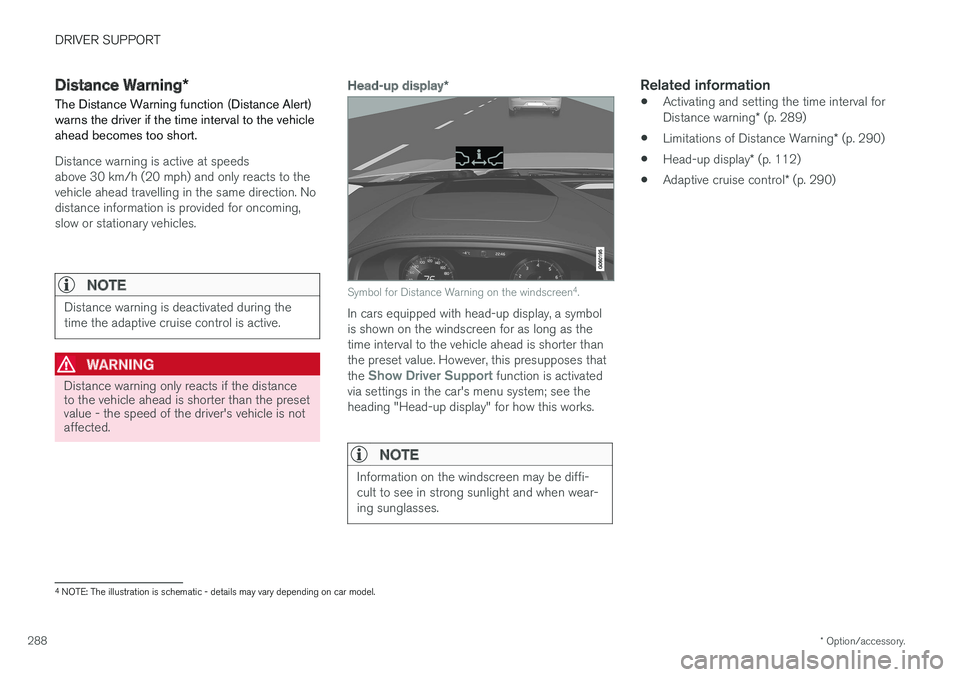
Head-up display *
Symbol for Distance Warning on the windscreen 4
.
In cars equipped with head-up display, a symbol is shown on the windscreen for as long as thetime interval to the vehicle ahead is shorter thanthe preset value. However, this presupposes that the
Show Driver Support function is activated
via settings in the car's menu system; see the heading "Head-up display" for how this works.
NOTE
Information on the windscreen may be diffi- cult to see in strong sunlight and when wear-ing sunglasses.
Related information
• Activating and setting the time interval for Distance warning
* (p. 289)
• Limitations of Distance Warning
* (p. 290)
• Head-up display
* (p. 112)
• Adaptive cruise control
* (p. 290)
4
NOTE: The illustration is schematic - details may vary depending on car model.
Page 294 of 594

||
DRIVER SUPPORT
292
Overview
Controls
Buttons and symbols for functions5
.
Increases stored speed or reactivates the adaptive cruise control and resumes storedspeed and time interval
Activate the adaptive cruise control and store the current speed or deactivate the adaptivecruise control
Reduces stored speed
Increases the time interval to vehicles ahead
Reduces the time interval to vehicles ahead
Target vehicle indicator: ACC has detected and is following a target vehicle at the presettime interval
Symbol for time interval to vehicles ahead
In cars equipped with the adaptive cruise control option, the driver can change between CC andACC - see "Change between Cruise control andadaptive cruise control".
Driver display
Indication of speeds 5
.
Stored speed
Speed of vehicle ahead.
Current speed of your car.
To see different combinations of symbols depending on traffic situation - see the heading "Symbols and messages for the adaptive cruisecontrol".
Collision risk warning
Audio and symbol for collision warning
5
Acoustic warning signal in the event of a risk of collision
Warning signal in the event of a risk of colli- sion
Distance measurement with the camera and radar unit
Adaptive Cruise Control uses approx. 40% of thecapacity of the foot brake. If the car needs to bebraked more heavily than the adaptive cruisecontrol is capable of and the driver does notbrake, the warning lamp and acoustic warning are
5 NOTE: The illustration is schematic - details may vary depending on car model.