navigation VOLVO V90 2017 Owner's Manual
[x] Cancel search | Manufacturer: VOLVO, Model Year: 2017, Model line: V90, Model: VOLVO V90 2017Pages: 594, PDF Size: 15.07 MB
Page 172 of 594
||
INSTRUMENTS AND CONTROLS
170
Types of settings
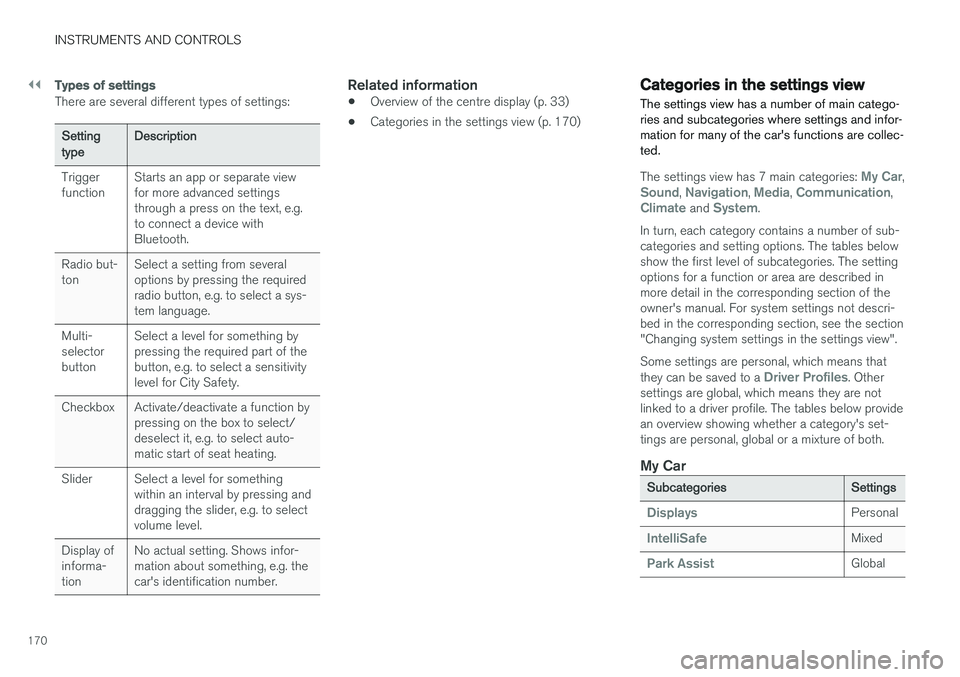
There are several different types of settings:
Setting typeDescription
Trigger function Starts an app or separate viewfor more advanced settingsthrough a press on the text, e.g.to connect a device withBluetooth.
Radio but-ton Select a setting from severaloptions by pressing the requiredradio button, e.g. to select a sys-tem language.
Multi-selectorbutton Select a level for something bypressing the required part of thebutton, e.g. to select a sensitivitylevel for City Safety.
Checkbox Activate/deactivate a function by pressing on the box to select/deselect it, e.g. to select auto-matic start of seat heating.
Slider Select a level for something within an interval by pressing anddragging the slider, e.g. to selectvolume level.
Display ofinforma-tion No actual setting. Shows infor-mation about something, e.g. thecar's identification number.
Related information
•
Overview of the centre display (p. 33)
• Categories in the settings view (p. 170)
Categories in the settings view The settings view has a number of main catego- ries and subcategories where settings and infor-mation for many of the car's functions are collec-ted.
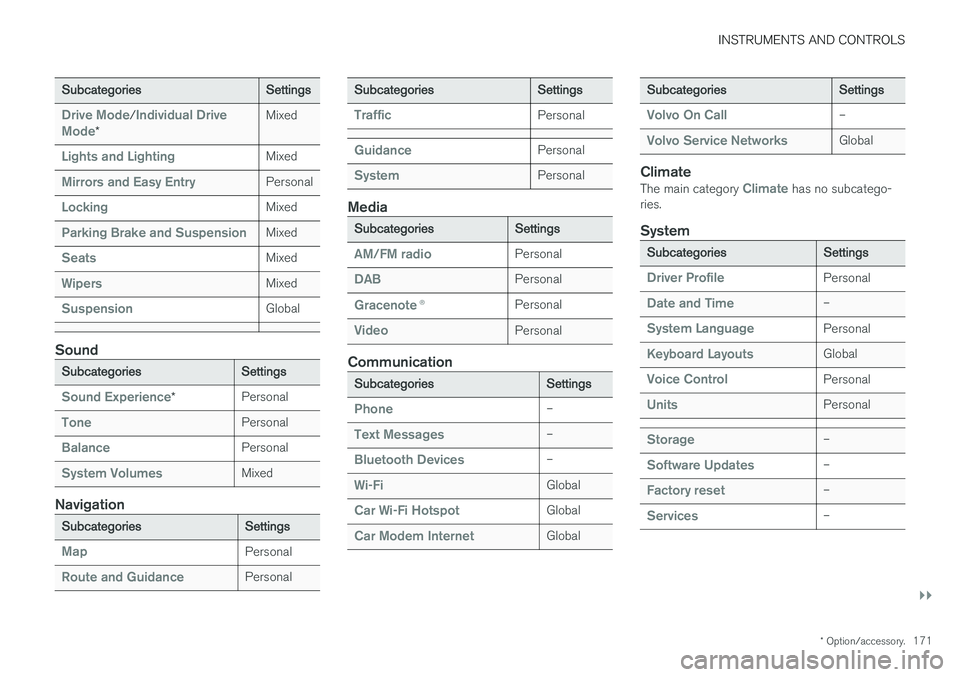
The settings view has 7 main categories: My Car,Sound, Navigation, Media, Communication,Climate and System.
In turn, each category contains a number of sub- categories and setting options. The tables belowshow the first level of subcategories. The settingoptions for a function or area are described inmore detail in the corresponding section of theowner's manual. For system settings not descri-bed in the corresponding section, see the section"Changing system settings in the settings view". Some settings are personal, which means that they can be saved to a
Driver Profiles. Other
settings are global, which means they are not linked to a driver profile. The tables below providean overview showing whether a category's set-tings are personal, global or a mixture of both.
My Car
Subcategories Settings
DisplaysPersonal
IntelliSafeMixed
Park AssistGlobal
Page 173 of 594
INSTRUMENTS AND CONTROLS
}}
* Option/accessory.171
Subcategories Settings
Drive Mode/Individual Drive
Mode* Mixed
Lights and LightingMixed
Mirrors and Easy EntryPersonal
LockingMixed
Parking Brake and SuspensionMixed
SeatsMixed
WipersMixed
SuspensionGlobal
Sound
Subcategories
Settings
Sound Experience*Personal
TonePersonal
BalancePersonal
System VolumesMixed
Navigation
Subcategories
Settings
MapPersonal
Route and GuidancePersonal
SubcategoriesSettings
TrafficPersonal
GuidancePersonal
SystemPersonal
Media
SubcategoriesSettings
AM/FM radioPersonal
DABPersonal
Gracenote®Personal
VideoPersonal
Communication
Subcategories Settings
Phone–
Text Messages–
Bluetooth Devices–
Wi-FiGlobal
Car Wi-Fi HotspotGlobal
Car Modem InternetGlobal
SubcategoriesSettings
Volvo On Call–
Volvo Service NetworksGlobal
ClimateThe main category Climate has no subcatego-
ries.
System
Subcategories Settings
Driver ProfilePersonal
Date and Time–
System LanguagePersonal
Keyboard LayoutsGlobal
Voice ControlPersonal
UnitsPersonal
Storage–
Software Updates–
Factory reset–
Services–
Page 176 of 594
INSTRUMENTS AND CONTROLS
174
Driver profiles
Many of the settings made in the car can be adapted according to the driver's personal pref-erences and can be saved in one or more driverprofiles.
The personal settings are automatically saved in the active driver profile. Each key can be linked toa driver profile. When the linked key is used, thecar is adapted to the settings of that specificdriver profile.
What settings are saved in the driver profiles?
Many of the settings made in the car will be auto-matically saved in the active driver profile if theprofile is not locked; see the section "Editing adriver profile". Settings made in the car are eitherpersonal or global. Only personal settings aresaved in driver profiles. Settings that can be saved in a driver profile include, amongst other things, screens, mirrors,front seats, navigation, audio and media system,language and voice control. Some settings, referred to as global settings, can be changed but are not saved to a specific driverprofile. Changes to global settings affect all pro-files.
Global settings
The global settings and parameters are not changed when changing between driver profiles. They remain the same regardless of which driverprofile is active. Keyboard layout settings are an example of global settings. If driver profile X is used to addadditional languages to the keyboard, theseremain available for use even if driver profile Y isused. The keyboard layout settings are not savedto a specific driver profile - the settings areglobal.
Personal preferences
If driver profile X was used to e.g. set centre dis- play brightness, driver profile Y is not affected bythis setting. It has been saved to driver profile X -the brightness setting is a personal setting. Refer to the section "Categories in the settings view" for more information on which settings arepersonal and which are global.
Related information
•
Editing a driver profile (p. 175)
• Categories in the settings view (p. 170)
• Selecting driver profile (p. 174)
Selecting driver profile
The last used driver profile is the one selected when the car is unlocked. It is possible tochange to another driver profile after the car hasbeen unlocked.
When the centre display has been started, the selected driver profile is shown at the top of thescreen. The driver profile last used is the one thatwill be active next time the car is unlocked. How-ever, if the remote control key has been linked toa driver profile then this is what is selected whenthe car is started. See "Linking remote controlkey to driver profile". There are two options for changing to another driver profile. Option 1:
1. Tap on the name of the driver profile shown in the top of the centre display when the dis- play has been started.
> A list of selectable driver profiles is shown.
2. Select the driver profile required. 3. Press
Confirm.
> The driver profile is selected and the sys- tem loads the settings for the new driver profile.
Option 2:
1. Drag down the top view in the centre display.
Page 351 of 594
DRIVER SUPPORT
}}
* Option/accessory.349
Besides the speed limit symbol an additional sign may beshown as well, such as "noovertaking".
If the driver enters a road marked with a no-entry sign atthe roadside, the symbol forthis sign flashes on and off onthe driver display as a warning.
If the car is equipped with Sensus Navigation
*
then information from the map is also used to determine whether the car is being driven in thewrong direction. The driver can also get an acoustic warning when driving towards a no-entry entrance if the
Audio
Warning function is activated - see the heading
"Activating/deactivating the acoustic warning" in the section "Activating/deactivating Road SignInformation".
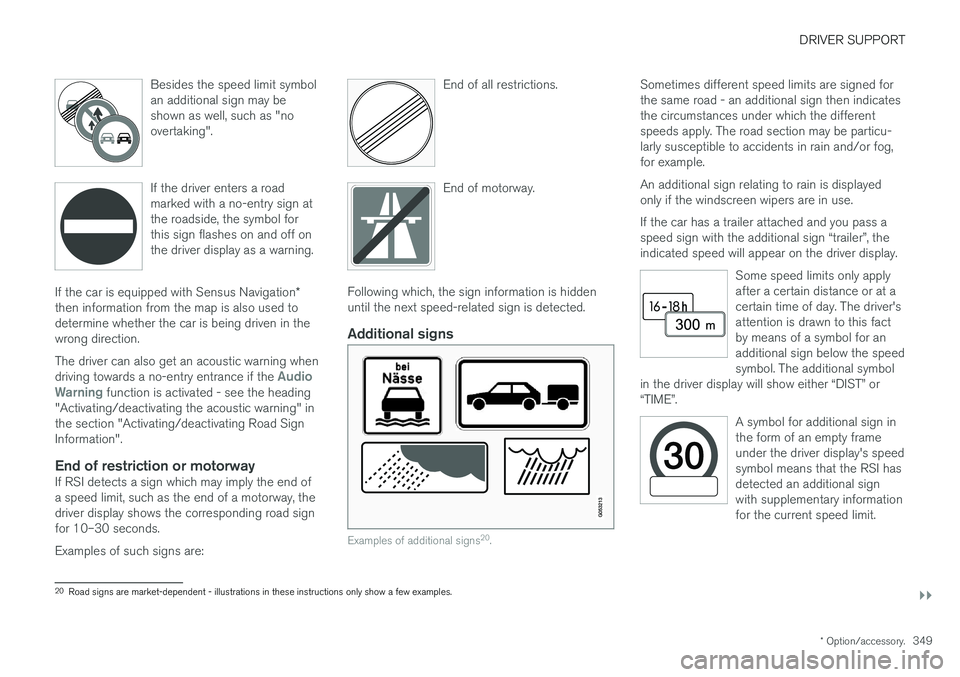
End of restriction or motorwayIf RSI detects a sign which may imply the end ofa speed limit, such as the end of a motorway, thedriver display shows the corresponding road signfor 10–30 seconds. Examples of such signs are: End of all restrictions.
End of motorway.
Following which, the sign information is hidden until the next speed-related sign is detected.
Additional signs
Examples of additional signs
20
.
Sometimes different speed limits are signed for the same road - an additional sign then indicatesthe circumstances under which the differentspeeds apply. The road section may be particu-larly susceptible to accidents in rain and/or fog,for example. An additional sign relating to rain is displayed only if the windscreen wipers are in use. If the car has a trailer attached and you pass a speed sign with the additional sign “trailer”, theindicated speed will appear on the driver display.
Some speed limits only applyafter a certain distance or at acertain time of day. The driver'sattention is drawn to this factby means of a symbol for anadditional sign below the speedsymbol. The additional symbol
in the driver display will show either “DIST” or“TIME”.
A symbol for additional sign in the form of an empty frameunder the driver display's speedsymbol means that the RSI hasdetected an additional signwith supplementary informationfor the current speed limit.
20 Road signs are market-dependent - illustrations in these instructions only show a few examples.
Page 352 of 594
||
DRIVER SUPPORT
* Option/accessory.
350
Sensus NavigationIf the car is equipped with Sensus Navigation, speed information is read from the navigationunit in the following cases:
• On detecting signs that indirectly indicate aspeed limit, such as motorway, dual carriage-way and city limit signs.
• If a previously detected sign is assumed notto apply any longer, but no new sign hasbeen detected.
NOTE
If a downloaded third-party app is used for navigation then there is no support for speed-related information.
Sign for "School" and "Children at play"
If the warning sign for "School" or "Children at play" is includedin the satellite navigator's mapdata, the driver display shows a sign20
of this type.
Related information
• Road Sign Information
* (p. 348)
• Activating/deactivating Road Sign Informa- tion (p. 351)
Speed camera information
*
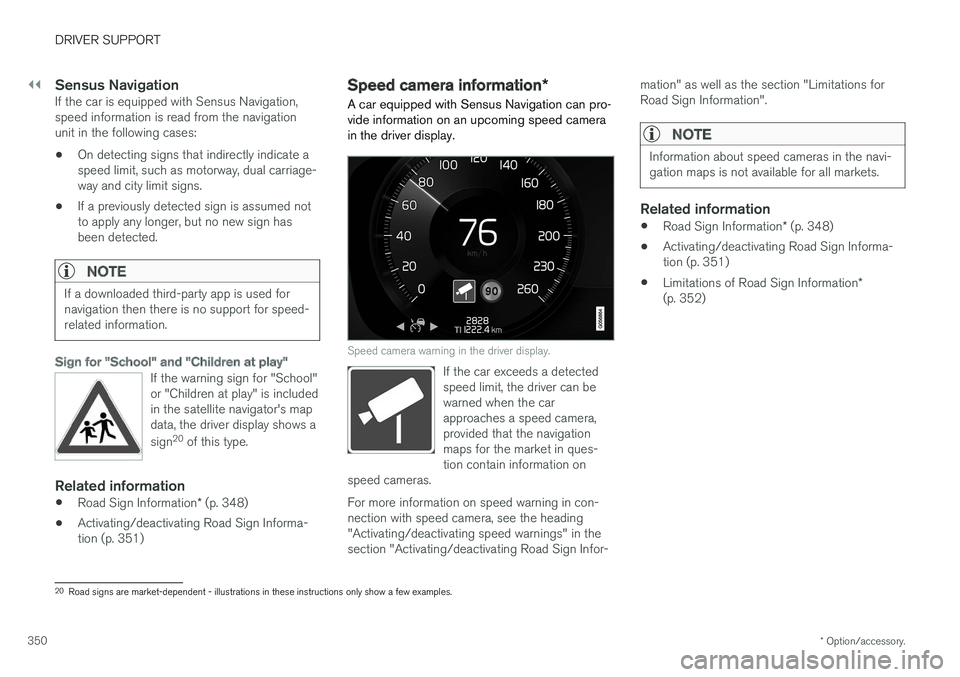
A car equipped with Sensus Navigation can pro- vide information on an upcoming speed camerain the driver display.
Speed camera warning in the driver display.
If the car exceeds a detected speed limit, the driver can bewarned when the carapproaches a speed camera,provided that the navigationmaps for the market in ques-tion contain information on
speed cameras.
For more information on speed warning in con- nection with speed camera, see the heading"Activating/deactivating speed warnings" in thesection "Activating/deactivating Road Sign Infor- mation" as well as the section "Limitations forRoad Sign Information".
NOTE
Information about speed cameras in the navi- gation maps is not available for all markets.
Related information
•
Road Sign Information
* (p. 348)
• Activating/deactivating Road Sign Informa- tion (p. 351)
• Limitations of Road Sign Information
*
(p. 352)
20 Road signs are market-dependent - illustrations in these instructions only show a few examples.
Page 387 of 594
STARTING AND DRIVING
}}
385
Ignition positions The car's electrical system can be set in different levels/positions and in this way make the differ-ent functions available.
In order to facilitate the use of a limited number of functions with the engine switched off, thecar's electrical system can be set in 3 different levels - 0, I and II. These levels are described
with the denomination "ignition position" throughout the owner's manual. The following table shows the functions available in each ignition position/level:
Level Functions
0 •Odometer, clock and temperature gauge are illuminated.
• Power seats can be adjusted.
• The power windows can be used.
• The centre display is started andcan be used.
• It is possible to start the audio.
The functions are time-controlled inthis ignition position and are switchedoff automatically after a period of time.
I •Panorama roof, power windows,12V socket in the passenger com-partment, navigation, phone, venti-lation fan and windscreen wiperscan be used.
• Power seats can be adjusted.
• 12 V sockets in the cargo areacan be used.
• The audio is started automaticallyif it was running when the car wasleft.
Power is taken from the battery inthis ignition position.Level Functions
II •The headlamps come on.
• Warning/indicator lamps illuminate for 5 seconds.
• Several other systems are acti-vated. However, heating in seatcushions and the rear window canonly be activated after the car hasbeen started.
This ignition position consumes alot of current from the battery andshould therefore be avoided!
Selecting ignition position
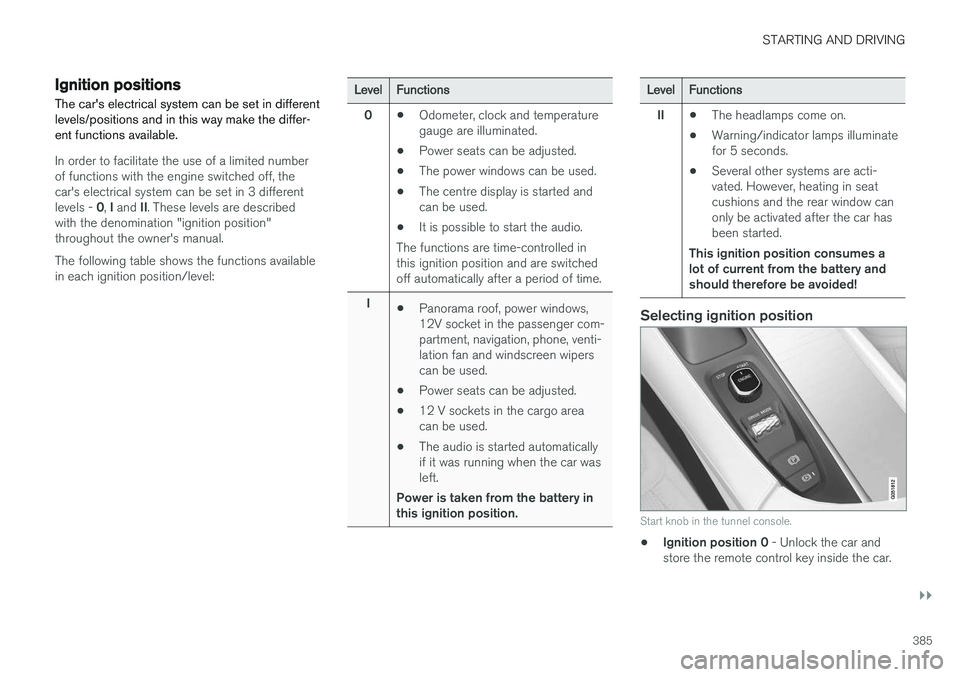
Start knob in the tunnel console.
• Ignition position 0
- Unlock the car and
store the remote control key inside the car.
Page 453 of 594
AUDIO AND MEDIA
}}
* Option/accessory.451
When using map navigation via Apple CarPlay there is no guidance in the driver display or head-up display, but only in the centre display. The Apple CarPlay apps can be controlled via the centre display, mobile phone or with the steeringwheel's right-hand keypad (applies to certainfunctions). The apps can also be voice-controlledusing Siri. A long press on the steering wheel button
starts voice control using Siri and a
short press activates the car's own voice control. If Siri breaks off too early, hold the steering wheel button
depressed.
By using Apple CarPlay you acknowledge the following: Apple CarPlay is a serviceprovided by Apple Inc. under its terms andconditions. Volvo Cars is thus notresponsible for Apple CarPlay or itsfeatures/applications. When using AppleCarPlay, certain information from your car(including its position) is transferred to youriPhone. In relation to Volvo Cars, you arefully responsible for your and any othersperson
Page 455 of 594
AUDIO AND MEDIA
}}
* Option/accessory.453
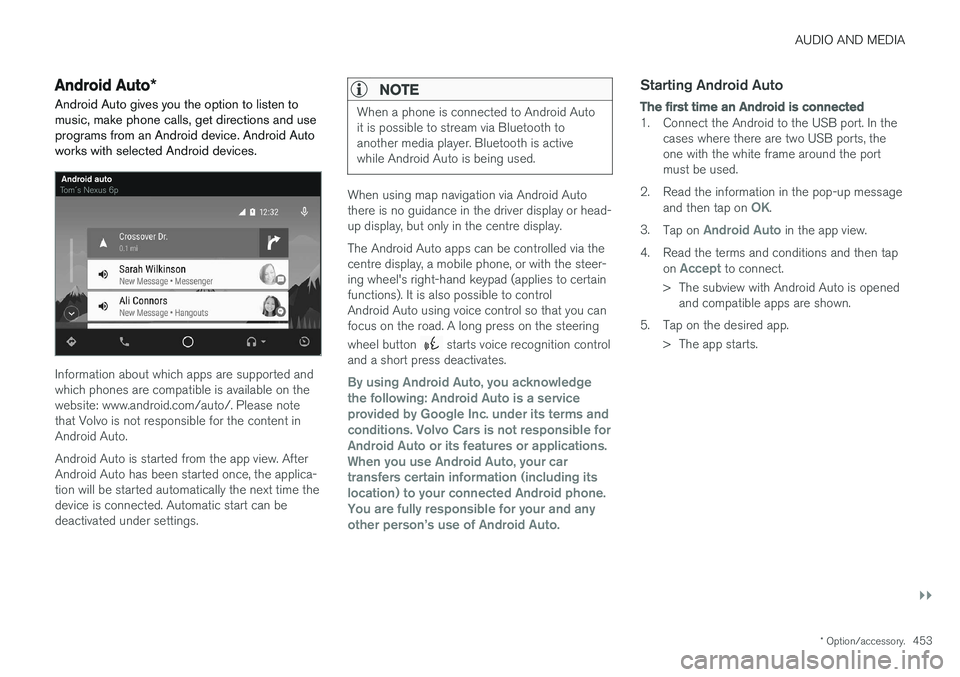
Android Auto *
Android Auto gives you the option to listen to music, make phone calls, get directions and useprograms from an Android device. Android Autoworks with selected Android devices.
Information about which apps are supported and which phones are compatible is available on thewebsite: www.android.com/auto/. Please notethat Volvo is not responsible for the content inAndroid Auto. Android Auto is started from the app view. After Android Auto has been started once, the applica-tion will be started automatically the next time thedevice is connected. Automatic start can bedeactivated under settings.
NOTE
When a phone is connected to Android Auto it is possible to stream via Bluetooth toanother media player. Bluetooth is activewhile Android Auto is being used.
When using map navigation via Android Auto there is no guidance in the driver display or head-up display, but only in the centre display. The Android Auto apps can be controlled via the centre display, a mobile phone, or with the steer-ing wheel's right-hand keypad (applies to certainfunctions). It is also possible to controlAndroid Auto using voice control so that you canfocus on the road. A long press on the steering wheel button
starts voice recognition control
and a short press deactivates.
By using Android Auto, you acknowledge the following: Android Auto is a serviceprovided by Google Inc. under its terms andconditions. Volvo Cars is not responsible forAndroid Auto or its features or applications.When you use Android Auto, your cartransfers certain information (including itslocation) to your connected Android phone.You are fully responsible for your and anyother person
Page 477 of 594
AUDIO AND MEDIA
}}
475
Country/ Area EU:
Exporting country: Japan Manufacturer: Mitsubishi Electric CorporationType of equipment: Audio Navigation UnitHereby, Mitsubishi Electric Corporation declares that this Audio Navigation Unit is in compliance with the essential requirements and other relevant provisions of Directive 1999/5/EG.
Page 508 of 594
MAINTENANCE AND SERVICE
* Option/accessory.
506
Volvo service programme
To keep the car as safe and reliable as possible, follow the Volvo service programme as specifiedin the Service and Warranty Booklet.
Volvo recommends engaging an authorised Volvo workshop to perform the service and mainte-nance work. Volvo workshops have the personnel,special tools and service literature to guaranteethe highest quality of service.
IMPORTANT
For the Volvo warranty to apply, check and follow the instructions in the Service andWarranty Booklet.
Related information
• Servicing the climate control system (p. 520)
• Book service and repair (p. 506)
Car status The car's general status can be shown in the centre display along with the opportunity to bookservice.
The Car status app is started
from app view in the centre dis- play and has three tabs:
•Messages - saved status messages
•
Status - check of tyre pressure and engine
oil level
•
Appointments - booking of service and
repair work.
Related information
• Managing messages saved from the driver display and centre display (p. 110)
• Checking tyre pressure with the tyre monitor- ing system
* (p. 487)
• Checking and filling with engine oil (p. 517)
• Book service and repair (p. 506)
Book service and repair 1
Manage service, repair and booking information directly from your online car. The information is handled in the
Car statusapp, which is opened from the app view in the centre display.
This service provides, for certain markets, a con- venient way to book service and workshop visitsdirectly from your car. Vehicle data is sent to yourdealer, who can prepare the workshop visit. Thedealer will get back to you with a booking sug-gestion. For certain markets, the system willremind you of a scheduled appointment time as it approaches and the navigation system 2
can also
guide you to the workshop when the time comes. You also have information on your dealer availa-ble in the car and can contact your workshop atany time.
Before the service can be used
Volvo ID
• Create a Volvo ID, see section "Volvo ID".
• Register the Volvo ID for your car, see sec- tion "Volvo ID". If a Volvo ID already exists,use the same e-mail address that was usedwhen the Volvo ID was created.
1
Applies to certain markets.
2 Applies to Sensus Navigation *.