USB VOLVO V90 2017 Owners Manual
[x] Cancel search | Manufacturer: VOLVO, Model Year: 2017, Model line: V90, Model: VOLVO V90 2017Pages: 594, PDF Size: 15.07 MB
Page 6 of 594
4
Adapting the beam pattern from the headlamps141
Front fog lamps/cornering lights *
142
Rear fog lamp 142
Brake lights 143
Hazard warning flashers 143
Using direction indicators 144
Passenger compartment lighting 145
Home safe light duration 148
Approach light duration 148
Using windscreen wipers 148
Activating/deactivating the rain sensor 149
Windscreen and headlamp washers 150
Rear window wiper and washer 151
Power windows 151
Operating power windows 152
Using the sun blind *
153
Adjusting the door mirrors 153
Interior rearview mirror 155
Compass *
156
Calibrating the compass *
157
Panorama roof *
158
Operating the panorama roof *
159
HomeLink ®
* 162
Programming HomeLink®
* 163
Trip computer 165
Show trip data in the driver display 166
Show trip statistics in the centre display 168
Settings view 169
Categories in the settings view 170
Changing system settings in the set- tings view 172
Resetting settings in the settings view 173
Driver profiles 174
Selecting driver profile 174
Editing a driver profile 175
Linking remote control key to driverprofile 176
Importing/exporting a driver profilefrom/to USB 177
Changing settings for apps 178
Resetting user data for change ofownership 179
CLIMATE CONTROL
Climate control
182
Climate control - sensors 183
Perceived temperature 183
Air quality 184
Passenger compartment filter 185
Clean Zone Interior Package *
185
Interior Air Quality System *
185
Climate controls 186
Climate controls in the centre display 187
Climate controls at the rear of the tunnel console * 188
Auto-regulating the climate 189
Activating/deactivating air conditioning 190
Regulating the temperature 190
Regulating the fan level 193
Activating/deactivating defrost of windows and door mirrors 194
Activating/deactivating air recirculation 196
Air distribution 197
Changing the air distribution 198
Opening/closing and aiming the air vents 199
Table of air distribution options 201
Activating/deactivating heating of the seats * 203
Activating/deactivating ventilation ofthe seats * 204
Page 11 of 594
9
AUDIO AND MEDIA
Audio and media434
Apps 434
Audio settings 435
Radio 436
Changing and searching radio stations 436
RDS radio 439
Digital radio 440
Linking between different radio bands FM and DAB 440
Settings for radio 441
Media player 442
Media playback 443
Gracenote ®
445
Searching media 446
CD player *
446
Media via Bluetooth 447
Connecting media via Bluetooth 447
Media via AUX/USB input 447
Connecting media via AUX/USB input 448
video 448
Audio settings for media 448
TV *
449
Using the TV *
449
Apple CarPlay *
450
Using Apple CarPlay*
451
Settings for Apple CarPlay *
452
Android Auto *
453
Settings for Android Auto *
454
Technical specifications for media 455
Phone 456
Connect phone 457
Connecting/disconnecting the phone 458
Managing phone calls 459
Managing text messages 461
Managing the phone book 462
Settings for phone 462
Settings for text messages 463
Bluetooth settings 463
Online car *
463
Connecting the car 464
Sharing Internet via Wi-Fi hotspot 465
No or poor connection 466
Remove Wi-Fi network 467
Wi-Fi technologies and security 467
Settings for car modem *
468
Downloading, updating and uninstal- ling apps 468
License agreement for audio and media 470
Terms and conditions for services and Customer Privacy Policy480
Page 110 of 594
||
INSTRUMENTS AND CONTROLS
108
Centre display
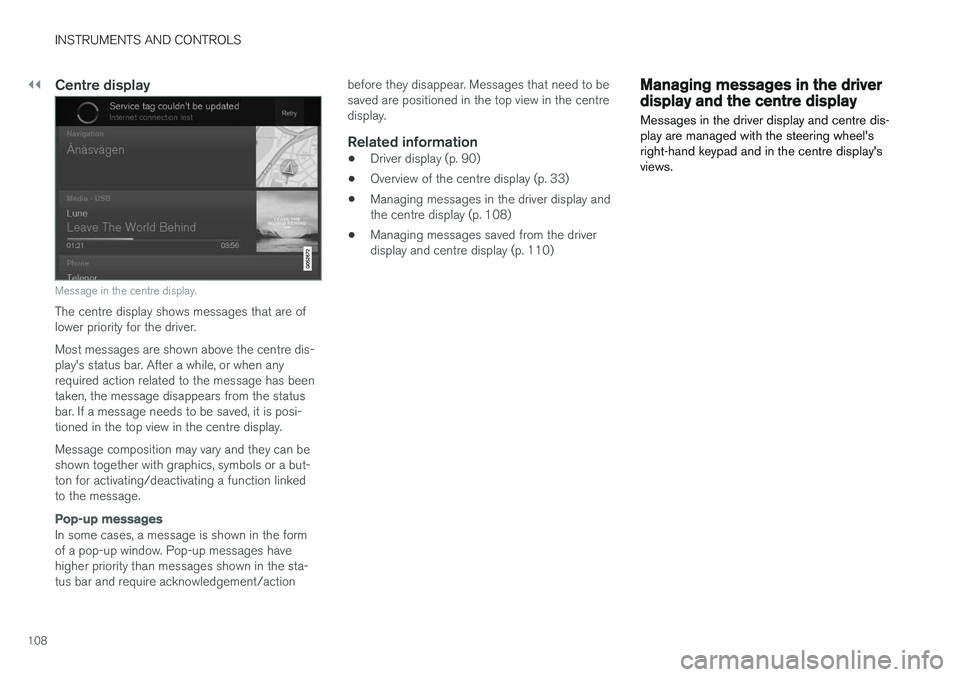
Message in the centre display.
The centre display shows messages that are of lower priority for the driver. Most messages are shown above the centre dis- play's status bar. After a while, or when anyrequired action related to the message has beentaken, the message disappears from the statusbar. If a message needs to be saved, it is posi-tioned in the top view in the centre display. Message composition may vary and they can be shown together with graphics, symbols or a but-ton for activating/deactivating a function linkedto the message.
Pop-up messages
In some cases, a message is shown in the form of a pop-up window. Pop-up messages havehigher priority than messages shown in the sta-tus bar and require acknowledgement/actionbefore they disappear. Messages that need to besaved are positioned in the top view in the centredisplay.
Related information
•
Driver display (p. 90)
• Overview of the centre display (p. 33)
• Managing messages in the driver display andthe centre display (p. 108)
• Managing messages saved from the driverdisplay and centre display (p. 110)
Managing messages in the driver display and the centre display
Messages in the driver display and centre dis- play are managed with the steering wheel'sright-hand keypad and in the centre display'sviews.
Page 120 of 594
INSTRUMENTS AND CONTROLS
* Option/accessory.
118
Voice recognition control of the phone 11
Command for voice recognition control of a Bluetooth-connected mobile phone to e.g. call acontact, a number, or to listen to a message.
To specify a contact in the phone book, the voice recognition command must include contact infor-mation that is entered in the phone book. If a contact, e.g.
Robyn Smith, has several phone
numbers then the number category can also be stated, e.g.
Home or Mobile: "Call Robin
Smith Mobile".
Tap on
and say one of the following com-
mands:
• "
Call [contact]" - dials the selected contact
from the phone book.
• "
Call [phone number]" - dials the phone
number.
• "
Recent calls" - displays the call list.
• "
Read message" - message is read out. If
there are several messages - select which message should be read out.
Related information
• Voice recognition (p. 115)
• Using voice recognition (p. 116)
• Settings for voice recognition (p. 117)
Voice recognition control of radio and media 12
Command for voice recognition control of radio and media player.
Tap on and say one of the following com-
mands:
• "
Media" - starts a dialogue for media and
radio and shows examples of commands.
• "
Play [artist]" - plays back music by the
selected artist.
• "
Play [song title]" - plays back the selected
song.
• "
Play [song title] from [album]" - plays
back the selected song from the selected album.
• "
Play [TV channel name]" - starts the
selected TV channel.
• "
Play [radio station]" - starts playing back
the selected radio channel.
• "
Tune to [frequency]" - starts the selected
radio frequency in the current frequency band. If no radio source is active, the FMband is started by default.
• "
Tune to [frequency] [wavelength]" -
starts the selected radio frequency in the selected frequency band. •
"
Radio" - starts FM radio.
• "
Radio FM" - starts FM radio.
• "
Radio AM" - starts AM radio.
• "
DAB " - starts DAB radio.
• "
TV" - starts playback from TV
*.
• "
CD" - starts playback from CD
*.
• "
USB" - starts playback from USB.
• "
iPod" - starts playback from iPod.
• "
Bluetooth" - starts playback from a Blue-
tooth-connected media source.
• "
Similar music" — plays back music similar
to the music currently playing back from USB devices.
Related information
• Voice recognition (p. 115)
• Using voice recognition (p. 116)
• Settings for voice recognition (p. 117)
11
Applies to certain markets.
12 Applies to certain markets.
Page 179 of 594
INSTRUMENTS AND CONTROLS
}}
177
Related information
•Driver profiles (p. 174)
• Editing a driver profile (p. 175)
• Remote control key (p. 236)
Importing/exporting a driver profile from/to USB
The personal settings saved in the driver profiles can be exported/imported to other cars via USB.
Follow these steps in order to import/export a driver profile from/to a USB memory: 1. Press
Settings in the top view in the centre
display.
2. Press
SystemDriver Profiles.
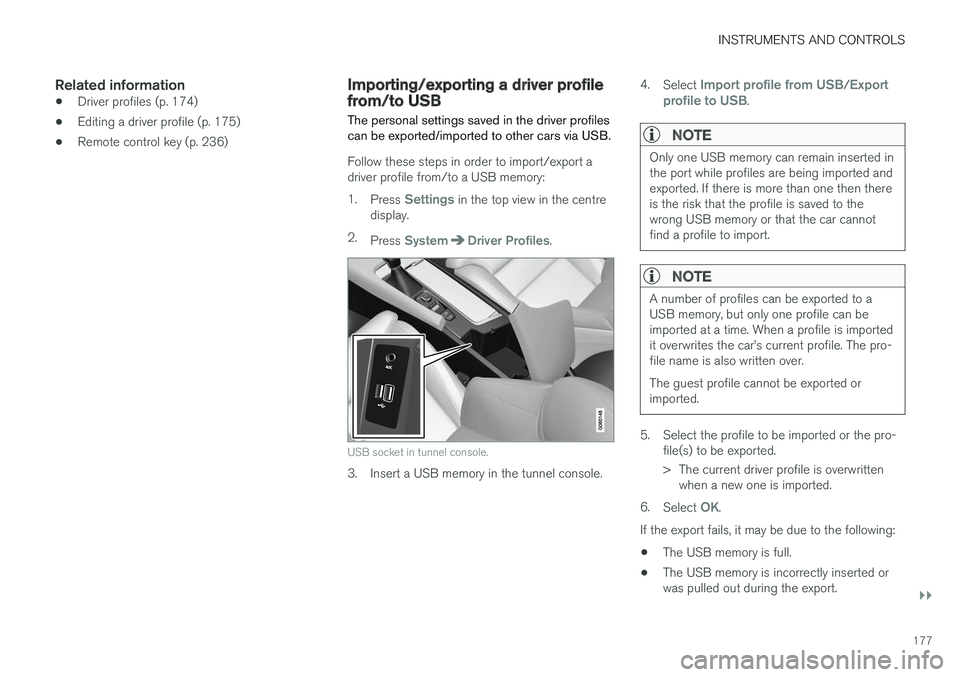
USB socket in tunnel console.
3. Insert a USB memory in the tunnel console. 4.
Select
Import profile from USB/Export
profile to USB.
NOTE
Only one USB memory can remain inserted in the port while profiles are being imported andexported. If there is more than one then thereis the risk that the profile is saved to thewrong USB memory or that the car cannotfind a profile to import.
NOTE
A number of profiles can be exported to a USB memory, but only one profile can beimported at a time. When a profile is importedit overwrites the car
Page 180 of 594
||
INSTRUMENTS AND CONTROLS
178If the import fails, it may be due to the following:
• The USB memory is incorrectly inserted or was pulled out during the import.
• There is no driver profile saved on the USBmemory.
• The file for the driver profile on the USBmemory is corrupt.
Related information
• Driver profiles (p. 174)
Changing settings for apps
All of the car's apps are listed in the app view. The app settings that relate to the car's embed-ded functions can be changed from the centredisplay's top view.
Apps for embedded functions - basic
apps
The apps installed in the car from the beginning, e.g. FM radio and USB, are a part of Sensus and
are part of the car's embedded functions. Set- tings for these apps can be changed directly inthe top view in the centre display.
Change the settings for a basic app
1. Tap on the app, e.g. FM radio.
2. Drag down the top view. 3. Press
FM Radio Settings.
4. Change settings as desired and confirm the selections.
5. Press either the physical home button or the virtual close button.
Most of the car's basic apps have this contextual setting option, but not all. Refer to the section"Categories in the settings view" for more infor-mation on how settings are changed.
Third party appsThird party apps are not included in the car's sys-tem from the beginning, but are the type that can be downloaded e.g.
Volvo ID. Here the settings are always made inside the app and not from the top view.
Related information
•
Navigating in the centre display's views(p. 40)
• Settings view (p. 169)
• Downloading, updating and uninstalling apps(p. 468)
• Categories in the settings view (p. 170)
Page 220 of 594
LOADING AND STORAGE
* Option/accessory.
218
Passenger compartment interior
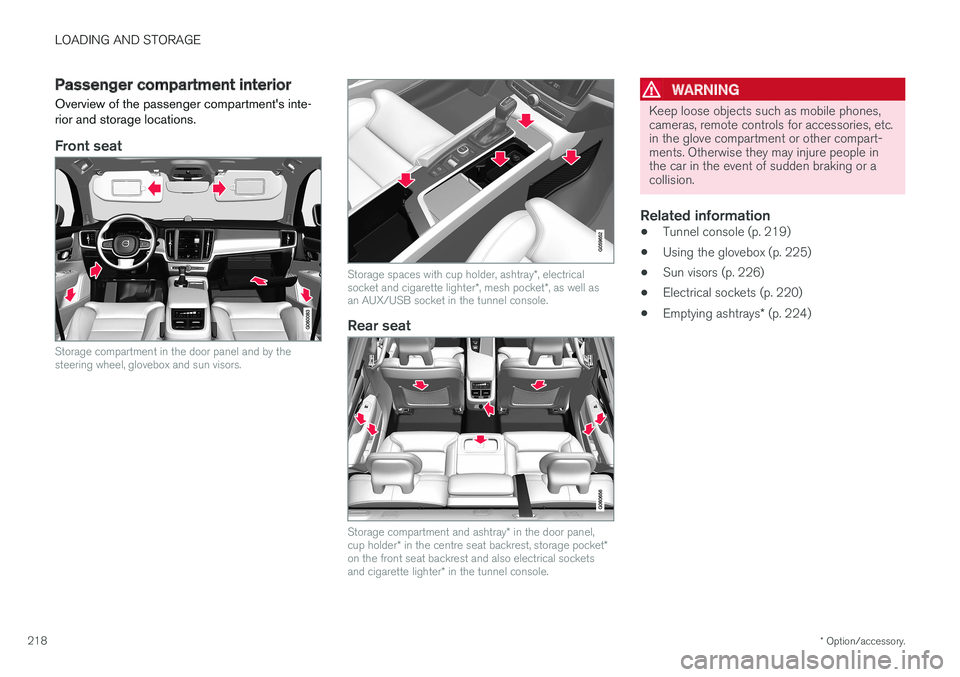
Overview of the passenger compartment's inte- rior and storage locations.
Front seat
Storage compartment in the door panel and by the steering wheel, glovebox and sun visors.
Storage spaces with cup holder, ashtray *, electrical
socket and cigarette lighter *, mesh pocket *, as well as
an AUX/USB socket in the tunnel console.
Rear seat
Storage compartment and ashtray * in the door panel,
cup holder * in the centre seat backrest, storage pocket *
on the front seat backrest and also electrical sockets and cigarette lighter * in the tunnel console.
WARNING
Keep loose objects such as mobile phones, cameras, remote controls for accessories, etc.in the glove compartment or other compart-ments. Otherwise they may injure people inthe car in the event of sudden braking or acollision.
Related information
• Tunnel console (p. 219)
• Using the glovebox (p. 225)
• Sun visors (p. 226)
• Electrical sockets (p. 220)
• Emptying ashtrays
* (p. 224)
Page 221 of 594
LOADING AND STORAGE
* Option/accessory.219
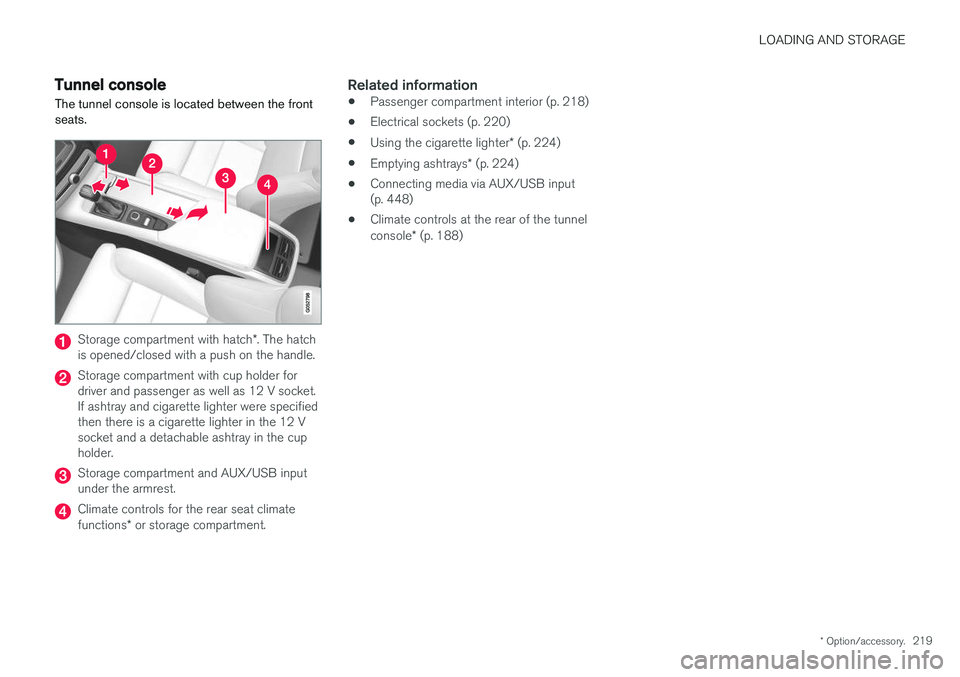
Tunnel console The tunnel console is located between the front seats.
Storage compartment with hatch *. The hatch
is opened/closed with a push on the handle.
Storage compartment with cup holder for driver and passenger as well as 12 V socket.If ashtray and cigarette lighter were specifiedthen there is a cigarette lighter in the 12 Vsocket and a detachable ashtray in the cupholder.
Storage compartment and AUX/USB input under the armrest.
Climate controls for the rear seat climate functions * or storage compartment.
Related information
• Passenger compartment interior (p. 218)
• Electrical sockets (p. 220)
• Using the cigarette lighter
* (p. 224)
• Emptying ashtrays
* (p. 224)
• Connecting media via AUX/USB input (p. 448)
• Climate controls at the rear of the tunnel console
* (p. 188)
Page 444 of 594
AUDIO AND MEDIA
* Option/accessory.
442
Media player
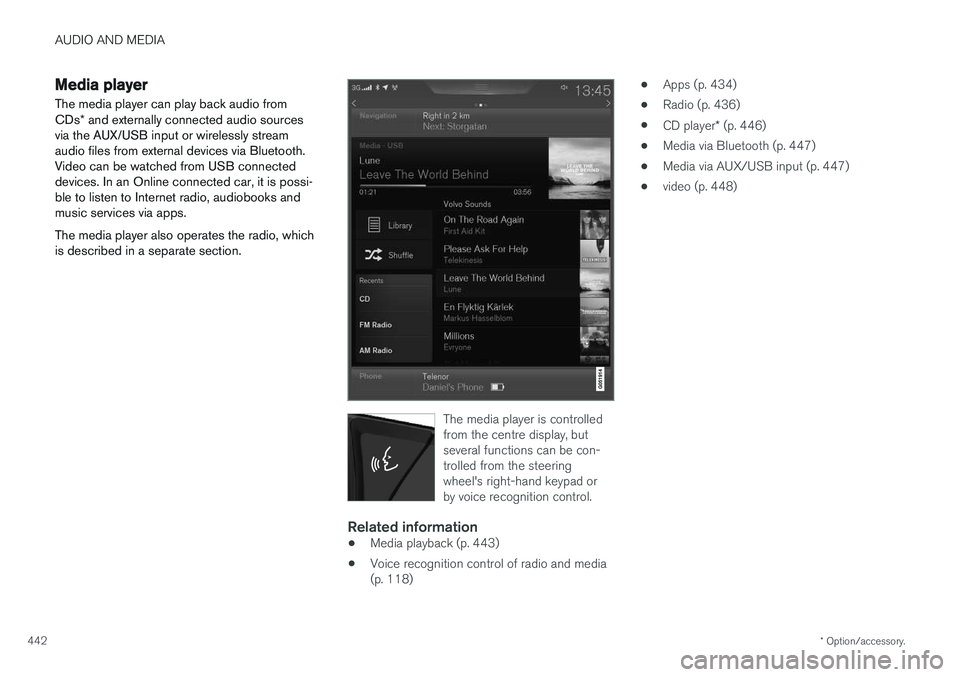
The media player can play back audio from CDs * and externally connected audio sources
via the AUX/USB input or wirelessly stream audio files from external devices via Bluetooth.Video can be watched from USB connecteddevices. In an Online connected car, it is possi-ble to listen to Internet radio, audiobooks andmusic services via apps. The media player also operates the radio, which is described in a separate section.
The media player is controlled from the centre display, butseveral functions can be con-trolled from the steeringwheel's right-hand keypad orby voice recognition control.
Related information
• Media playback (p. 443)
• Voice recognition control of radio and media (p. 118) •
Apps (p. 434)
• Radio (p. 436)
• CD player
* (p. 446)
• Media via Bluetooth (p. 447)
• Media via AUX/USB input (p. 447)
• video (p. 448)
Page 445 of 594
AUDIO AND MEDIA
}}
* Option/accessory.443
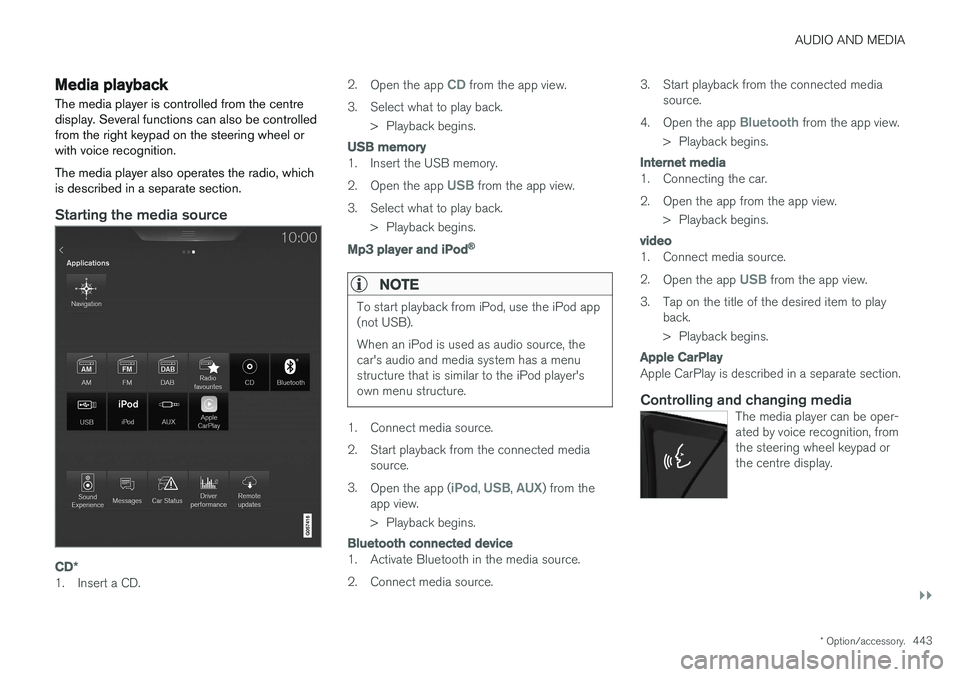
Media playback The media player is controlled from the centre display. Several functions can also be controlledfrom the right keypad on the steering wheel orwith voice recognition. The media player also operates the radio, which is described in a separate section.
Starting the media source
CD*
1. Insert a CD. 2.
Open the app
CD from the app view.
3. Select what to play back. > Playback begins.
USB memory
1. Insert the USB memory. 2.Open the app
USB from the app view.
3. Select what to play back. > Playback begins.
Mp3 player and iPod®
NOTE
To start playback from iPod, use the iPod app (not USB). When an iPod is used as audio source, the car's audio and media system has a menustructure that is similar to the iPod player'sown menu structure.
1. Connect media source.
2. Start playback from the connected media
source.
3. Open the app (
iPod, USB, AUX) from the
app view.
> Playback begins.
Bluetooth connected device
1. Activate Bluetooth in the media source.
2. Connect media source. 3. Start playback from the connected media
source.
4. Open the app
Bluetooth from the app view.
> Playback begins.
Internet media
1. Connecting the car.
2. Open the app from the app view. > Playback begins.
video
1. Connect media source. 2.Open the app
USB from the app view.
3. Tap on the title of the desired item to play back.
> Playback begins.
Apple CarPlay
Apple CarPlay is described in a separate section.
Controlling and changing mediaThe media player can be oper- ated by voice recognition, fromthe steering wheel keypad orthe centre display.