USB VOLVO V90 2017 User Guide
[x] Cancel search | Manufacturer: VOLVO, Model Year: 2017, Model line: V90, Model: VOLVO V90 2017Pages: 594, PDF Size: 15.07 MB
Page 446 of 594
||
AUDIO AND MEDIA
* Option/accessory.
444
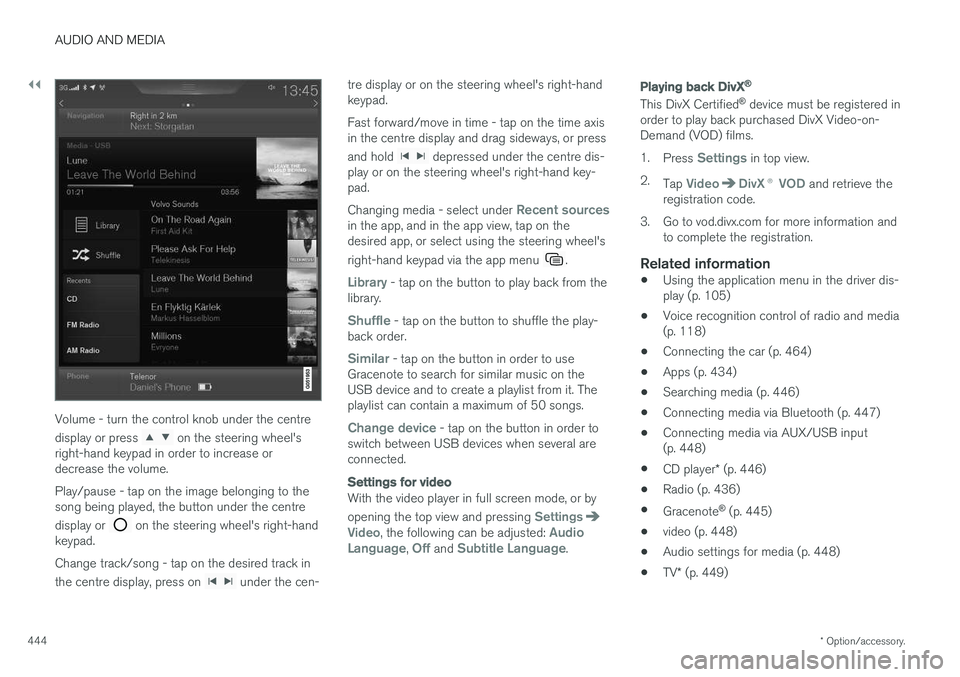
Volume - turn the control knob under the centre display or press
on the steering wheel's
right-hand keypad in order to increase or decrease the volume. Play/pause - tap on the image belonging to the song being played, the button under the centre display or
on the steering wheel's right-hand
keypad. Change track/song - tap on the desired track in the centre display, press on
under the cen- tre display or on the steering wheel's right-hand keypad. Fast forward/move in time - tap on the time axis in the centre display and drag sideways, or press and hold
depressed under the centre dis-
play or on the steering wheel's right-hand key- pad. Changing media - select under
Recent sourcesin the app, and in the app view, tap on the desired app, or select using the steering wheel's right-hand keypad via the app menu
.
Library - tap on the button to play back from the
library.
Shuffle - tap on the button to shuffle the play-
back order.
Similar - tap on the button in order to use
Gracenote to search for similar music on the USB device and to create a playlist from it. Theplaylist can contain a maximum of 50 songs.
Change device - tap on the button in order to
switch between USB devices when several are connected.
Settings for video
With the video player in full screen mode, or by opening the top view and pressing
SettingsVideo, the following can be adjusted: Audio
Language, Off and Subtitle Language.
Playing back DivX®
This DivX Certified ®
device must be registered in
order to play back purchased DivX Video-on- Demand (VOD) films. 1. Press
Settings in top view.
2. Tap
VideoDivX ® VOD and retrieve the
registration code.
3. Go to vod.divx.com for more information and to complete the registration.
Related information
• Using the application menu in the driver dis- play (p. 105)
• Voice recognition control of radio and media(p. 118)
• Connecting the car (p. 464)
• Apps (p. 434)
• Searching media (p. 446)
• Connecting media via Bluetooth (p. 447)
• Connecting media via AUX/USB input(p. 448)
• CD player
* (p. 446)
• Radio (p. 436)
• Gracenote ®
(p. 445)
• video (p. 448)
• Audio settings for media (p. 448)
• TV
* (p. 449)
Page 449 of 594
AUDIO AND MEDIA
* Option/accessory.447
Media via Bluetooth The car's media player is equipped with Bluetooth and can wirelessly play streamingaudio files from external devices with Bluetooth,such as mobile phones and PDAs.
Related information
•Connecting media via Bluetooth (p. 447)
• Media playback (p. 443)
• Voice recognition control of radio and media (p. 118)
• Media player (p. 442)
• Ignition positions (p. 385)
• Technical specifications for media (p. 455)
Connecting media via Bluetooth
Connect a Bluetooth device with the car in order to stream media and use as Internet connectionif it is available.
Many phones on the market now have wireless Bluetooth technology, but not all of them are fullycompatible with the car. For compatibility, seesupport.volvocars.com. The procedure for connecting a media device is the same as for connecting a phone.
Related information
• Connect phone (p. 457)
• Media via Bluetooth (p. 447)
• Media playback (p. 443)
• Media player (p. 442)
Media via AUX/USB input An external media source, e.g. an iPod or MP3 player, can be connected to the audio system.
A media source with rechargeable batteries is recharged when connected via USB and when the ignition is in position
I, II or the engine is run-
ning. To facilitate the use of a USB memory stick, only store compatible formats on it. It takes a lotlonger for the system to load storage media thatcontains anything other than compatible formats.In addition to audio, the media player also sup-ports video playback when the device is con-nected via USB. Some MP3 players have their own file systems that are not supported by the audio system.
Related information
• Connecting media via AUX/USB input(p. 448)
• Media playback (p. 443)
• Voice recognition control of radio and media(p. 118)
• Media player (p. 442)
• Ignition positions (p. 385)
• video (p. 448)
• Apple CarPlay
* (p. 450)
• Technical specifications for media (p. 455)
Page 450 of 594
AUDIO AND MEDIA
* Option/accessory.
448
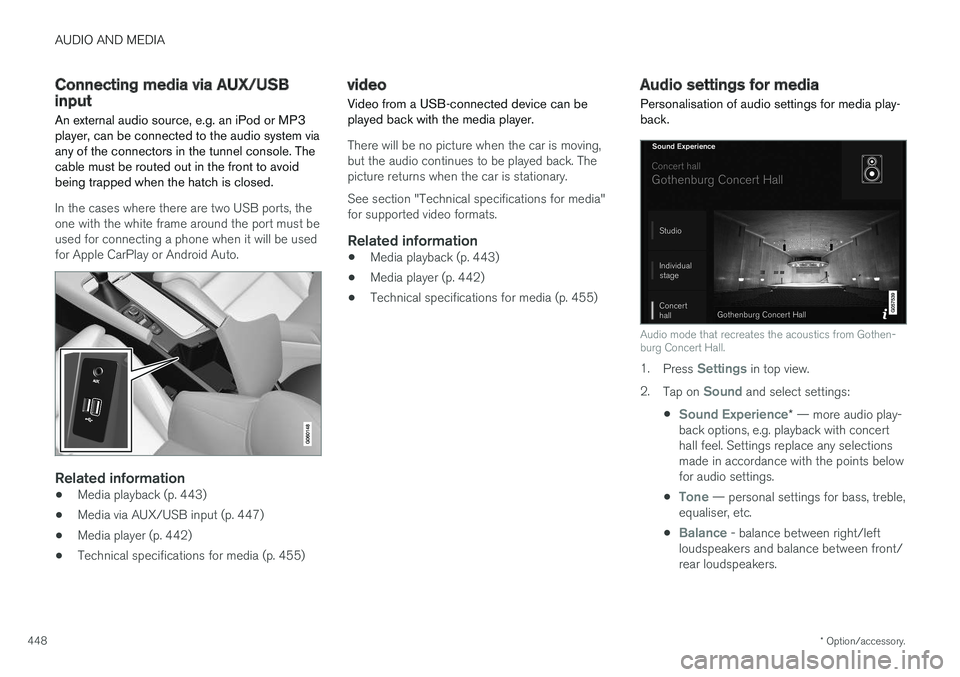
Connecting media via AUX/USB input An external audio source, e.g. an iPod or MP3 player, can be connected to the audio system viaany of the connectors in the tunnel console. Thecable must be routed out in the front to avoidbeing trapped when the hatch is closed.
In the cases where there are two USB ports, the one with the white frame around the port must beused for connecting a phone when it will be usedfor Apple CarPlay or Android Auto.
Related information
• Media playback (p. 443)
• Media via AUX/USB input (p. 447)
• Media player (p. 442)
• Technical specifications for media (p. 455)
video
Video from a USB-connected device can be played back with the media player.
There will be no picture when the car is moving, but the audio continues to be played back. Thepicture returns when the car is stationary. See section "Technical specifications for media" for supported video formats.
Related information
• Media playback (p. 443)
• Media player (p. 442)
• Technical specifications for media (p. 455)
Audio settings for media
Personalisation of audio settings for media play- back.
Audio mode that recreates the acoustics from Gothen- burg Concert Hall.
1. Press Settings in top view.
2. Tap on
Sound and select settings:
•
Sound Experience* — more audio play-
back options, e.g. playback with concert hall feel. Settings replace any selectionsmade in accordance with the points belowfor audio settings.
•
Tone — personal settings for bass, treble,
equaliser, etc.
•
Balance - balance between right/left
loudspeakers and balance between front/ rear loudspeakers.
Page 454 of 594
||
AUDIO AND MEDIA
* Option/accessory.
452
Switch the connection between Apple CarPlay and iPod
Apple CarPlay to iPod
1.
Press Settings in top view.
2. Press
CommunicationApple CarPlay.
3. Untick the box for the Apple device that shall no longer start Apple CarPlay automatically when the USB cable is connected.
4. Disconnect and connect the Apple device to the USB input.
5. Open the app
iPod from the app view.
iPod to Apple CarPlay
1.
Tap on Apple CarPlay in the app view.
2. Read the information in the pop-up message and then tap on
OK.
3. Disconnect and connect the Apple device to the USB input.
> The subview with Apple CarPlay is openedand compatible apps are shown.
Related information
• Media player (p. 442)
• Media playback (p. 443)
• Connecting media via AUX/USB input (p. 448)
• Settings for Apple CarPlay
* (p. 452)
• Connecting the car (p. 464)
Settings for Apple CarPlay
*
Settings for phone connected as Apple CarPlay.
Automatic start1. Press Settings in top view.
2. Press
CommunicationApple CarPlayand select setting: •Tick the box - Apple CarPlay starts auto- matically when the USB cable is con-nected.
• Untick the box - Apple CarPlay does notstart automatically when the USB cable isconnected.
A maximum of 20 Apple devices can be stored inthe list. When the list is full and a new device isconnected the oldest one is deleted. A factory reset is required in order to delete the list, see the section "Resetting settings in thesettings view".
System volumes1. Press Settings in top view.
2. Tap on
SoundSystem Volumes and
make the settings for the following:
•
Voice Control
•Navi Voice Guidance
•Phone Ringtone
Related information
• Apple CarPlay
* (p. 450)
• Resetting settings in the settings view (p. 173)
Page 456 of 594
||
AUDIO AND MEDIA
* Option/accessory.
454
Previously connected Android
1. Connect the phone to the USB input.
>If the setting for automatic start is selected - the subview with Android Auto
is opened and compatible apps areshown.
2. If the setting for automatic start is not selected - open the
Android Auto app from
the app view.
> The subview with Android Auto is opened and compatible apps are shown.
3. Tap on the desired app. > The app starts.
Android Auto runs in the background if another app is started in the same subview. To showAndroid Auto in the subview again - tap on theAndroid Auto icon in the app view.
Related information
• Media player (p. 442)
• Media playback (p. 443)
• Connecting media via AUX/USB input(p. 448)
• Settings for Android Auto
* (p. 454)
• Connecting the car (p. 464)
• Overview of the centre display (p. 33)
Settings for Android Auto
*
Settings for a phone that has been connected
the first time with Android Auto.
Automatic start1. Press Settings in top view.
2. Press
CommunicationAndroid Autoand select setting: •Tick the box - Android Auto starts auto- matically when the USB cable is con-nected.
• Untick the box - Android Auto does notstart automatically when the USB cable isconnected.
A maximum of 20 Android devices can be storedin the list. When the list is full and a new device isconnected the oldest one is deleted. A factory reset is required in order to delete the list, see the section "Resetting settings in thesettings view".
System volumes1. Press Settings in top view.
2. Tap on
SoundSystem Volumes and
make the settings for the following:
•
Voice Control
•Navi Voice Guidance
•Phone Ringtone
Related information
• Android Auto
* (p. 453)
• Resetting settings in the settings view (p. 173)
• Overview of the centre display (p. 33)
Page 457 of 594
AUDIO AND MEDIA
}}
455
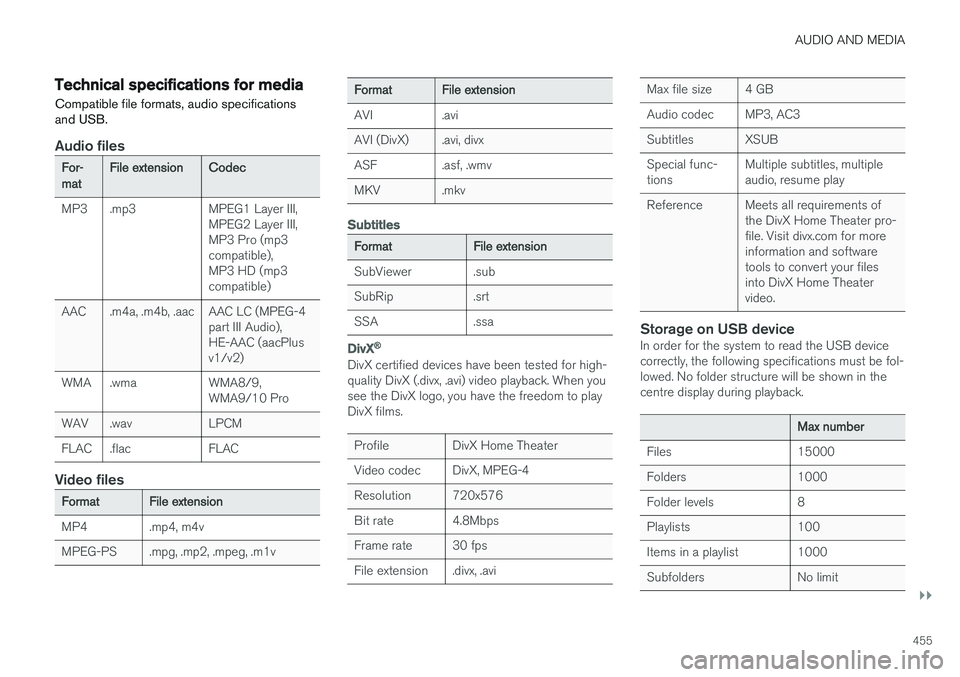
Technical specifications for mediaCompatible file formats, audio specifications and USB.
Audio files
For- mat File extension
Codec
MP3 .mp3 MPEG1 Layer III, MPEG2 Layer III, MP3 Pro (mp3compatible),MP3 HD (mp3compatible)
AAC .m4a, .m4b, .aac AAC LC (MPEG-4 part III Audio),HE-AAC (aacPlusv1/v2)
WMA .wma WMA8/9, WMA9/10 Pro
WAV .wav LPCM
FLAC .flac FLAC
Video files
Format File extension
MP4 .mp4, m4v
MPEG-PS .mpg, .mp2, .mpeg, .m1v
Format File extension
AVI .avi
AVI (DivX) .avi, divx
ASF .asf, .wmv
MKV .mkv
Subtitles
Format File extension
SubViewer .sub
SubRip .srt
SSA .ssa
DivX ®
DivX certified devices have been tested for high- quality DivX (.divx, .avi) video playback. When yousee the DivX logo, you have the freedom to playDivX films.
Profile DivX Home Theater
Video codec DivX, MPEG-4
Resolution 720x576
Bit rate 4.8Mbps
Frame rate 30 fps
File extension .divx, .avi
Max file size 4 GB
Audio codec MP3, AC3
Subtitles XSUBSpecial func- tions Multiple subtitles, multipleaudio, resume play
Reference Meets all requirements of the DivX Home Theater pro-file. Visit divx.com for moreinformation and softwaretools to convert your filesinto DivX Home Theatervideo.
Storage on USB deviceIn order for the system to read the USB device correctly, the following specifications must be fol-lowed. No folder structure will be shown in thecentre display during playback.
Max number
Files 15000
Folders 1000
Folder levels 8
Playlists 100
Items in a playlist 1000
Subfolders No limit
Page 458 of 594
||
AUDIO AND MEDIA
456
Technical specification for USB connector
•Type A socket
• Version 2.0
• Voltage supply 5 V
• Current supply max. 2.1 A
Related information
• Media player (p. 442)
• Media playback (p. 443)
Phone
A mobile phone equipped with Bluetooth can be connected wirelessly to the car's built-in hands-free system.
The audio and media system acts as a handsfree,
with the facility to remotely control a selection of the mobile phone's functions. The mobile phonecan still be operated with its own keys if it is con-nected to the car. When a mobile phone has been connected with the car and connected, it can be used make calls,send/receive messages, stream media and pro-vide an Internet connection.
The phone is operated from thecentre display, but some opera-tions are also available via voicerecognition and the app menu,which are accessed from theright-hand steering wheel key-pad.
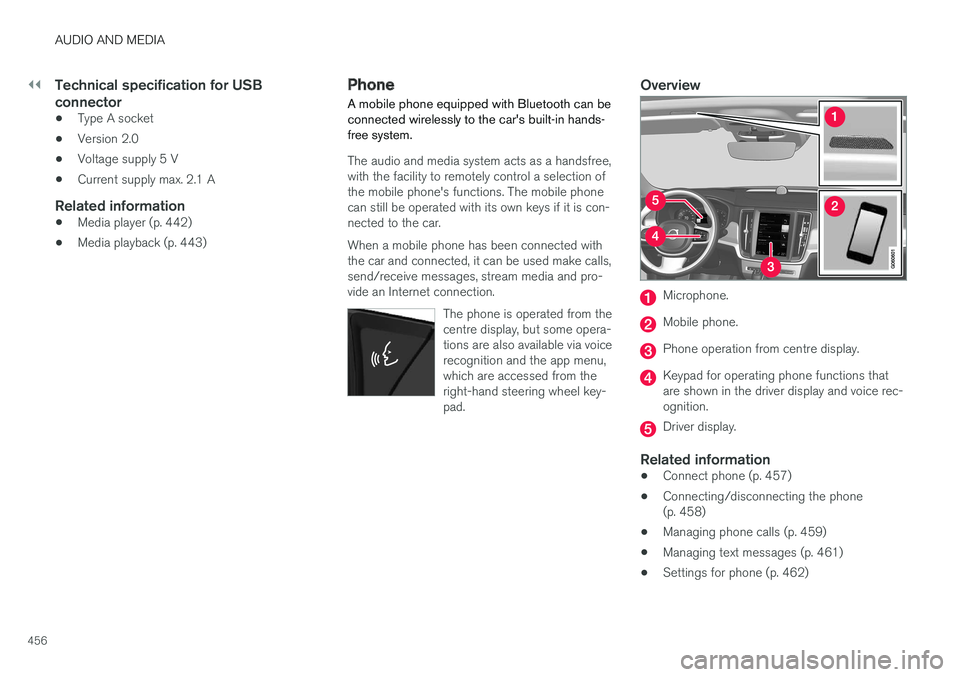
Overview
Microphone.
Mobile phone.
Phone operation from centre display.
Keypad for operating phone functions that are shown in the driver display and voice rec-ognition.
Driver display.
Related information
•Connect phone (p. 457)
• Connecting/disconnecting the phone (p. 458)
• Managing phone calls (p. 459)
• Managing text messages (p. 461)
• Settings for phone (p. 462)
Page 541 of 594
MAINTENANCE AND SERVICE
}}
* Option/accessory.539
•
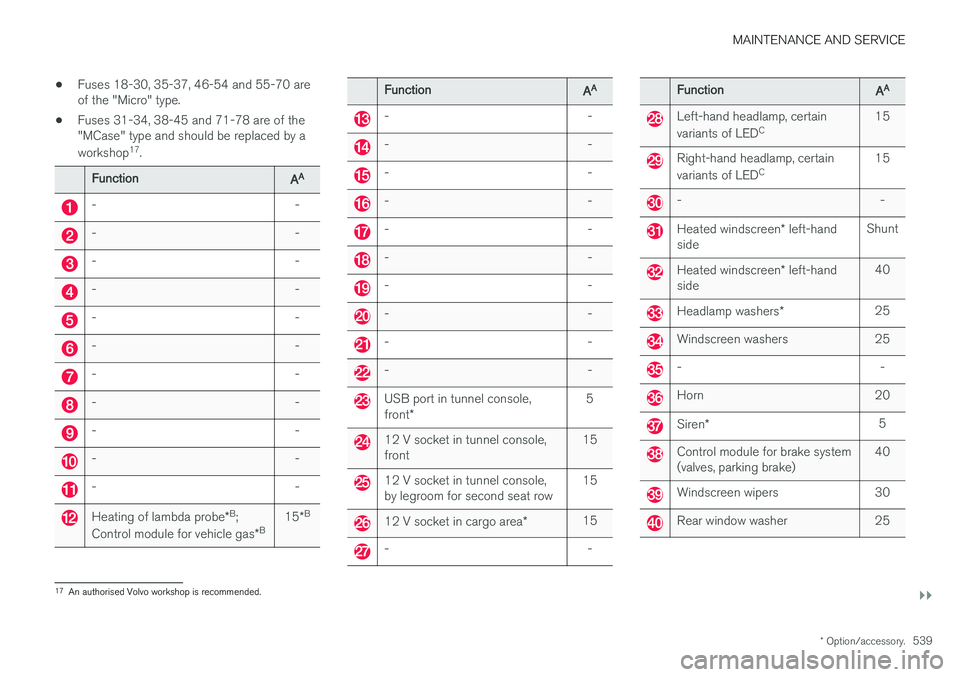
Fuses 18-30, 35-37, 46-54 and 55-70 are of the "Micro" type.
• Fuses 31-34, 38-45 and 71-78 are of the"MCase" type and should be replaced by a workshop 17
.
Function AA
- -
- -
- -
- -
- -
- -
- -
- -
- -
- -
- -
Heating of lambda probe
*B
;
Control module for vehicle gas *B 15
*B
Function
AA
- -
- -
- -
- -
- -
- -
- -
- -
- -
- -
USB port in tunnel console, front
* 5
12 V socket in tunnel console, front
15
12 V socket in tunnel console, by legroom for second seat row15
12 V socket in cargo area
*15
- -
Function
AA
Left-hand headlamp, certain variants of LED C 15
Right-hand headlamp, certain variants of LED
C 15
- -
Heated windscreen
* left-hand
side Shunt
Heated windscreen
* left-hand
side 40
Headlamp washers
*25
Windscreen washers 25
- -
Horn 20
Siren
* 5
Control module for brake system (valves, parking brake) 40
Windscreen wipers 30
Rear window washer 25
17
An authorised Volvo workshop is recommended.
Page 582 of 594
ALPHABETICAL INDEX
580Deadlock 246
deactivation 246
Defrosting 194
Diesel 420 run out of fuel 420
Diesel particle filter 421
Digital radio (DAB) 440
Dimensions 561 Towing bracket 425
dipped beam 137
Dipstick, electronic 517
Direction indicator 144
Direction indicators 144
direction of rotation 483
Disengaging the gear selector inhibitor 394
Display lighting 135
Distance Warning 288, 289 Limitations 290
Door mirrors 153 automatic dimming 154
resetting 154
Drive-E Environmental philosophy 25
Driver Alert Control 352 operation 353
Driver display
application menu 105
messages 106
Driver performance 168
Driver profile 174, 175, 176, 177 edit 175
import/export from/to USB 177
select 174
Drivetrain Gearbox 389
Driving cooling system 414
with a tailer 426
Driving economy 422
Driving in water 413
Driving mode 400Driving with a trailer towball load 564
towing capacity 564
E
ECO mode 402
Economical driving 402, 422
ECO pressure 484, 574
Electrical socket 220
Electrical system 530
Electric parking brake 409low battery voltage 411
Emergency equipment first aid kit 501
warning triangle 500
Emergency puncture repair 490, 494 action 491
inflating the tyres 494
rechecking 491
Emergency puncture repair kit 491 location 490
overview 491
sealing fluid 490
Emissions of carbon dioxide 572 Engine deactivate 387
overheating 414
start 386
Start/Stop 396
Engine compartment coolant 518
Engine oil 516
overview 515
Engine drag control 273
Engine oil 516, 569 adverse driving conditions 569
Page 590 of 594
ALPHABETICAL INDEX
588Tyre monitoring 485
Tyre pressure label 484Tyre pressure monitoring
Calibrate 489
low tyre pressure 488
Tyres 482 direction of rotation 483
installation 497
pressure 484, 574
puncture repair 490
removal 495
specifications 574
storage 482
tread depth 499
tread wear indicators 484
tyre pressure monitoring 485
winter tyres 499
U
Unit standardTrip computer 166
Unlocking from the outside 241
with key blade 251
USB connect car to Internet 464
jack for connecting media 448
V
Vanity mirror lighting 146
Vehicle gas 509
Ventilation 197, 198, 199 seats 204
Vibration damper 422
Video 447, 448 settings 443
Voice control Climate control 119
map navigation 120
phone 118
radio and media 118
settings 117
Voice recognition 115
VOL marking 482
Volvo ID 23
W
Warning lamp Adaptive Cruise Control 290
stability and traction control system 273
Warning lamps Airbags – SRS 97
alternator not charging 97
Fault in brake system 97
Low oil pressure 97
Parking brake applied 97
seatbelt reminder 97
starter battery not charging 97
Warning 97
Warning sound Parking brake 411
Warning symbols 97 Safety 56
Warning triangle 500
Washer fluid 529
Washer nozzles, heated 150Washers rear window 151
washer fluid, filling 529
windscreen 150
Waxing 551 Weights kerb weight 563