audio VOLVO V90 2017 Owners Manual
[x] Cancel search | Manufacturer: VOLVO, Model Year: 2017, Model line: V90, Model: VOLVO V90 2017Pages: 594, PDF Size: 15.07 MB
Page 11 of 594
9
AUDIO AND MEDIA
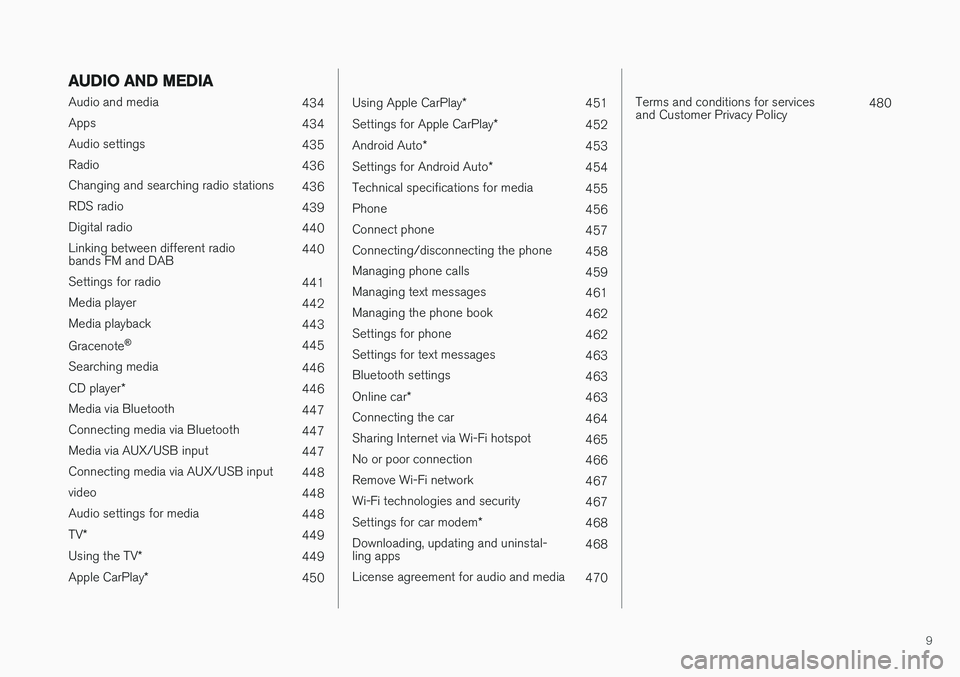
Audio and media434
Apps 434
Audio settings 435
Radio 436
Changing and searching radio stations 436
RDS radio 439
Digital radio 440
Linking between different radio bands FM and DAB 440
Settings for radio 441
Media player 442
Media playback 443
Gracenote ®
445
Searching media 446
CD player *
446
Media via Bluetooth 447
Connecting media via Bluetooth 447
Media via AUX/USB input 447
Connecting media via AUX/USB input 448
video 448
Audio settings for media 448
TV *
449
Using the TV *
449
Apple CarPlay *
450
Using Apple CarPlay*
451
Settings for Apple CarPlay *
452
Android Auto *
453
Settings for Android Auto *
454
Technical specifications for media 455
Phone 456
Connect phone 457
Connecting/disconnecting the phone 458
Managing phone calls 459
Managing text messages 461
Managing the phone book 462
Settings for phone 462
Settings for text messages 463
Bluetooth settings 463
Online car *
463
Connecting the car 464
Sharing Internet via Wi-Fi hotspot 465
No or poor connection 466
Remove Wi-Fi network 467
Wi-Fi technologies and security 467
Settings for car modem *
468
Downloading, updating and uninstal- ling apps 468
License agreement for audio and media 470
Terms and conditions for services and Customer Privacy Policy480
Page 33 of 594
INTRODUCTION
* Option/accessory.31
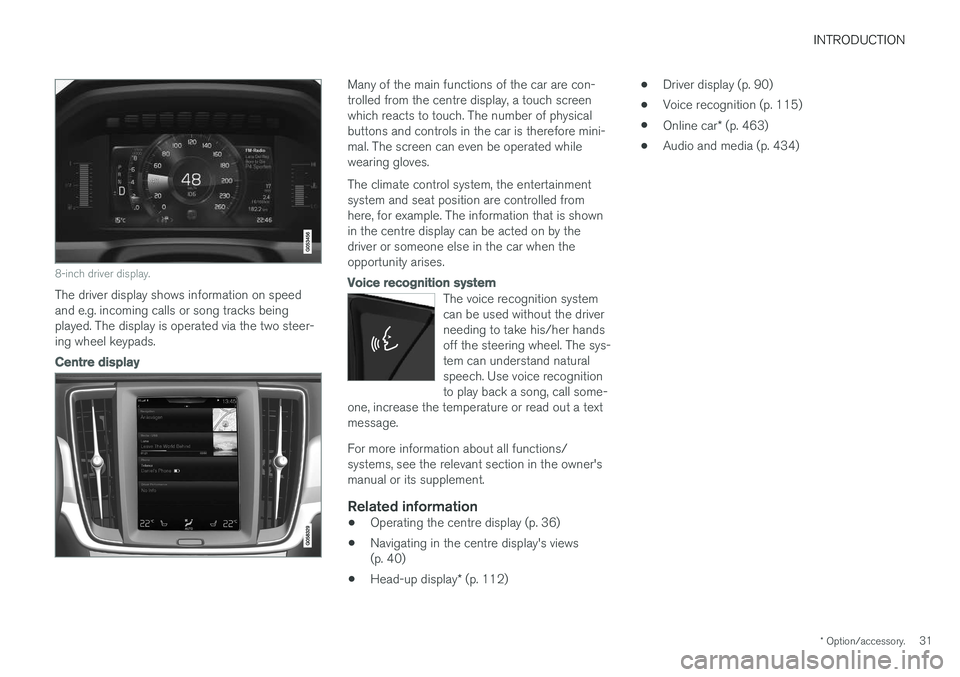
8-inch driver display.
The driver display shows information on speed and e.g. incoming calls or song tracks beingplayed. The display is operated via the two steer-ing wheel keypads.
Centre display
Many of the main functions of the car are con- trolled from the centre display, a touch screenwhich reacts to touch. The number of physicalbuttons and controls in the car is therefore mini-mal. The screen can even be operated whilewearing gloves. The climate control system, the entertainment system and seat position are controlled fromhere, for example. The information that is shownin the centre display can be acted on by thedriver or someone else in the car when theopportunity arises.
Voice recognition system
The voice recognition system can be used without the driverneeding to take his/her handsoff the steering wheel. The sys-tem can understand naturalspeech. Use voice recognitionto play back a song, call some-
one, increase the temperature or read out a textmessage.
For more information about all functions/ systems, see the relevant section in the owner'smanual or its supplement.
Related information
• Operating the centre display (p. 36)
• Navigating in the centre display's views(p. 40)
• Head-up display
* (p. 112) •
Driver display (p. 90)
• Voice recognition (p. 115)
• Online car
* (p. 463)
• Audio and media (p. 434)
Page 40 of 594
||
INTRODUCTION
* Option/accessory.
38
Turn off the screen and reactivate it
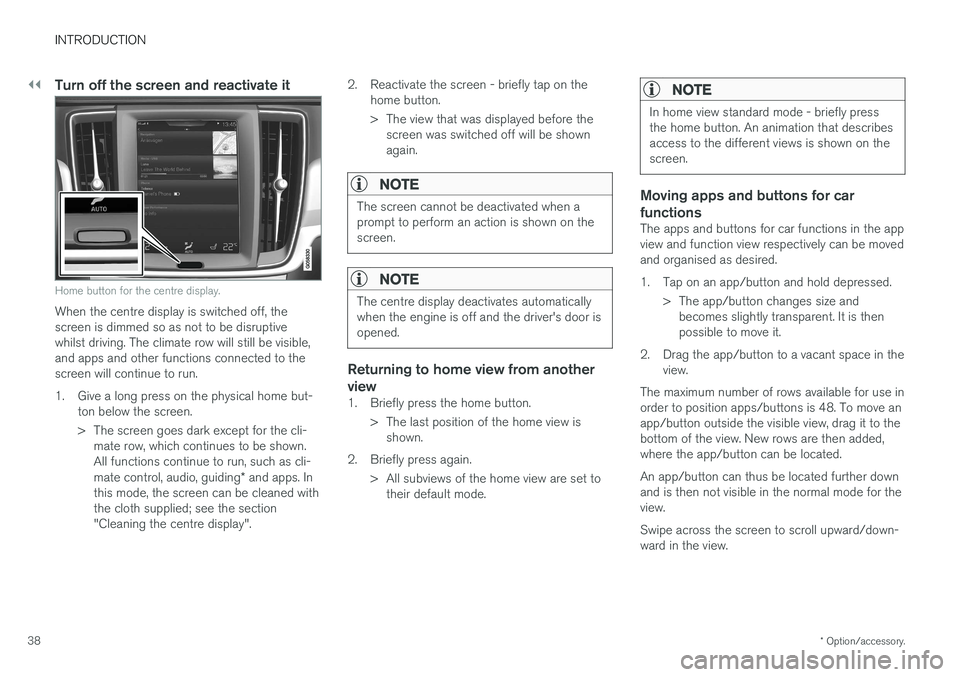
Home button for the centre display.
When the centre display is switched off, the screen is dimmed so as not to be disruptivewhilst driving. The climate row will still be visible,and apps and other functions connected to thescreen will continue to run.
1. Give a long press on the physical home but-
ton below the screen.
> The screen goes dark except for the cli-mate row, which continues to be shown. All functions continue to run, such as cli- mate control, audio, guiding * and apps. In
this mode, the screen can be cleaned with the cloth supplied; see the section"Cleaning the centre display". 2. Reactivate the screen - briefly tap on the
home button.
> The view that was displayed before thescreen was switched off will be shown again.
NOTE
The screen cannot be deactivated when a prompt to perform an action is shown on thescreen.
NOTE
The centre display deactivates automatically when the engine is off and the driver's door isopened.
Returning to home view from another view
1. Briefly press the home button.
> The last position of the home view isshown.
2. Briefly press again. > All subviews of the home view are set totheir default mode.
NOTE
In home view standard mode - briefly press the home button. An animation that describesaccess to the different views is shown on thescreen.
Moving apps and buttons for car functions
The apps and buttons for car functions in the app view and function view respectively can be movedand organised as desired.
1. Tap on an app/button and hold depressed.
> The app/button changes size andbecomes slightly transparent. It is then possible to move it.
2. Drag the app/button to a vacant space in the view.
The maximum number of rows available for use inorder to position apps/buttons is 48. To move anapp/button outside the visible view, drag it to thebottom of the view. New rows are then added,where the app/button can be located. An app/button can thus be located further down and is then not visible in the normal mode for theview. Swipe across the screen to scroll upward/down- ward in the view.
Page 47 of 594
INTRODUCTION
}}
45
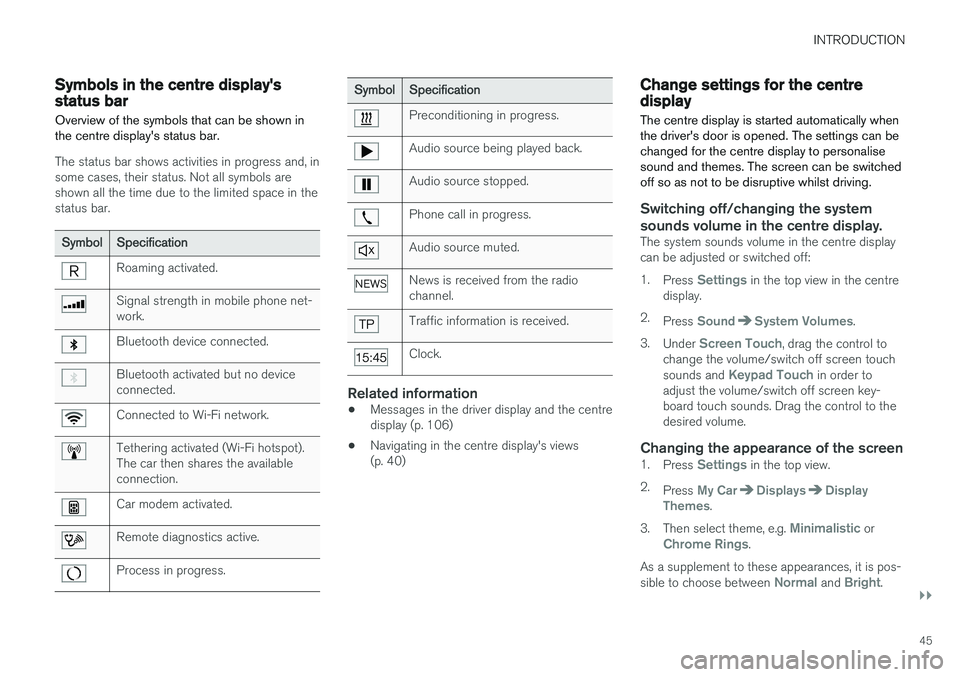
Symbols in the centre display's status bar Overview of the symbols that can be shown in the centre display's status bar.
The status bar shows activities in progress and, in some cases, their status. Not all symbols areshown all the time due to the limited space in thestatus bar.
SymbolSpecification
Roaming activated.
Signal strength in mobile phone net- work.
Bluetooth device connected.
Bluetooth activated but no device connected.
Connected to Wi-Fi network.
Tethering activated (Wi-Fi hotspot). The car then shares the availableconnection.
Car modem activated.
Remote diagnostics active.
Process in progress.
SymbolSpecification
Preconditioning in progress.
Audio source being played back.
Audio source stopped.
Phone call in progress.
Audio source muted.
News is received from the radio channel.
Traffic information is received.
Clock.
Related information
•Messages in the driver display and the centre display (p. 106)
• Navigating in the centre display's views(p. 40)
Change settings for the centre display The centre display is started automatically when the driver's door is opened. The settings can bechanged for the centre display to personalisesound and themes. The screen can be switchedoff so as not to be disruptive whilst driving.
Switching off/changing the system
sounds volume in the centre display.
The system sounds volume in the centre display can be adjusted or switched off: 1. Press
Settings in the top view in the centre
display.
2. Press
SoundSystem Volumes.
3. Under
Screen Touch, drag the control to
change the volume/switch off screen touch sounds and
Keypad Touch in order to
adjust the volume/switch off screen key- board touch sounds. Drag the control to thedesired volume.
Changing the appearance of the screen1. Press Settings in the top view.
2. Press
My CarDisplaysDisplay
Themes.
3. Then select theme, e.g.
Minimalistic orChrome Rings.
As a supplement to these appearances, it is pos- sible to choose between
Normal and Bright.
Page 119 of 594
INSTRUMENTS AND CONTROLS
117
Digits
The number commands are stated differently depending on the function to be controlled: •Phone numbers and postcodes
must be
spoken individually, number by number, e.g. zero three one two two four four three(03122443).
• House numbers
can be spoken individually
or in groups, e.g. two two or twenty-two (22).For English and Dutch, several groups canbe said in sequence, e.g. twenty-two twenty-two (22 22). For English, double or triple canbe used, e.g. double zero (00). Numbers canbe given within the range 0-2300.
• Frequencies
can be spoken as ninety eight
point eight (98.8), a hundred and four pointtwo or hundred four point two (104.2).
Related information
• Voice recognition (p. 115)
• Voice recognition control of the phone(p. 118)
• Voice recognition control of radio and media(p. 118)
• Voice recognition control of climate control(p. 119)
• Voice recognition and map navigation(p. 120)
• Settings for voice recognition (p. 117)
Settings for voice recognition 10
Several settings for the voice recognition system can be made.
1. Press Settings in top view.
2. Press
SystemVoice Control and select
settings.
•
Repeat Voice Command
•Gender
•Speech Rate
Audio settings
1. Press Settings in top view.
2. Press
SoundSystem VolumesVoice
Control and select settings.
Change language
Voice recognition is not possible for all lan- guages. Languages available for voice recogni-tion are marked with an icon in the language list -
.
Changing the language also affects menu, mes- sage and help texts. 1. Press
Settings in top view.
2. Press
SystemSystem Language and
select language.
Related information
• Voice recognition (p. 115)
• Using voice recognition (p. 116)
• Voice recognition control of the phone (p. 118)
• Voice recognition control of radio and media(p. 118)
• Voice recognition control of climate control(p. 119)
• Voice recognition and map navigation(p. 120)
10
Applies to certain markets.
Page 137 of 594
INSTRUMENTS AND CONTROLS
}}
* Option/accessory.135
WARNING
The car's audio system is not able to deter- mine when daylight is too weak or sufficientlystrong, e.g. in fog and rain, in all situations. The driver is always responsible for ensuring that the car is driven with a beam pattern suit-able for the traffic situation and in accordancewith applicable traffic regulations.
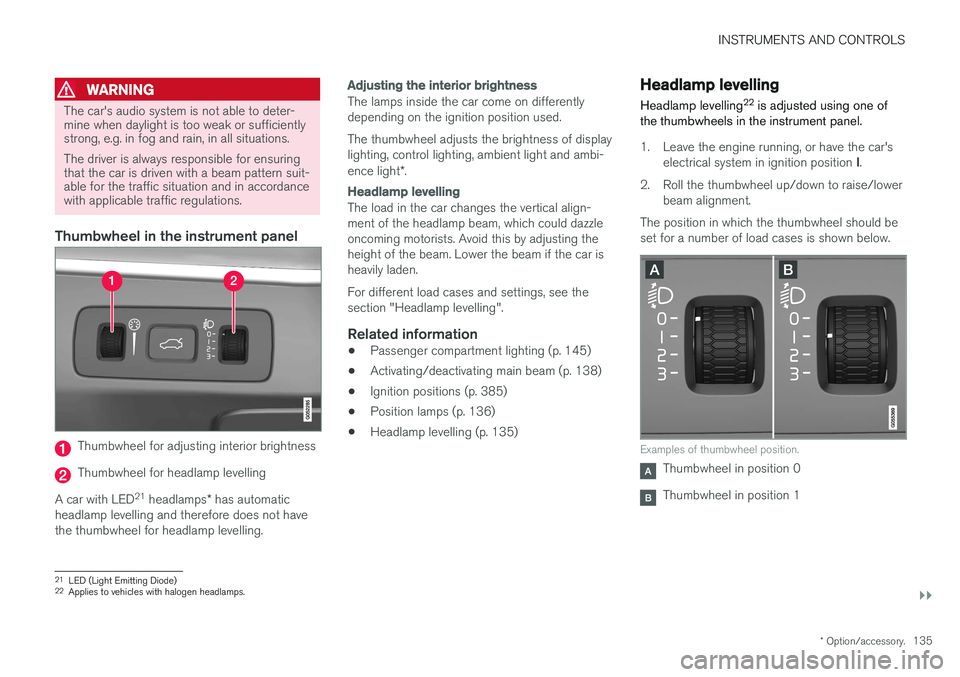
Thumbwheel in the instrument panel
Thumbwheel for adjusting interior brightness
Thumbwheel for headlamp levelling
A car with LED 21
headlamps * has automatic
headlamp levelling and therefore does not have the thumbwheel for headlamp levelling.
Adjusting the interior brightness
The lamps inside the car come on differently depending on the ignition position used. The thumbwheel adjusts the brightness of display lighting, control lighting, ambient light and ambi- ence light *.
Headlamp levelling
The load in the car changes the vertical align- ment of the headlamp beam, which could dazzleoncoming motorists. Avoid this by adjusting theheight of the beam. Lower the beam if the car isheavily laden. For different load cases and settings, see the section "Headlamp levelling".
Related information
• Passenger compartment lighting (p. 145)
• Activating/deactivating main beam (p. 138)
• Ignition positions (p. 385)
• Position lamps (p. 136)
• Headlamp levelling (p. 135)
Headlamp levelling
Headlamp levelling 22
is adjusted using one of
the thumbwheels in the instrument panel.
1. Leave the engine running, or have the car's
electrical system in ignition position I.
2. Roll the thumbwheel up/down to raise/lower beam alignment.
The position in which the thumbwheel should be set for a number of load cases is shown below.
Examples of thumbwheel position.
Thumbwheel in position 0
Thumbwheel in position 1
21 LED (Light Emitting Diode)
22 Applies to vehicles with halogen headlamps.
Page 176 of 594
INSTRUMENTS AND CONTROLS
174
Driver profiles
Many of the settings made in the car can be adapted according to the driver's personal pref-erences and can be saved in one or more driverprofiles.
The personal settings are automatically saved in the active driver profile. Each key can be linked toa driver profile. When the linked key is used, thecar is adapted to the settings of that specificdriver profile.
What settings are saved in the driver profiles?
Many of the settings made in the car will be auto-matically saved in the active driver profile if theprofile is not locked; see the section "Editing adriver profile". Settings made in the car are eitherpersonal or global. Only personal settings aresaved in driver profiles. Settings that can be saved in a driver profile include, amongst other things, screens, mirrors,front seats, navigation, audio and media system,language and voice control. Some settings, referred to as global settings, can be changed but are not saved to a specific driverprofile. Changes to global settings affect all pro-files.
Global settings
The global settings and parameters are not changed when changing between driver profiles. They remain the same regardless of which driverprofile is active. Keyboard layout settings are an example of global settings. If driver profile X is used to addadditional languages to the keyboard, theseremain available for use even if driver profile Y isused. The keyboard layout settings are not savedto a specific driver profile - the settings areglobal.
Personal preferences
If driver profile X was used to e.g. set centre dis- play brightness, driver profile Y is not affected bythis setting. It has been saved to driver profile X -the brightness setting is a personal setting. Refer to the section "Categories in the settings view" for more information on which settings arepersonal and which are global.
Related information
•
Editing a driver profile (p. 175)
• Categories in the settings view (p. 170)
• Selecting driver profile (p. 174)
Selecting driver profile
The last used driver profile is the one selected when the car is unlocked. It is possible tochange to another driver profile after the car hasbeen unlocked.
When the centre display has been started, the selected driver profile is shown at the top of thescreen. The driver profile last used is the one thatwill be active next time the car is unlocked. How-ever, if the remote control key has been linked toa driver profile then this is what is selected whenthe car is started. See "Linking remote controlkey to driver profile". There are two options for changing to another driver profile. Option 1:
1. Tap on the name of the driver profile shown in the top of the centre display when the dis- play has been started.
> A list of selectable driver profiles is shown.
2. Select the driver profile required. 3. Press
Confirm.
> The driver profile is selected and the sys- tem loads the settings for the new driver profile.
Option 2:
1. Drag down the top view in the centre display.
Page 294 of 594

||
DRIVER SUPPORT
292
Overview
Controls
Buttons and symbols for functions5
.
Increases stored speed or reactivates the adaptive cruise control and resumes storedspeed and time interval
Activate the adaptive cruise control and store the current speed or deactivate the adaptivecruise control
Reduces stored speed
Increases the time interval to vehicles ahead
Reduces the time interval to vehicles ahead
Target vehicle indicator: ACC has detected and is following a target vehicle at the presettime interval
Symbol for time interval to vehicles ahead
In cars equipped with the adaptive cruise control option, the driver can change between CC andACC - see "Change between Cruise control andadaptive cruise control".
Driver display
Indication of speeds 5
.
Stored speed
Speed of vehicle ahead.
Current speed of your car.
To see different combinations of symbols depending on traffic situation - see the heading "Symbols and messages for the adaptive cruisecontrol".
Collision risk warning
Audio and symbol for collision warning
5
Acoustic warning signal in the event of a risk of collision
Warning signal in the event of a risk of colli- sion
Distance measurement with the camera and radar unit
Adaptive Cruise Control uses approx. 40% of thecapacity of the foot brake. If the car needs to bebraked more heavily than the adaptive cruisecontrol is capable of and the driver does notbrake, the warning lamp and acoustic warning are
5 NOTE: The illustration is schematic - details may vary depending on car model.
Page 308 of 594
||
DRIVER SUPPORT
306
Overview
Controls
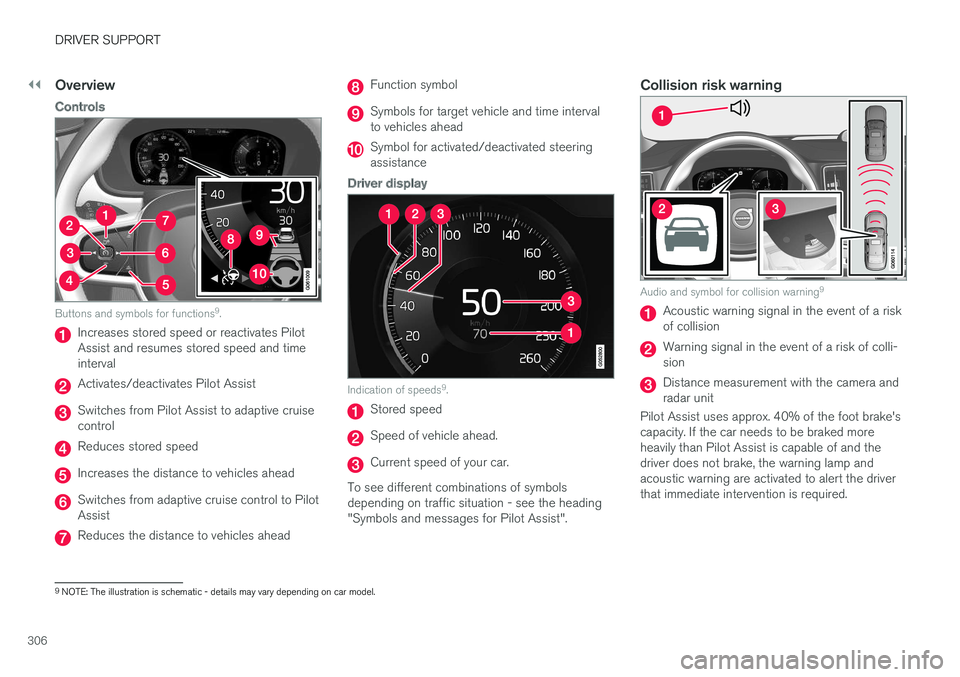
Buttons and symbols for functions9
.
Increases stored speed or reactivates Pilot Assist and resumes stored speed and timeinterval
Activates/deactivates Pilot Assist
Switches from Pilot Assist to adaptive cruise control
Reduces stored speed
Increases the distance to vehicles ahead
Switches from adaptive cruise control to Pilot Assist
Reduces the distance to vehicles ahead
Function symbol
Symbols for target vehicle and time interval to vehicles ahead
Symbol for activated/deactivated steering assistance
Driver display
Indication of speeds 9
.
Stored speed
Speed of vehicle ahead.
Current speed of your car.
To see different combinations of symbols depending on traffic situation - see the heading"Symbols and messages for Pilot Assist".
Collision risk warning
Audio and symbol for collision warning 9
Acoustic warning signal in the event of a risk of collision
Warning signal in the event of a risk of colli- sion
Distance measurement with the camera and radar unit
Pilot Assist uses approx. 40% of the foot brake'scapacity. If the car needs to be braked moreheavily than Pilot Assist is capable of and thedriver does not brake, the warning lamp andacoustic warning are activated to alert the driverthat immediate intervention is required.
9 NOTE: The illustration is schematic - details may vary depending on car model.
Page 351 of 594
DRIVER SUPPORT
}}
* Option/accessory.349
Besides the speed limit symbol an additional sign may beshown as well, such as "noovertaking".
If the driver enters a road marked with a no-entry sign atthe roadside, the symbol forthis sign flashes on and off onthe driver display as a warning.
If the car is equipped with Sensus Navigation
*
then information from the map is also used to determine whether the car is being driven in thewrong direction. The driver can also get an acoustic warning when driving towards a no-entry entrance if the
Audio
Warning function is activated - see the heading
"Activating/deactivating the acoustic warning" in the section "Activating/deactivating Road SignInformation".
End of restriction or motorwayIf RSI detects a sign which may imply the end ofa speed limit, such as the end of a motorway, thedriver display shows the corresponding road signfor 10–30 seconds. Examples of such signs are: End of all restrictions.
End of motorway.
Following which, the sign information is hidden until the next speed-related sign is detected.
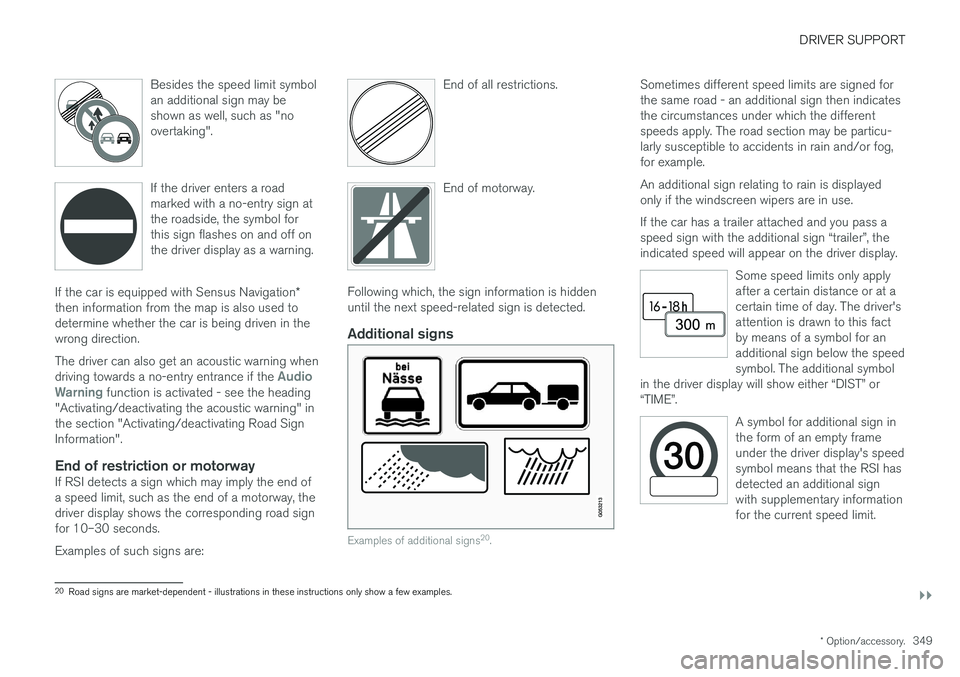
Additional signs
Examples of additional signs
20
.
Sometimes different speed limits are signed for the same road - an additional sign then indicatesthe circumstances under which the differentspeeds apply. The road section may be particu-larly susceptible to accidents in rain and/or fog,for example. An additional sign relating to rain is displayed only if the windscreen wipers are in use. If the car has a trailer attached and you pass a speed sign with the additional sign “trailer”, theindicated speed will appear on the driver display.
Some speed limits only applyafter a certain distance or at acertain time of day. The driver'sattention is drawn to this factby means of a symbol for anadditional sign below the speedsymbol. The additional symbol
in the driver display will show either “DIST” or“TIME”.
A symbol for additional sign in the form of an empty frameunder the driver display's speedsymbol means that the RSI hasdetected an additional signwith supplementary informationfor the current speed limit.
20 Road signs are market-dependent - illustrations in these instructions only show a few examples.