lock VOLVO V90 CROSS COUNTRY 2021 Owner's Manual
[x] Cancel search | Manufacturer: VOLVO, Model Year: 2021, Model line: V90 CROSS COUNTRY, Model: VOLVO V90 CROSS COUNTRY 2021Pages: 683, PDF Size: 14.19 MB
Page 85 of 683
SAFETY
* Option/accessory.83
WARNING
DEATH or SERIOUS INJURY can occur
Follow all instructions on this child restraint and in the vehi-cle's owner's manual.
Make sure the booster cushionis securely locked before thechild is seated.
Use this booster cushion only with chil- dren whose height and weight arewithin the permitted limits shown inthe table.
Use only the vehicle's lap and shoulderbelt system when restraining the childin this booster cushion.
In the event of a collision while theintegrated booster cushion was occu-pied, the entire booster cushion andseat belt must be replaced. Thebooster cushion should also bereplaced if it is badly worn or damagedin any way. This work should be per-formed by a trained and qualified Volvoservice technician only.
Related information
Integrated booster cushion
* (p. 79)
Folding up the integrated booster cush- ion
* (p. 80)
Page 88 of 683
DISPLAYS AND VOICE CONTROL
* Option/accessory.
86
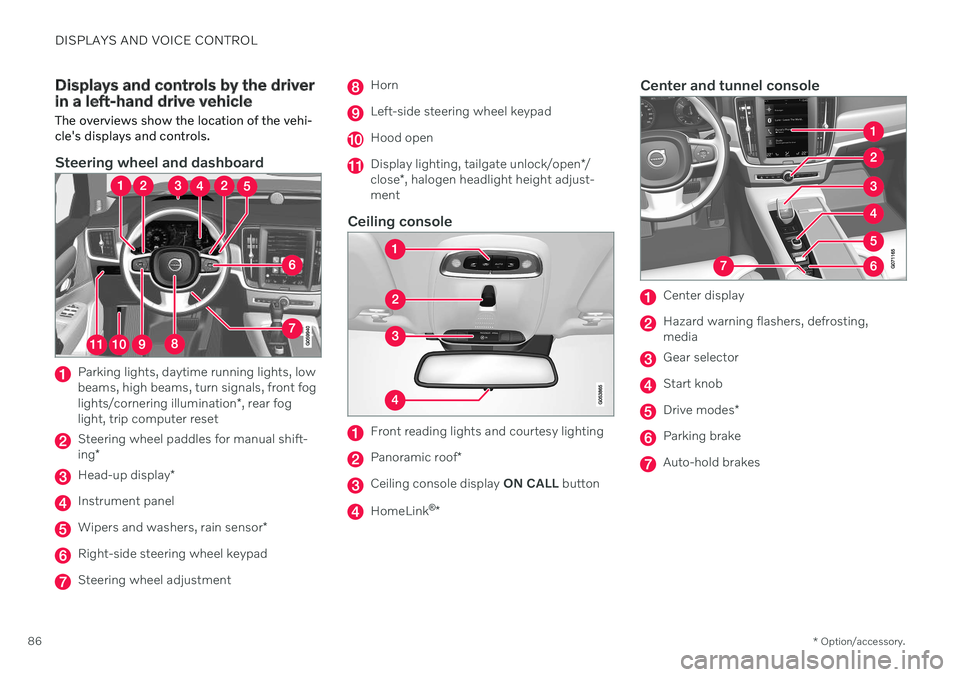
Displays and controls by the driver in a left-hand drive vehicle
The overviews show the location of the vehi- cle's displays and controls.
Steering wheel and dashboard
Parking lights, daytime running lights, low beams, high beams, turn signals, front fog lights/cornering illumination *, rear fog
light, trip computer reset
Steering wheel paddles for manual shift- ing *
Head-up display *
Instrument panel
Wipers and washers, rain sensor *
Right-side steering wheel keypad
Steering wheel adjustment
Horn
Left-side steering wheel keypad
Hood open
Display lighting, tailgate unlock/open */
close *, halogen headlight height adjust-
ment
Ceiling console
Front reading lights and courtesy lighting
Panoramic roof *
Ceiling console display ON CALL button
HomeLink ®
*
Center and tunnel console
Center display
Hazard warning flashers, defrosting, media
Gear selector
Start knob
Drive modes *
Parking brake
Auto-hold brakes
Page 89 of 683
DISPLAYS AND VOICE CONTROL
* Option/accessory.87
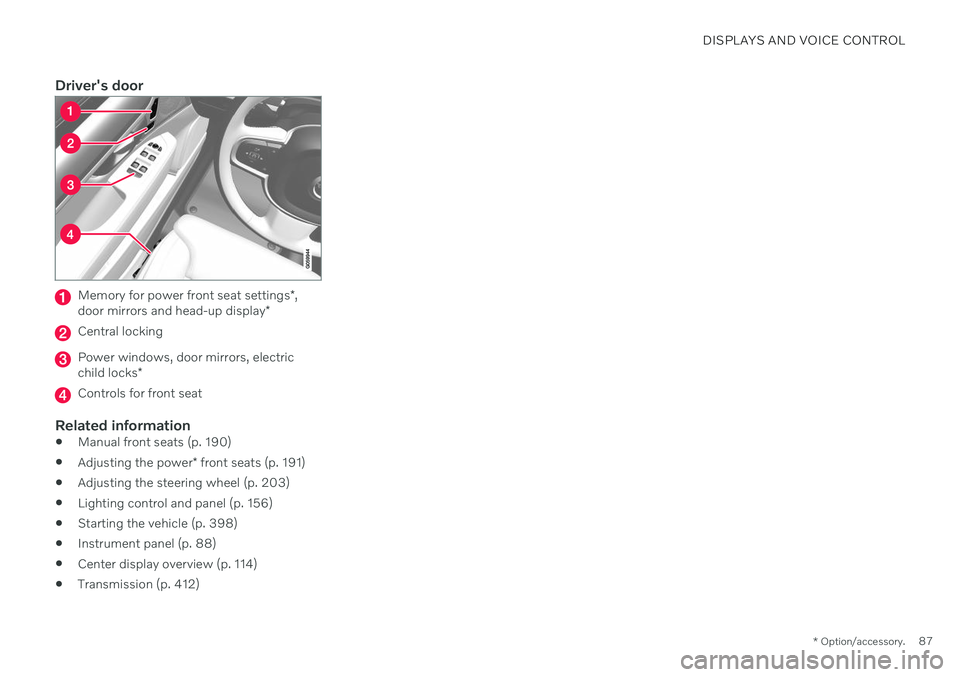
Driver's door
Memory for power front seat settings *,
door mirrors and head-up display *
Central locking
Power windows, door mirrors, electric child locks*
Controls for front seat
Related information
Manual front seats (p. 190)
Adjusting the power
* front seats (p. 191)
Adjusting the steering wheel (p. 203)
Lighting control and panel (p. 156)
Starting the vehicle (p. 398)
Instrument panel (p. 88)
Center display overview (p. 114)
Transmission (p. 412)
Page 90 of 683
DISPLAYS AND VOICE CONTROL
* Option/accessory.
88
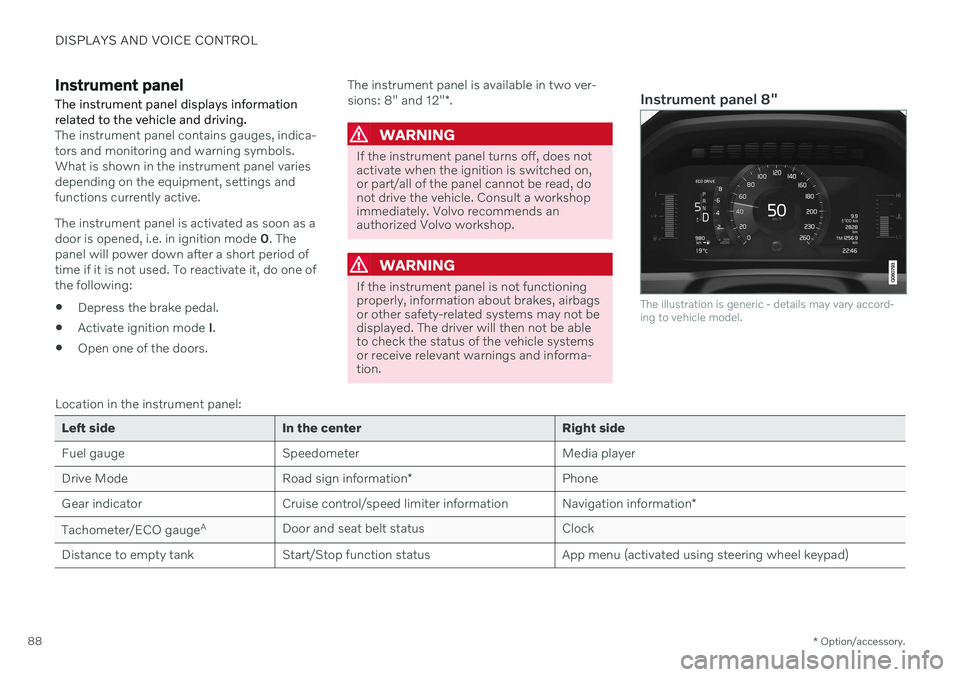
Instrument panel The instrument panel displays information related to the vehicle and driving.
The instrument panel contains gauges, indica- tors and monitoring and warning symbols.What is shown in the instrument panel variesdepending on the equipment, settings andfunctions currently active. The instrument panel is activated as soon as a door is opened, i.e. in ignition mode 0. The
panel will power down after a short period oftime if it is not used. To reactivate it, do one ofthe following:
Depress the brake pedal.
Activate ignition mode
I.
Open one of the doors. The instrument panel is available in two ver- sions: 8" and 12"
*.WARNING
If the instrument panel turns off, does not activate when the ignition is switched on,or part/all of the panel cannot be read, donot drive the vehicle. Consult a workshopimmediately. Volvo recommends anauthorized Volvo workshop.
WARNING
If the instrument panel is not functioning properly, information about brakes, airbagsor other safety-related systems may not bedisplayed. The driver will then not be ableto check the status of the vehicle systemsor receive relevant warnings and informa-tion.
Instrument panel 8"
The illustration is generic - details may vary accord- ing to vehicle model.
Location in the instrument panel:
Left side In the center Right side
Fuel gauge Speedometer Media player Drive Mode
Road sign information* Phone
Gear indicator Cruise control/speed limiter information Navigation information*
Tachometer/ECO gauge A
Door and seat belt status Clock
Distance to empty tank Start/Stop function status App menu (activated using steering wheel keypad)
Page 92 of 683
||
DISPLAYS AND VOICE CONTROL
* Option/accessory.
90
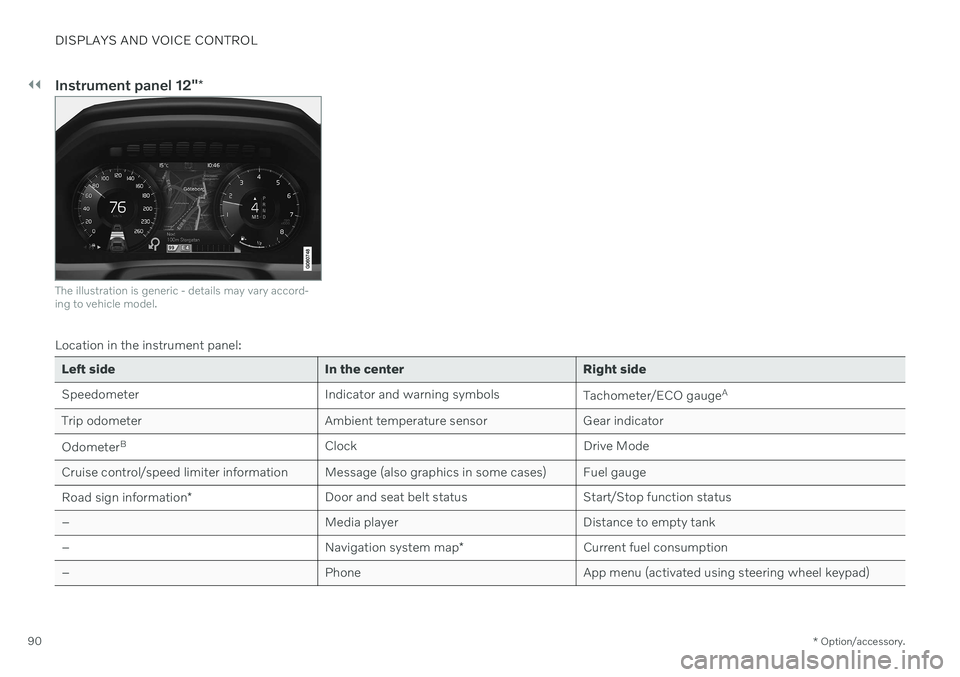
Instrument panel 12" *
The illustration is generic - details may vary accord- ing to vehicle model.
Location in the instrument panel:
Left side In the center Right side
Speedometer Indicator and warning symbols
Tachometer/ECO gaugeA
Trip odometer Ambient temperature sensor Gear indicator Odometer B
Clock Drive Mode
Cruise control/speed limiter information Message (also graphics in some cases) Fuel gauge Road sign information * Door and seat belt status Start/Stop function status
– Media player Distance to empty tank
– Navigation system map*Current fuel consumption
– PhoneApp menu (activated using steering wheel keypad)
Page 100 of 683
DISPLAYS AND VOICE CONTROL
* Option/accessory.
98
Date and time The clock is displayed in both the instrument panel and the center display.
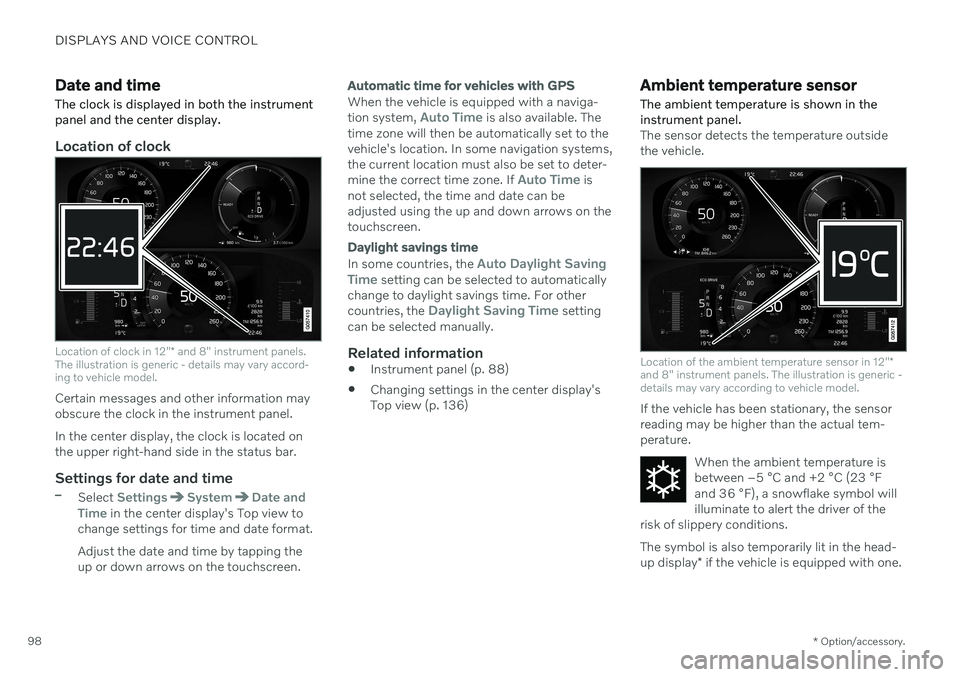
Location of clock
Location of clock in 12" * and 8" instrument panels.
The illustration is generic - details may vary accord- ing to vehicle model.
Certain messages and other information may obscure the clock in the instrument panel. In the center display, the clock is located on the upper right-hand side in the status bar.
Settings for date and time–Select SettingsSystemDate and
Time in the center display's Top view to
change settings for time and date format. Adjust the date and time by tapping the up or down arrows on the touchscreen.
Automatic time for vehicles with GPS
When the vehicle is equipped with a naviga- tion system, Auto Time is also available. The
time zone will then be automatically set to the vehicle's location. In some navigation systems,the current location must also be set to deter- mine the correct time zone. If
Auto Time is
not selected, the time and date can be adjusted using the up and down arrows on thetouchscreen.
Daylight savings time
In some countries, the Auto Daylight Saving
Time setting can be selected to automatically
change to daylight savings time. For other countries, the
Daylight Saving Time setting
can be selected manually.
Related information
Instrument panel (p. 88)
Changing settings in the center display's Top view (p. 136)
Ambient temperature sensor
The ambient temperature is shown in the instrument panel.
The sensor detects the temperature outside the vehicle.
Location of the ambient temperature sensor in 12" *
and 8" instrument panels. The illustration is generic - details may vary according to vehicle model.
If the vehicle has been stationary, the sensor reading may be higher than the actual tem-perature.
When the ambient temperature isbetween –5 °C and +2 °C (23 °F
and 36 °F), a snowflake symbol will
illuminate to alert the driver of the
risk of slippery conditions. The symbol is also temporarily lit in the head- up display * if the vehicle is equipped with one.
Page 117 of 683
DISPLAYS AND VOICE CONTROL
* Option/accessory.115
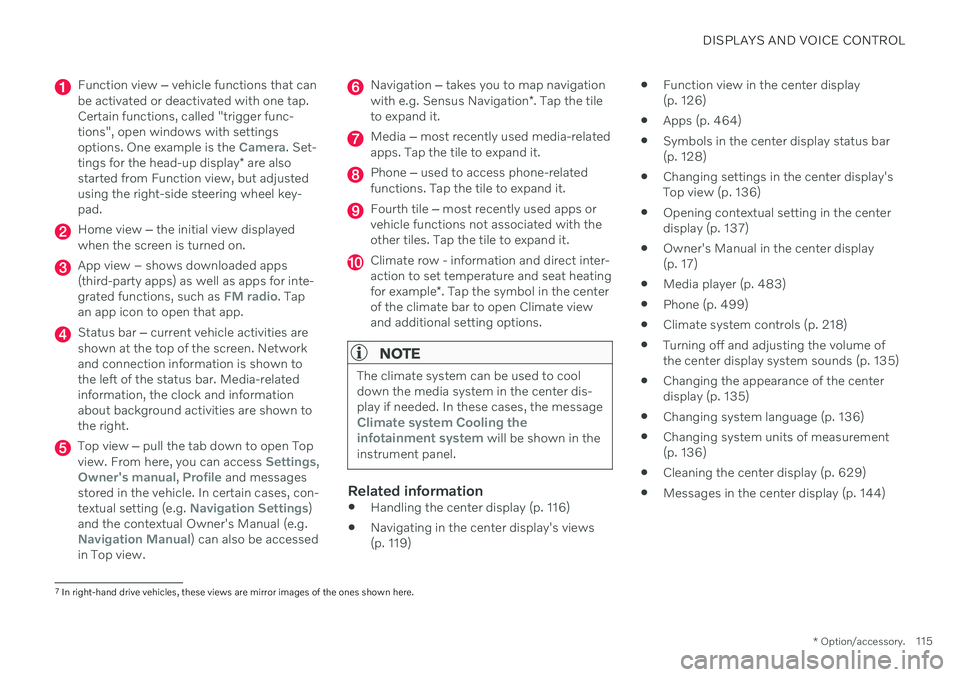
Function view ‒ vehicle functions that can
be activated or deactivated with one tap. Certain functions, called "trigger func-tions", open windows with settingsoptions. One example is the
Camera. Set-
tings for the head-up display * are also
started from Function view, but adjusted using the right-side steering wheel key-pad.
Home view ‒ the initial view displayed
when the screen is turned on.
App view – shows downloaded apps (third-party apps) as well as apps for inte-grated functions, such as
FM radio. Tap
an app icon to open that app.
Status bar ‒ current vehicle activities are
shown at the top of the screen. Network and connection information is shown tothe left of the status bar. Media-relatedinformation, the clock and informationabout background activities are shown tothe right.
Top view ‒ pull the tab down to open Top
view. From here, you can access Settings,Owner's manual, Profile and messages
stored in the vehicle. In certain cases, con- textual setting (e.g.
Navigation Settings)
and the contextual Owner's Manual (e.g.
Navigation Manual) can also be accessed
in Top view.
Navigation ‒ takes you to map navigation
with e.g. Sensus Navigation *. Tap the tile
to expand it.
Media ‒ most recently used media-related
apps. Tap the tile to expand it.
Phone ‒ used to access phone-related
functions. Tap the tile to expand it.
Fourth tile ‒ most recently used apps or
vehicle functions not associated with the other tiles. Tap the tile to expand it.
Climate row - information and direct inter- action to set temperature and seat heating for example *. Tap the symbol in the center
of the climate bar to open Climate view and additional setting options.
NOTE
The climate system can be used to cool down the media system in the center dis-play if needed. In these cases, the message
Climate system Cooling the
infotainment system will be shown in the
instrument panel.
Related information
Handling the center display (p. 116)
Navigating in the center display's views (p. 119)
Function view in the center display(p. 126)
Apps (p. 464)
Symbols in the center display status bar(p. 128)
Changing settings in the center display'sTop view (p. 136)
Opening contextual setting in the centerdisplay (p. 137)
Owner's Manual in the center display(p. 17)
Media player (p. 483)
Phone (p. 499)
Climate system controls (p. 218)
Turning off and adjusting the volume ofthe center display system sounds (p. 135)
Changing the appearance of the centerdisplay (p. 135)
Changing system language (p. 136)
Changing system units of measurement(p. 136)
Cleaning the center display (p. 629)
Messages in the center display (p. 144)
7
In right-hand drive vehicles, these views are mirror images of the ones shown here.
Page 122 of 683
||
DISPLAYS AND VOICE CONTROL
* Option/accessory.
120
NOTE
In Home view's standard mode – short press on the Home button. An animationdescribing access to the various views isshown on the screen.
NOTE
When the vehicle is moving:
Certain functions (e.g. using the center display's keyboard) may be deacti-vated.
Certain texts (e.g. those generated byapps) will be shortened to three rows. Tap the
Read out button to have the
entire message read aloud.
Text messages will be shortened to one row. Tap the
Read out button to
have the entire message read aloud.
Status barCurrent vehicle activities are shown at the top of the screen in the status bar. Network andconnection information is shown to the left ofthe status bar. Media-related information, theclock and information about background activ-ities are shown to the right.
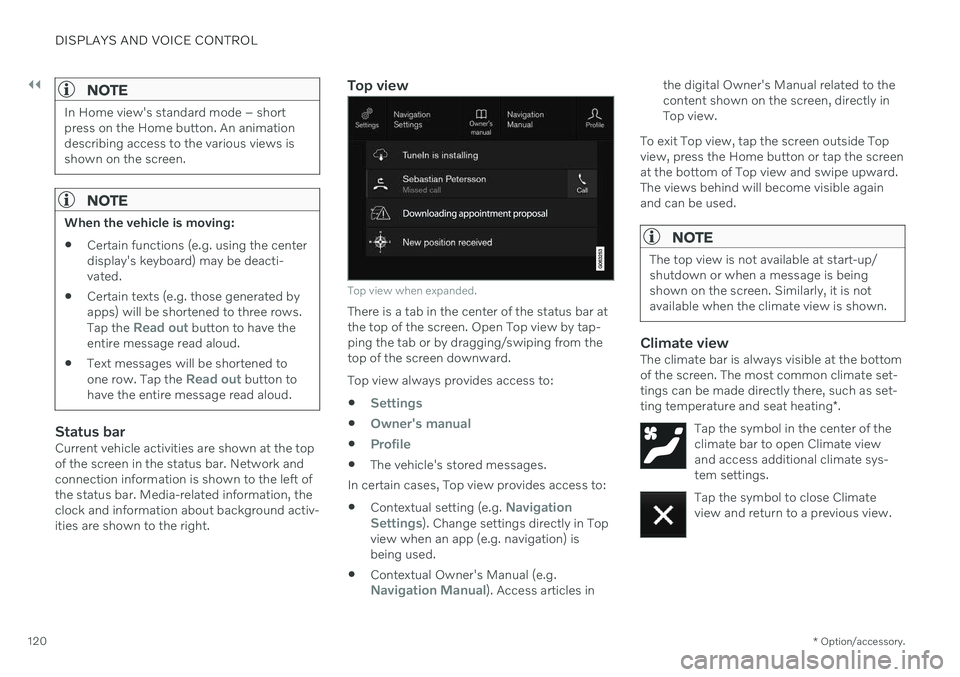
Top view
Top view when expanded.
There is a tab in the center of the status bar at the top of the screen. Open Top view by tap-ping the tab or by dragging/swiping from thetop of the screen downward. Top view always provides access to:
Settings
Owner's manual
Profile
The vehicle's stored messages.
In certain cases, Top view provides access to: Contextual setting (e.g.
Navigation
Settings). Change settings directly in Top
view when an app (e.g. navigation) is being used.
Contextual Owner's Manual (e.g.
Navigation Manual). Access articles in the digital Owner's Manual related to the content shown on the screen, directly inTop view.
To exit Top view, tap the screen outside Topview, press the Home button or tap the screenat the bottom of Top view and swipe upward.The views behind will become visible againand can be used.
NOTE
The top view is not available at start-up/ shutdown or when a message is beingshown on the screen. Similarly, it is notavailable when the climate view is shown.
Climate viewThe climate bar is always visible at the bottom of the screen. The most common climate set-tings can be made directly there, such as set- ting temperature and seat heating *.
Tap the symbol in the center of the climate bar to open Climate viewand access additional climate sys-tem settings.
Tap the symbol to close Climate view and return to a previous view.
Page 131 of 683

DISPLAYS AND VOICE CONTROL
* Option/accessory.129
Symbol Meaning
Tethering activated (Wi-Fi hot- spot). This means that the vehi-cle shares an available Internetconnection.
Vehicle modem activated.
USB sharing active.
Phone is wirelessly charging.
Action in progress.
Timer for preconditioning active. A
Audio source being played.
Audio source paused.
Phone call in progress.
Audio source muted.
News broadcasts from current radio station.B
Symbol Meaning
Traffic information being received.B
Clock.
A
Only hybrid models.
B Not available in all markets.
Related information
Navigating in the center display's views (p. 119)
Messages in the center display (p. 144)
Internet-connected vehicle
* (p. 514)
Connecting a device via the USB port(p. 490)
Wireless phone charger
* (p. 508)
Phone (p. 499)
Date and time (p. 98)
Page 134 of 683

||
DISPLAYS AND VOICE CONTROL
132
Row showing suggestions for words or characters12
. The suggested words
change as new letters are entered. Scroll through the list of suggested words bytapping the right or left arrows. Tap a sug-gestion to select it. Please note that thisfunction is not available in all languages.When unavailable, this row will not beshown on the keyboard.
Available characters are adapted to the language selected for the keyboard (seenumber 7 below). Tap a character to enterit.
Different buttons are displayed here depending on the context in which thekeyboard is used, e.g. @ to enter an email
address or the return key to start a new
line .
This button hides the keyboard. In cases where this is not possible, the button willnot be displayed.
Used to enter uppercase letters. Tap once to enter one uppercase letter and thencontinue with lowercase letters. Tap twicefor caps lock (all text will be entered inuppercase letters). Tap again to return thekeyboard to lowercase letters. In thismode, the first letter after a period, excla-mation point or question mark will beautomatically entered in uppercase form. The first letter entered in text fields willalso be uppercase. In text fields intendedfor names or addresses, each word will beautomatically started with an uppercaseletter. In text fields intended for pass-words, website addresses or emailaddresses, all letters will automatically belowercase unless uppercase is selected.
Used to enter numbers. The number key- board (2) will then be displayed. Tap
, which is shown instead of in
number mode, to return to the keyboard with letters, or
to display the key-
board with special characters.
Used to change the keyboard language, e.g. EN. The available characters and word
suggestions (1) vary depending on the selected language. In order to togglebetween keyboard languages, the lan-guages must first be added under Set-tings.
Space bar.
Delete. Tap to delete characters one at a time. Press and hold to delete multiplecharacters quickly.
Used to change to handwriting mode.
Tap the confirm button over the keyboard (not shown in illustration) once to confirm the text that has been entered. The button's appear- ance differs depending on the context.
Variants of letters or characters
Variants of a letter or character, e.g.
é or è, can
be entered by pressing and holding the letter or character. A box containing possible vari-ants of the letter or character will appear. Tapthe desired variant. If no variant is selected,the original letter/character will be used.
Related information
Changing keyboard language in the centerdisplay (p. 133)
Entering characters, letters and words byhand in the center display (p. 133)
Handling the center display (p. 116)
Handling text messages (p. 504)
12
For Asian languages.