ECO mode VOLVO XC60 2009 Owner´s Manual
[x] Cancel search | Manufacturer: VOLVO, Model Year: 2009, Model line: XC60, Model: VOLVO XC60 2009Pages: 297, PDF Size: 21.16 MB
Page 150 of 297
04 Comfort and driving pleasureBluetooth® hands-free connection 04
148 function is also available on the steering
wheel keypad.
Getting started
Use the controls on steering wheel keypad (3)
and in the center console (4) to access, navi-
gate and make selections in the hands-free
system’s menus (see page 152).
Activating/deactivatingA short press on the PHONE button in the cen-
ter console activates the hands-free system.
The text TELEPHONE will appear at the top of
the display to indicate that the audio system is
in telephone mode.
The symbol indicates that the hands-free
system is active.
A long press on the PHONE button deactivates
the hands-free system and disconnects the
cell phone.
Connecting cell phonesThe procedure for connecting a cell phone var-
ies, depending on the phone itself, and on
whether or not the phone has been previously
connected.
If this is the first time the phone is to be con-
nected to the hands-free system, proceed as
follows: Alternative 1–using the vehicle\fs menus
1.
Activate the cell phone’s Bluetooth® func-
tion (refer to the phone’s owner’s manual if
necessary) or go to www.volvocars.com
2. Activate the vehicle’s Bluetooth ® hands-
free system by briefly pressing the
PHONE button.
> Add phone will be displayed. If one or
more cell phones are already registered
in the system, they will also be dis-
played.
3. Select Add phone.
>The audio system will search for cell
phones that are in range. This search
takes approximately 30 seconds. Any
phones detected will be displayed with
their Bluetooth ® names. The hands-free
system’s Bluetooth ® name will appear
in the cell phone’s display as My Car.
4. Select one of the cell phones shown in the
audio system’s (center console) display.
5. Using the cell phone’s keypad, enter the digits shown in the audio system’s display.
Alternative 2–using the cell phone’s menus
1. Activate the hands-free system by briefly pressing the PHONE button in the center
console. If there is a cell phone connected, disconnect it from the hands-free system
(by pressing PHONE in the center console
for several seconds).
2. Perform a search using the cell phone’s Bluetooth ® function (consult the cell
phone’s owner’s manual if necessary).
3. Select My Car in the list of devices shown
in the cell phone’s display.
4. When prompted, enter the PIN code 1234 in the cell phone.
5. Connect to My Car from the cell phone.
The cell phone will be registered and will be
connected automatically to the audio system
while the text Synchronising is displayed. For
more information on synchronizing a cell
phone, see page 150.
When a connection has been established, the symbol and the cell phone’s Bluetooth
®
name will be displayed. The cell phone can
now be controlled from the audio system.Making a call1. Ensure that TELEPHONE is shown at the
top of the center console display and that
the symbol is visible (by pressing briefly
on PHONE on the center console).
2. Dial the desired phone number or use the phone book (see page 151).
Page 151 of 297
04 Comfort and driving pleasure
Bluetooth® hands-free connection04
}}
149
3.
Press ENTER.
End the call by pressing EXIT.
Disconnecting the cell phoneThe cell phone is automatically disconnected
from the audio system if it is moved out of
range. For more information about connec-
tions, see page 148.
The cell phone can be manually disconnected
from the hands-free system by pressing
PHONE. The hands-free system is also deac-
tivated when the ignition is switched off (or if
the driver’s door is opened on vehicles equip-
ped with the optional keyless drive).
When the cell phone is disconnected from the
hands-free system, a call in progress can be
continued using the cell phone’s own speaker
and microphone.
NOTE Certain cell phones may require confirma-
tion from the phone’s keypad when a call is
transferred from hands-free to the cell
phone. Handling calls
Incoming callsPress ENTER to answer a call, even if the audio
system is currently in e.g., CD or FM mode.
Press EXIT to defer a call.
Automatic answerThis function means that incoming calls will be
answered automatically. Activate or deactivate
the function in the menu system under Phone
settings Call options Automatic
answer.
Call settingsWhile a call is in progress, press MENU or
ENTER on the center console to access the
following functions:
\b Microphone off–mute the audio system’s
microphone.
\b Transfer call to mobile–transfer the call
from hands-free to the cell phone.
\b Phone book–this feature enables you to
search for a stored telephone number.
NOTE \b
On certain cell phones, the connection
is broken when the mute function is
used, which is normal. If this happens,
the hands-free system will prompt you
to reconnect.
\b A new call cannot be initiated while
another call is in progress. Sound settings
Call volumeCall volume can be adjusted when the hands-
free system is activated. Use the buttons in the
steering wheel keypad or the audio system’s
volume control.
Audio system volumeWhile a phone call is in progress, volume for
the audio system can be adjusted in the normal
way with the audio system\fs volume control. In
order to adjust volume during a phone call, the
audio system must be switched to one of the
other modes (FM, CD, etc).
Audio system sound can be automatically
muted when a phone call is received in
Phone
settings Sounds and volume Mute
radio and adjust the volume with the /
keys on the center console.
Page 155 of 297
04 Comfort and driving pleasure
Trip computer04
153
Introduction
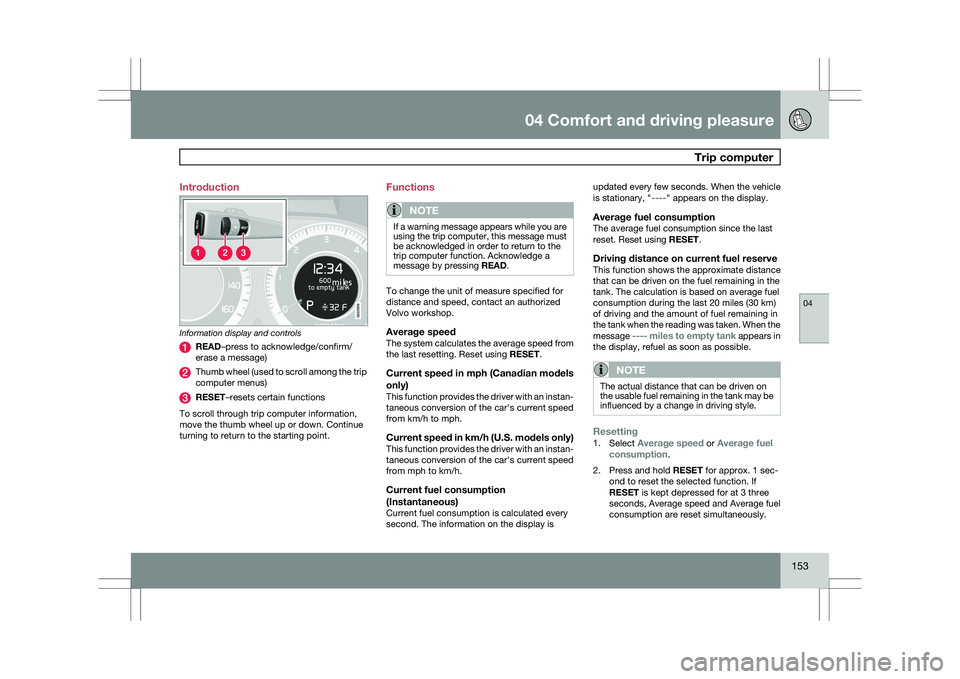
Information display and controls
READ–press to acknowledge/confirm/
erase a message)
Thumb wheel (used to scroll among the trip
computer menus)
RESET–resets certain functions
To scroll through trip computer information,
move the thumb wheel up or down. Continue
turning to return to the starting point. Functions
NOTE If a warning message appears while you are
using the trip computer, this message must
be acknowledged in order to return to the
trip computer function. Acknowledge a
message by pressing READ.
To change the unit of measure specified for
distance and speed, contact an authorized
Volvo workshop.
Average speedThe system calculates the average speed from
the last resetting. Reset using
RESET.
Current speed in mph (Canadian models
only)
This function provides the driver with an instan-
taneous conversion of the car\fs current speed
from km/h to mph.
Current speed in km/h (U.S. models only)This function provides the driver with an instan-
taneous conversion of the car\fs current speed
from mph to km/h.
Current fuel consumption
(Instantaneous)
Current fuel consumption is calculated every
second. The information on the display is updated every few seconds. When the vehicle
is stationary, "----" appears on the display.
Average fuel consumptionThe average fuel consumption since the last
reset. Reset using RESET.
Driving distance on current fuel reserveThis function shows the approximate distance
that can be driven on the fuel remaining in the
tank. The calculation is based on average fuel
consumption during the last 20 miles (30 km)
of driving and the amount of fuel remaining in
the tank when the reading was taken. When the
message ---- miles to empty tank appears in
the display, refuel as soon as possible.
NOTE The actual distance that can be driven on
the usable fuel remaining in the tank may be
influenced by a change in driving style.
Resetting1.
Select Average speed or Average fuel
consumption.
2. Press and hold RESET for approx. 1 sec-
ond to reset the selected function. If
RESET is kept depressed for at 3 three
seconds, Average speed and Average fuel
consumption are reset simultaneously. G022909
Page 156 of 297
04 Comfort and driving pleasureCompass 04
154 Operation
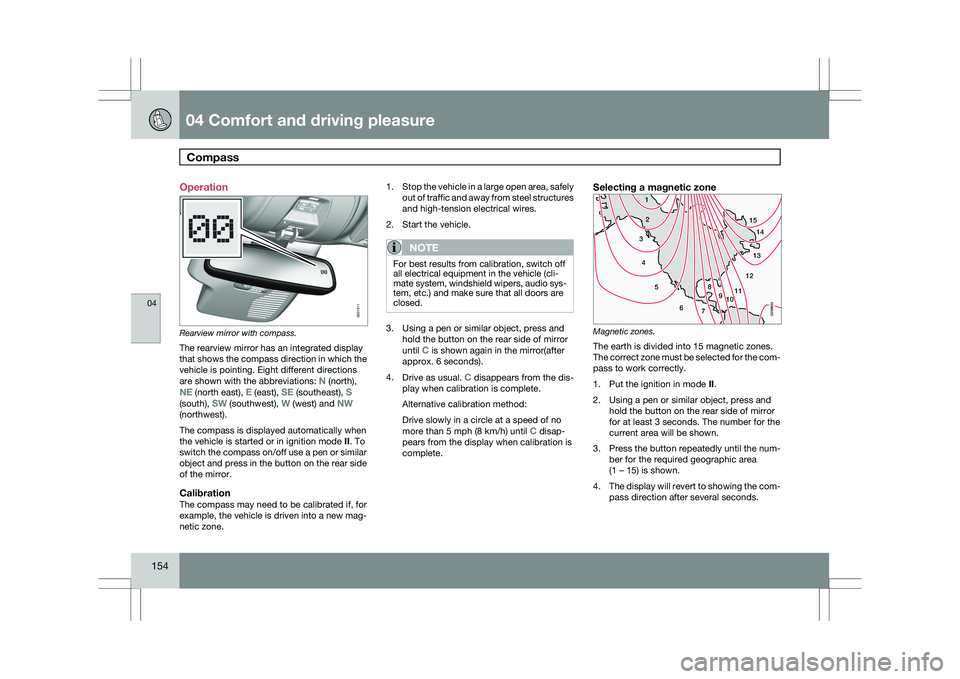
Rearview mirror with compass.
The rearview mirror has an integrated display
that shows the compass direction in which the
vehicle is pointing. Eight different directions
are shown with the abbreviations: N (north),
NE (north east), E (east), SE (southeast), S
(south), SW (southwest), W (west) and NW
(northwest).
The compass is displayed automatically when
the vehicle is started or in ignition mode II. To
switch the compass on/off use a pen or similar
object and press in the button on the rear side
of the mirror.
CalibrationThe compass may need to be calibrated if, for
example, the vehicle is driven into a new mag-
netic zone. 1.
Stop the vehicle in a large open area, safely
out of traffic and away from steel structures
and high-tension electrical wires.
2. Start the vehicle.
NOTE For best results from calibration, switch off
all electrical equipment in the vehicle (cli-
mate system, windshield wipers, audio sys-
tem, etc.) and make sure that all doors are
closed.
3. Using a pen or similar object, press and
hold the button on the rear side of mirror
until C is shown again in the mirror(after
approx. 6 seconds).
4. Drive as usual. C disappears from the dis-
play when calibration is complete.
Alternative calibration method:
Drive slowly in a circle at a speed of no
more than 5 mph (8 km/h) until C disap-
pears from the display when calibration is
complete.
Selecting a magnetic zone Magnetic zones.
The earth is divided into 15 magnetic zones.
The correct zone must be selected for the com-
pass to work correctly.
1.
Put the ignition in mode II.
2. Using a pen or similar object, press and hold the button on the rear side of mirror
for at least 3 seconds. The number for the
current area will be shown.
3. Press the button repeatedly until the num-
ber for the required geographic area
(1 – 15) is shown.
4. The display will revert to showing the com-
pass direction after several seconds. G031611
15
14
13
12
1198
76
5
4
3
2
1
10
G018632
Page 160 of 297
04 Comfort and driving pleasureCruise control 04
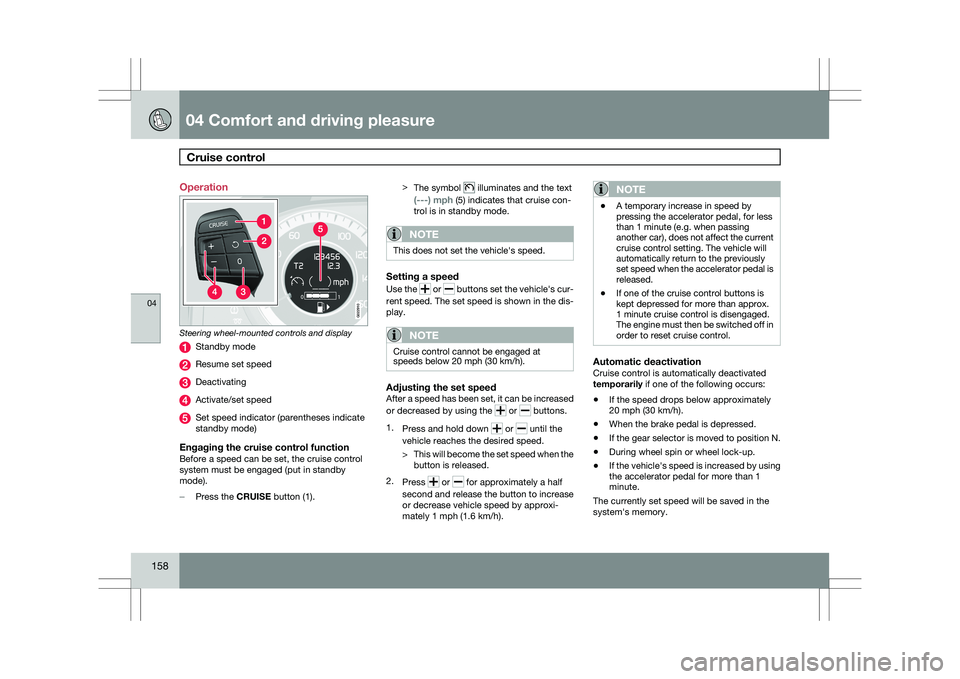
158 Operation
Steering wheel-mounted controls and display
Standby mode
Resume set speed
Deactivating
Activate/set speed
Set speed indicator (parentheses indicate
standby mode)
Engaging the cruise control functionBefore a speed can be set, the cruise control
system must be engaged (put in standby
mode).
–
Press the CRUISE button (1). >
The symbol illuminates and the text
(---) mph (5) indicates that cruise con-
trol is in standby mode.
NOTE This does not set the vehicle\fs speed.
Setting a speed
Use the
or buttons set the vehicle\fs cur-
rent speed. The set speed is shown in the dis-
play.
NOTE Cruise control cannot be engaged at
speeds below 20 mph (30 km/h).
Adjusting the set speedAfter a speed has been set, it can be increased
or decreased by using the
or buttons.
1. Press and hold down or until the
vehicle reaches the desired speed.
> This will become the set speed when the
button is released.
2. Press or for approximately a half
second and release the button to increase
or decrease vehicle speed by approxi-
mately 1 mph (1.6 km/h).
NOTE \b
A temporary increase in speed by
pressing the accelerator pedal, for less
than 1 minute (e.g. when passing
another car), does not affect the current
cruise control setting. The vehicle will
automatically return to the previously
set speed when the accelerator pedal is
released.
\b If one of the cruise control buttons is
kept depressed for more than approx.
1 minute cruise control is disengaged.
The engine must then be switched off in
order to reset cruise control.
Automatic deactivationCruise control is automatically deactivated
temporarily if one of the following occurs:
\b
If the speed drops below approximately
20 mph (30 km/h).
\b When the brake pedal is depressed.
\b If the gear selector is moved to position N.
\b During wheel spin or wheel lock-up.
\b If the vehicle\fs speed is increased by using
the accelerator pedal for more than 1
minute.
The currently set speed will be saved in the
system\fs memory. G022910
Page 170 of 297
04 Comfort and driving pleasureCity Safety™ 04
168 1.
Use the thumb wheel to scroll until City
Safety is displayed.
2. Press the RESET button for approximately
1 second until Off is displayed.
WARNINGThe laser sensor emits light when the igni-
tion is in mode II or higher, even if City
Safety™ has been switched off.
To switch City Safety™ on again:
\b
Follow the same procedure as for switch-
ing City Safety™ off but select On by
pressing RESET.
or
\b Vehicles not equipped with keyless
drive: Press lightly on the remote key to
release it partially from the ignition slot.
Press the remote key into the ignition slot
again. Depress the brake pedal and press
the START/STOP ENGINE button to start
the engine. This restarts City Safety™
.
\b Vehicles equipped with the optional
keyless drive: Press the START/STOP
ENGINE button to switch off the engine.
Depress the brake pedal and press the
START/STOP ENGINE button to start the
engine. This restarts City Safety™.
See page 79 for information on ignition modes. City Safety™ will be automatically switched on
the next time the engine is started, even if it was
off when the engine was switched off.
Limitations
The sensor used by City Safety™ is designed
to detect cars and other larger motor vehicles
ahead of your vehicle in both daylight and dark-
ness.
However, there are certain limitations and the
laser sensor’s function may be reduced by, for
example, heavy rain or snowfall, or by dense
fog or thick, blowing dust or snow. Condensa-
tion, dirt, ice or snow on the windshield may
also interfere with the sensor’s function.
Objects such as warning flags hanging from
long objects on the roof or accessories such as
auxiliary lights or protective arches on the front
of the vehicle that are higher than the hood may
also impede the sensor’s function.
Braking distance to the vehicle ahead increa-
ses on slippery road surfaces, which may
reduce City Safety’s capacity to avoid a colli-
sion. In situations like this, the DSTC system
(see page 155) will help provide the best pos-
sible braking capacity and stability.
City Safety™ emits infrared light and measures
the way in which the light is reflected. There-
fore, vehicles or objects with low-reflective sur-faces may not be detected. Normally, the
license plate and taillight reflectors give the
rear section of a vehicle ahead sufficient reflec-
tive surfaces to be detected.
NOTE
\b
Keep the windshield in front of the laser
sensor free of ice, snow, dirt, etc. See
the illustration on page
167
\b Snow or ice on the hood deeper than
2 inches (5 cm) may obstruct the sen-
sor. Keep the hood free of ice and snow.
\b Do not mount or in any way attach any-
thing on the windshield that could
obstruct the laser sensor. Troubleshooting
If Windshield sensors blocked appears in
the information display, this indicates that the
City Safety™ laser sensor is obstructed in
some way and cannot detect vehicles ahead of
you, which means that the system is not func-
tioning.
However, this message will not be displayed in
all situations in which the sensor is obstructed.
For this reason, the driver must ensure that the
area of the windshield in front of the sensor is
always kept clean.
Page 177 of 297
04 Comfort and driving pleasure
Adaptive Cruise Control (ACC)*04
}}
* Option/accessory, for more information, see Introduction. 175
WARNING\b
Only use a time interval that is suitable
in current traffic conditions.
\b A short time interval gives the driver lim-
ited reaction time if an unexpected sit-
uation occurs in traffic. The number of bars indicating the selected
time interval are shown while the setting is
being made and for several seconds afterward.
A smaller version of the symbol is then shown
to the right in the display. The same symbol is
also displayed when Distance Alert is acti-
vated, see page 179 .
Deactivating and resuming settingsCruise control is deactivated, either with a
short press on
, or by action taken by the
driver, such as braking, etc. The set speed, for
example 55 mph, is then shown in parenthe-
ses. Speed and time interval are resumed by
pressing .
WARNING
There may be a significant increase in speed
after the
button has been pressed.
A short press on in standby mode or a long
press in active mode deactivates cruise con- trol. The set speed is then cleared and cannot
be resumed.
When ACC is activated, the vehicle’s speed
increases by approximately 1 mph (1 km/h)
each additional time is pressed.
Deactivation due to action by the driverACC is deactivated:
\b
when the brakes are applied
\b if the gear selector is moved to
N
\b if the accelerator pedal is depressed for an
extended period.
NOTE If the accelerator pedal is only depressed for
a short time, such as when passing another
vehicle, ACC is deactivated temporarily and
is reactivated when the pedal is released.
Automatic deactivationAdaptive cruise control is linked to other sys-
tems such as ABS, the stability and traction
control system (DSTC), and the Distance Alert
System. If any of these systems are not func-
tioning properly, adaptive cruise control is
automatically deactivated.
In the event of automatic deactivation a signal
will sound and the message
Cruise Control
Canceled is shown in the display. The driver must then intervene and adapt the vehicle\fs
speed to the surrounding traffic.
Automatic deactivation may be caused if:
\b
the vehicle\fs speed falls below 20 mph
(30 km/h)
\b the wheels lose traction or if the anti-lock
brake system (ABS) is activated
\b brake temperature is high
\b engine speed (rpm) is too low
\b the radar sensor is obstructed by, for
example, wet snow or rain.
The radar sensor and its limitations
The radar sensor is used by both Adaptive
Cruise Control and the Collision Warning Sys-
tem with Auto-brake. It is designed to detect
cars or larger vehicles driving in the same
direction as your vehicle.WARNING Accessories or other objects, such as extra
headlights, must not be installed in front of
the grille.
Modification of the radar sensor could make
its use illegal.
The radar sensor\fs capacity to detect vehicles
ahead is impeded:
Page 181 of 297
04 Comfort and driving pleasure
Distance alert04
}}
179
Introduction
Distance Alert is part of Adaptive Cruise Con-
trol and is a function that provides information
about the time interval to the vehicle ahead.
Time interval information is only given for a
vehicle that is driving ahead of your vehicle, in
the same lane, and in the same direction. No
information is provided for vehicles driving
toward you, moving very slowly, or at a stand-
still.
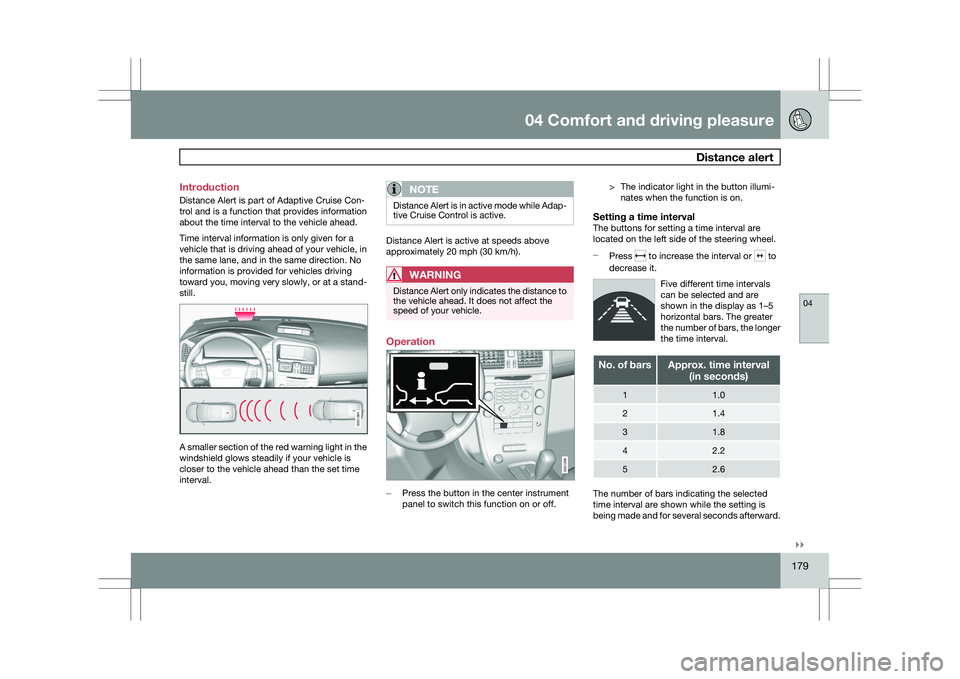
A smaller section of the red warning light in the
windshield glows steadily if your vehicle is
closer to the vehicle ahead than the set time
interval.
NOTE Distance Alert is in active mode while Adap-
tive Cruise Control is active.
Distance Alert is active at speeds above
approximately 20 mph (30 km/h).
WARNING
Distance Alert only indicates the distance to
the vehicle ahead. It does not affect the
speed of your vehicle.
Operation
–
Press the button in the center instrument
panel to switch this function on or off. > The indicator light in the button illumi-
nates when the function is on.
Setting a time intervalThe buttons for setting a time interval are
located on the left side of the steering wheel.
– Press to increase the interval or to
decrease it.
Five different time intervals
can be selected and are
shown in the display as 1–5
horizontal bars. The greater
the number of bars, the longer
the time interval. No. of bars Approx. time interval
(in seconds) 1 1.0
2 1.4
3 1.8
4 2.2
5 2.6
The number of bars indicating the selected
time interval are shown while the setting is
being made and for several seconds afterward. G031394 G031396
Page 184 of 297
04 Comfort and driving pleasureDriver Alert System* 04
182
* Option/accessory, for more information, see Introduction.
Introduction
The Driver Alert System is designed to help a
driver who may be becoming fatigued or who
is inadvertently leaving the lane.
The Driver Alert System consists of two differ-
ent functions that can be switched on together
or separately.
\b
Driver Alert Control (DAC)
\b Lane Departure Warning (LDW)
When one or both of the functions has been
switched on, it is in standby mode and is acti-
vated when the vehicle exceeds a speed of
40 mph (65 km/h).
The function deactivates if speed goes under
37 mph (60 km/h).
Both functions use a camera that is dependent
on the road/lane being clearly marked by pain-
ted lines on each side.
WARNING The Driver Alert system does not function in
all situations and is designed to be a sup-
plementary aid. It is not, however, intended
to replace the driver’s attention and judge-
ment. Driver Alert Control (DAC)–general
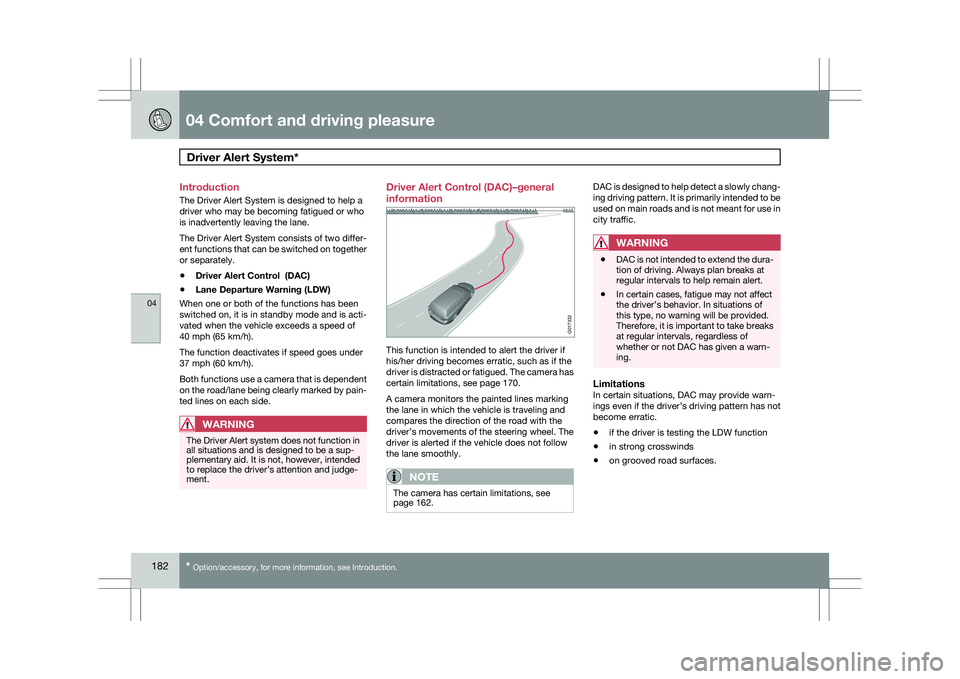
information
This function is intended to alert the driver if
his/her driving becomes erratic, such as if the
driver is distracted or fatigued. The camera has
certain limitations, see page 170.
A camera monitors the painted lines marking
the lane in which the vehicle is traveling and
compares the direction of the road with the
driver’s movements of the steering wheel. The
driver is alerted if the vehicle does not follow
the lane smoothly.
NOTE
The camera has certain limitations, see
page 162. DAC is designed to help detect a slowly chang-
ing driving pattern. It is primarily intended to be
used on main roads and is not meant for use in
city traffic.
WARNING
\b
DAC is not intended to extend the dura-
tion of driving. Always plan breaks at
regular intervals to help remain alert.
\b In certain cases, fatigue may not affect
the driver’s behavior. In situations of
this type, no warning will be provided.
Therefore, it is important to take breaks
at regular intervals, regardless of
whether or not DAC has given a warn-
ing.
LimitationsIn certain situations, DAC may provide warn-
ings even if the driver’s driving pattern has not
become erratic.
\b
if the driver is testing the LDW function
\b in strong crosswinds
\b on grooved road surfaces. G017332
Page 188 of 297
04 Comfort and driving pleasureDriver Alert System* 04
186
* Option/accessory, for more information, see Introduction.
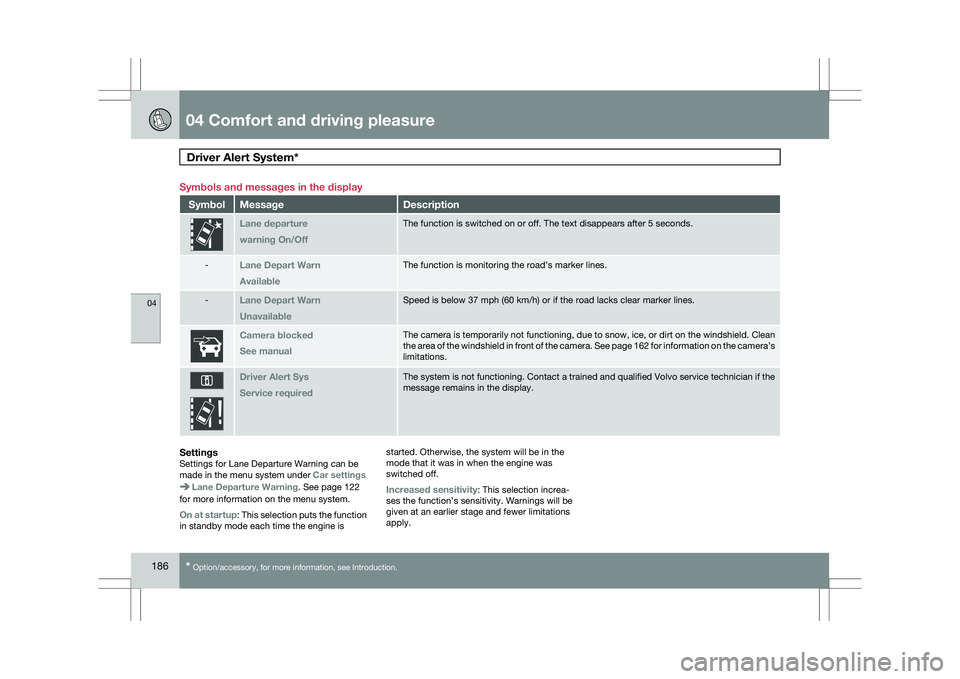
Symbols and messages in the display
Symbol Message Description
Lane departure
warning On/Off The function is switched on or off. The text disappears after 5 seconds.\
-
Lane Depart Warn
Available The function is monitoring the road’s marker lines.
-
Lane Depart Warn
Unavailable Speed is below 37 mph (60 km/h) or if the road lacks clear marker line\
s.
Camera blocked
See manual The camera is temporarily not functioning, due to snow, ice, or dirt on \
the windshield. Clean
the area of the windshield in front of the camera. See page
162 for information on the camera’s
limitations. Driver Alert Sys
Service required The system is not functioning. Contact a trained and qualified Volvo ser\
vice technician if the
message remains in the display.
SettingsSettings for Lane Departure Warning can be
made in the menu system under
Car settingsLane Departure Warning. See page 122
for more information on the menu system.
On at startup: This selection puts the function
in standby mode each time the engine is started. Otherwise, the system will be in the
mode that it was in when the engine was
switched off.
Increased sensitivity: This selection increa-
ses the function’s sensitivity. Warnings will be
given at an earlier stage and fewer limitations
apply.