steering VOLVO XC60 2009 Owner´s Manual
[x] Cancel search | Manufacturer: VOLVO, Model Year: 2009, Model line: XC60, Model: VOLVO XC60 2009Pages: 297, PDF Size: 21.16 MB
Page 135 of 297
04 Comfort and driving pleasure
Audio system04
}}
* Option/accessory, for more information, see Introduction. 133
Introduction
The audio system is available in two versions:
High Performance and Premium Sound. The
system version is shown in the display when
the audio system is switched on.
If the audio system is on when the ignition is
switched off, it will come on automatically the
next time the ignition is put in mode
I or higher.
The audio system can be operated without a
key in the ignition slot for 15 minutes at a time
by pressing the POWER button (the driver\fs
door must be closed on vehicles with the
optional keyless drive).
Some functions are controlled from the menu
system in the center console. For more infor-
mation on menus, see page 122.
Dolby Surround Pro Logic II and the sym-
bol are trademarks of Dolby Laboratories
Licensing Corporation. The Dolby Surround
Pro Logic II System is manufactured under
license from Dolby Laboratories Licensing Cor-
poration.
Remote key and ignition modesThe audio system can be used for 15 minutes
at a time if the remote key is not inserted in the
ignition slot.
NOTE To prevent unnecessary drain on the vehi-
cle\fs battery, remove the remote key from
the ignition slot if the audio system is used
when the engine is not running.
If the audio system is playing when the engine
is switched off, it will be on when the engine is
restarted.
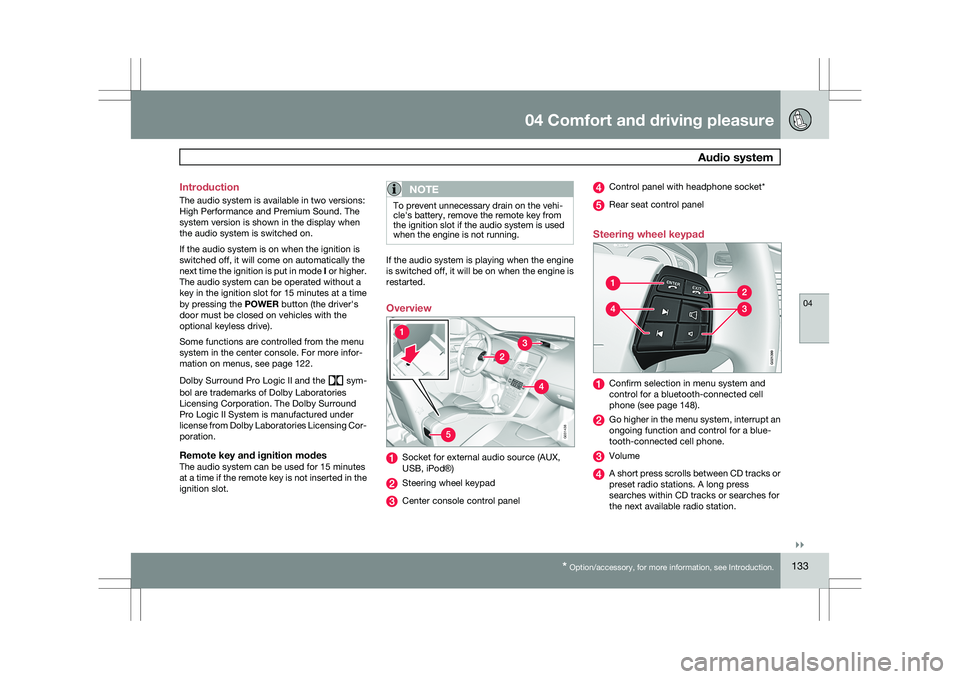
Overview
Socket for external audio source (AUX,
USB, iPod®)
Steering wheel keypad
Center console control panel Control panel with headphone socket*
Rear seat control panel
Steering wheel keypad Confirm selection in menu system and
control for a bluetooth-connected cell
phone (see page 148).
Go higher in the menu system, interrupt an
ongoing function and control for a blue-
tooth-connected cell phone.
Volume
A short press scrolls between CD tracks or
preset radio stations. A long press
searches within CD tracks or searches for
the next available radio station. 5G031438 G02139
9
Page 136 of 297
04 Comfort and driving pleasureAudio system 04
134 Please note that these functions are also avail-
able through the audio system controls on cen-
ter console.
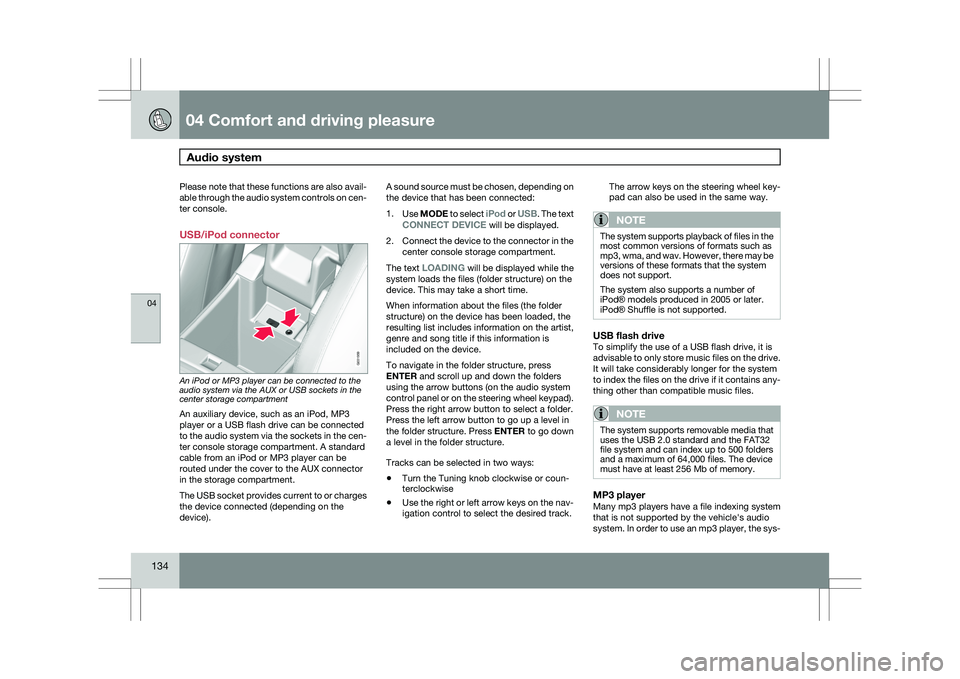
USB/iPod connector
An iPod or MP3 player can be connected to the
audio system via the AUX or USB sockets in the
center storage compartment
An auxiliary device, such as an iPod, MP3
player or a USB flash drive can be connected
to the audio system via the sockets in the cen-
ter console storage compartment. A standard
cable from an iPod or MP3 player can be
routed under the cover to the AUX connector
in the storage compartment.
The USB socket provides current to or charges
the device connected (depending on the
device). A sound source must be chosen, depending on
the device that has been connected:
1.
Use MODE to select iPod or USB. The text
CONNECT DEVICE will be displayed.
2. Connect the device to the connector in the
center console storage compartment.
The text LOADING will be displayed while the
system loads the files (folder structure) on the
device. This may take a short time.
When information about the files (the folder
structure) on the device has been loaded, the
resulting list includes information on the artist,
genre and song title if this information is
included on the device.
To navigate in the folder structure, press
ENTER and scroll up and down the folders
using the arrow buttons (on the audio system
control panel or on the steering wheel keypad).
Press the right arrow button to select a folder.
Press the left arrow button to go up a level in
the folder structure. Press ENTER to go down
a level in the folder structure.
Tracks can be selected in two ways:
\b Turn the Tuning knob clockwise or coun-
terclockwise
\b Use the right or left arrow keys on the nav-
igation control to select the desired track. The arrow keys on the steering wheel key-
pad can also be used in the same way.
NOTE The system supports playback of files in the
most common versions of formats such as
mp3, wma, and wav. However, there may be
versions of these formats that the system
does not support.
The system also supports a number of
iPod® models produced in 2005 or later.
iPod® Shuffle is not supported.
USB flash driveTo simplify the use of a USB flash drive, it is
advisable to only store music files on the drive.
It will take considerably longer for the system
to index the files on the drive if it contains any-
thing other than compatible music files.
NOTE
The system supports removable media that
uses the USB 2.0 standard and the FAT32
file system and can index up to 500 folders
and a maximum of 64,000 files. The device
must have at least 256 Mb of memory.
MP3 playerMany mp3 players have a file indexing system
that is not supported by the vehicle\fs audio
system. In order to use an mp3 player, the sys- G031959
Page 147 of 297
04 Comfort and driving pleasure
Audio system04
}}
145
Playing a CD (CD player
9
)If a music CD is in the player when CD is
pressed, it will be played automatically. Other-
wise, insert a disc and press CD.
Playing a CD (CD changer)If a CD position with a music CD is already
selected when CD is pressed, it will be played
automatically. Otherwise select a disc with the
number buttons 1 – 6 or / on the naviga-
tion button.
Insert a CD (CD changer)1. Select an empty position with the number
buttons 1 – 6 or / on the navigation
button.
> An empty position is marked on the dis-
play. The text Insert disc shows that a
new disc can be inserted. The CD
changer can hold up to six CDs.
2. Insert a CD in the CD changer slot.
Disc ejectFor reasons of traffic safety, an ejected CD
must be removed within 12 seconds or it will
be automatically drawn back into the slot and
the CD player will enter pause mode. Press the
CD button to restart the disc. Eject individual discs by pressing the eject but-
ton.
Eject all discs with a long press on the eject
button. The entire magazine is emptied disc by
disc.
NOTE
The Eject all function can only be used while
the vehicle is at a standstill and will be can-
celled if the vehicle begins to move.
PauseWhen the audio system volume is turned off
completely, the CD player will pause and will
resume playing when the volume is turned up
again.
Sound filesIn addition to playing normal music CDs, the
CD player/changer can also play discs con-
taining files in mp3 or wma format.
NOTE
Some copy protected sound files may not
be read by the player.
When a CD containing sound files is inserted
into the player the disc\fs folder structure isscanned before the CD begins playing. The
length of time that this takes depends on the
quality of the disc.
Navigating the disc and playing tracksIf a disc containing sound files is inside the CD
player, press ENTER to display the disc\fs
directory structure. The directory structure is
navigated in the same way as the audio sys-
tem\fs menu structure. Sound files have the
symbol and directories have the
symbol. Press ENTER to play a selected folder
or a file.
When the music file has been played, the
player will continue to play the rest of the files
in the current folder. When all of the files in the
folder have been played, the player will auto-
matically go to the next folder and play the files
in it.
Fast-forward/change CD tracks and
sound files
Short presses / on the navigation button
are used to scroll between CD tracks/sound
files. Long presses are used to search within
CD tracks/sound files. TUNING (or the steering
wheel keypad) can also be used for this pur-
pose.
9 Certain markets only.
Page 149 of 297
04 Comfort and driving pleasure
Bluetooth® hands-free connection04
}}
147
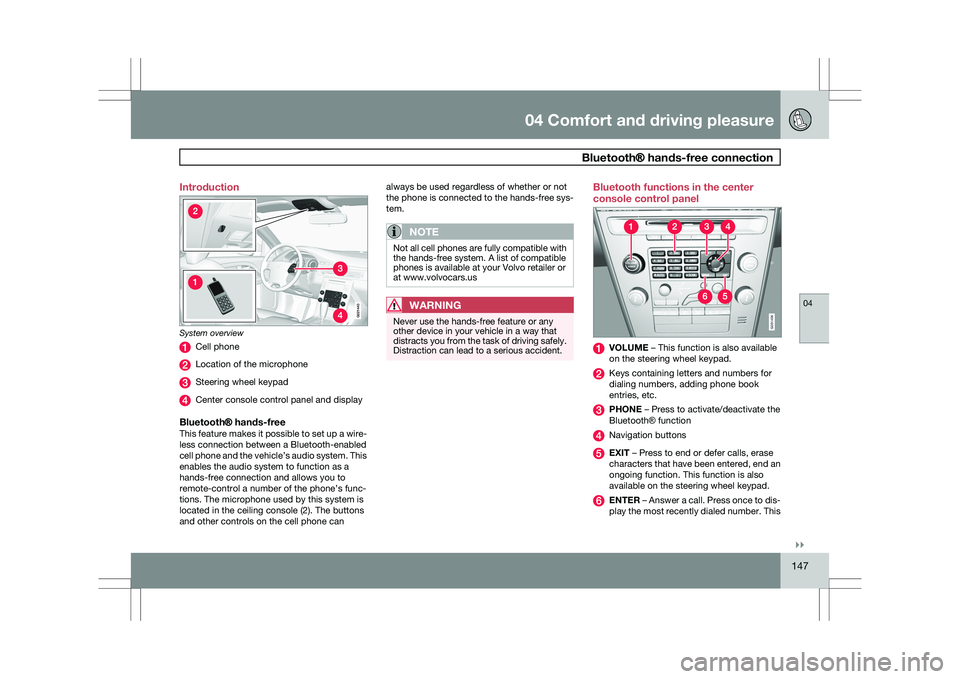
Introduction
System overview
Cell phone
Location of the microphone
Steering wheel keypad
Center console control panel and display
Bluetooth® hands-freeThis feature makes it possible to set up a wire-
less connection between a Bluetooth-enabled
cell phone and the vehicle’s audio system. This
enables the audio system to function as a
hands-free connection and allows you to
remote-control a number of the phone’s func-
tions. The microphone used by this system is
located in the ceiling console (2). The buttons
and other controls on the cell phone can always be used regardless of whether or not
the phone is connected to the hands-free sys-
tem.
NOTE
Not all cell phones are fully compatible with
the hands-free system. A list of compatible
phones is available at your Volvo retailer or
at www.volvocars.us
WARNING
Never use the hands-free feature or any
other device in your vehicle in a way that
distracts you from the task of driving safely.
Distraction can lead to a serious accident. Bluetooth functions in the center
console control panel
VOLUME – This function is also available
on the steering wheel keypad.
Keys containing letters and numbers for
dialing numbers, adding phone book
entries, etc.
PHONE – Press to activate/deactivate the
Bluetooth
® function Navigation buttons
EXIT – Press to end or defer calls, erase
characters that have been entered, end an
ongoing function. This function is also
available on the steering wheel keypad.
ENTER – Answer a call. Press once to dis-
play the most recently dialed number. This G02144
3 G031456
Page 150 of 297
04 Comfort and driving pleasureBluetooth® hands-free connection 04
148 function is also available on the steering
wheel keypad.
Getting started
Use the controls on steering wheel keypad (3)
and in the center console (4) to access, navi-
gate and make selections in the hands-free
system’s menus (see page 152).
Activating/deactivatingA short press on the PHONE button in the cen-
ter console activates the hands-free system.
The text TELEPHONE will appear at the top of
the display to indicate that the audio system is
in telephone mode.
The symbol indicates that the hands-free
system is active.
A long press on the PHONE button deactivates
the hands-free system and disconnects the
cell phone.
Connecting cell phonesThe procedure for connecting a cell phone var-
ies, depending on the phone itself, and on
whether or not the phone has been previously
connected.
If this is the first time the phone is to be con-
nected to the hands-free system, proceed as
follows: Alternative 1–using the vehicle\fs menus
1.
Activate the cell phone’s Bluetooth® func-
tion (refer to the phone’s owner’s manual if
necessary) or go to www.volvocars.com
2. Activate the vehicle’s Bluetooth ® hands-
free system by briefly pressing the
PHONE button.
> Add phone will be displayed. If one or
more cell phones are already registered
in the system, they will also be dis-
played.
3. Select Add phone.
>The audio system will search for cell
phones that are in range. This search
takes approximately 30 seconds. Any
phones detected will be displayed with
their Bluetooth ® names. The hands-free
system’s Bluetooth ® name will appear
in the cell phone’s display as My Car.
4. Select one of the cell phones shown in the
audio system’s (center console) display.
5. Using the cell phone’s keypad, enter the digits shown in the audio system’s display.
Alternative 2–using the cell phone’s menus
1. Activate the hands-free system by briefly pressing the PHONE button in the center
console. If there is a cell phone connected, disconnect it from the hands-free system
(by pressing PHONE in the center console
for several seconds).
2. Perform a search using the cell phone’s Bluetooth ® function (consult the cell
phone’s owner’s manual if necessary).
3. Select My Car in the list of devices shown
in the cell phone’s display.
4. When prompted, enter the PIN code 1234 in the cell phone.
5. Connect to My Car from the cell phone.
The cell phone will be registered and will be
connected automatically to the audio system
while the text Synchronising is displayed. For
more information on synchronizing a cell
phone, see page 150.
When a connection has been established, the symbol and the cell phone’s Bluetooth
®
name will be displayed. The cell phone can
now be controlled from the audio system.Making a call1. Ensure that TELEPHONE is shown at the
top of the center console display and that
the symbol is visible (by pressing briefly
on PHONE on the center console).
2. Dial the desired phone number or use the phone book (see page 151).
Page 151 of 297
04 Comfort and driving pleasure
Bluetooth® hands-free connection04
}}
149
3.
Press ENTER.
End the call by pressing EXIT.
Disconnecting the cell phoneThe cell phone is automatically disconnected
from the audio system if it is moved out of
range. For more information about connec-
tions, see page 148.
The cell phone can be manually disconnected
from the hands-free system by pressing
PHONE. The hands-free system is also deac-
tivated when the ignition is switched off (or if
the driver’s door is opened on vehicles equip-
ped with the optional keyless drive).
When the cell phone is disconnected from the
hands-free system, a call in progress can be
continued using the cell phone’s own speaker
and microphone.
NOTE Certain cell phones may require confirma-
tion from the phone’s keypad when a call is
transferred from hands-free to the cell
phone. Handling calls
Incoming callsPress ENTER to answer a call, even if the audio
system is currently in e.g., CD or FM mode.
Press EXIT to defer a call.
Automatic answerThis function means that incoming calls will be
answered automatically. Activate or deactivate
the function in the menu system under Phone
settings Call options Automatic
answer.
Call settingsWhile a call is in progress, press MENU or
ENTER on the center console to access the
following functions:
\b Microphone off–mute the audio system’s
microphone.
\b Transfer call to mobile–transfer the call
from hands-free to the cell phone.
\b Phone book–this feature enables you to
search for a stored telephone number.
NOTE \b
On certain cell phones, the connection
is broken when the mute function is
used, which is normal. If this happens,
the hands-free system will prompt you
to reconnect.
\b A new call cannot be initiated while
another call is in progress. Sound settings
Call volumeCall volume can be adjusted when the hands-
free system is activated. Use the buttons in the
steering wheel keypad or the audio system’s
volume control.
Audio system volumeWhile a phone call is in progress, volume for
the audio system can be adjusted in the normal
way with the audio system\fs volume control. In
order to adjust volume during a phone call, the
audio system must be switched to one of the
other modes (FM, CD, etc).
Audio system sound can be automatically
muted when a phone call is received in
Phone
settings Sounds and volume Mute
radio and adjust the volume with the /
keys on the center console.
Page 153 of 297
04 Comfort and driving pleasure
Bluetooth® hands-free connection04
}}
151
Searching for contactsThe easiest way to search for a contact in the
phone book is to press and hold any of the
buttons 2–9 (see the illustration on page 147).
This starts a search based on the first letter on
the button that has been pressed.
The phone book can also be accessed by
pressing the navigation buttons / on the
center console or by pressing / on the
steering wheel keypad. A search can also be
made in the phone book’s search menu in
Phone book Search:
1.
Enter the first letter of the contact’s name and press ENTER or simply press ENTER.
2. Select the desired contact and press ENTER to make a call to that person.
Voice controlIf the cell phone that is currently connected
allows calls to be made via voice commands,
this function can be used by pressing and hold-
ing ENTER.
Voice mail numberThe phone number to your voice mail can be
changed in the menu Phone settings Call
options Voice mail number. If no number
has been stored, this menu can be accessed
by a prolonged press on button 1. Once a phone number has been stored, press and hold
1 to dial this number.
Call listsLists of calls in a particular cell phone are cop-
ied to the hands-free system each time that
phone is connected. These lists are then upda-
ted while the phone is connected. Press
ENTER to show the most recently dialed num-
bers. Other call lists can be found under Call
register.
NOTE
Certain cell phones display the list of the
most recently dialed numbers in reverse
order.
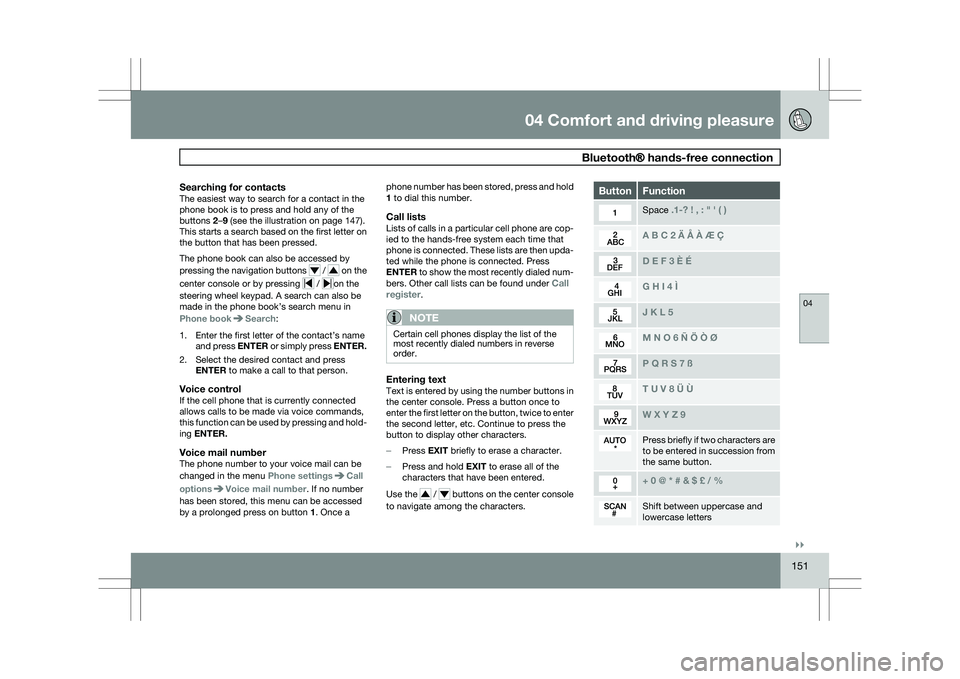
Entering textText is entered by using the number buttons in
the center console. Press a button once to
enter the first letter on the button, twice to enter
the second letter, etc. Continue to press the
button to display other characters.
–
Press EXIT briefly to erase a character.
– Press and hold EXIT to erase all of the
characters that have been entered.
Use the / buttons on the center console
to navigate among the characters. Button Function
Space .1-? ! , : " \f ( )
A B C 2 \b Å À Æ Ç
D E F 3 È É
G H I 4 Ì
J K L 5
M N O 6 Ñ Ö Ò Ø
P Q R S 7 ß
T U V 8 Ü Ù
W X Y Z 9
Press briefly if two characters are
to be entered in succession from
the same button.
+ 0 @ * # & $ £ / %
Shift between uppercase and
lowercase letters
Page 159 of 297
04 Comfort and driving pleasure
Active chassis system–Four C04
* Option/accessory, for more information, see Introduction. 157
Active chassis (Four C)*
Active chassis, Four-C (Continuously Con-
trolled Chassis Concept), regulates the cha-
racteristics of the shock absorbers so that the
car\fs driving characteristics can be adjusted.
There are three settings: Comfort, Sport and
Advanced.
ComfortComfort mode offers a somewhat softer ride
and the transmission shifts gears at lower rpm.
This mode is particularly suitable for long-dis-
tance highway driving. The indicator light in the
button will be on when this mode is selected.
SportIn this mode, the vehicle\fs body sway is
reduced during cornering and steering
response is more immediate. The transmission
shifts up at higher rpm for sportier driving. The
indicator light in the button will be on to indi-
cate that Sport mode has been selected.
AdvancedIn this mode, body sway in curves is minimal
and steering response is very direct. Gear shift-
ing is done at high rpm in each gear for
dynamic and active driving.
Operation
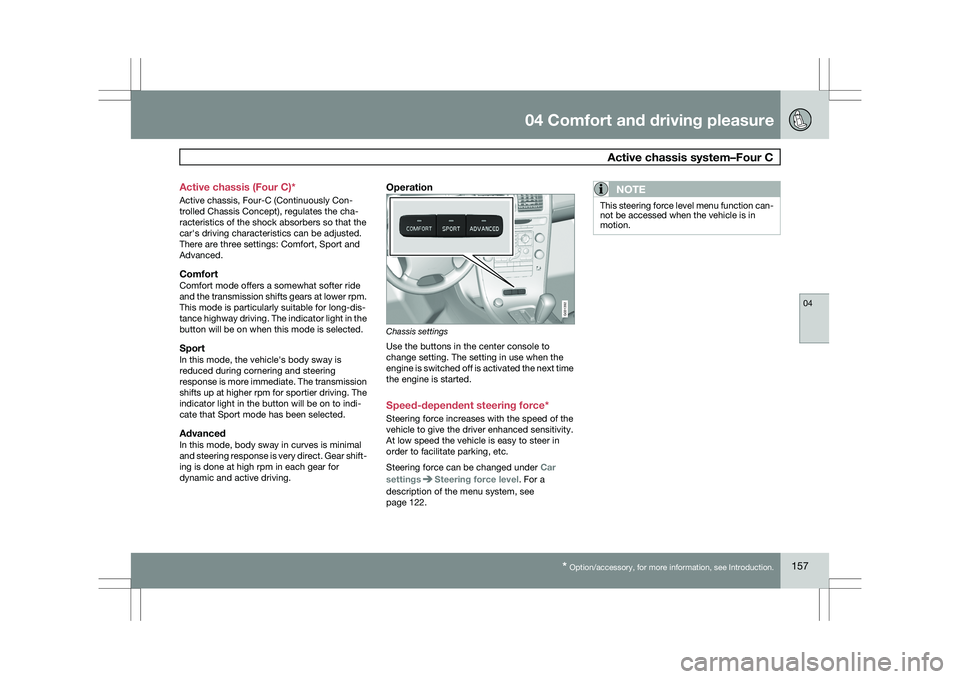
Chassis settings
Use the buttons in the center console to
change setting. The setting in use when the
engine is switched off is activated the next time
the engine is started.
Speed-dependent steering force*
Steering force increases with the speed of the
vehicle to give the driver enhanced sensitivity.
At low speed the vehicle is easy to steer in
order to facilitate parking, etc.
Steering force can be changed under
Car
settings Steering force level. For a
description of the menu system, see
page 122.NOTE This steering force level menu function can-
not be accessed when the vehicle is in
motion. G031392
Page 160 of 297
04 Comfort and driving pleasureCruise control 04
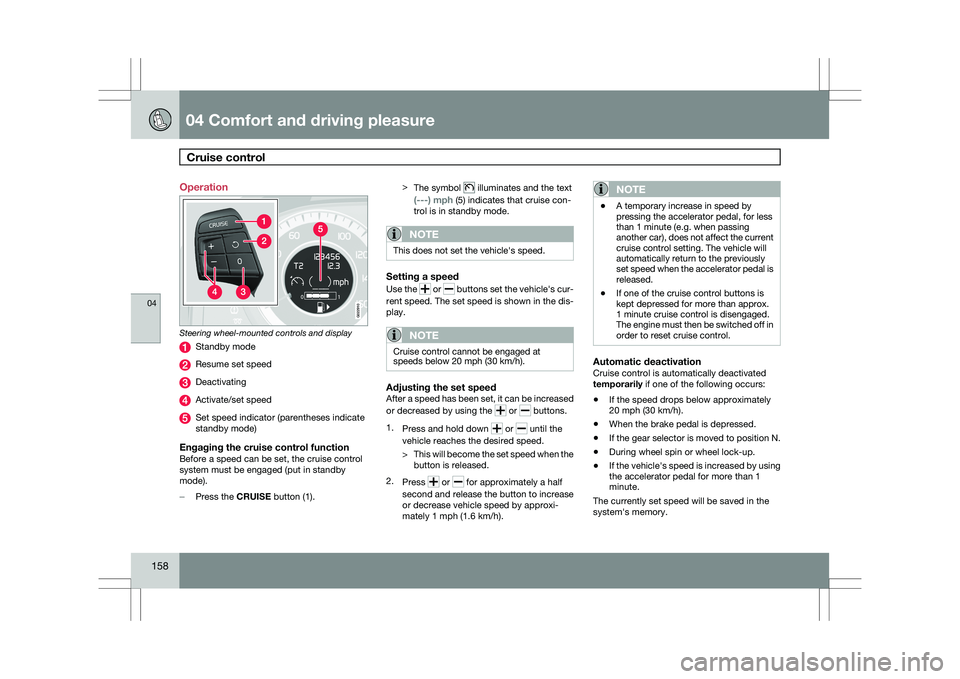
158 Operation
Steering wheel-mounted controls and display
Standby mode
Resume set speed
Deactivating
Activate/set speed
Set speed indicator (parentheses indicate
standby mode)
Engaging the cruise control functionBefore a speed can be set, the cruise control
system must be engaged (put in standby
mode).
–
Press the CRUISE button (1). >
The symbol illuminates and the text
(---) mph (5) indicates that cruise con-
trol is in standby mode.
NOTE This does not set the vehicle\fs speed.
Setting a speed
Use the
or buttons set the vehicle\fs cur-
rent speed. The set speed is shown in the dis-
play.
NOTE Cruise control cannot be engaged at
speeds below 20 mph (30 km/h).
Adjusting the set speedAfter a speed has been set, it can be increased
or decreased by using the
or buttons.
1. Press and hold down or until the
vehicle reaches the desired speed.
> This will become the set speed when the
button is released.
2. Press or for approximately a half
second and release the button to increase
or decrease vehicle speed by approxi-
mately 1 mph (1.6 km/h).
NOTE \b
A temporary increase in speed by
pressing the accelerator pedal, for less
than 1 minute (e.g. when passing
another car), does not affect the current
cruise control setting. The vehicle will
automatically return to the previously
set speed when the accelerator pedal is
released.
\b If one of the cruise control buttons is
kept depressed for more than approx.
1 minute cruise control is disengaged.
The engine must then be switched off in
order to reset cruise control.
Automatic deactivationCruise control is automatically deactivated
temporarily if one of the following occurs:
\b
If the speed drops below approximately
20 mph (30 km/h).
\b When the brake pedal is depressed.
\b If the gear selector is moved to position N.
\b During wheel spin or wheel lock-up.
\b If the vehicle\fs speed is increased by using
the accelerator pedal for more than 1
minute.
The currently set speed will be saved in the
system\fs memory. G022910
Page 164 of 297
04 Comfort and driving pleasureCollision warning with Auto-brake* 04
162
* Option/accessory, for more information, see Introduction.
LimitationsStrong sunlight, reflections, extreme light con-
trasts, the use of sunglasses, or if the driver is
not looking straight ahead may make the visual
warning signal in the windshield difficult to see.
For this reason, always activate the audible
warning signal in such conditions.
NOTE The visual warning signal may be temporar-
ily disengaged in the event of high passen-
ger compartment temperature due to strong
sunlight, etc. If this occurs, the audible
warning signal will be used, even if it has
been deactivated in the menu system.
Warnings may not appear if the distance to the
vehicle ahead is very small or if steering wheel
and pedal movements are great, for example,
due to a very active driving style.
WARNING \b
In certain situations, the system cannot
provide warnings or warning may be
delayed if traffic conditions or other
external factors make it impossible for
the radar sensor or camera to detect the
vehicle ahead.
\b Warnings may not be provided if the
distance to the vehicle ahead is short,
or if movements of the steering wheel/
brake pedal are great, such as during
active driving.
\b The sensor system has a limited range
for stationary or slow-moving vehicles
and may therefore give delayed or no
warnings if your vehicle’s speed is
above approximately 45 mph
(70 km/h).
\b Warnings for stationary or slow-moving
vehicles may not be provided in dark
conditions. The Collision Warning system uses the same
radar sensors as Adaptive Cruise Control. For
more information on the radar sensor and its
limitations, see page 175
.
If no warning is given, or if a warning is delayed,
Auto-brake will also not be provided or will be
delayed.
NOTE If warnings are given too frequently, the
warning distance can be reduced (see
page 161). This causes the system to pro-
vide later warnings, which decreases the
total number of warnings provided.
The camera’s limitationsThe camera is used by Collision Warning with
Auto-brake, Driver Alert Control (see
page 182), and Lane Departure Warning (see
page 185).
NOTE
\b
To help protect the camera in very hot
conditions, it may be temporarily
switched off for approximately 15
minutes after the engine has been
started.
\b Keep the section of the windshield in
front of the camera clean and free of ice,
snow, or condensation.