navigation system VOLVO XC60 2015 Owner´s Manual
[x] Cancel search | Manufacturer: VOLVO, Model Year: 2015, Model line: XC60, Model: VOLVO XC60 2015Pages: 406, PDF Size: 11.03 MB
Page 248 of 406
06 Infotainment
Introduction
06
246
MEDIA menus
Main CD Audio menuDisc menuRandom Scan
Audio settings 7
Main CD/DVD 10
Data menuDisc menu
Play/Pause
StopRandomRepeat folderChange subtitlesChange audio trackScan
Audio settings 7
Main DVD10
Video menuDVD Video Menu
DVD disc menuPlay/Pause/Continue StopSubtitlesAudio tracksAdvanced settings
AngleDivX® VOD code
Audio settings 7
Main iPod menuiPod menu
RandomScan
Audio settings 7
Main USB menuUSB menu
Play/Pause
StopRandomRepeat folderSelect USB deviceChange subtitles Change audio trackScan
Audio settings 7
Main AUX menuAUX menu
AUX input volume
Audio settings 7
TEL menus
Main Bluetooth media menuBluetooth menu
Random Change deviceRemove Bluetooth deviceScanBluetooth software version in car
Audio settings 7
7
The audio settings are the same for all infotainment system modes10
The media player can only play DVDs in models equipped with the optional navigation system. Images are only displayed when the vehicle is not in motion.
Page 259 of 406
06 Infotainment
Media player
06
}}
257
CD/DVD1
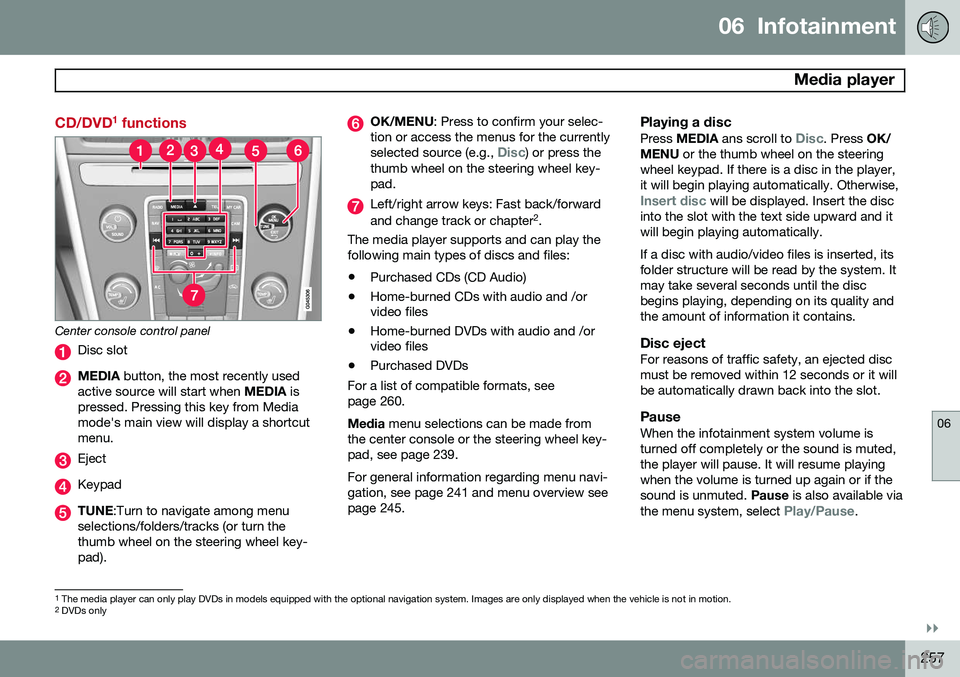
functions
Center console control panel
Disc slot
MEDIA button, the most recently used
active source will start when MEDIA is
pressed. Pressing this key from Media mode's main view will display a shortcutmenu.
Eject
Keypad
TUNE :Turn to navigate among menu
selections/folders/tracks (or turn the thumb wheel on the steering wheel key-pad).
OK/MENU : Press to confirm your selec-
tion or access the menus for the currently selected source (e.g.,
Disc) or press the
thumb wheel on the steering wheel key- pad.
Left/right arrow keys: Fast back/forward and change track or chapter 2
.
The media player supports and can play the following main types of discs and files:
• Purchased CDs (CD Audio)
• Home-burned CDs with audio and /or video files
• Home-burned DVDs with audio and /orvideo files
• Purchased DVDs
For a list of compatible formats, see page 260. Media menu selections can be made from
the center console or the steering wheel key- pad, see page 239. For general information regarding menu navi- gation, see page 241 and menu overview seepage 245.
Playing a disc
Press MEDIA ans scroll to Disc. Press OK/
MENU or the thumb wheel on the steering
wheel keypad. If there is a disc in the player, it will begin playing automatically. Otherwise,
Insert disc will be displayed. Insert the disc
into the slot with the text side upward and it will begin playing automatically. If a disc with audio/video files is inserted, its folder structure will be read by the system. Itmay take several seconds until the discbegins playing, depending on its quality andthe amount of information it contains.
Disc ejectFor reasons of traffic safety, an ejected discmust be removed within 12 seconds or it willbe automatically drawn back into the slot.
PauseWhen the infotainment system volume isturned off completely or the sound is muted,the player will pause. It will resume playingwhen the volume is turned up again or if thesound is unmuted. Pause is also available via
the menu system, select
Play/Pause.
1 The media player can only play DVDs in models equipped with the optional navigation system. Images are only displayed when the vehicle is not in motion.
2 DVDs only
Page 267 of 406
06 Infotainment
Bluetooth® media
06
}}
265
Introduction
The vehicle's media player is equipped with Bluetooth ®
and can play streaming audio files
from a Bluetooth ®
device such as a cell
phone or mp3 player. Navigation and control of the device can be done through the vehi-cle's center console control panel or thesteering wheel keypad. On certain externaldevices, it is also possible to change tracksfrom the device.
NOTE
Any Bluetooth cell phones used must sup- port Audio/Video Remote Control Profile(AVRCP) and Advanced Audio DistributionProfile (A2DP). The phone must useAVRCP version 1.3 and A2DP 1.2. If olderversions of these standards are used, cer-tain features (e.g., scan or random) maynot function. Not all cell phones are fully compatible with the vehicle's Bluetooth system. A listof compatible phones is available at youVolvo retailer or at www.volvocars.us.
Menu navigation
Choices can be made in the Bluetoothmenus from the center console control panel or the steering wheel keypad. For additionalinformation about navigating the variousmenus, see page 239. The vehicle's media player can only play audio files through the Bluetooth
®
function.
Overview
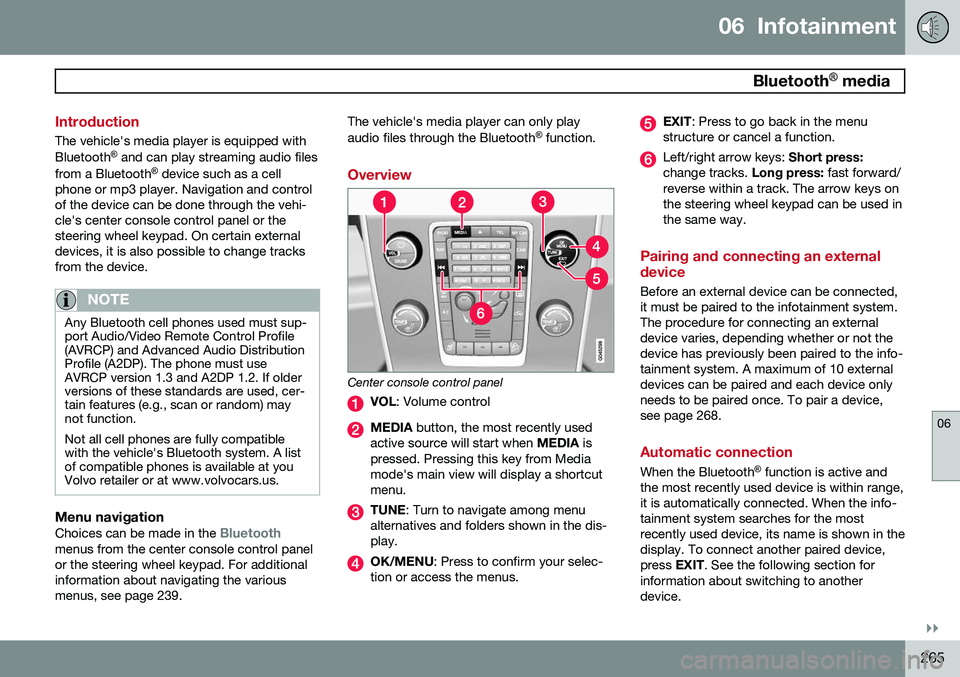
Center console control panel
VOL : Volume control
MEDIA button, the most recently used
active source will start when MEDIA is
pressed. Pressing this key from Media mode's main view will display a shortcutmenu.
TUNE : Turn to navigate among menu
alternatives and folders shown in the dis- play.
OK/MENU : Press to confirm your selec-
tion or access the menus.
EXIT : Press to go back in the menu
structure or cancel a function.
Left/right arrow keys: Short press:
change tracks. Long press: fast forward/
reverse within a track. The arrow keys on the steering wheel keypad can be used inthe same way.
Pairing and connecting an external device
Before an external device can be connected, it must be paired to the infotainment system.The procedure for connecting an externaldevice varies, depending whether or not thedevice has previously been paired to the info-tainment system. A maximum of 10 externaldevices can be paired and each device onlyneeds to be paired once. To pair a device,see page 268.
Automatic connection
When the Bluetooth ®
function is active and
the most recently used device is within range, it is automatically connected. When the info-tainment system searches for the mostrecently used device, its name is shown in thedisplay. To connect another paired device,press EXIT. See the following section for
information about switching to anotherdevice.
Page 269 of 406
06 Infotainment
Bluetooth® hands-free connection
06
}}
267
Introduction
This feature makes it possible to set up a wireless connection between a Bluetooth ®
-
enabled cell phone or other device and the vehicle’s infotainment system. This enablesthe infotainment system to function as ahands-free connection and allows you toremote-control a number of the phone’s func-tions. The microphone used by this system islocated near the driver's side sun visor (2).The buttons and other controls on the cellphone can always be used regardless ofwhether or not the phone is connected to thehands-free system.
NOTE
Not all cell phones are fully compatible with the hands-free system. A list of com-patible phones is available at your Volvoretailer or at www.volvocars.us
WARNING
Never use the hands-free feature or any other device in your vehicle in a way thatdistracts you from the task of drivingsafely. Distraction can lead to a seriousaccident.
Compliance
FCC/IC common sentenceThis device complies with Part 15 of FCC Rules and RSS-Gen of IC Rules and IndustryCanada license-exempt RSS standard(s).Operation is subject to the following two con-ditions: (1) this device may not cause interfer-ence, and (2) this device must accept anyinterference, including interference that maycause undesired operation of this device. USA: FCC ID A269ZUA134USA: FCC ID A269ZUA135FCC WARNINGChanges or modifications not expressly approved by the party responsible for compli-ance could void the user’s authority to oper-ate the equipment.
IC RSS-GenThis equipment complies with FCC/IC radia- tion exposure limits set forth for an uncontrol-led environment and meets the FCC radio fre-quency (RF) Exposure Guidelines in Supple-ment C to OET65 and RSS-102 of the ICradio frequency (RF) Exposure rules. Thisequipment has very low levels of RF energythat it deemed to comply without maximumpermissive exposure evaluation (MPE). But itis desirable that it should be installed andoperated keeping the radiator at least 8 in. (20 cm) or more away from person’s body(excluding extremities: hands, wrists, feet andankles). Canada: IC 700BIAM2103Canada: IC 700BIAM2104
Menu navigationTEL
menu selections can be made from the
center console or the steering wheel keypad. For additional information about navigatingthe various menus, see page 239.
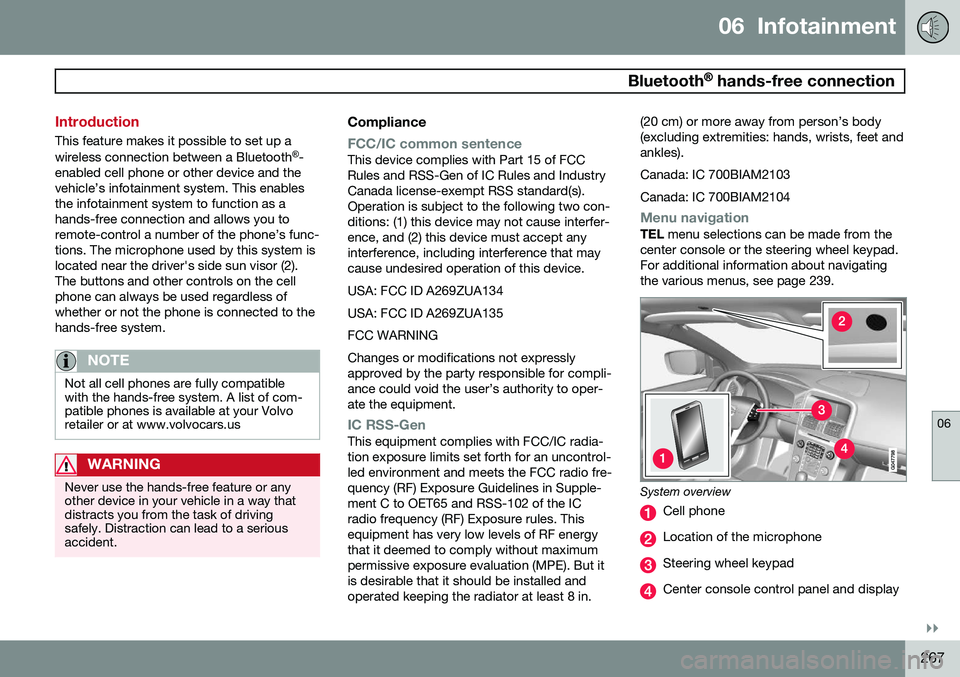
System overview
Cell phone
Location of the microphone
Steering wheel keypad
Center console control panel and display
Page 278 of 406
06 Infotainment
Cell phone voice control*
06
276* Option/accessory, for more information, see Introduction.
Introduction
The infotainment system's voice control fea- ture 1
enables the driver to voice-activate cer-
tain functions in a Bluetooth ®
-connected cell
phone or the navigation system.
NOTE
• The information in this section applies to using voice commands to operate a Bluetooth
®
-connected cell phone .
See also the section "Bluetooth ®
hands-free connection" beginning on page 267 for detailed informationabout using a cell phone with the vehi-cle's infotainment system.
• The navigation system has a separateuser's guide containing informationabout voice commands for operatingthat system.
Voice commands offer convenience and help avoid distractions so that you can concen-trate on driving and focus your attention onroad and traffic conditions.
WARNING
As the driver, you have full responsibility for operating the vehicle safely and adher-ing to all applicable traffic regulations.
The voice control feature provides access to a number of functions in the Bluetooth ®
hands-free and navigation systems while allowing you to keep your hands on the steer-ing wheel. Input is in dialogue form usingspoken commands from the user and verbalprompts from the system. Voice control uses the same microphone as the Bluetooth ®
hands-free system (see the illustration on page 267) and system prompts are providedthrough the infotainment system's frontspeakers.
Languages
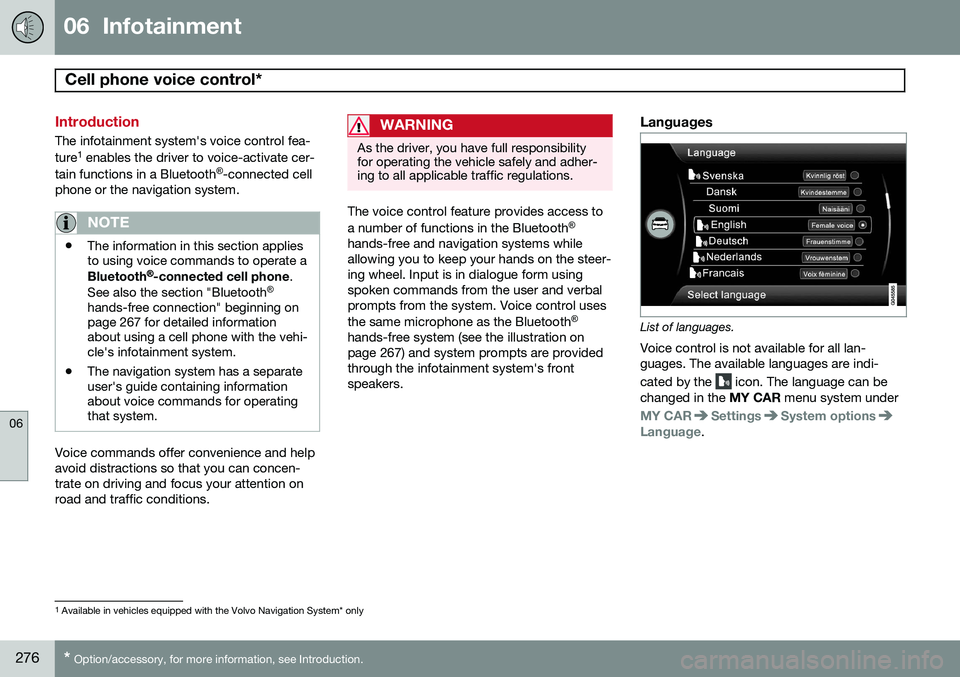
List of languages.
Voice control is not available for all lan- guages. The available languages are indi- cated by the
icon. The language can be
changed in the MY CAR menu system under
MY CARSettingsSystem optionsLanguage.
1
Available in vehicles equipped with the Volvo Navigation System* only
Page 286 of 406
07 During your trip
Driving recommendations
07
284
WARNING
The cooling fan may start or continue to operate (for up to 6 minutes) after theengine has been switched off.
•Remove any auxiliary lights from in front of the grille when driving in hot weatherconditions.
• Do not exceed engine speeds of4500 rpm if driving with a trailer in hillyterrain. The oil temperature could becometoo high.
Conserving electrical currentKeep the following in mind to help minimize battery drain:
• When the engine is not running, avoid using ignition mode
II. Many electrical
systems (the audio system, the optionalnavigation system, power windows, etc)will function in ignition modes 0 and I.
These modes reduce drain on the battery.
• Please keep in mind that using systems,accessories, etc., that consume a greatdeal of current when the engine is notrunning could result in the battery beingcompletely drained. Driving or having theengine running for approximately15 minutes will help keep the batterycharged. •
The optional 12-volt socket in the cargoarea provides electrical current even withthe ignition switched off, which drains thebattery.
Before a long distance tripIt is always worthwhile to have your vehicle checked by a trained and qualified Volvoservice technician before driving long dis-tances. Your retailer will also be able to sup-ply you with bulbs, fuses, spark plugs andwiper blades for your use in the event thatproblems occur. As a minimum, the following items should be checked before any long trip:
• Check that engine runs smoothly and that fuel consumption is normal.
• Check for fuel, oil, and fluid leakage.
• Have the transmission oil level checked.
• Check condition of drive belts.
• Check state of the battery's charge.
• Examine tires carefully (the spare tire aswell), and replace those that are worn.Check tire pressures.
• The brakes, front wheel alignment, andsteering gear should be checked by atrained and qualified Volvo service techni-cian only.
• Check all lights, including high beams. •
Reflective warning triangles are legallyrequired in some states/provinces.
• Have a word with a trained and qualifiedVolvo service technician if you intend todrive in countries where it may be difficultto obtain the correct fuel.
• Consider your destination. If you will bedriving through an area where snow or iceare likely to occur, consider snow tires.
Cold weather precautionsIf you wish to check your vehicle before the approach of cold weather, the followingadvice is worth noting:
• Make sure that the engine coolant con- tains 50 percent antifreeze. Any othermixture will reduce freeze protection. Thisgives protection against freezing down to–31 °F (–35 °C). The use of "recycled"antifreeze is not approved by Volvo. Dif-ferent types of antifreeze must not bemixed.
• Volvo recommends using only genuineVolvo antifreeze in your vehicle's radiator.
• Try to keep the fuel tank well filled – thishelps prevent the formation of condensa-tion in the tank. In addition, in extremelycold weather conditions it is worthwhileto add fuel line de-icer before refueling.
• The viscosity of the engine oil is impor-tant. Oil with low viscosity (thinner oil)
Page 399 of 406
11 Index
11
397
G
Garage door openerHomeLink ®
Wireless Control System. 120
Gasoline requirements............................. 287
Gas tank volume...................................... 386
Gauges...................................................... 79
Geartronic................................................ 129
Geartronic automatic transmission.......... 129
Generator warning light............................. 84
Glossary of tire terminology..................... 315
Grocery bag holder.................................. 293
Gross vehicle weight............................... 316
H
Hazard warning flashers.......................... 104
HD digital radio........................................ 250Headlights Active Bending Lights......................... 102
active high beams............................... 100
changing bulbs........................... 349, 350
daytime running lights.......................... 99
high/low beams.................................. 100 high beam flash.................................. 100
tunnel detection.................................. 102
Headlight washers................................... 108
Head restraints, rear seat.......................... 94
Heated oxygen sensors........................... 290
Heated rear seats.................................... 219
Heated steering wheel............................... 98
Heated windshield........................... 113, 221
High beams.............................................. 100 active.................................................. 100
Hill Start Assist (HSA).............................. 128
Hoisting the vehicle................................. 340 HomeLink ®
Wireless Control System...... 120
Home safe lighting................................... 105
Hood, opening/closing............................ 342
Horn........................................................... 97
I
Ignition modes........................................... 88
Immobilizer................................................ 60
Important information.................................. 6
Indicator lights............................... 79, 81, 83 Infant seats................................................ 43
Inflatable Curtain........................................ 32
Inflation pressure..................................... 309
Inflation pressure table............................ 312Information and warning symbols, table
of.............................................................. 389
Information lights........................... 79, 81, 83Infotainment
Menu navigation................................. 241
Infotainment system................................ 238 AUX/USB sockets............................... 262 Bluetooth ®
devices............................. 265
Bluetooth ®
hands-free system........... 267
getting started.................................... 239
media player....................................... 257
menus......................................... 239, 241
radio functions.................................... 248
sound settings.................................... 243
voice control....................................... 276
Inspection readiness................................ 340
Instrument lighting................................... 102 "theater" lighting................................. 102
Instrument overview............................ 78, 79
Instrument panel................................ 79, 207
Integrated two-stage booster cushion...... 52