On Call VOLVO XC60 2018 Owner´s Manual
[x] Cancel search | Manufacturer: VOLVO, Model Year: 2018, Model line: XC60, Model: VOLVO XC60 2018Pages: 660, PDF Size: 11.77 MB
Page 456 of 660
STARTING AND DRIVING
454
Compass
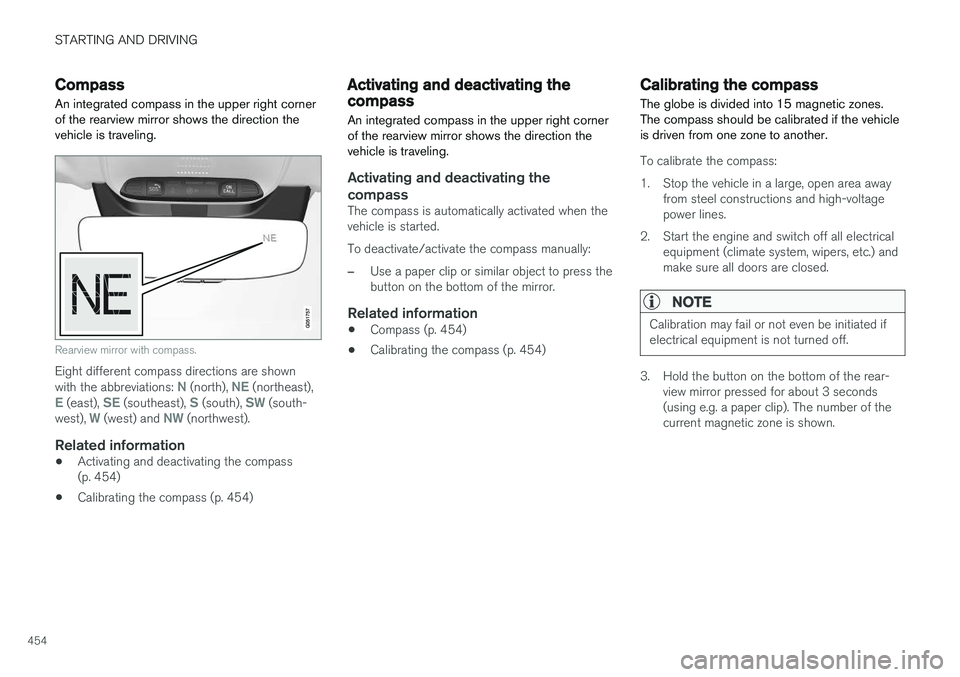
An integrated compass in the upper right corner of the rearview mirror shows the direction thevehicle is traveling.
Rearview mirror with compass.
Eight different compass directions are shown with the abbreviations: N (north), NE (northeast),E (east), SE (southeast), S (south), SW (south-
west), W (west) and NW (northwest).
Related information
• Activating and deactivating the compass (p. 454)
• Calibrating the compass (p. 454)
Activating and deactivating thecompass
An integrated compass in the upper right corner of the rearview mirror shows the direction thevehicle is traveling.
Activating and deactivating the compass
The compass is automatically activated when the vehicle is started. To deactivate/activate the compass manually:
–Use a paper clip or similar object to press the button on the bottom of the mirror.
Related information
• Compass (p. 454)
• Calibrating the compass (p. 454)
Calibrating the compass
The globe is divided into 15 magnetic zones. The compass should be calibrated if the vehicleis driven from one zone to another.
To calibrate the compass:
1. Stop the vehicle in a large, open area away from steel constructions and high-voltage power lines.
2. Start the engine and switch off all electrical equipment (climate system, wipers, etc.) andmake sure all doors are closed.
NOTE
Calibration may fail or not even be initiated if electrical equipment is not turned off.
3. Hold the button on the bottom of the rear-view mirror pressed for about 3 seconds (using e.g. a paper clip). The number of thecurrent magnetic zone is shown.
Page 460 of 660
AUDIO, MEDIA AND INTERNET
* Option/accessory.
458
Audio, media and Internet
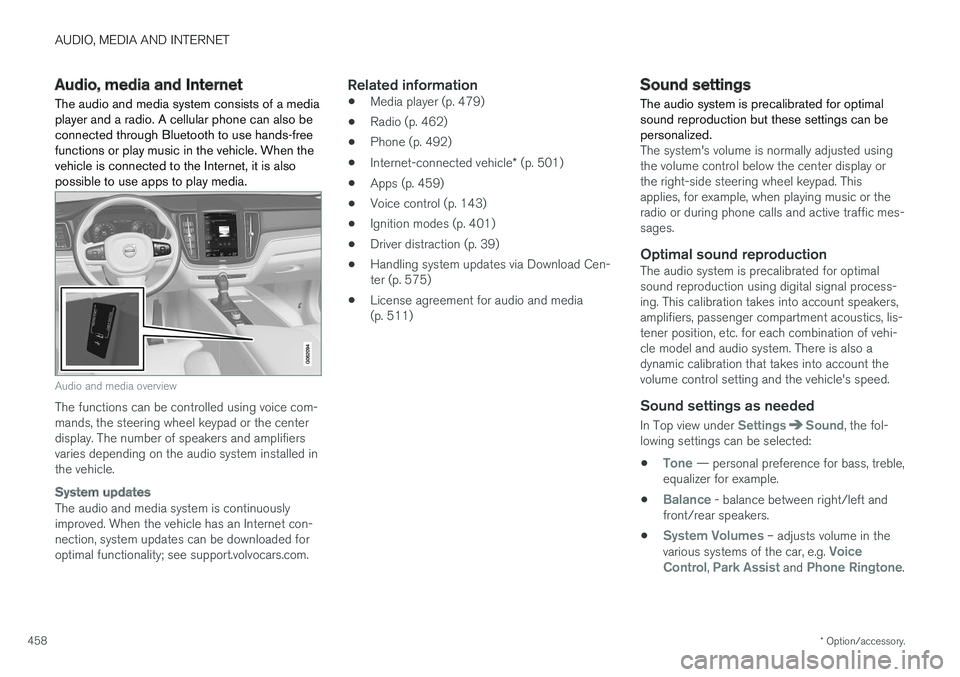
The audio and media system consists of a media player and a radio. A cellular phone can also beconnected through Bluetooth to use hands-freefunctions or play music in the vehicle. When thevehicle is connected to the Internet, it is alsopossible to use apps to play media.
Audio and media overview
The functions can be controlled using voice com- mands, the steering wheel keypad or the centerdisplay. The number of speakers and amplifiersvaries depending on the audio system installed inthe vehicle.
System updates
The audio and media system is continuously improved. When the vehicle has an Internet con-nection, system updates can be downloaded foroptimal functionality; see support.volvocars.com.
Related information
• Media player (p. 479)
• Radio (p. 462)
• Phone (p. 492)
• Internet-connected vehicle
* (p. 501)
• Apps (p. 459)
• Voice control (p. 143)
• Ignition modes (p. 401)
• Driver distraction (p. 39)
• Handling system updates via Download Cen-ter (p. 575)
• License agreement for audio and media(p. 511)
Sound settings
The audio system is precalibrated for optimal sound reproduction but these settings can bepersonalized.
The system's volume is normally adjusted using the volume control below the center display orthe right-side steering wheel keypad. Thisapplies, for example, when playing music or theradio or during phone calls and active traffic mes-sages.
Optimal sound reproductionThe audio system is precalibrated for optimalsound reproduction using digital signal process-ing. This calibration takes into account speakers,amplifiers, passenger compartment acoustics, lis-tener position, etc. for each combination of vehi-cle model and audio system. There is also adynamic calibration that takes into account thevolume control setting and the vehicle's speed.
Sound settings as needed
In Top view under SettingsSound, the fol-
lowing settings can be selected:
•
Tone — personal preference for bass, treble,
equalizer for example.
•
Balance - balance between right/left and
front/rear speakers.
•
System Volumes – adjusts volume in the
various systems of the car, e.g. Voice
Control, Park Assist and Phone Ringtone.
Page 466 of 660
||
AUDIO, MEDIA AND INTERNET
464
Genres - only plays channels broadcasting the
selected genre or program type, e.g. pop, classi- cal, etc.
Changing radio stations in a selected
list
–Press or under the center display
or on the right-side steering wheel keypad.
> Move step-by-step through the selected list.
It is also possible to change radio station in the selected list via the center display.
Related information
• Radio (p. 462)
• Searching for a radio station (p. 464)
• Voice control for radio and media (p. 146)
• Storing radio favorites (p. 465)
• Radio settings (p. 465)
• App menu in instrument panel (p. 100)
Searching for a radio station
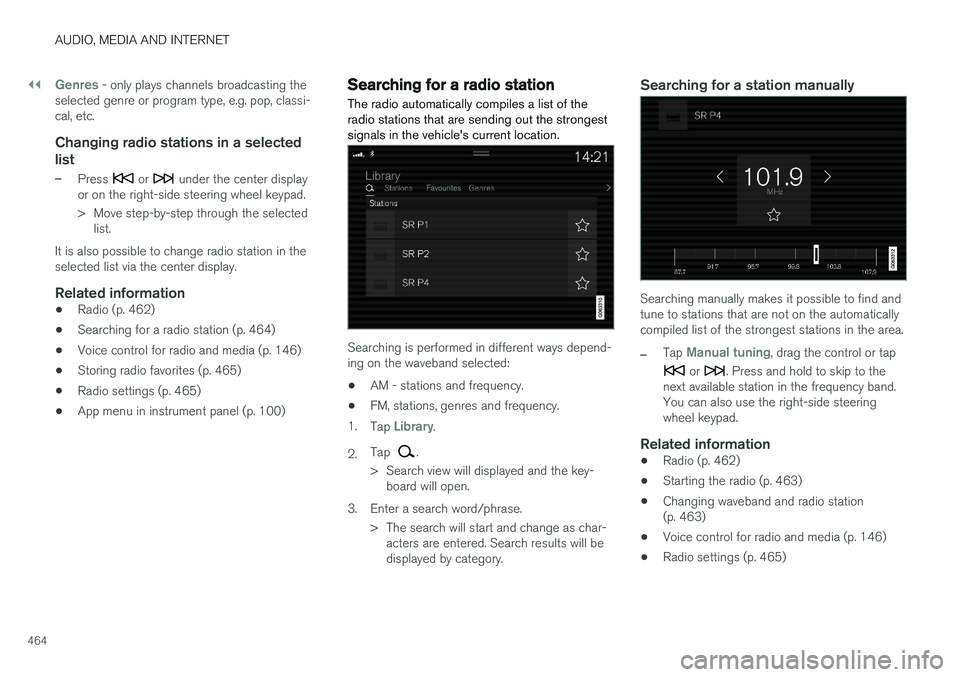
The radio automatically compiles a list of the radio stations that are sending out the strongestsignals in the vehicle's current location.
Searching is performed in different ways depend- ing on the waveband selected:
• AM - stations and frequency.
• FM, stations, genres and frequency.
1. Tap
Library.
2. Tap
.
> Search view will displayed and the key- board will open.
3. Enter a search word/phrase. > The search will start and change as char-acters are entered. Search results will be displayed by category.
Searching for a station manually
Searching manually makes it possible to find and tune to stations that are not on the automaticallycompiled list of the strongest stations in the area.
–Tap Manual tuning, drag the control or tap
or . Press and hold to skip to the
next available station in the frequency band. You can also use the right-side steeringwheel keypad.
Related information
• Radio (p. 462)
• Starting the radio (p. 463)
• Changing waveband and radio station(p. 463)
• Voice control for radio and media (p. 146)
• Radio settings (p. 465)
Page 468 of 660
||
AUDIO, MEDIA AND INTERNET
* Option/accessory.
466
SiriusXM® Satellite radio *
Pull down Top view and select Settings
MediaSiriusXM to show a list of available
options.
Related information
• Radio (p. 462)
• Settings for SiriusXM ®
Satellite radio *
(p. 472)
• Symbols in the center display status bar (p. 122)
RBDS
RBDS radio
RBDS (Radio Broadcast Data System) enables certain functionality 2
, such as:
• Searches for program types or new broad- casts
• Text information about currently broadcastprograms
Related information
• Radio (p. 462)
• Radio settings (p. 465)
HD Radio™
HD Radio is a brand name registered by the DTS, Inc.3
. They are the developer of a broadcasting
technology called IBOC or In Band On Channel, which refers to the method of transmitting a digi-tal radio broadcast signal centered on the samefrequency as the AM or FM station's present fre- quency.
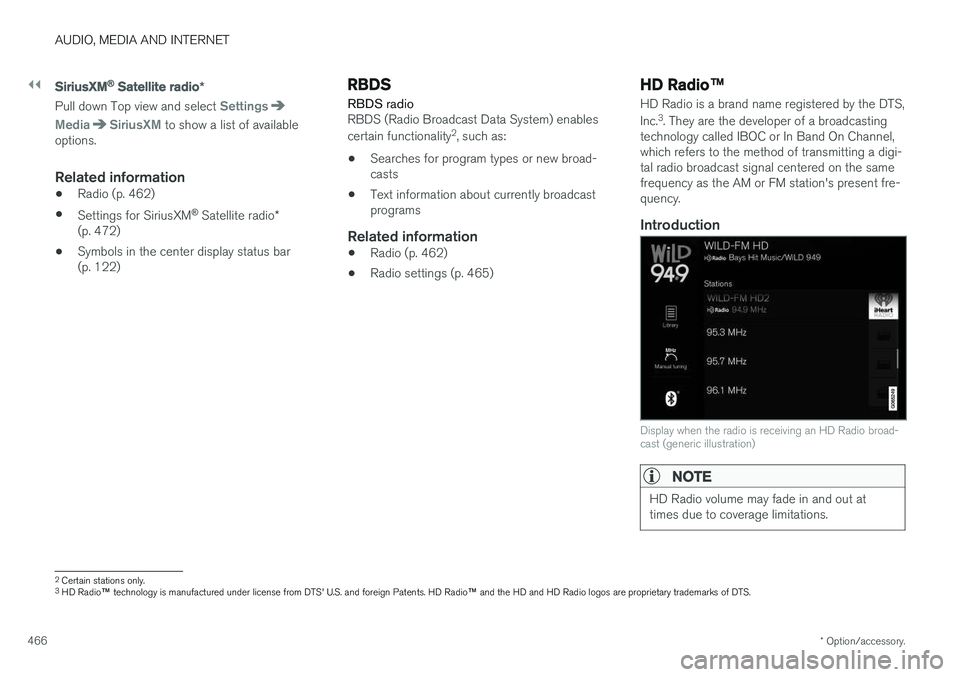
Introduction
Display when the radio is receiving an HD Radio broad- cast (generic illustration)
NOTE
HD Radio volume may fade in and out at times due to coverage limitations.
2 Certain stations only.
3 HD Radio ™ technology is manufactured under license from DTS' U.S. and foreign Patents. HD Radio ™ and the HD and HD Radio logos are proprietary trademarks of DTS.
Page 469 of 660
AUDIO, MEDIA AND INTERNET
467
The IBOC system is referred to as a "hybrid" since it is both analog and digital. During hybridoperation, receivers still continue to receive theanalog (non-digital) signal. HD Radio receiversincorporate both modes of reception, where thereceiver will automatically switch to the analogsignal if the digital signal cannot be decoded oris lost by the receiver. When you have tuned to an HD Radio station, the
symbol will appear in the infotainment sys-
tem display. The symbol will be displayed in dif- ferent colors:
• Grayed-out symbol
: No HD Radio broad-
cast reception
• White symbol
: the radio is actively receiving
an HD broadcast
• Orange symbol
: the radio is receiving an
HD broadcast with digital sound
More information about HD Radio and IBOC canbe found on DTS, Inc.'s website, www.dts.com.
Artist Experience ™A radio station's logo and album art can be dis-played. If a station opts to provide this informa-tion, it is broadcast once every 12 minutes, whichmeans that there may be a delay before thelogo/album art appear on the screen. The radiocan store 100 station logos so the next time theradio is tuned to the same station, the logo willbe displayed immediately. Album art is synchedwith the artist that you are currently listening to.
Ball game modeThis feature means that a main FM station (HD1)will broadcast live events, where the content ofthe programming is more important than soundquality, in analog mode only to help prevent thedelay between analog and digital broadcasting.The HD Radio symbol will be white during livebroadcasts and "Live" will be displayed next tothe symbol.
Benefits of digital broadcasting
•Better sound (FM sounds near CD qualityand AM as analog FM).
• Some FM frequencies offer a greater num-ber of listening choices through "multicast-ing" (consisting of a frequency's main chan-nel and any sub-channels that may also beavailable on that particular frequency.)
• When receiving a digital signal there is nomultipath disturbance or hisses/pops/crack-ling due to outside influences.
How HD Radio
™ Technology
broadcasting works
HD Radio works similarly to conventional radioand broadcasts of this type are available in manyareas of the United States. However, there are afew key differences: •
Instead of transmitting one analog signal,stations send out a bundled signal - bothanalog and digital.
• An HD Radio receiver can receive both digi-tal and analog broadcasts. Depending on theterrain and location of the vehicle (which willinfluence the signal strength), the receiverwill determine which signal to receive.
Related information
• Radio (p. 462)
• Activating and deactivating the HD Radio
™
(p. 468)
• HD Radio
™ sub-channels (p. 468)
• HD Radio
™ limitations (p. 469)
• Changing waveband and radio station(p. 463)
• Searching for a radio station (p. 464)
Page 472 of 660
AUDIO, MEDIA AND INTERNET
* Option/accessory.
470
SiriusXM® Satellite radio *
The SiriusXM ®
Satellite system broadcasts from
of a number of high elevation satellites in geo- synchronous orbit.
Listening to satellite radioThe digital signals from the satellites are line-of- sight, which means that physical obstructionssuch as bridges, tunnels, etc, may temporarilyinterfere with signal reception. Avoid any obstructions, such as metallic objects transported on roof racks or in a ski box, or otherantennas that may impede signals from the SiriusXM ®
satellites.
Selecting SiriusXM ®
Satellite radio
mode
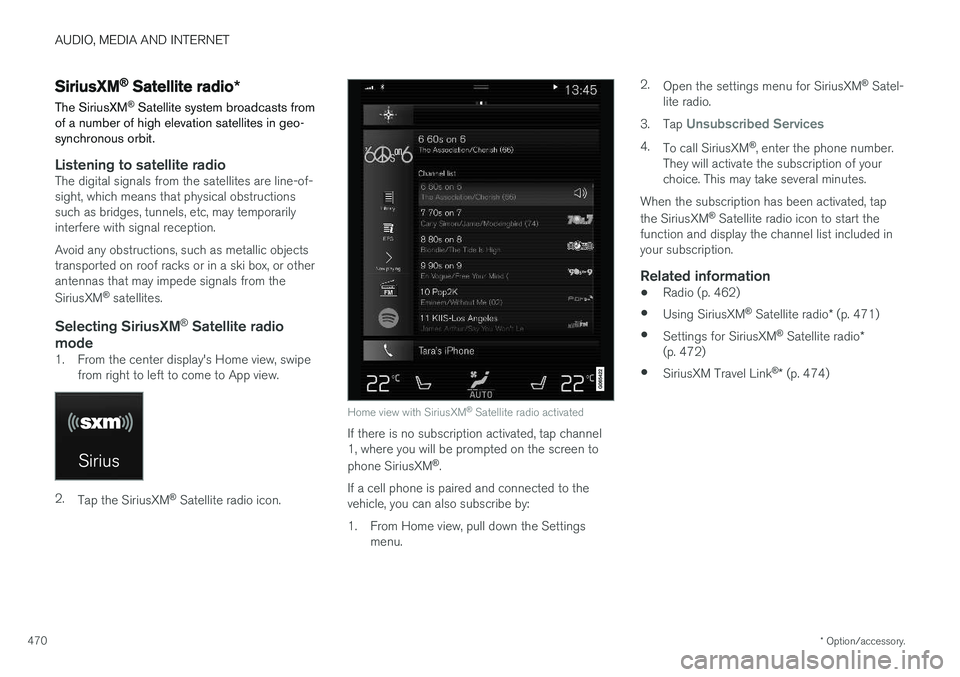
1. From the center display's Home view, swipe from right to left to come to App view.
2.Tap the SiriusXM ®
Satellite radio icon.
Home view with SiriusXM ®
Satellite radio activated
If there is no subscription activated, tap channel 1, where you will be prompted on the screen to phone SiriusXM ®
.
If a cell phone is paired and connected to the vehicle, you can also subscribe by:
1. From Home view, pull down the Settings menu. 2.
Open the settings menu for SiriusXM ®
Satel-
lite radio.
3. Tap
Unsubscribed Services
4.
To call SiriusXM ®
, enter the phone number.
They will activate the subscription of your choice. This may take several minutes.
When the subscription has been activated, tap the SiriusXM ®
Satellite radio icon to start the
function and display the channel list included in your subscription.
Related information
• Radio (p. 462)
• Using SiriusXM ®
Satellite radio * (p. 471)
• Settings for SiriusXM ®
Satellite radio *
(p. 472)
• SiriusXM Travel Link ®
* (p. 474)
Page 474 of 660
||
AUDIO, MEDIA AND INTERNET
* Option/accessory.
472
iTunes taggingFrom the center display's Top view, tap SiriusXM
Settings. Tap the iTunes Tagging menu. Tap
the iTunes Tagging box to activate/deactivate
this function and tap Close to return to Home
view. Tap Tags List to display a list of all tagged
songs. If the function is activated, the
iTunes tag button
will be displayed in Home view. If a song is played that you would like to buy in the iTunes store, tapthis button while the song is playing to tag it. If a song with
iTunes Tagging information is availa-
ble, the button will be selectable. Tap the button to tag the song. If you would like to buy a taggedsong via iTunes, Tap the iTunes tag button. To buy a song in iTunes, begin by connecting an iPhone/iPod/iPad to the USB port in the tunnelconsole. The iTunes tagging list will automaticallybe transferred to the device and removed fromthe list in the vehicle. If the device is connectedwhen a song is tagged, the data will automaticallybe saved in the device. To purchase the song,consult the iTunes support page.
Related information
• SiriusXM ®
Satellite radio * (p. 470)
• Entering characters, letters and words byhand in the center display (p. 127)
• Settings for SiriusXM ®
Satellite radio *
(p. 472) •
Settings for SiriusXM ®
Satellite radio *
(p. 472)
• Connecting a device via the USB port(p. 486)
Settings for SiriusXM® Satellite
radio
*
There are numerous settings that can be made to enhance your SiriusXM ®
Satellite radio listen-
ing experience.
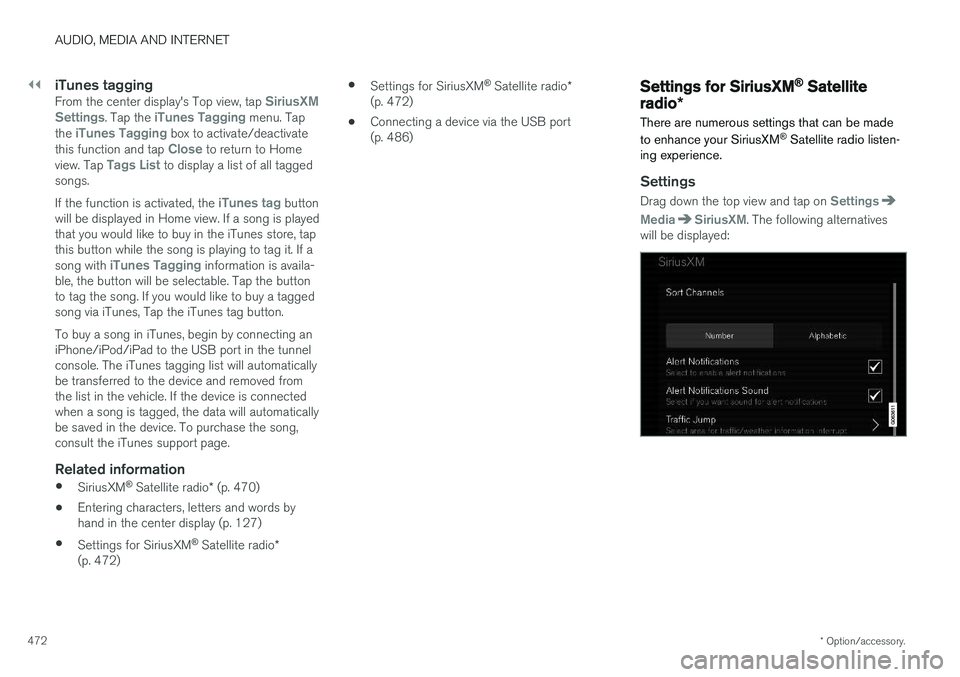
Settings
Drag down the top view and tap on Settings
MediaSiriusXM. The following alternatives
will be displayed:
Page 475 of 660
AUDIO, MEDIA AND INTERNET
* Option/accessory.473
Traffic Jump
Tap to display a list of cities from which you can choose to get traffic/weather information (or
Traffic jump off to deactivate the feature). Tap
to select a city (JUMP will be displayed on the
Home screen next to Library). Tap Back to
return to the list of settings or Close to return to
the Home screen. From the Home screen, tap
JUMP to activate the
function. When traffic/weather information is available from the selected city, the radio willautomatically tune to the channel providing theinformation. When the information/announce-ment is finished, the radio will automaticallyreturn to the channel that you were previously lis-tening to. During an announcement, tap
JUMP to interrupt
the message and return to the station that you were currently listening to.
Alert Notifications
Tap the box to activate/deactivate. When acti- vated, you will be notified if a song, artist, etc. thatyou have selected is playing. You will be asked ifyou want to listen.
Alert Notifications Sound
Opt to receive an audible alert when one of your selected choices is being played.
Sort Channels
Select how to sort your channels list.
iTunes Tagging
Tap to display a menu with the options: iTunes
Tagging and Tags List. With this feature acti-
vated, songs can be tagged for later purchase from the iTunes store.
Game Alerts
Tap to display a list of sports. Tap a sport to display a list of teams and tap a box on the right side of the screen to select ateam as a favorite. An alert will then be providedwhen information about the team is being broad-cast. Tap
Confirm below the list to return to the list of
sports. Tap
Back to return to the list of settings orClose to return to the main screen.
Unsubscribed Services
If you have a SiriusXM ®
Satellite radio subscrip-
tion, any channels not included in the subscrip- tion will be listed here. Call SiriusXM ™ to sub-
scribe. The phone number will be shown on the screen. If a cell phone is paired and connected tothe vehicle, tap the phone number to make thecall.
Skipped Stations
Tap to display a list of channels that you would like to skip (hide). Hide channels from the chan-nel list by tapping the boxes to the right of thescreen. Skipped (hidden) channels will not beshown in the channel list. However, a channel previously selected as a favorite will still be dis-played in the list of favorites, even it has beenadded to the skip list.
Skipped Categories
Tap to display a list of categories. Tap a category to skip (hide) it. It will not be displayed in the listof categories.
Related information
•
SiriusXM ®
Satellite radio * (p. 470)
• Using SiriusXM ®
Satellite radio * (p. 471)
Page 476 of 660
AUDIO, MEDIA AND INTERNET
* Option/accessory.
474
SiriusXM Travel Link®
*
SiriusXM Travel Link is a feature offered by
SiriusXM ®
Satellite radio * that can provide infor-
mation about e.g., weather forecasts, weather alerts, service stations, sports, etc. in the vicinityof the vehicle.
Starting SiriusXM Travel Link
NOTE
SiriusXM Travel Link services are only availa- ble in vehicles equipped with the SensusNavigation system.
From the center display's App view, tap Travel
Link to activate the feature. A disclaimer text will
be displayed. Tap OK to display a list of SiriusXM
Travel Link services: •
Alerts
•Fuel
•Sports
•Weather
•Favorites
In order to use one or more of these services, the user has to subscribe to the ones desired. To subscribe to a SiriusXM Travel Link service:
1. Open the center display's Top view.2. Tap
Settings. 3.
Press
SiriusXM Travel Link andSubscription Status.
> To subscribe, call the phone number listed on the screen.
Any services not subscribed will be grayed out and contain the text
Service not subscribed.
When the services have been activated (subscri- bed), tap the one of your choice to start it. The following applies for all of the
SiriusXM
Travel Link services:
• Pressing the
Back button will take you back
to the previous screen
• Pressing the
Close button will take you to
the SiriusXM Travel Link home screen.
NOTE
If the Close button is used to return to theSiriusXM Travel Link home screen, the fol-
lowing applies (the Weather service is used
here as an example):
• If you have already used the
Weatherfunction, tapping Weather again in theSiriusXM Travel Link home screen
before using any other SiriusXM
Travel Link service will return you to the
point where you left the Weather service.
• If another
SiriusXM Travel Link service
is used (e.g., Fuel, Sports, etc.) before
you return to the Weather service, you
will be returned to the default Weatherview (in this case, Local).
The same principle applies to all of the
SiriusXM Travel Link services.
FavoritesMany SiriusXM Travel Link selections can be saved for easy access as favorites by tapping the"star" icon next to the selection where applicable. To display a list of your favorites, tap the
Favorites application in the SiriusXM Travel Link
home screen.
Related information
• SiriusXM ®
Satellite radio * (p. 470)
• SiriusXM Travel Link ®
* - Fuel (p. 477)
Page 479 of 660
AUDIO, MEDIA AND INTERNET
}}
* Option/accessory.477
Information about a notification
If any notifications have been displayed on the screen, tap one for more detailed information (i.e.,the location of the weather problem on a mapand a description of the situation). If a phone number is available in a notification, a
Call button will be displayed. Tap this button for
additional information.
Related information
• SiriusXM Travel Link ®
* (p. 474)
• SiriusXM Travel Link ®
* - Fuel (p. 477)
• SiriusXM Travel Link ®
* - Sports (p. 478)
• SiriusXM Travel Link ®
* - Weather (p. 475)
SiriusXM Travel Link®
* - Fuel5
This SiriusXM Travel Link service provides infor- mation and guidance to service stations near thevehicle providing the type of fuel that you prefer/require for your vehicle.
From the SiriusXM Travel Link home screen, to show fuel information:
–Tap the Fuel button to display the main fuel
screen.
The following categories are shown:
• Search (the magnifying glass icon)
•
Nearby
•Recommended
•Favorites
•Brands
Tap one of the alternatives to display its screen.
NOTE
In each of the categories listed, tapping theSelect fuel type button near the bottom of
the screen opens a sub-view where you can specify the type of fuel preferred/required (
Regular, Midrange, Premium, Diesel,Electric 120V, etc.) Tap Done to return to
the previous screen.
SearchTap the magnifying glass icon. If the function is supported in the current context, a keyboard willappear on the screen. Enter the text of your choice and tap
Search for detailed information if
available.
NearbyTap for a list of service stations in the vicinity of the vehicle, with the nearest station at the top ofthe list. The following information will be provided where available:
• For vehicles using gasoline, the price infor-mation for regular gasoline (unless anothergrade/type of fuel has been selected in
Select fuel type)
• For electric vehicles/hybrids, information about charging stations, showing the totalnumber of charging ports and the number ofports currently not in use
• the distance to the station
• a star icon to set the service station as afavorite
Tap the name of a service station to display moredetailed information. For guidance to the service station, tap the
Start
navigation or Add as waypoint buttons. See
5 This service is not available in Canada.