instrument panel VOLVO XC60 T8 2018 Owner´s Manual
[x] Cancel search | Manufacturer: VOLVO, Model Year: 2018, Model line: XC60 T8, Model: VOLVO XC60 T8 2018Pages: 674, PDF Size: 11.93 MB
Page 89 of 674
DISPLAYS AND VOICE CONTROL
87
1. Open the app menu in the instrument panel
by pressing (1). (The App menu cannot be opened while there is an unacknowledged message in theinstrument panel. The message must be con-firmed before the App menu can be opened.)
2. Navigate to the trip computer app by moving left or right using (2).
> The top four menu rows show measuredvalues for trip odometer TM. The next four menu rows show measured values for tripodometer TA. Scroll up or down in the listusing (3).
3. Scroll down to the option buttons to choose which information to show in the instrumentpanel:
• Distance to empty tank
• Odometer
• Mileage for trip odometer TM, TA or nodisplay of mileage
• Current fuel consumption, average fuelconsumption for TM or TA, or no displayof fuel consumption
• Tourist (alternative speedometer).
• Distance to discharged battery
Select or clear a selection using the O but-
ton (4). The change will apply immediately.
Related information
• Trip computer (p. 85)
• Resetting the trip odometer (p. 87)
Resetting the trip odometer
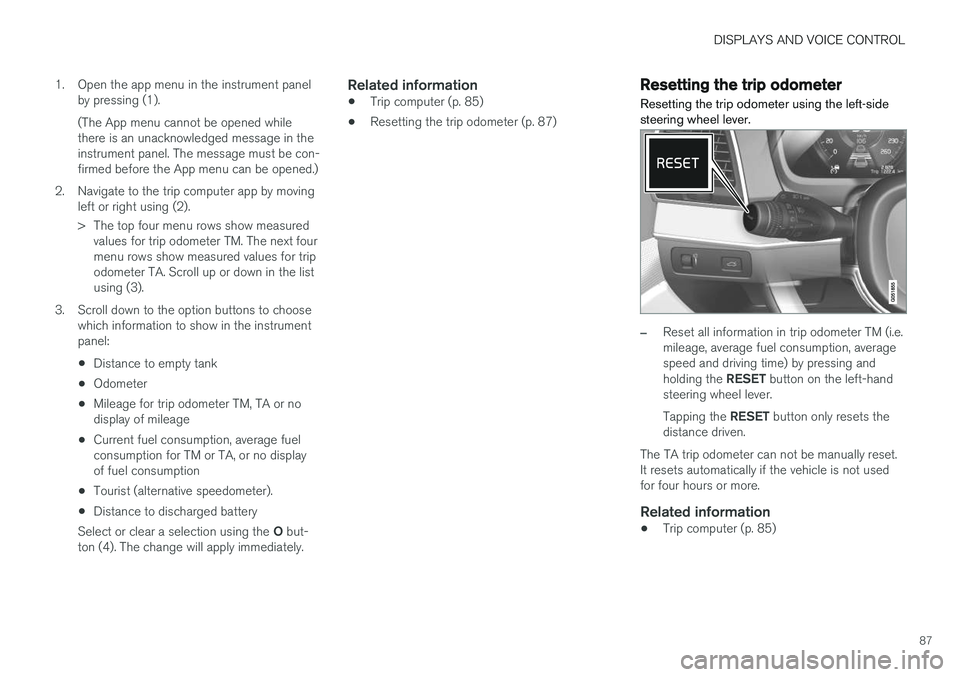
Resetting the trip odometer using the left-side steering wheel lever.
–Reset all information in trip odometer TM (i.e. mileage, average fuel consumption, averagespeed and driving time) by pressing and holding the RESET button on the left-hand
steering wheel lever. Tapping the RESET button only resets the
distance driven.
The TA trip odometer can not be manually reset. It resets automatically if the vehicle is not usedfor four hours or more.
Related information
• Trip computer (p. 85)
Page 91 of 674
DISPLAYS AND VOICE CONTROL
89
Related information
•Displaying trip statistics in the center display (p. 88)
• Trip computer (p. 85)
• Resetting the trip odometer (p. 87)
Date and time
The clock is displayed in both the instrument panel and the center display.
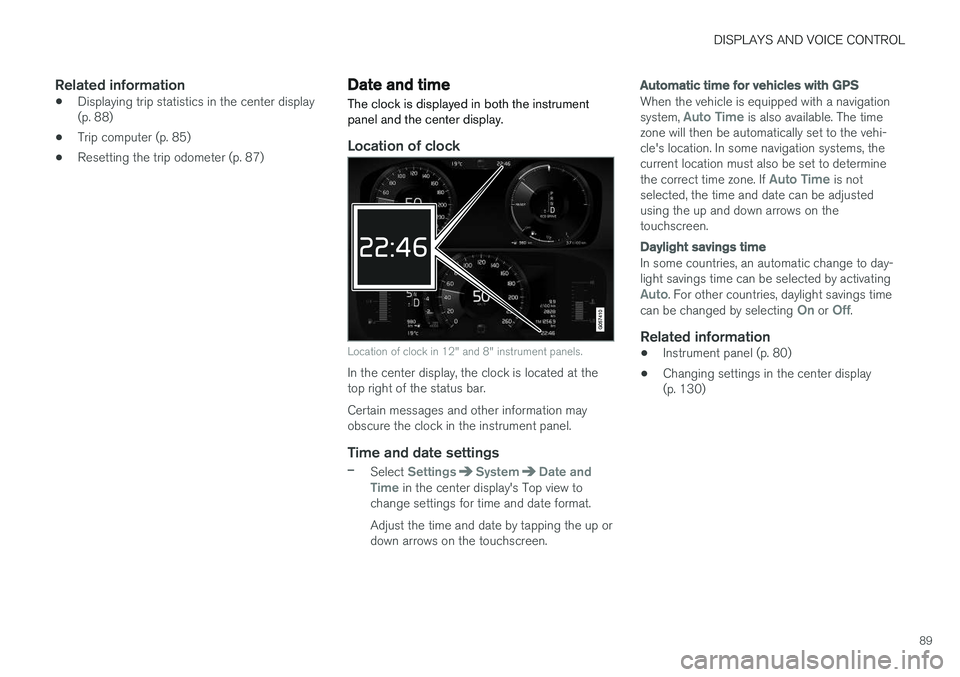
Location of clock
Location of clock in 12" and 8" instrument panels.
In the center display, the clock is located at the top right of the status bar. Certain messages and other information may obscure the clock in the instrument panel.
Time and date settings
–Select SettingsSystemDate and
Time in the center display's Top view to
change settings for time and date format. Adjust the time and date by tapping the up or down arrows on the touchscreen.
Automatic time for vehicles with GPS
When the vehicle is equipped with a navigation system, Auto Time is also available. The time
zone will then be automatically set to the vehi- cle's location. In some navigation systems, thecurrent location must also be set to determine the correct time zone. If
Auto Time is not
selected, the time and date can be adjusted using the up and down arrows on thetouchscreen.
Daylight savings time
In some countries, an automatic change to day- light savings time can be selected by activating
Auto. For other countries, daylight savings time
can be changed by selecting On or Off.
Related information
• Instrument panel (p. 80)
• Changing settings in the center display (p. 130)
Page 92 of 674
DISPLAYS AND VOICE CONTROL
90
Ambient temperature sensor
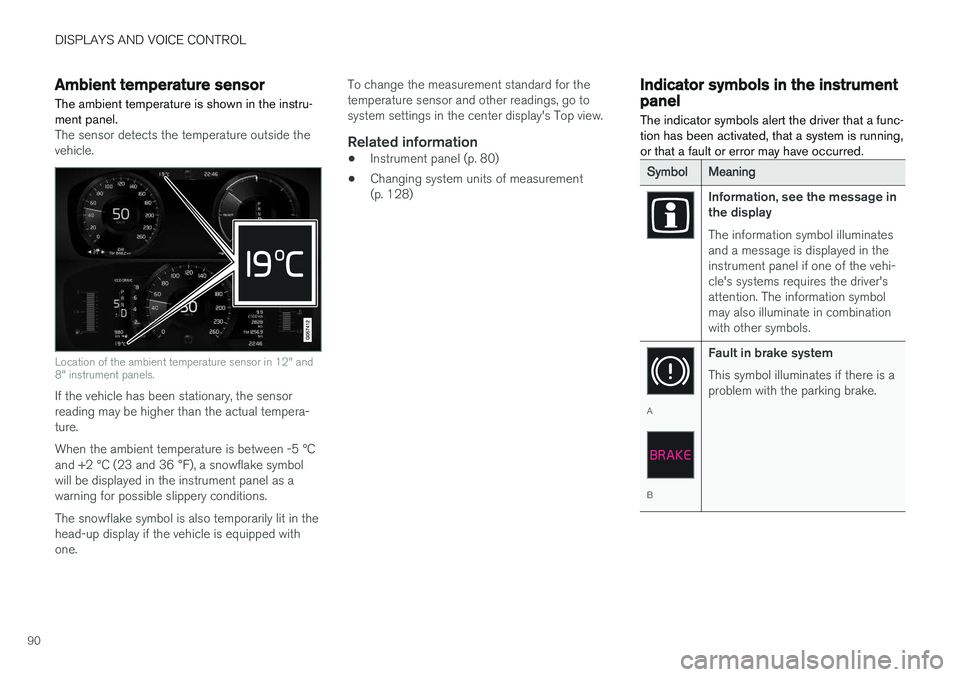
The ambient temperature is shown in the instru- ment panel.
The sensor detects the temperature outside the vehicle.
Location of the ambient temperature sensor in 12" and 8" instrument panels.
If the vehicle has been stationary, the sensor reading may be higher than the actual tempera-ture. When the ambient temperature is between -5 °C and +2 °C (23 and 36 °F), a snowflake symbol
will be displayed in the instrument panel as a warning for possible slippery conditions. The snowflake symbol is also temporarily lit in the head-up display if the vehicle is equipped withone. To change the measurement standard for thetemperature sensor and other readings, go tosystem settings in the center display's Top view.
Related information
•
Instrument panel (p. 80)
• Changing system units of measurement(p. 128)
Indicator symbols in the instrumentpanel
The indicator symbols alert the driver that a func- tion has been activated, that a system is running,or that a fault or error may have occurred.
SymbolMeaning
Information, see the message in the display The information symbol illuminates and a message is displayed in theinstrument panel if one of the vehi-cle's systems requires the driver'sattention. The information symbolmay also illuminate in combinationwith other symbols.
A
B Fault in brake system This symbol illuminates if there is a problem with the parking brake.
Page 94 of 674
||
DISPLAYS AND VOICE CONTROL
92
SymbolMeaning
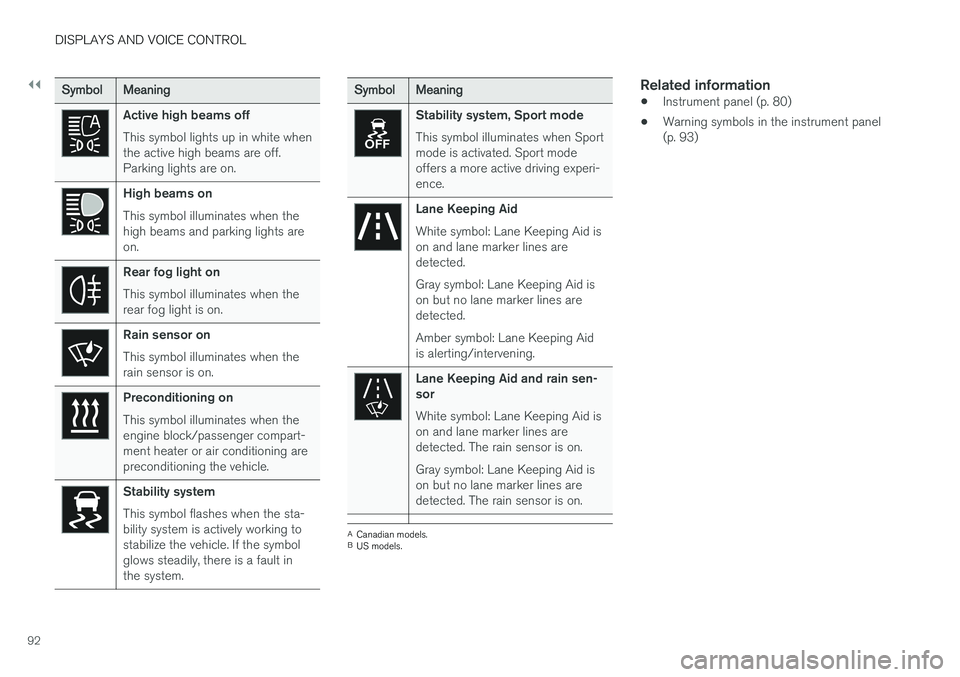
Active high beams off This symbol lights up in white when the active high beams are off.Parking lights are on.
High beams on This symbol illuminates when the high beams and parking lights areon.
Rear fog light on This symbol illuminates when the rear fog light is on.
Rain sensor on This symbol illuminates when the rain sensor is on.
Preconditioning on This symbol illuminates when the engine block/passenger compart-ment heater or air conditioning arepreconditioning the vehicle.
Stability system This symbol flashes when the sta- bility system is actively working tostabilize the vehicle. If the symbolglows steadily, there is a fault inthe system.
SymbolMeaning
Stability system, Sport mode This symbol illuminates when Sport mode is activated. Sport modeoffers a more active driving experi-ence.
Lane Keeping Aid White symbol: Lane Keeping Aid is on and lane marker lines aredetected. Gray symbol: Lane Keeping Aid is on but no lane marker lines aredetected. Amber symbol: Lane Keeping Aid is alerting/intervening.
Lane Keeping Aid and rain sen- sor White symbol: Lane Keeping Aid is on and lane marker lines aredetected. The rain sensor is on. Gray symbol: Lane Keeping Aid is on but no lane marker lines aredetected. The rain sensor is on.
ACanadian models.
B US models.
Related information
• Instrument panel (p. 80)
• Warning symbols in the instrument panel (p. 93)
Page 95 of 674
DISPLAYS AND VOICE CONTROL
93
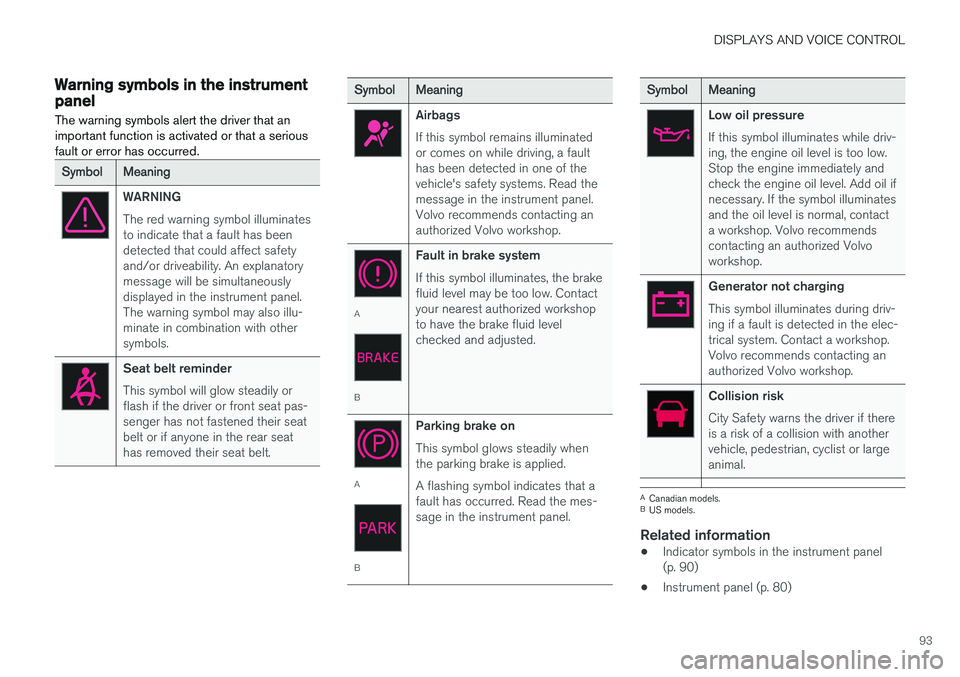
Warning symbols in the instrumentpanelThe warning symbols alert the driver that an important function is activated or that a seriousfault or error has occurred.
SymbolMeaning
WARNING The red warning symbol illuminates to indicate that a fault has beendetected that could affect safetyand/or driveability. An explanatorymessage will be simultaneouslydisplayed in the instrument panel.The warning symbol may also illu-minate in combination with othersymbols.
Seat belt reminder This symbol will glow steadily or flash if the driver or front seat pas-senger has not fastened their seatbelt or if anyone in the rear seathas removed their seat belt.
SymbolMeaning
Airbags If this symbol remains illuminated or comes on while driving, a faulthas been detected in one of thevehicle's safety systems. Read themessage in the instrument panel.Volvo recommends contacting anauthorized Volvo workshop.
A
B Fault in brake system If this symbol illuminates, the brake fluid level may be too low. Contactyour nearest authorized workshopto have the brake fluid levelchecked and adjusted.
A
BParking brake on This symbol glows steadily when the parking brake is applied. A flashing symbol indicates that a fault has occurred. Read the mes-sage in the instrument panel.
SymbolMeaning
Low oil pressure If this symbol illuminates while driv- ing, the engine oil level is too low.Stop the engine immediately andcheck the engine oil level. Add oil ifnecessary. If the symbol illuminatesand the oil level is normal, contacta workshop. Volvo recommendscontacting an authorized Volvoworkshop.
Generator not charging This symbol illuminates during driv- ing if a fault is detected in the elec-trical system. Contact a workshop.Volvo recommends contacting anauthorized Volvo workshop.
Collision risk City Safety warns the driver if there is a risk of a collision with anothervehicle, pedestrian, cyclist or largeanimal.
A
Canadian models.
B US models.
Related information
• Indicator symbols in the instrument panel (p. 90)
• Instrument panel (p. 80)
Page 96 of 674
DISPLAYS AND VOICE CONTROL
94
Instrument panel licensesA license is an agreement on the right to con- duct a certain activity or the right to use some-one else's right according to terms and condi-tions specified in the agreement. The followingtext is Volvo's agreement with the manufactureror developer.
Boost Software License 1.0
Permission is hereby granted, free of charge, to any person or organization obtaining a copy ofthe software and accompanying documentationcovered by this license (the "Software") to use,reproduce, display, distribute, execute, andtransmit the Software, and to prepare derivativeworks of the Software, and to permit third-partiesto whom the Software is furnished to do so, allsubject to the following: The copyright notices inthe Software and this entire statement, includingthe above license grant, this restriction and thefollowing disclaimer, must be included in allcopies of the Software, in whole or in part, and allderivative works of the Software, unless suchcopies or derivative works are solely in the formof machine-executable object code generated bya source language processor. THE SOFTWARE IS PROVIDED "AS IS", WITHOUT WARRANTY OF ANY KIND,EXPRESS OR IMPLIED, INCLUDING BUT NOTLIMITED TO THE WARRANTIES OFMERCHANTABILITY, FITNESS FOR APARTICULAR PURPOSE, TITLE AND NON-INFRINGEMENT. IN NO EVENT SHALL THE COPYRIGHT HOLDERS OR ANYONEDISTRIBUTING THE SOFTWARE BE LIABLEFOR ANY DAMAGES OR OTHER LIABILITY,WHETHER IN CONTRACT, TORT OROTHERWISE, ARISING FROM, OUT OF OR INCONNECTION WITH THE SOFTWARE OR THEUSE OR OTHER DEALINGS IN THESOFTWARE.BSD 4-clause "Original" or "Old" License
Copyright (c) 1982, 1986, 1990, 1991, 1993 The Regents of the University of California. Allrights reserved. Redistribution and use in source and binary forms, with or without modification, are permittedprovided that the following conditions are met:
1. Redistributions of source code must retain
the above copyright notice, this list of conditions and the following disclaimer.
2. Redistributions in binary form must reproduce the above copyright notice, this listof conditions and the following disclaimer inthe documentation and/or other materialsprovided with the distribution.
3. All advertising materials mentioning features or use of this software must display thefollowing acknowledgement: This productincludes software developed by theUniversity of California, Berkeley and itscontributors.
4. Neither the name of the University nor the names of its contributors may be used to endorse or promote products derived fromthis software without specific prior writtenpermission.
THIS SOFTWARE IS PROVIDED BY THEREGENTS AND CONTRIBUTORS ``AS IS'' ANDANY EXPRESS OR IMPLIED WARRANTIES,INCLUDING, BUT NOT LIMITED TO, THEIMPLIED WARRANTIES OF MERCHANTABILITYAND FITNESS FOR A PARTICULAR PURPOSEARE DISCLAIMED. IN NO EVENT SHALL THEREGENTS OR CONTRIBUTORS BE LIABLEFOR ANY DIRECT, INDIRECT, INCIDENTAL,SPECIAL, EXEMPLARY, OR CONSEQUENTIALDAMAGES (INCLUDING, BUT NOT LIMITED TO,PROCUREMENT OF SUBSTITUTE GOODS ORSERVICES; LOSS OF USE, DATA, OR PROFITS;OR BUSINESS INTERRUPTION) HOWEVERCAUSED AND ON ANY THEORY OF LIABILITY,WHETHER IN CONTRACT, STRICT LIABILITY,OR TORT (INCLUDING NEGLIGENCE OROTHERWISE) ARISING IN ANY WAY OUT OFTHE USE OF THIS SOFTWARE, EVEN IFADVISED OF THE POSSIBILITY OF SUCHDAMAGE.
Page 101 of 674
DISPLAYS AND VOICE CONTROL
}}
99
zlib License
The zlib/libpng License Copyright (c)
< copyright holders >
This software is provided 'as-is', without any express or implied warranty. In no event will theauthors be held liable for any damages arisingfrom the use of this software. Permission is granted to anyone to use this software for any purpose, including commercialapplications, and to alter it and redistribute itfreely, subject to the following restrictions:
1. The origin of this software must not be misrepresented; you must not claim that you wrote the original software. If you use thissoftware in a product, an acknowledgment inthe product documentation would beappreciated but is not required.
2. Altered source versions must be plainly marked as such, and must not bemisrepresented as being the originalsoftware.
3. This notice may not be removed or altered from any source distribution.
SGI Free Software B License Version 2.0.
SGI FREE SOFTWARE LICENSE B (Version 2.0, Sept. 18, 2008) Copyright (C) [dates of first publication] Silicon Graphics, Inc. All Rights Reserved. Permission ishereby granted, free of charge, to any personobtaining a copy of this software and associated documentation files (the "Software"), to deal inthe Software without restriction, including withoutlimitation the rights to use, copy, modify, merge,publish, distribute, sublicense, and/or sell copiesof the Software, and to permit persons to whomthe Software is furnished to do so, subject to thefollowing conditions: The above copyright noticeincluding the dates of first publication and eitherthis permission notice or a reference to http://oss.sgi.com/projects/FreeB/ shall be included inall copies or substantial portions of the Software. THE SOFTWARE IS PROVIDED "AS IS", WITHOUT WARRANTY OF ANY KIND,EXPRESS OR IMPLIED, INCLUDING BUT NOTLIMITED TO THE WARRANTIES OFMERCHANTABILITY, FITNESS FOR APARTICULAR PURPOSE ANDNONINFRINGEMENT. IN NO EVENT SHALLSILICON GRAPHICS, INC. BE LIABLE FOR ANYCLAIM, DAMAGES OR OTHER LIABILITY,WHETHER IN AN ACTION OF CONTRACT,TORT OR OTHERWISE, ARISING FROM, OUTOF OR IN CONNECTION WITH THE SOFTWAREOR THE USE OR OTHER DEALINGS IN THESOFTWARE. Except as contained in this notice, the name of Silicon Graphics, Inc. shall not be used inadvertising or otherwise to promote the sale, useor other dealings in this Software without priorwritten authorization from Silicon Graphics, Inc.
Related information
•
Instrument panel (p. 80)
App menu in instrument panel
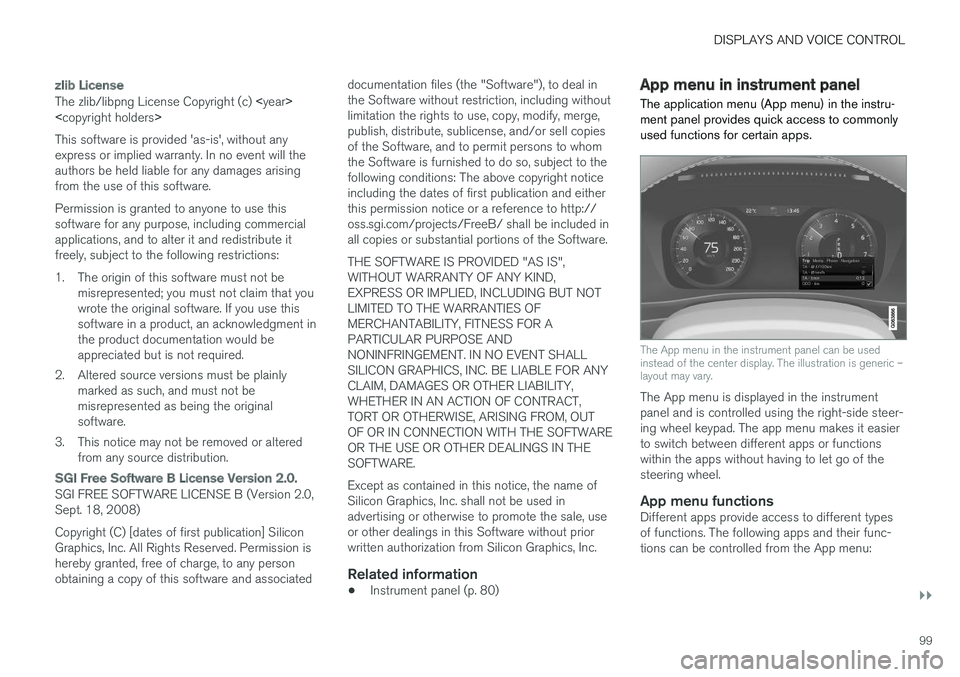
The application menu (App menu) in the instru- ment panel provides quick access to commonlyused functions for certain apps.
The App menu in the instrument panel can be used instead of the center display. The illustration is generic –layout may vary.
The App menu is displayed in the instrument panel and is controlled using the right-side steer-ing wheel keypad. The app menu makes it easierto switch between different apps or functionswithin the apps without having to let go of thesteering wheel.
App menu functionsDifferent apps provide access to different typesof functions. The following apps and their func-tions can be controlled from the App menu:
Page 102 of 674
||
DISPLAYS AND VOICE CONTROL
100
AppFunctions
Trip com- puter Select a trip odometer, changeinstrument panel display set-tings, etc.
Media player Select active source for media player.
Phone Call a contact from the call list.
Navigation Guide to destination, etc.
Related information
• Instrument panel (p. 80)
• Center display overview (p. 105)
• Handling the App menu in the instrument panel (p. 100)
Handling the App menu in theinstrument panel
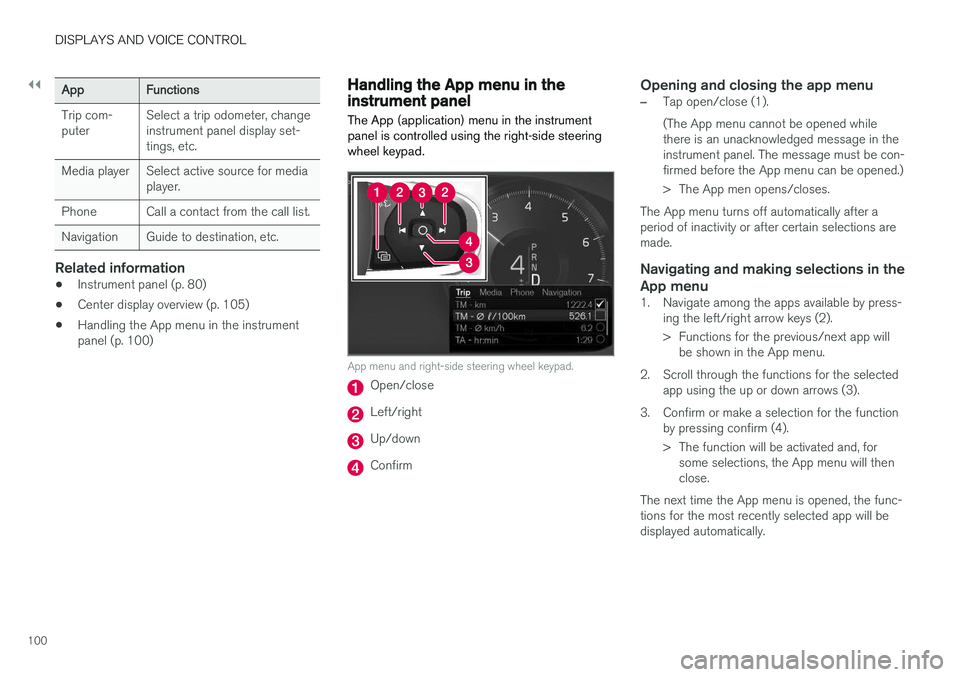
The App (application) menu in the instrument panel is controlled using the right-side steeringwheel keypad.
App menu and right-side steering wheel keypad.
Open/close
Left/right
Up/down
Confirm
Opening and closing the app menu
–Tap open/close (1). (The App menu cannot be opened while there is an unacknowledged message in theinstrument panel. The message must be con-firmed before the App menu can be opened.)
> The App men opens/closes.
The App menu turns off automatically after a period of inactivity or after certain selections aremade.
Navigating and making selections in the
App menu
1. Navigate among the apps available by press- ing the left/right arrow keys (2).
> Functions for the previous/next app willbe shown in the App menu.
2. Scroll through the functions for the selected app using the up or down arrows (3).
3. Confirm or make a selection for the function by pressing confirm (4).
> The function will be activated and, forsome selections, the App menu will then close.
The next time the App menu is opened, the func-tions for the most recently selected app will bedisplayed automatically.
Page 103 of 674
DISPLAYS AND VOICE CONTROL
}}
101
Related information
•App menu in instrument panel (p. 99)
• Messages in the instrument panel (p. 101)
Messages in the instrument panel
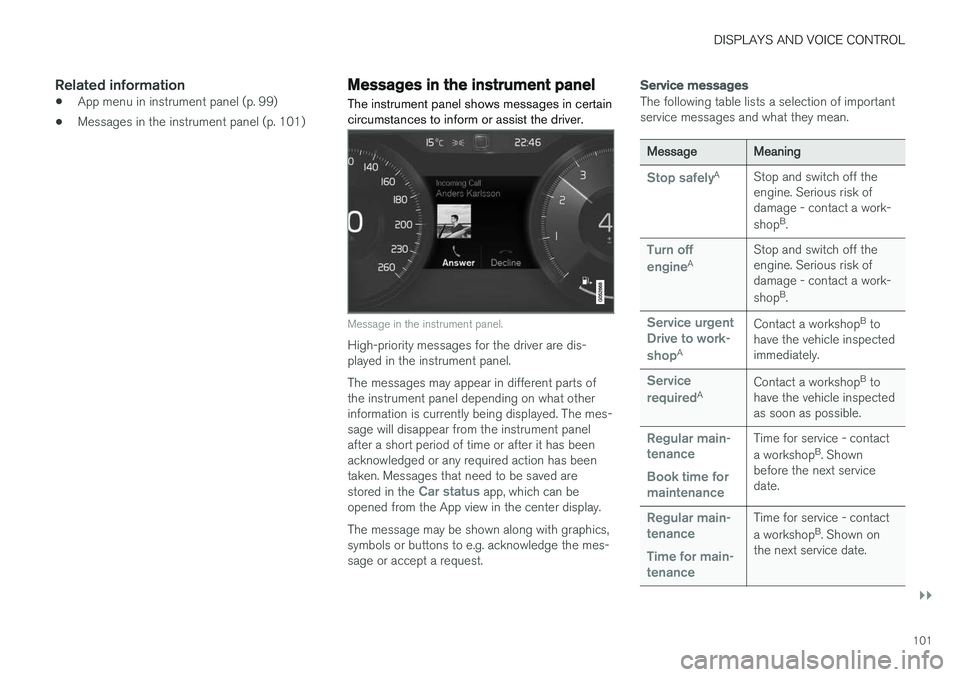
The instrument panel shows messages in certain circumstances to inform or assist the driver.
Message in the instrument panel.
High-priority messages for the driver are dis- played in the instrument panel. The messages may appear in different parts of the instrument panel depending on what otherinformation is currently being displayed. The mes-sage will disappear from the instrument panelafter a short period of time or after it has beenacknowledged or any required action has beentaken. Messages that need to be saved are stored in the
Car status app, which can be
opened from the App view in the center display. The message may be shown along with graphics, symbols or buttons to e.g. acknowledge the mes-sage or accept a request.
Service messages
The following table lists a selection of important service messages and what they mean.
MessageMeaning
Stop safelyA Stop and switch off the engine. Serious risk ofdamage - contact a work- shopB
.
Turn off engineA Stop and switch off the engine. Serious risk ofdamage - contact a work- shop
B
.
Service urgent Drive to work- shop
A Contact a workshop
B
to
have the vehicle inspected immediately.
Service requiredA Contact a workshop
B
to
have the vehicle inspected as soon as possible.
Regular main- tenance Book time for maintenanceTime for service - contact a workshop B
. Shown
before the next service date.
Regular main- tenance Time for main- tenanceTime for service - contact a workshop B
. Shown on
the next service date.
Page 104 of 674
||
DISPLAYS AND VOICE CONTROL
102
MessageMeaning
Regular main- tenance Maintenance overdueTime for service - contact a workshopB
. Shown when
the date for service has passed.
Temporarily offA A function has been tem- porarily deactivated andwill be reactivated auto-matically while driving orafter the engine is restar-ted.
A
Part of message, shown along with information on the location of the problem.
B An authorized Volvo workshop is recommended.
Related information
• Handling messages in the instrument panel (p. 102)
• Handling messages saved from the instru-ment panel (p. 103)
• Messages in the center display (p. 136)
Handling messages in theinstrument panel
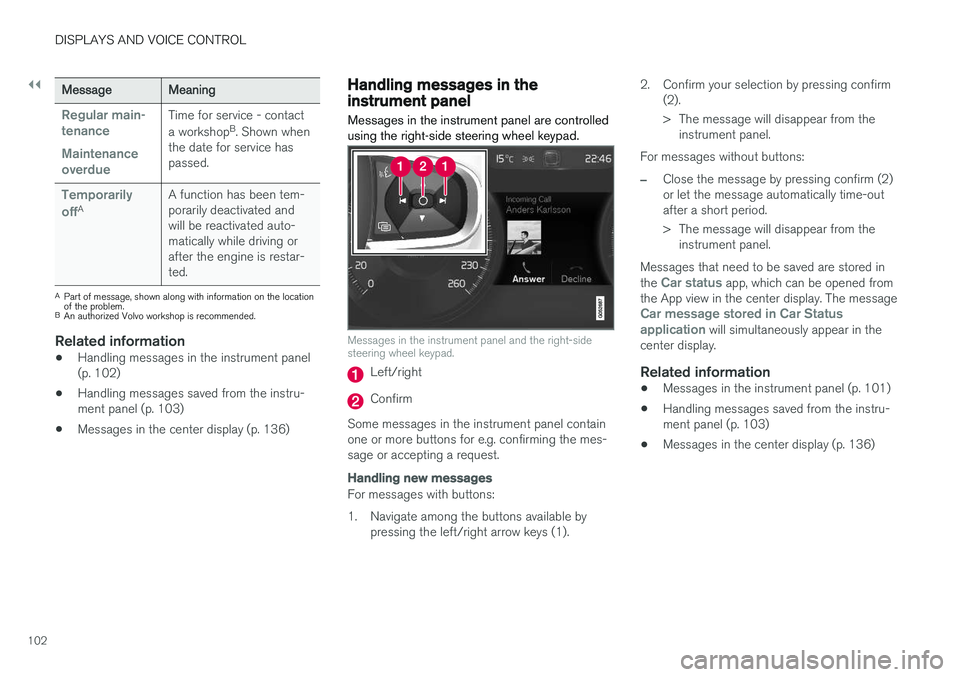
Messages in the instrument panel are controlled using the right-side steering wheel keypad.
Messages in the instrument panel and the right-side steering wheel keypad.
Left/right
Confirm
Some messages in the instrument panel contain one or more buttons for e.g. confirming the mes-sage or accepting a request.
Handling new messages
For messages with buttons:
1. Navigate among the buttons available by pressing the left/right arrow keys (1). 2. Confirm your selection by pressing confirm
(2).
> The message will disappear from theinstrument panel.
For messages without buttons:
–Close the message by pressing confirm (2) or let the message automatically time-outafter a short period.
> The message will disappear from the instrument panel.
Messages that need to be saved are stored in the
Car status app, which can be opened from
the App view in the center display. The message
Car message stored in Car Status application will simultaneously appear in the
center display.
Related information
• Messages in the instrument panel (p. 101)
• Handling messages saved from the instru- ment panel (p. 103)
• Messages in the center display (p. 136)