reset VOLVO XC60 T8 2018 Owner´s Manual
[x] Cancel search | Manufacturer: VOLVO, Model Year: 2018, Model line: XC60 T8, Model: VOLVO XC60 T8 2018Pages: 674, PDF Size: 11.93 MB
Page 471 of 674
STARTING AND DRIVING
}}
* Option/accessory.469
Programming HomeLink®
*12
Follow these instructions to program HomeLink ®
, reset all programming, or program
individual buttons.
NOTE
In some vehicles, the ignition must be on or in the "accessory position" before HomeLink ®
can be programmed or used. It can be a good idea to put new batteries in the remote con- trol being replaced by HomeLink ®
for faster
programming and better radio signal trans-mission. The HomeLink ®
buttons should be
reset before programming.
WARNING
While HomeLink ®
is being programmed, the
garage door or gate being programmed may be activated. Make sure that no one is nearthe door or gate during programming. Whenprogramming a garage door opener, it isadvised to park outside of the garage. 1.
Point the remote control at the HomeLink ®
button to be programmed and hold it about 2-8 cm (1-3 inches) from the button. Do not obstruct the HomeLink ®
indicator light.
Note: Some remote controls are more effec-
tive at programming HomeLink ®
from a dis-
tance of about 15-20 cm (6-12 inches). Try moving the remote control closer or furtheraway if you are experiencing any difficultiesprogramming.
2. Press and hold both the remote control but- ton and the HomeLink ®
button to be pro-
grammed.
3. Do not release the buttons until the indicator light has stopped flashing slowly (about oncea second) and either flashes quickly (about10 times a second) or glows steadily. >Steady glow: Indication that program-
ming is complete. Press the programmed button twice to activate. Flashing quickly: The device being pro-
grammed with HomeLink ®
may have a
security function that requires an extra step. Try pressing the programmed buttontwice to see whether the programmingworks. Otherwise, continue with the fol-lowing steps.
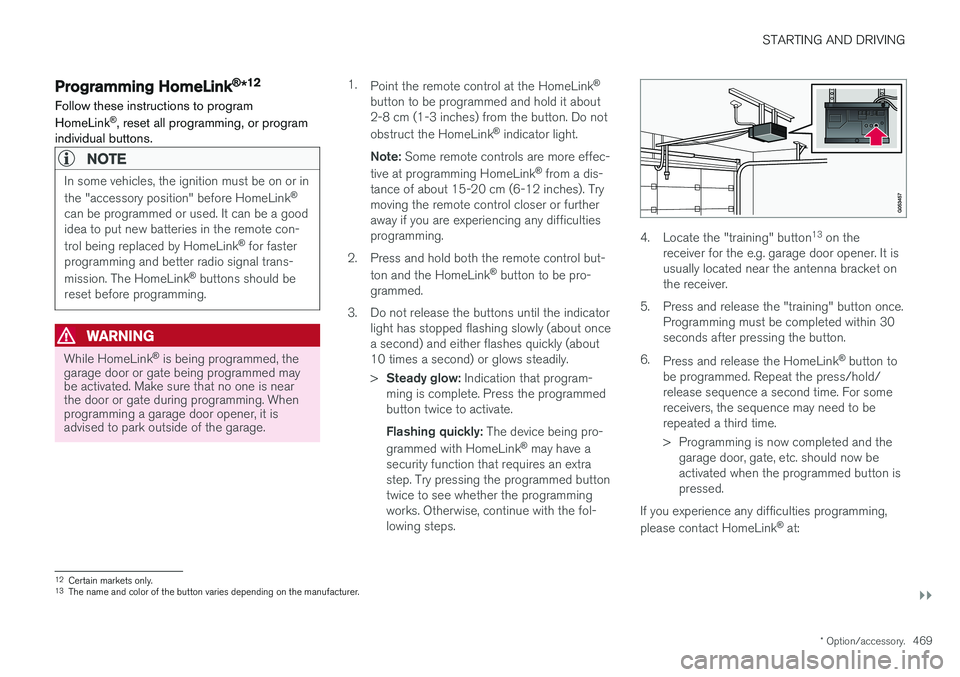
4. Locate the "training" button 13
on the
receiver for the e.g. garage door opener. It is usually located near the antenna bracket onthe receiver.
5. Press and release the "training" button once. Programming must be completed within 30seconds after pressing the button.
6. Press and release the HomeLink ®
button to
be programmed. Repeat the press/hold/release sequence a second time. For somereceivers, the sequence may need to berepeated a third time.
> Programming is now completed and the garage door, gate, etc. should now be activated when the programmed button ispressed.
If you experience any difficulties programming, please contact HomeLink ®
at:
12 Certain markets only.
13 The name and color of the button varies depending on the manufacturer.
Page 472 of 674
||
STARTING AND DRIVING
* Option/accessory.
470 www.HomeLink.com, www.youtube.com/ HomeLinkGentex or call 1-800-355-3515.
Programming individual buttons
To program an individual HomeLink
®
button:
1. Press and hold the desired button for about 20 seconds.
2. When the indicator light on HomeLink ®
starts flashing slowly, it is possible to pro-gram as usual. Note: If the button you are reprogramming
does not program with a new device, it will return to the previously saved programming.
Resetting the HomeLink ®
buttons
It is only possible to reset all HomeLink ®
buttons
at once. It is not possible to reset individual but-tons. Individual buttons can only be reprogram-med.
–Press and hold the outer buttons (1 and 3) on HomeLink ®
for about 10 seconds.
> When the indicator light goes from a steady glow to flashing, the buttons have been reset and are ready for reprogram-ming.
Related information
• Using HomeLink (p. 470)
• HomeLink ®
* (p. 468)
• Type approval for HomeLink ®
* (p. 471)
Using HomeLink
Once HomeLink ®
is programmed, it can be
used instead of the separate remote controls.
Press and hold the programming button. The garage door, gate, alarm system, etc. will be acti-vated (this may take several seconds). If the but-ton is held down for more than 20 seconds,reprogramming will begin. The indicator light willglow steadily or flash when the button has beenpressed. The original remote controls may be used concurrently with HomeLink ®
if desired.
NOTE
If the ignition is off, HomeLink ®
works for
30 minutes after the driver's door has been opened.
WARNING
• If you use HomeLink ®
to open a garage
door or gate, be sure no one is near the gate or door while it is in motion.
• Do not use HomeLink ®
with any garage
door opener that lacks safety stop andreverse features as required by US fed-eral safety standards (this includes anygarage door opener model manufacturedbefore April 1, 1982). A garage door thatcannot detect an object - signaling thedoor to stop and reverse - does not meetcurrent U.S. federal safety standards. Formore information, contact HomeLink at:www.homelink.com.
Related information
• HomeLink ®
* (p. 468)
• Programming HomeLink ®
* (p. 469)
• Type approval for HomeLink ®
* (p. 471)
Page 489 of 674
AUDIO, MEDIA AND INTERNET
487
Selecting sub-channels
To listen to a station's sub-channel(s), tap the station on the screen or press the forward/backarrow keys on the right-side steering wheel key-pad or below the screen. Sub-channels can also be saved as radio favor- ites. If you tap a sub-channel favorite, it may take up to 6 seconds before the channel becomes audi-
ble. If you tap a station while you are out of digital range of the transmitter,
No reception will be
displayed.
Related information
• HD Radio
™ (p. 484)
• Activating and deactivating the HD Radio
™
(p. 486)
• Changing waveband and radio station (p. 481)
• Searching for a radio station (p. 482)
• HD Radio
™ limitations (p. 487)
HD Radio™ limitations
Limitations
• Main channel vs. sub-channels (FM only)
:
The main channel is the only channel that can receive in hybrid mode (both digital andanalog). If a frequency has sub-channels,they are broadcast in digital mode only. Themain FM channel will be displayed as, forexample, "WRIF-FM HD1". The sub-FMchannels will be displayed as"WRIF-FMHD2", "WRIF-FM HD3", etc.
• Reception coverage area
: Due to current
IBOC transmitter power limitations, thereception coverage area in digital mode issomewhat more limited than the station'sanalog coverage area. Be aware that, like allradio transmission technology, terrain, time ofday, vegetation and buildings can have apositive or negative effect on radio reception.
• Analog to digital/digital to analog blend-ing
: Analog to digital blending will occur as
the signal strength reaches a preset thresh-old in the receiver. This will be noticeable infringe areas (areas with weak reception) andis normal.
NOTE
There may be a noticeable difference in sound quality when a change from analogueto digital or digital to analogue occurs, suchas:
• Volume increase or decrease
• Equalizer settings, i.e., Bass/ Midrange/Treble cut or boost
• Time alignment (Digital program materialin extreme cases can be as much as 8seconds behind the analogue). This willnoticeable as a "stuttering" effect.
The above items are dependant on thebroadcaster's equipment settings and donot indicate a fault in the vehicle's radioreceiver or antenna systems .
Related information
•HD Radio
™ (p. 484)
• Activating and deactivating the HD Radio
™
(p. 486)
• HD Radio
™
sub-channels (p. 486)
Page 508 of 674
||
AUDIO, MEDIA AND INTERNET
* Option/accessory.
506 5. Tap the desired app.
> The app will start up.
Starting CarPlay
CarPlay can be started as follows after an iPhone is connected.
1. Connect an iPhone to the USB port. If there are two USB ports, use the one with the white frame. >If the auto start setting is selected -
the name of the phone will be displayed.
2. Tap the name of the phone - the CarPlay tile will open and compatible apps will be dis- played.
3. If the CarPlay tile does not open, tap
Apple
CarPlay in App view.
> The CarPlay tile will open and compatible apps will be displayed.
4. Tap the desired app. > The app will start up.
CarPlay will run in the background if another app is started in the same tile. To display CarPlay inthe tile, tap the CarPlay icon in App view.
Switching connection between CarPlay and iPod
CarPlay to iPod
1. Tap Settings in the Top view. 2. Proceed to
CommunicationApple
CarPlay.
3. Uncheck the box for the Apple device that should no longer start CarPlay automatically when the USB cable is connected.
4. Remove and then reinsert the Apple device into the USB port.
5. Open the
iPod app from App view.
iPod to CarPlay
1.Tap Apple CarPlay in App view.
2. Read the information in the pop-up window and then tap
OK.
3. Remove and then reinsert the Apple device into the USB port.
> The Apple CarPlay tile will open and com-
patible apps will be displayed 7
.
Related information
• Connecting a device via the USB port (p. 504)
• Apple ®
CarPlay ®
* (p. 505)
• Settings for Apple ®
CarPlay ®
* (p. 506)
• Connecting the car to the Internet via amobile device (Wi-Fi) (p. 521)
• Connect the car to the Internet via carmodem (SIM card) (p. 522)
• Voice control (p. 141)
Settings for Apple® CarPlay®
*
Settings for an Apple device connected through CarPlay 8
.
Automatic start1. Tap Settings in the Top view.
2. Tap
CommunicationApple CarPlay and
select the desired setting:
• Check the box - CarPlay will start auto- matically when the USB cable is con-nected.
• Uncheck the box - CarPlay will not startautomatically when the USB cable is con-nected.
A maximum of 20 Apple devices can be stored inthe list. When the list is full and a new device isconnected, the oldest one will be deleted. To delete the list, the settings must be rest in the center display (factory reset).
System Volumes1. Tap Settings in the Top view.
2. Tap
SoundSystem Volumes to change
the settings for the following:
•
Voice Control
•Navi Voice Guidance
•Phone Ringtone
7 Apple, CarPlay, iPhone and iPod are registered trademarks of Apple Inc.
Page 509 of 674
AUDIO, MEDIA AND INTERNET
* Option/accessory.507
Related information
•Apple ®
CarPlay ®
* (p. 505)
• Using Apple ®
CarPlay ®
* (p. 505)
• Resetting center display settings (p. 131)Tips for using Apple® CarPlay®
*
Here are some useful tips for when you use CarPlay ®
.
• Update your iPhone with the latest version of iOS operating system and ensure that theapps have been updated.
• In the event of a problem with CarPlay, dis-connect the phone from the USB port andreconnect. Otherwise, try to close the app onthe phone that is not working and thenrestart the app, or try closing all apps andrestart your phone.
• If the apps do not appear when CarPlaystarts (black screen), try minimizing andexpanding the tile for CarPlay.
• Using apps that are not compatible withCarPlay may sometimes mean that the con-nection between the phone and the car isbroken. Information about supported appsand compatible phone models can be foundon Apple's website. You can also search forCarPlay in the App Store to find informationabout apps that are compatible with CarPlayin your market.
• CarPlay only works with iPhone 9
.
NOTE
Availability and functionality can vary depend- ing on market.
Related information
• Apple ®
CarPlay ®
* (p. 505)
8
Apple and CarPlay are registered trademarks of Apple Inc..
9 Apple, CarPlay and iPhone are registered trademarks owned by Apple Inc.
Page 511 of 674
AUDIO, MEDIA AND INTERNET
* Option/accessory.509
From a previously connected Android device
1. Connect the device to the USB port.
>If the auto start setting is selected -
the name of the phone will be displayed.
2. Tap the name of the phone - the Android Auto tile will open and compatible apps will be displayed.
3. If the automatic start setting is not acti- vated - open the
Android Auto app from
App view.
> The Android Auto tile will open and com- patible apps will be displayed.
4. Tap the desired app. > The app will start up.
Android Auto will run in the background if another app is started in the same tile. To displayAndroid Auto in the tile, tap the Android Autoicon in App view.
Related information
• Android Auto
* (p. 508)
• Settings for Android Auto
* (p. 509)
• Connecting a device via the USB port(p. 504)
• Voice control (p. 141)
Settings for Android Auto
*
Settings for phones initially connected with Android Auto.
Automatic start1. Tap Settings in the Top view.
2. Tap
CommunicationAndroid Auto and
select setting:
• Check the box - Android Auto will start automatically when the USB cable is con-nected.
• Uncheck the box - Android Auto will notstart automatically when the USB cable isconnected.
A maximum of 20 Android devices can be storedin the list. When the list is full and a new device isconnected, the oldest one will be deleted. A factory reset must be performed to delete the list.
System Volumes1. Tap Settings in the Top view.
2. Tap
SoundSystem Volumes to change
the settings for the following:
•
Voice Control
•Navi Voice Guidance
•Phone Ringtone
Related information
• Android Auto
* (p. 508)
• Using Android Auto
* (p. 508)
• Resetting center display settings (p. 131)
Page 525 of 674
AUDIO, MEDIA AND INTERNET
}}
523
Vehicle modem settings
Your vehicle is equipped with a modem that can be used to connect the vehicle to the Internet. Itis also possible to share this Internet connectionover Wi-Fi.
1. Tap Settings in the Top view.
2. Tap
CommunicationVehicle Modem
Internet and select settings:
•
Vehicle modem Internet - select this to
use the vehicle's modem to connect to the Internet.
•
Data usage - tap Reset to reset the coun-
ter for the amount of data received and sent.
•
Network Select carrier
- select a service provider
manually or automatically.
Data roaming - if the box is checked, the
vehicle modem will attempt to connect to the Internet when the vehicle is outside its homenetwork (e.g. if you are in another country).Please note that this could entail additionalcharges. Consult with your service providerfor data roaming terms under your contract.
•
SIM card PIN Change PIN
- a maximum of 4 digits can be
entered.
Disable PIN - select whether a PIN code
will be required to access the SIM card. •
Send request code - used to e.g. download
or check the balance remaining on a prepaid phone card. This function is specific to yourservice provider.
Related information
• Connect the car to the Internet via carmodem (SIM card) (p. 522)
• No or poor Internet connection (p. 524)
Sharing Internet from the vehicle viaWi-Fi hotspot (tethering)
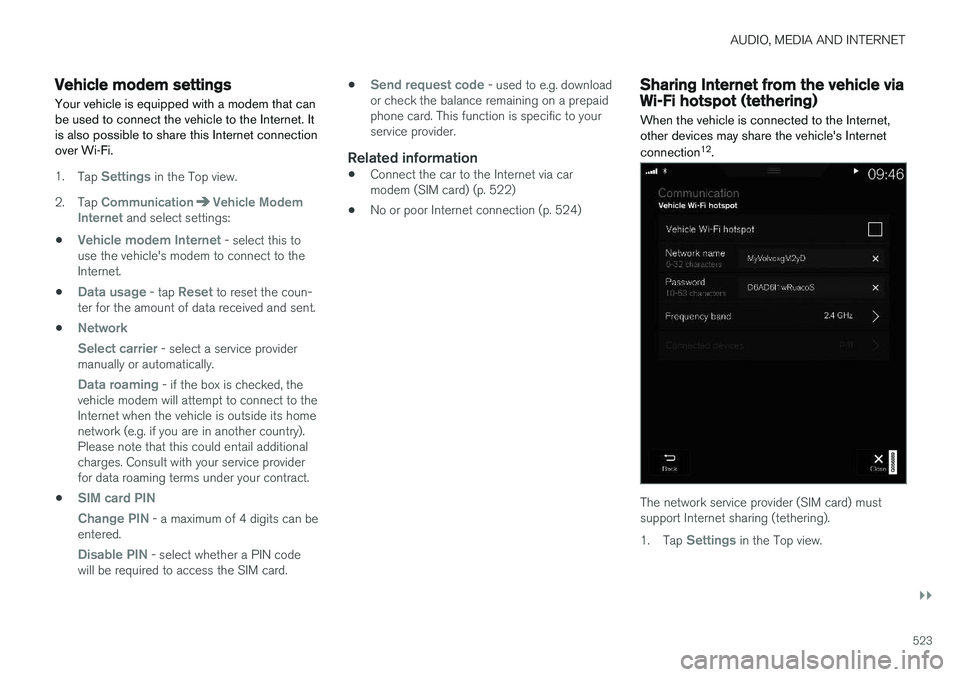
When the vehicle is connected to the Internet, other devices may share the vehicle's Internet connection 12
.
The network service provider (SIM card) must support Internet sharing (tethering). 1. Tap
Settings in the Top view.
Page 527 of 674
AUDIO, MEDIA AND INTERNET
* Option/accessory.525
Restarting the phoneIf you experience any Internet connection prob- lems, it may help to restart your phone.
Related information
•Internet-connected vehicle
* (p. 519)
• Wi-Fi technology and security (p. 525)
Deleting Wi-Fi networks
Networks that are not needed can be deleted.
1. Tap Settings in the Top view.
2. Proceed to
CommunicationWi-FiSaved networks.
3. Tap
Forget to delete the network.
4. Confirm the selection. > The vehicle will no longer connect to thedeleted network.
Deleting all networksAll networks can be deleted at once by perform- ing a factory reset. Please note that all user dataand system settings will be restored to originaldefault factory settings.
Related information
• Internet-connected vehicle
* (p. 519)
• No or poor Internet connection (p. 524)
• Resetting center display settings (p. 131)
• Connecting the car to the Internet via amobile device (Wi-Fi) (p. 521)
Wi-Fi technology and security
Networks must meet certain criteria in order for the vehicle to connect.
It is possible to connect to the following types of networks:
• Frequency - 2.4 or 5 GHz 13
.
• Standards - 802.11 a/b/g/n.
• Security type - WPA2-AES-CCMP.
The vehicle's Wi-Fi system is designed to handleWi-Fi devices inside the vehicle. Performance may be impaired if multiple devices are using a frequency at the same time.
Related information
• Internet-connected vehicle
* (p. 519)
13
Selecting a frequency is not possible on all markets.
Page 609 of 674
MAINTENANCE AND SERVICE
}}
607
Location
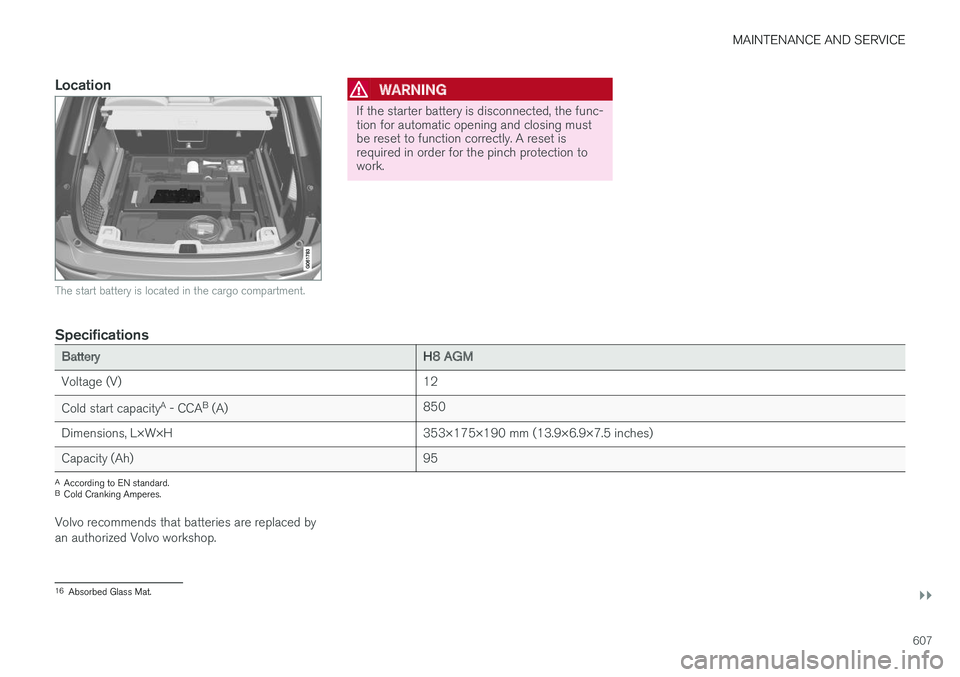
The start battery is located in the cargo compartment.
WARNING
If the starter battery is disconnected, the func- tion for automatic opening and closing mustbe reset to function correctly. A reset isrequired in order for the pinch protection towork.
Specifications
BatteryH8 AGM
Voltage (V) 12
Cold start capacity A
- CCA B
(A) 850
Dimensions, L×W×H 353×175×190 mm (13.9×6.9×7.5 inches)
Capacity (Ah) 95
A
According to EN standard.
B Cold Cranking Amperes.
Volvo recommends that batteries are replaced by an authorized Volvo workshop.
16 Absorbed Glass Mat.
Page 662 of 674
INDEX
660Cooling system
overheating 458
Corner Traction Control 264
Corrosion protection 634Covering cargo compartment 582
Crash, see Collision 42
Crash event data 33
Cross Traffic Alert – CTA 344, 345, 346, 347
Cruise control 276, 277 manage speed 277, 278
temporary deactivation 279, 280
turn off 280
CTA – Cross Traffic Alert 344, 345, 346, 347
Curb weight 649
CZIP (Clean Zone Interior Package) 200
D
Data recording 33 transferring between vehicle and work-
shop 590
Data sharing 526
Daytime running lights 150
Decals location of 644
Defrosting 214
Detection of cyclist 329
Dimensions 647
Dipstick, electronic 601
Direction of rotation 542
Display lighting 159
Distance Alert 281, 282, 283 limitations 284
DivX ®
502
Door mirrors 165, 166 compass 471, 472
dimming 166
outer 165, 166
power folding 166
resetting 166
Driveline transmission 428
Drive mode 435 changing 439
Driver Alert Control 353 operation 354, 355
Driver Alert Control limitations 355
Driver performance 88Driver profile 133 edit 135
select 134
Driver support system 262
Drive systems 433Driving cooling system 458
with a trailer 462
Driving economy 446
Driving through standing water 452 driving with a trailer towball load 650
towing capacity 650
E
Economical driving 446
Electrical outlet 572
use 574
Electrical system 605 Electric drive motor specifications 651
electric motor 433 Driving 447
Range 448
Electric parking brake 422