phone VOLVO XC60 T8 2018 Owner´s Manual
[x] Cancel search | Manufacturer: VOLVO, Model Year: 2018, Model line: XC60 T8, Model: VOLVO XC60 T8 2018Pages: 674, PDF Size: 11.93 MB
Page 6 of 674
4
Resetting user data when the vehicle changes owners130
Resetting center display settings 131
Setting types in the center display 131
Table of settings in the center display 132
Driver profiles 133
Selecting a driver profile 134
Changing a driver profile's name 135
Resetting driver profile settings 135
Linking a remote key to a driver profile 135
Messages in the center display 136
Handling messages in the center display 137
Handling messages saved from thecenter display 138
Head-up display *
138
Activating and deactivating the head- up display * 140
Head-up display settings *
140
Voice control 141
Using voice commands 142
Voice control for cellular phones 143
Voice control for radio and media 144
Voice control settings 144
LIGHTING
Lighting panel and controls148
Adjusting light functions via the cen- ter display 149
Parking lights 150
Daytime running lights 150
Low beams 151
Using high beam 152
Active high beam 153
Using turn signals 154
Active Bending Lights *
155
Rear fog light 155
Brake lights 156
Emergency brake lights 156
Hazard warning flashers 157
Using home safe lighting 157
Welcome Light 157
Interior Lighting 158
Adjusting interior lighting 159
WINDOWS, GLASS AND MIRRORS
Windows, glass and mirrors162
Pinch protection for windows and sun curtains 162
Reset procedure for pinch protection 163
Power windows 163
Operating the power windows 164
Rearview/door mirrors 165
Adjusting the rearview mirror dim-ming function 166
Adjusting the door mirrors 166
Panoramic roof *
168
Operating the panoramic roof *
169
Auto closing the panoramic roof * sun
curtain 171
Using the windshield wipers 172
Heated windshield washer nozzles *
173
Using the rain sensor 173
Using the rain sensor's memory function 174
Using the windshield and headlightwashers 175
Using the rear window wiper/washer 176
Using automatic rear window wipingwhen backing up 176
Page 13 of 674
11
AUDIO, MEDIA AND INTERNET
Audio, media and Internet476
Sound settings 476
Apps 477
Download apps 478
Updating apps 479
Deleting apps 480
Radio 480
Starting the radio 481
Changing waveband and radio station 481
Searching for a radio station 482
Storing radio favorites 483
Radio settings 483
RBDS 484
HD Radio ™
484
Activating and deactivating the HD Radio ™ 486
HD Radio ™ sub-channels
486
HD Radio ™ limitations
487
SiriusXM ®
Satellite radio * 488
Using SiriusXM ®
Satellite radio *489
Settings for SiriusXM ®
Satellite radio *490
SiriusXM Travel Link ®
* 492
SiriusXM Travel Link ®
* - Weather 493
SiriusXM Travel Link ®
* - Notifications 494
SiriusXM Travel Link®
* - Fuel 495
SiriusXM Travel Link ®
* - Sports 496
Media player 497
Playing media 498
Controlling and changing media 499
Media searches 500
Gracenote ®
501
CD player *
501
Video 502
Playing video 502
Playing DivX ®
502
Video settings 503
Streaming media via Bluetooth ®
503
Connecting a device via Bluetooth ®
503
Playing media via the USB port 504
Connecting a device via the USB port 504
Apple ®
CarPlay ®
* 505
Using Apple ®
CarPlay ®
* 505
Settings for Apple ®
CarPlay ®
* 506
Tips for using Apple ®
CarPlay ®
* 507
Android Auto *
508
Using Android Auto *
508
Settings for Android Auto *
509
Tips for using Android Auto *
510
Phone 510
Connecting a phone to the car via Bluetooth for the first time 511
Connecting a phone to the car viaBluetooth automatically 513
Connecting a phone to the car viaBluetooth manually 513
Disconnecting a Bluetooth-con-nected phone 514
Switch between phones connectedvia Bluetooth 514
Removing a Bluetooth-connected phone 515
Handling phone calls 515
Handling text messages 516
Text message settings 517
Managing the phone book 517
Phone settings 518
Settings for Bluetooth devices 519
Internet-connected vehicle *
519
Connecting the car to the Internetvia a mobile device (Bluetooth) 521
Connecting the car to the Internetvia a mobile device (Wi-Fi) 521
Connect the car to the Internet viacar modem (SIM card) 522
Vehicle modem settings 523
Page 18 of 674
OWNER'S INFORMATION
16
Owner's information
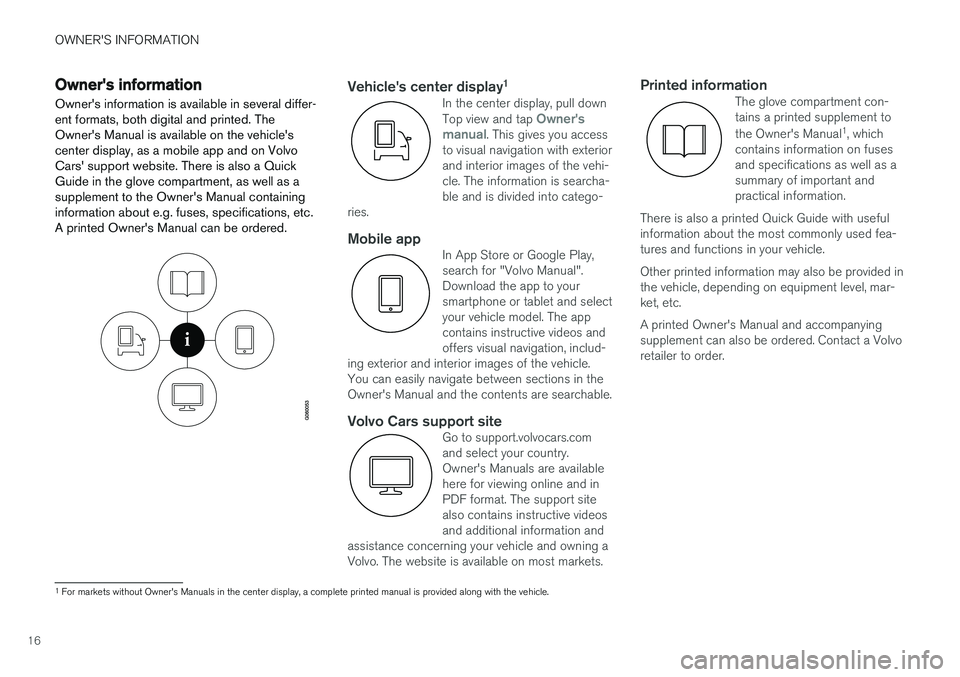
Owner's information is available in several differ- ent formats, both digital and printed. TheOwner's Manual is available on the vehicle'scenter display, as a mobile app and on VolvoCars' support website. There is also a Quick
Guide in the glove compartment, as well as asupplement to the Owner's Manual containing
information about e.g. fuses, specifications, etc.A printed Owner's Manual can be ordered.Vehicle's center display 1In the center display, pull down Top view and tap Owner's
manual. This gives you access
to visual navigation with exterior and interior images of the vehi-cle. The information is searcha-ble and is divided into catego-
ries.
Mobile appIn App Store or Google Play, search for "Volvo Manual".Download the app to yoursmartphone or tablet and selectyour vehicle model. The appcontains instructive videos andoffers visual navigation, includ-
ing exterior and interior images of the vehicle.You can easily navigate between sections in theOwner's Manual and the contents are searchable.
Volvo Cars support siteGo to support.volvocars.com and select your country.Owner's Manuals are availablehere for viewing online and inPDF format. The support sitealso contains instructive videosand additional information and
assistance concerning your vehicle and owning aVolvo. The website is available on most markets.
Printed informationThe glove compartment con- tains a printed supplement to the Owner's Manual 1
, which
contains information on fuses and specifications as well as asummary of important andpractical information.
There is also a printed Quick Guide with usefulinformation about the most commonly used fea-tures and functions in your vehicle. Other printed information may also be provided in the vehicle, depending on equipment level, mar-ket, etc. A printed Owner's Manual and accompanying supplement can also be ordered. Contact a Volvoretailer to order.
1 For markets without Owner's Manuals in the center display, a complete printed manual is provided along with the vehicle.
Page 22 of 674
OWNER'S INFORMATION
* Option/accessory.
20
Owner's manual in mobile devices
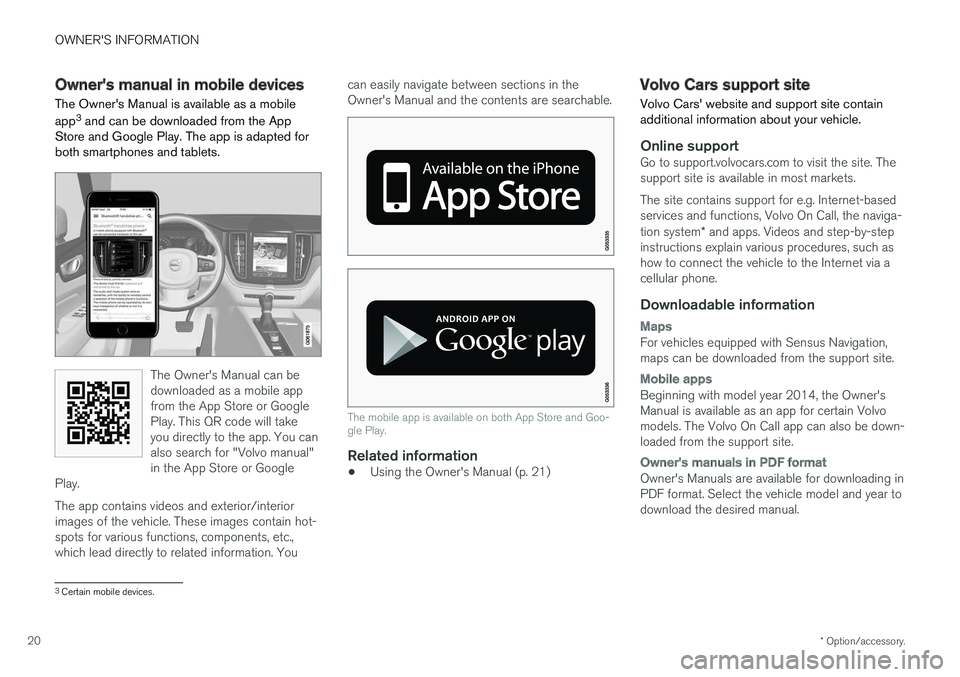
The Owner's Manual is available as a mobile app 3
and can be downloaded from the App
Store and Google Play. The app is adapted for both smartphones and tablets.
The Owner's Manual can be downloaded as a mobile appfrom the App Store or GooglePlay. This QR code will takeyou directly to the app. You canalso search for "Volvo manual"in the App Store or Google
Play.
The app contains videos and exterior/interior images of the vehicle. These images contain hot- spots for various functions, components, etc.,which lead directly to related information. You can easily navigate between sections in theOwner's Manual and the contents are searchable.
The mobile app is available on both App Store and Goo- gle Play.
Related information
•
Using the Owner's Manual (p. 21)
Volvo Cars support site
Volvo Cars' website and support site contain additional information about your vehicle.
Online supportGo to support.volvocars.com to visit the site. The support site is available in most markets. The site contains support for e.g. Internet-based services and functions, Volvo On Call, the naviga- tion system * and apps. Videos and step-by-step
instructions explain various procedures, such as how to connect the vehicle to the Internet via acellular phone.
Downloadable information
Maps
For vehicles equipped with Sensus Navigation, maps can be downloaded from the support site.
Mobile apps
Beginning with model year 2014, the Owner's Manual is available as an app for certain Volvomodels. The Volvo On Call app can also be down-loaded from the support site.
Owner's manuals in PDF format
Owner's Manuals are available for downloading in PDF format. Select the vehicle model and year todownload the desired manual.
3 Certain mobile devices.
Page 23 of 674
OWNER'S INFORMATION
}}
* Option/accessory.21
ContactContact information for customer support and your nearest Volvo retailer are available on thesupport site.
Related information
•Contacting Volvo (p. 26)
• Volvo ID (p. 26)
Using the Owner's Manual
Reading your Owner's Manual is a good way to get to know your new Volvo, preferably beforedriving it for the first time.
Reading your Owner's Manual is a good way to familiarize yourself with new features and func-tions, get advice on the best way to handle yourvehicle in different situations, and to learn how toget the most out of everything your Volvo has tooffer. Pay particular attention to the safety warn-ings provided in the Owner's Manual. The intention of this owner's information is to explain all of the possible features, functions andoptions included in a Volvo vehicle. It is notintended as an indication or guarantee that all ofthese features, functions and options areincluded in every vehicle. Some terminology usedmay not exactly match terminology used in sales,marketing and advertising materials. Volvo continuously works to develop and improve our products. Modifications can mean that infor-mation, descriptions and illustrations in theOwner's Manual differ from the equipment in thevehicle. We reserve the right to make changeswithout prior notice. Do not remove this manual from the vehicle. If a problem should occur, you will not have the nec-essary information on where and how to get pro-fessional assistance. © Volvo Car Corporation
Option/accessoryIn addition to standard equipment, the Owner's Manual also describes options (factory-installedequipment) and certain accessories (extra retro-fitted equipment). All options and accessories are marked with an asterisk: *.
The equipment described in the Owner's Manual is not available in all vehicles. Vehicles may beequipped differently depending on marketrequirements and national or local laws and regu-lations. For more information on which equipment is standard and which is an option or accessory,please contact your Volvo retailer.
FootnotesCertain parts of the Owner's Manual containinformation in the form of footnotes at the bot-tom of the page or at the end of a table. Thisinformation supplements the text that the foot-note number refers to. If the footnote refers totext in a table, a letter is used instead of a num-ber.
MessagesThere are several displays in the vehicle thatshow messages and menu texts. The appearanceof these texts differs from the normal texts provi-ded. Example of messages and menu texts:
Phone, New message.
Page 29 of 674
YOUR VOLVO
}}
* Option/accessory.27
Creating and registering a Volvo ID
A Volvo ID can be created in two ways. If your Volvo ID was created with the Volvo On Callapp, the Volvo IDmust also be registered to thevehicle to enable access to the Volvo ID serv-ices.
Creating a Volvo ID using the app
1. Download the Volvo ID app from Download
Center in the center display's App view.
2. Start the app and register a personal email address.
3. Follow the instructions that will be sent auto- matically to this email address.
> A Volvo ID has now been created and isautomatically registered to the vehicle. The Volvo ID services can now be used.
Creating a Volvo ID using the Volvo On Call
app3
1. Download the latest version of the Volvo On Call app from a smartphone, via e.g. App Store, Windows Phone or Google Play.
2. On the app's start page, create a Volvo ID and enter a personal email address.
3. Follow the instructions that will be sent auto- matically to this email address.
> A Volvo ID has now been created. Seebelow for information on how the ID is registered to the vehicle.
Registering your Volvo ID to the vehicleIf your Volvo ID was created using the Volvo OnCall app, follow these steps to register the ID tothe vehicle:
1. If you have not already done so, download
the Volvo ID app from
Download Center in
App view.
NOTE
To download apps the vehicle must be con- nected to the internet.
2. Start the app and enter your Volvo ID/email address.
3. Follow the instructions that will be automati- cally sent to the email address connected to your Volvo ID.
> Your Volvo ID has now been registered tothe vehicle. The Volvo ID services can now be used.
Related information
• Volvo ID (p. 26)
• Download apps (p. 478)
• Handling system updates via Download Cen-ter (p. 591)
• Internet-connected vehicle
* (p. 519)
Drive-E ‒ purer driving pleasure
Volvo is committed to the well-being of its cus- tomers. As a natural part of this commitment, wecare about the environment in which we all live.Concern for the environment means an everydayinvolvement in reducing our environmentalimpact.
Volvo's environmental activities are based on a holistic view, which means we consider the over-all environmental impact of a product throughoutits complete life cycle. In this context, design, pro-duction, product use, and recycling are all impor-tant considerations. In production, Volvo haspartly or completely phased out several chemicalsincluding CFCs, lead chromates, asbestos, andcadmium; and reduced the number of chemicalsused in our plants 50% since 1991. Volvo was the first in the world to introduce into production a three-way catalytic converter with aLambda sond, now called the heated oxygen sen-sor, in 1976. The current version of this highlyefficient system reduces emissions of harmfulsubstances (CO, HC, NOx) from the exhaust pipeby approximately 95 - 99% and the search toeliminate the remaining emissions continues.Volvo is the only automobile manufacturer tooffer CFC-free retrofit kits for the air conditioningsystem of all models as far back as the 1975model 240. Advanced electronic engine controlsand cleaner fuels are bringing us closer to our
3 Vehicles with Volvo On Call.
Page 33 of 674
YOUR VOLVO
}}
* Option/accessory.31
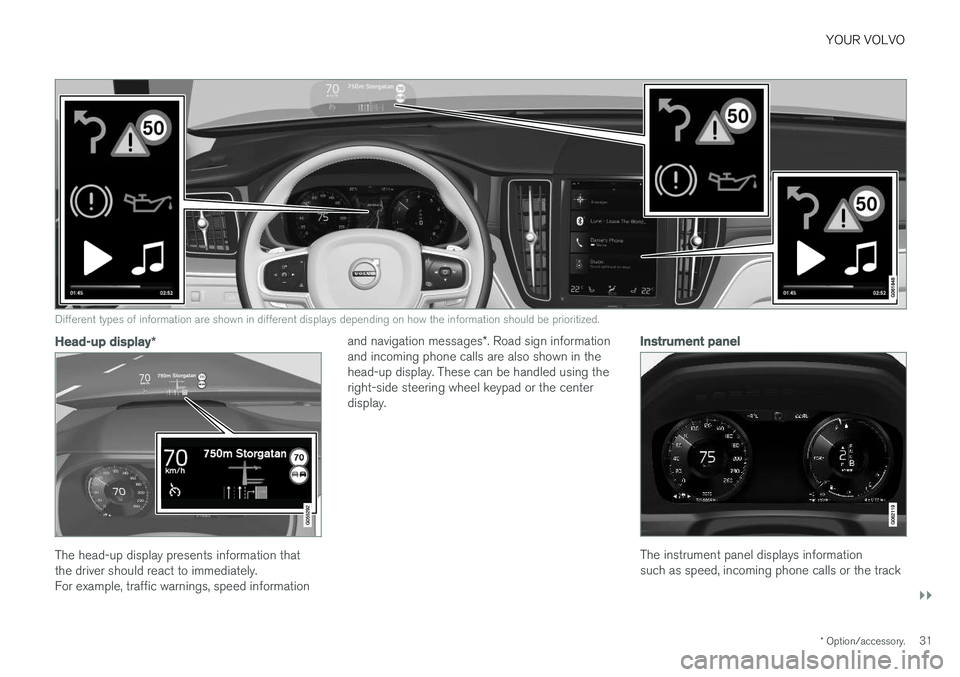
Different types of information are shown in different displays depending on how the information should be prioritized.
Head-up display*
The head-up display presents information that the driver should react to immediately.For example, traffic warnings, speed information and navigation messages
*. Road sign information
and incoming phone calls are also shown in thehead-up display. These can be handled using theright-side steering wheel keypad or the centerdisplay.
Instrument panel
The instrument panel displays information such as speed, incoming phone calls or the track
Page 34 of 674
||
YOUR VOLVO
* Option/accessory.
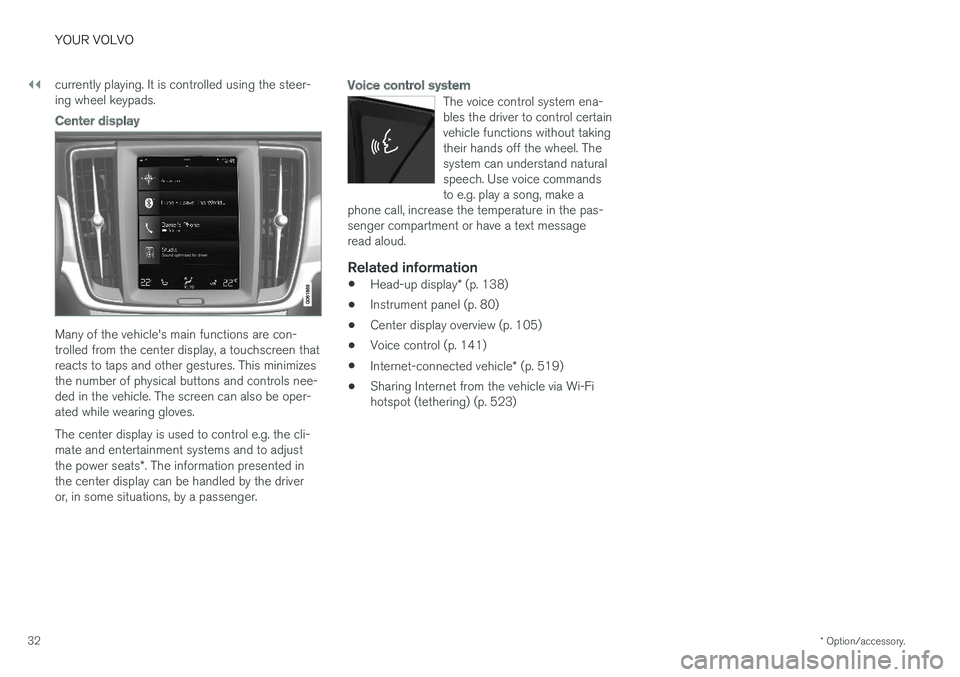
32 currently playing. It is controlled using the steer- ing wheel keypads.
Center display
Many of the vehicle's main functions are con- trolled from the center display, a touchscreen thatreacts to taps and other gestures. This minimizesthe number of physical buttons and controls nee-ded in the vehicle. The screen can also be oper-ated while wearing gloves. The center display is used to control e.g. the cli- mate and entertainment systems and to adjust the power seats
*. The information presented in
the center display can be handled by the driver or, in some situations, by a passenger.
Voice control system
The voice control system ena- bles the driver to control certainvehicle functions without takingtheir hands off the wheel. Thesystem can understand naturalspeech. Use voice commandsto e.g. play a song, make a
phone call, increase the temperature in the pas-senger compartment or have a text messageread aloud.
Related information
• Head-up display
* (p. 138)
• Instrument panel (p. 80)
• Center display overview (p. 105)
• Voice control (p. 141)
• Internet-connected vehicle
* (p. 519)
• Sharing Internet from the vehicle via Wi-Fi hotspot (tethering) (p. 523)
Page 41 of 674
YOUR VOLVO
39
Driver distraction
A driver has a responsibility to do everything possible to ensure his or her own safety and thesafety of passengers in the vehicle and otherssharing the roadway. Part of this responsibility isavoiding distractions, including performing activi-ties that are not directly related to controlling thevehicle in the driving environment.
Your new Volvo is, or can be, equipped with fea- ture-rich entertainment and communication sys-tems. These include hands-free cellular tele-phones, navigation systems, and multipurposeaudio systems. You may also own other portableelectronic devices for your own convenience.When used properly and safely, they enrich thedriving experience. Improperly used, any of thesecould cause a distraction. For all of these systems, we want to provide the following warning that reflects the strong Volvoconcern for your safety. Never use these devicesor any feature of your vehicle in a way that dis-tracts you from the task of driving safely. Distrac-tion can lead to a serious accident. In addition tothis general warning, we offer the following guid-ance regarding specific new features that may befound in your vehicle:
WARNING
• Never use a hand-held cellular telephone while driving. Some jurisdictions prohibitcellular telephone use by a driver whilethe vehicle is moving.
• If your vehicle is equipped with a naviga-tion system, set and make changes toyour travel itinerary only with the vehicleparked.
• Never program your audio system whilethe vehicle is moving. Program radio pre-sets with the vehicle parked, and use yourprogrammed presets to make radio usequicker and simpler.
• Never use portable computers or per-sonal digital assistants while the vehicleis moving.
Related information
•Audio, media and Internet (p. 476)
Page 46 of 674
||
SAFETY
44
Occupant safety reminders
How safely you drive doesn't depend on how old you are but rather on:
• How well you see.
• Your ability to concentrate.
• How quickly you make decisions understress to avoid an accident.
The following suggestions are intended to helpyou cope with the ever changing traffic environ-ment.
• Never drink and drive.
• If you are taking any medication, consult yourphysician about its potential effects on your driving abilities.
• Take a driver-retraining course.
• Have your eyes checked regularly.
• Keep your windshield and headlights clean.
• Replace wiper blades when they start to leave streaks.
• Take into account the traffic, road, andweather conditions, particularly with regard tostopping distance.
• Never send text messages while driving.
• Refrain from using or minimize the use of acell phone while driving.Related information
• Safety (p. 42)
• Reporting safety defects (p. 44)
• Recall information (p. 45)
Reporting safety defects
The following information will help you report any perceived safety-related defects in your vehicle.
Reporting safety defects in the U.S.
If you believe that your vehicle has a defect which could cause a crash orcould cause injury or death, you shouldimmediately inform the National High-way Traffic Safety Administration(NHTSA) in addition to notifying VolvoCar USA, LLC. If NHTSA receives simi-lar complaints, it may open an investi-gation, and if it finds that a safetydefect exists in a group of vehicles, itmay order a recall and remedy cam-paign. However, NHTSA cannotbecome involved in individual problemsbetween you, your retailer, or Volvo CarUSA, LLC. To contact NHTSA, you mayeither call the Auto Safety Hotline toll-free at 1-888-327-4236(TTY: 1-800-424-9153) or write to: NHTSA, U.S. Department of Transpor-tation, Washington D.C. 20590.