instrument panel VOLVO XC70 2015 Owner´s Manual
[x] Cancel search | Manufacturer: VOLVO, Model Year: 2015, Model line: XC70, Model: VOLVO XC70 2015Pages: 408, PDF Size: 11.26 MB
Page 171 of 408
04 Driver support
Distance Alert*
04
}}
* Option/accessory, for more information, see Introduction.169
Introduction
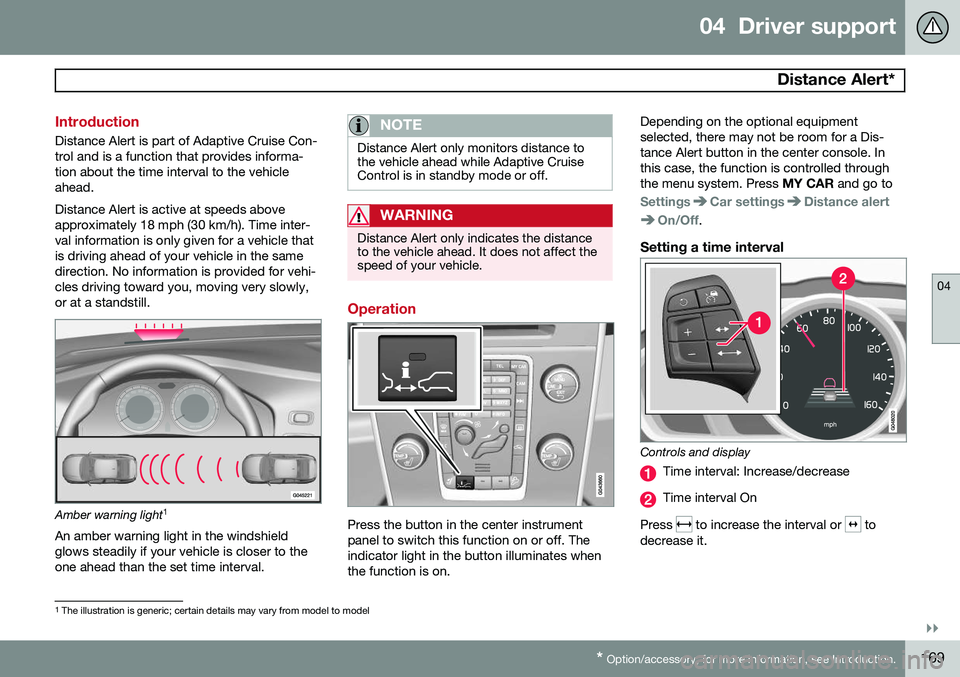
Distance Alert is part of Adaptive Cruise Con- trol and is a function that provides informa-tion about the time interval to the vehicleahead. Distance Alert is active at speeds above approximately 18 mph (30 km/h). Time inter-val information is only given for a vehicle thatis driving ahead of your vehicle in the samedirection. No information is provided for vehi-cles driving toward you, moving very slowly,or at a standstill.
Amber warning light 1
An amber warning light in the windshield glows steadily if your vehicle is closer to theone ahead than the set time interval.
NOTE
Distance Alert only monitors distance to the vehicle ahead while Adaptive CruiseControl is in standby mode or off.
WARNING
Distance Alert only indicates the distance to the vehicle ahead. It does not affect thespeed of your vehicle.
Operation
Press the button in the center instrument panel to switch this function on or off. Theindicator light in the button illuminates whenthe function is on. Depending on the optional equipmentselected, there may not be room for a Dis-tance Alert button in the center console. Inthis case, the function is controlled throughthe menu system. Press
MY CAR and go to
SettingsCar settingsDistance alert
On/Off.
Setting a time interval
Controls and display
Time interval: Increase/decrease
Time interval On
Press
to increase the interval or to
decrease it.
1 The illustration is generic; certain details may vary from model to model
Page 178 of 408
04 Driver support
City Safety™
04
176
Maximum pulse energy2.64 μJ
Maximum average output45 mW
Pulse length33 ns
Divergence (horizontal × verti- cal)28° × 12°
NOTE
The function of aftermarket laser detectors may be affected by City Safety's laser sen-sor.
WARNING
The laser sensor emits light when the igni- tion is in mode II or higher, even if City
Safety™ has been switched off.
WARNING
Eye injury may occur if any of the following points are not followed: • It is essential that all pertinent instruc- tions be followed when handling laserinstruments. Testing, repairing, remov-ing, adjusting and/or replacing anycomponents in the laser sensor mayonly be done by a trained and qualifiedVolvo service technician.
• Do not remove the laser sensor(including removal of the lenses). Alaser sensor that has been removedbelongs to laser class 3B according tostandard IEC 60825-1. Devices in laserclass 3B present a risk of injury to theeyes.
• The laser sensor’s connector must bedisconnected before the sensor isremoved from the windshield.
• The laser sensor must be mounted inplace on the windshield before con-necting the sensor’s connector.
• Do not view the laser sensor (whichemits spreading, invisible laser beams)with optical instruments from a dis-tance of less than 4 inches (100 mm).Symbols and messages in the display
When City Safety™ automatically applies the brakes, one or more of the symbols in themain instrument panel may illuminate and itsassociated message will be displayed. A text message can be erased by pressing briefly on the
OK button on the turn signal
lever.
Page 191 of 408
04 Driver support
Driver Alert System*
04
}}
* Option/accessory, for more information, see Introduction.189
On/OffTo put Driver Alert in standby mode:
• In the
MY CAR menu, scroll to
Car
settings
Driver support systemsDriver Alert and check the box. If the box
is not checked, the function is off.
FunctionDriver Alert is activated when the vehicle exceeds a speed of 40 mph (65 km/h) and will remain active as long as the speed is overapprox. 37 mph (60 km/h).
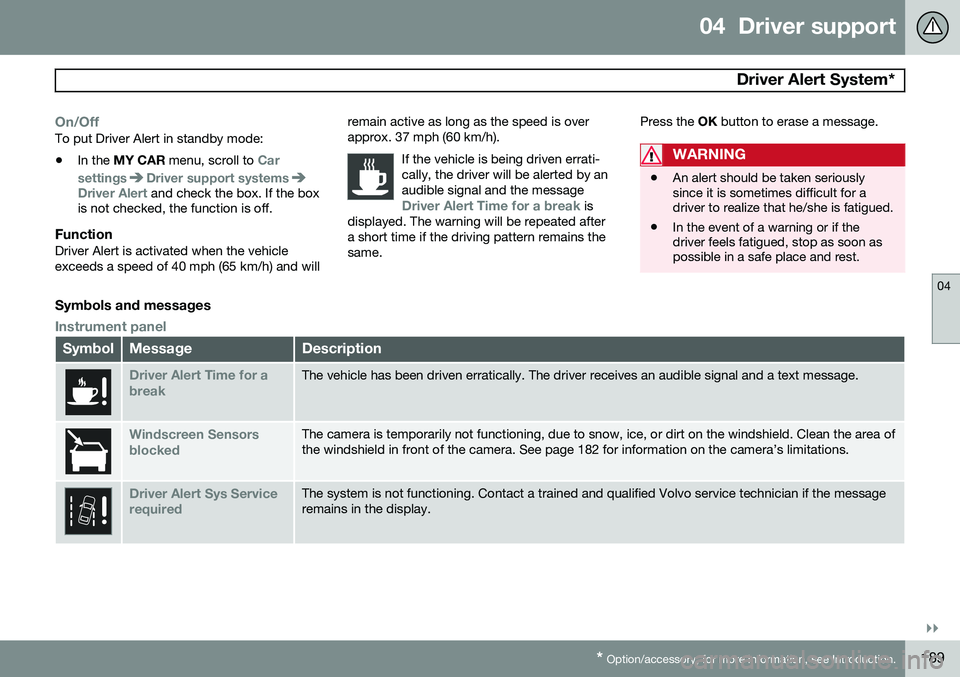
If the vehicle is being driven errati-cally, the driver will be alerted by anaudible signal and the message
Driver Alert Time for a break is
displayed. The warning will be repeated after a short time if the driving pattern remains thesame.
Press the OK button to erase a message.
WARNING
• An alert should be taken seriously since it is sometimes difficult for adriver to realize that he/she is fatigued.
• In the event of a warning or if thedriver feels fatigued, stop as soon aspossible in a safe place and rest.
Symbols and messages
Instrument panel
SymbolMessageDescription
Driver Alert Time for a breakThe vehicle has been driven erratically. The driver receives an audible signal and a text message.
Windscreen Sensors blockedThe camera is temporarily not functioning, due to snow, ice, or dirt on the windshield. Clean the area of the windshield in front of the camera. See page 182 for information on the camera’s limitations.
Driver Alert Sys Service requiredThe system is not functioning. Contact a trained and qualified Volvo service technician if the message remains in the display.
Page 193 of 408
04 Driver support
Driver Alert System*
04
}}
* Option/accessory, for more information, see Introduction.191
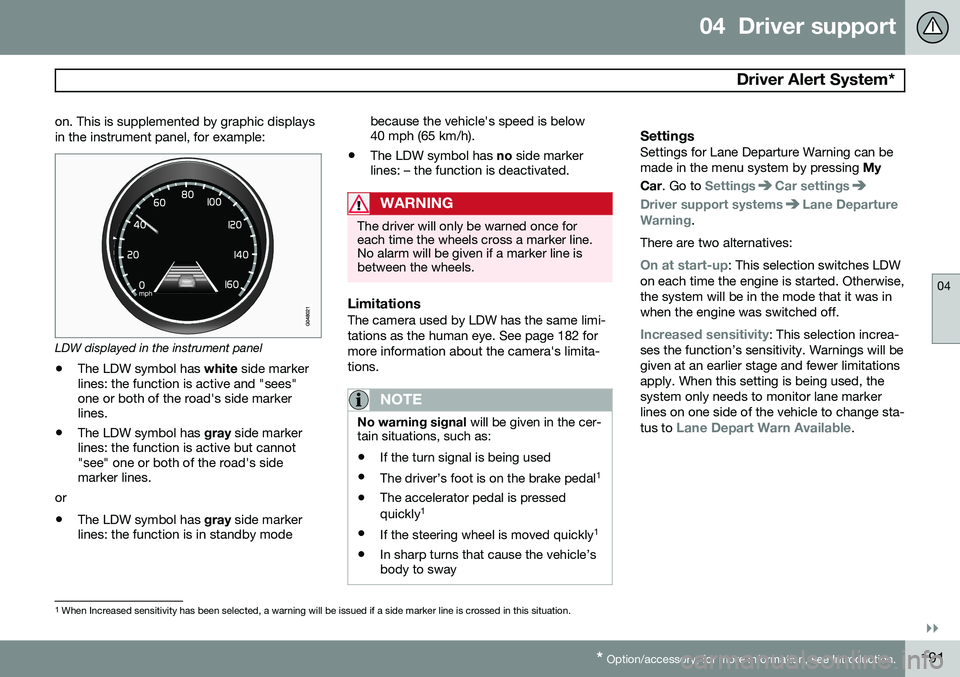
on. This is supplemented by graphic displays in the instrument panel, for example:
LDW displayed in the instrument panel
• The LDW symbol has
white side marker
lines: the function is active and "sees" one or both of the road's side markerlines.
• The LDW symbol has
gray side marker
lines: the function is active but cannot"see" one or both of the road's sidemarker lines.
or
• The LDW symbol has
gray side marker
lines: the function is in standby mode because the vehicle's speed is below40 mph (65 km/h).
• The LDW symbol has
no side marker
lines: – the function is deactivated.
WARNING
The driver will only be warned once for each time the wheels cross a marker line.No alarm will be given if a marker line isbetween the wheels.
LimitationsThe camera used by LDW has the same limi- tations as the human eye. See page 182 formore information about the camera's limita-tions.
NOTE
No warning signal will be given in the cer-
tain situations, such as:
• If the turn signal is being used
• The driver’s foot is on the brake pedal 1
• The accelerator pedal is pressed quickly 1
• If the steering wheel is moved quickly 1
• In sharp turns that cause the vehicle’s body to sway
SettingsSettings for Lane Departure Warning can be made in the menu system by pressing
My
Car . Go to
SettingsCar settings
Driver support systemsLane Departure
Warning.
There are two alternatives:
On at start-up: This selection switches LDW
on each time the engine is started. Otherwise, the system will be in the mode that it was inwhen the engine was switched off.
Increased sensitivity: This selection increa-
ses the function’s sensitivity. Warnings will be given at an earlier stage and fewer limitationsapply. When this setting is being used, thesystem only needs to monitor lane markerlines on one side of the vehicle to change sta- tus to
Lane Depart Warn Available.
1 When Increased sensitivity has been selected, a warning will be issued if a side marker line is crossed in this situation.
Page 202 of 408
04 Driver support
Blind Spot Information System (BLIS)*
04
200* Option/accessory, for more information, see Introduction.
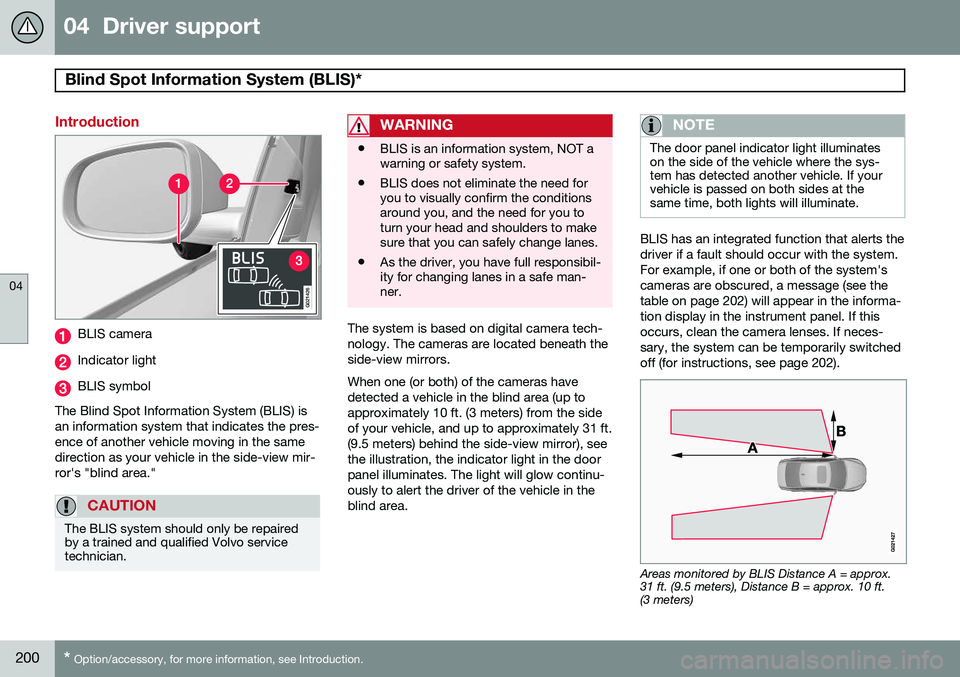
Introduction
G021426
BLIS camera
Indicator light
BLIS symbol
The Blind Spot Information System (BLIS) is an information system that indicates the pres-ence of another vehicle moving in the samedirection as your vehicle in the side-view mir-ror's "blind area."
CAUTION
The BLIS system should only be repaired by a trained and qualified Volvo servicetechnician.
WARNING
• BLIS is an information system, NOT a warning or safety system.
• BLIS does not eliminate the need foryou to visually confirm the conditionsaround you, and the need for you toturn your head and shoulders to makesure that you can safely change lanes.
• As the driver, you have full responsibil-ity for changing lanes in a safe man-ner.
The system is based on digital camera tech- nology. The cameras are located beneath theside-view mirrors. When one (or both) of the cameras have detected a vehicle in the blind area (up toapproximately 10 ft. (3 meters) from the sideof your vehicle, and up to approximately 31 ft.(9.5 meters) behind the side-view mirror), seethe illustration, the indicator light in the doorpanel illuminates. The light will glow continu-ously to alert the driver of the vehicle in theblind area.
NOTE
The door panel indicator light illuminates on the side of the vehicle where the sys-tem has detected another vehicle. If yourvehicle is passed on both sides at thesame time, both lights will illuminate.
BLIS has an integrated function that alerts the driver if a fault should occur with the system.For example, if one or both of the system'scameras are obscured, a message (see thetable on page 202) will appear in the informa-tion display in the instrument panel. If thisoccurs, clean the camera lenses. If neces-sary, the system can be temporarily switchedoff (for instructions, see page 202).
Areas monitored by BLIS Distance A = approx. 31 ft. (9.5 meters), Distance B = approx. 10 ft.(3 meters)
Page 208 of 408
05 Comfort and driving pleasure
Volvo Sensus
05
206* Option/accessory, for more information, see Introduction.
Introduction
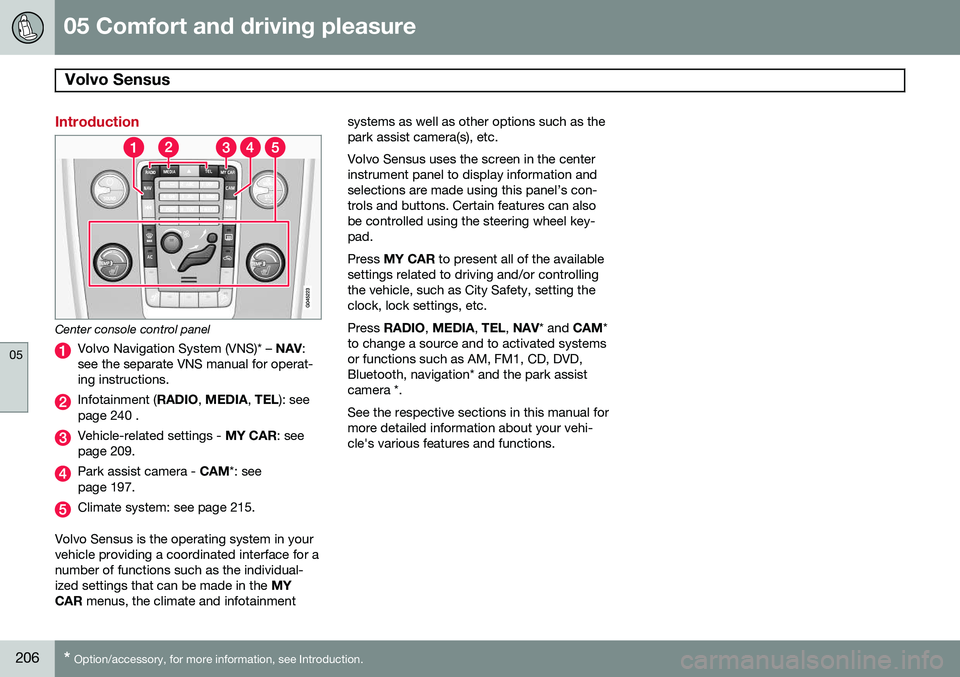
Center console control panel
Volvo Navigation System (VNS)* – NAV:
see the separate VNS manual for operat- ing instructions.
Infotainment ( RADIO, MEDIA , TEL ): see
page 240 .
Vehicle-related settings - MY CAR: see
page 209.
Park assist camera - CAM*: see
page 197.
Climate system: see page 215.
Volvo Sensus is the operating system in your vehicle providing a coordinated interface for anumber of functions such as the individual-ized settings that can be made in the MY
CAR menus, the climate and infotainment systems as well as other options such as thepark assist camera(s), etc. Volvo Sensus uses the screen in the center instrument panel to display information andselections are made using this panel’s con-trols and buttons. Certain features can alsobe controlled using the steering wheel key-pad. Press
MY CAR to present all of the available
settings related to driving and/or controlling the vehicle, such as City Safety, setting theclock, lock settings, etc. Press RADIO , MEDIA , TEL , NAV * and CAM*
to change a source and to activated systems or functions such as AM, FM1, CD, DVD,Bluetooth, navigation* and the park assistcamera *. See the respective sections in this manual for more detailed information about your vehi-cle's various features and functions.
Page 209 of 408
05 Comfort and driving pleasure
Menus and messages
05
}}
* Option/accessory, for more information, see Introduction.207
Main instrument panel
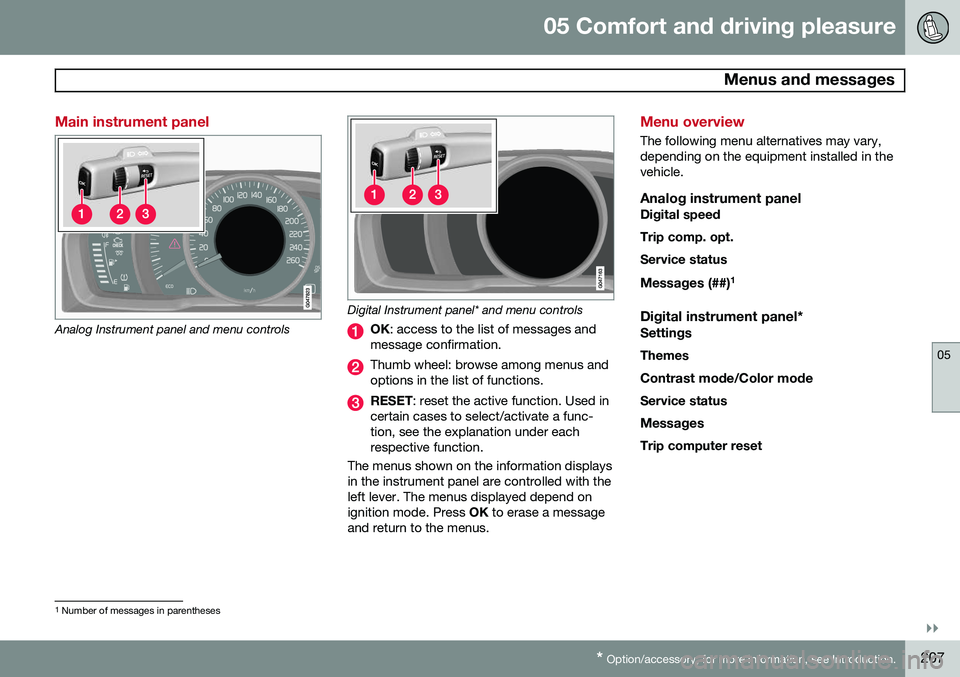
Analog Instrument panel and menu controls
Digital Instrument panel* and menu controls
OK : access to the list of messages and
message confirmation.
Thumb wheel: browse among menus and options in the list of functions.
RESET : reset the active function. Used in
certain cases to select/activate a func- tion, see the explanation under eachrespective function.
The menus shown on the information displaysin the instrument panel are controlled with theleft lever. The menus displayed depend onignition mode. Press OK to erase a message
and return to the menus.
Menu overview
The following menu alternatives may vary, depending on the equipment installed in thevehicle.
Analog instrument panelDigital speed Trip comp. opt.Service status
Messages (##) 1
Digital instrument panel*
Settings
Themes
Contrast mode /Color mode
Service status
Messages Trip computer reset
1 Number of messages in parentheses
Page 227 of 408
05 Comfort and driving pleasure
Trip computer
05
}}
225
Introduction
The content and appearance of the trip com- puter varies depending on whether the vehi-cle is equipped with an analog or digital
instrument panel. The instrument panel illuminates as soon as the vehicle is unlocked and trip computer set-tings can be made. If none of the trip com-puter's controls are used within 30 secondsafter the driver's door has been opened, theinstrument panel lighting will go out and thetrip computer cannot be used again until: • the ignition is put in mode II1
• the engine is started
NOTE
If a warning message appears while you are using the trip computer, this messagemust be acknowledged in order to returnto the trip computer function. Acknowl-edge a message by pressing
OK.
Trip computer in models with an analog instrument panel
The trip computer has two different menu groups: •
Trip computer functions
• Trip computer information headings in the instrument panel
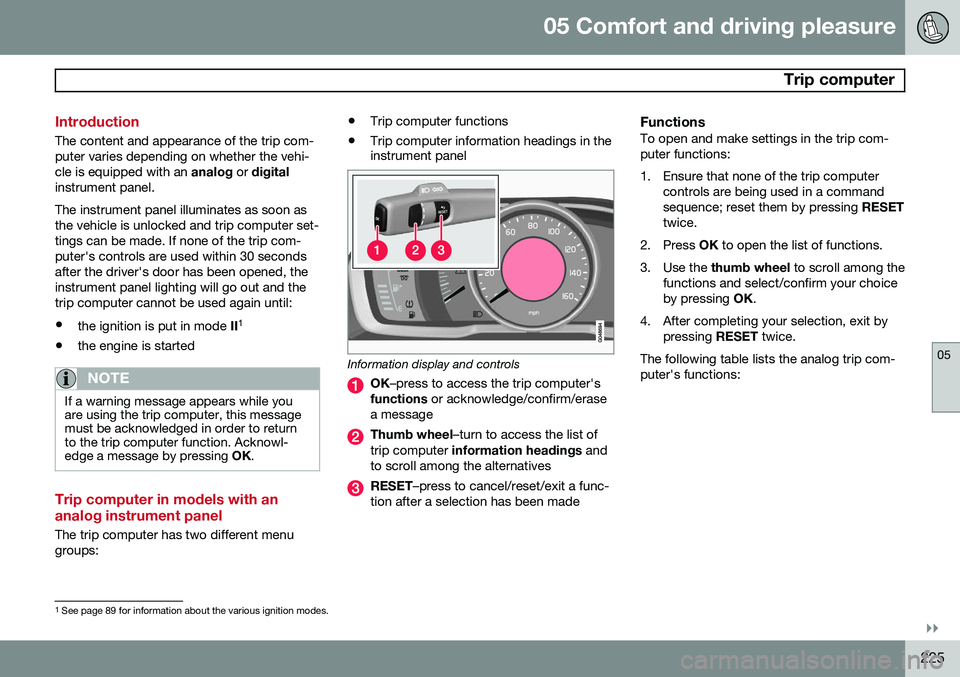
Information display and controls
OK
–press to access the trip computer's
functions or acknowledge/confirm/erase
a message
Thumb wheel –turn to access the list of
trip computer information headings and
to scroll among the alternatives
RESET –press to cancel/reset/exit a func-
tion after a selection has been made
FunctionsTo open and make settings in the trip com- puter functions:
1. Ensure that none of the trip computer controls are being used in a command sequence; reset them by pressing RESET
twice.
2. Press OK to open the list of functions.
3. Use the thumb wheel to scroll among the
functions and select/confirm your choiceby pressing OK.
4. After completing your selection, exit by pressing RESET twice.
The following table lists the analog trip com-puter's functions:
1 See page 89 for information about the various ignition modes.
Page 228 of 408
05 Comfort and driving pleasure
Trip computer
05
226
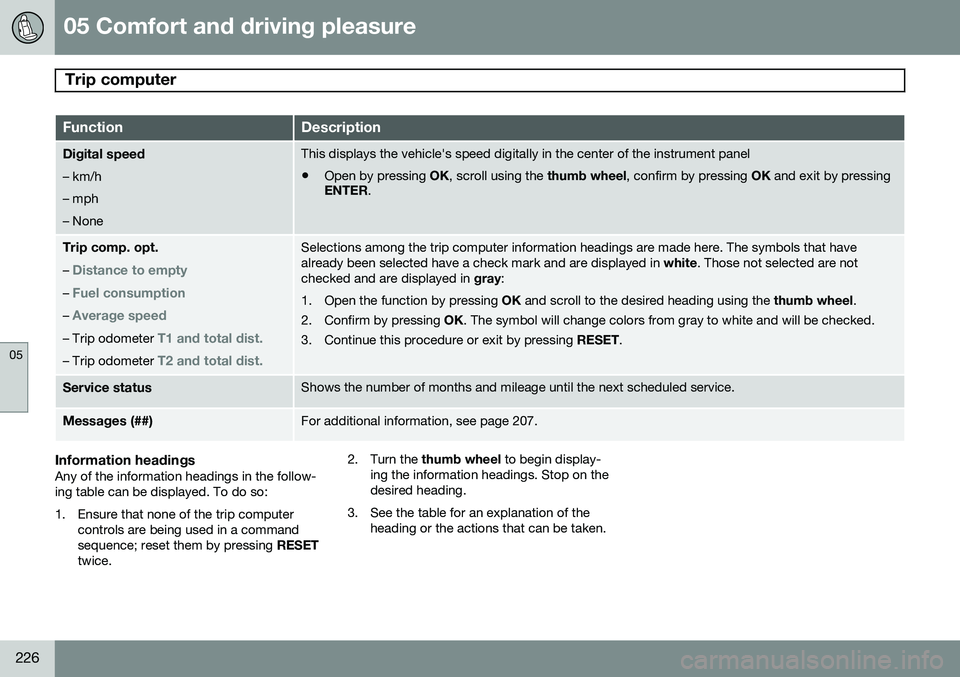
FunctionDescription
Digital speed – km/h – mph– NoneThis displays the vehicle's speed digitally in the center of the instrument panel
• Open by pressing
OK, scroll using the thumb wheel, confirm by pressing OK and exit by pressing
ENTER .
Trip comp. opt.
–
Distance to empty
– Fuel consumption
– Average speed
– Trip odometer T1 and total dist.
– Trip odometer T2 and total dist.
Selections among the trip computer information headings are made here. The symbols that have already been selected have a check mark and are displayed in white. Those not selected are not
checked and are displayed in gray:
1. Open the function by pressing OK and scroll to the desired heading using the thumb wheel.
2. Confirm by pressing OK. The symbol will change colors from gray to white and will be checked.
3. Continue this procedure or exit by pressing RESET.
Service statusShows the number of months and mileage until the next scheduled service.
Messages (##)For additional information, see page 207.
Information headingsAny of the information headings in the follow- ing table can be displayed. To do so:
1. Ensure that none of the trip computer
controls are being used in a command sequence; reset them by pressing RESET
twice. 2. Turn the
thumb wheel to begin display-
ing the information headings. Stop on thedesired heading.
3. See the table for an explanation of the heading or the actions that can be taken.
Page 229 of 408
05 Comfort and driving pleasure
Trip computer
05
}}
227
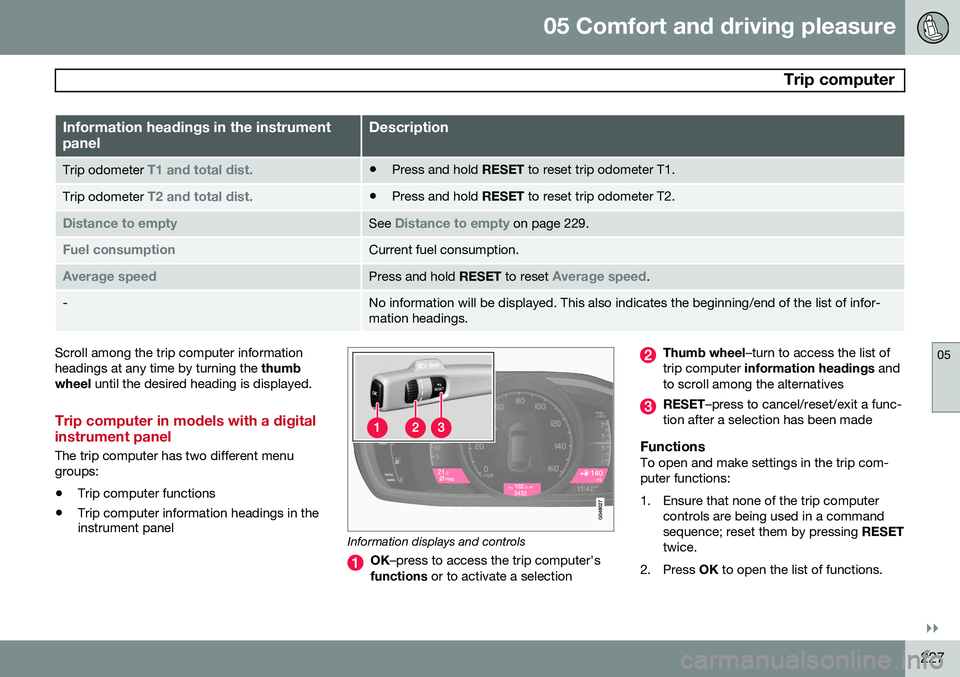
Information headings in the instrument panelDescription
Trip odometer T1 and total dist.•Press and hold
RESET to reset trip odometer T1.
Trip odometer T2 and total dist.•Press and hold
RESET to reset trip odometer T2.
Distance to emptySee Distance to empty on page 229.
Fuel consumptionCurrent fuel consumption.
Average speedPress and hold RESET to reset Average speed.
-No information will be displayed. This also indicates the beginning/end of the list of infor- mation headings.
Scroll among the trip computer information headings at any time by turning the thumb
wheel until the desired heading is displayed.
Trip computer in models with a digital instrument panel
The trip computer has two different menu groups:
• Trip computer functions
• Trip computer information headings in the instrument panel
Information displays and controls
OK
–press to access the trip computer's
functions or to activate a selection
Thumb wheel –turn to access the list of
trip computer information headings and
to scroll among the alternatives
RESET –press to cancel/reset/exit a func-
tion after a selection has been made
FunctionsTo open and make settings in the trip com- puter functions:
1. Ensure that none of the trip computer controls are being used in a command sequence; reset them by pressing RESET
twice.
2. Press OK to open the list of functions.