steering VOLVO XC90 2015 Owners Manual
[x] Cancel search | Manufacturer: VOLVO, Model Year: 2015, Model line: XC90, Model: VOLVO XC90 2015Pages: 570, PDF Size: 12.44 MB
Page 396 of 570

INFOTAINMENT
* Option/accessory, for more information, see Introduction.
394
The media player is controlled from the center display but cer-tain functions can also be con-trolled from the right-sidesteering wheel keypad or byusing voice commands.
Related information
• Playing media (p. 395)
• Voice control for radio and media (p. 122)
• Radio (p. 377) •
Apps (applications) (p. 403)
• CD (media) player
* (p. 394)
• Playing media through the AUX/USB sock- ets (p. 397)
CD (media) player
*
The CD (media) player can play commercially purchased discs as well as ones that you haveburned yourself. See the article "Media playertechnical data" for information about compatiblefile formats.
Location of the CD player in the tunnel console
Disc slot
Eject button
Related information
• Media player technical data (p. 400)
Page 397 of 570
INFOTAINMENT
395
Playing media The media player can controlled from the right- side steering wheel keypad, the center display orby using voice commands. The radio is also controlled from the media player. See the articles relating to the radio.
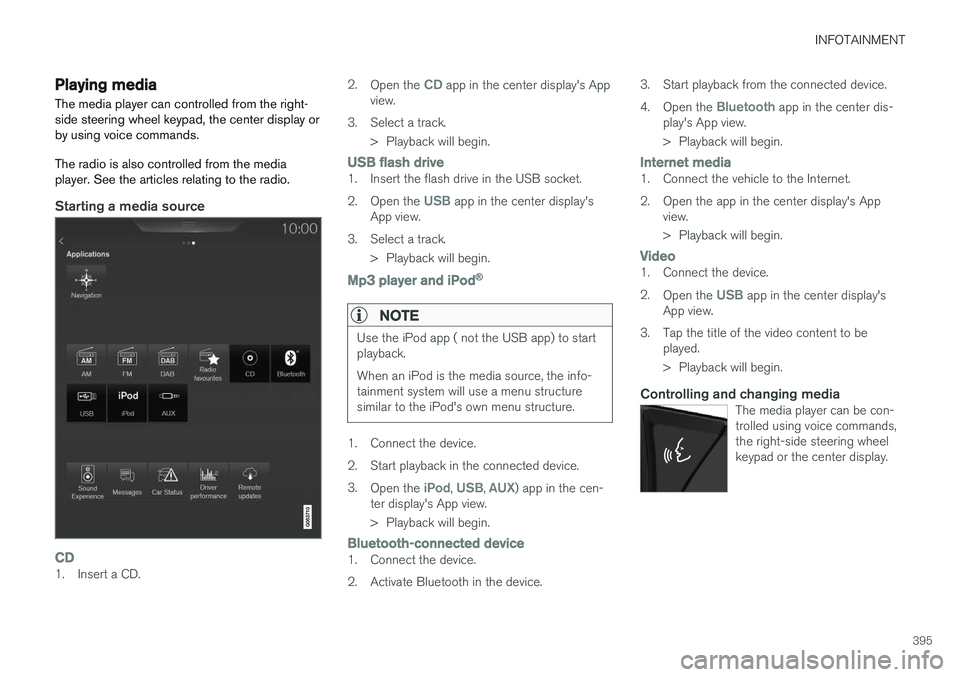
Starting a media source
CD1. Insert a CD.2.
Open the
CD app in the center display's App
view.
3. Select a track. > Playback will begin.
USB flash drive1. Insert the flash drive in the USB socket. 2.Open the
USB app in the center display's
App view.
3. Select a track. > Playback will begin.
Mp3 player and iPod®
NOTE
Use the iPod app ( not the USB app) to start playback. When an iPod is the media source, the info- tainment system will use a menu structuresimilar to the iPod's own menu structure.
1. Connect the device.
2. Start playback in the connected device.3.
Open the
iPod, USB, AUX) app in the cen-
ter display's App view.
> Playback will begin.
Bluetooth-connected device1. Connect the device.
2. Activate Bluetooth in the device. 3. Start playback from the connected device.4.
Open the
Bluetooth app in the center dis-
play's App view.
> Playback will begin.
Internet media1. Connect the vehicle to the Internet.
2. Open the app in the center display's App view.
> Playback will begin.
Video1. Connect the device. 2.Open the
USB app in the center display's
App view.
3. Tap the title of the video content to be played.
> Playback will begin.
Controlling and changing mediaThe media player can be con- trolled using voice commands,the right-side steering wheelkeypad or the center display.
Page 417 of 570
VOLVO ON CALL WITH SENSUS CONNECT *
* Option/accessory, for more information, see Introduction.
415
The ON CALL button: roadside assistancePress the ON CALL button for approx. 2 seconds
to activate the roadside assistance functions.
Alternative to the ON CALL button
In the center display's Phone view, tap On Call.
Select Call in the pop-up window that opens.
NOTE
The SOS button should only be used in an
emergency situation such as an accident, ill- ness or in the event of a threat to the occu-pants of the vehicle. Misusing this buttoncould result in extra charges. The ON CALL button can be used for all of
the other VOC services, including roadside assistance.
Canceling a callA service call that has been initiated can be can- celled within 10 seconds by pressing the EXIT
button on the steering wheel keypad.
SettingsSettings and selections can be made in the cen- ter display by going to s
Settings
CommunicationVolvo On Call. These set-
tings include activating/deactivating a subscrip- tion, button lock, etc.
Related information
• Volvo On Call (VOC)
* (p. 414)
• Volvo On Call (VOC) functions (p. 415)
• Volvo On Call manual safety service (p. 424)
• Volvo On Call roadside assistance (p. 425)
Volvo On Call (VOC) functions
The following table provides an overview of the functions that are available from the VOC cus-tomer service center and the mobile app.
Please note that these functions are subject to change. For up-to-date information about therange of Volvo On Call functions and services,contact your Volvo retailer or go to: United States http://www.volvocars.com/us/support Canada English: http://support.volvocars.com/en-CA French: http://support.volvocars.com/fr-CA
FunctionCus-
tomer
service centerApp A
Automatic alarmX
Manual alarmX
Roadside assistanceXX
Theft notificationXX
Remote Door UnlockXX
Remote Vehicle Immobil- izerX
Page 435 of 570
NAVIGATION*
* Option/accessory, for more information, see Introduction.
433
StepCenter dis- play/menuAction
5Start navi- gation is
displayed on thescreen.Tap Start navigation.
6A map showingthe route toyour desti-nation isdisplayed.Guidance will begin. Fol- low the directions on theinstrument panel.
Related information
• Using the center display (p. 46)
• Center display overview (p. 29)
Navigation displays and controls
Volvo Sensus Navigation is presented on the instrument panel and head-up display * and con-
trolled using center display on-screen buttons, the right-side steering wheel keypad and voicecommands.
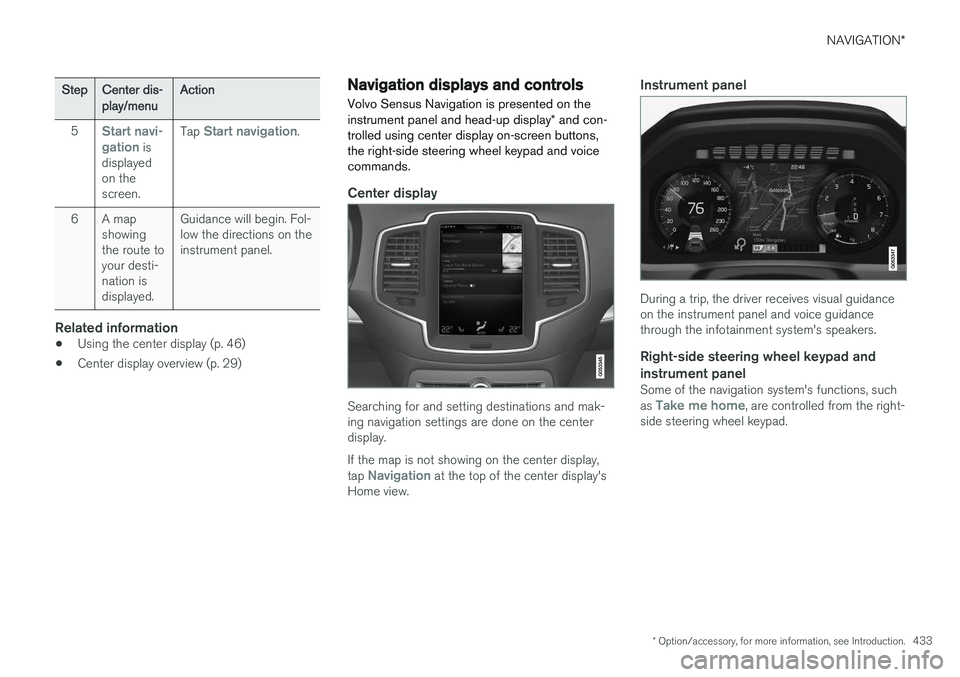
Center display
Searching for and setting destinations and mak- ing navigation settings are done on the centerdisplay. If the map is not showing on the center display, tap
Navigation at the top of the center display's
Home view.
Instrument panel
During a trip, the driver receives visual guidance on the instrument panel and voice guidancethrough the infotainment system's speakers.
Right-side steering wheel keypad and instrument panel
Some of the navigation system's functions, such as Take me home, are controlled from the right-
side steering wheel keypad.
Page 436 of 570
NAVIGATION*
* Option/accessory, for more information, see Introduction.
434
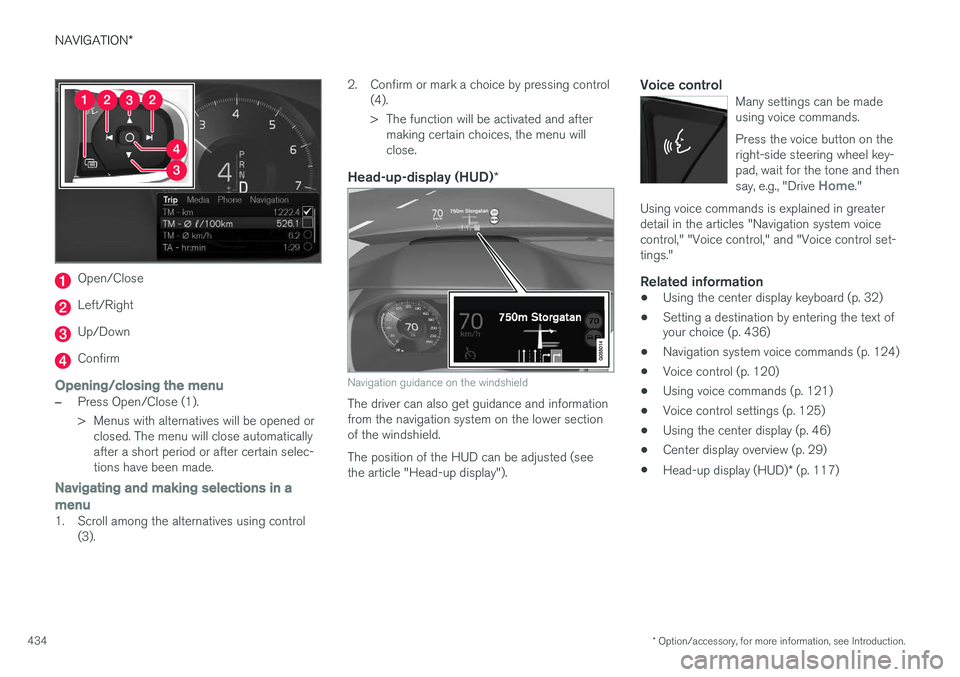
Open/Close
Left/Right
Up/Down
Confirm
Opening/closing the menu
–Press Open/Close (1).
> Menus with alternatives will be opened or
closed. The menu will close automatically after a short period or after certain selec-tions have been made.
Navigating and making selections in a menu
1. Scroll among the alternatives using control (3). 2. Confirm or mark a choice by pressing control
(4).
> The function will be activated and aftermaking certain choices, the menu will close.
Head-up-display (HUD) *
Navigation guidance on the windshield
The driver can also get guidance and information from the navigation system on the lower sectionof the windshield. The position of the HUD can be adjusted (see the article "Head-up display").
Voice controlMany settings can be madeusing voice commands. Press the voice button on the right-side steering wheel key-pad, wait for the tone and then say, e.g., "Drive
Home."
Using voice commands is explained in greater detail in the articles "Navigation system voicecontrol," "Voice control," and "Voice control set-tings."
Related information
•Using the center display keyboard (p. 32)
• Setting a destination by entering the text of your choice (p. 436)
• Navigation system voice commands (p. 124)
• Voice control (p. 120)
• Using voice commands (p. 121)
• Voice control settings (p. 125)
• Using the center display (p. 46)
• Center display overview (p. 29)
• Head-up display (HUD)
* (p. 117)
Page 440 of 570
NAVIGATION*
* Option/accessory, for more information, see Introduction.
438
CoordinatesA destination can also be set by entering its map coordinates.
• For example, enter: "N 58.1234 E 12.5678" and tap
Search/.
Map coordinates can be written in different ways, such as:
N 58.1234 E 12.5678 (with spaces)
N 58.1234 E12.5678 (without spaces)
58.1234 N 12.5678 E (with the points on the
compass after the coordinates)
58.1234 -12.5678 (with a hyphen without the
points on the compass)
Both periods [.] and commas [,] can be used.
Related information
• Entering a destination (p. 435)
• Navigation displays and controls (p. 433)
• Using the center display keyboard (p. 32)
• Information cards on the map (p. 446)
Setting a destination using Recent/ Favorites/Library Selecting from a list is one way of setting a des- tination.
To display these lists:
1. Tap
Set dest. in the lower
margin. A keyboard will be dis- played with search alternativesin the upper margin. 2. Continue by selecting one of the lists in the upper margin:
•Recent
•Favorites
•Library
After marking an alternative, it will be added as a destination by tapping the Start navigation orAdd as waypoint buttons.
Recent
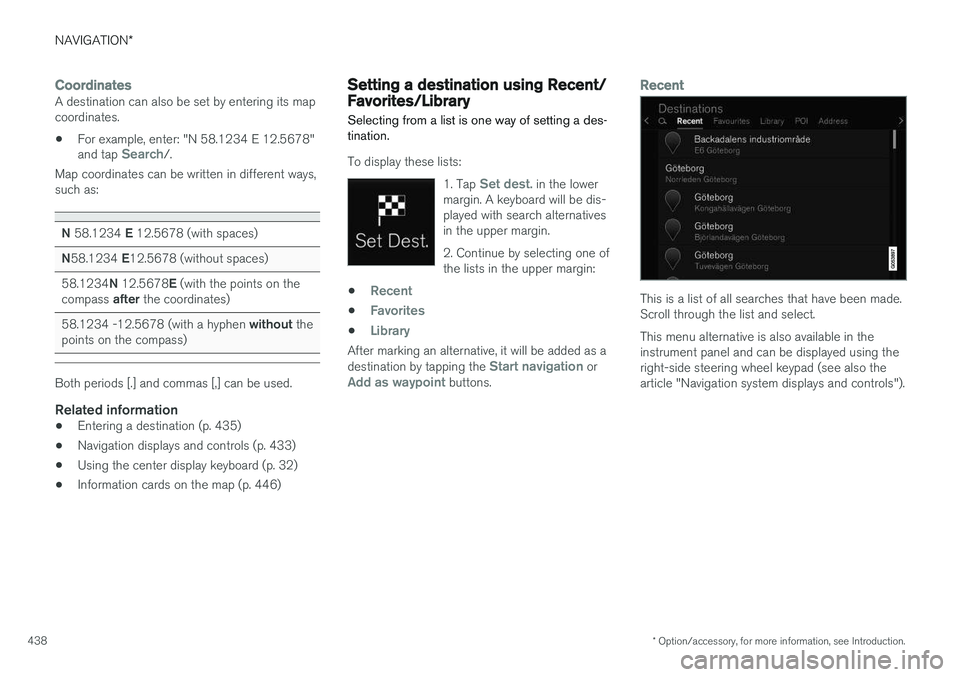
This is a list of all searches that have been made. Scroll through the list and select. This menu alternative is also available in the instrument panel and can be displayed using theright-side steering wheel keypad (see also thearticle "Navigation system displays and controls").
Page 441 of 570
NAVIGATION*
* Option/accessory, for more information, see Introduction.
439
Favorites
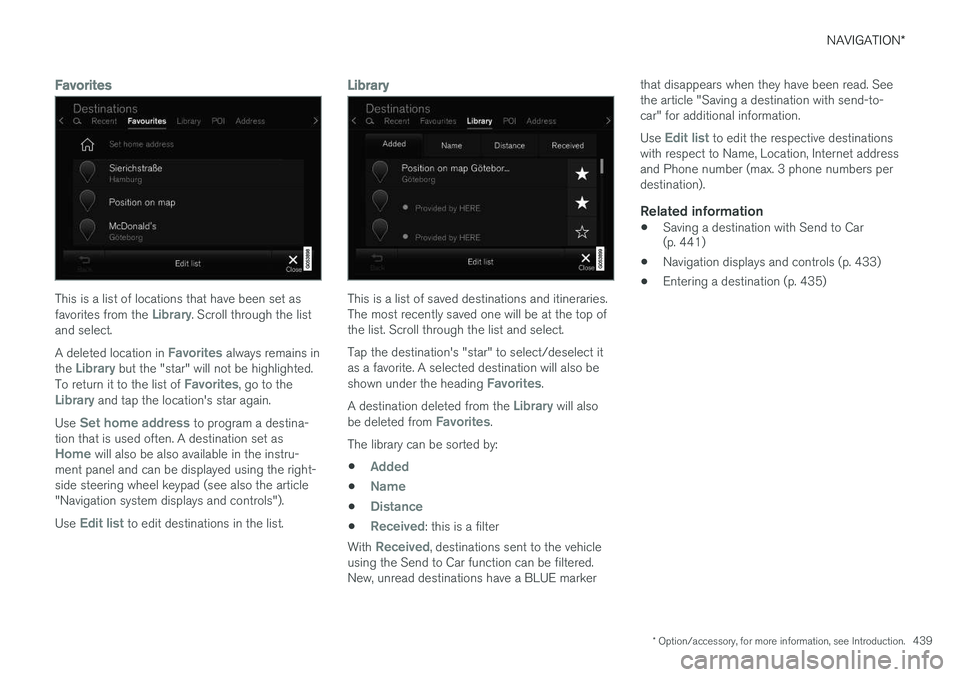
This is a list of locations that have been set as favorites from the Library. Scroll through the list
and select. A deleted location in
Favorites always remains in
the Library but the "star" will not be highlighted.
To return it to the list of Favorites, go to theLibrary and tap the location's star again.
Use
Set home address to program a destina-
tion that is used often. A destination set as
Home will also be also available in the instru-
ment panel and can be displayed using the right- side steering wheel keypad (see also the article"Navigation system displays and controls"). Use
Edit list to edit destinations in the list.
Library
This is a list of saved destinations and itineraries. The most recently saved one will be at the top ofthe list. Scroll through the list and select. Tap the destination's "star" to select/deselect it as a favorite. A selected destination will also be shown under the heading
Favorites.
A destination deleted from the
Library will also
be deleted from Favorites.
The library can be sorted by:
•
Added
•Name
•Distance
•Received: this is a filter
With
Received, destinations sent to the vehicle
using the Send to Car function can be filtered. New, unread destinations have a BLUE marker that disappears when they have been read. Seethe article "Saving a destination with send-to-car" for additional information. Use
Edit list to edit the respective destinations
with respect to Name, Location, Internet address and Phone number (max. 3 phone numbers perdestination).
Related information
• Saving a destination with Send to Car (p. 441)
• Navigation displays and controls (p. 433)
• Entering a destination (p. 435)
Page 505 of 570

MAINTENANCE AND SERVICING
* Option/accessory, for more information, see Introduction.503
FunctionA
––
Horn20
Alarm siren*5
Brake system control module (valves, parking brake)40
Windshield wipers30
Tailgate window washer25
Heated windshield *, passenger
side40
––
Brake system control module (ABS pump)40
––
Heated windshield *, passenger
sideShunt
Feed when ignition is switched on to: engine control module,transmission components, elec-trical power steering, centralelectrical module; Brake system control module5
FunctionA
––
Passenger side headlight7.5
––
––
Battery connections control module5
Air bags; Occupant Weight Sen- sor (OWS)5
Driver side headlight7.5
Accelerator pedal sensor5
Transmission control module15
Engine control module5
––
––
––
––
Engine control module; Turbo- charger valve20
FunctionA
Solenoids; Valves; Engine cool- ing system thermostat10
Vacuum regulators; Coolant fan relay winding; Valve7.5
Spoiler shutter control module; Radiator shutter control module;Fuel leakage detection5
––
Heated oxygen sensors (front and rear)15
Oil pump solenoid; A/C mag- netic coupling; heated oxygensensor (center)15
Crankcase ventilation heater7,5
Engine control module20
Ignition coil; Spark plugs15
--
––
--
--
--
Page 508 of 570

MAINTENANCE AND SERVICING
* Option/accessory, for more information, see Introduction.
506
FunctionA
Steering wheel module5
Module for start knob and parking brake5
Heated steering wheel * module15
––
––
––
––
Climate system control module10
––
On-board diagnostics (OBDII)5
Center display5
Climate system blower module (front)40
––
Instrument lighting; Courtesy light- ing; Rearview mirror auto-dim func-tion; Rain and light sensor; Rear tunnel console keypad *; Power
front seats *7.5
FunctionA
Control module for driver support functions5
Panorama roof and sun shade *20
Head-up display*5
Courtesy lighting5
––
Ceiling console display (seat belt reminder, front passenger side air-bag indicator)5
––
Humidity sensor5
Rear passenger-side door module20
Fuses in the cargo compartment10
Internet connection control module; Volvo On Call control module5
Rear driver-side door module20
Infotainment control module (amplifier)40
Climate system blower module (rear)40
FunctionA
Multi-band antenna module5
––
––
Tailgate window wiper15
Fuel pump control module15
––
––
Driver side seat heating *15
Passenger side seat heating *15
Coolant pump10
––
Front driver-side door module20
Active chassis*20
––
Sensus control module10
––
––
Page 529 of 570
MAINTENANCE AND SERVICING
* Option/accessory, for more information, see Introduction.527
Cleaning the interior
Only use cleaning agents and car care products recommended by Volvo. Clean regularly and fol-low the instructions included with the car careproduct.
CAUTION
• Under no circumstances should gasoline, naphtha or similar cleaning agents beused on the plastic or the leather sincethese can cause damage.
• Take extra care when removing stainssuch as ink or lipstick since the coloringcan spread.
• Use solvents sparingly. Too much solventcan damage the seat padding.
• Start from the outside of the stain andwork toward the center.
• Sharp objects (e.g. pencils or pens in apocket) or Velcro fasteners on clothingmay damage the textile upholstery.
• Clothing that is not colorfast, such asnew jeans or suede garments, may stainthe upholstery.
Fabric upholstery and ceiling linerClean with soapy water or a detergent. For more difficult spots caused by oil, ice cream, shoe pol-ish, grease, etc., use a clothing/fabric stainremover. Consult your Volvo retailer.
Leather
* careVolvo's leather upholstery is manufactured with aprotectant to repel soiling. Over time, sunlight,grease and dirt can break down the protection.Staining, cracking, scuffing, and fading can result. Volvo offers an easy-to-use, non-greasy leather care kit formulated to clean and beautify yourvehicle's leather, and to renew the protectivequalities of its finish. The cleaner removes dirtand oil buildup. The light cream protectantrestores a barrier against soil and sunlight. Volvo also offers a special leather softener that should be applied after the cleaner and protec-tant. It leaves leather soft and smooth, andreduces friction between leather and other fin-ishes in the vehicle. Volvo recommends cleaning, protecting and con- ditioning your vehicle's leather two to four times ayear. Ask your Volvo retailer about Leather CareKit 951 0251 and Leather Softener 943 7429.
Cleaning leather upholstery1. Pour leather cleaner on a damp sponge and
squeeze it until the cleaner foams.
2. Apply the foam to the stain by moving the sponge with circular movements.
3. Dampen the stain thoroughly with the sponge. Let the sponge absorb the stain, do not rub.
4. Dry the stain with soft paper towels or a towel, and allow the leather to dry completely.
Protecting leather upholstery1. Put a small amount of protectant cream on a cloth and apply a thin coating of cream to the upholstery with light circular movements.
2. Allow the leather to dry for 20 minutes. This will help the leather resist staining and pro- tect against sunlight's harmful UV rays.
Cleaning a leather-covered steering wheel
• Remove soil, dust, etc., with a damp sponge and a neutral soap solution.
• Leather should be allowed to breath. Nevercover the steering wheel with a plastic pro-tector.
• Volvo recommends cleaning, protecting andconditioning the steering wheel with Volvo'sLeather Care Kit 951 0251 and LeatherSoftener 943 7429.
If there are stains on the steering wheel: Type 1 (ink, wine, coffee, milk, sweat or blood)
–Use a soft cloth or sponge. Wipe the wheel with a solution with 5% ammonia. For bloodstains, mix approx. 1 cup (2 dl) of water andone ounce (25g) of salt and wipe the stain.
Type 2 (fat, oil, sauces, or chocolate)
1. Same procedure as for type I stains.
2. Finish by rubbing the wheel with absorbent paper or a towel.