light VOLVO XC90 2015 Owner's Manual
[x] Cancel search | Manufacturer: VOLVO, Model Year: 2015, Model line: XC90, Model: VOLVO XC90 2015Pages: 570, PDF Size: 12.44 MB
Page 96 of 570
INSTRUMENTS AND CONTROLS
* Option/accessory, for more information, see Introduction.
94
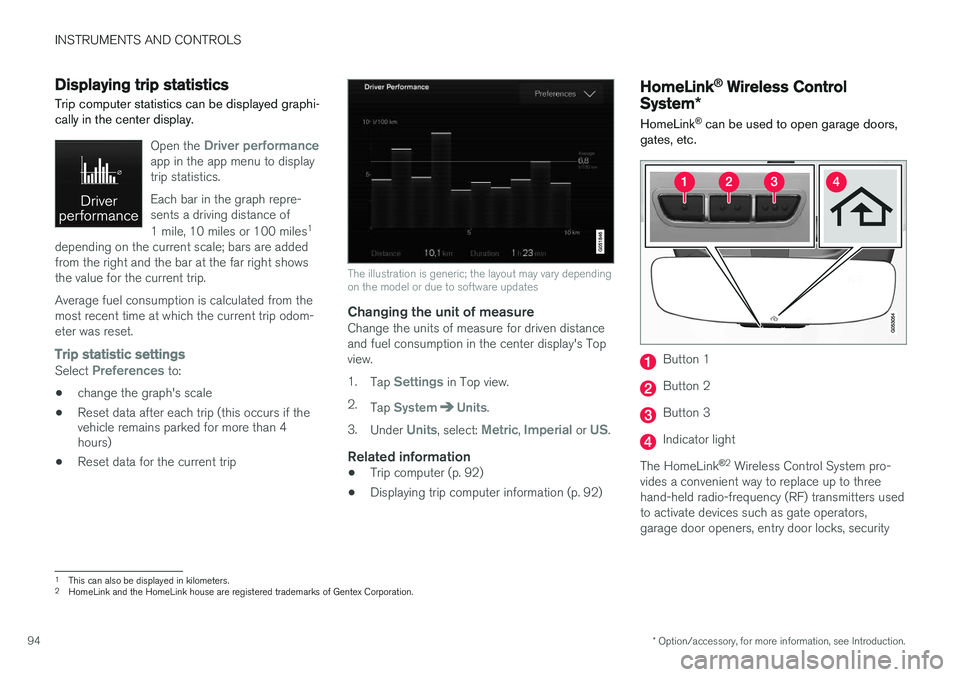
Displaying trip statistics Trip computer statistics can be displayed graphi- cally in the center display.
Open the Driver performanceapp in the app menu to display trip statistics. Each bar in the graph repre- sents a driving distance of 1 mile, 10 miles or 100 miles 1
depending on the current scale; bars are added from the right and the bar at the far right showsthe value for the current trip. Average fuel consumption is calculated from the most recent time at which the current trip odom-eter was reset.
Trip statistic settings
Select Preferences to:
• change the graph's scale
• Reset data after each trip (this occurs if the vehicle remains parked for more than 4hours)
• Reset data for the current trip
The illustration is generic; the layout may vary depending on the model or due to software updates
Changing the unit of measureChange the units of measure for driven distance and fuel consumption in the center display's Topview. 1.
Tap
Settings in Top view.
2. Tap
SystemUnits.
3. Under
Units, select: Metric, Imperial or US.
Related information
• Trip computer (p. 92)
• Displaying trip computer information (p. 92)
HomeLink ®
Wireless Control
System *
HomeLink ®
can be used to open garage doors,
gates, etc.
Button 1
Button 2
Button 3
Indicator light
The HomeLink ®
2
Wireless Control System pro-
vides a convenient way to replace up to three hand-held radio-frequency (RF) transmitters usedto activate devices such as gate operators,garage door openers, entry door locks, security
1 This can also be displayed in kilometers.
2 HomeLink and the HomeLink house are registered trademarks of Gentex Corporation.
Page 97 of 570
INSTRUMENTS AND CONTROLS
* Option/accessory, for more information, see Introduction.95
systems, even home lighting. Additional informa- tion can be found on the Internet at,www.homelink.com/www.youtube.com/HomeLinkGentex or by phoning the hotline at 1–800–355–3515.
WARNING
•
If you use HomeLink ®
to open a garage
door or gate, be sure no one is near the gate or door while it is in motion.
• When programming a garage dooropener, it is advised to park outside of thegarage.
• Do not use HomeLink ®
with any garage
door opener that lacks safety stop andreverse features as required by U.S. fed-eral safety standards (this includes anygarage door opener model manufacturedbefore April 1, 1982). A garage door thatcannot detect an object - signaling thedoor to stop and reverse - does not meetcurrent U.S. federal safety standards. Formore information, contact HomeLink at:www.homelink.com.
Retain the original transmitter of the RF device you are programming for use in other vehicles aswell as for future HomeLink programming. It isalso suggested that upon the sale of the vehicle,the programmed HomeLink buttons be erasedfor security purposes. See the article "Program-ming HomeLink."
Related information
• Programming the HomeLink ®
Wireless Con-
trol System * (p. 95)Programming the HomeLink ®
Wireless Control System *
HomeLink ®
can be used to open garage doors,
gates, etc.
NOTE
Some vehicles may require the ignition to be switched on or be in the
Page 98 of 570
INSTRUMENTS AND CONTROLS
963. Press and hold the button on the original
remote control that is to be programmed on HomeLink ®
and observe the HomeLink ®
indicator light. Hold the button until the indi- cator light has changed from flashing yellowonce a second to either flashing green 10times a second or by glowing steadily green. When the HomeLink ®
indicator light flashes
or glows steadily green, the button on the original remote control can be released. Note : for certain remote controls, the
instructions listed under "Gate operators/ Canadian programming" at the end of thisarticle should be used instead of step 3. 4.
Press the programmed HomeLink ®
button
and check the indicator light. Indicator light glows steadily green: pro-
gramming has been completed. The garage door, gate, etc., should now be activatedwhen the programmed button is pressed. Indicator light flashes 10 times a second: press the HomeLink ®
button that is being
programmed. Hold it for 2 seconds and release it. Repeat the
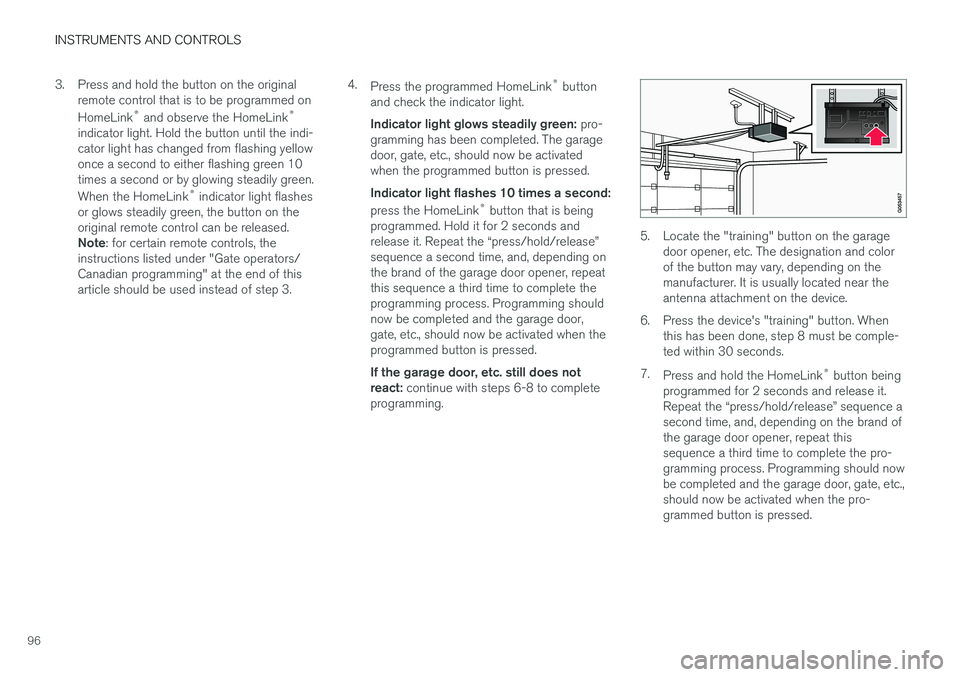
Page 101 of 570
INSTRUMENTS AND CONTROLS
* Option/accessory, for more information, see Introduction.99
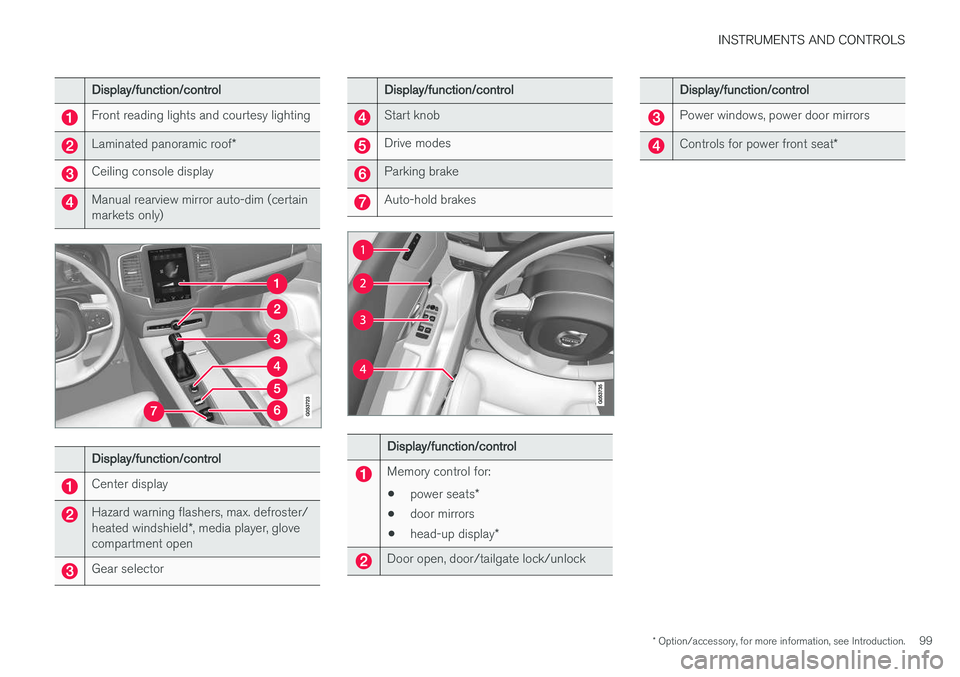
Display/function/control
Front reading lights and courtesy lighting
Laminated panoramic roof*
Ceiling console display
Manual rearview mirror auto-dim (certain markets only)
Display/function/control
Center display
Hazard warning flashers, max. defroster/ heated windshield*, media player, glove
compartment open
Gear selector
Display/function/control
Start knob
Drive modes
Parking brake
Auto-hold brakes
Display/function/control
Memory control for:
• power seats
*
• door mirrors
• head-up display
*
Door open, door/tailgate lock/unlock
Display/function/control
Power windows, power door mirrors
Controls for power front seat *
Page 102 of 570
INSTRUMENTS AND CONTROLS
* Option/accessory, for more information, see Introduction.
100
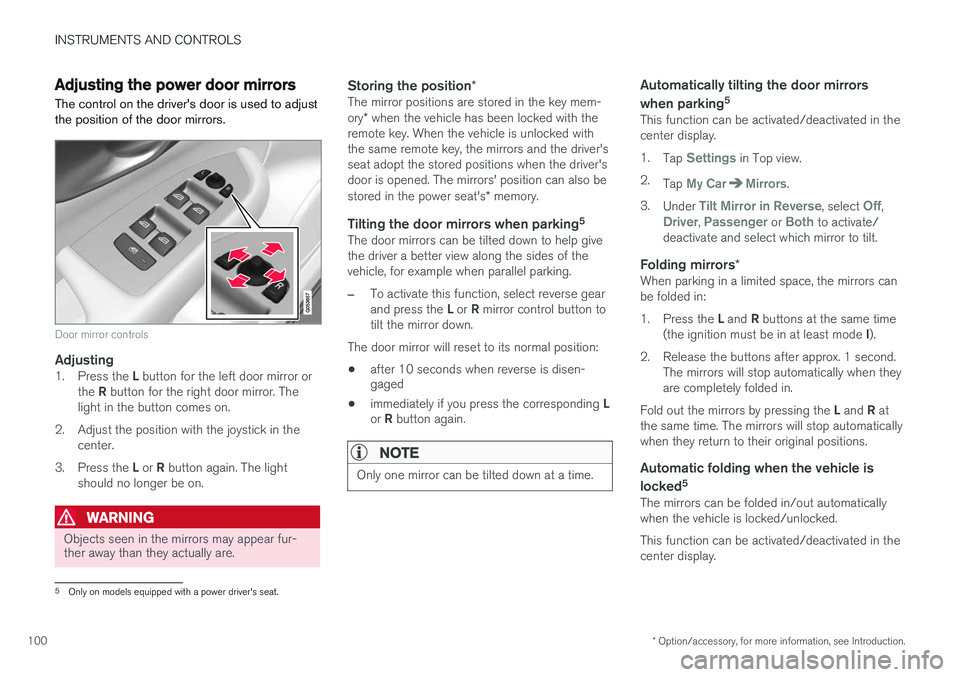
Adjusting the power door mirrors
The control on the driver's door is used to adjust the position of the door mirrors.
Door mirror controls
Adjusting1. Press the L button for the left door mirror or
the R button for the right door mirror. The
light in the button comes on.
2. Adjust the position with the joystick in the center.
3. Press the L or R button again. The light
should no longer be on.
WARNING
Objects seen in the mirrors may appear fur- ther away than they actually are.
Storing the position *The mirror positions are stored in the key mem- ory* when the vehicle has been locked with the
remote key. When the vehicle is unlocked with the same remote key, the mirrors and the driver'sseat adopt the stored positions when the driver'sdoor is opened. The mirrors' position can also be stored in the power seat's * memory.
Tilting the door mirrors when parking 5The door mirrors can be tilted down to help give the driver a better view along the sides of thevehicle, for example when parallel parking.
–To activate this function, select reverse gear and press the
L or R mirror control button to
tilt the mirror down.
The door mirror will reset to its normal position:
• after 10 seconds when reverse is disen- gaged
• immediately if you press the corresponding
L
or R button again.
NOTE
Only one mirror can be tilted down at a time.
Automatically tilting the door mirrors when parking 5
This function can be activated/deactivated in the center display. 1.
Tap
Settings in Top view.
2. Tap
My CarMirrors.
3. Under
Tilt Mirror in Reverse, select Off,Driver, Passenger or Both to activate/
deactivate and select which mirror to tilt.
Folding mirrors *When parking in a limited space, the mirrors can be folded in: 1.
Press the L and R buttons at the same time
(the ignition must be in at least mode I).
2. Release the buttons after approx. 1 second. The mirrors will stop automatically when they are completely folded in.
Fold out the mirrors by pressing the L and R at
the same time. The mirrors will stop automaticallywhen they return to their original positions.
Automatic folding when the vehicle is
locked 5
The mirrors can be folded in/out automaticallywhen the vehicle is locked/unlocked. This function can be activated/deactivated in the center display.
5
Only on models equipped with a power driver's seat.
Page 103 of 570
INSTRUMENTS AND CONTROLS
* Option/accessory, for more information, see Introduction.101
1.
Tap
Settings in Top view.
2. Tap
My CarMirrors.
3. Select
Fold Mirrors When Locking to acti-
vate/deactivate.
Resetting the mirrors' positionA mirror that has been moved manually (e.g., bumped into in a parking lot, etc.) has to bereturned to its normal position electrically beforeautomatic folding will function correctly. 1. Fold in the mirrors with the L and R buttons.
2. Fold out the mirrors with the L and R buttons.
The mirrors have now been reset to their original positions.
Auto-dim *Settings can be made for the auto-dim functionin the rearview mirror. 1.
Tap
Settings in Top view.
2. Tap
My CarMirrors.
3. Under
Auto Dim Mirrors, select Normal,Dark or Light.
Related information
• Using the power seat memory function
*
(p. 162)
Laminated panoramic roof *
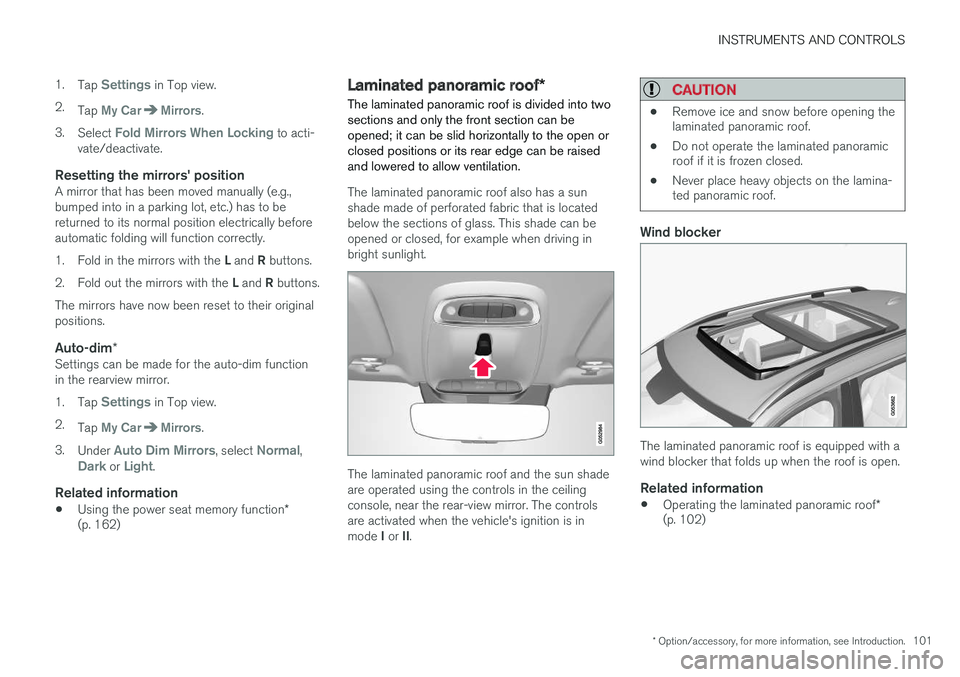
The laminated panoramic roof is divided into two sections and only the front section can beopened; it can be slid horizontally to the open orclosed positions or its rear edge can be raisedand lowered to allow ventilation.
The laminated panoramic roof also has a sun shade made of perforated fabric that is locatedbelow the sections of glass. This shade can beopened or closed, for example when driving inbright sunlight.
The laminated panoramic roof and the sun shade are operated using the controls in the ceilingconsole, near the rear-view mirror. The controlsare activated when the vehicle's ignition is in mode I or II.
CAUTION
• Remove ice and snow before opening the laminated panoramic roof.
• Do not operate the laminated panoramicroof if it is frozen closed.
• Never place heavy objects on the lamina-ted panoramic roof.
Wind blocker
The laminated panoramic roof is equipped with a wind blocker that folds up when the roof is open.
Related information
•
Operating the laminated panoramic roof
*
(p. 102)
Page 107 of 570
INSTRUMENTS AND CONTROLS
105
NOTE
•Movement of the windows will stop if they are obstructed in any way. If this happenstwice in succession, the automatic func-tion will not work for several minutes andthe window can be closed by holding thebutton up.
• To reduce buffeting wind noise if the rearwindows are opened, also open the frontwindows slightly.
Manual up/down
–Move one of the controls up/down slightly.
> The power windows move up/down as
long as the control is held in position.
Auto up/down
–Move one of the controls up/down as far as possible and release it.
> The window will open or close completely.
ResettingIf the battery has been disconnected, the auto open function must be reset so that it will workproperly
1. Gently raise the front section of the button to close the window and hold it for one second.
2. Release the button briefly.
3. Raise the front section of the button again for one second.
Related information
• Child safety locks (p. 218)
Rearview mirror The interior rearview mirror has an auto-dim function that helps reduce glare from followingvehicle's headlights.
Auto-dim functionThe interior rearview mirror
Page 108 of 570
INSTRUMENTS AND CONTROLS
* Option/accessory, for more information, see Introduction.
106
Using sun shades
Both rear doors have integrated sun shades.
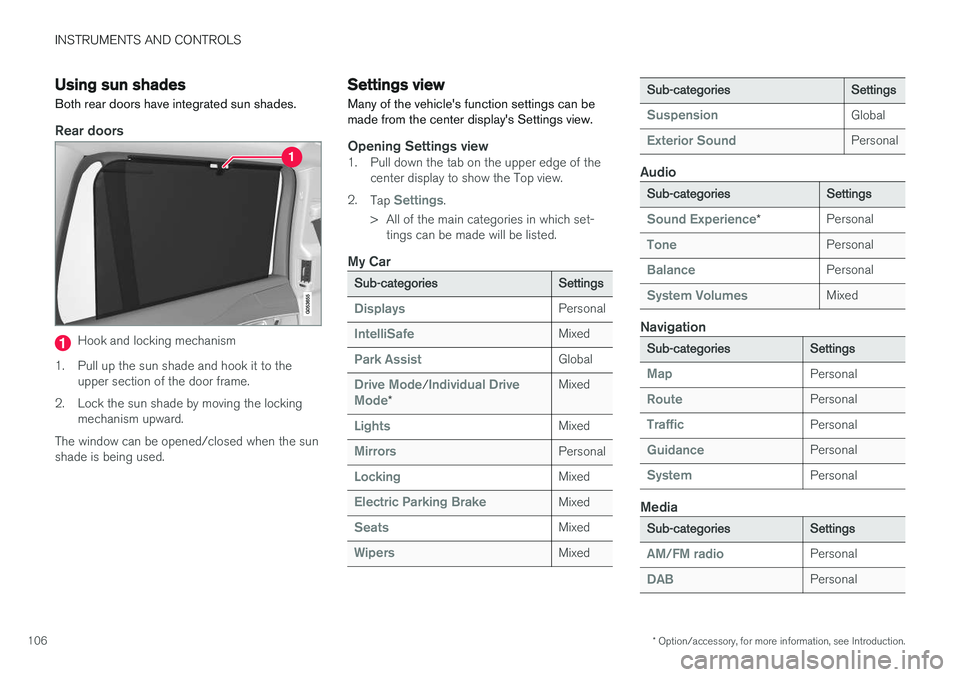
Rear doors
Hook and locking mechanism
1. Pull up the sun shade and hook it to the upper section of the door frame.
2. Lock the sun shade by moving the locking mechanism upward.
The window can be opened/closed when the sun shade is being used.
Settings view
Many of the vehicle's function settings can be made from the center display's Settings view.
Opening Settings view1. Pull down the tab on the upper edge of the center display to show the Top view.
2. Tap
Settings.
> All of the main categories in which set- tings can be made will be listed.
My Car
Sub-categoriesSettings
DisplaysPersonal
IntelliSafeMixed
Park AssistGlobal
Drive Mode/Individual Drive
Mode*
Mixed
LightsMixed
MirrorsPersonal
LockingMixed
Electric Parking BrakeMixed
SeatsMixed
WipersMixed
Sub-categoriesSettings
SuspensionGlobal
Exterior SoundPersonal
Audio
Sub-categoriesSettings
Sound Experience*Personal
TonePersonal
BalancePersonal
System VolumesMixed
Navigation
Sub-categoriesSettings
MapPersonal
RoutePersonal
TrafficPersonal
GuidancePersonal
SystemPersonal
Media
Sub-categoriesSettings
AM/FM radioPersonal
DABPersonal
Page 110 of 570
INSTRUMENTS AND CONTROLS
* Option/accessory, for more information, see Introduction.
108
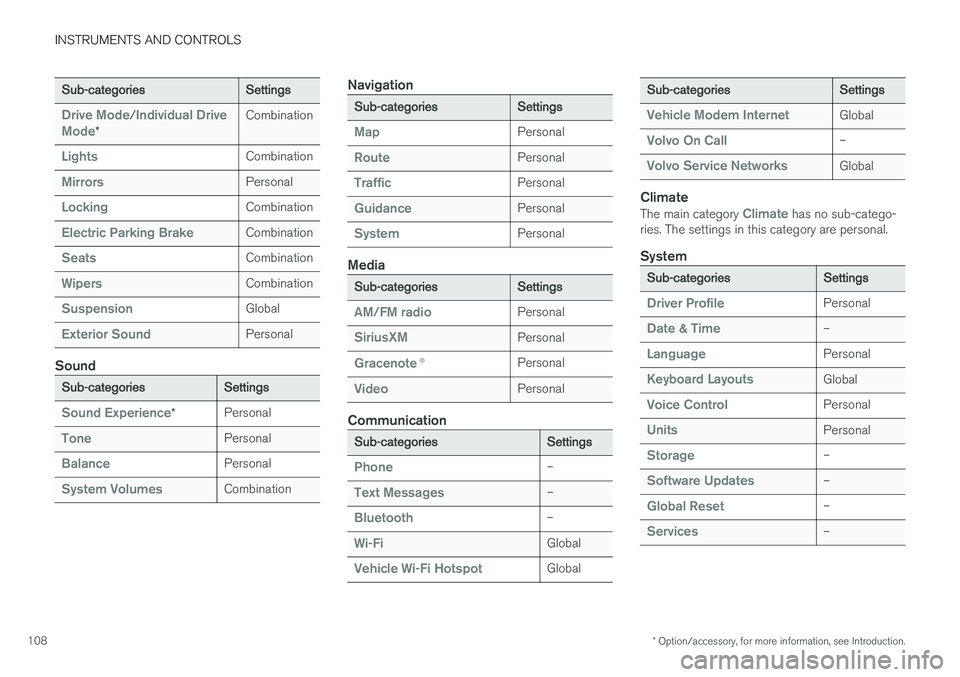
Sub-categoriesSettings
Drive Mode/Individual Drive
Mode*
Combination
LightsCombination
MirrorsPersonal
LockingCombination
Electric Parking BrakeCombination
SeatsCombination
WipersCombination
SuspensionGlobal
Exterior SoundPersonal
Sound
Sub-categoriesSettings
Sound Experience*Personal
TonePersonal
BalancePersonal
System VolumesCombination
Navigation
Sub-categoriesSettings
MapPersonal
RoutePersonal
TrafficPersonal
GuidancePersonal
SystemPersonal
Media
Sub-categoriesSettings
AM/FM radioPersonal
SiriusXMPersonal
Gracenote ®Personal
VideoPersonal
Communication
Sub-categoriesSettings
Phone–
Text Messages–
Bluetooth–
Wi-FiGlobal
Vehicle Wi-Fi HotspotGlobal
Sub-categoriesSettings
Vehicle Modem InternetGlobal
Volvo On Call–
Volvo Service NetworksGlobal
Climate
The main category Climate has no sub-catego-
ries. The settings in this category are personal.
System
Sub-categoriesSettings
Driver ProfilePersonal
Date & Time–
LanguagePersonal
Keyboard LayoutsGlobal
Voice ControlPersonal
UnitsPersonal
Storage–
Software Updates–
Global Reset–
Services–
Page 115 of 570
INSTRUMENTS AND CONTROLS
113
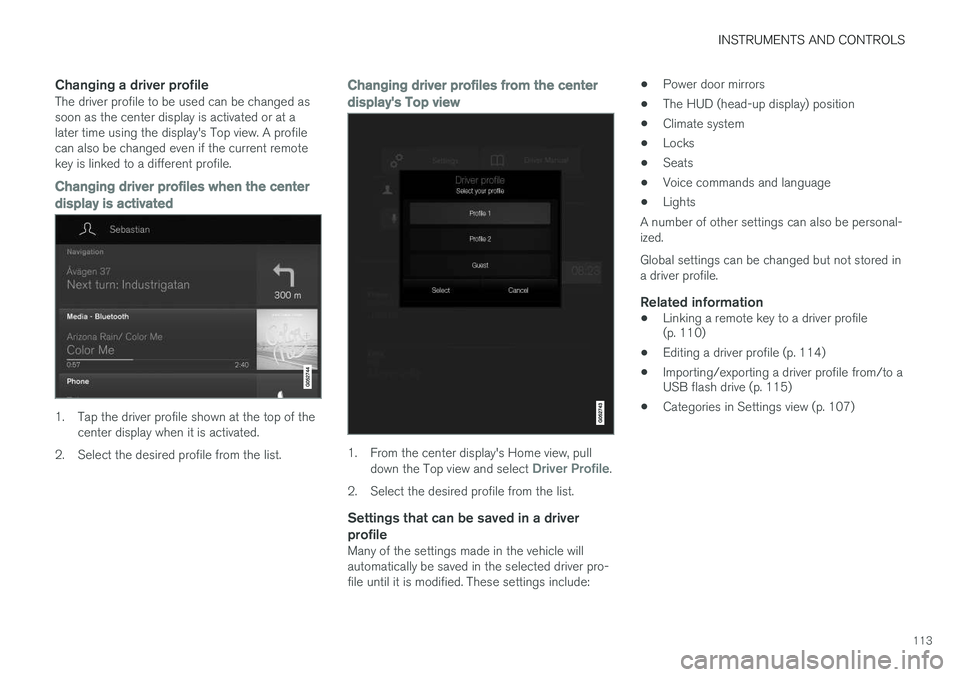
Changing a driver profileThe driver profile to be used can be changed as soon as the center display is activated or at alater time using the display's Top view. A profilecan also be changed even if the current remotekey is linked to a different profile.
Changing driver profiles when the center
display is activated
1. Tap the driver profile shown at the top of the center display when it is activated.
2. Select the desired profile from the list.
Changing driver profiles from the center display's Top view
1. From the center display's Home view, pull down the Top view and select Driver Profile.
2. Select the desired profile from the list.
Settings that can be saved in a driver profile
Many of the settings made in the vehicle will automatically be saved in the selected driver pro-file until it is modified. These settings include: •
Power door mirrors
• The HUD (head-up display) position
• Climate system
• Locks
• Seats
• Voice commands and language
• Lights
A number of other settings can also be personal-ized. Global settings can be changed but not stored in a driver profile.
Related information
• Linking a remote key to a driver profile (p. 110)
• Editing a driver profile (p. 114)
• Importing/exporting a driver profile from/to aUSB flash drive (p. 115)
• Categories in Settings view (p. 107)