navigation VOLVO XC90 2015 Owner's Manual
[x] Cancel search | Manufacturer: VOLVO, Model Year: 2015, Model line: XC90, Model: VOLVO XC90 2015Pages: 570, PDF Size: 12.44 MB
Page 131 of 570
INSTRUMENTS AND CONTROLS
129
Instrument panel settings
Some of the settings for the instrument panel can be made in the App menu (see also the arti-cle "Instrument panel app menu"). The following settings can be made in the center display's Top view under:
SettingsMy CarDisplays:
•
Driver Display Center Area: Select what is
displayed in the background (center) of the instrument panel. The options are: (
Show no
information in the background, Show
information of current playing media orShow map even if no route is set).
•
Themes. Select a theme (appearance). The
options are: (Default, Minimalistic,Performance or Chrome Rings).
The system language can be changed under
SettingsSystemChoose system
language. This change affects the language
used in all displays.
Related information
• Instrument panel App menu (p. 129)
• Warning symbols in the instrument panel (p. 134)
• Indicator symbols in the instrument panel(p. 126)
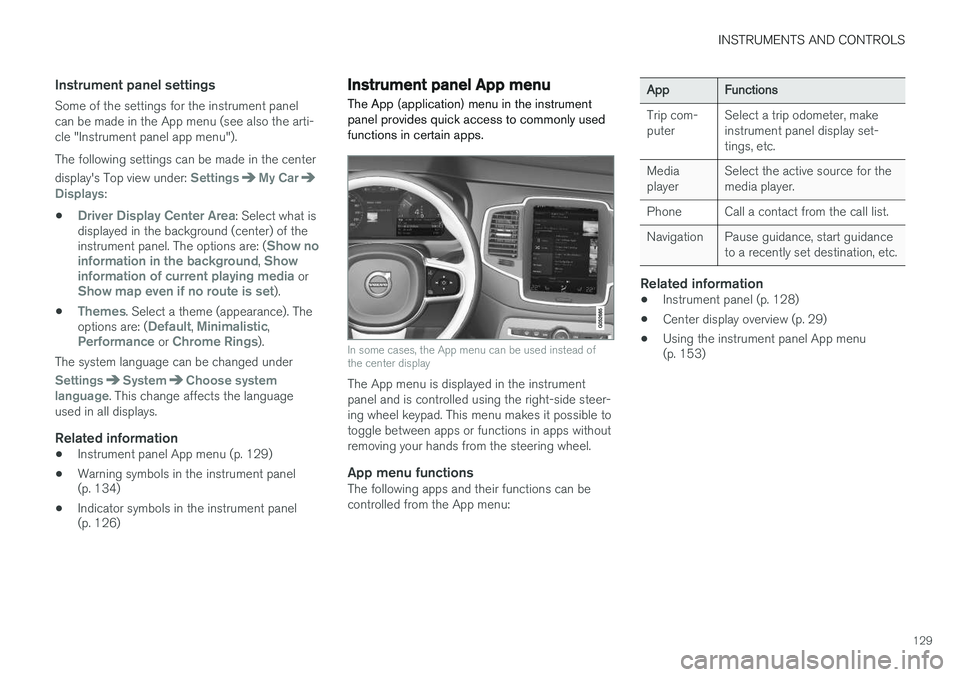
Instrument panel App menu The App (application) menu in the instrument panel provides quick access to commonly usedfunctions in certain apps.
In some cases, the App menu can be used instead of the center display
The App menu is displayed in the instrument panel and is controlled using the right-side steer-ing wheel keypad. This menu makes it possible totoggle between apps or functions in apps withoutremoving your hands from the steering wheel.
App menu functionsThe following apps and their functions can becontrolled from the App menu:
AppFunctions
Trip com- puterSelect a trip odometer, make instrument panel display set-tings, etc.
Media playerSelect the active source for the media player.
PhoneCall a contact from the call list.
NavigationPause guidance, start guidance to a recently set destination, etc.
Related information
•Instrument panel (p. 128)
• Center display overview (p. 29)
• Using the instrument panel App menu (p. 153)
Page 357 of 570
STARTING AND DRIVING
* Option/accessory, for more information, see Introduction.355
Ignition modes
The vehicle's ignition can be put in various modes (levels) to make different functions availa-ble.
The vehicle's ignition has 3 modes: 0, I, and II
that can be used to operate various functions without starting the engine. The following tableshows examples of which functions are availablein the respective modes.
ModeFunctions available
0• The odometer, clock and tem- perature gauge are illuminated
• Power seats
* can be adjusted
• The power windows can be oper-ated
• The 12-volt socket in the cargocompartment can be used
• The center display is activatedand can be used
• The infotainment system can beused for a limited time
In this mode, certain functions can only be used for a limited time to helpminimize battery drain
I• The laminated panoramic roof
*,
power seats */windows,12-volt
sockets in the passenger com- partment, Bluetooth, navigation system *, climate system blower,
windshield wipers can be oper- ated
• The infotainment system will start(if it was started when the ignitionwas switched off)
ModeFunctions available
II• The headlights illuminate
• Warning/indicator lights illumi- nate for 5 seconds
• A number of other functions willalso be activated. However, the heated seats
* and heated rear
window functions can only be activated when the engine is run-ning.
This mode should only be used for very short periods to help avoiddraining the battery.
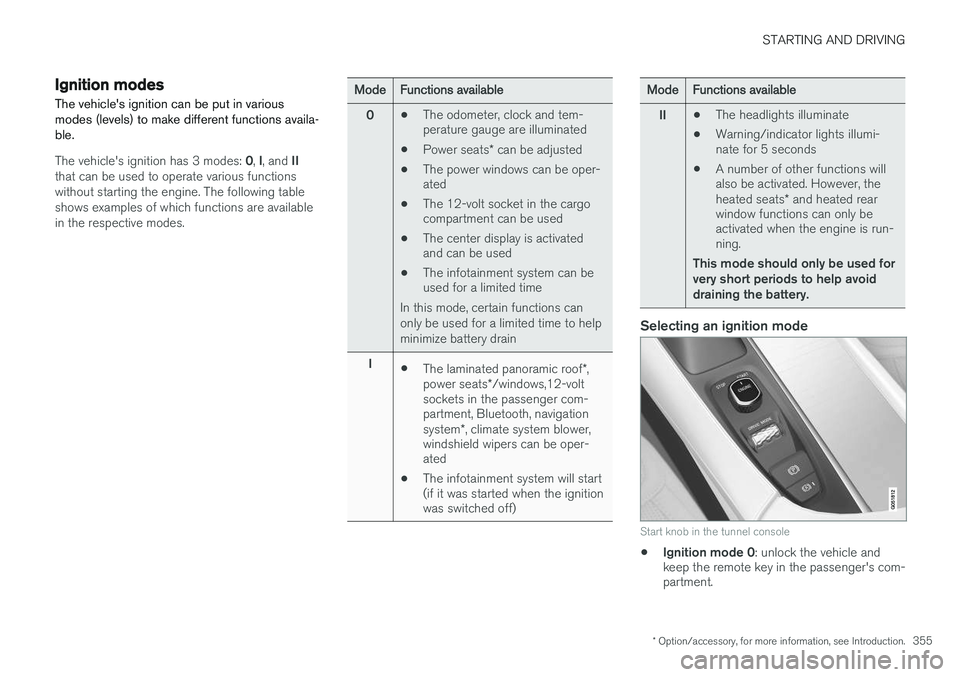
Selecting an ignition mode
Start knob in the tunnel console
• Ignition mode 0
: unlock the vehicle and
keep the remote key in the passenger's com- partment.
Page 403 of 570
INFOTAINMENT
* Option/accessory, for more information, see Introduction.401
Max. number
Tracks in a playlist1,000
SubfoldersNo limit
Related information
•CD (media) player
* (p. 394)
Internet connected vehicle
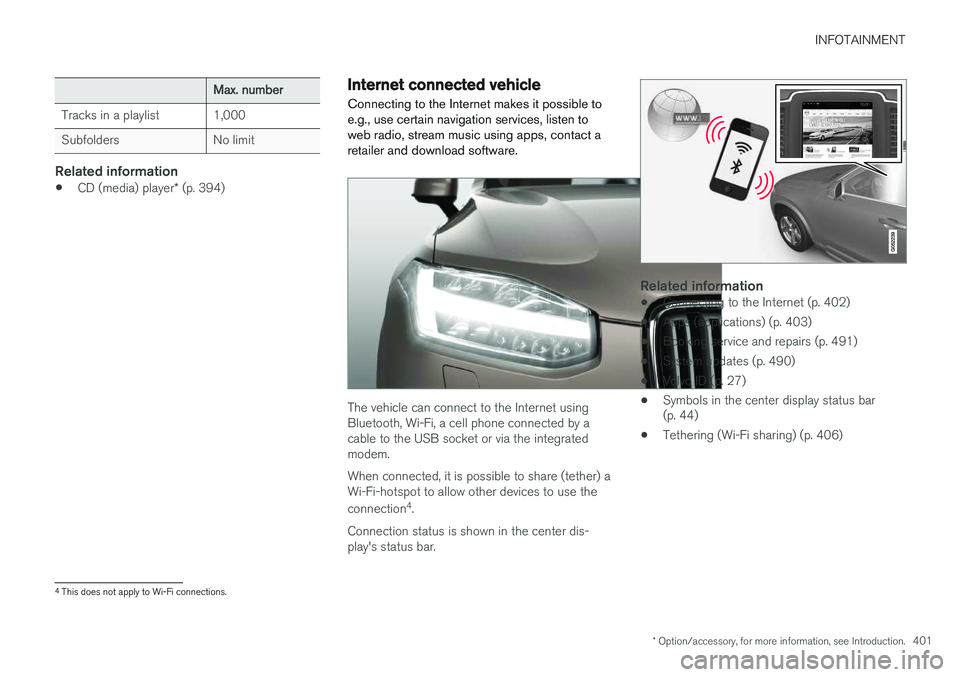
Connecting to the Internet makes it possible to e.g., use certain navigation services, listen toweb radio, stream music using apps, contact aretailer and download software.
The vehicle can connect to the Internet using Bluetooth, Wi-Fi, a cell phone connected by acable to the USB socket or via the integratedmodem. When connected, it is possible to share (tether) a Wi-Fi-hotspot to allow other devices to use the connection 4
.
Connection status is shown in the center dis- play's status bar.
Related information
• Connecting to the Internet (p. 402)
• Apps (applications) (p. 403)
• Booking service and repairs (p. 491)
• System updates (p. 490)
• Volvo ID (p. 27)
• Symbols in the center display status bar (p. 44)
• Tethering (Wi-Fi sharing) (p. 406)
4
This does not apply to Wi-Fi connections.
Page 405 of 570
INFOTAINMENT
403
•
Connecting a device via the AUX/USB socket (p. 393)
• Wi-Fi technology and security (p. 407)
Apps (applications)
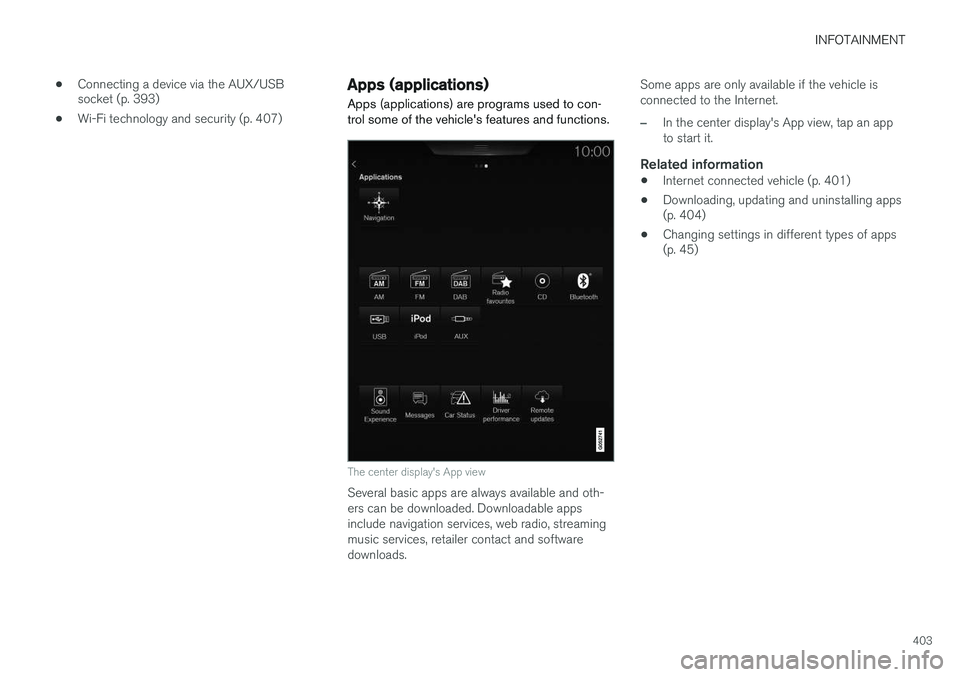
Apps (applications) are programs used to con- trol some of the vehicle's features and functions.
The center display's App view
Several basic apps are always available and oth- ers can be downloaded. Downloadable appsinclude navigation services, web radio, streamingmusic services, retailer contact and softwaredownloads. Some apps are only available if the vehicle isconnected to the Internet.
–In the center display's App view, tap an app to start it.
Related information
•
Internet connected vehicle (p. 401)
• Downloading, updating and uninstalling apps (p. 404)
• Changing settings in different types of apps(p. 45)
Page 414 of 570
INFOTAINMENT
412Changes or modifications not expressly approved by the party responsible for compliance couldvoid the user's authority to operate the equip-ment. This transmitter must not be co-located oroperated in conjunction with any other antennaor transmitter. CanadaThis device complies with Industry Canada licence-exempt RSS standard(s). Operation issubject to the following two conditions: (1) thisdevice may not cause interference, and (2) thisdevice must accept any interference, includinginterference that may cause undesired operationof the device.
Terms, conditions and confidentiality
See terms and conditions for services and cus- tomer privacy policy at support.volvocars.com.
Terms & Conditions for ServicesVolvo offers the best possible services to make owning and operating a Volvo safe, convenient,comfortable and enjoyable. Volvo offers a widearray of services, ranging from emergency assis-tance to navigation and infotainment.
Customer privacy policyThis policy applies to the way in which customer-related and personal information are handled. Itspurpose is to provide our present, previous andfuture customers a general understanding of: • The circumstances under which we gather and process your personal information.
• The types of personal information gathered.
• The reasons for gathering your personalinformation.
• How we deal with your personal information.
This policy can be read in its entirety at support.volvocars.com.
Page 416 of 570
VOLVO ON CALL WITH SENSUS CONNECT *
* Option/accessory, for more information, see Introduction.
414
Volvo On Call (VOC) *
VOC is an integrated, subscription-based sys-
tem that provides emergency, roadside assis- tance and security services.
VOC is connected to the vehicle's airbag and alarm systems. The vehicle has an integratedGlobal System for Mobile Communications(GSM) module that handles communicationbetween the vehicle and the VOC customer serv-ice center.
AvailabilityVOC uses the Global Navigation Satellite System(GNSS) to locate the vehicle and its integratedGSM module to enable communication with theVOC customer service center and the VOCmobile app. From the time that the remote key has been removed from the vehicle, VOC's functionsremain available for 5 full days and subsequentlyonce an hour for the following 17 days. Afterthree weeks have elapsed, the system will remainswitched off until the engine is started.
WARNING
The system can only function in areas where there is adequate cellular network coverage. Just as in the case of cell phones, atmos- pheric disturbances or areas with relativelyfew GSM transmitters can make it impossiblefor VOC to make a connection, for example, inrural areas.
SubscriptionsA free, limited-time trial subscription is initiated when the vehicle is purchased and VOC is acti-vated. The subscription can be extended by con-tacting your Volvo retailer.
Information on the InternetFor additional information about Volvo On Call, goto: United States http://www.volvocars.com/us/support Canada English: http://support.volvocars.com/en-CA French: http://support.volvocars.com/fr-CA
Related information
• Volvo On Call convenience services (p. 416)
• Volvo On Call safety services (p. 424)
• Volvo On Call security services (p. 425)
• Using Volvo On Call (p. 414)
• Volvo ID (p. 27)
Using Volvo On Call
Volvo On Call (VOC) is controlled using the but- tons in the ceiling console and the center dis-play.
In the event of an accident in which the seat belt pretensioners, airbags or the inflatable curtainshave been triggered, a signal is transmitted auto-
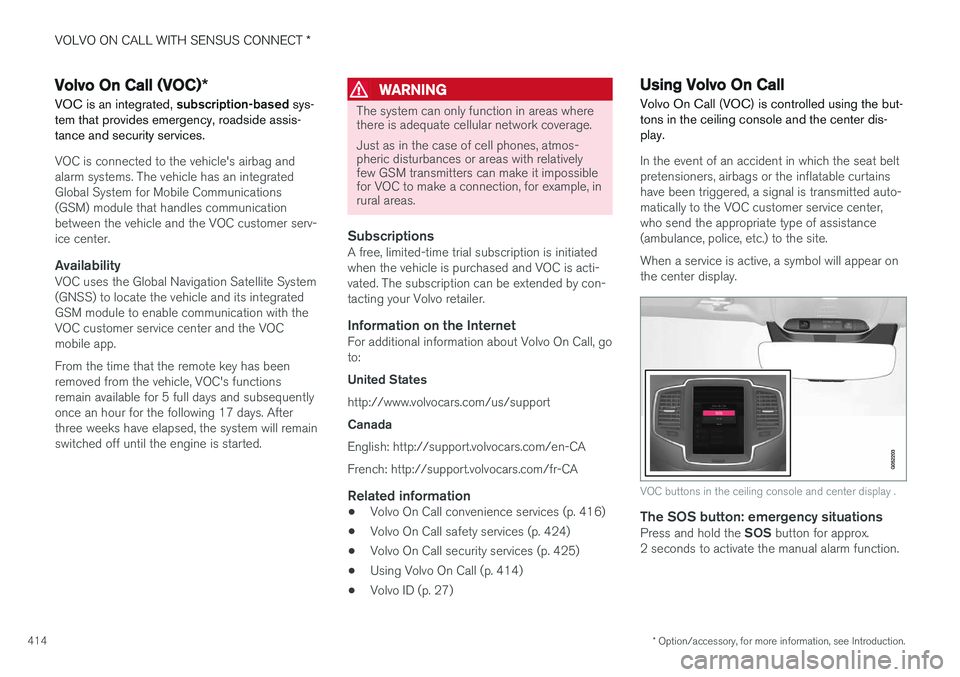
matically to the VOC customer service center,who send the appropriate type of assistance(ambulance, police, etc.) to the site. When a service is active, a symbol will appear on the center display.
VOC buttons in the ceiling console and center display .
The SOS button: emergency situationsPress and hold the SOS button for approx.
2 seconds to activate the manual alarm function.
Page 430 of 570
NAVIGATION*
* Option/accessory, for more information, see Introduction.
428
Sensus Navigation
Sensus Navigation enables you to set itineraries, search for certain types of points of interestalong your route, store special destinations,obtain traffic information en route, etc.
Sensus Navigation shows the vehicle's exact location and if you deviate from the set route, thesystem can make the necessary adjustments toguide you to your destination. Being familiar with the contents of this manual will help you to fully utilize the features and func-tions offered by Sensus Navigation. By enabling you to reach your destination quickly and by the most direct route, Sensus Navigationalso helps contribute to improving the environ-ment.
Related information
• Getting started with Sensus Navigation (p. 432)
• Buttons and information on the map (p. 428)
Buttons and information on the map
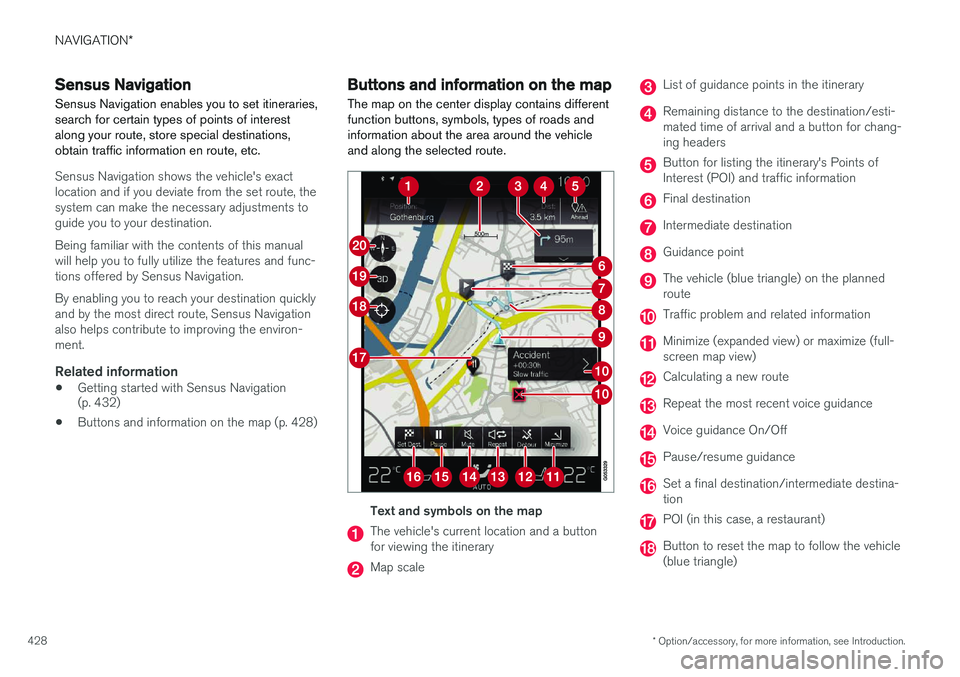
The map on the center display contains different function buttons, symbols, types of roads andinformation about the area around the vehicleand along the selected route.
Text and symbols on the map
The vehicle's current location and a button for viewing the itinerary
Map scale
List of guidance points in the itinerary
Remaining distance to the destination/esti- mated time of arrival and a button for chang-ing headers
Button for listing the itinerary's Points of Interest (POI) and traffic information
Final destination
Intermediate destination
Guidance point
The vehicle (blue triangle) on the planned route
Traffic problem and related information
Minimize (expanded view) or maximize (full- screen map view)
Calculating a new route
Repeat the most recent voice guidance
Voice guidance On/Off
Pause/resume guidance
Set a final destination/intermediate destina- tion
POI (in this case, a restaurant)
Button to reset the map to follow the vehicle (blue triangle)
Page 431 of 570
NAVIGATION*
* Option/accessory, for more information, see Introduction.
429
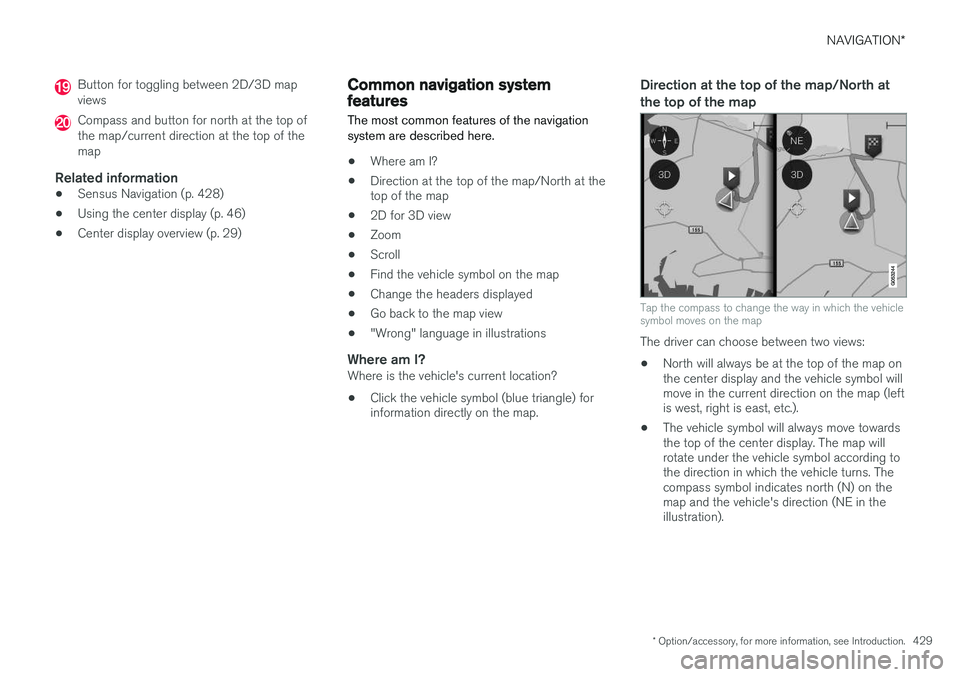
Button for toggling between 2D/3D map views
Compass and button for north at the top of the map/current direction at the top of themap
Related information
•Sensus Navigation (p. 428)
• Using the center display (p. 46)
• Center display overview (p. 29)
Common navigation system features
The most common features of the navigation system are described here.
• Where am I?
• Direction at the top of the map/North at the top of the map
• 2D for 3D view
• Zoom
• Scroll
• Find the vehicle symbol on the map
• Change the headers displayed
• Go back to the map view
• "Wrong" language in illustrations
Where am I?Where is the vehicle's current location?
• Click the vehicle symbol (blue triangle) forinformation directly on the map.
Direction at the top of the map/North at the top of the map
Tap the compass to change the way in which the vehicle symbol moves on the map
The driver can choose between two views: •
North will always be at the top of the map on the center display and the vehicle symbol willmove in the current direction on the map (leftis west, right is east, etc.).
• The vehicle symbol will always move towardsthe top of the center display. The map willrotate under the vehicle symbol according tothe direction in which the vehicle turns. Thecompass symbol indicates north (N) on themap and the vehicle's direction (NE in theillustration).
Page 432 of 570
NAVIGATION*
* Option/accessory, for more information, see Introduction.
430
Compass symbolsDirection
NNorth
NENortheast
EEast
SESoutheast
SSouth
SWSouthwest
WWest
NWNorthwest
2D or 3D view
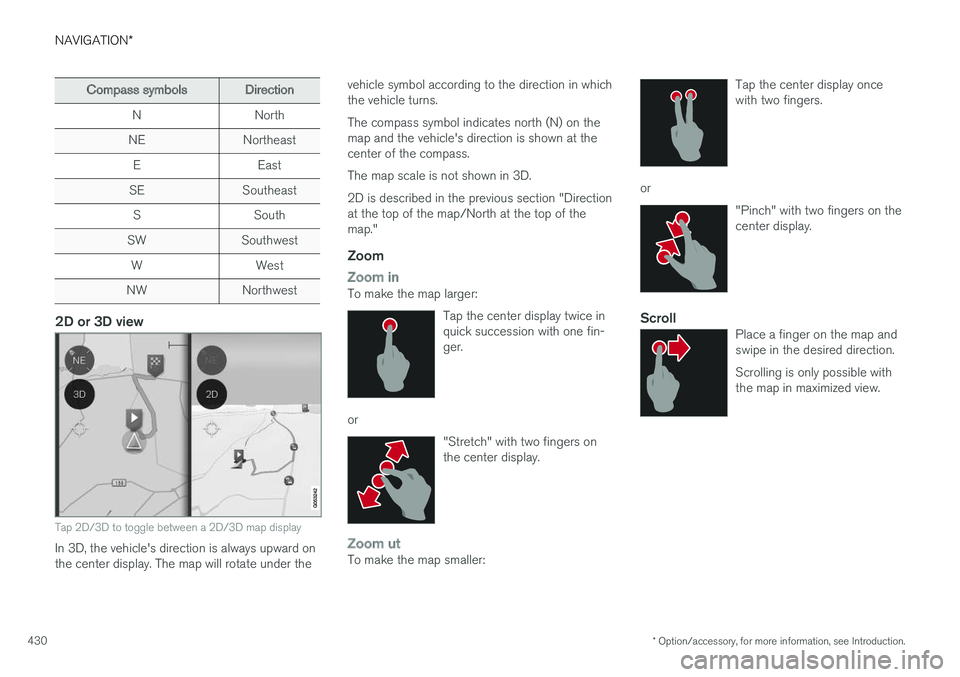
Tap 2D/3D to toggle between a 2D/3D map display
In 3D, the vehicle's direction is always upward on the center display. The map will rotate under the vehicle symbol according to the direction in whichthe vehicle turns. The compass symbol indicates north (N) on the map and the vehicle's direction is shown at thecenter of the compass. The map scale is not shown in 3D.2D is described in the previous section "Direction at the top of the map/North at the top of themap."
Zoom
Zoom inTo make the map larger:
Tap the center display twice in quick succession with one fin-ger.
or"Stretch" with two fingers on the center display.
Zoom utTo make the map smaller: Tap the center display once with two fingers.
or
"Pinch" with two fingers on the center display.
ScrollPlace a finger on the map and swipe in the desired direction. Scrolling is only possible with the map in maximized view.
Page 433 of 570
NAVIGATION*
* Option/accessory, for more information, see Introduction.
431
Find the vehicle symbol on the map
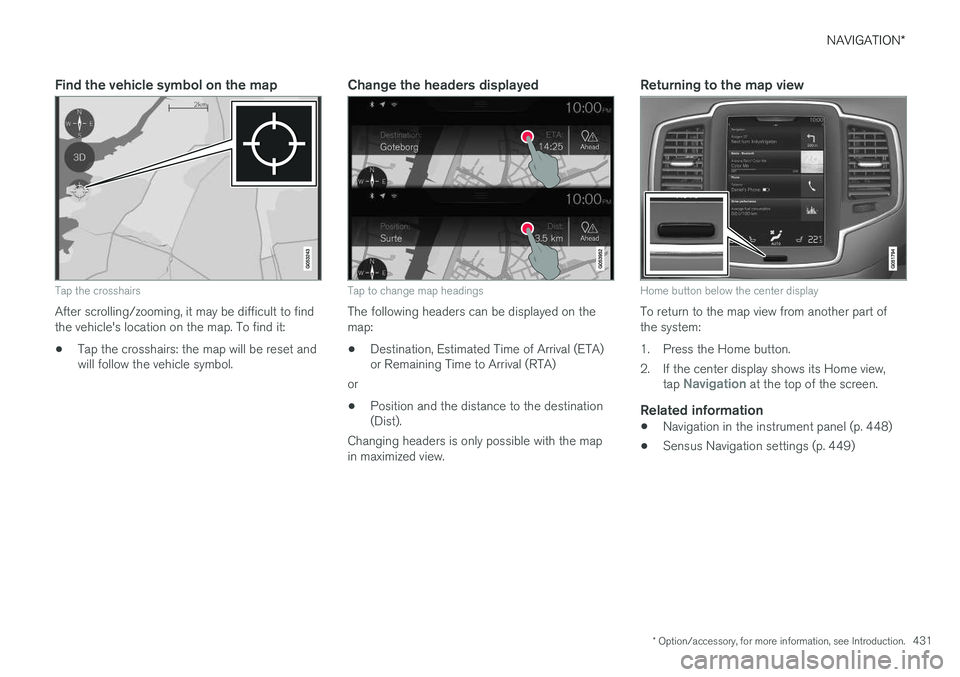
Tap the crosshairs
After scrolling/zooming, it may be difficult to find the vehicle's location on the map. To find it:
• Tap the crosshairs: the map will be reset and will follow the vehicle symbol.
Change the headers displayed
Tap to change map headings
The following headers can be displayed on the map:
• Destination, Estimated Time of Arrival (ETA) or Remaining Time to Arrival (RTA)
or
• Position and the distance to the destination(Dist).
Changing headers is only possible with the map in maximized view.
Returning to the map view
Home button below the center display
To return to the map view from another part of the system:
1. Press the Home button.
2. If the center display shows its Home view, tap
Navigation at the top of the screen.
Related information
•Navigation in the instrument panel (p. 448)
• Sensus Navigation settings (p. 449)