navigation VOLVO XC90 2015 User Guide
[x] Cancel search | Manufacturer: VOLVO, Model Year: 2015, Model line: XC90, Model: VOLVO XC90 2015Pages: 570, PDF Size: 12.44 MB
Page 95 of 570
INSTRUMENTS AND CONTROLS
* Option/accessory, for more information, see Introduction.93
1. Press (1) to open the app menu in the
instrument panel.
> The top four lines show readings from tripodometer TM. The following four lines show readings from trip odometer TA.Scroll up/down in the list using (3).
2. Scroll to the selection buttons in the lines under TA and select the trip odometer to bedisplayed.
• Current fuel consumption
• Distance to empty
• Odometer
• Trip odometers TM, TA or none
• Tourist (alternative speedometer).
Select or deselect an alternative using thecenter button (4). The change will be madeimmediately.
Resetting a trip odometer
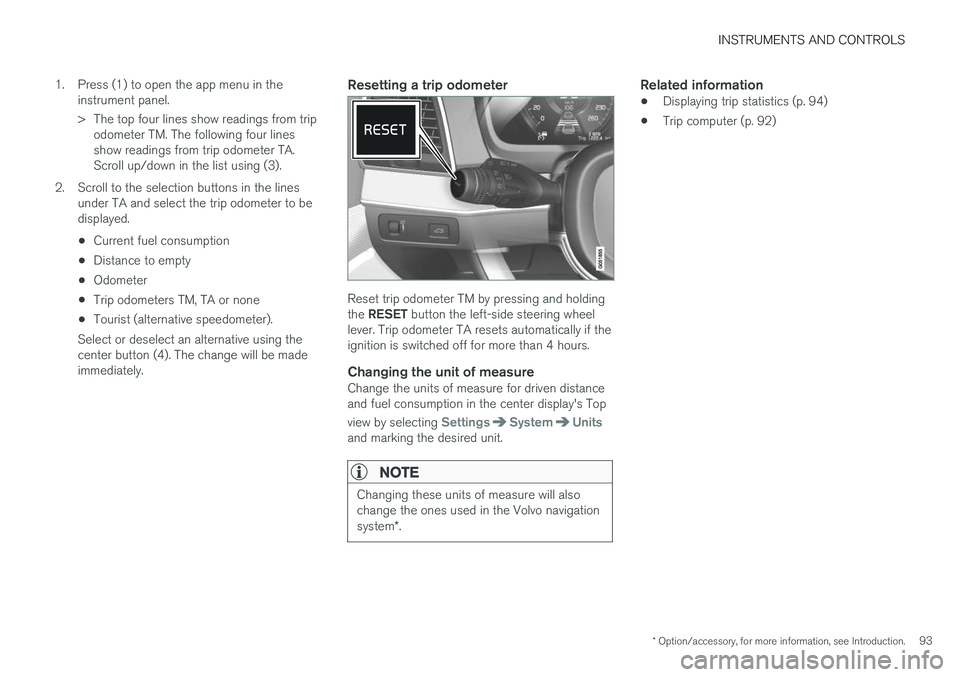
Reset trip odometer TM by pressing and holding the RESET button the left-side steering wheel
lever. Trip odometer TA resets automatically if the ignition is switched off for more than 4 hours.
Changing the unit of measureChange the units of measure for driven distanceand fuel consumption in the center display's Top view by selecting
SettingsSystemUnitsand marking the desired unit.
NOTE
Changing these units of measure will also change the ones used in the Volvo navigation system *.
Related information
• Displaying trip statistics (p. 94)
• Trip computer (p. 92)
Page 108 of 570
INSTRUMENTS AND CONTROLS
* Option/accessory, for more information, see Introduction.
106
Using sun shades
Both rear doors have integrated sun shades.
Rear doors
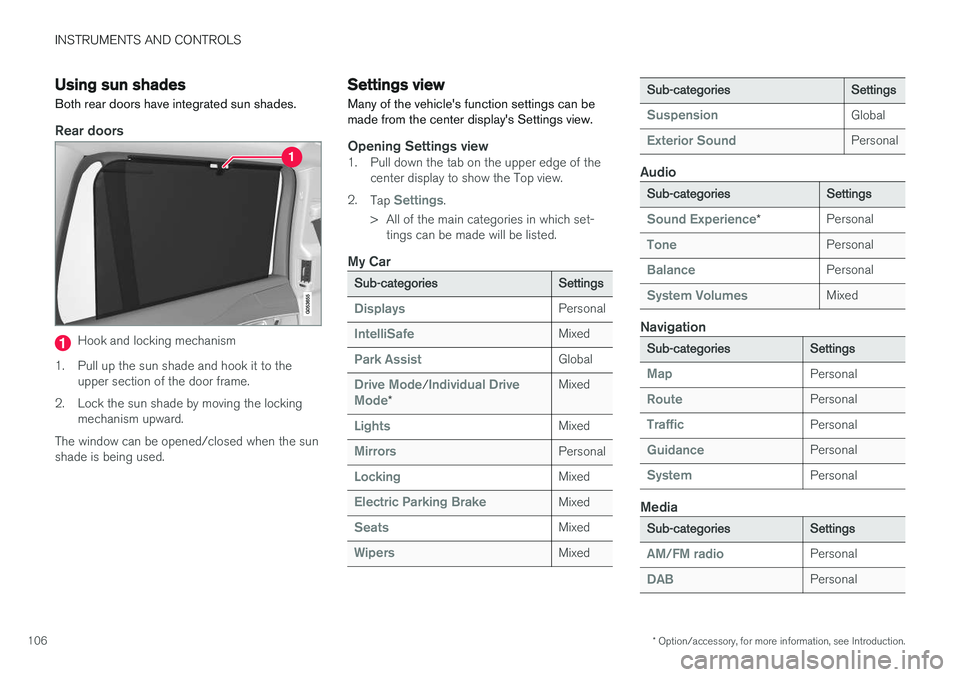
Hook and locking mechanism
1. Pull up the sun shade and hook it to the upper section of the door frame.
2. Lock the sun shade by moving the locking mechanism upward.
The window can be opened/closed when the sun shade is being used.
Settings view
Many of the vehicle's function settings can be made from the center display's Settings view.
Opening Settings view1. Pull down the tab on the upper edge of the center display to show the Top view.
2. Tap
Settings.
> All of the main categories in which set- tings can be made will be listed.
My Car
Sub-categoriesSettings
DisplaysPersonal
IntelliSafeMixed
Park AssistGlobal
Drive Mode/Individual Drive
Mode*
Mixed
LightsMixed
MirrorsPersonal
LockingMixed
Electric Parking BrakeMixed
SeatsMixed
WipersMixed
Sub-categoriesSettings
SuspensionGlobal
Exterior SoundPersonal
Audio
Sub-categoriesSettings
Sound Experience*Personal
TonePersonal
BalancePersonal
System VolumesMixed
Navigation
Sub-categoriesSettings
MapPersonal
RoutePersonal
TrafficPersonal
GuidancePersonal
SystemPersonal
Media
Sub-categoriesSettings
AM/FM radioPersonal
DABPersonal
Page 109 of 570
INSTRUMENTS AND CONTROLS
107
Sub-categoriesSettings
Gracenote®Personal
VideoPersonal
Communication
Sub-categoriesSettings
Phone–
Text Messages–
Bluetooth–
Wi-FiGlobal
Vehicle Wi-Fi HotspotGlobal
Vehicle Modem InternetGlobal
Volvo On Call–
Volvo Service NetworksGlobal
Climate
The main category Climate has no sub-catego-
ries. All settings in this category are personal.
System
Sub-categoriesSettings
Driver ProfilePersonal
Date & Time–
LanguagePersonal
Sub-categoriesSettings
Keyboard LayoutsGlobal
Voice ControlPersonal
UnitsPersonal
Storage–
Software Updates–
Global Reset–
Services–
Related information
• Center display overview (p. 29)
• Navigating in the center display's views (p. 39)
• Using the center display (p. 46)
Categories in Settings view
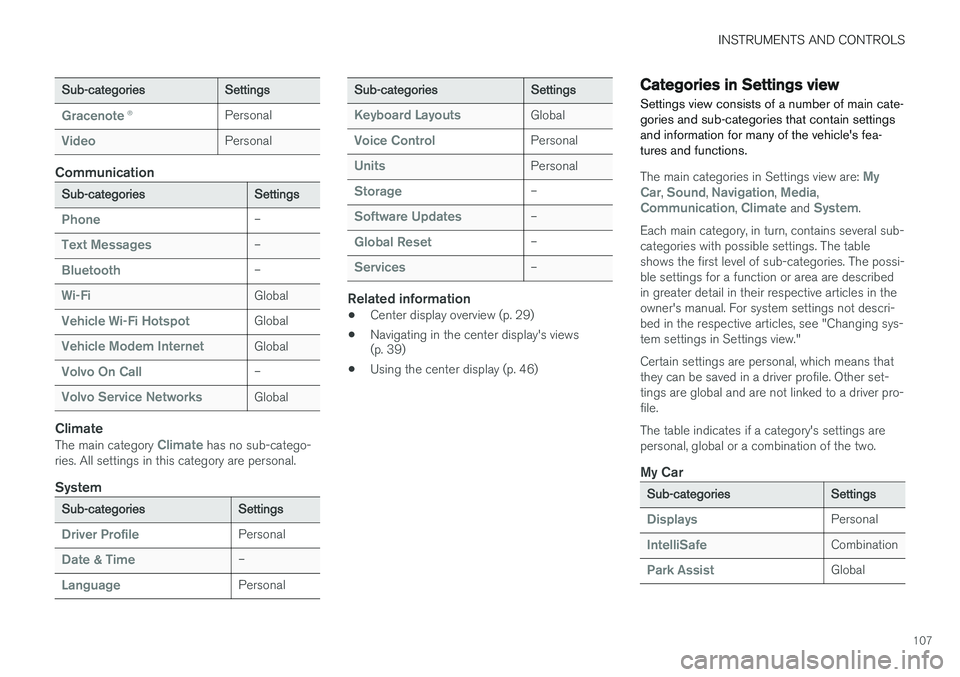
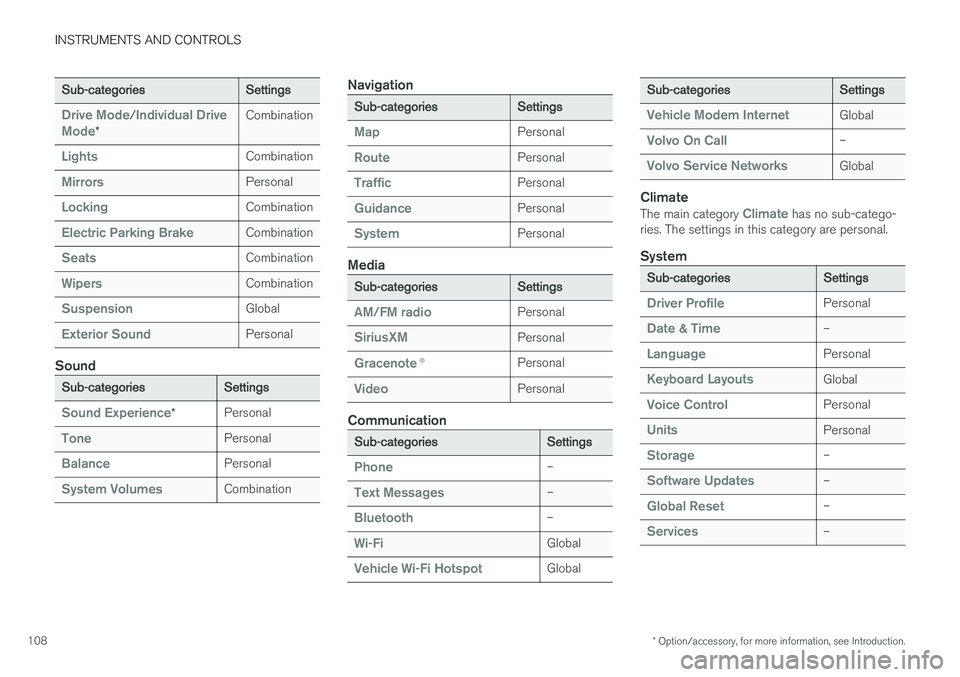
Settings view consists of a number of main cate- gories and sub-categories that contain settingsand information for many of the vehicle's fea-tures and functions.
The main categories in Settings view are: My
Car, Sound, Navigation, Media,Communication, Climate and System.
Each main category, in turn, contains several sub- categories with possible settings. The tableshows the first level of sub-categories. The possi-ble settings for a function or area are describedin greater detail in their respective articles in theowner's manual. For system settings not descri-bed in the respective articles, see "Changing sys-tem settings in Settings view." Certain settings are personal, which means that they can be saved in a driver profile. Other set-tings are global and are not linked to a driver pro-file. The table indicates if a category's settings are personal, global or a combination of the two.
My Car
Sub-categoriesSettings
DisplaysPersonal
IntelliSafeCombination
Park AssistGlobal
Page 110 of 570
INSTRUMENTS AND CONTROLS
* Option/accessory, for more information, see Introduction.
108
Sub-categoriesSettings
Drive Mode/Individual Drive
Mode*
Combination
LightsCombination
MirrorsPersonal
LockingCombination
Electric Parking BrakeCombination
SeatsCombination
WipersCombination
SuspensionGlobal
Exterior SoundPersonal
Sound
Sub-categoriesSettings
Sound Experience*Personal
TonePersonal
BalancePersonal
System VolumesCombination
Navigation
Sub-categoriesSettings
MapPersonal
RoutePersonal
TrafficPersonal
GuidancePersonal
SystemPersonal
Media
Sub-categoriesSettings
AM/FM radioPersonal
SiriusXMPersonal
Gracenote ®Personal
VideoPersonal
Communication
Sub-categoriesSettings
Phone–
Text Messages–
Bluetooth–
Wi-FiGlobal
Vehicle Wi-Fi HotspotGlobal
Sub-categoriesSettings
Vehicle Modem InternetGlobal
Volvo On Call–
Volvo Service NetworksGlobal
Climate
The main category Climate has no sub-catego-
ries. The settings in this category are personal.
System
Sub-categoriesSettings
Driver ProfilePersonal
Date & Time–
LanguagePersonal
Keyboard LayoutsGlobal
Voice ControlPersonal
UnitsPersonal
Storage–
Software Updates–
Global Reset–
Services–
Page 119 of 570
INSTRUMENTS AND CONTROLS
* Option/accessory, for more information, see Introduction.117
Automatic time
The function Automatic Time is also available,
which adjusts the time zone automatically, depending on the vehicle's location. If
Automatic
Time has not been selected, set the date and
time manually by tapping the up or down arrows on the center display.
Daylight savings timeIn certain countries, an automatic change to day- light savings time can be selected by activating
Auto. If the automatic change is not available,
change to daylight savings time by selecting Onor Off.
Related information
• Instrument panel (p. 128)
• Center display overview (p. 29)
• Using the center display (p. 46)
Head-up display (HUD)
*
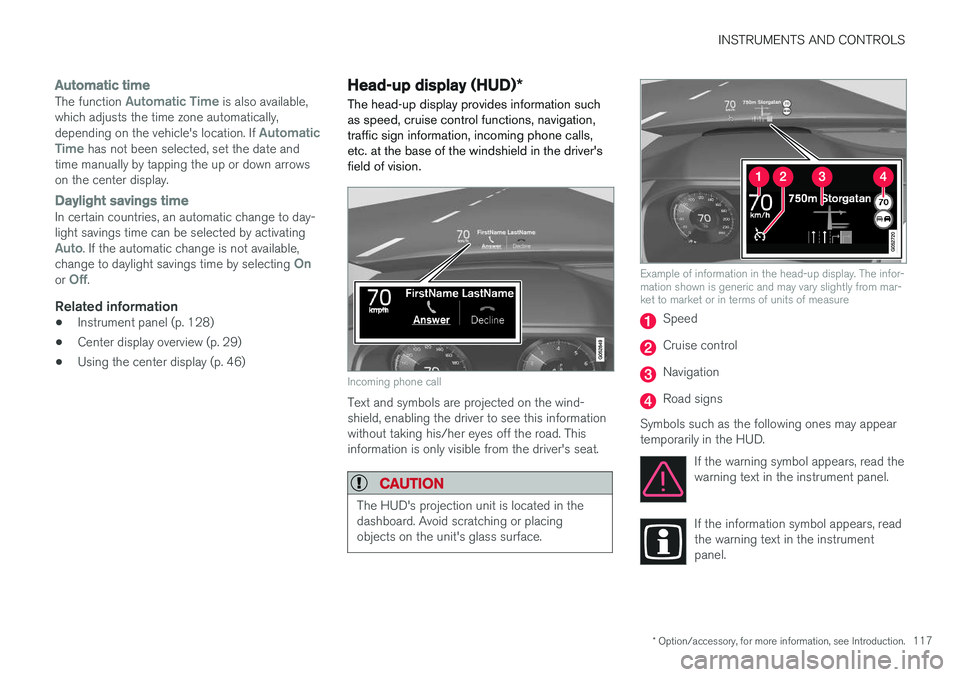
The head-up display provides information such as speed, cruise control functions, navigation,traffic sign information, incoming phone calls,etc. at the base of the windshield in the driver'sfield of vision.
Incoming phone call
Text and symbols are projected on the wind- shield, enabling the driver to see this informationwithout taking his/her eyes off the road. Thisinformation is only visible from the driver's seat.
CAUTION
The HUD's projection unit is located in the dashboard. Avoid scratching or placingobjects on the unit's glass surface.
Example of information in the head-up display. The infor- mation shown is generic and may vary slightly from mar-ket to market or in terms of units of measure
Speed
Cruise control
Navigation
Road signs
Symbols such as the following ones may appear temporarily in the HUD. If the warning symbol appears, read thewarning text in the instrument panel.
If the information symbol appears, read the warning text in the instrumentpanel.
Page 120 of 570
INSTRUMENTS AND CONTROLS
* Option/accessory, for more information, see Introduction.
118
NOTE
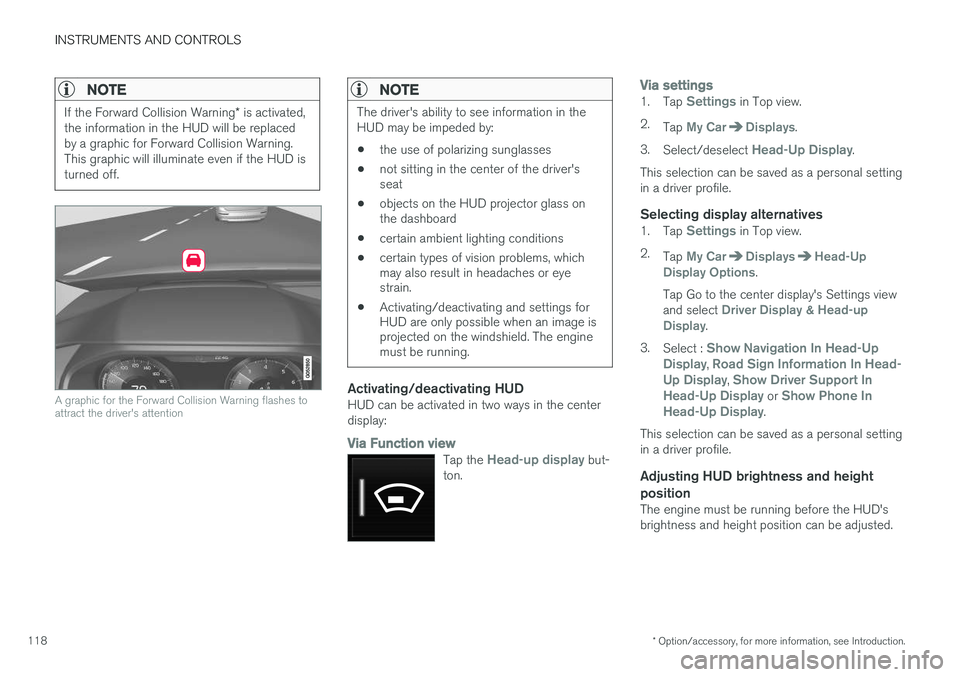
If the Forward Collision Warning * is activated,
the information in the HUD will be replaced by a graphic for Forward Collision Warning.This graphic will illuminate even if the HUD isturned off.
A graphic for the Forward Collision Warning flashes to attract the driver's attention
NOTE
The driver's ability to see information in the HUD may be impeded by: • the use of polarizing sunglasses
• not sitting in the center of the driver's seat
• objects on the HUD projector glass onthe dashboard
• certain ambient lighting conditions
• certain types of vision problems, whichmay also result in headaches or eyestrain.
• Activating/deactivating and settings forHUD are only possible when an image isprojected on the windshield. The enginemust be running.
Activating/deactivating HUDHUD can be activated in two ways in the center display:
Via Function view
Tap the Head-up display but-
ton.
Via settings1. Tap Settings in Top view.
2. Tap
My CarDisplays.
3. Select/deselect
Head-Up Display.
This selection can be saved as a personal setting in a driver profile.
Selecting display alternatives1. Tap Settings in Top view.
2. Tap
My CarDisplaysHead-Up
Display Options.
Tap Go to the center display's Settings view and select
Driver Display & Head-up
Display.
3. Select :
Show Navigation In Head-Up
Display, Road Sign Information In Head-
Up Display, Show Driver Support In
Head-Up Display or Show Phone In
Head-Up Display.
This selection can be saved as a personal setting in a driver profile.
Adjusting HUD brightness and height position
The engine must be running before the HUD'sbrightness and height position can be adjusted.
Page 122 of 570
INSTRUMENTS AND CONTROLS
* Option/accessory, for more information, see Introduction.
120 Never use strong stain removers. For difficult cleaning conditions, a special cleaning agent canbe purchased at a Volvo retailer.
Related information
•
Driver profiles (p. 112)
• Center display overview (p. 29)
• Navigating in the center display's views (p. 39)
Voice control
Voice commands make it possible for the driver to voice-control certain functions in the mediaplayer, a Bluetooth-connected cell phone, cli- mate system and the Volvo navigation system *.
Voice control offers convenience and enables the driver to keep his/her hands on the steeringwheel and concentrate on driving and the trafficsituation around the vehicle.
WARNING
As the driver, you have full responsibility for operating the vehicle safely and adhering toall applicable traffic regulations.
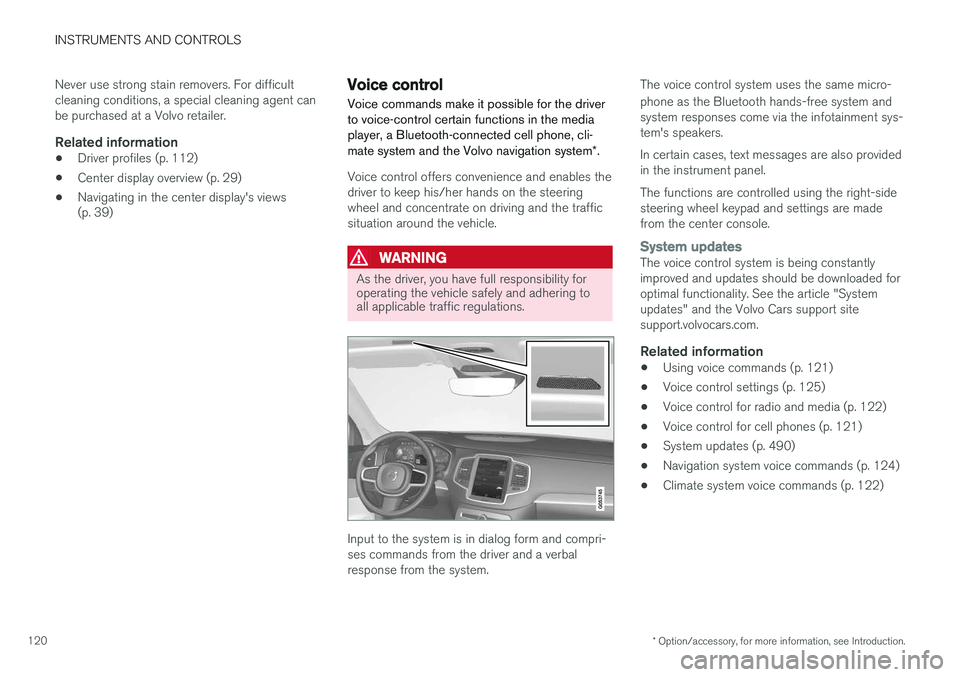
Input to the system is in dialog form and compri- ses commands from the driver and a verbalresponse from the system. The voice control system uses the same micro- phone as the Bluetooth hands-free system and system responses come via the infotainment sys-tem's speakers. In certain cases, text messages are also provided in the instrument panel. The functions are controlled using the right-side steering wheel keypad and settings are madefrom the center console.
System updatesThe voice control system is being constantly improved and updates should be downloaded foroptimal functionality. See the article "Systemupdates" and the Volvo Cars support sitesupport.volvocars.com.
Related information
•
Using voice commands (p. 121)
• Voice control settings (p. 125)
• Voice control for radio and media (p. 122)
• Voice control for cell phones (p. 121)
• System updates (p. 490)
• Navigation system voice commands (p. 124)
• Climate system voice commands (p. 122)
Page 126 of 570
INSTRUMENTS AND CONTROLS
124
Navigation system voice commands
Many of the navigation system's functions can be activated using voice commands.
The procedure for using voice control is descri- bed in greater detail in the articles "Voice con-trol," "Using voice control" and "Voice controlsettings."
Voice commandsThe following list contains examples of com-mands that are unique to navigation system.
–To use the voice control system, press the
on the right-side steering wheel keypad and say one of the following commands after the tone:
• "
Navigation: Starts a navigation voice
command dialog and displays available commands.
• "
Take me home: Guidance will be given
to the location set as Home. The location
for Home is set using the Set home
address function in Favorites in the Top
view in the center display.
• "
Go to [City]: Enter a city as a destina-
tion, e.g., "Go to New York."
• "
Go to [Address]: Enter an address as a
destination, e.g., Go to 125 43 St, New York."
• "
Go to [Zip code]: Enter a zip code as a
destination, e.g., "Go to 07405."
• "
Go to [Name]: Enter a name from a list
of contacts e.g., "Go to Robyn Smith."
• "
Search [POI]: Search for a POI 7
, which
is always sorted according to POIs "around the vehicle." To search along the route, say "
Along the route" when the
list of results is displayed.
• "
Search [POI] in [a city]: Search for a
POI 7
in city/location.
• "
Search [POI category]: Search for a
POI 7
category, which is always sorted
"Around the vehicle."
7 You can opt to call the POI or set it as a destination.
Page 127 of 570
![VOLVO XC90 2015 User Guide INSTRUMENTS AND CONTROLS
125
•
"
Search [POI category] in [a city]:
Search for a POI 7
category in a city/loca-
tion.
• "
Enter contact: Enter a contact from a
list of phone contacts as a](/img/45/58555/w960_58555-126.png "VOLVO XC90 2015 User Guide INSTRUMENTS AND CONTROLS
125
•
\"
Search [POI category] in [a city]:
Search for a POI 7
category in a city/loca-
tion.
• \"
Enter contact: Enter a contact from a
list of phone contacts as a")
INSTRUMENTS AND CONTROLS
125
•
"
Search [POI category] in [a city]:
Search for a POI 7
category in a city/loca-
tion.
• "
Enter contact: Enter a contact from a
list of phone contacts as a destination.
• "
Enter POI: Enter a POI as a destination.
• "
Change country/Change state:
Changes the country/state in which a search is conducted.
• "
Enter address: Enter an address as a
destination.
• "
Enter zip code: Enter a zip code as a
destination.
• "
Add intersection: Enter an intersection
as a destination.
• "
Show favorites: Shows a list ofFavorites in the center display's Top
view.
• "
Clear itinerary: Deletes all intermediate
destinations in an itinerary.
• "
Repeat voice guidance: Repeats the
most recent guidance instruction.
• "
Pause guidance: Pauses guidance on
the map.
• "
Resume guidance: Resumes guidance
on the map.
• "
Turn off voice guidance: Turns voice
navigation guidance off.
• "
Turn on voice guidance: Turns voice
navigation guidance on.
Related information
• Navigation displays and controls (p. 433)
• Voice control (p. 120)
• Using voice commands (p. 121)
• Voice control settings (p. 125)
Voice control settings
There are a number of settings that can be made for the voice control system.
Open the center display's Top view and tap
SettingsSystemVoice Control and
select settings. •
Repeat Mode
•Gender
•Speech Rate
Sound settings
Open Top view and tap SettingsSound
System VolumesVoice Control.
Changing languagesThe voice control system only understands that languages that can be selected. Changing the language for this system also affects menus, messages and help texts. Open Top view and tap
SettingsSystemLanguage.
Related information
• Voice control (p. 120)
7
You can opt to call the POI or set it as a destination.
Page 130 of 570

INSTRUMENTS AND CONTROLS
128
Related information
•Instrument panel (p. 128)
• Warning symbols in the instrument panel (p. 134)
• Door and seat belt reminders (p. 61)
Instrument panel
The instrument panel displays vehicle- and driv- ing-related information.
Gauges, indicators and symbols in the
instrument panel
Left side
• Speedometer
• Trip odometer
• Odometer
• Cruise control/speed limiter information
• Road sign information
Center
•
Indicator and warning symbols
• Ambient temperature sensor
• Clock •
Messages (and in certain cases also graph- ics)
• Distance to empty tank
• Door and seat belt status
• Compass and altimeter
• Media player
• Navigation system map
• Cell phone
• Voice control
Right side
• Tachometer
• Fuel gauge
• Gear shift indicator
• Current driving mode
• ECO gauge
• Start/Stop function's status
• Current fuel consumption
• App menu (activated using the right-side steering wheel keypad)