buttons VOLVO XC90 2015 Workshop Manual
[x] Cancel search | Manufacturer: VOLVO, Model Year: 2015, Model line: XC90, Model: VOLVO XC90 2015Pages: 570, PDF Size: 12.44 MB
Page 252 of 570
DRIVER SUPPORT
250
Deactivating/resuming Cruise Control (CC) Cruise Control (CC) can be temporarily deacti- vated and put in standby mode.
Deactivating and putting CC in standby
mode
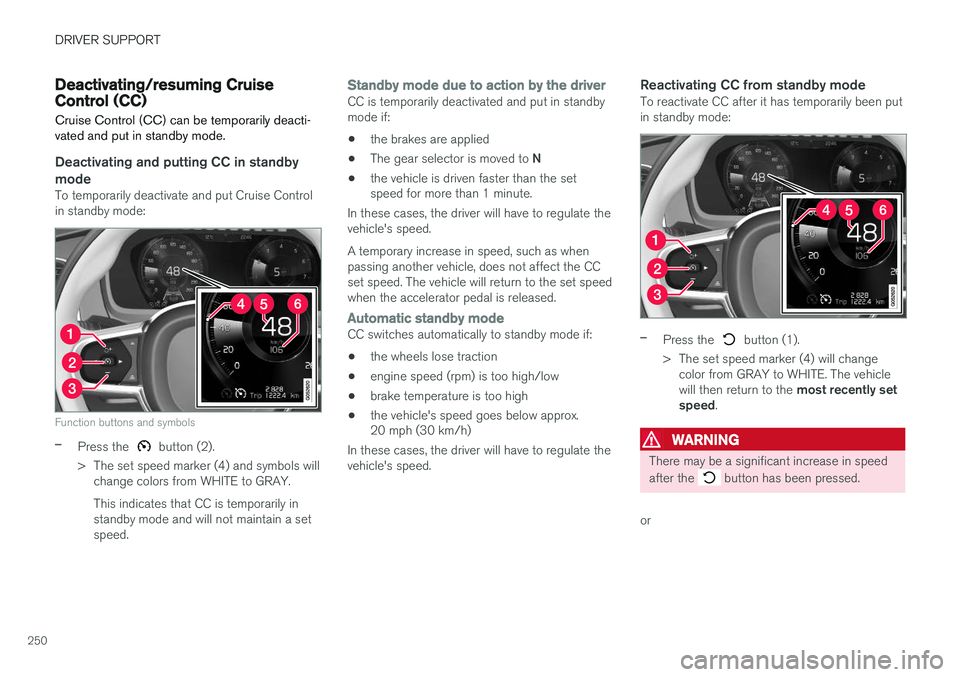
To temporarily deactivate and put Cruise Control in standby mode:
Function buttons and symbols
–Press the button (2).
> The set speed marker (4) and symbols will change colors from WHITE to GRAY. This indicates that CC is temporarily in standby mode and will not maintain a setspeed.
Standby mode due to action by the driverCC is temporarily deactivated and put in standby mode if:
• the brakes are applied
• The gear selector is moved to
N
• the vehicle is driven faster than the set speed for more than 1 minute.
In these cases, the driver will have to regulate the vehicle's speed. A temporary increase in speed, such as when passing another vehicle, does not affect the CCset speed. The vehicle will return to the set speedwhen the accelerator pedal is released.
Automatic standby modeCC switches automatically to standby mode if:
• the wheels lose traction
• engine speed (rpm) is too high/low
• brake temperature is too high
• the vehicle's speed goes below approx. 20 mph (30 km/h)
In these cases, the driver will have to regulate the vehicle's speed.
Reactivating CC from standby modeTo reactivate CC after it has temporarily been putin standby mode:
–Press the button (1).
> The set speed marker (4) will change color from GRAY to WHITE. The vehicle will then return to the most recently set
speed .
WARNING
There may be a significant increase in speed after the
button has been pressed.
or
Page 253 of 570
DRIVER SUPPORT
251
–Press the button (2).
> The set speed marker (4) and symbols will change colors from GRAY to WHITE. CC will then set and maintain the vehicle's current speed.
Related information
•Cruise Control (CC) (p. 248)
• Starting and activating Cruise Control (p. 248)
Turning Cruise Control off
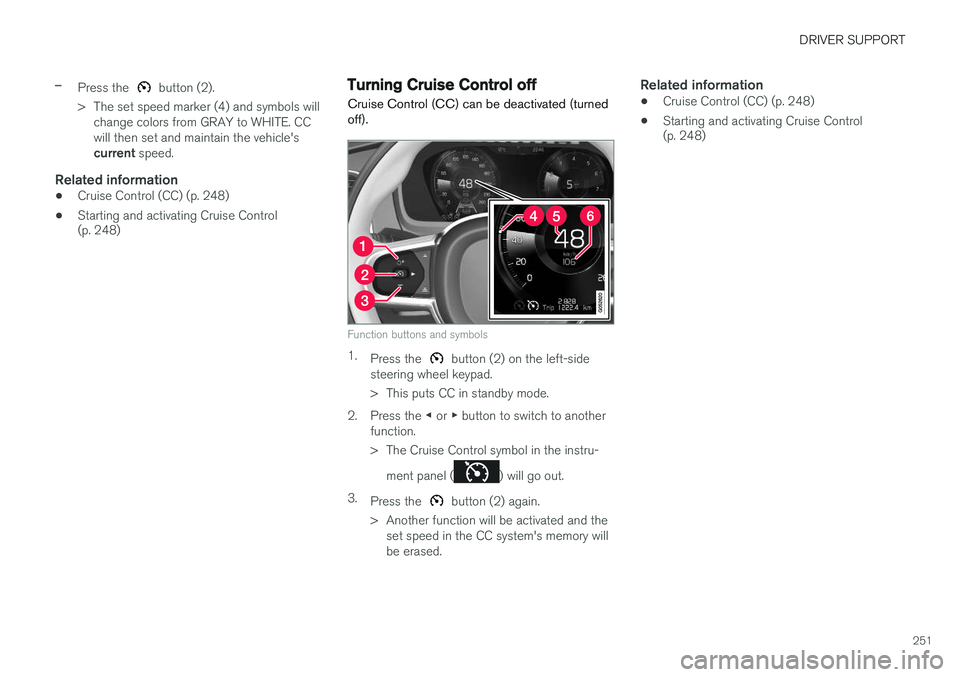
Cruise Control (CC) can be deactivated (turned off).
Function buttons and symbols
1. Press the button (2) on the left-side
steering wheel keypad.
> This puts CC in standby mode.
2. Press the ◀ or ▶ button to switch to another
function.
> The Cruise Control symbol in the instru-
ment panel (
) will go out.
3. Press the
button (2) again.
> Another function will be activated and the set speed in the CC system's memory will be erased.
Related information
• Cruise Control (CC) (p. 248)
• Starting and activating Cruise Control (p. 248)
Page 255 of 570
DRIVER SUPPORT
253
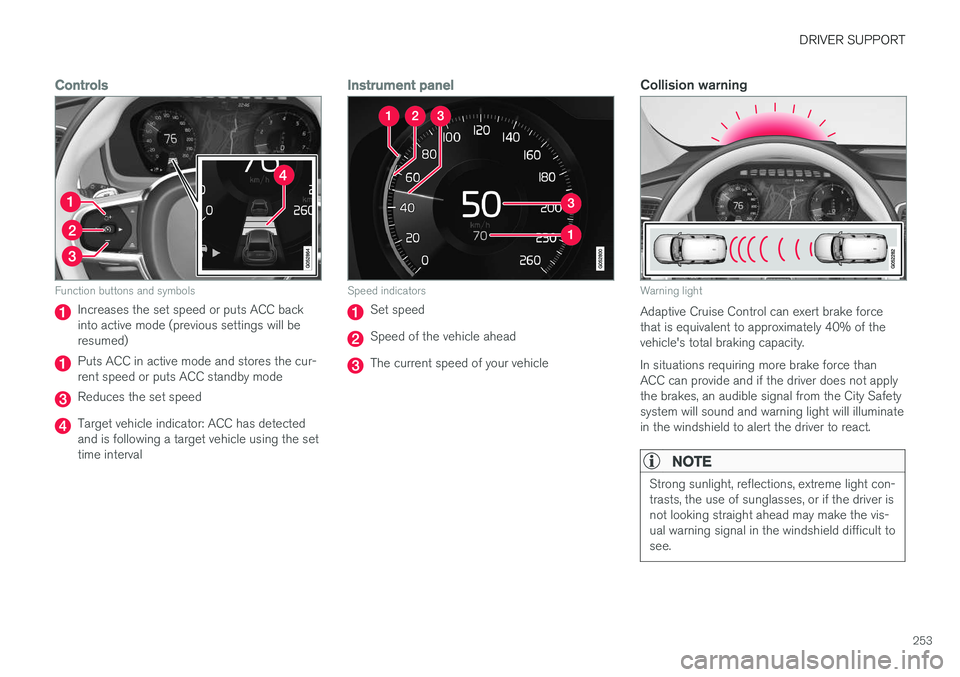
Controls
Function buttons and symbols
Increases the set speed or puts ACC back into active mode (previous settings will beresumed)
Puts ACC in active mode and stores the cur- rent speed or puts ACC standby mode
Reduces the set speed
Target vehicle indicator: ACC has detected and is following a target vehicle using the settime interval
Instrument panel
Speed indicators
Set speed
Speed of the vehicle ahead
The current speed of your vehicle
Collision warning
Warning light
Adaptive Cruise Control can exert brake force that is equivalent to approximately 40% of thevehicle's total braking capacity. In situations requiring more brake force than ACC can provide and if the driver does not applythe brakes, an audible signal from the City Safetysystem will sound and warning light will illuminatein the windshield to alert the driver to react.
NOTE
Strong sunlight, reflections, extreme light con- trasts, the use of sunglasses, or if the driver isnot looking straight ahead may make the vis-ual warning signal in the windshield difficult tosee.
Page 256 of 570

DRIVER SUPPORT
* Option/accessory, for more information, see Introduction.
254
Head-up-display *
A flashing light alerts the driver
A flashing icon will appear in the head-up dis- play* to alert the driver of a collision risk.
WARNING
Adaptive Cruise Control only warns of vehicles detected by the radar sensor. In some casesthere may be no warning or the warning maybe delayed. The driver should always apply thebrakes when necessary.
Related information
• Adaptive Cruise Control (ACC) - fault tracing (p. 271)
• Starting and activating Adaptive CruiseControl (ACC) (p. 254)
• Adaptive cruise control passing assistance(p. 270) •
Setting an Adaptive Cruise Control timeinterval (p. 258)
• Changing Adaptive Cruise Control (ACC)speed (p. 257)
• Deactivating/resuming Adaptive CruiseControl (ACC) (p. 255)
• Adaptive Cruise Control (ACC) symbols andmessages (p. 272)
Starting and activating Adaptive Cruise Control (ACC)
ACC must first be put in active mode before it can be started in order to regulate speed or aset time interval to the vehicle ahead.
Starting ACC (putting it in standby mode)
Function buttons and symbols
–Press ◀ (2) or ▶ (3) to scroll to the ACC
(
) function. The symbol (4) will be dis-
played in the instrument panel.
> The symbol indicates that ACC has been
started and is in standby mode . In
standby mode, the vehicle will not main-
tain a set speed or a time interval to the vehicle ahead.
Activating ACC (putting it in active mode and setting a speed)
Before ACC can be put in active mode:
Page 258 of 570

DRIVER SUPPORT
* Option/accessory, for more information, see Introduction.
256 To temporarily deactivate and put Adaptive Cruise Control in standby mode:
Function buttons and symbols
–Press the button (2).
> The
symbol in the instrument panel
will change colors from WHITE to GRAY and the set speed in the center of thespeedometer will change from BEIGE toGRAY.
Standby mode due to action by the driverACC is temporarily deactivated and put in standby mode if:
• the brakes are applied
• The gear selector is moved to
N
• the vehicle is driven faster than the set speed for more than 1 minute. In these cases, the driver will have to regulate the vehicle's speed. A temporary increase in speed, such as when passing another vehicle, does not affect the ACCset speed. The vehicle will return to the set speedwhen the accelerator pedal is released.
Automatic standby modeACC interacts with other systems, such as Electronic Stability Control. If any of these othersystems are not functioning properly, ACC willturn off automatically.
WARNING
If this happens, the driver will be alerted by an audible signal and a message in the instru-ment panel. The driver will have to adapt thevehicle's speed, apply the brakes when nec-essary and keep a safe distance to the vehicleahead.
ACC switches automatically to standby mode if: • the vehicle's speed goes below approx. 3 mph (5 km/h) and ACC cannot determineif the vehicle ahead is stationary or is anobject such as a speed bump, etc
• the vehicle's speed goes below approx.3 mph (5 km/h) and the vehicle aheadchanges lanes or turns so that ACC nolonger has a target vehicle to follow
• the driver opens the door
• the driver unbuckles the seat belt •
engine speed (rpm) is too high/low
• the wheels lose traction
• the parking brake is applied
• the stability system's
ESC Sport Mode is
activated
• the
Off Road drive mode is selected
• The radar sensor is covered by e.g., wet snow or if heavy rain interferes with radar waves
Reactivating ACC from standby modeTo reactivate ACC after it has temporarily been put in standby mode:
–Press the button (1).
> The vehicle will then return to the most
recently set speed .
WARNING
There may be a significant increase in speed after the
button has been pressed.
Related information
•Adaptive Cruise Control (ACC)
* (p. 252)
• Starting and activating Adaptive Cruise Control (ACC) (p. 254)
• Changing Adaptive Cruise Control (ACC)speed (p. 257)
• Setting an Adaptive Cruise Control timeinterval (p. 258)
Page 259 of 570
DRIVER SUPPORT
257
•
Adaptive cruise control passing assistance (p. 270)
• Adaptive Cruise Control (ACC) symbols andmessages (p. 272)
Changing Adaptive Cruise Control (ACC) speed
ACC makes it possible to set various speeds.
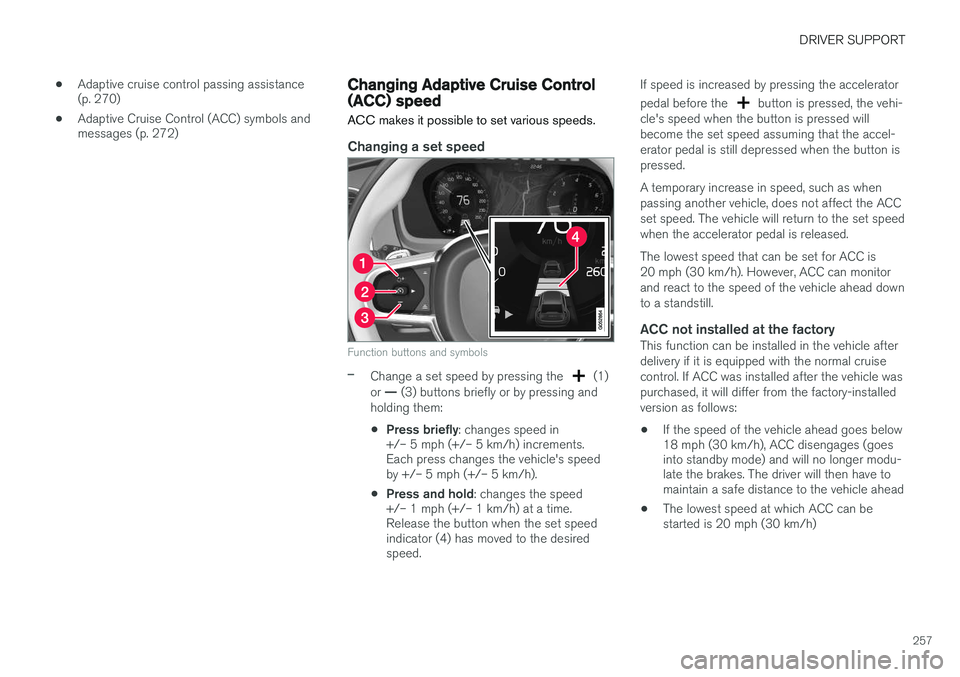
Changing a set speed
Function buttons and symbols
–Change a set speed by pressing the (1)
or
Page 260 of 570
DRIVER SUPPORT
* Option/accessory, for more information, see Introduction.
258
Related information
• Adaptive Cruise Control (ACC)
* (p. 252)
• Starting and activating Pilot Assist (p. 262)
• Setting an Adaptive Cruise Control time interval (p. 258)
Setting an Adaptive Cruise Control time interval
ACC makes it possible to set various time inter- vals to the vehicle ahead.
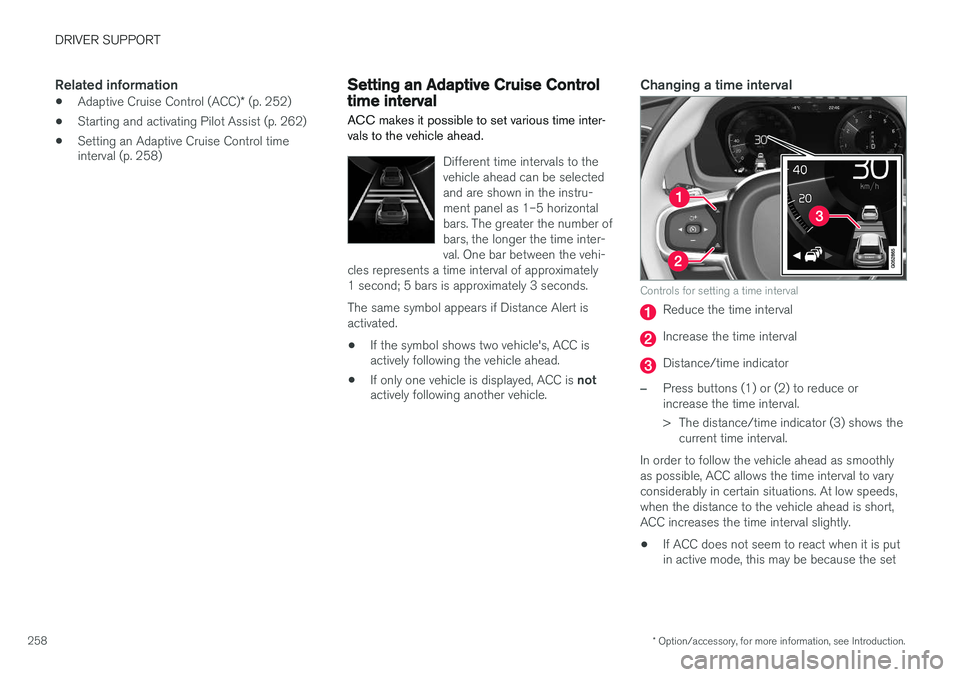
Different time intervals to the vehicle ahead can be selectedand are shown in the instru-ment panel as 1–5 horizontalbars. The greater the number ofbars, the longer the time inter-val. One bar between the vehi-
cles represents a time interval of approximately1 second; 5 bars is approximately 3 seconds. The same symbol appears if Distance Alert is activated.
• If the symbol shows two vehicle's, ACC is actively following the vehicle ahead.
• If only one vehicle is displayed, ACC is
not
actively following another vehicle.
Changing a time interval
Controls for setting a time interval
Reduce the time interval
Increase the time interval
Distance/time indicator
–Press buttons (1) or (2) to reduce or increase the time interval.
> The distance/time indicator (3) shows the
current time interval.
In order to follow the vehicle ahead as smoothly as possible, ACC allows the time interval to varyconsiderably in certain situations. At low speeds,when the distance to the vehicle ahead is short,ACC increases the time interval slightly. • If ACC does not seem to react when it is put in active mode, this may be because the set
Page 262 of 570

DRIVER SUPPORT
260
WARNING
•Pilot Assist is designed to be a supple- mentary driving aid and cannot cover alldriving situations, traffic, weather and/orroad conditions.
• The driver should be familiar with all ofthe information in this article regardingPilot Assist, including its limitations.
• Pilot Assist is not intended to replace thedriver's attention and judgement.
• Pilot Assist must only be used wherethere are clearly visible traffic lane sidemarker lines on both sides of the currenttraffic lane. In other circumstances thereis an increased risk of collision with sur-rounding obstacles that are not detectedby the system.
• The driver is always responsible for steer-ing the vehicle and maintaining a suitablespeed and distance to the vehicle aheadand must intervene if necessary, even ifPilot Assist is being used.
Pilot Assist is designed to regulate speed smoothly but in situations calling for fast braking,the driver must apply the brakes. This applies tosituations where there are considerable differen-ces in speed or if the vehicle ahead brakes sud-denly. Due to the limitations of the camera andradar sensor, the system may apply the brakes inyour vehicle suddenly or not at all. The default speed for Pilot Assist is preset toapprox. 30 mph (50 km/h) and cannot bechanged. If the vehicle ahead increases speed toover 30 mph (50 km/h) and pulls away from yourvehicle, Pilot Assist will go into standby mode.
NOTE
•
Pilot Assist maintenance should only be carried out by a trained and qualifiedVolvo service technician.
• Pilot Assist regulates your vehicle'sspeed using the accelerator pedal andthe brakes. Please be aware that theremay be a faint sound from the brakeswhen the system is using them.
WARNING
•Pilot Assist does not react to people or animals, or small vehicles such as bicy-cles and motorcycles. It also does notreact to low trailers, slow moving, parkedor approaching vehicles, or stationaryobjects.
• Do not use Pilot Assist in demandingdriving conditions such as city driving orother heavy traffic situations, in slipperyconditions, when there is a great deal ofwater or slush on the road, during heavyrain or snow, in poor visibility, on windingroads or on highway on- or off-ramps.
Pilot Assist overview
Controls
Function buttons and symbols
[]: Press to activate Pilot Assist or put it
in standby mode
Arrow key [ < ]: change from Pilot Assist to
Adaptive Cruise Control (symbol (6) will also change)
Reduce the distance (time interval) to the vehicle ahead
Arrow key [ > ]: change from Adaptive Cruise
Control to Pilot Assist (symbol (6) will also change)
Increase the distance (time interval) to the vehicle ahead
Function symbols
Page 264 of 570
DRIVER SUPPORT
* Option/accessory, for more information, see Introduction.
262
WARNING
Pilot Assist only provides warnings for vehi- cles that its radar sensor and camera havedetected. For this reason, a warning may begiven later than expected or not at all. Thedriver should never wait for a warning beforeapplying the brakes.
Related information
• Pilot Assist limitations (p. 266)
• Pilot Assistauto-hold brake function (p. 266)
• Distance Alert
* (p. 314)
• Other Adaptive Cruise Control (ACC) func- tions (p. 268)
• Setting an Adaptive Cruise Control timeinterval (p. 258)
Starting and activating Pilot Assist
The Pilot Assist feature helps keep the vehicle in its current traffic lane, at a set speed and a settime interval to the vehicle ahead.
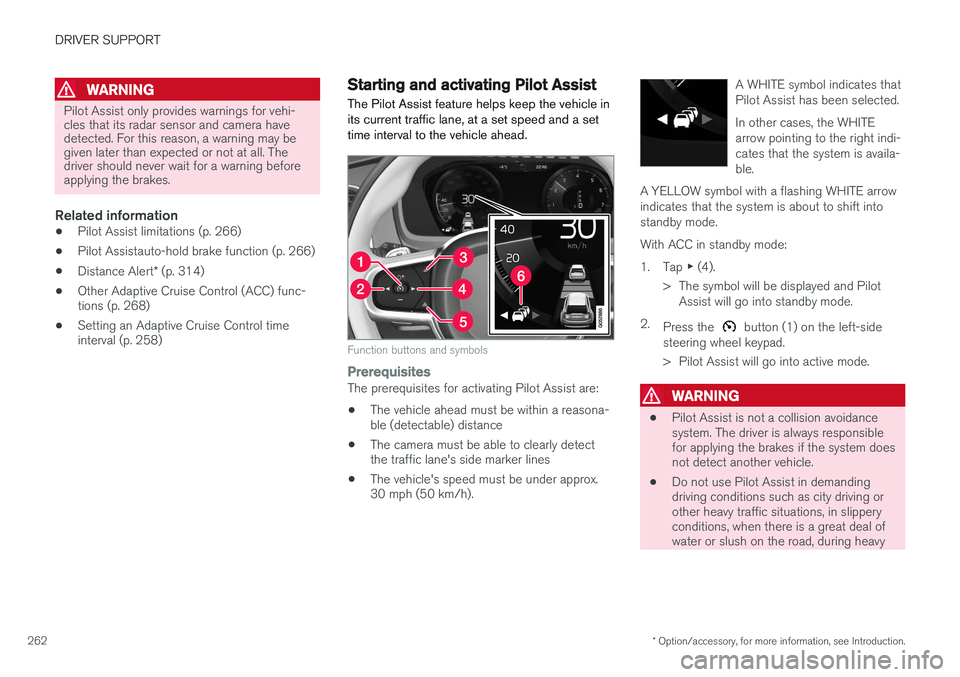
Function buttons and symbols
PrerequisitesThe prerequisites for activating Pilot Assist are:
• The vehicle ahead must be within a reasona- ble (detectable) distance
• The camera must be able to clearly detectthe traffic lane's side marker lines
• The vehicle's speed must be under approx.30 mph (50 km/h). A WHITE symbol indicates that Pilot Assist has been selected. In other cases, the WHITE arrow pointing to the right indi-cates that the system is availa-ble.
A YELLOW symbol with a flashing WHITE arrowindicates that the system is about to shift intostandby mode.
With ACC in standby mode: 1. Tap ▶ (4).
> The symbol will be displayed and Pilot Assist will go into standby mode.
2. Press the
button (1) on the left-side
steering wheel keypad.
> Pilot Assist will go into active mode.
WARNING
• Pilot Assist is not a collision avoidance system. The driver is always responsiblefor applying the brakes if the system doesnot detect another vehicle.
• Do not use Pilot Assist in demandingdriving conditions such as city driving orother heavy traffic situations, in slipperyconditions, when there is a great deal ofwater or slush on the road, during heavy
Page 265 of 570

DRIVER SUPPORT
* Option/accessory, for more information, see Introduction.263
rain or snow, in poor visibility, on winding roads or on highway on- or off-ramps.
• Pilot Assist uses the vehicle's cameraand radar sensor, which have limitations.
Pilot Assist may deactivate or not function optimally if:
• the lane's side market lines are missing, badly faded or cross each other.
• the division of lanes is not clear, e.g.,when a line divides or merges withanother, at exits or if there are many roadsigns/markers.
• if there are edges or other lines on ornear the lane, e.g., curbs, cracks, repairedareas, sharp shadows, etc.
• the lane is narrow or winding.
• the weather conditions (rain, snow, fog,slush, poor visibility, backlighting, etc).
The driver should also be aware that Pilot Assist has the following limitations: • High curbs, barriers and temporary obsta- cles (cones, barriers etc) may not bedetected or could be detected incorrectlyas side marker lines, which may create arisk of collision. The driver must ensure asafe distance to these obstacles.
• The camera or radar sensor may not beable to detect objects if there are pot-holes or if there are stationary objectspartially or completely blocking the road.• Pilot Assist does not "see" pedestrians, animals, etc.
• Pilot Assist's steering capacity is limitedand may not always be able to help thedriver keep the vehicle in the lane.
Hands on the steering wheelPilot Assist only functions when the driver's hands are on the steering wheel
, which is con-
tinuously monitored by the system. If this is notthe case, the driver will be alerted by a text mes-sage in the instrument panel. If the driver's handsare not returned to the steering wheel, an audiblesignal will sound. If the driver does not return his/her hands to the steering wheel after the audible signal, PilotAssist will go into standby mode and must be reactivated by pressing
.
Related information
• Pilot Assist
* (p. 259)
Deactivating/resuming Pilot Assist
Putting Pilot Assist in standby mode
Function buttons and symbols
1.
Press the button (1).
> Pilot Assist will go into standby mode.
2. Press the ◀ button (2).
> Pilot Assist will be turned off and shift to ACC in standby mode.
or
–Press the ◀ button (2).
> Pilot Assist will be turned off and switch to ACC in active mode.