buttons VOLVO XC90 2015 Repair Manual
[x] Cancel search | Manufacturer: VOLVO, Model Year: 2015, Model line: XC90, Model: VOLVO XC90 2015Pages: 570, PDF Size: 12.44 MB
Page 285 of 570
DRIVER SUPPORT
* Option/accessory, for more information, see Introduction.283
Speed limiter (SL)*
The Speed Limiter (SL) is a feature that helps prevent the driver from exceeding a preset maxi-mum speed.
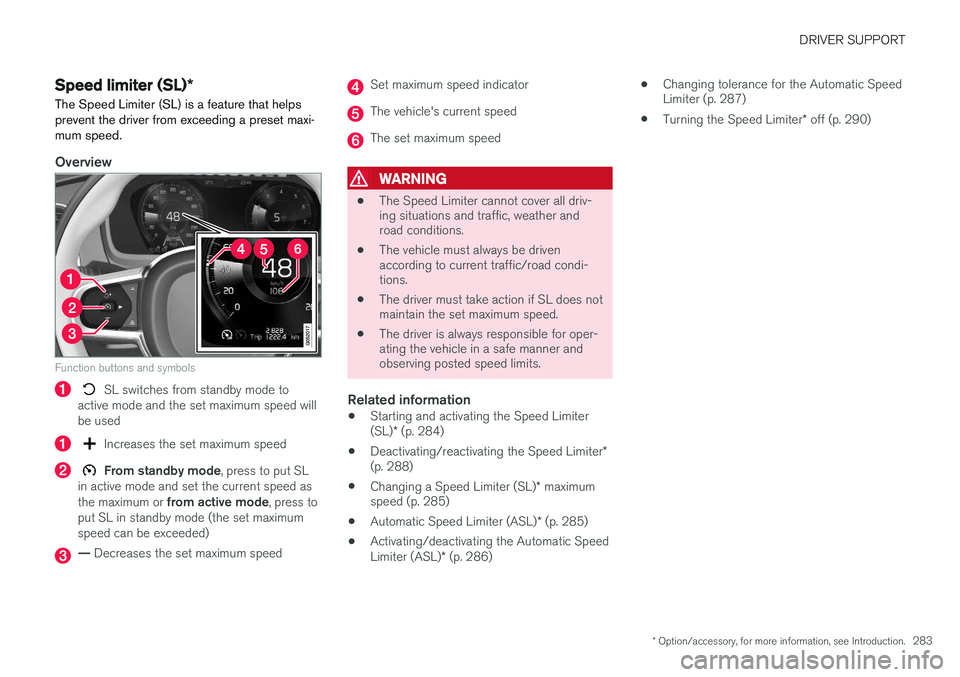
Overview
Function buttons and symbols
SL switches from standby mode to
active mode and the set maximum speed will be used
Increases the set maximum speed
From standby mode , press to put SL
in active mode and set the current speed as the maximum or from active mode , press to
put SL in standby mode (the set maximum speed can be exceeded)
Page 286 of 570
DRIVER SUPPORT
* Option/accessory, for more information, see Introduction.
284
Starting and activating the Speed Limiter (SL) *
The Speed Limiter (SL) is a feature that helps prevent the driver from exceeding a preset maxi-mum speed.
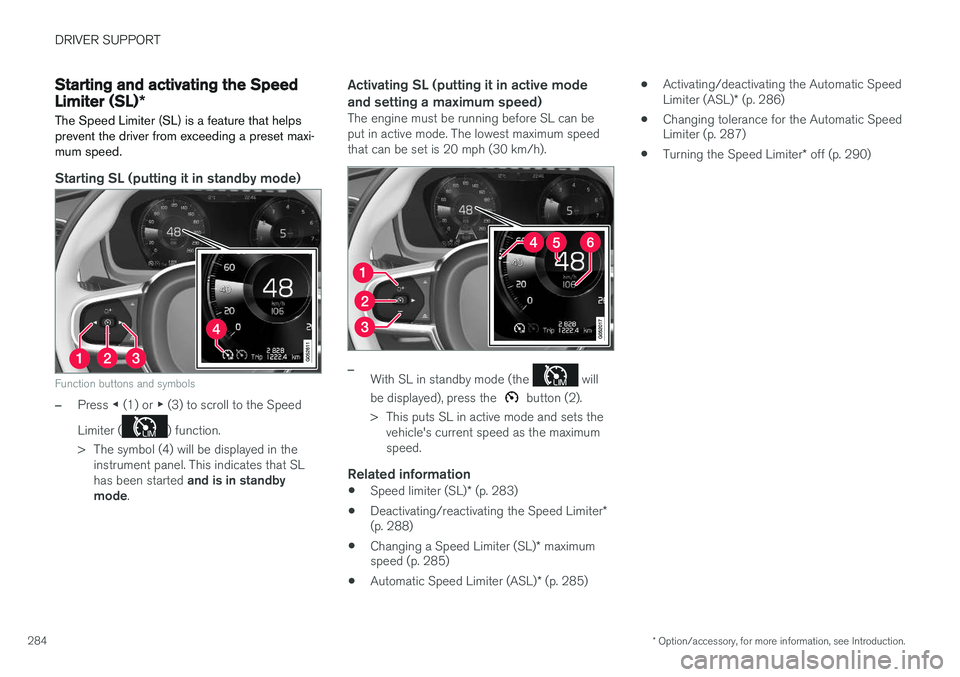
Starting SL (putting it in standby mode)
Function buttons and symbols
–Press ◀ (1) or ▶ (3) to scroll to the Speed
Limiter (
) function.
> The symbol (4) will be displayed in the instrument panel. This indicates that SL has been started and is in standby
mode .
Activating SL (putting it in active mode and setting a maximum speed)
The engine must be running before SL can be put in active mode. The lowest maximum speedthat can be set is 20 mph (30 km/h).
–With SL in standby mode (the will
be displayed), press the
button (2).
> This puts SL in active mode and sets the vehicle's current speed as the maximum speed.
Related information
• Speed limiter (SL)
* (p. 283)
• Deactivating/reactivating the Speed Limiter
*
(p. 288)
• Changing a Speed Limiter (SL)
* maximum
speed (p. 285)
• Automatic Speed Limiter (ASL)
* (p. 285) •
Activating/deactivating the Automatic Speed Limiter (ASL)
* (p. 286)
• Changing tolerance for the Automatic Speed Limiter (p. 287)
• Turning the Speed Limiter
* off (p. 290)
Page 287 of 570
DRIVER SUPPORT
* Option/accessory, for more information, see Introduction.285
Changing a Speed Limiter (SL)*
maximum speed
The Speed Limiter (SL) is a feature that helps prevent the driver from exceeding a preset maxi-mum speed.
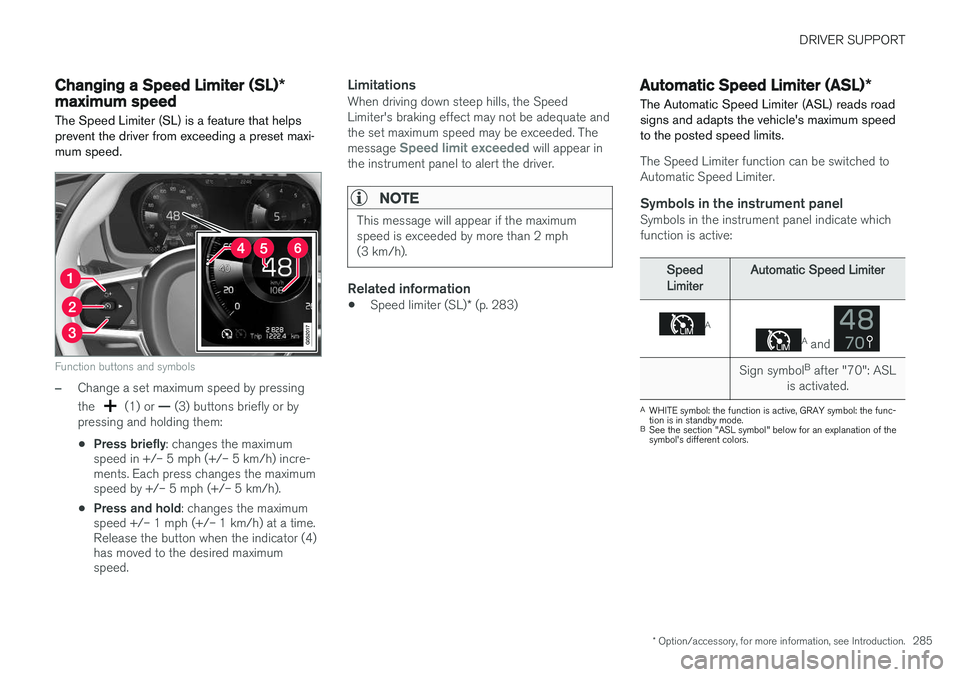
Function buttons and symbols
–Change a set maximum speed by pressing the
(1) or
Page 289 of 570
DRIVER SUPPORT
* Option/accessory, for more information, see Introduction.287
Deactivating1.
Tap the Speed Sign Assist button in the
center display's Function view.
> ASL will be deactivated and the Speed limiter (SL) will be activated.
2. Press the
button on the left-side steer-
ing wheel keypad.
> SL will go into standby mode.
WARNING
After switching from ASL to SL, the vehicle will no longer adapt speed to posted speedlimits. It will only limit the vehicle's maximumspeed.
Related information
• Speed limiter (SL)
* (p. 283)
• Automatic Speed Limiter (ASL)
* (p. 285)
Changing tolerance for the Automatic Speed Limiter
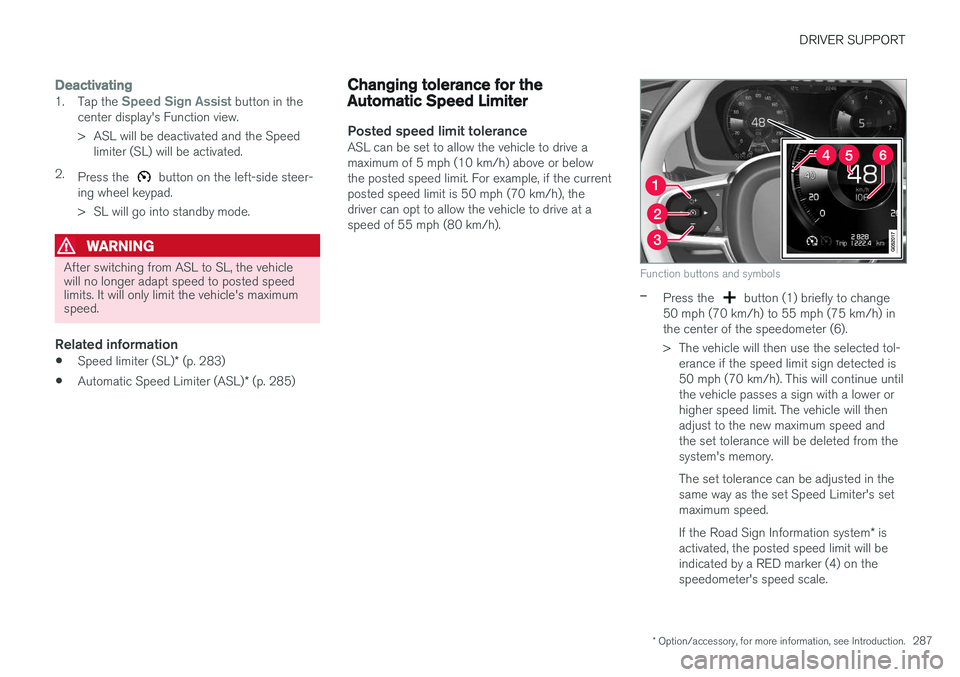
Posted speed limit toleranceASL can be set to allow the vehicle to drive a maximum of 5 mph (10 km/h) above or belowthe posted speed limit. For example, if the currentposted speed limit is 50 mph (70 km/h), thedriver can opt to allow the vehicle to drive at aspeed of 55 mph (80 km/h).
Function buttons and symbols
–Press the button (1) briefly to change
50 mph (70 km/h) to 55 mph (75 km/h) in the center of the speedometer (6).
> The vehicle will then use the selected tol- erance if the speed limit sign detected is 50 mph (70 km/h). This will continue untilthe vehicle passes a sign with a lower orhigher speed limit. The vehicle will thenadjust to the new maximum speed andthe set tolerance will be deleted from thesystem's memory. The set tolerance can be adjusted in the same way as the set Speed Limiter's setmaximum speed. If the Road Sign Information system * is
activated, the posted speed limit will be indicated by a RED marker (4) on thespeedometer's speed scale.
Page 290 of 570
DRIVER SUPPORT
* Option/accessory, for more information, see Introduction.
288
Related information
• Automatic Speed Limiter (ASL)
* (p. 285)
• Activating/deactivating the Automatic Speed Limiter (ASL)
* (p. 286)
• Road Sign Information (RSI)
* (p. 290)
• Changing a Speed Limiter (SL)
* maximum
speed (p. 285)
Deactivating/reactivating the Speed Limiter *
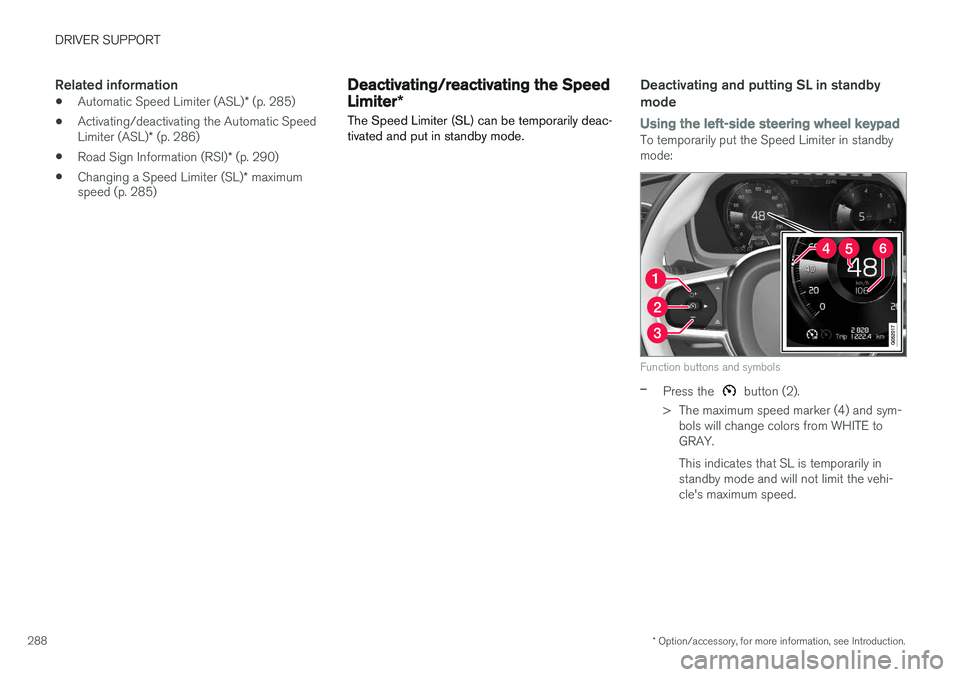
The Speed Limiter (SL) can be temporarily deac- tivated and put in standby mode.Deactivating and putting SL in standby mode
Using the left-side steering wheel keypadTo temporarily put the Speed Limiter in standby mode:
Function buttons and symbols
–Press the button (2).
> The maximum speed marker (4) and sym- bols will change colors from WHITE to GRAY. This indicates that SL is temporarily in standby mode and will not limit the vehi-cle's maximum speed.
Page 292 of 570
DRIVER SUPPORT
* Option/accessory, for more information, see Introduction.
290
Turning the Speed Limiter * off
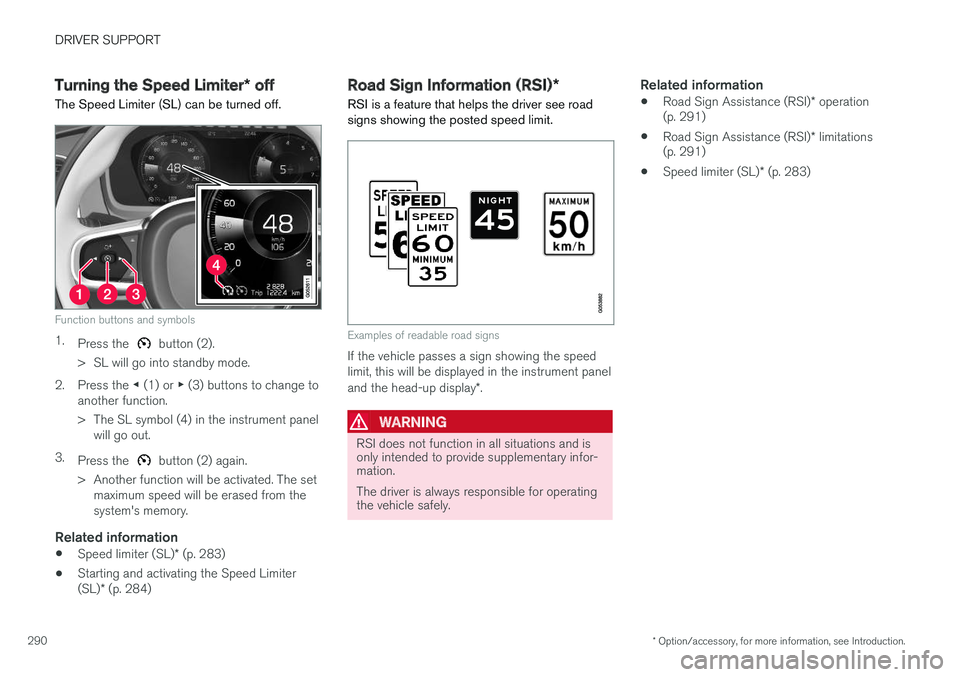
The Speed Limiter (SL) can be turned off.
Function buttons and symbols
1. Press the button (2).
> SL will go into standby mode.
2. Press the ◀ (1) or ▶ (3) buttons to change to
another function.
> The SL symbol (4) in the instrument panel will go out.
3. Press the
button (2) again.
> Another function will be activated. The set maximum speed will be erased from the system's memory.
Related information
• Speed limiter (SL)
* (p. 283)
• Starting and activating the Speed Limiter (SL)
* (p. 284)
Road Sign Information (RSI) *
RSI is a feature that helps the driver see road signs showing the posted speed limit.
Examples of readable road signs
If the vehicle passes a sign showing the speed limit, this will be displayed in the instrument panel and the head-up display *.
WARNING
RSI does not function in all situations and is only intended to provide supplementary infor-mation. The driver is always responsible for operating the vehicle safely.
Related information
• Road Sign Assistance (RSI)
* operation
(p. 291)
• Road Sign Assistance (RSI)
* limitations
(p. 291)
• Speed limiter (SL)
* (p. 283)
Page 375 of 570
STARTING AND DRIVING
* Option/accessory, for more information, see Introduction.373
Loading modeUse the buttons in the cargo compartment to raise or lower the vehicle to make loading orunloading easier or when attaching a trailer.
Parking the vehicleWhen parking, be sure that there is adequatespace above and below the vehicle since itsground clearance may vary, e.g., depending onthe ambient temperature, how the vehicle is loa-ded, if loading mode is being used or the drivemode selected after the engine is started. The level may also be adjusted for a certain time after the vehicle has been parked to compensatefor possible height adjustments due to tempera-ture changes in the pneumatic suspension whenthe vehicle has cooled.
TransportWhen transporting the vehicle on a ferry, train ora tow truck, it may only be secured (lashed)around the tires, not using any other chassiscomponents. Changes in the pneumatic suspen-sion may occur during transport that could nega-tively affect the lashing and result in damage.
Related information
•Drive modes
* (p. 359)
• Driving with a trailer (p. 351)
• Loading (p. 207)
Page 389 of 570
INFOTAINMENT
387
Phone
A Bluetooth-enabled cell phone can be paired and connected to the vehicle's integrated hands-free system.
The infotainment system offers hands-free func- tionality for remote-controlling a number of a cellphone's features. The phone's integrated controlscan also be used, even when it is connected tothe vehicle. When the phone has been paired and connected to the infotainment system, it can be used tomake or receive calls, send or receive text mes-sages, to stream music, etc., or as an Internetconnection.
The phone is controlled fromthe center display but the Appmenu (accessed using theright-side steering wheel key-pad) and voice commands canalso be used to control certainfunctions.
Overview
Microphone
Cell phone
Center display
Keypad for controlling phone functions shown in the center display and voice com-mands
Instrument panel
Related information
•Connecting/disconnecting a cell phone (p. 389)
• Handling phone calls (p. 390)
• Handling text messages (p. 391)
• Pairing a cell phone (p. 387)
• Phone settings (p. 392)
• Text message settings (p. 392)
Pairing a cell phone
A Bluetooth ®
-enabled cell phone or other device
can be paired and wirelessly connected to the infotainment system.
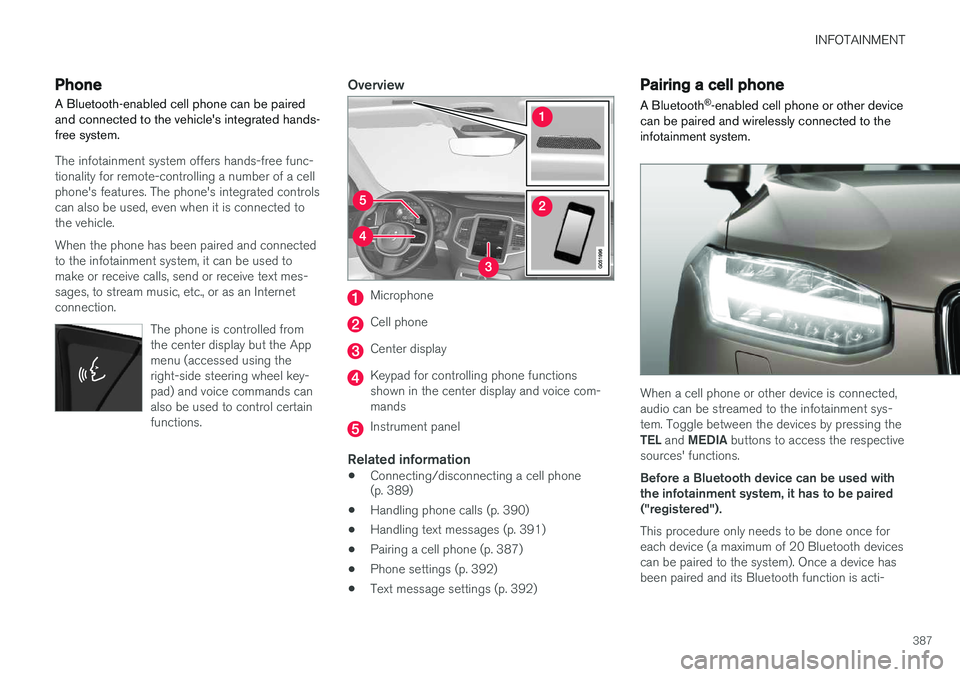
When a cell phone or other device is connected, audio can be streamed to the infotainment sys-tem. Toggle between the devices by pressing the TEL and MEDIA buttons to access the respective
sources' functions. Before a Bluetooth device can be used with the infotainment system, it has to be paired("registered"). This procedure only needs to be done once for each device (a maximum of 20 Bluetooth devicescan be paired to the system). Once a device hasbeen paired and its Bluetooth function is acti-
Page 398 of 570

INFOTAINMENT
* Option/accessory, for more information, see Introduction.
396
Volume: use the buttons on the keypad or turn the control under the center display to raise orlower the volume. Play/pause: tap the track's image, press the
symbol on the keypad or press the button under the center display. Change tracks: tap the desired track on the cen- ter display, press the < > buttons under the cen-
ter display or use the keypad. Fast forward/reverse, move within a track: press the time axis on the center display and drag from side to side, press and hold the
< > buttons
under the center display or use the keypad. Change media source: Tap a media source under
Recents, tap the desired app in the center dis-
play's App view or use the keypad.
Library: tap to play a track from the library.
Shuffle: tap to play tracks in random order.
Similar: tap to use Gracenote to search for simi-
lar music on the USB device and create a playlist based on the results. The playlist can contain upto 50 tracks.
Change device: tap to toggle between USB
devices if more than one is connected.
Video settingsThe following can be adjusted with the video player in full screen or by opening the center dis- play's Top view and tapping
SettingsVideo:Primary Audio Default Language, Subtitleand Primary Subtitle Default Language.
Play DivX®This DivX device must be registered in order to play purchased DivX Video-on-Demand (VOD)movies.
1. Open the center display's Top view and tap
SettingsVideoDivX
® VOD to get a
registration code. 2. Go to vod.divx.com for additional information
and to complete the registration process.
Related information
• CD (media) player
* (p. 394)
• Media player technical data (p. 400)
• Media player (p. 393)
• Voice control for radio and media (p. 122)
• Apps (applications) (p. 403)
• Connecting a Bluetooth ®
device (p. 393)
• Connecting a device via the AUX/USB socket (p. 393)
• Gracenote (p. 399)
• Connecting to the Internet (p. 402)
• Media searches (p. 397)
• Video (p. 399)
Page 416 of 570
VOLVO ON CALL WITH SENSUS CONNECT *
* Option/accessory, for more information, see Introduction.
414
Volvo On Call (VOC) *
VOC is an integrated, subscription-based sys-
tem that provides emergency, roadside assis- tance and security services.
VOC is connected to the vehicle's airbag and alarm systems. The vehicle has an integratedGlobal System for Mobile Communications(GSM) module that handles communicationbetween the vehicle and the VOC customer serv-ice center.
AvailabilityVOC uses the Global Navigation Satellite System(GNSS) to locate the vehicle and its integratedGSM module to enable communication with theVOC customer service center and the VOCmobile app. From the time that the remote key has been removed from the vehicle, VOC's functionsremain available for 5 full days and subsequentlyonce an hour for the following 17 days. Afterthree weeks have elapsed, the system will remainswitched off until the engine is started.
WARNING
The system can only function in areas where there is adequate cellular network coverage. Just as in the case of cell phones, atmos- pheric disturbances or areas with relativelyfew GSM transmitters can make it impossiblefor VOC to make a connection, for example, inrural areas.
SubscriptionsA free, limited-time trial subscription is initiated when the vehicle is purchased and VOC is acti-vated. The subscription can be extended by con-tacting your Volvo retailer.
Information on the InternetFor additional information about Volvo On Call, goto: United States http://www.volvocars.com/us/support Canada English: http://support.volvocars.com/en-CA French: http://support.volvocars.com/fr-CA
Related information
• Volvo On Call convenience services (p. 416)
• Volvo On Call safety services (p. 424)
• Volvo On Call security services (p. 425)
• Using Volvo On Call (p. 414)
• Volvo ID (p. 27)
Using Volvo On Call
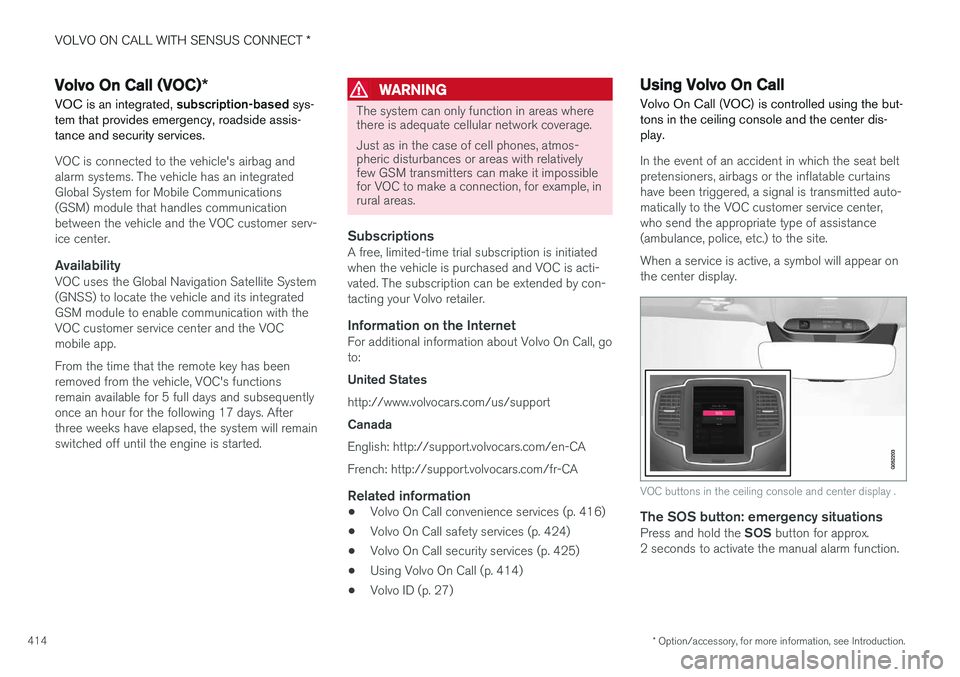
Volvo On Call (VOC) is controlled using the but- tons in the ceiling console and the center dis-play.
In the event of an accident in which the seat belt pretensioners, airbags or the inflatable curtainshave been triggered, a signal is transmitted auto-
matically to the VOC customer service center,who send the appropriate type of assistance(ambulance, police, etc.) to the site. When a service is active, a symbol will appear on the center display.
VOC buttons in the ceiling console and center display .
The SOS button: emergency situationsPress and hold the SOS button for approx.
2 seconds to activate the manual alarm function.