messages VOLVO XC90 2017 Owner´s Manual
[x] Cancel search | Manufacturer: VOLVO, Model Year: 2017, Model line: XC90, Model: VOLVO XC90 2017Pages: 560, PDF Size: 9.97 MB
Page 427 of 560
INFOTAINMENT
* Option/accessory.425
1.
From App view, tap Messages to open.
2. Tap the name of the contact who sent the message.
3. Tap
Read out to have the message read
aloud or tap the message to be displayed.
Reading new text messages in the instrument panel
Text messages are only displayed in the instru- ment panel if this has been selected. See thearticle "Text message settings" for more informa-tion.
–To have the message read aloud, selectRead out using the keypad in the steering
wheel.
Sending text messages
1. From App view, tap Messages to open. 2.
•To reply to a message: tap the name of the contact who sent the message and then tap
Answer.
• To create a new message: tap
Create
new
+. Select the contact who will
receive the message or enter a phone number.
3. Write or dictate (
) the message.
4. Tap
Send.
Message notificationSee the article "Text message settings" for a list of possible settings.
Related information
• Text message settings (p. 426)
Phone settings
The following settings can be made for a paired and connected cell phone.
Cell phones
–Pull down the center display's Top view and tap
SettingsCommunicationPhoneand choose among the following settings: •
Ringtones: select a ring tone (tones from
the cell phone or the vehicle can be used). Not all cell phones are fully com-patible and it may not be possible to usetheir ring tones in the vehicle. Go towww.volvocars.com for additional informa-tion.
•
Sort order for contacts: select sort cri-
teria for the phone book (list of contacts).
To show call notifications in the head-up dis- play *, see the article "Head-up display."
Related information
• Text message settings (p. 426)
• Bluetooth settings (p. 441)
• Phone (p. 419)
• Handling phone calls (p. 422)
• Head-up display (HUD)
* (p. 116)
Page 428 of 560
INFOTAINMENT
426
Text message settings
The following settings can be made for text mes- sages received through a paired and connectedcell phone.
Text message settings
–Pull down the center display's Top view and tap
SettingsCommunicationText
Messages and choose among the following
settings:
•
Notification in center display: shows
text messages in the center display's sta- tus bar.
•
Notification in driver display: shows
text messages in the instrument panel. With this alternative active, incoming mes-sages can be handled from the right-sidesteering wheel keypad.
•
Text message tone: select an audible
signal for incoming text messages.
Related information
• Connecting/disconnecting a cell phone (p. 421)
• Pairing a cell phone (p. 420)
• Handling text messages (p. 424)
Connecting a Bluetooth ®
device
Bluetooth ®
-enabled devices can be paired and
connected to the infotainment system to stream media and in some cases connect to the Inter-net.
Many cell phones and other devices currently on the market offer wireless Bluetooth ®
technology.
Consult your Volvo retailer or go to support.volvocars.com for any questions regar-ding a device's compatibility with the vehicle'sinfotainment system. The procedure for pairing and connecting a Bluetooth ®
-enabled device is the same as for a
cell phone. See the articles "Pairing a cell phone" and "Connecting/disconnecting a cell phone" fordetails.
Related information
• Pairing a cell phone (p. 420)
• Connecting/disconnecting a cell phone(p. 421)
Connecting a device via the AUX/USB socket
External audio sources such as an iPod ®
or mp3
player can be connected to the infotainment sys- tem via the AUX and USB sockets in the tunnelconsole. Route the cable out under the front edge to help avoid pinching it when the cover is closed.
If there are two USB sockets, the one with a white frame should be used to connect aniPhone to Apple CarPlay.
AUX/USB sockets in the tunnel console
Related information
• Apple CarPlay (p. 428)
• Playing media (p. 432)
• Media player technical data (p. 437)
• Media player (p. 427)
Page 430 of 560
INFOTAINMENT
* Option/accessory.
428
Apple CarPlay
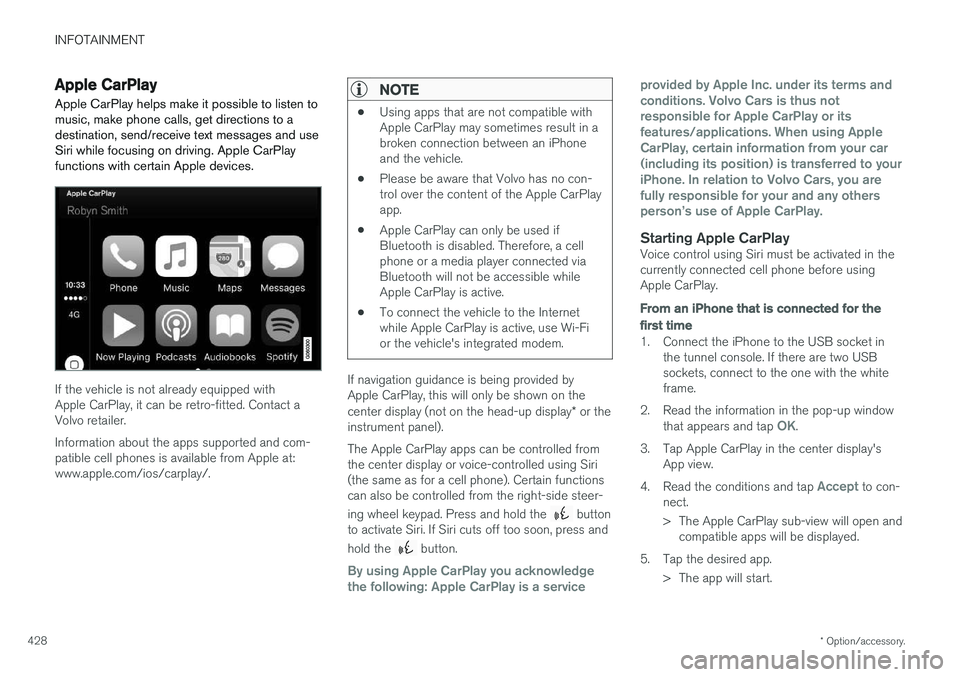
Apple CarPlay helps make it possible to listen to music, make phone calls, get directions to adestination, send/receive text messages and useSiri while focusing on driving. Apple CarPlayfunctions with certain Apple devices.
If the vehicle is not already equipped with Apple CarPlay, it can be retro-fitted. Contact aVolvo retailer. Information about the apps supported and com- patible cell phones is available from Apple at:www.apple.com/ios/carplay/.
NOTE
• Using apps that are not compatible with Apple CarPlay may sometimes result in abroken connection between an iPhoneand the vehicle.
• Please be aware that Volvo has no con-trol over the content of the Apple CarPlayapp.
• Apple CarPlay can only be used ifBluetooth is disabled. Therefore, a cellphone or a media player connected viaBluetooth will not be accessible whileApple CarPlay is active.
• To connect the vehicle to the Internetwhile Apple CarPlay is active, use Wi-Fior the vehicle's integrated modem.
If navigation guidance is being provided by Apple CarPlay, this will only be shown on the center display (not on the head-up display
* or the
instrument panel). The Apple CarPlay apps can be controlled from the center display or voice-controlled using Siri(the same as for a cell phone). Certain functionscan also be controlled from the right-side steer- ing wheel keypad. Press and hold the
button
to activate Siri. If Siri cuts off too soon, press and hold the
button.
By using Apple CarPlay you acknowledge the following: Apple CarPlay is a service provided by Apple Inc. under its terms andconditions. Volvo Cars is thus notresponsible for Apple CarPlay or itsfeatures/applications. When using AppleCarPlay, certain information from your car(including its position) is transferred to youriPhone. In relation to Volvo Cars, you arefully responsible for your and any othersperson
Page 443 of 560
INFOTAINMENT
}}
441
Bluetooth settingsThe following settings apply to a Bluetooth-con- nected cell phone or other device.
Bluetooth1. Tap Settings in the center display's Top
view.
2. Tap
CommunicationBluetooth
Devices and select among the following set-
tings:
•
Previously paired devices: lists the
devices that are paired and connected to the vehicle.
•
Internet connection: select to connect
to the Internet using the device's Bluetooth connection.
•
Add device: begin the procedure to pair
a new device.
•
Remove device: remove a paired device.
•
Allowed services for this device: select
what the device will be used for: make calls, send/receive messages, streammedia, Internet connection.
Bluetooth complianceUnited States FCC CAUTION Changes or modifications not expressly approved by the party responsible for compliance couldvoid the user's authority to operate the equip- ment. This transmitter must not be co-located oroperated in conjunction with any other antennaor transmitter. Canada This device complies with Industry Canada licence-exempt RSS standard(s). Operation issubject to the following two conditions: (1) this device may not cause interference, and(2) this device must accept any interference, including interference that may cause undesiredoperation of the device.
Related information
•
Internet connected vehicle (p. 439)
• Pairing a cell phone (p. 420)
• Phone (p. 419)
• Media player (p. 427)
• Connecting/disconnecting a cell phone(p. 421)
Downloading, updating and uninstalling apps
When the vehicle is connected to the Internet, apps can be added (downloaded), kept up-to-date or deleted.
NOTE
Downloading data may affect other services that transfer data such as web radio, stream-ing music, etc. If this occurs, a download inprogress can be cancelled or the other serv-ice can be temporarily turned off.
Apps are managed via theDownload Center in the cen-
ter display's App view. To download, update or delete apps, the vehicle must be con-nected to the Internet.
Downloading an app
1. Open the Download Center app.
2. Select
New apps to open a list of apps that
are available but which are not installed in the vehicle. Tap anywhere in a line for an appto expand the list for additional information.
Page 470 of 560
||
WHEELS AND TIRES
468When the system detects a malfunction, the tell- tale will flash for approximately one minute andthen remain continuously illuminated. Thissequence will continue upon subsequent vehiclestart-ups as long as the malfunction exists. Whenthe malfunction indicator is illuminated, the sys-tem may not be able to detect or signal low tirepressure as intended. TPMS malfunctions may occur for a variety of reasons, including the installation of replacementor alternate tires or wheels on the vehicle thatprevent the TPMS from functioning properly.Always check the TPMS malfunction telltale afterreplacing one or more tires or wheels on yourvehicle to ensure that the replacement or alter-nate tires and wheels allow the TPMS to con-tinue to function properly.
Messages in the instrument panel
When the TPMS symbol illuminates, the following text messages may also be displayed:
•
Tire pressure low
•Tire pressure system Temporarily
unavailable
•Tire pressure system Service required
If TPMS cannot determine which tire(s) have low inflation pressure:
• All four tires will be shown as affected in thecenter display After changing wheels, always calibrate the sys-tem to avoid false warnings. TPMS does not replace the need for regular tire inspection and maintenance.
NOTE
If you change to tires with a different dimen- sion than the factory-installed ones, theTPMS system must be calibrated for thesetires. TPMS cannot be turned off.
WARNING
Incorrect inflation pressure could lead to tire failure, resulting in a loss of control of thevehicle.
Related information
•
Checking tire inflation pressure (p. 468)
• Reinflating tires equipped with the Tire Pressure Monitoring System (TPMS)(p. 469)
• Ignition modes (p. 380)
Checking tire inflation pressure
The Tire Pressure Monitoring System (TPMS) makes it possible to view the current inflationpressure status of all four tires.
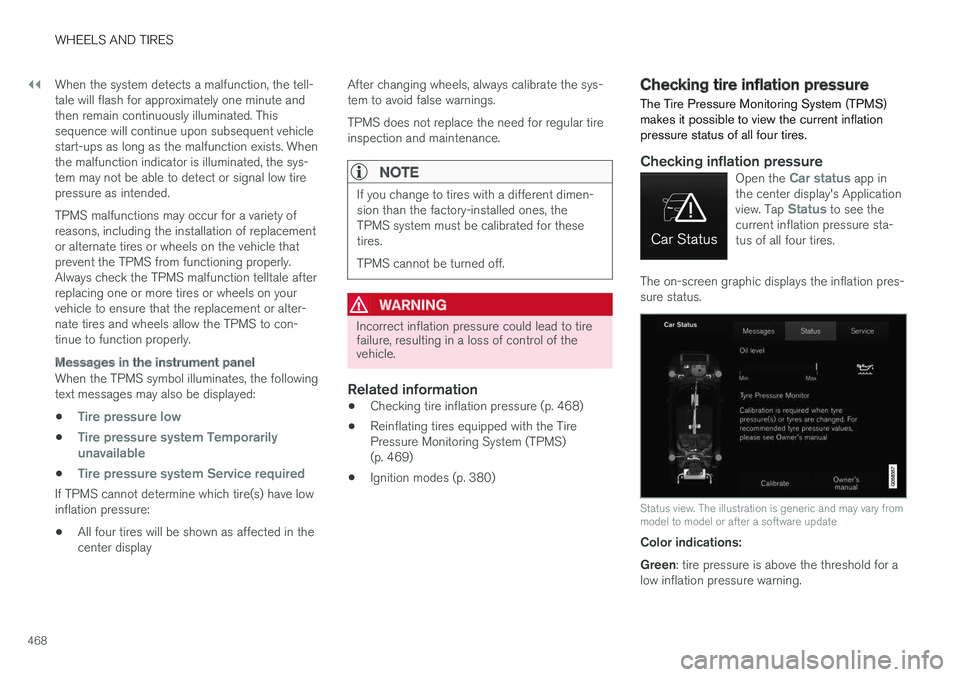
Checking inflation pressureOpen the Car status app in
the center display's Application view. Tap
Status to see the
current inflation pressure sta- tus of all four tires.
The on-screen graphic displays the inflation pres- sure status.
Status view. The illustration is generic and may vary from model to model or after a software update
Color indications: Green : tire pressure is above the threshold for a
low inflation pressure warning.
Page 485 of 560
MAINTENANCE AND SERVICING
483
Keep in mind that a download can be cancelled but an installation that has already begun cannotbe interrupted.
Allowing background searches or
software updates
This function can be deactivated from the centerdisplay:
1. Go to the Settings in the center display's Top view and select
Download Center.
2. Tap
SystemDownload Center.
3. Tap to deselect
Auto Software Update.
If an update is available,
New software updates
available will appear in the center display's sta-
tus bar. Tap the message to start a download app in Home view's lower sub-view. As soon as the download app has started, an icon in the
System
updates button will indicate the number of
downloads available.
Related information
• Center display overview (p. 28)
• Navigating in the center display's views (p. 38)
Remote updates With the vehicle connected to the Internet, updates for a number of the vehicle's systemscan be downloaded from the center display.
The Download Center app is
started from the center dis- play's App view and makes itpossible to:
• search for and update system software
• update the Sensus Navigation maps
• download, update and uninstall apps
Related information
•Downloading, updating and uninstalling apps (p. 441)
• System updates (p. 482)
Vehicle status
The vehicle's general status can be displayed in the center display along with the possibility to book service 1
The Car status app is started
in the center display's App view and has three tabs:
•Messages: stored messages
•
Status: tire pressure and engine oil level
•
Appointments: booking service or repairs 1
Related information
•
Using the center display (p. 44)
• Booking service and repairs (p. 484)
• Checking and refilling engine oil (p. 517)
1
Certain markets only.
Page 550 of 560
INDEX
548Booster cushions 83
Brake assist system 357
Brake lights 146, 358Brakes
auto-hold 356
Brake system Brake pad inspection 355
fluid 540
general information 354, 356, 357
Bulbs 510 replacing 505
specifications 511
C
Cameradriver support systems 300
limitations 301
Camera, Park Assist 340, 342, 344, 345
Capacity weight 458, 537
Cargo area, steel grid 215
Cargo area cover 217Cargo compartment fuses 502
raising/lowering the level 208
Cargo net 213
Cargo space 208
Car wash 522
Catalytic converter 374CD, USB, iPod, AUX, Bluetooth, Recents, Library, Shuffle, Similar, Change device,Audio Language, Off, Subtitle Language, Video, DivX ® VOD 432
CD player 432 Cell phone hands-free 419
Pairing 420
Cell phone voice control 120 Center display changing settings 30
cleaning 527
keyboard 31
navigating in 38
overview 28
screen in the center console 44
symbols in the status bar 43
Chains 459
Changing a wheel 462Child restraints recalls and registration 77
Child restraint systems 77 booster cushions 83
convertible seats 81infant seats 79
ISOFIX/LATCH anchors 84
top tether anchors 86
Child safety 75 booster cushions 83
child restraint systems 77, 85
convertible seats 81
infant seats 79
Child safety locks 246 Child seats lower attachment points 85
City safety 304, 312City Safety crossing traffic 309
detecting objects 307
limitations 312
rear collision warning 316
symbols and messages 315
troubleshooting 310
City Safety, On/Off 306 City Safety ™
Multi Target 310
Cleaning exterior 522
interior 525
Clean Zone Interior Package 184
Climate system 186 air distribution 201, 202, 204
Page 555 of 560

INDEX
553
P
Paint, touching up 528, 529
Park assist 336, 337, 338, 339
Park Assist Camera 340, 342, 344, 345settings 340, 344
Park Assist Pilot 346, 347, 350, 352Parking brake electric, applying/releasing 361, 363
Parking light bulb, replacing 510Passenger compartment fuses 498
Passive Entry system location of antennas 236
Permissible axle weight 537Phone phone book 423
receiving calls 422
text messages 424, 426
Pilot Assist 277, 283, 286, 289, 290, 292, 293
Polishing 529 Power front seat memory function 165
Power mirrors 102 defroster 194
Power steeringadjustable 250
Power tailgate 240
Power windows 107
Pregnancy, using seat belts during 58
PROPOSITION 65 WARNING 374
R
Radar driver support systems 296, 300
Radar sensor limitations 297
Radio RBDS 405
settings 404 SiriusXM ®
Satellite radio 410, 411, 412
Radio functions HD digital radio 406, 408, 409
Rain sensor 157
Rear Collision Warning 316
Rear fog lights 145
Rear park assist 336, 337, 338, 339
Rear seat head restraints 170
Rear seats 169 accessing the third row 174
adjusting backrest tilt 172
center head restraint 170
folding 173, 174, 175
moving forward/rearward 171
Rearview mirror compass 136, 137
Rear window defroster 194
Recalls 58
Recalls, child restraints 77
Recirculation (climate system) 194
Refrigerant (A/C system) 540
Refueling 371, 372 fuel filler door 373
Registering child restraints 77
Remote key 227, 230, 237 immobilizer 224
linking to a driver profile 177
range 229
replacing the battery 225
restricted (red) key 230
Remote updates 483
Replacing bulbs 505
Replacing fuses 493, 494, 498, 502
Reporting safety defects 57
Roadside Assistance 14
Road sign information (RSI) 324, 326