ESP VOLVO XC90 2017 Owner´s Manual
[x] Cancel search | Manufacturer: VOLVO, Model Year: 2017, Model line: XC90, Model: VOLVO XC90 2017Pages: 560, PDF Size: 9.97 MB
Page 379 of 560
STARTING AND DRIVING
}}
377
CAUTION
The maximum trailer weights listed are only applicable for altitudes up to 3,280 ft(1000 m) above sea level. With increasingaltitude the engine power and therefore thecar's climbing ability are impaired because ofthe reduced air density, so the maximumtrailer weight has to be reduced accordingly.The weight of the vehicle and trailer must bereduced by 10% for every further 3,280 ft(1,000 m) (or part thereof). When towing5,000 lbs (2,250 kg) hill inclination is restric-ted to 14%.
WARNING
•Bumper-attached trailer hitches must not be used on Volvos, nor should safetychains be attached to the bumper.
• Trailer hitches attaching to the vehiclerear axle must not be used.
• Never connect a trailer's hydraulic brakesystem directly to the vehicle brake sys-tem, nor a trailer's lighting system directlyto the vehicle lighting system. Consultyour nearest authorized Volvo retailer forcorrect installation.
• When towing a trailer, the trailer's safetychains or wire must be correctly fastenedto the attachment points provided in thetrailer hitch on the vehicle. The safetychain or wire must never be fastened toor wound around the towing ball.
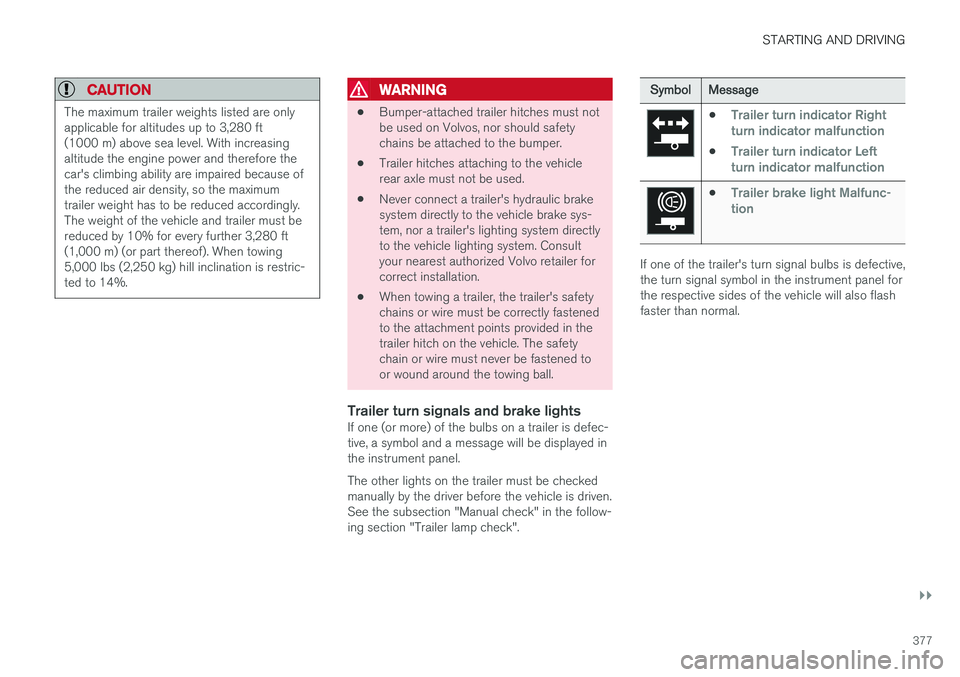
Trailer turn signals and brake lightsIf one (or more) of the bulbs on a trailer is defec-tive, a symbol and a message will be displayed inthe instrument panel. The other lights on the trailer must be checked manually by the driver before the vehicle is driven.See the subsection "Manual check" in the follow-ing section "Trailer lamp check".
Symbol
Message
•Trailer turn indicator Right
turn indicator malfunction
•Trailer turn indicator Left
turn indicator malfunction
•Trailer brake light Malfunc-
tion
If one of the trailer's turn signal bulbs is defective, the turn signal symbol in the instrument panel forthe respective sides of the vehicle will also flashfaster than normal.
Page 382 of 560
||
STARTING AND DRIVING
* Option/accessory.
380
How TSA worksOnce swaying has begun, it can be very difficult to stop, which makes it difficult to control thevehicle and trailer. The TSA system continuously monitors the vehi- cle's movements, particularly lateral movement. Ifthe system detects a tendency to sway, thebrakes are applied individually on the frontwheels, which has a stabilizing effect on the vehi-cle and trailer. This is often enough to enable thedriver to regain control of the vehicle. If this is not adequate to stop the swaying motion, the brakes are applied to all of the wheels on thevehicle and on the trailer if it is equipped withbrakes, and engine power is temporarily reduced.As the swaying motion begins to decrease andthe vehicle-trailer have once again become sta-ble, TSA will now stop regulating the brakes/engine power and the driver regains control ofthe vehicle. TSA is deactivated if the driver deactivates
ESCin the center display's menu system.
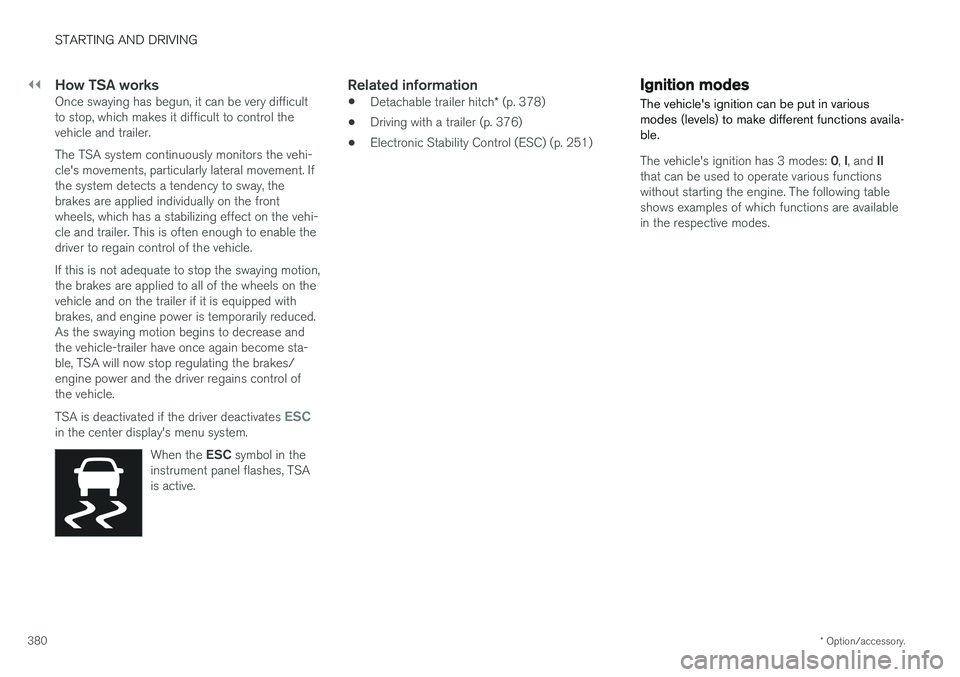
When the ESC symbol in the
instrument panel flashes, TSA is active.
Related information
• Detachable trailer hitch
* (p. 378)
• Driving with a trailer (p. 376)
• Electronic Stability Control (ESC) (p. 251)
Ignition modes
The vehicle's ignition can be put in various modes (levels) to make different functions availa-ble.
The vehicle's ignition has 3 modes: 0, I, and II
that can be used to operate various functions without starting the engine. The following tableshows examples of which functions are availablein the respective modes.
Page 384 of 560
STARTING AND DRIVING
382
Battery drain Your vehicle's electrical functions drain the bat- tery to varying extents.
Avoid using ignition mode II as much as posssi-
ble, or electrical functions that require a great deal of electrical current when the engine is notrunning. Using ignition mode I whenever possible con-
sumes less electrical current. Functions that require a great deal of electrical current include:
• the climate system blower
• headlights
• wipers
• infotainment system (especially at high vol-ume).
If the battery's charge level is low, a text messagewill appear in the instrument panel. The vehicle'senergy-saving function will then turn off orreduce certain functions that are currently con-suming electrical current. If the battery needs to be recharged, start the engine and let it idle for at least 15 minutes ordrive the vehicle (driving charges the batteryfaster than letting the engine idle).
Related information
• Ignition modes (p. 380)
Starting the engine
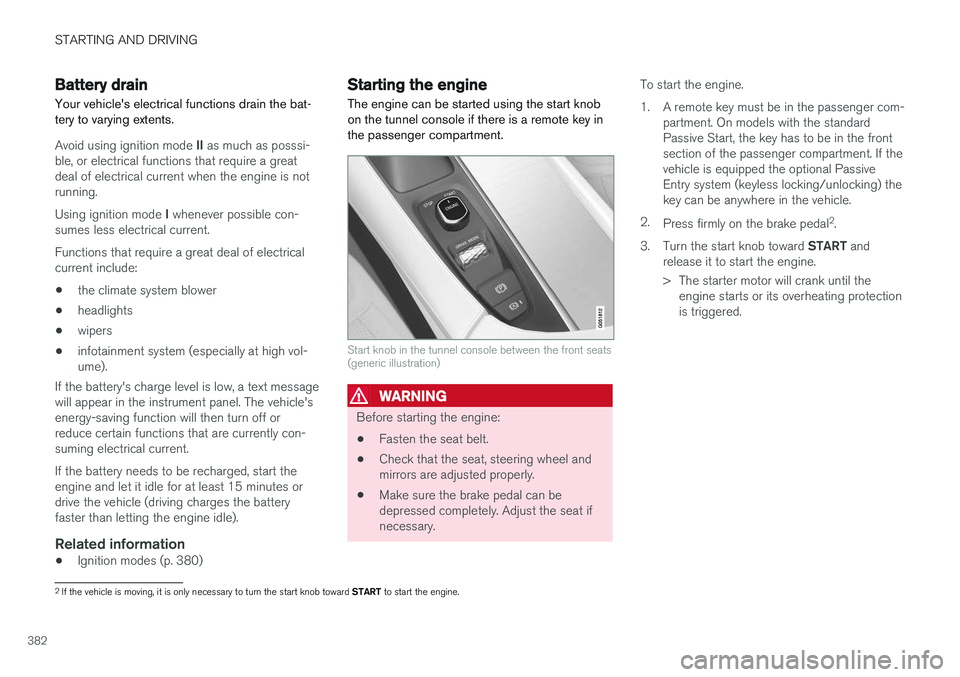
The engine can be started using the start knob on the tunnel console if there is a remote key inthe passenger compartment.
Start knob in the tunnel console between the front seats (generic illustration)
WARNING
Before starting the engine:
• Fasten the seat belt.
• Check that the seat, steering wheel and mirrors are adjusted properly.
• Make sure the brake pedal can bedepressed completely. Adjust the seat ifnecessary. To start the engine.
1. A remote key must be in the passenger com-
partment. On models with the standard Passive Start, the key has to be in the frontsection of the passenger compartment. If thevehicle is equipped the optional PassiveEntry system (keyless locking/unlocking) thekey can be anywhere in the vehicle.
2. Press firmly on the brake pedal 2
.
3. Turn the start knob toward START and
release it to start the engine.
> The starter motor will crank until the engine starts or its overheating protection is triggered.
2If the vehicle is moving, it is only necessary to turn the start knob toward START to start the engine.
Page 386 of 560
||
STARTING AND DRIVING
* Option/accessory.
384
CAUTION
• When starting in cold weather, the auto- matic transmission may shift up at slightlyhigher engine speeds than normal untilthe automatic transmission fluid reachesnormal operating temperature.
• Do not race a cold engine immediatelyafter starting. Oil flow may not reachsome lubrication points fast enough toprevent engine damage.
• The engine should be idling when youmove the gear selector. Never accelerateuntil after you feel the transmissionengage. Accelerating immediately afterselecting a gear will cause harsh engage-ment and premature transmission wear.
• Selecting
P or N when idling at a stand-
still for prolonged periods of time will helpprevent overheating of the automatictransmission fluid.
Related information
• Ignition modes (p. 380)
• Turning the engine off (p. 384)
• Changing the remote key's battery (p. 225)
• Jump starting (p. 374)
Turning the engine off
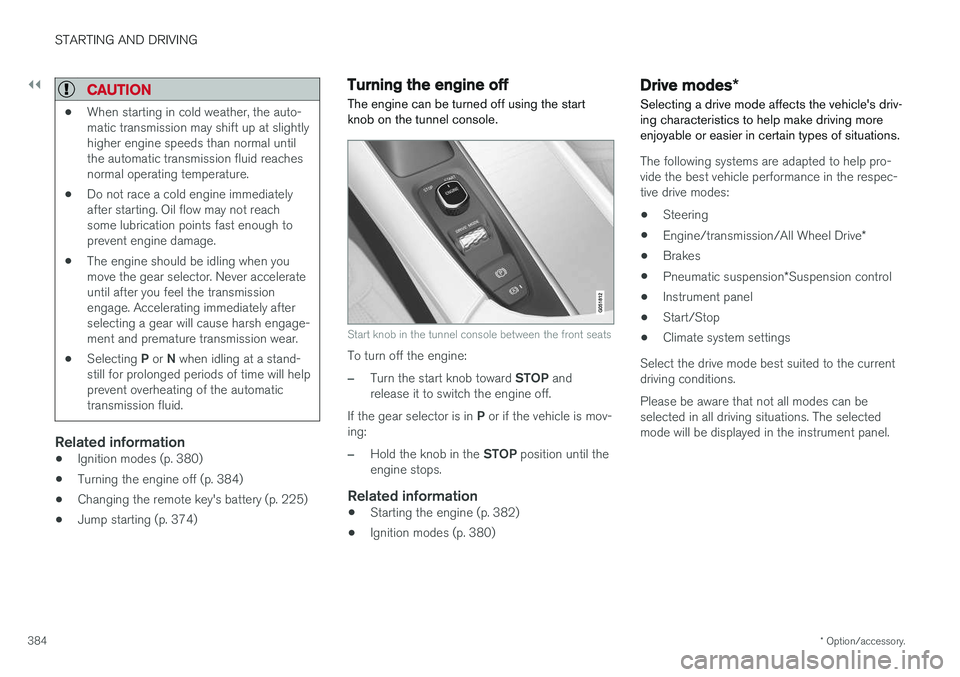
The engine can be turned off using the start knob on the tunnel console.
Start knob in the tunnel console between the front seats
To turn off the engine:
–Turn the start knob toward STOP and
release it to switch the engine off.
If the gear selector is in P or if the vehicle is mov-
ing:
–Hold the knob in the STOP position until the
engine stops.
Related information
• Starting the engine (p. 382)
• Ignition modes (p. 380)
Drive modes
*
Selecting a drive mode affects the vehicle's driv- ing characteristics to help make driving moreenjoyable or easier in certain types of situations.
The following systems are adapted to help pro- vide the best vehicle performance in the respec-tive drive modes: • Steering
• Engine/transmission/All Wheel Drive
*
• Brakes
• Pneumatic suspension
*Suspension control
• Instrument panel
• Start/Stop
• Climate system settings
Select the drive mode best suited to the current driving conditions. Please be aware that not all modes can be selected in all driving situations. The selectedmode will be displayed in the instrument panel.
Page 388 of 560
||
STARTING AND DRIVING
* Option/accessory.
386
DYNAMIC
Dynamic drive mode is designed to provide
sportier driving characteristics. Gear shifting will be faster and more distinct and will occur athigher rpm. Steering response will be more immediate, the suspension will be stiffer and low ground clear-ance will help reduce body roll when cornering.
Start/Stop will be deactivated.
INDIVIDUAL
This setting allows you to adapt a drive mode to your personal preferences. Select one of the other drive modes as a basis and change the settings to provide the drivingcharacteristics that you prefer. These settings willbe stored in a driver profile. INDIVIDUAL is only available if it has been acti- vated in the center display.
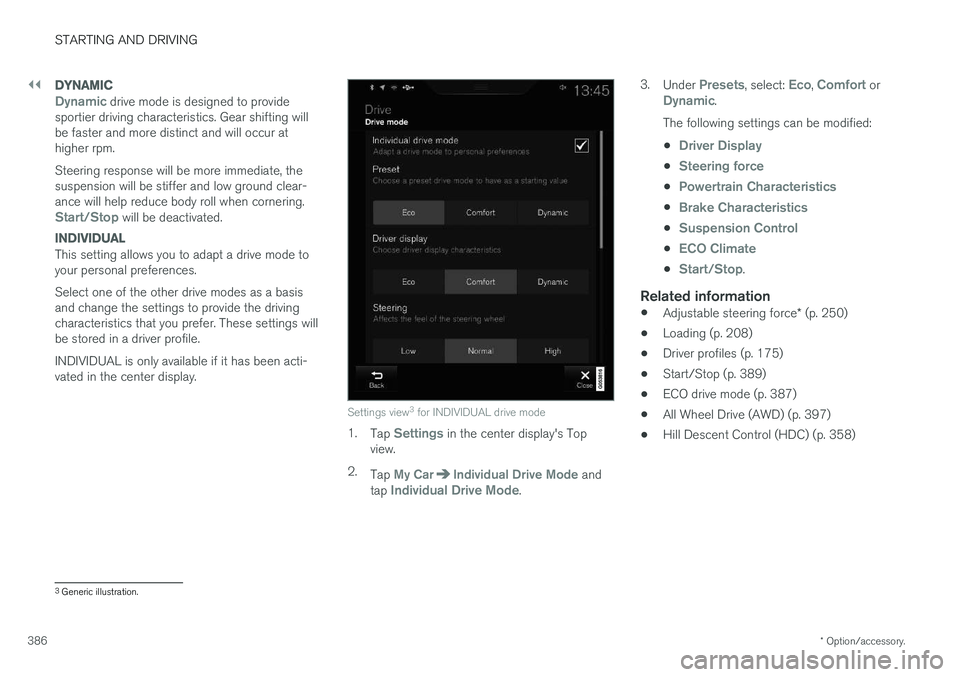
Settings view 3
for INDIVIDUAL drive mode
1. Tap Settings in the center display's Top
view.
2. Tap
My CarIndividual Drive Mode and
tap Individual Drive Mode. 3.
Under
Presets, select: Eco, Comfort orDynamic.
The following settings can be modified: •
Driver Display
•Steering force
•Powertrain Characteristics
•Brake Characteristics
•Suspension Control
•ECO Climate
•Start/Stop.
Related information
• Adjustable steering force
* (p. 250)
• Loading (p. 208)
• Driver profiles (p. 175)
• Start/Stop (p. 389)
• ECO drive mode (p. 387)
• All Wheel Drive (AWD) (p. 397)
• Hill Descent Control (HDC) (p. 358)
3
Generic illustration.
Page 389 of 560
STARTING AND DRIVING
}}
* Option/accessory.387
ECO drive mode
The Eco drive mode is a function designed to give the driver the opportunity to drive more eco-nomically and to help reduce fuel consumption.
When this mode is activated, the following cha- racteristics are modified:
• The automatic transmission's shifting points
• The engine management system and accel-erator pedal response
• Eco Coast functionality is activated: enginebraking is disabled at speeds betweenapprox. 40 and 87 mph(65 and 140 km/h)
• Climate system settings: certain functionswill be temporarily reduced or deactivated
• The suspension's self-leveling function
* low-
ers ground clearance to help reduce windresistance
• Information is shown in an ECO gauge in theinstrument panel to help promote more eco-nomical driving
NOTE
When Eco is activated, several climate system parameters are changed and the function ofcertain current-consuming systems will bereduced. Some of these functions can be restarted manually but full functionality will not berestored until Eco is deactivated.
Selecting ECO modeWhen the engine is switched off, ECO mode is deactivated and must be reactivated each time the engine is started.
ECO will appear in the
instrument panel when the function is activated.
Via Function view
Tap the button in the center display's Function view. An indi-cator light in the button showsthat the function is activated.
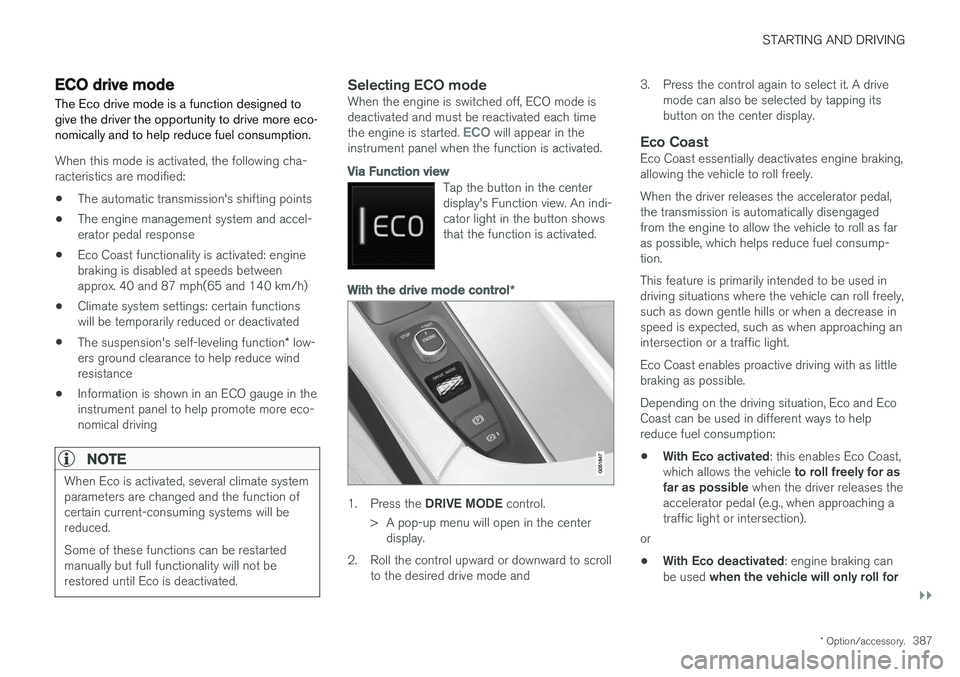
With the drive mode control *
1.
Press the DRIVE MODE control.
> A pop-up menu will open in the center display.
2. Roll the control upward or downward to scroll to the desired drive mode and 3. Press the control again to select it. A drive
mode can also be selected by tapping its button on the center display.
Eco CoastEco Coast essentially deactivates engine braking,allowing the vehicle to roll freely. When the driver releases the accelerator pedal, the transmission is automatically disengagedfrom the engine to allow the vehicle to roll as faras possible, which helps reduce fuel consump-tion. This feature is primarily intended to be used in driving situations where the vehicle can roll freely,such as down gentle hills or when a decrease inspeed is expected, such as when approaching anintersection or a traffic light. Eco Coast enables proactive driving with as little braking as possible. Depending on the driving situation, Eco and Eco Coast can be used in different ways to helpreduce fuel consumption: • With Eco activated
: this enables Eco Coast,
which allows the vehicle to roll freely for as
far as possible when the driver releases the
accelerator pedal (e.g., when approaching a traffic light or intersection).
or
• With Eco deactivated
: engine braking can
be used when the vehicle will only roll for
Page 405 of 560
INFOTAINMENT
403
Some apps are only available if the vehicle is connected to the Internet.
–In the center display's App view, tap an app to start it.
Related information
•
Internet connected vehicle (p. 439)
• Downloading, updating and uninstalling apps(p. 441)
• Changing settings in different types of apps(p. 43)
Sound settings
The infotainment system is precalibrated for opti- mal sound reproduction but these settings canbe changed to suit your personal preferences.
The system's volume is normally adjusted using the right-side steering wheel keypad or the vol-ume control below the center display.
Optimal sound reproduction settingsThe audio system is precalibrated for optimalsound reproduction using digital signal process-ing. This calibration takes into account the speak-ers, amplifier, cabin acoustics, listener position,etc., for each combination of vehicle and infotain-ment system. Dynamic calibration is also available, which moni- tors the setting of the volume control, radioreception and the vehicle's speed. Specific sound settings are described in the respective articles/sections of this owner's infor-mation. To change a setting, pull down the center dis- play's Top view and tap
SettingsSound.
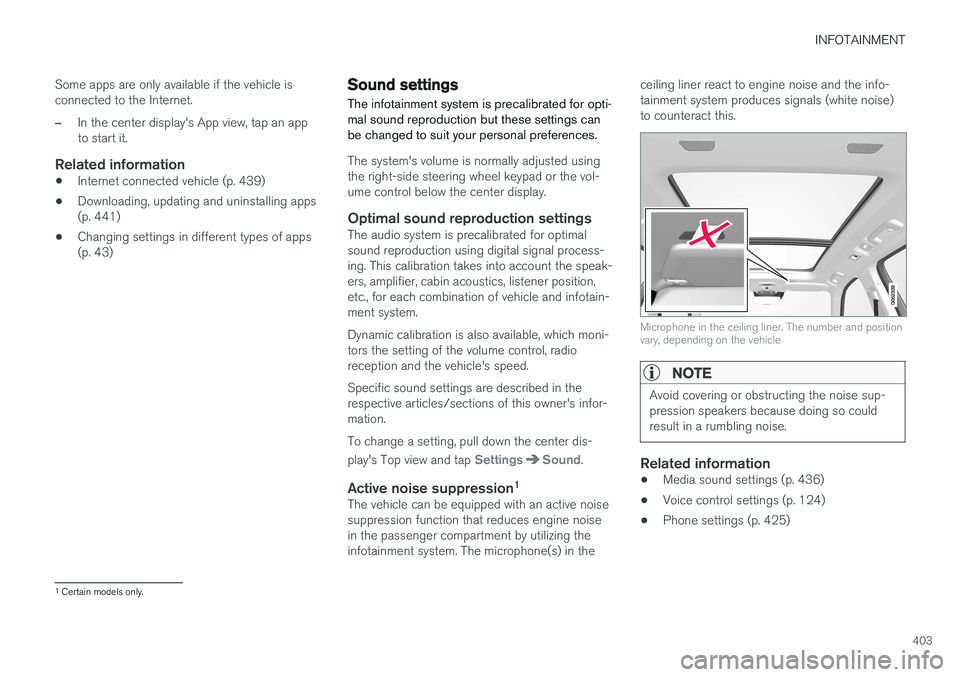
Active noise suppression 1The vehicle can be equipped with an active noise suppression function that reduces engine noisein the passenger compartment by utilizing theinfotainment system. The microphone(s) in the ceiling liner react to engine noise and the info-tainment system produces signals (white noise)to counteract this.
Microphone in the ceiling liner. The number and position vary, depending on the vehicle
NOTE
Avoid covering or obstructing the noise sup- pression speakers because doing so couldresult in a rumbling noise.
Related information
•
Media sound settings (p. 436)
• Voice control settings (p. 124)
• Phone settings (p. 425)
1
Certain models only.
Page 407 of 560
INFOTAINMENT
}}
405
RBDS radio
RBDS radio
RBDS (Radio Data Broadcast System) enables certain functionality 2
, such as:
• Searches for program types or new broad- casts
• Text information about currently broadcastprograms
For example, if news is broadcast, the currentlyplaying sound source will be interrupted so thatthe news can be heard. The infotainment systemwill return to the previous sound source when thenews broadcast has been completed. To cancel the announcement, press the
but-
ton on the right-side steering wheel keypad or tap
Cancel on the center display. This function
can be activated/deactivated in the center dis- play's
Settings menu.
Related information
• Radio (p. 404)
• Radio settings (p. 404)
Changing and searching for radio stations The radio automatically compiles a list of the strongest stations that it is currently receiving.
Turning the radio on1. Open an app (e.g., FM) from the center dis-
play's App view.
2. Select a station.
Changing a list in a waveband1. Tap Library.
2. Sect from
Stations, Favorites or Genres.
3. Tap the desired station in the list.
Favorites: only plays stations from the list of
favorites (see "Favorites" below).
Genres: only plays stations broadcasting the
selected genre or program type, e.g., pop, classi- cal, etc.
Changing stations in a selected list
–Tap < > under the center display or on the
right-side steering wheel keypad.
> Move step-by-step through the selected list.
The center display can also be used to change stations.
FavoritesIf a favorite station from a list is currently availa-ble, the radio will automatically tune to that sta-tion. See "Changing a list in a waveband" above for information about selecting favorites on a wave-band. See "Radio favorites" below for informationabout selecting a station among all of your favor-ites.
–Tap to add or remove a station for the
waveband's list of favorites or Radio favorites.
Radio favorites
Radio favorites shows all of the favorite stations that have beensaved for e.g., AM, FM.
1. Open the Radio favorites app in App view.
2. Tap the desired station to listen. When a station is removed, it will also be removed from the respective waveband's list offavorites.
2 Certain stations only.
Page 417 of 560
INFOTAINMENT
}}
415
SiriusXM Travel Link - Weather
This SiriusXM Travel Link service provides weather-related information near the vehicle, at alocal ski resort, etc.
From the SiriusXM Travel Link home screen, to display weather-related information:
–Tap the Weather button to display this
screen.
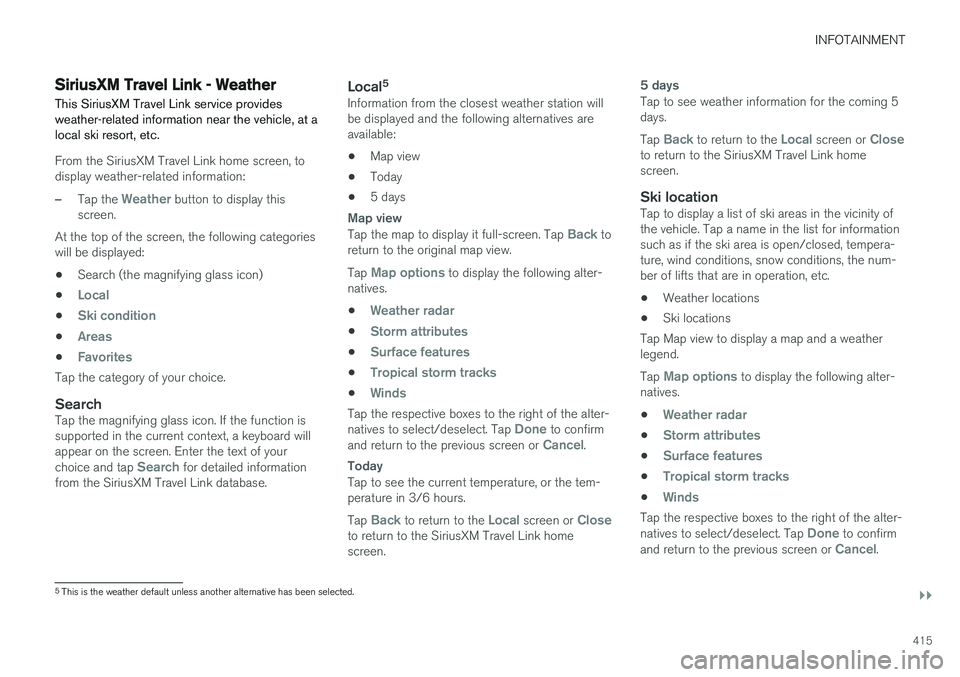
At the top of the screen, the following categories will be displayed:
• Search (the magnifying glass icon)
•
Local
•Ski condition
•Areas
•Favorites
Tap the category of your choice.
SearchTap the magnifying glass icon. If the function is supported in the current context, a keyboard willappear on the screen. Enter the text of your choice and tap
Search for detailed information
from the SiriusXM Travel Link database.
Local 5Information from the closest weather station will be displayed and the following alternatives areavailable:
• Map view
• Today
• 5 days
Map view
Tap the map to display it full-screen. Tap Back to
return to the original map view. Tap
Map options to display the following alter-
natives. •
Weather radar
•Storm attributes
•Surface features
•Tropical storm tracks
•Winds
Tap the respective boxes to the right of the alter- natives to select/deselect. Tap Done to confirm
and return to the previous screen or Cancel.
Today
Tap to see the current temperature, or the tem- perature in 3/6 hours. Tap
Back to return to the Local screen or Closeto return to the SiriusXM Travel Link home screen.
5 days
Tap to see weather information for the coming 5 days. Tap
Back to return to the Local screen or Closeto return to the SiriusXM Travel Link home screen.
Ski locationTap to display a list of ski areas in the vicinity ofthe vehicle. Tap a name in the list for informationsuch as if the ski area is open/closed, tempera-ture, wind conditions, snow conditions, the num-ber of lifts that are in operation, etc.
• Weather locations
• Ski locations
Tap Map view to display a map and a weatherlegend. Tap
Map options to display the following alter-
natives. •
Weather radar
•Storm attributes
•Surface features
•Tropical storm tracks
•Winds
Tap the respective boxes to the right of the alter- natives to select/deselect. Tap Done to confirm
and return to the previous screen or Cancel.
5 This is the weather default unless another alternative has been selected.
Page 422 of 560
INFOTAINMENT
420
Pairing a cell phone
A Bluetooth ®
-enabled cell phone or other device
can be paired and wirelessly connected to the infotainment system.
When a cell phone or other device is connected, audio can be streamed to the infotainment sys-tem. Toggle between the devices by pressing the TEL and MEDIA buttons to access the respective
sources' functions. Before a Bluetooth device can be used with the infotainment system, it has to be paired("registered"). This procedure only needs to be done once for each device (a maximum of 20 Bluetooth devicescan be paired to the system). Once a device hasbeen paired and its Bluetooth function is acti-vated, it can then be selected for use (wirelesslyconnected) to the vehicle's infotainment system. Two Bluetooth devices can be connected at the same time. However, if two cell phones are con-nected, only the most recently connected onecan be used as a phone. The other one can beused to e.g., to stream audio or video. To changewhat the phone will be used for, see the article"Bluetooth settings." A paired and connected cell phone can also be used to connect the vehicle to the Internet. To doso, its tethering/personal hotspot function mustbe activated. There are two ways of pairing a Bluetooth deviceto the infotainment system:
• Searching for the phone (or other device)from the vehicle
• Searching for the vehicle from the phone (orother device)
The following instructions assume that a cellphone is to be paired to the infotainment systembut the procedure is the same for any Bluetoothdevice.
Alternative 1: searching for the phone
from the vehicle
1. Make the phone discoverable/visible using its Bluetooth function. Refer to the phone'suser guide if necessary.
2. Open the Phone view on the center display. >
•If no phones have been paired to the vehicle, tap
Add phone.
• If a list of phones is displayed, tap
Change and tap Add phone in
the pop-up window.
3. Tap the name of the phone to be connected.
4. Check that the code displayed in the vehicle is the same as the one in the phone. Confirm in both places. 5. For the phone selected, accept or cancel the
alternatives for the phone book (list of con-tacts), text messages, etc. Full functionalitymay not be available in all cell phones.
6. To connect the vehicle to the Internet via the phone's Bluetooth function, activate thephone's function for tethering/personal hot-spot, etc.
Alternative 2: searching for the vehicle from the phone
1. Open the center display's Phone view.
•If no phones have been paired to the vehi- cle, tap
Add phoneMake vehicle
discoverable.
• If a phone has previously been paired to the vehicle, tap
Change and tap Add
phone
Make vehicle discoverable in
the pop-up window.
2. Activate the phone's Bluetooth function.
3. Search in the phone for Bluetooth devices. > A list of Bluetooth devices will be dis-played.
4. Select the vehicle's name in the list.
5. Check that the code displayed in the phone is the same as the one in the vehicle. Con- firm in both places.