steering VOLVO XC90 TWIN ENGINE 2018 Owner's Manual
[x] Cancel search | Manufacturer: VOLVO, Model Year: 2018, Model line: XC90 TWIN ENGINE, Model: VOLVO XC90 TWIN ENGINE 2018Pages: 686, PDF Size: 17 MB
Page 105 of 686

DISPLAYS AND VOICE CONTROL
}}
103
zlib License
The zlib/libpng License Copyright (c)
This software is provided 'as-is', without any
express or implied warranty. In no event will the
authors be held liable for any damages arising
from the use of this software.
Permission is granted to anyone to use this
software for any purpose, including commercial
applications, and to alter it and redistribute it
freely, subject to the following restrictions:
1. The origin of this software must not be misrepresented; you must not claim that you
wrote the original software. If you use this
software in a product, an acknowledgment in
the product documentation would be
appreciated but is not required.
2. Altered source versions must be plainly marked as such, and must not be
misrepresented as being the original
software.
3. This notice may not be removed or altered from any source distribution.
SGI Free Software B License Version 2.0.
SGI FREE SOFTWARE LICENSE B (Version 2.0,
Sept. 18, 2008)
Copyright (C) [dates of first publication] Silicon
Graphics, Inc. All Rights Reserved. Permission is
hereby granted, free of charge, to any person
obtaining a copy of this software and associated documentation files (the "Software"), to deal in
the Software without restriction, including without
limitation the rights to use, copy, modify, merge,
publish, distribute, sublicense, and/or sell copies
of the Software, and to permit persons to whom
the Software is furnished to do so, subject to the
following conditions: The above copyright notice
including the dates of first publication and either
this permission notice or a reference to http://
oss.sgi.com/projects/FreeB/ shall be included in
all copies or substantial portions of the Software.
THE SOFTWARE IS PROVIDED "AS IS",
WITHOUT WARRANTY OF ANY KIND,
EXPRESS OR IMPLIED, INCLUDING BUT NOT
LIMITED TO THE WARRANTIES OF
MERCHANTABILITY, FITNESS FOR A
PARTICULAR PURPOSE AND
NONINFRINGEMENT. IN NO EVENT SHALL
SILICON GRAPHICS, INC. BE LIABLE FOR ANY
CLAIM, DAMAGES OR OTHER LIABILITY,
WHETHER IN AN ACTION OF CONTRACT,
TORT OR OTHERWISE, ARISING FROM, OUT
OF OR IN CONNECTION WITH THE SOFTWARE
OR THE USE OR OTHER DEALINGS IN THE
SOFTWARE.
Except as contained in this notice, the name of
Silicon Graphics, Inc. shall not be used in
advertising or otherwise to promote the sale, use
or other dealings in this Software without prior
written authorization from Silicon Graphics, Inc.
Related information
•
Instrument panel (p. 84) App menu in instrument panel
The application menu (App menu) in the instru-
ment panel provides quick access to commonly
used functions for certain apps. The App menu in the instrument panel can be used
instead of the center display. The illustration is generic –
layout may vary.
The App menu is displayed in the instrument
panel and is controlled using the right-side steer-
ing wheel keypad. The app menu makes it easier
to switch between different apps or functions
within the apps without having to let go of the
steering wheel.
App menu functionsDifferent apps provide access to different types
of functions. The following apps and their func-
tions can be controlled from the App menu:
Page 106 of 686

||DISPLAYS AND VOICE CONTROL
104
App
Functions
Trip com-
puter Select a trip odometer, change
instrument panel display set-
tings, etc.
Media player
Select active source for media
player.
Phone Call a contact from the call list.
Navigation Guide to destination, etc.
Related information
• Instrument panel (p. 84)
• Center display overview (p. 109)
• Handling the App menu in the instrument
panel (p. 104) Handling the App menu in the
instrument panel
The App (application) menu in the instrument
panel is controlled using the right-side steering
wheel keypad. App menu and right-side steering wheel keypad.
Open/close
Left/right
Up/down
Confirm
Opening and closing the app menu
–
Tap open/close (1).
(The App menu cannot be opened while
there is an unacknowledged message in the
instrument panel. The message must be con-
firmed before the App menu can be opened.)
>
The App men opens/closes.
The App menu turns off automatically after a
period of inactivity or after certain selections are
made.
Navigating and making selections in the
App menu
1. Navigate among the apps available by press- ing the left/right arrow keys (2).
> Functions for the previous/next app willbe shown in the App menu.
2. Scroll through the functions for the selected app using the up or down arrows (3).
3. Confirm or make a selection for the function by pressing confirm (4).
> The function will be activated and, forsome selections, the App menu will then
close.
The next time the App menu is opened, the func-
tions for the most recently selected app will be
displayed automatically.
Page 108 of 686

||DISPLAYS AND VOICE CONTROL
106
Message
Meaning
Regular main-
tenance
Maintenance
overdue Time for service - contact
a workshop
B
. Shown when
the date for service has
passed.
Temporarily
off A A function has been tem-
porarily deactivated and
will be reactivated auto-
matically while driving or
after the engine is restar-
ted.A
Part of message, shown along with information on the location
of the problem.
B An authorized Volvo workshop is recommended.
Related information
• Handling messages in the instrument panel
(p. 106)
• Handling messages saved from the instru-
ment panel (p. 107)
• Messages in the center display (p. 140) Handling messages in the
instrument panel
Messages in the instrument panel are controlled
using the right-side steering wheel keypad. Messages in the instrument panel and the right-side
steering wheel keypad.
Left/right
Confirm
Some messages in the instrument panel contain
one or more buttons for e.g. confirming the mes-
sage or accepting a request.
Handling new messages
For messages with buttons:
1. Navigate among the buttons available by pressing the left/right arrow keys (1). 2. Confirm your selection by pressing confirm
(2).
> The message will disappear from theinstrument panel.
For messages without buttons:
– Close the message by pressing confirm (2)
or let the message automatically time-out
after a short period.
>
The message will disappear from the
instrument panel.
Messages that need to be saved are stored in
the Car status app, which can be opened from
the App view in the center display. The message
Car message stored in Car Status
application will simultaneously appear in the
center display.
Related information
• Messages in the instrument panel (p. 105)
• Handling messages saved from the instru-
ment panel (p. 107)
• Messages in the center display (p. 140)
Page 113 of 686
DISPLAYS AND VOICE CONTROL
* Option/accessory.111
adjusted using the right-side steering wheel
keypad.
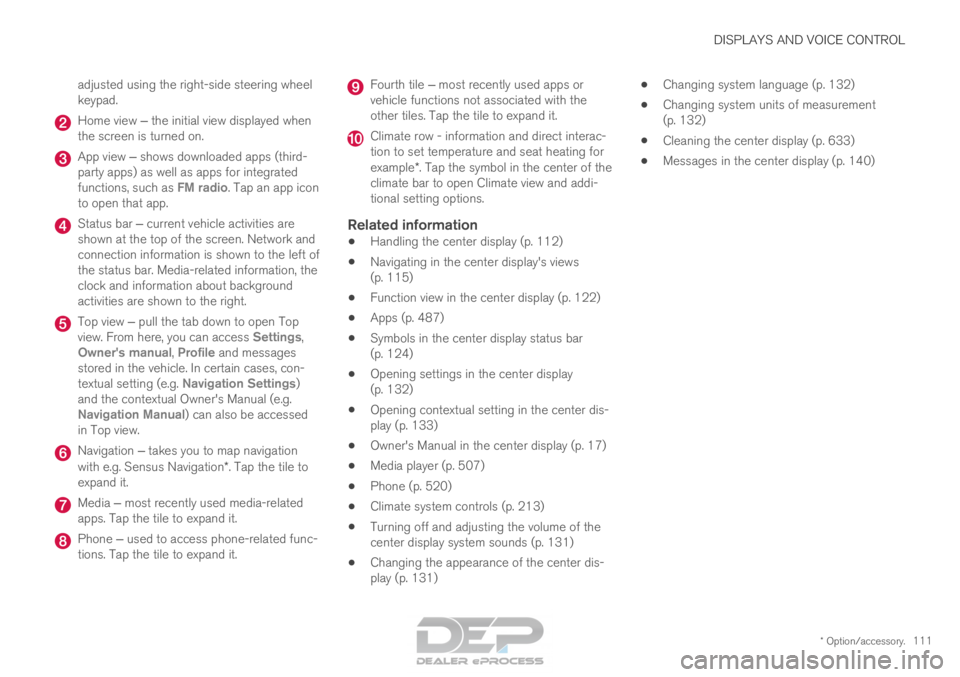
Home view ‒ the initial view displayed when
the screen is turned on. App view ‒ shows downloaded apps (third-
party apps) as well as apps for integrated
functions, such as FM radio
. Tap an app icon
to open that app. Status bar ‒ current vehicle activities are
shown at the top of the screen. Network and
connection information is shown to the left of
the status bar. Media-related information, the
clock and information about background
activities are shown to the right. Top view ‒ pull the tab down to open Top
view. From here, you can access Settings
,
Owner's manual, Profile and messages
stored in the vehicle. In certain cases, con-
textual setting (e.g. Navigation Settings
)
and the contextual Owner's Manual (e.g.
Navigation Manual) can also be accessed
in Top view. Navigation ‒ takes you to map navigation
with e.g. Sensus Navigation*. Tap the tile to
expand it. Media ‒ most recently used media-related
apps. Tap the tile to expand it. Phone ‒ used to access phone-related func-
tions. Tap the tile to expand it. Fourth tile ‒ most recently used apps or
vehicle functions not associated with the
other tiles. Tap the tile to expand it. Climate row - information and direct interac-
tion to set temperature and seat heating for
example*. Tap the symbol in the center of the
climate bar to open Climate view and addi-
tional setting options.
Related information
• Handling the center display (p. 112)
• Navigating in the center display's views
(p. 115)
• Function view in the center display (p. 122)
• Apps (p. 487)
• Symbols in the center display status bar
(p. 124)
• Opening settings in the center display
(p. 132)
• Opening contextual setting in the center dis-
play (p. 133)
• Owner's Manual in the center display (p. 17)
• Media player (p. 507)
• Phone (p. 520)
• Climate system controls (p. 213)
• Turning off and adjusting the volume of the
center display system sounds (p. 131)
• Changing the appearance of the center dis-
play (p. 131) •
Changing system language (p. 132)
• Changing system units of measurement
(p. 132)
• Cleaning the center display (p. 633)
• Messages in the center display (p. 140)
Page 146 of 686
DISPLAYS AND VOICE CONTROL
* Option/accessory.
144 Activating and deactivating the
head-up display*
The head-up display can be activated and deac-
tivated when the vehicle has been started.
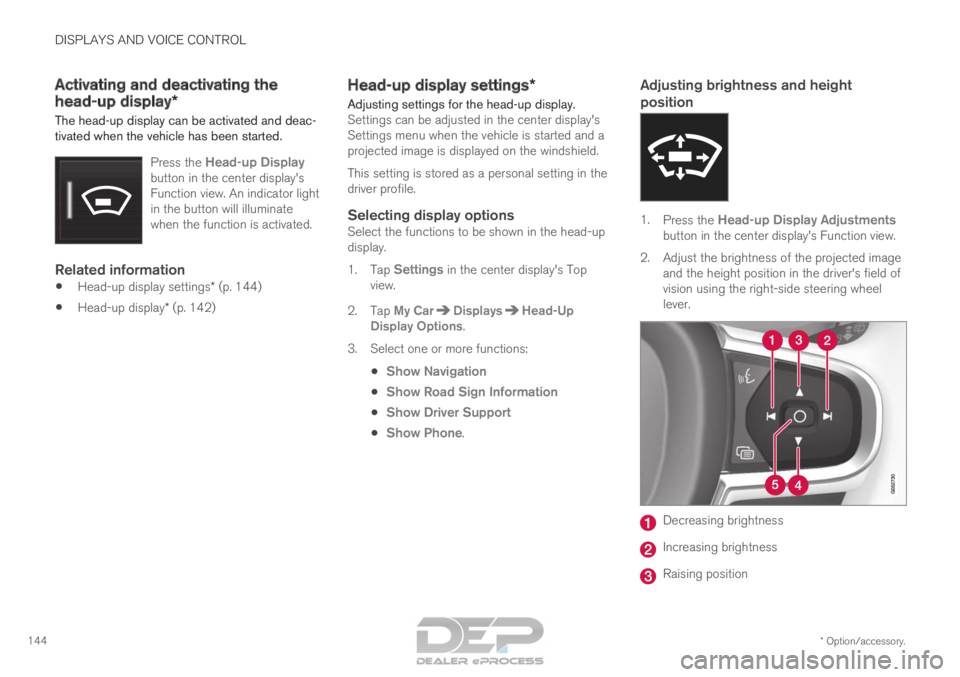
Press the Head-up Displaybutton in the center display's
Function view. An indicator light
in the button will illuminate
when the function is activated.
Related information
• Head-up display settings* (p. 144)
• Head-up display* (p. 142) Head-up display settings*
Adjusting settings for the head-up display. Settings can be adjusted in the center display's
Settings menu when the vehicle is started and a
projected image is displayed on the windshield.
This setting is stored as a personal setting in the
driver profile.
Selecting display optionsSelect the functions to be shown in the head-up
display.
1. Tap Settings in the center display's Top
view.
2.
Tap My Car Displays Head-Up
Display Options .
3.
Select one or more functions:
• Show Navigation
• Show Road Sign Information
• Show Driver Support
• Show Phone.
Adjusting brightness and height
position 1.
Press the Head-up Display Adjustments
button in the center display's Function view.
2.
Adjust the brightness of the projected image
and the height position in the driver's field of
vision using the right-side steering wheel
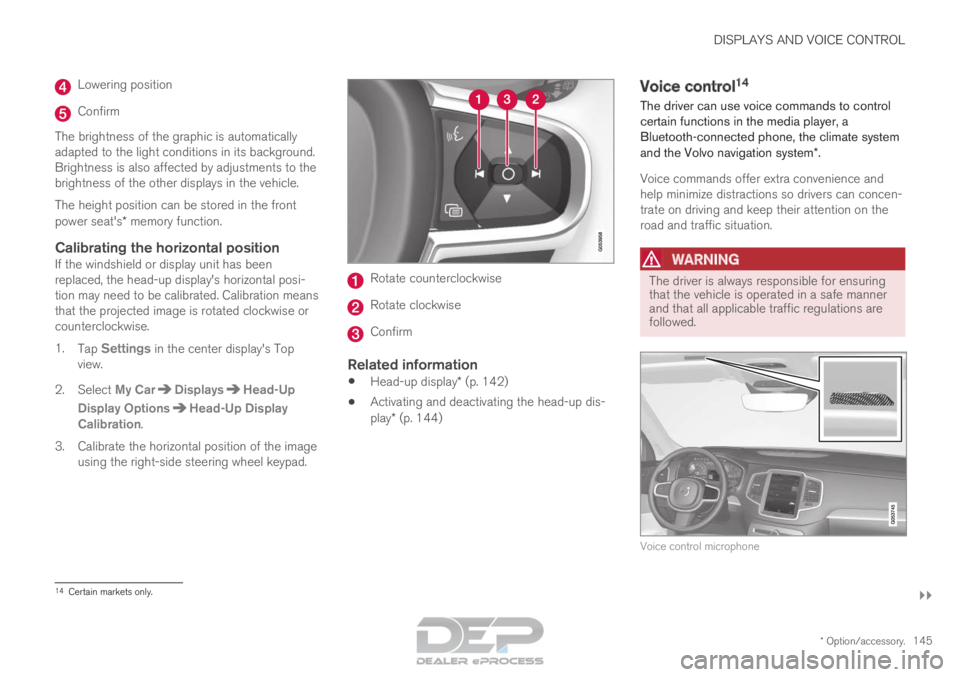
lever. Decreasing brightness
Increasing brightness
Raising position
Page 147 of 686
DISPLAYS AND VOICE CONTROL
}}
* Option/accessory. 145Lowering position
Confirm
The brightness of the graphic is automatically
adapted to the light conditions in its background.
Brightness is also affected by adjustments to the
brightness of the other displays in the vehicle.
The height position can be stored in the front
power seat's* memory function.
Calibrating the horizontal positionIf the windshield or display unit has been
replaced, the head-up display's horizontal posi-
tion may need to be calibrated. Calibration means
that the projected image is rotated clockwise or
counterclockwise.
1. Tap Settings in the center display's Top
view.
2.
Select My Car Displays Head-Up
Display Options Head-Up Display
Calibration .
3.
Calibrate the horizontal position of the image
using the right-side steering wheel keypad. Rotate counterclockwise
Rotate clockwise
Confirm
Related information
•
Head-up display* (p. 142)
• Activating and deactivating the head-up dis-
play* (p. 144) Voice control
14
The driver can use voice commands to control
certain functions in the media player, a
Bluetooth-connected phone, the climate system
and the Volvo navigation system*.
Voice commands offer extra convenience and
help minimize distractions so drivers can concen-
trate on driving and keep their attention on the
road and traffic situation.
WARNING The driver is always responsible for ensuring
that the vehicle is operated in a safe manner
and that all applicable traffic regulations are
followed.
Voice control microphone
14
Certain markets only.
Page 148 of 686
||DISPLAYS AND VOICE CONTROL
* Option/accessory.
146 Voice control is carried out as a dialog, with spo-
ken commands from the user and verbal respon-
ses from the system. The voice control system
uses the same microphone as devices connected
with Bluetooth, and the voice control system
responds through the vehicle's loudspeakers. In
certain cases, text messages will also be dis-
played in the instrument panel. The functions are
controlled using the right-side steering wheel
keypad and settings are made in the center dis-
play.
System updates
The voice control system is continuously
improved. For optimal functionality, always down-
load the latest update at support.volvocars.com.
Related information
•
Using voice commands (p. 146)
• Voice control for cellular phones (p. 147)
• Voice control for radio and media (p. 148)
• Climate control system voice commands
(p. 203)
• Voice control settings (p. 148) Using voice commands
15
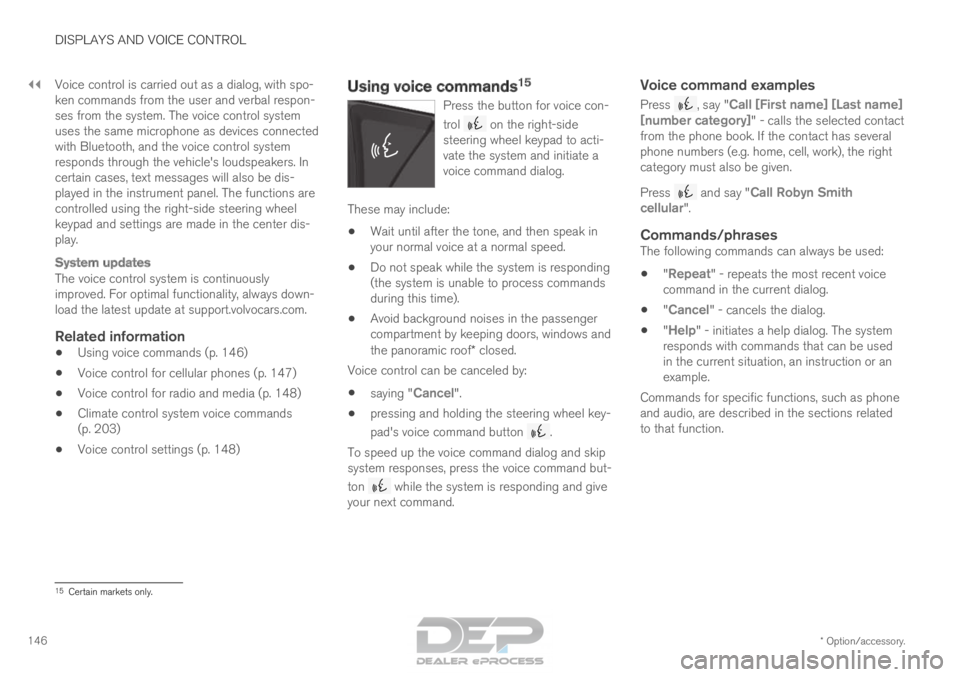
Press the button for voice con-
trol on the right-side
steering wheel keypad to acti-
vate the system and initiate a
voice command dialog. These may include:
• Wait until after the tone, and then speak in
your normal voice at a normal speed.
• Do not speak while the system is responding
(the system is unable to process commands
during this time).
• Avoid background noises in the passenger
compartment by keeping doors, windows and
the panoramic roof* closed.
Voice control can be canceled by:
• saying "Cancel".
• pressing and holding the steering wheel key-
pad's voice command button .
To speed up the voice command dialog and skip
system responses, press the voice command but-
ton while the system is responding and give
your next command.
Voice command examples
Press , say "Call [First name] [Last name]
[number category]" - calls the selected contact
from the phone book. If the contact has several
phone numbers (e.g. home, cell, work), the right
category must also be given.
Press and say "
Call Robyn Smith
cellular".
Commands/phrasesThe following commands can always be used:
• "Repeat" - repeats the most recent voice
command in the current dialog.
• "Cancel" - cancels the dialog.
• "
Help" - initiates a help dialog. The system
responds with commands that can be used
in the current situation, an instruction or an
example.
Commands for specific functions, such as phone
and audio, are described in the sections related
to that function. 15
Certain markets only.
Page 154 of 686
LIGHTING
* Option/accessory.
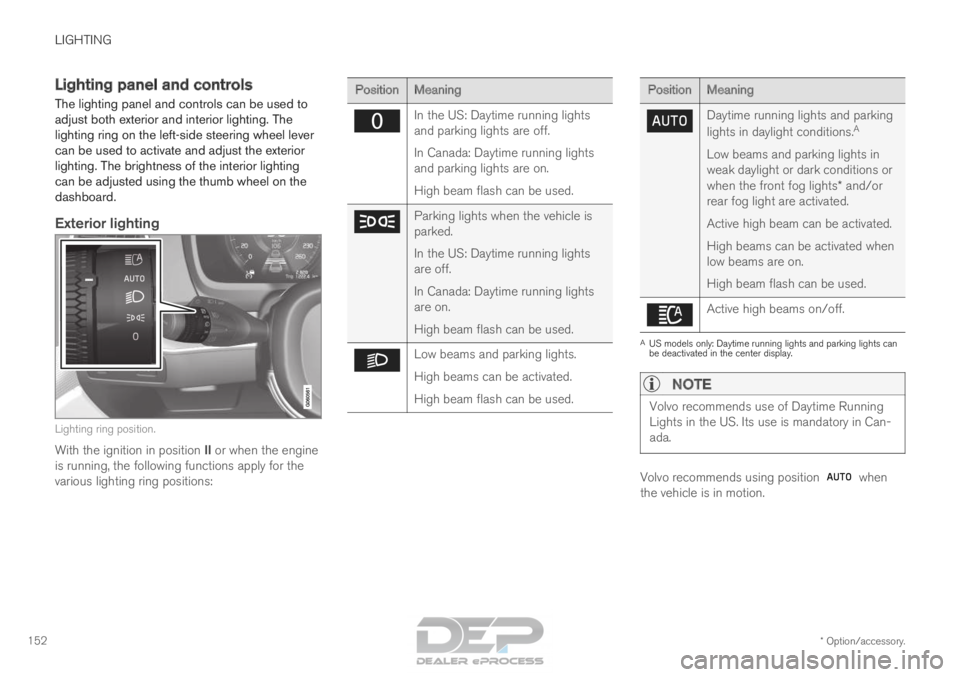
152 Lighting panel and controls
The lighting panel and controls can be used to
adjust both exterior and interior lighting. The
lighting ring on the left-side steering wheel lever
can be used to activate and adjust the exterior
lighting. The brightness of the interior lighting
can be adjusted using the thumb wheel on the
dashboard.
Exterior lighting Lighting ring position.
With the ignition in position II or when the engine
is running, the following functions apply for the
various lighting ring positions: Position
Meaning In the US: Daytime running lights
and parking lights are off.
In Canada: Daytime running lights
and parking lights are on.
High beam flash can be used.
Parking lights when the vehicle is
parked.
In the US: Daytime running lights
are off.
In Canada: Daytime running lights
are on.
High beam flash can be used.
Low beams and parking lights.
High beams can be activated.
High beam flash can be used. Position
Meaning Daytime running lights and parking
lights in daylight conditions.
A
Low beams and parking lights in
weak daylight or dark conditions or
when the front fog lights* and/or
rear fog light are activated.
Active high beam can be activated.
High beams can be activated when
low beams are on.
High beam flash can be used. Active high beams on/off.
A
US models only: Daytime running lights and parking lights can
be deactivated in the center display.
NOTE Volvo recommends use of Daytime Running
Lights in the US. Its use is mandatory in Can-
ada.
Volvo recommends using position when
the vehicle is in motion.
Page 156 of 686
LIGHTING
154Parking lights
The parking lights can be used to help other
road users see the vehicle if it is stopped or
parked. Use the lighting ring on the steering
wheel lever to turn on the parking lights.
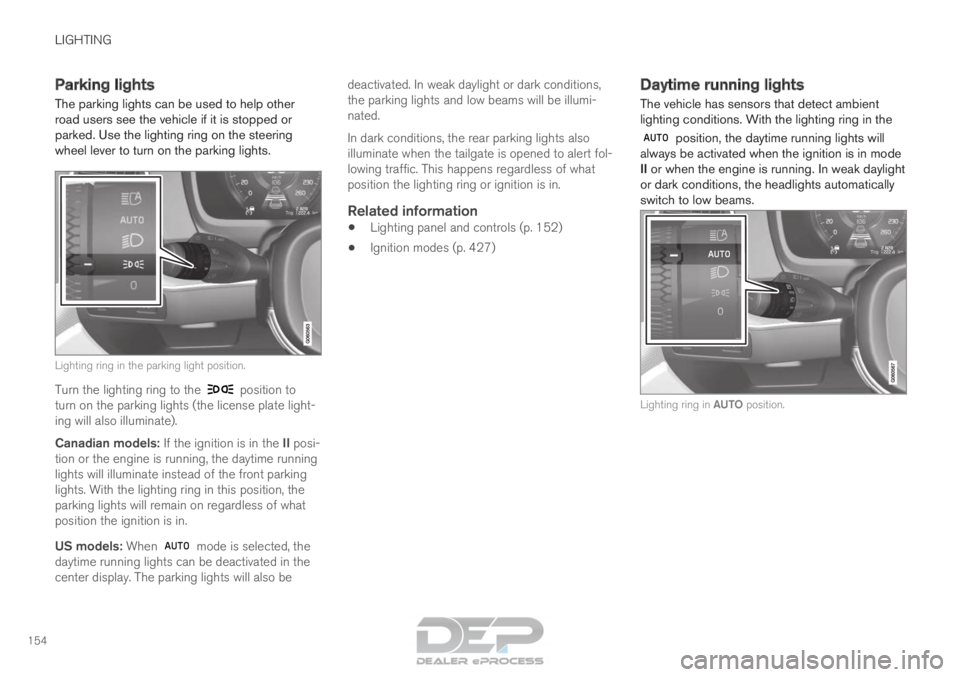
Lighting ring in the parking light position.
Turn the lighting ring to the position to
turn on the parking lights (the license plate light-
ing will also illuminate).
Canadian models: If the ignition is in the II posi-
tion or the engine is running, the daytime running
lights will illuminate instead of the front parking
lights. With the lighting ring in this position, the
parking lights will remain on regardless of what
position the ignition is in.
US models: When mode is selected, the
daytime running lights can be deactivated in the
center display. The parking lights will also be deactivated. In weak daylight or dark conditions,
the parking lights and low beams will be illumi-
nated.
In dark conditions, the rear parking lights also
illuminate when the tailgate is opened to alert fol-
lowing traffic. This happens regardless of what
position the lighting ring or ignition is in.
Related information
•
Lighting panel and controls (p. 152)
• Ignition modes (p. 427) Daytime running lights
The vehicle has sensors that detect ambient
lighting conditions. With the lighting ring in the position, the daytime running lights will
always be activated when the ignition is in mode
II or when the engine is running. In weak daylight
or dark conditions, the headlights automatically
switch to low beams. Lighting ring in AUTO position.
Page 157 of 686
LIGHTING
}}
* Option/accessory. 155
With the steering wheel lever's lighting ring in the position, the daytime running lights (DRL
1
)
will illuminate when the vehicle is driven in day-
light conditions. The headlights will switch auto-
matically from daytime running lights to low
beams in weak daylight or dark conditions. The
headlights will also switch to low beams if the
front fog lights* and/or rear fog light are acti-
vated.
US models: When mode is selected, the
daytime running lights can be deactivated in the
center display. The parking lights will also be
deactivated. In weak daylight or dark conditions,
the parking lights and low beams will be illumi-
nated.
In the US: With the lighting ring in the or
position, the daytime running lights will be
off.
In Canada: With the lighting ring in the or
position, the daytime running lights will be
on.
NOTE Volvo recommends use of Daytime Running
Lights in the US. Its use is mandatory in Can-
ada.
WARNING The system is an energy saving aid – it cannot
in all situations determine when the daylight is
too weak or not strong enough, e.g. when
there is fog or rain.
The driver is always responsible for driving the
vehicle with lighting that is safe for the traffic
conditions and as specified by applicable traf-
fic regulations.
Related information
•
Lighting panel and controls (p. 152)
• Ignition modes (p. 427)
• Low beams (p. 155) Low beams
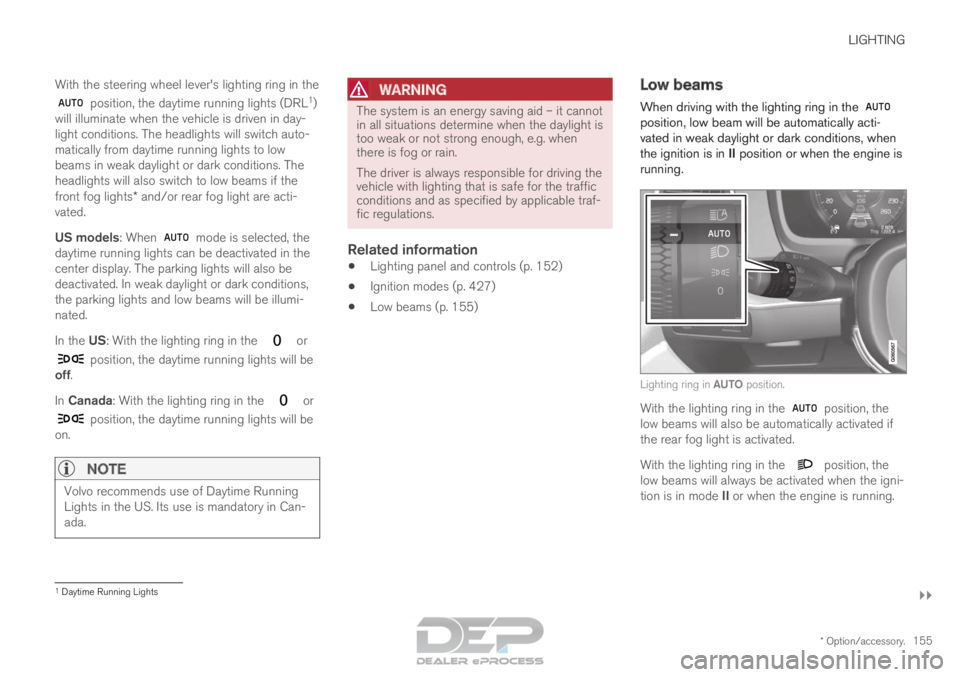
When driving with the lighting ring in the position, low beam will be automatically acti-
vated in weak daylight or dark conditions, when
the ignition is in II position or when the engine is
running. Lighting ring in AUTO position.
With the lighting ring in the
position, the
low beams will also be automatically activated if
the rear fog light is activated.
With the lighting ring in the position, the
low beams will always be activated when the igni-
tion is in mode II or when the engine is running. 1
Daytime Running Lights