instrument panel VOLVO XC90 TWIN ENGINE 2018 Owner's Guide
[x] Cancel search | Manufacturer: VOLVO, Model Year: 2018, Model line: XC90 TWIN ENGINE, Model: VOLVO XC90 TWIN ENGINE 2018Pages: 686, PDF Size: 17 MB
Page 109 of 686

DISPLAYS AND VOICE CONTROL
}}
107
Handling messages saved from the
instrument panel
Messages saved from the instrument panel and
center displays are handled in the center display. Saved messages can be viewed in the Car Status app.
The messages displayed in the
instrument panel that need to
be saved are stored in the Car
status app in the center dis-
play. The message
Car
message stored in Car
Status application will simul-
taneously appear in the center display.
Reading saved messages
To read a saved message immediately:
– Tap the button to the right of the message
Car message stored in Car Status
application in the center display.
>
The saved message will be displayed in
the Car status app.
To read saved messages at a later time:
1. Open the Car status app from App view in
the center display.
>
The app will open in the bottom tile of
Home view.
2. Select the Messages tab in the app.
>
A list of saved messages will be displayed.
3. Tap a message to expand/minimize it. > More information about the message willappear in the list and the image to the left
of the app will display information about
the message in graphic form.
Handling saved messages
In expanded form, some messages have two but-
tons available for booking service or reading the
Owner's Manual. Booking service for saved messages:
–
With the message in expanded form, tap
Request appoint.Call to make
Appointment 3
for assistance booking serv-
ice.
> With Request appoint.: The
Appointments tab will open in the app
and create a request for a service/repair
appointment.
With Call to make Appointment: The
phone app will open and call a service
center to make an appointment for service
or repairs.
Reading the Owner's Manual for saved mes-
sages:
– With the message in expanded form, tap
Owner's manual to read relevant informa- tion about the message in the Owner's Man-
ual.
>
The Owner's Manual will open in the cen-
ter display and provide information related
to the message.
Saved messages in the app are automatically
deleted each time the engine is started. 3
Market dependent. Volvo ID and selected workshop also need to be registe\
red
Page 110 of 686

||DISPLAYS AND VOICE CONTROL
108
Related information
•
Messages in the instrument panel (p. 105)
• Handling messages in the instrument panel
(p. 106)
• Messages in the center display (p. 140)
Page 134 of 686
DISPLAYS AND VOICE CONTROL
132Changing system units of
measurement
Unit settings are adjusted in the Settings menu
in the center display.
1. Tap Settings in the Top view in the center
display.
2.
Proceed to System System Languages
and Units Units of Measurement.
3.
Select one of the following measurement
standards:
• Metric - kilometers, liters and degrees
Celsius.
• Imperial - miles, gallons and degrees
Celsius.
• US - miles, gallons and degrees Fahren-
heit.
>
The units in the instrument panel, center
display and head-up display are changed.
Related information
• Center display overview (p. 109)
• Opening settings in the center display
(p. 132)
• Changing settings in the center display
(p. 134)
• Changing system language (p. 132) Changing system language
Language settings are adjusted in the
Settings
menu in the center display.
NOTE Changing languages in the center display
could mean that certain owner's information
will not comply with national or local laws and
regulations. Do not change to a language that
you do not fully understand, as this could
make it difficult to navigate back through the
menu.
1.
Tap Settings in the Top view in the center
display.
2.
Proceed to System System Languages
and Units .
3. Select System Language. A voice control
symbol indicates that the language can be
used for voice commands.
>
Languages in the instrument panel, center
display and head-up display are changed.
Related information
• Center display overview (p. 109)
• Opening settings in the center display
(p. 132)
• Changing settings in the center display
(p. 134)
• Changing system units of measurement
(p. 132) Opening settings in the center
display
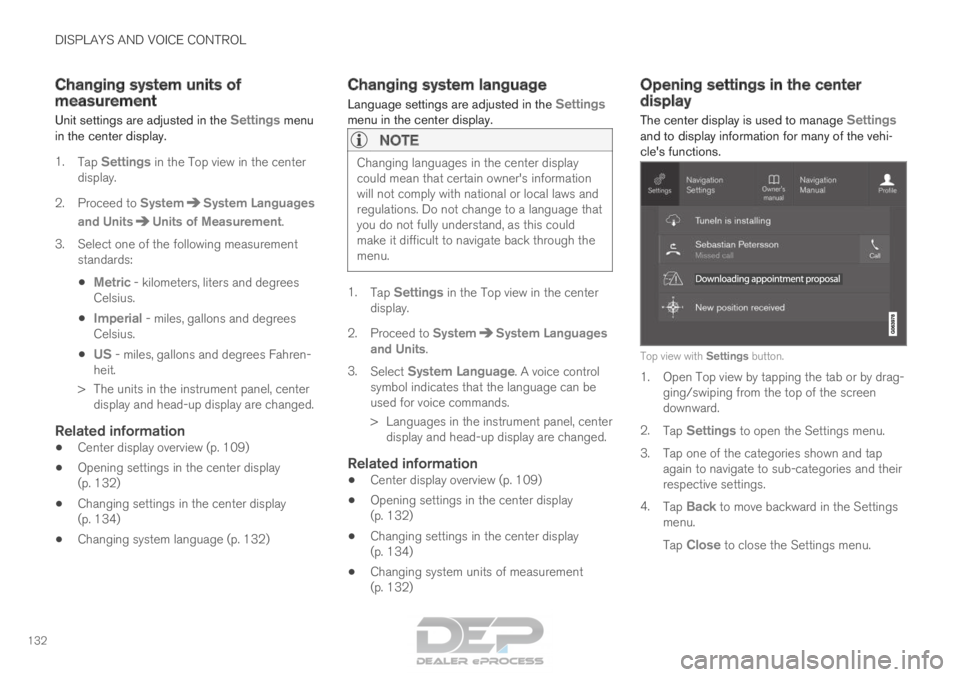
The center display is used to manage
Settings
and to display information for many of the vehi-
cle's functions. Top view with Settings button.
1. Open Top view by tapping the tab or by drag-
ging/swiping from the top of the screen
downward.
2. Tap Settings to open the Settings menu.
3.
Tap one of the categories shown and tap
again to navigate to sub-categories and their
respective settings.
4. Tap Back to move backward in the Settings
menu.
Tap Close to close the Settings menu.
Page 143 of 686
DISPLAYS AND VOICE CONTROL
141
Pop-up messages
Messages are sometimes shown as pop-up win-
dows. Pop-up messages have a higher priority
than messages shown in the status bar and
require acknowledgment/action before they dis-
appear. Messages that need to be saved are
stored in Top view in the center display.
Related information
•Handling messages in the center display
(p. 141)
• Handling messages saved from the center
display (p. 142)
• Messages in the instrument panel (p. 105) Handling messages in the center
display
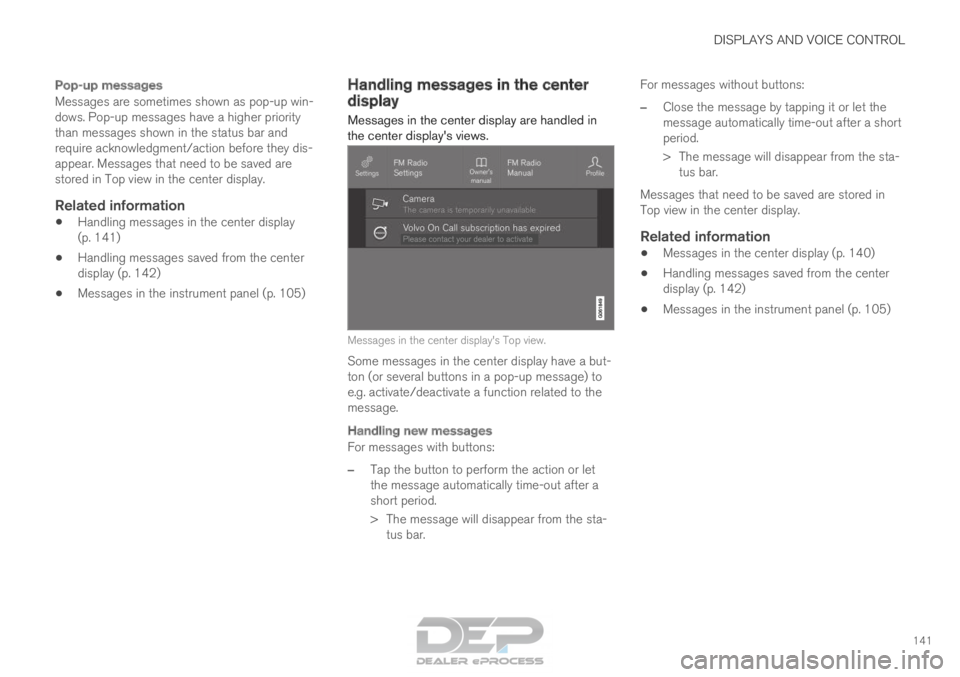
Messages in the center display are handled in
the center display's views. Messages in the center display's Top view.
Some messages in the center display have a but-
ton (or several buttons in a pop-up message) to
e.g. activate/deactivate a function related to the
message.
Handling new messages
For messages with buttons:
– Tap the button to perform the action or let
the message automatically time-out after a
short period.
>
The message will disappear from the sta-
tus bar. For messages without buttons:
– Close the message by tapping it or let the
message automatically time-out after a short
period.
>
The message will disappear from the sta-
tus bar.
Messages that need to be saved are stored in
Top view in the center display.
Related information
• Messages in the center display (p. 140)
• Handling messages saved from the center
display (p. 142)
• Messages in the instrument panel (p. 105)
Page 144 of 686
DISPLAYS AND VOICE CONTROL
* Option/accessory.
142 Handling messages saved from the
center display
Messages saved from the instrument panel and
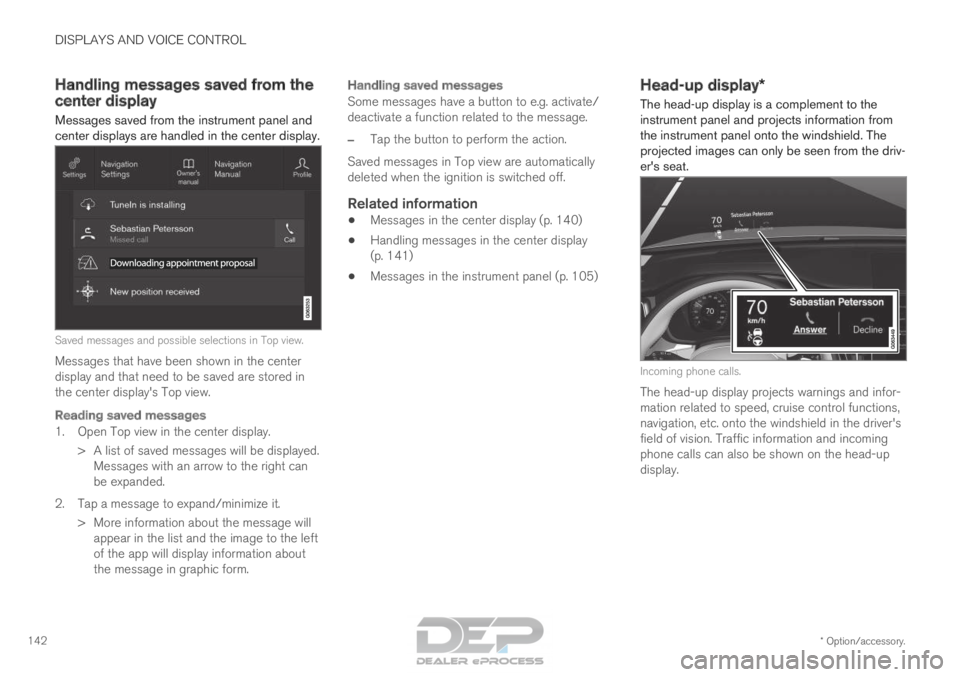
center displays are handled in the center display. Saved messages and possible selections in Top view.
Messages that have been shown in the center
display and that need to be saved are stored in
the center display's Top view.
Reading saved messages
1. Open Top view in the center display. > A list of saved messages will be displayed.Messages with an arrow to the right can
be expanded.
2. Tap a message to expand/minimize it. > More information about the message willappear in the list and the image to the left
of the app will display information about
the message in graphic form.
Handling saved messages
Some messages have a button to e.g. activate/
deactivate a function related to the message.
– Tap the button to perform the action.
Saved messages in Top view are automatically
deleted when the ignition is switched off.
Related information
• Messages in the center display (p. 140)
• Handling messages in the center display
(p. 141)
• Messages in the instrument panel (p. 105) Head-up display*
The head-up display is a complement to the
instrument panel and projects information from
the instrument panel onto the windshield. The
projected images can only be seen from the driv-
er's seat. Incoming phone calls.
The head-up display projects warnings and infor-
mation related to speed, cruise control functions,
navigation, etc. onto the windshield in the driver's
field of vision. Traffic information and incoming
phone calls can also be shown on the head-up
display.
Page 145 of 686
DISPLAYS AND VOICE CONTROL
* Option/accessory.143
NOTEThe driver's ability to see information in the
head-up display may be impeded by:
• the use of polarizing sunglasses
• a driving posture in which the driver is not
centered in the seat
• objects on the display unit's glass cover
• unfavorable lighting conditions.
CAUTION The information is projected from a display
unit located in the dashboard. To help prevent
damage to the display unit's glass cover, do
not place any objects on the glass and pre-
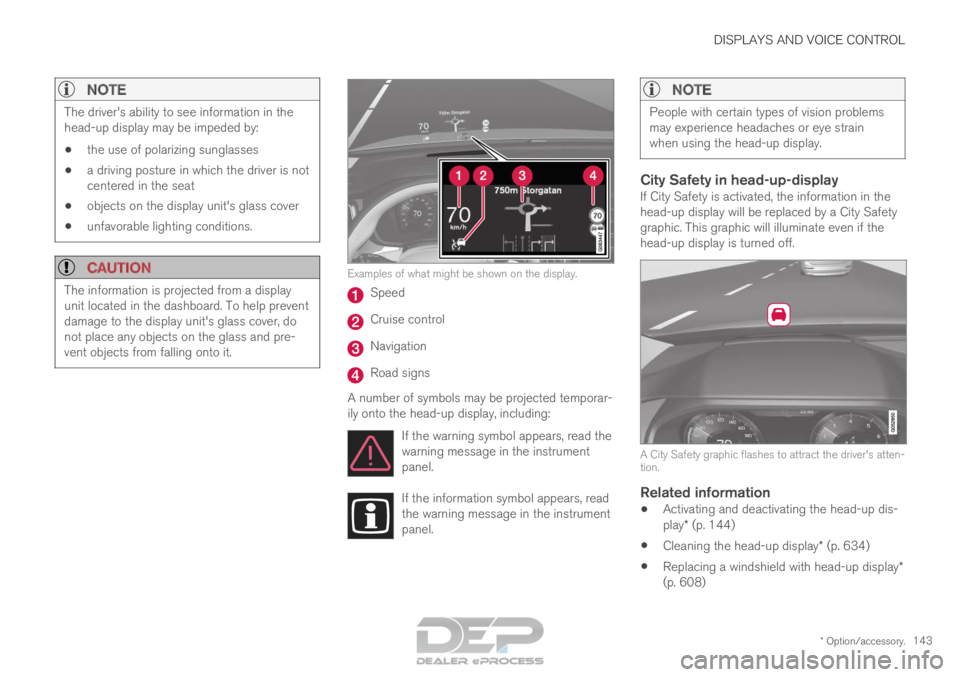
vent objects from falling onto it. Examples of what might be shown on the display.
Speed
Cruise control
Navigation
Road signs
A number of symbols may be projected temporar-
ily onto the head-up display, including: If the warning symbol appears, read the
warning message in the instrument
panel. If the information symbol appears, read
the warning message in the instrument
panel.
NOTE People with certain types of vision problems
may experience headaches or eye strain
when using the head-up display.
City Safety in head-up-displayIf City Safety is activated, the information in the
head-up display will be replaced by a City Safety
graphic. This graphic will illuminate even if the
head-up display is turned off.
A City Safety graphic flashes to attract the driver's atten-
tion.
Related information
•
Activating and deactivating the head-up dis-
play* (p. 144)
• Cleaning the head-up display* (p. 634)
• Replacing a windshield with head-up display*
(p. 608)
Page 148 of 686
||DISPLAYS AND VOICE CONTROL
* Option/accessory.
146 Voice control is carried out as a dialog, with spo-
ken commands from the user and verbal respon-
ses from the system. The voice control system
uses the same microphone as devices connected
with Bluetooth, and the voice control system
responds through the vehicle's loudspeakers. In
certain cases, text messages will also be dis-
played in the instrument panel. The functions are
controlled using the right-side steering wheel
keypad and settings are made in the center dis-
play.
System updates
The voice control system is continuously
improved. For optimal functionality, always down-
load the latest update at support.volvocars.com.
Related information
•
Using voice commands (p. 146)
• Voice control for cellular phones (p. 147)
• Voice control for radio and media (p. 148)
• Climate control system voice commands
(p. 203)
• Voice control settings (p. 148) Using voice commands
15
Press the button for voice con-
trol on the right-side
steering wheel keypad to acti-
vate the system and initiate a
voice command dialog. These may include:
• Wait until after the tone, and then speak in
your normal voice at a normal speed.
• Do not speak while the system is responding
(the system is unable to process commands
during this time).
• Avoid background noises in the passenger
compartment by keeping doors, windows and
the panoramic roof* closed.
Voice control can be canceled by:
• saying "Cancel".
• pressing and holding the steering wheel key-
pad's voice command button .
To speed up the voice command dialog and skip
system responses, press the voice command but-
ton while the system is responding and give
your next command.
Voice command examples
Press , say "Call [First name] [Last name]
[number category]" - calls the selected contact
from the phone book. If the contact has several
phone numbers (e.g. home, cell, work), the right
category must also be given.
Press and say "
Call Robyn Smith
cellular".
Commands/phrasesThe following commands can always be used:
• "Repeat" - repeats the most recent voice
command in the current dialog.
• "Cancel" - cancels the dialog.
• "
Help" - initiates a help dialog. The system
responds with commands that can be used
in the current situation, an instruction or an
example.
Commands for specific functions, such as phone
and audio, are described in the sections related
to that function. 15
Certain markets only.
Page 155 of 686
LIGHTING
* Option/accessory.153
WARNINGThe vehicle lighting system cannot in all situa-
tions determine when the daylight is too weak
or not strong enough, e.g. when there is fog
or rain.
The driver is always responsible for driving the
vehicle with lighting that is safe for the traffic
conditions and as specified by applicable traf-
fic regulations.
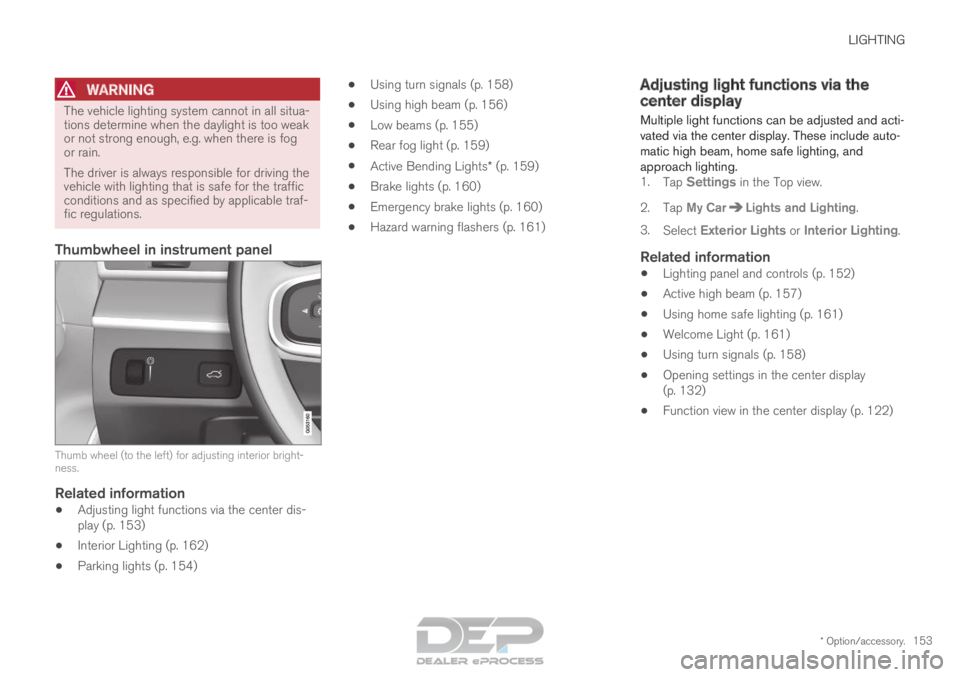
Thumbwheel in instrument panel
Thumb wheel (to the left) for adjusting interior bright-
ness.
Related information
•
Adjusting light functions via the center dis-
play (p. 153)
• Interior Lighting (p. 162)
• Parking lights (p. 154) •
Using turn signals (p. 158)
• Using high beam (p. 156)
• Low beams (p. 155)
• Rear fog light (p. 159)
• Active Bending Lights* (p. 159)
• Brake lights (p. 160)
• Emergency brake lights (p. 160)
• Hazard warning flashers (p. 161) Adjusting light functions via the
center display
Multiple light functions can be adjusted and acti-
vated via the center display. These include auto-
matic high beam, home safe lighting, and
approach lighting. 1. Tap Settings in the Top view.
2.
Tap My Car Lights and Lighting
.
3. Select Exterior Lights or Interior Lighting.
Related information
• Lighting panel and controls (p. 152)
• Active high beam (p. 157)
• Using home safe lighting (p. 161)
• Welcome Light (p. 161)
• Using turn signals (p. 158)
• Opening settings in the center display
(p. 132)
• Function view in the center display (p. 122)
Page 158 of 686
||LIGHTING
156
Tunnel detection
The vehicle will detect if it enters a tunnel and
shift from daytime running lights to low beams.
Note that the left-hand steering wheel lever must
be in
position for tunnel detection to work.
Related information
•
Lighting panel and controls (p. 152)
• Ignition modes (p. 427)
• Daytime running lights (p. 154) Using high beam
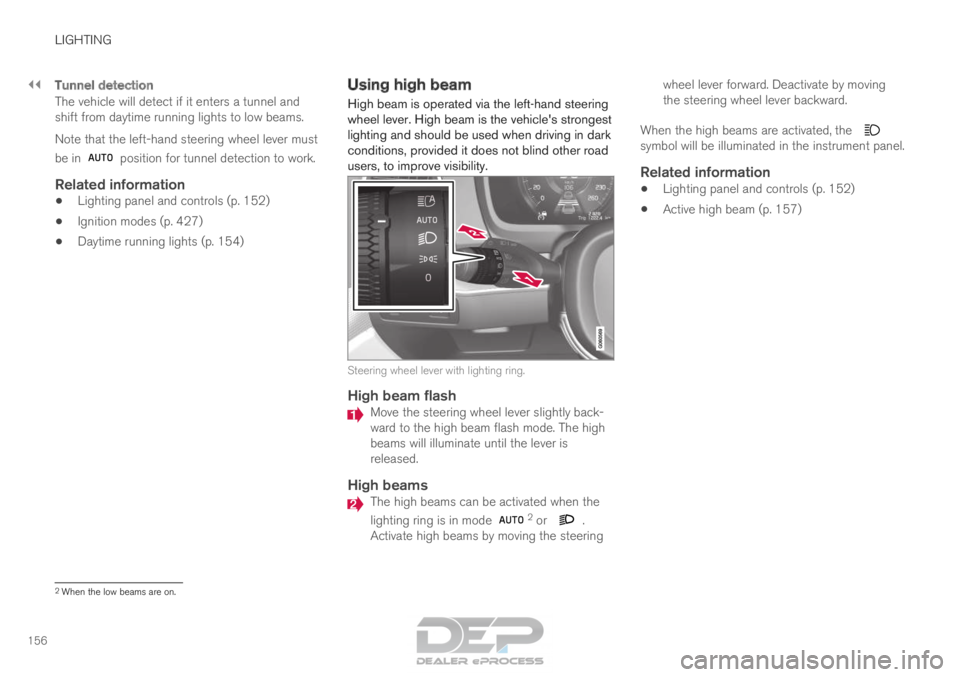
High beam is operated via the left-hand steering
wheel lever. High beam is the vehicle's strongest
lighting and should be used when driving in dark
conditions, provided it does not blind other road
users, to improve visibility. Steering wheel lever with lighting ring.
High beam flash
Move the steering wheel lever slightly back-
ward to the high beam flash mode. The high
beams will illuminate until the lever is
released.
High beams
The high beams can be activated when the
lighting ring is in mode
2
or .
Activate high beams by moving the steering wheel lever forward. Deactivate by moving
the steering wheel lever backward.
When the high beams are activated, the symbol will be illuminated in the instrument panel.
Related information
•
Lighting panel and controls (p. 152)
• Active high beam (p. 157) 2
When the low beams are on.
Page 159 of 686

LIGHTING
}}
* Option/accessory. 157
Active high beam
Active high beams is a function that uses cam-
era sensors in the upper edge of the windshield
to detect the headlights of approaching vehicles
or the taillights of the vehicle directly ahead.
When either of these is detected, the vehicle's
headlights will automatically switch from high
beams to low beams. Active high beam is enabled by moving the lighting ring
on the steering wheel lever to
.
The function can also detect street lighting.
When the camera sensor no longer detects an
approaching vehicle or a vehicle ahead, the head-
lights will return to high beams. This function can be used in dark conditions
when the vehicle's speed is approx. 20 km/h
(approx. 12 mph) or higher.
If active high beams are deactivated when the
high beams are on, the headlights will automati-
cally switch to low beams.
When active high beams are activated, a white symbol will be displayed in the instrument
panel.
When high beams are on, the symbol will be blue.
For LED headlights, this applies even if the high
beams are partially dimmed, i.e. if the headlights
are illuminated with slightly more than low beams.
Vehicles with LED 3
headlights*
If the active high beams are equipped with the
auto on/off function 4
, the headlights will return to
high beams a second or so after the camera sen-
sor no longer detects the headlights of approach-
ing vehicles or the taillights of a vehicle ahead.
Limitations for active high beams
The camera sensor on which the function is
based has limitations. If this symbol and the message Active
High Beam Temporarily unavailable is displayed in the instru-
ment panel, switching between high
and low beams must be done manually. The light-
ing ring on the steering wheel lever can remain in
the position. The symbol will go out
when the message is displayed. The same applies if this symbol along
with the message
Windscreen
sensor Sensor blocked, see Owner's manual is displayed. Active high beams may be temporarily unavailable
in certain situations, e.g. heavy fog or rain. When
active high beams become available again, or the
windshield sensors are no longer blocked, the
message will disappear and the
symbol will
be displayed.
WARNING Automatic high beam is an aid in using the
best possible light based on prevailing condi-
tions.
The driver is always responsible for manually
switching between high and low beam when
traffic situations or weather conditions require
this.
3
LED (Light Emitting Diode)4 Depends on the vehicle's equipment level.