instrument panel VOLVO XC90 TWIN ENGINE 2019 Owners Manual
[x] Cancel search | Manufacturer: VOLVO, Model Year: 2019, Model line: XC90 TWIN ENGINE, Model: VOLVO XC90 TWIN ENGINE 2019Pages: 697, PDF Size: 10.33 MB
Page 534 of 697
AUDIO, MEDIA AND INTERNET
* Option/accessory.
532 Tips for using Android Auto*
Here are some useful tips for when you use
Android Auto.
Ensure that your apps are updated.
When starting the car, wait until the center
display has started, connect the phone and
then open Android Auto from the app view.
In the event of problems with Android Auto,
disconnect your Android phone from the
USB port and then reconnect via USB. Oth-
erwise, try closing the app on the phone and
then restarting the app.
When a phone is connected to Android Auto
it is still possible to playback media via
Bluetooth to another media player. The
Bluetooth function is on when Android Auto
is used.
Related information
Android Auto* (p. 530) Phone
A phone equipped with Bluetooth can be wire-
lessly connected to the vehicle's integrated
hands-free system.
The audio and media system offers hands-free
functionality for remotely controlling a number of
the phone's features. The phone's integrated
controls can also be used, even when it is con-
nected to the vehicle.
When the phone has been paired and connected
to the vehicle, it can be used as an Internet con-
nection or to make or receive calls, send or
receive text messages or wirelessly play music.
The phone is controlled from the center display,
and the App menu (accessed using the right-side
steering wheel keypad) and voice commands can
also be used to control certain functions.
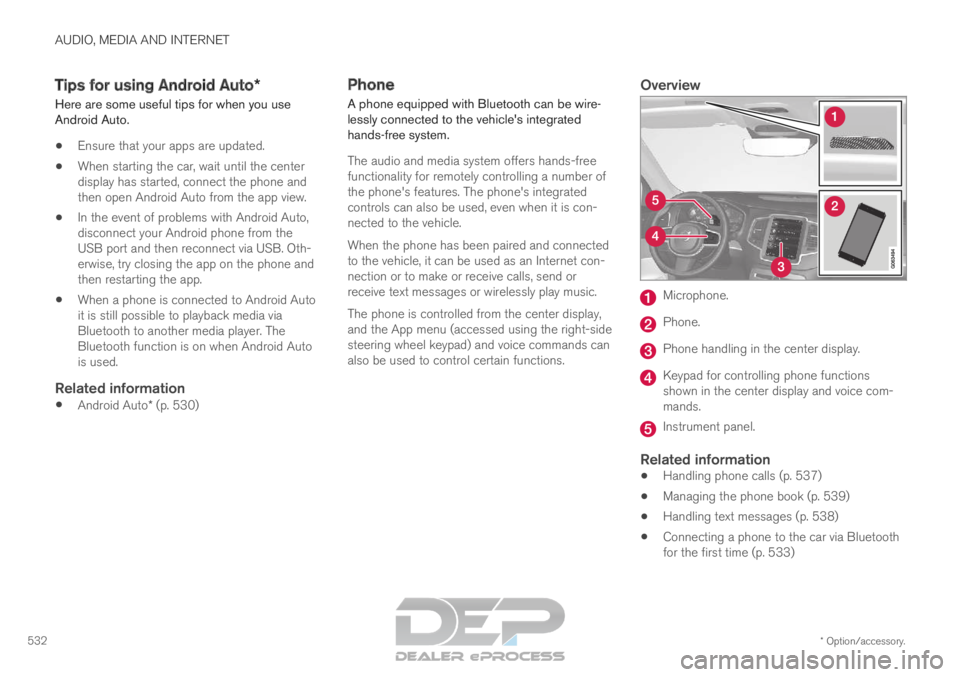
Overview Microphone.
Phone.
Phone handling in the center display.
Keypad for controlling phone functions
shown in the center display and voice com-
mands.
Instrument panel.
Related information
Handling phone calls (p. 537)
Managing the phone book (p. 539)
Handling text messages (p. 538)
Connecting a phone to the car via Bluetooth
for the first time (p. 533)
Page 535 of 697
AUDIO, MEDIA AND INTERNET
}}
533
Connecting a phone to the car via Bluetooth
automatically (p. 535)
Connecting a phone to the car via Bluetooth
manually (p. 535)
Disconnecting a Bluetooth-connected phone
(p. 536)
Switch between phones connected via Blue-
tooth (p. 536)
Disconnecting Bluetooth-connected devices
(p. 536)
Phone settings (p. 540)
Voice control (p. 145)
Handling the App menu in the instrument
panel (p. 104)
Sound settings (p. 496)
Connecting the vehicle to the Internet via a
Bluetooth-connected phone (p. 543) Connecting a phone to the car via
Bluetooth for the first time
Pair a Bluetooth-enabled phone to the vehicle to
make calls, send/receive text messages and
wirelessly play media from the vehicle, or con-
nect the vehicle to the Internet.
Two Bluetooth devices can be connected at the
same time, but in that case, only one will be used
for wireless playback. The most recently paired
phone will be automatically connected to make
calls, send/receive text messages, play media or
use as an Internet connection. It is possible to
change what the phone is used for under
Bluetooth Devices via the settings menu in the
center display's Top view.
After the device has been connected/registered
for the first time via Bluetooth, the device no
longer needs to be visible/searchable. It just
needs to have Bluetooth activated. A maximum of
20 paired Bluetooth devices can be stored in the
vehicle.
There are two ways to pair a phone to the vehicle.
Searching for the phone from the vehicle or
searching for the vehicle from the phone.
Option 1 - searching for the phone from
the vehicle
1. Make the phone discoverable/visible using its Bluetooth function. 2. Open the phone tile in the center display.
If no phone has been paired to the vehi-
cle, tap
Add phone.
If a phone has been paired to the vehicle,
tap
Change . Tap
Add phone in the
pop-up window.
>
A list of available Bluetooth devices will be
displayed. The list will be updated as new
devices are discovered.
3. Tap the name of the phone you would like to connect.
4. Make sure that the code displayed in the vehicle matches the one in the phone. If it
does, confirm the code in both places.
5. In the phone, accept or cancel the options for selecting the phone's contacts and text
messages.
NOTE
The message function must be activated
in certain phones.
Not all cell phones are fully compatible
and may not be able to display contacts
and messages in the vehicle.
Page 539 of 697
AUDIO, MEDIA AND INTERNET
537
Handling phone calls
Handling phone calls in the vehicle for a
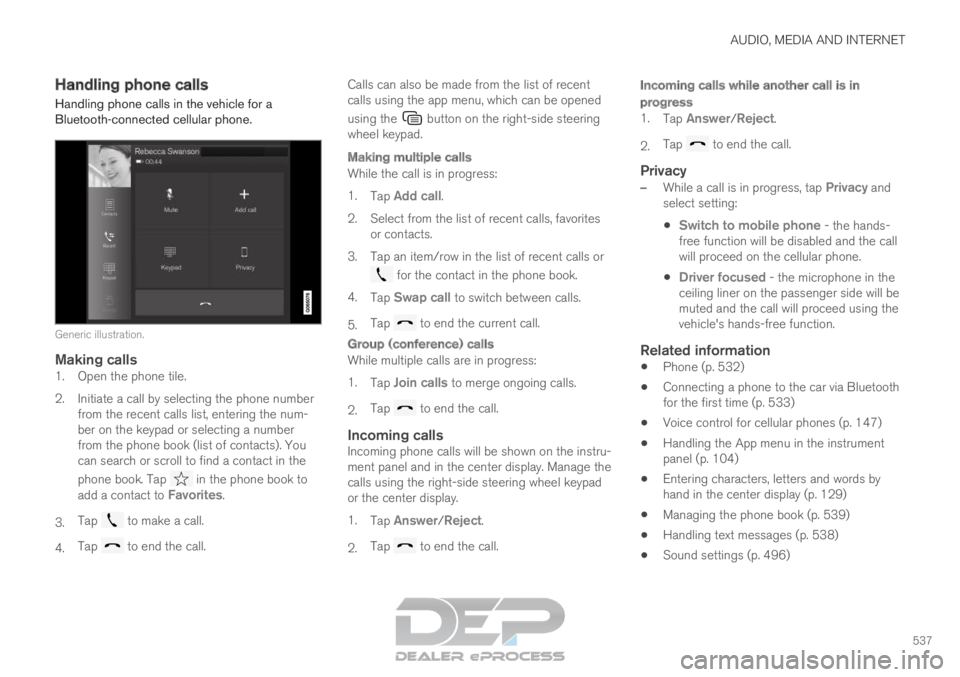
Bluetooth-connected cellular phone.
Generic illustration.
Making calls1. Open the phone tile.
2. Initiate a call by selecting the phone number
from the recent calls list, entering the num-
ber on the keypad or selecting a number
from the phone book (list of contacts). You
can search or scroll to find a contact in the
phone book. Tap in the phone book to
add a contact to Favorites.
3. Tap to make a call.
4. Tap to end the call. Calls can also be made from the list of recent
calls using the app menu, which can be opened
using the button on the right-side steering
wheel keypad.
Making multiple calls
While the call is in progress:
1. Tap Add call.
2.
Select from the list of recent calls, favorites
or contacts.
3. Tap an item/row in the list of recent calls or for the contact in the phone book.
4. Tap Swap call to switch between calls.
5. Tap to end the current call.
Group (conference) calls
While multiple calls are in progress:
1.
Tap Join calls to merge ongoing calls.
2. Tap to end the call.
Incoming callsIncoming phone calls will be shown on the instru-
ment panel and in the center display. Manage the
calls using the right-side steering wheel keypad
or the center display.
1.
Tap Answer/Reject.
2. Tap to end the call.
Incoming calls while another call is in
progress
1.
Tap Answer/Reject.
2. Tap to end the call.
Privacy
–
While a call is in progress, tap Privacy and
select setting:
Switch to mobile phone - the hands-
free function will be disabled and the call
will proceed on the cellular phone.
Driver focused - the microphone in the
ceiling liner on the passenger side will be
muted and the call will proceed using the
vehicle's hands-free function.
Related information
Phone (p. 532)
Connecting a phone to the car via Bluetooth
for the first time (p. 533)
Voice control for cellular phones (p. 147)
Handling the App menu in the instrument
panel (p. 104)
Entering characters, letters and words by
hand in the center display (p. 129)
Managing the phone book (p. 539)
Handling text messages (p. 538)
Sound settings (p. 496)
Page 540 of 697
AUDIO, MEDIA AND INTERNET
* Option/accessory.
538 Handling text messages
10
A Bluetooth-connected cellular phone's text
messages can be handled in the vehicle.
Text message functionality needs to be activated
in certain phones. Not all phones are fully com-
patible and therefore cannot display contacts and
messages in the vehicle. For additional informa-
tion on compatibility, see support.volvocars.com.
Handling text messages in the center
display
Text messages are only shown in the center dis-
play if the relevant setting is made.
Tap Messages in App view to
handle text messages in the
center display.
NOTE When the vehicle is moving:
Only one row of the message will be dis-
played. Tap Read out to have the entire
message read aloud.
The center display's keyboard cannot be
used.
Reading text messages in the center display
aloud
Tap the icon to have the message read
aloud.
Sending text messages in the center
display 11
1. It is possible to reply to text messages or
create a new message.
To reply to a text message - tap the name
of the contact who sent the message and
then tap
Answer.
To create a new message - tap
Create
new. Select a contact or enter a phone number.
2.
Write the message.
3. Tap Send.
Handling test messages in the
instrument panel
Text messages are only shown in the instrument
panel if the relevant setting is made.
Reading new text messages in the
instrument panel aloud
–To have the message read aloud, select
Read out using the steering wheel keypad.
Dictating replies in the instrument panel
After the test message has been read aloud, it is
possible to answer briefly with dictation if the
vehicle has an Internet connection.
– Tap
Answer using the steering wheel key-
pad. A dictation dialog will start.
Message alertAlerts can be activated and deactivated in the
text message settings.
Related information
Phone (p. 532)
Text message settings (p. 539)
Phone settings (p. 540)
Internet-connected vehicle* (p. 541)
Voice control for cellular phones (p. 147)
Entering characters, letters and words by
hand in the center display (p. 129) 10
Only applies to certain markets. Contact a Volvo retailer for more infor\
mation.
11Only certain phones can send messages via the vehicle. For additional in\
formation on compatibility, see support.volvocars.com.
Page 571 of 697
WHEELS AND TIRES
}}
* Option/accessory. 569
Recommended tire pressure
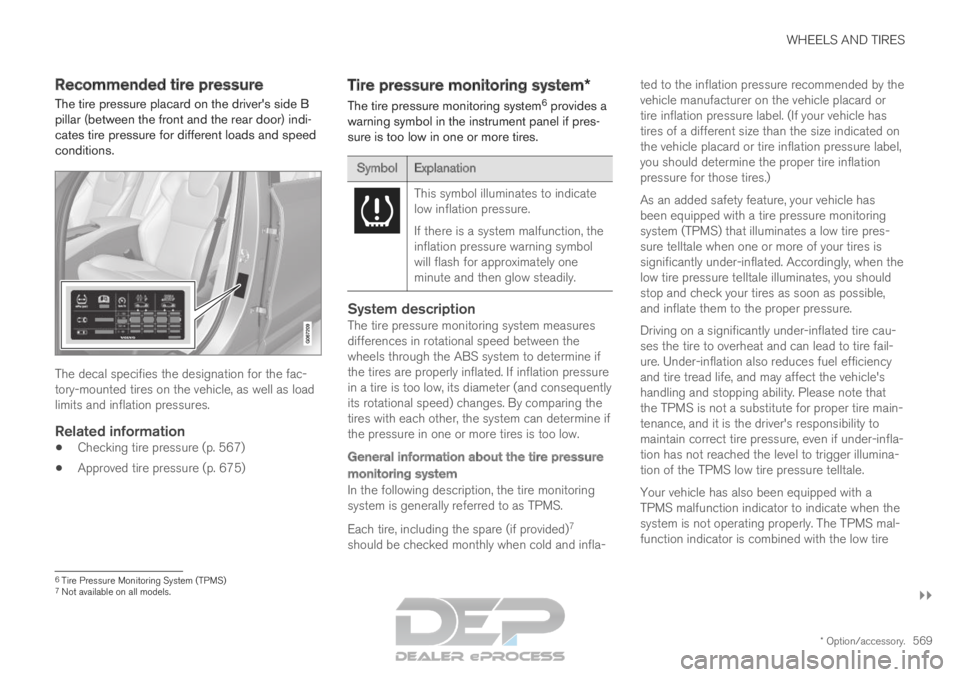
The tire pressure placard on the driver's side B
pillar (between the front and the rear door) indi-
cates tire pressure for different loads and speed
conditions. The decal specifies the designation for the fac-
tory-mounted tires on the vehicle, as well as load
limits and inflation pressures.
Related information
Checking tire pressure (p. 567)
Approved tire pressure (p. 675) Tire pressure monitoring system*
The tire pressure monitoring system 6
provides a
warning symbol in the instrument panel if pres-
sure is too low in one or more tires. Symbol
Explanation This symbol illuminates to indicate
low inflation pressure.
If there is a system malfunction, the
inflation pressure warning symbol
will flash for approximately one
minute and then glow steadily.
System descriptionThe tire pressure monitoring system measures
differences in rotational speed between the
wheels through the ABS system to determine if
the tires are properly inflated. If inflation pressure
in a tire is too low, its diameter (and consequently
its rotational speed) changes. By comparing the
tires with each other, the system can determine if
the pressure in one or more tires is too low.
General information about the tire pressure
monitoring system
In the following description, the tire monitoring
system is generally referred to as TPMS.
Each tire, including the spare (if provided)
7
should be checked monthly when cold and infla- ted to the inflation pressure recommended by the
vehicle manufacturer on the vehicle placard or
tire inflation pressure label. (If your vehicle has
tires of a different size than the size indicated on
the vehicle placard or tire inflation pressure label,
you should determine the proper tire inflation
pressure for those tires.)
As an added safety feature, your vehicle has
been equipped with a tire pressure monitoring
system (TPMS) that illuminates a low tire pres-
sure telltale when one or more of your tires is
significantly under-inflated. Accordingly, when the
low tire pressure telltale illuminates, you should
stop and check your tires as soon as possible,
and inflate them to the proper pressure.
Driving on a significantly under-inflated tire cau-
ses the tire to overheat and can lead to tire fail-
ure. Under-inflation also reduces fuel efficiency
and tire tread life, and may affect the vehicle's
handling and stopping ability. Please note that
the TPMS is not a substitute for proper tire main-
tenance, and it is the driver's responsibility to
maintain correct tire pressure, even if under-infla-
tion has not reached the level to trigger illumina-
tion of the TPMS low tire pressure telltale.
Your vehicle has also been equipped with a
TPMS malfunction indicator to indicate when the
system is not operating properly. The TPMS mal-
function indicator is combined with the low tire
6
Tire Pressure Monitoring System (TPMS)
7 Not available on all models.
Page 572 of 697
||WHEELS AND TIRES
* Option/accessory.
570 pressure telltale. When the system detects a mal-
function, the telltale will flash for approximately
one minute and then remain continuously illumi-
nated. This sequence will continue upon subse-
quent vehicle start-ups as long as the malfunc-
tion exists. When the malfunction indicator is illu-
minated, the system may not be able to detect or
signal low tire pressure as intended.
TPMS malfunctions may occur for a variety of
reasons, including the installation of replacement
or alternate tires or wheels on the vehicle that
prevent the TPMS from functioning properly.
Always check the TPMS malfunction telltale after
replacing one or more tires or wheels on your
vehicle to ensure that the replacement or alter-
nate tires and wheels allow the TPMS to con-
tinue to function properly.
Messages in the instrument panelIf tire pressure is too low, the low tire pressure
warning symbol is shown in the instrument panel
along with a message.
Tire pressure low Check tires, calibrate
after fill
Tire pressure system Temporarily
unavailable
Tire pressure system Service required
To keep in mind
Always calibrate the system after changing
wheels or adjusting tire pressure. See the tire
pressure placard on the driver's side B pillar
for Volvo-recommended tire pressures.
If you switch to a tire of another size than the
factory-mounted tires, the system must be
calibrated for these tires to avoid false warn-
ings.
If a spare wheel 8
is used, it is possible that
the tire pressure monitoring system will not
work correctly due to the differences
between the wheels.
The system does not replace the need for
regular tire inspection and maintenance.
It is not possible to deactivate the tire pres-
sure monitoring system.
WARNING
Incorrect inflation pressure could lead to
tire failure, which could cause the driver
to lose control of the vehicle.
The system cannot predict sudden tire
damage.
Related information
Recommended tire pressure (p. 569)
Viewing tire pressure status in the center
display* (p. 572)
Action when warned of low tire pressure
(p. 573)
Calibrating the tire pressure monitoring sys-
tem* (p. 571) 8
Not available on all models.
Page 617 of 697
MAINTENANCE AND SERVICE
}}
* Option/accessory. 615
Messages - status messages
Status – checking engine oil level and
AdBlue level 4
TPMS - tire inflation pressure check
Appointments - appointment information
and vehicle information 3
.
Related information
Handling messages saved from the instru-
ment panel (p. 107)
Checking and filling engine oil (p. 624)
Tire pressure monitoring system* (p. 569)
Scheduling service and repairs (p. 615)
Sending vehicle information to the workshop
(p. 616)
Navigating in the center display's views
(p. 115) Scheduling service and repairs
5
This service offers a convenient way to schedule
service and workshop appoints directly from the
vehicle.
When it is time for service, and in certain cases if
the vehicle requires repairs, a message will be
displayed in the instrument panel and at the top
of the center display. The time for service is
determined by how much time has elapsed, the
number of hours the engine has run, or the dis-
tance driven since the last service.
To use the service
Create a Volvo ID and register it to the vehi-
cle.
To select a Volvo retailer you would like to
contact, go to www.volvocars.com and log in.
To send and receive appointment informa-
tion, the vehicle must be connected to the
Internet 6
.
Book serviceBook a service request when desired or when a
message is displayed indicating that service or
repairs are needed. 1.
Open the Car Status app from App view in
the center display.
2. Tap Appointments.
3. Tap Request appointment.
4. Check that your Volvo ID is correct.
5. Make sure your preferred Workshop is cor-
rect.
6. In the Tap to write information to the
workshop field, you can provide details on what you would like performed during the
visit or other important information to your
workshop. 4
AdBlue Diesel models only.
3 Certain markets only.
5 Certain markets only.
6 There may be a charge for transmitting data over the Internet, depending\
on your service plan.
Page 618 of 697
||MAINTENANCE AND SERVICE
* Option/accessory.
616 7.
Tap Send appointment request.
>
You will receive an appointment sugges-
tion by email within a couple of days 7
.
You will also receive the same message
via email and when you log in to
www.volvocars.com.
On some markets, the message in the
instrument panel indicating that the vehi-
cle requires service will go out once the
appointment request has been sent.
8. Tap Cancel request if you would like to
cancel your request.
The appointment request contains information
about your vehicle that helps the workshop plan
for your visit.
The retailer will send you a digital appointment
suggestion. Information about your retailer is also
available in the vehicle so that you can contact
your workshop at any time.
Accepting an appointment suggestionWhen the vehicle has received an appointment
suggestion, a message will be displayed at the
top of the center display.
1. Tap the message. 2. To accept the suggested appointment, tap
Accept. Otherwise, tap Send new
proposal or Decline.
For some markets, the system reminds you when
an appointment time is approaching and the navi-
gation system 8
can also guide you to the work-
shop at the appointed time.
Related information
Vehicle status (p. 614)
Sending vehicle information to the workshop
(p. 616)
Navigating in the center display's views
(p. 115)
Volvo ID (p. 26)
Internet-connected vehicle* (p. 541) Sending vehicle information to the
workshop
9
Vehicle-related information can be sent at any
time from the vehicle, e.g. if you schedule a visit
to a workshop and would like to assist your
workshop by providing additional basic informa-
tion. Sending vehicle information is not the same
as scheduling service. 1.
Open the Car Status app from App view in
the center display.
2. Tap Appointments.
3. Tap Send vehicle data.
>
A message confirming that vehicle-related
information has been sent will appear at
the top of the center display. You can
cancel data transmission by tapping the
checkbox in the activity indicator.
Information is sent via the vehicle's Inter-
net connection 10
. 7
Timespan may vary depending on market.
8 For vehicles with Sensus Navigation*.
9 Certain markets only.
10 There may be a charge for transmitting data over the Internet, depending\
on your service plan.
Page 622 of 697
MAINTENANCE AND SERVICE
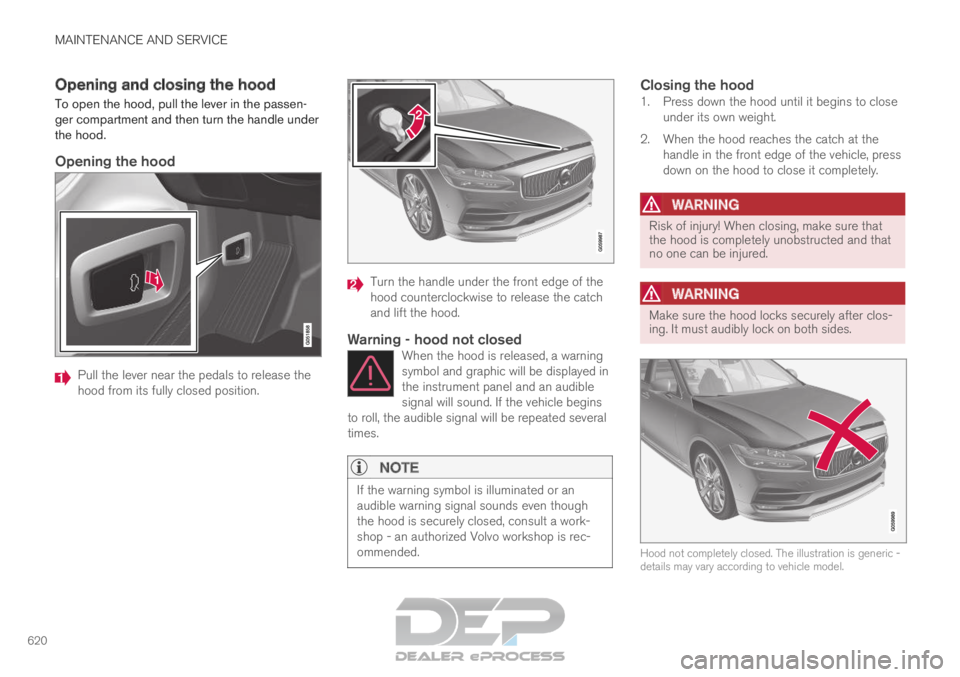
620Opening and closing the hood
To open the hood, pull the lever in the passen-
ger compartment and then turn the handle under
the hood.
Opening the hood
Pull the lever near the pedals to release the
hood from its fully closed position. Turn the handle under the front edge of the
hood counterclockwise to release the catch
and lift the hood.
Warning - hood not closedWhen the hood is released, a warning
symbol and graphic will be displayed in
the instrument panel and an audible
signal will sound. If the vehicle begins
to roll, the audible signal will be repeated several
times.
NOTE If the warning symbol is illuminated or an
audible warning signal sounds even though
the hood is securely closed, consult a work-
shop - an authorized Volvo workshop is rec-
ommended.
Closing the hood1. Press down the hood until it begins to close
under its own weight.
2. When the hood reaches the catch at the handle in the front edge of the vehicle, press
down on the hood to close it completely.
WARNING Risk of injury! When closing, make sure that
the hood is completely unobstructed and that
no one can be injured.
WARNING
Make sure the hood locks securely after clos-
ing. It must audibly lock on both sides.
Hood not completely closed. The illustration is generic -
details may vary according to vehicle model.
Page 625 of 697
MAINTENANCE AND SERVICE
623
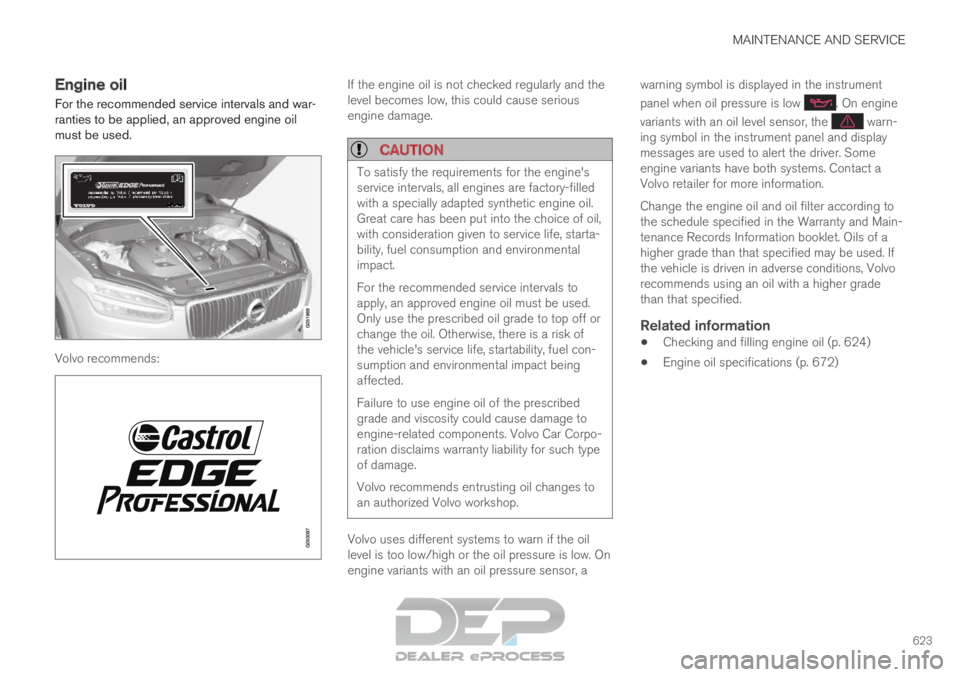
Engine oil
For the recommended service intervals and war-
ranties to be applied, an approved engine oil
must be used. Volvo recommends: If the engine oil is not checked regularly and the
level becomes low, this could cause serious
engine damage.
CAUTION
To satisfy the requirements for the engine's
service intervals, all engines are factory-filled
with a specially adapted synthetic engine oil.
Great care has been put into the choice of oil,
with consideration given to service life, starta-
bility, fuel consumption and environmental
impact.
For the recommended service intervals to
apply, an approved engine oil must be used.
Only use the prescribed oil grade to top off or
change the oil. Otherwise, there is a risk of
the vehicle's service life, startability, fuel con-
sumption and environmental impact being
affected.
Failure to use engine oil of the prescribed
grade and viscosity could cause damage to
engine-related components. Volvo Car Corpo-
ration disclaims warranty liability for such type
of damage.
Volvo recommends entrusting oil changes to
an authorized Volvo workshop.
Volvo uses different systems to warn if the oil
level is too low/high or the oil pressure is low. On
engine variants with an oil pressure sensor, awarning symbol is displayed in the instrument
panel when oil pressure is low . On engine
variants with an oil level sensor, the warn-
ing symbol in the instrument panel and display
messages are used to alert the driver. Some
engine variants have both systems. Contact a
Volvo retailer for more information.
Change the engine oil and oil filter according to
the schedule specified in the Warranty and Main-
tenance Records Information booklet. Oils of a
higher grade than that specified may be used. If
the vehicle is driven in adverse conditions, Volvo
recommends using an oil with a higher grade
than that specified.
Related information
Checking and filling engine oil (p. 624)
Engine oil specifications (p. 672)