audio VOLVO XC90 TWIN ENGINE 2019 User Guide
[x] Cancel search | Manufacturer: VOLVO, Model Year: 2019, Model line: XC90 TWIN ENGINE, Model: VOLVO XC90 TWIN ENGINE 2019Pages: 697, PDF Size: 10.33 MB
Page 255 of 697
KEY, LOCKS AND ALARM
}}
* Option/accessory. 253
Red Key - restricted remote key*
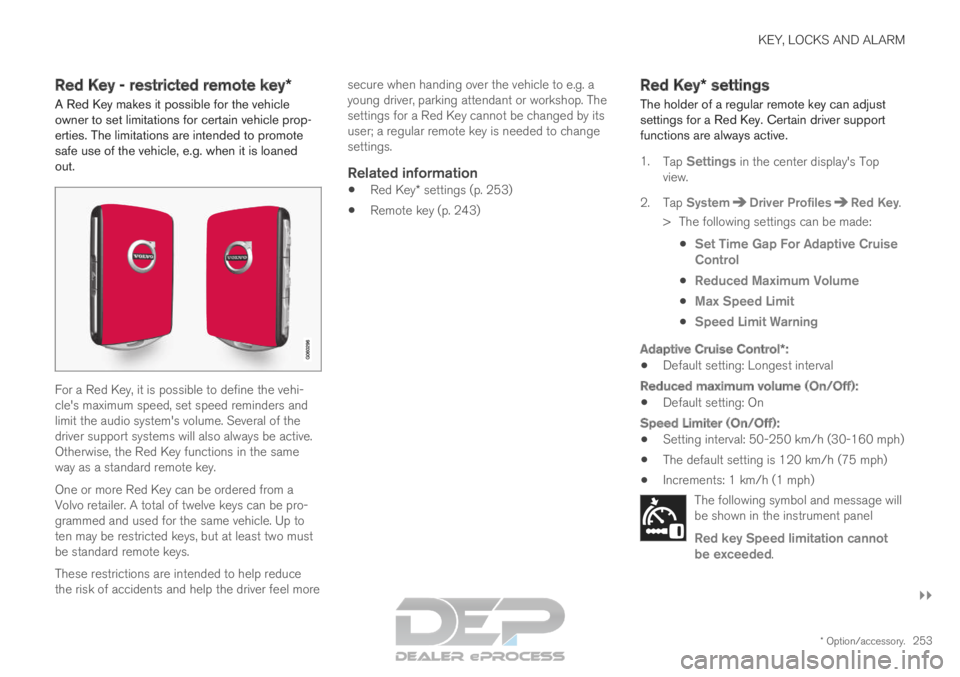
A Red Key makes it possible for the vehicle
owner to set limitations for certain vehicle prop-
erties. The limitations are intended to promote
safe use of the vehicle, e.g. when it is loaned
out. For a Red Key, it is possible to define the vehi-
cle's maximum speed, set speed reminders and
limit the audio system's volume. Several of the
driver support systems will also always be active.
Otherwise, the Red Key functions in the same
way as a standard remote key.
One or more Red Key can be ordered from a
Volvo retailer. A total of twelve keys can be pro-
grammed and used for the same vehicle. Up to
ten may be restricted keys, but at least two must
be standard remote keys.
These restrictions are intended to help reduce
the risk of accidents and help the driver feel more secure when handing over the vehicle to e.g. a
young driver, parking attendant or workshop. The
settings for a Red Key cannot be changed by its
user; a regular remote key is needed to change
settings.
Related information
Red Key* settings (p. 253)
Remote key (p. 243) Red Key*
settings
The holder of a regular remote key can adjust
settings for a Red Key. Certain driver support
functions are always active.
1. Tap Settings in the center display's Top
view.
2.
Tap System Driver Profiles Red Key
.
> The following settings can be made:
Set Time Gap For Adaptive Cruise
Control
Reduced Maximum Volume
Max Speed Limit
Speed Limit Warning
Adaptive Cruise Control*:
Default setting: Longest interval
Reduced maximum volume (On/Off):
Default setting: On
Speed Limiter (On/Off):
Setting interval: 50-250 km/h (30-160 mph)
The default setting is 120 km/h (75 mph)
Increments: 1 km/h (1 mph)
The following symbol and message will
be shown in the instrument panel
Red key Speed limitation cannot
be exceeded.
Page 271 of 697
KEY, LOCKS AND ALARM
* Option/accessory.269
Related information
Setting a maximum height for the power tail-
gate* (p. 269)
Foot movement tailgate operation* (p. 270)
Remote key range (p. 248) Setting a maximum height for the
power tailgate*
The tailgate can be set to stop opening at a cer-
tain height, for example if the tailgate needs to
be opened in a garage with a low ceiling.
Setting maximum opening height:
1.
Open the tailgate to the desired opening
height.
NOTE It is not possible to program an opening posi-
tion lower than half-open tailgate.
2.
Press the button on the lower edge of
the tailgate and hold for at least 3 seconds.
>
Two brief audio signals will sound to indi-
cate that the position has been stored.
Resetting to maximum opening position:
– Move the tailgate manually to its highest
possible position and press the button
on the tailgate for at least 3 seconds.
>
Two audio signals will sound to indicate
that the stored position has been erased.
The tailgate can then be opened to its
maximum position.
NOTE
If the system has been working continu-
ously for a prolonged period of time, it will
be switched off to avoid overload. It can
be used again after approximately
2 minutes.
Related information
Opening and closing the power tailgate*
(p. 266)
Page 305 of 697
DRIVER SUPPORT
* Option/accessory.303
Managing Adaptive Cruise Control speed
(p. 305)
Setting Adaptive Cruise Control time inter-
vals (p. 306)
Deactivating/reactivating Adaptive Cruise
Control (p. 307)
Passing assistance with Adaptive Cruise
Control (p. 309)
Starting passing assistance with Adaptive
Cruise Control (p. 310)
Limitations of passing assistance with Adap-
tive Cruise Control (p. 310)
Switching target vehicles with Adaptive
Cruise Control (p. 310)
Automatic braking with Adaptive Cruise Con-
trol (p. 311)
Adaptive Cruise Control limitations (p. 312)
Switching between Cruise Control and Adap-
tive Cruise Control (p. 313)
Symbols and messages for Adaptive Cruise
Control (p. 314) Adaptive Cruise Control and
collision warning
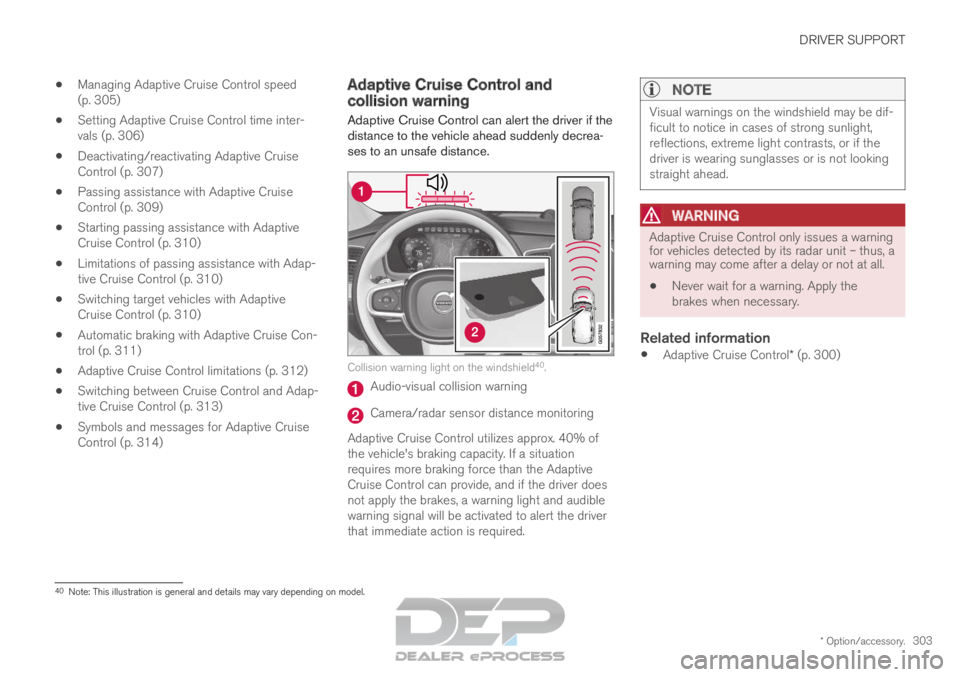
Adaptive Cruise Control can alert the driver if the
distance to the vehicle ahead suddenly decrea-
ses to an unsafe distance.
Collision warning light on the windshield
40
. Audio-visual collision warning
Camera/radar sensor distance monitoring
Adaptive Cruise Control utilizes approx. 40% of
the vehicle's braking capacity. If a situation
requires more braking force than the Adaptive
Cruise Control can provide, and if the driver does
not apply the brakes, a warning light and audible
warning signal will be activated to alert the driver
that immediate action is required.
NOTE Visual warnings on the windshield may be dif-
ficult to notice in cases of strong sunlight,
reflections, extreme light contrasts, or if the
driver is wearing sunglasses or is not looking
straight ahead.
WARNING
Adaptive Cruise Control only issues a warning
for vehicles detected by its radar unit – thus, a
warning may come after a delay or not at all.
Never wait for a warning. Apply the
brakes when necessary.
Related information
Adaptive Cruise Control* (p. 300) 40
Note: This illustration is general and details may vary depending on mod\
el.
Page 321 of 697
DRIVER SUPPORT
}}
* Option/accessory. 319
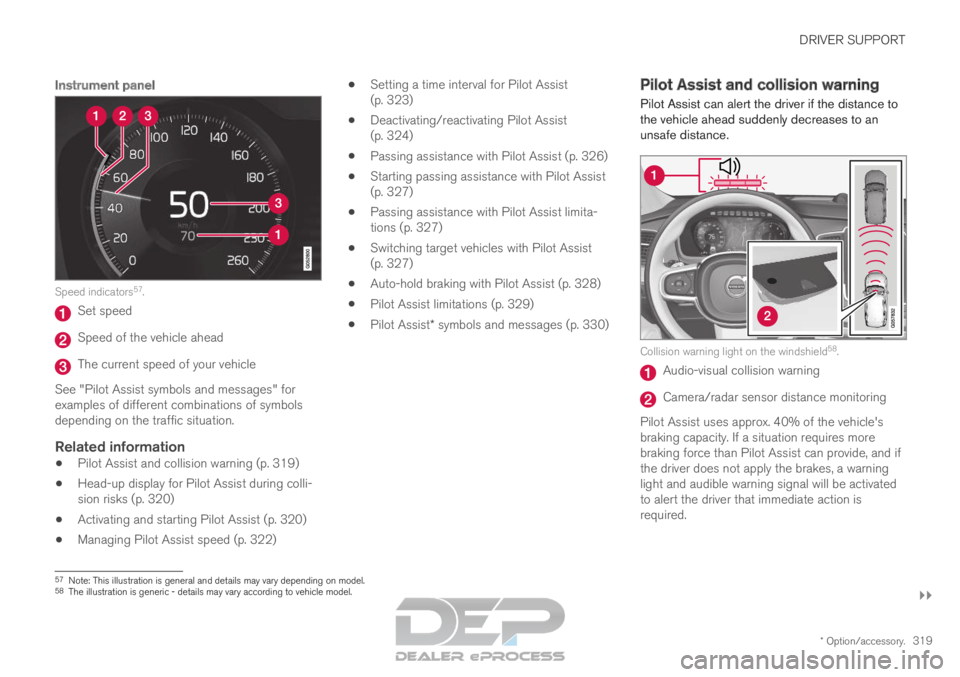
Instrument panelSpeed indicators
57
. Set speed
Speed of the vehicle ahead
The current speed of your vehicle
See "Pilot Assist symbols and messages" for
examples of different combinations of symbols
depending on the traffic situation.
Related information
Pilot Assist and collision warning (p. 319)
Head-up display for Pilot Assist during colli-
sion risks (p. 320)
Activating and starting Pilot Assist (p. 320)
Managing Pilot Assist speed (p. 322)
Setting a time interval for Pilot Assist
(p. 323)
Deactivating/reactivating Pilot Assist
(p. 324)
Passing assistance with Pilot Assist (p. 326)
Starting passing assistance with Pilot Assist
(p. 327)
Passing assistance with Pilot Assist limita-
tions (p. 327)
Switching target vehicles with Pilot Assist
(p. 327)
Auto-hold braking with Pilot Assist (p. 328)
Pilot Assist limitations (p. 329)
Pilot Assist* symbols and messages (p. 330) Pilot Assist and collision warning
Pilot Assist can alert the driver if the distance to
the vehicle ahead suddenly decreases to an
unsafe distance. Collision warning light on the windshield
58
. Audio-visual collision warning
Camera/radar sensor distance monitoring
Pilot Assist uses approx. 40% of the vehicle's
braking capacity. If a situation requires more
braking force than Pilot Assist can provide, and if
the driver does not apply the brakes, a warning
light and audible warning signal will be activated
to alert the driver that immediate action is
required. 57
Note: This illustration is general and details may vary depending on mod\
el.
58 The illustration is generic - details may vary according to vehicle mode\
l.
Page 345 of 697
DRIVER SUPPORT
}}
* Option/accessory. 343
Large animals
If there is a risk of colliding with a large animal,
City Safety can help reduce your vehicle's speed
by up to 15 km/h (9 mph).
The braking function for large animals is primarily
intended to mitigate the force of a collision at
higher speeds. Braking is most effective at
speeds above 70 km/h (43 mph) and less effec-
tive at lower speeds.
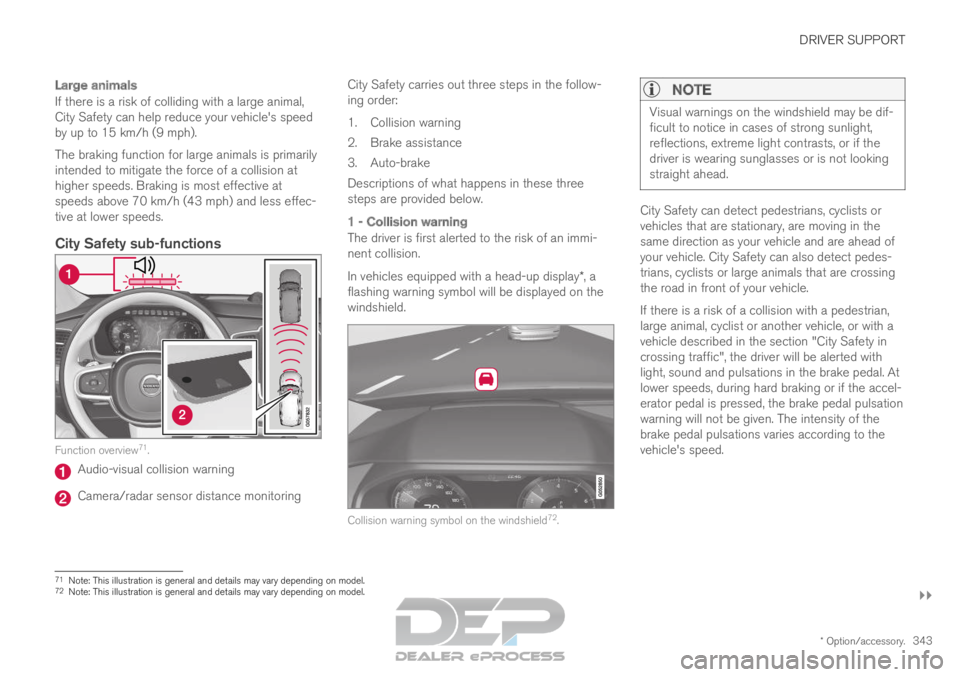
City Safety sub-functionsFunction overview
71
. Audio-visual collision warning
Camera/radar sensor distance monitoring City Safety carries out three steps in the follow-
ing order:
1.
Collision warning
2. Brake assistance
3. Auto-brake
Descriptions of what happens in these three
steps are provided below.
1 - Collision warning
The driver is first alerted to the risk of an immi-
nent collision.
In vehicles equipped with a head-up display*, a
flashing warning symbol will be displayed on the
windshield. Collision warning symbol on the windshield
72
.
NOTE Visual warnings on the windshield may be dif-
ficult to notice in cases of strong sunlight,
reflections, extreme light contrasts, or if the
driver is wearing sunglasses or is not looking
straight ahead.
City Safety can detect pedestrians, cyclists or
vehicles that are stationary, are moving in the
same direction as your vehicle and are ahead of
your vehicle. City Safety can also detect pedes-
trians, cyclists or large animals that are crossing
the road in front of your vehicle.
If there is a risk of a collision with a pedestrian,
large animal, cyclist or another vehicle, or with a
vehicle described in the section "City Safety in
crossing traffic", the driver will be alerted with
light, sound and pulsations in the brake pedal. At
lower speeds, during hard braking or if the accel-
erator pedal is pressed, the brake pedal pulsation
warning will not be given. The intensity of the
brake pedal pulsations varies according to the
vehicle's speed.
71
Note: This illustration is general and details may vary depending on mod\
el.
72 Note: This illustration is general and details may vary depending on mod\
el.
Page 369 of 697

DRIVER SUPPORT
}}
* Option/accessory. 367
Road Sign Information with Speed
Warning and Settings
The Speed Limit Warning sub-function for
RSI 97
can be switched On or Off.
Speed Limit Warning warns the driver if the
vehicle's speed has exceeded the applicable
speed limit or the preset Speed Limiter speed.
The warning will be repeated once after
about 1 minute in that speed limit area if the
driver does not slow down.
A new warning and message indicating that the
speed limit has been exceeded will be provided
only when the vehicle has entered a new/differ-
ent speed limit area.
When Speed Warning is acti-
vated, the symbol for the cur-
rent speed limit in the instru-
ment panel98
will flash tempo-
rarily if that speed is exceeded. The driver can be alerted if the
vehicle is exceeding a detected
speed limit and is approaching
a speed camera.
Settings
Adjusting the Speed Warning limit
The driver can adjust the settings to be alerted at
a higher speed than the posted speed limit.
To adjust the Speed Warning limit:
1. Select
Settings My Car IntelliSafe
Road Sign Information
in the center
display's Top view.
2. Mark Speed Limit Warning.
>
The function is activated and a speed limit
selector is displayed.
3. Tap the up/down arrows on the screen to adjust the speed at which the Speed Warn-
ing will be given.
Please note that the set warn-
ing limit will not be used when
a speed camera symbol is dis-
played in the instrument panel.
Audible alert On/Off
An audible alert can also be given along with the
Speed Warning. To adjust the audible alert settings:
1. Select
Settings My Car IntelliSafe
Road Sign Information
in the center
display's Top view.
2. Select/deselect Road Sign Audio Warning
to activate/deactivate the audible alert.
When
Road Sign Audio Warning is activated,
the driver will also be alerted if the vehicle is
approaching a one-way/"no-entry" road or
entrance.
Speed camera warning On/Off
If the vehicle is equipped with
Sensus Navigation* and map
data contains information on
speed cameras, the driver can
choose to receive an audible
alert if the vehicle is approach-
ing a speed camera. To adjust the audible alert settings:
1.
Select Settings My Car IntelliSafe
Road Sign Information
in the center
display's Top view.
2. Select/deselect Speed Camera Audio
Warning to activate/deactivate the speed camera audible alert. 97
Road Sign Information
98 Road signs differ according to market ‒ the illustration shown here is just an example.
Page 371 of 697

DRIVER SUPPORT
}}
* Option/accessory. 369
For more information on Speed Warnings in con-
junction with speed cameras, also see “Road
Sign Information with Speed Warning and Set-
tings” and “Road Sign Information limitations”.
NOTE
For an audible alert to be provided if the
speed is exceeded, the
Speed Limit
Warning function must be activated and
the
Road Sign Audio Warning sub-
function must be On. Audible alerts are
provided if the vehicle's speed exceeds
the speed displayed by RSI in the instru-
ment panel.
It is possible to receive an audible alert
for speed cameras regardless of the vehi-
cle's speed, whether or not the speed
limit is exceeded, and even if the
Road
Sign Audio Warning function is deacti- vated: See heading "Speed camerawarning On/Off" in section "Road Sign
Information with Speed Warning and set-
tings" and select Speed Camera Audio
Warning there.
Information about speed cameras on the
navigation map is not available for all
markets/areas.
Related information
Road Sign Information* (p. 364)
Road Sign Information with Speed Warning
and Settings (p. 367)
Road Sign Information limitations (p. 369) Road Sign Information limitations
Road Sign Information (RSI 101
) functionality may
be reduced in certain situations.
RSI could have reduced functionality due to e.g.:
faded road signs
signs located in a curve in the road
twisted or damaged signs
signs positioned high above the road
fully/partially obstructed or poorly positioned
signs
signs partially or fully covered by frost, snow
and/or dirt
digital road maps 102
that are outdated, incor-
rect or do not contain speed information 103
.
NOTE Certain types of bike carriers that are con-
nected to the trailer socket may be interpre-
ted as a connected trailer by the RSI function.
In such cases, the instrument panel may indi-
cate incorrect speed information.
101
Road Sign Information
102 Vehicles equipped with Sensus Navigation*.
103 Map data and speed information is not available for all areas.
Page 392 of 697
DRIVER SUPPORT
* Option/accessory.
390 Park Assist*
The Park Assist function can help the driver
when maneuvering in tight spaces by indicating
distances to obstacles using audible signals and
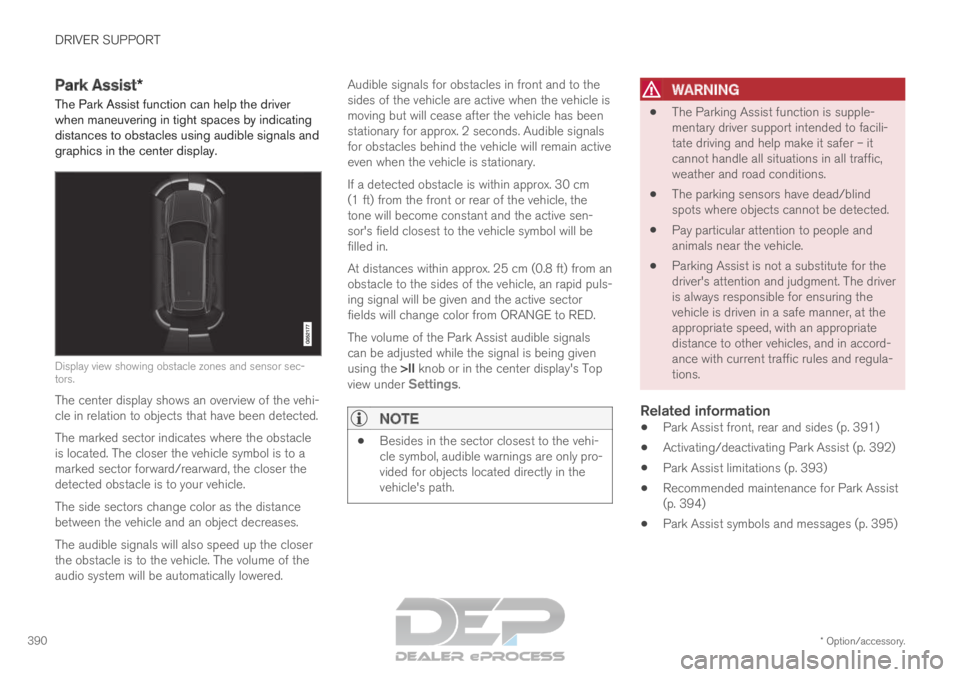
graphics in the center display. Display view showing obstacle zones and sensor sec-
tors.
The center display shows an overview of the vehi-
cle in relation to objects that have been detected.
The marked sector indicates where the obstacle
is located. The closer the vehicle symbol is to a
marked sector forward/rearward, the closer the
detected obstacle is to your vehicle.
The side sectors change color as the distance
between the vehicle and an object decreases.
The audible signals will also speed up the closer
the obstacle is to the vehicle. The volume of the
audio system will be automatically lowered. Audible signals for obstacles in front and to the
sides of the vehicle are active when the vehicle is
moving but will cease after the vehicle has been
stationary for approx. 2 seconds. Audible signals
for obstacles behind the vehicle will remain active
even when the vehicle is stationary.
If a detected obstacle is within approx. 30 cm
(1 ft) from the front or rear of the vehicle, the
tone will become constant and the active sen-
sor's field closest to the vehicle symbol will be
filled in.
At distances within approx. 25 cm (0.8 ft) from an
obstacle to the sides of the vehicle, an rapid puls-
ing signal will be given and the active sector
fields will change color from ORANGE to RED.
The volume of the Park Assist audible signals
can be adjusted while the signal is being given
using the >II knob or in the center display's Top
view under Settings.
NOTE
Besides in the sector closest to the vehi-
cle symbol, audible warnings are only pro-
vided for objects located directly in the
vehicle's path.
WARNING
The Parking Assist function is supple-
mentary driver support intended to facili-
tate driving and help make it safer – it
cannot handle all situations in all traffic,
weather and road conditions.
The parking sensors have dead/blind
spots where objects cannot be detected.
Pay particular attention to people and
animals near the vehicle.
Parking Assist is not a substitute for the
driver's attention and judgment. The driver
is always responsible for ensuring the
vehicle is driven in a safe manner, at the
appropriate speed, with an appropriate
distance to other vehicles, and in accord-
ance with current traffic rules and regula-
tions.
Related information
Park Assist front, rear and sides (p. 391)
Activating/deactivating Park Assist (p. 392)
Park Assist limitations (p. 393)
Recommended maintenance for Park Assist
(p. 394)
Park Assist symbols and messages (p. 395)
Page 482 of 697
||STARTING AND DRIVING
480
the vehicle safely and letting the engine idle
for a few minutes to let the transmission
cool.
If the vehicle begins to overheat, the air con-
ditioning may be temporarily switched off.
After a prolonged period of driving in
demanding conditions, do not turn off the
engine immediately after stopping.
NOTE It is normal for the engine's cooling fan to
operate for a short time after the engine is
switched off.
Symbols in the instrument panel
Symbol
Meaning High engine temperature. Follow
the recommendations provided.
Low coolant level. Follow the rec-
ommendations provided.
Transmission hot/overheated/cool-
ing. Follow the recommendations
provided.
Related information
Refilling coolant (p. 625)
Driving with a trailer (p. 483)
Preparing for a long trip (p. 472) Battery drain
The electrical functions in the vehicle drain the
battery to varying degrees. Avoid using ignition
mode II when the engine is switched off. Use
ignition mode I instead, as this uses less electri-
cal current.
Note that certain accessories may also drain
power from the electrical system. Do not use
functions that use a lot of electrical current when
the engine is turned off. Examples of such func-
tions are: blower
headlights
windshield wipers
audio system (especially at high volume).
If the starter battery voltage is low, a message is
shown in the driver display. The vehicle's energy-
saving function will then turn off or reduce certain
functions, such as the blower and/or the audio
system.
– Charge the battery by starting the engine
and let it run for at least 15 minutes (driving
charges the battery faster than letting the
engine idle).
Related information
Start battery (p. 627)
Ignition modes (p. 437)
Page 498 of 697
AUDIO, MEDIA AND INTERNET
* Option/accessory.
496 Audio, media and Internet
The audio and media system consists of a media
player and a radio. A cellular phone can also be
connected through Bluetooth to use hands-free
functions or play music in the vehicle. When the
vehicle is connected to the Internet, it is also
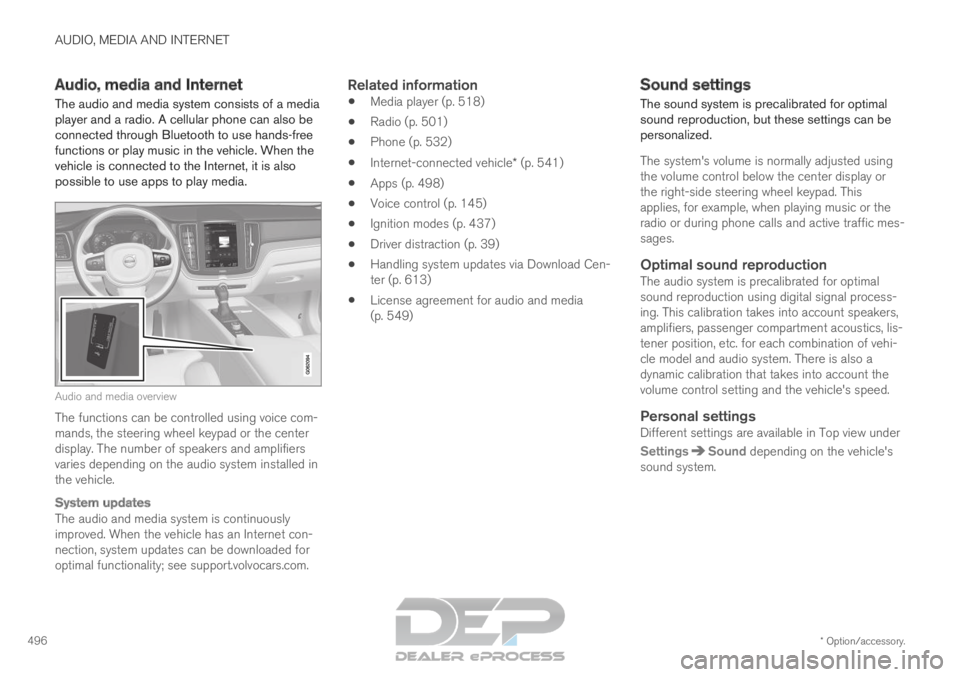
possible to use apps to play media. Audio and media overview
The functions can be controlled using voice com-
mands, the steering wheel keypad or the center
display. The number of speakers and amplifiers
varies depending on the audio system installed in
the vehicle.
System updates
The audio and media system is continuously
improved. When the vehicle has an Internet con-
nection, system updates can be downloaded for
optimal functionality; see support.volvocars.com.
Related information
Media player (p. 518)
Radio (p. 501)
Phone (p. 532)
Internet-connected vehicle* (p. 541)
Apps (p. 498)
Voice control (p. 145)
Ignition modes (p. 437)
Driver distraction (p. 39)
Handling system updates via Download Cen-
ter (p. 613)
License agreement for audio and media
(p. 549) Sound settings
The sound system is precalibrated for optimal
sound reproduction, but these settings can be
personalized.
The system's volume is normally adjusted using
the volume control below the center display or
the right-side steering wheel keypad. This
applies, for example, when playing music or the
radio or during phone calls and active traffic mes-
sages.
Optimal sound reproductionThe audio system is precalibrated for optimal
sound reproduction using digital signal process-
ing. This calibration takes into account speakers,
amplifiers, passenger compartment acoustics, lis-
tener position, etc. for each combination of vehi-
cle model and audio system. There is also a
dynamic calibration that takes into account the
volume control setting and the vehicle's speed.
Personal settingsDifferent settings are available in Top view under
Settings Sound
depending on the vehicle's
sound system.