audio VOLVO XC90 TWIN ENGINE 2019 Owner's Manual
[x] Cancel search | Manufacturer: VOLVO, Model Year: 2019, Model line: XC90 TWIN ENGINE, Model: VOLVO XC90 TWIN ENGINE 2019Pages: 697, PDF Size: 10.33 MB
Page 499 of 697
AUDIO, MEDIA AND INTERNET
}}
* Option/accessory. 497
Premium Sound* (Bowers & Wilkins)
Tone - setting for e.g. bass, treble, equalizer,
etc.
Balance - balance between right/left and
front/rear speakers.
System Volumes – adjusts volume in the
various systems of the car, e.g.
Voice
Control, Park Assist and Phone Ringtone.
High Performance Pro* (Harman
Kardon)
Equalizer - setting of equalizer.
Balance - balance between right/left and
front/rear speakers.
System Volumes – adjusts volume in the
various systems of the car, e.g. Voice
Control, Park Assist and Phone Ringtone.
High Performance
Tone - setting for e.g. bass, treble, equalizer,
etc.
Balance - balance between right/left and
front/rear speakers.
System Volumes – adjusts volume in the
various systems of the car, e.g.
Voice
Control, Park Assist and Phone Ringtone.
Related information
Sound experience* (p. 497)
Media player (p. 518)
Voice control settings (p. 148)
Phone settings (p. 540)
Audio, media and Internet (p. 496)
Internet-connected vehicle* (p. 541) Sound experience*
Sound experience is an app that provides
access to additional sound settings.
Open
Sound Experience from the center dis-
play's App view. Depending on the sound system
installed in the vehicle, the following settings are
possible:
Premium Sound* (Bowers & Wilkins)
Studio - the sound can be optimized for
Driver, All and Rear.
Individual stage - surround sound mode
with settings for intensity and enclosure.
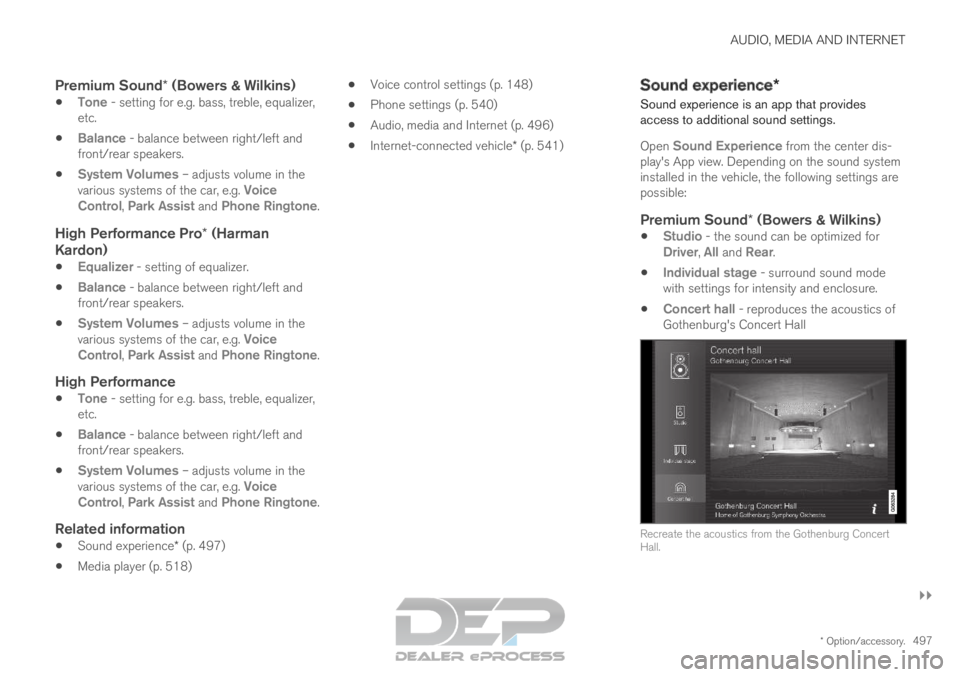
Concert hall - reproduces the acoustics of
Gothenburg's Concert Hall Recreate the acoustics from the Gothenburg Concert
Hall.
Page 500 of 697
||AUDIO, MEDIA AND INTERNET
* Option/accessory.
498
High Performance Pro* (Harman
Kardon)
Seat Optimization - the sound can be opti-
mized for Driver, All and Rear.
Surround - surround sound mode with level
settings.
Tone - setting for e.g. bass, treble, equalizer,
etc.
Related information
Sound settings (p. 496)
Navigating in the center display's views
(p. 115) Apps
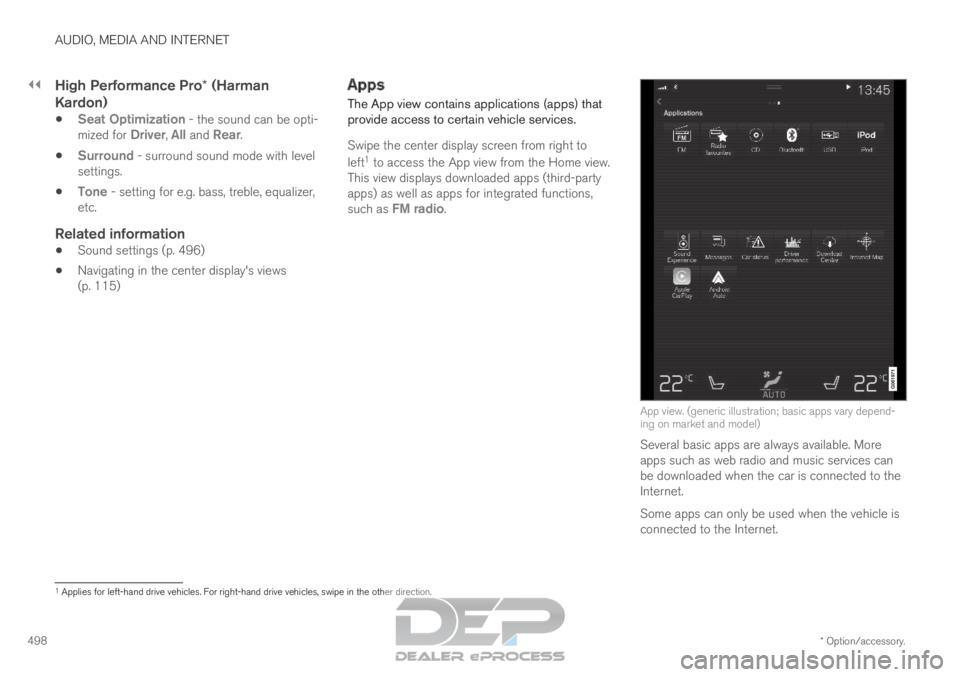
The App view contains applications (apps) that
provide access to certain vehicle services.
Swipe the center display screen from right to
left 1
to access the App view from the Home view.
This view displays downloaded apps (third-party
apps) as well as apps for integrated functions,
such as FM radio. App view. (generic illustration; basic apps vary depend-
ing on market and model)
Several basic apps are always available. More
apps such as web radio and music services can
be downloaded when the car is connected to the
Internet.
Some apps can only be used when the vehicle is
connected to the Internet. 1
Applies for left-hand drive vehicles. For right-hand drive vehicles, swi\
pe in the other direction.
Page 501 of 697
AUDIO, MEDIA AND INTERNET
* Option/accessory.499
Start an app by pressing the app in the center
display's app view.
Related information
Download apps (p. 499)
Updating apps (p. 500)
Deleting apps (p. 500)
Apple ®
CarPlay ®
* (p. 527)
Android Auto* (p. 530)
Internet-connected vehicle* (p. 541)
Hard disk storage space (p. 548)
Terms of use and data sharing (p. 548) Download apps
New apps can be downloaded when the vehicle
is connected to the Internet.NOTE Data downloading can affect other services
such as transfer data, e.g. web radio. If the
affect on other services is experienced as
problematic, the download can be interrupted.
Alternatively, it may be appropriate to switch
off or cancel other services.
NOTE
When downloading using a phone, pay extra
attention to the data traffic costs.
1.
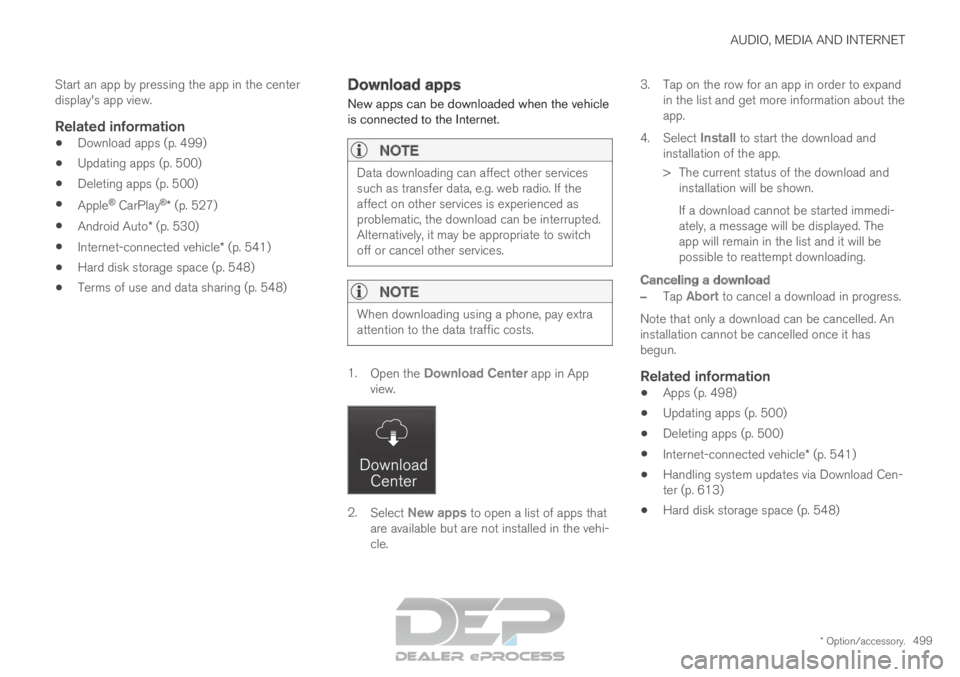
Open the Download Center app in App
view. 2.
Select New apps to open a list of apps that
are available but are not installed in the vehi-
cle. 3.
Tap on the row for an app in order to expand
in the list and get more information about the
app.
4. Select Install to start the download and
installation of the app.
>
The current status of the download and
installation will be shown.
If a download cannot be started immedi-
ately, a message will be displayed. The
app will remain in the list and it will be
possible to reattempt downloading.
Canceling a download
– Tap Abort to cancel a download in progress.
Note that only a download can be cancelled. An
installation cannot be cancelled once it has
begun.
Related information
Apps (p. 498)
Updating apps (p. 500)
Deleting apps (p. 500)
Internet-connected vehicle* (p. 541)
Handling system updates via Download Cen-
ter (p. 613)
Hard disk storage space (p. 548)
Page 502 of 697
AUDIO, MEDIA AND INTERNET
* Option/accessory.
500 Updating apps
Apps can be updated when the vehicle is con-
nected to the Internet.
NOTE Data downloading can affect other services
such as transfer data, e.g. web radio. If the
affect on other services is experienced as
problematic, the download can be interrupted.
Alternatively, it may be appropriate to switch
off or cancel other services.
NOTE
When downloading using a phone, pay extra
attention to the data traffic costs.
If an app is being used while an update is in pro-
gress, it will be restarted to complete the update.
Update all
1.
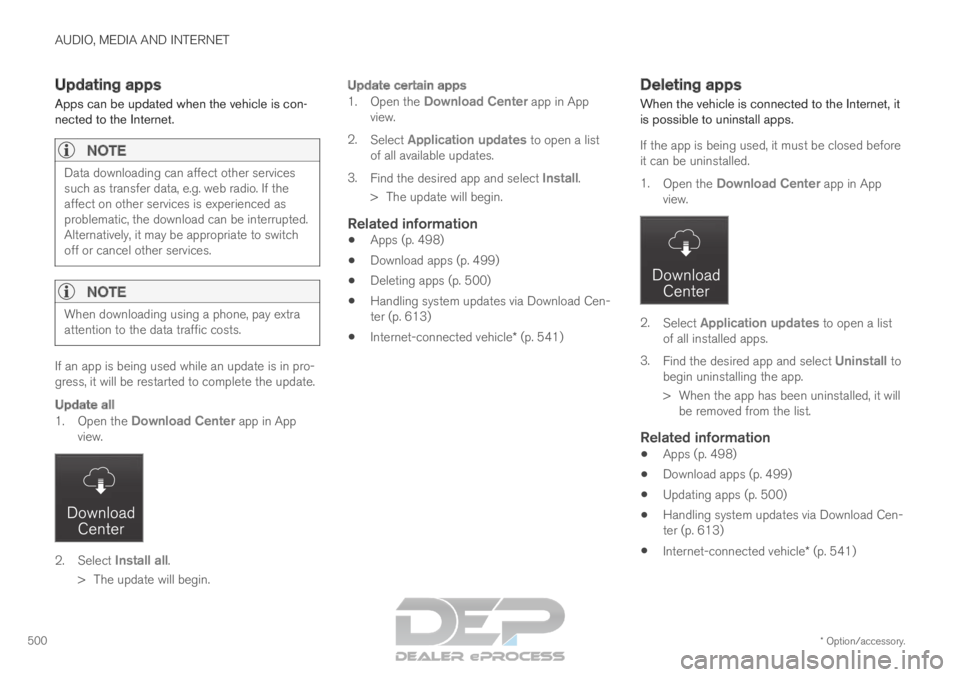
Open the Download Center app in App
view. 2.
Select Install all.
>
The update will begin.
Update certain apps
1. Open the Download Center app in App
view.
2. Select Application updates to open a list
of all available updates.
3. Find the desired app and select Install.
>
The update will begin.
Related information
Apps (p. 498)
Download apps (p. 499)
Deleting apps (p. 500)
Handling system updates via Download Cen-
ter (p. 613)
Internet-connected vehicle* (p. 541) Deleting apps
When the vehicle is connected to the Internet, it
is possible to uninstall apps.
If the app is being used, it must be closed before
it can be uninstalled.
1. Open the Download Center app in App
view. 2.
Select Application updates to open a list
of all installed apps.
3. Find the desired app and select Uninstall to
begin uninstalling the app.
>
When the app has been uninstalled, it will
be removed from the list.
Related information
Apps (p. 498)
Download apps (p. 499)
Updating apps (p. 500)
Handling system updates via Download Cen-
ter (p. 613)
Internet-connected vehicle* (p. 541)
Page 503 of 697
AUDIO, MEDIA AND INTERNET
}}
* Option/accessory. 501
Radio
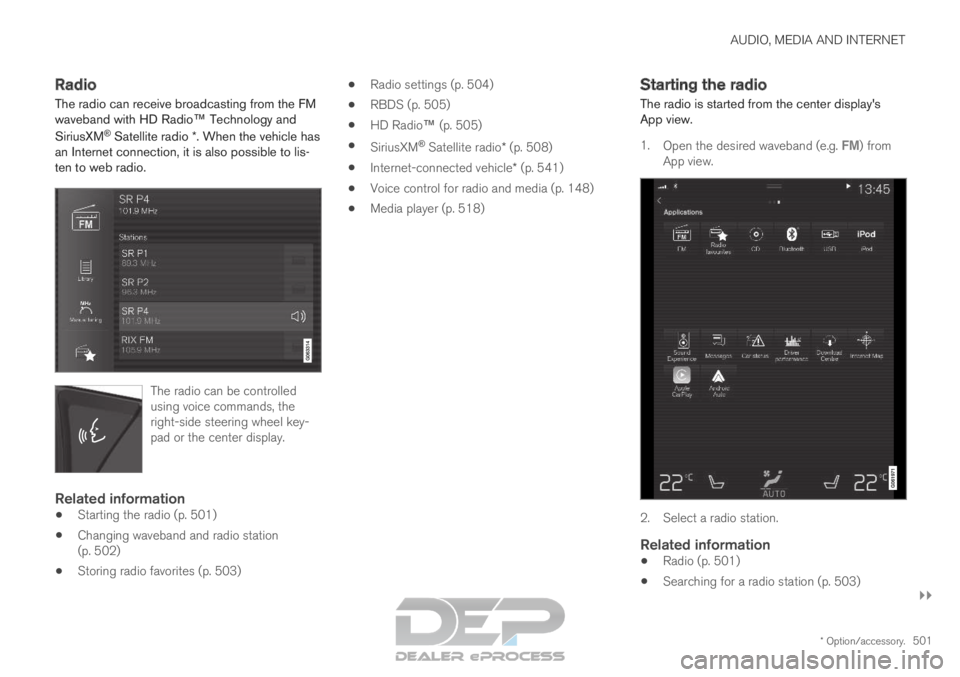
The radio can receive broadcasting from the FM
waveband with HD Radio™ Technology and
SiriusXM
®
Satellite radio *. When the vehicle has
an Internet connection, it is also possible to lis-
ten to web radio. The radio can be controlled
using voice commands, the
right-side steering wheel key-
pad or the center display.
Related information
Starting the radio (p. 501)
Changing waveband and radio station
(p. 502)
Storing radio favorites (p. 503)
Radio settings (p. 504)
RBDS (p. 505)
HD Radio™ (p. 505)
SiriusXM ®
Satellite radio* (p. 508)
Internet-connected vehicle* (p. 541)
Voice control for radio and media (p. 148)
Media player (p. 518) Starting the radio
The radio is started from the center display's
App view.
1.
Open the desired waveband (e.g. FM) from
App view. 2. Select a radio station.
Related information
Radio (p. 501)
Searching for a radio station (p. 503)
Page 504 of 697
AUDIO, MEDIA AND INTERNET
502
Changing waveband and radio station
(p. 502)
Storing radio favorites (p. 503)
Radio settings (p. 504)
Voice control for radio and media (p. 148) Changing waveband and radio
station
Instructions for changing wavebands, waveband
lists and radio stations in the selected list are
provided here.
Changing wavebandsSwipe from App view on the center display and
select the desired waveband (e.g. FM) or open
the App menu in the instrument panel with the
right-side steering wheel keypad and make your
selection there.
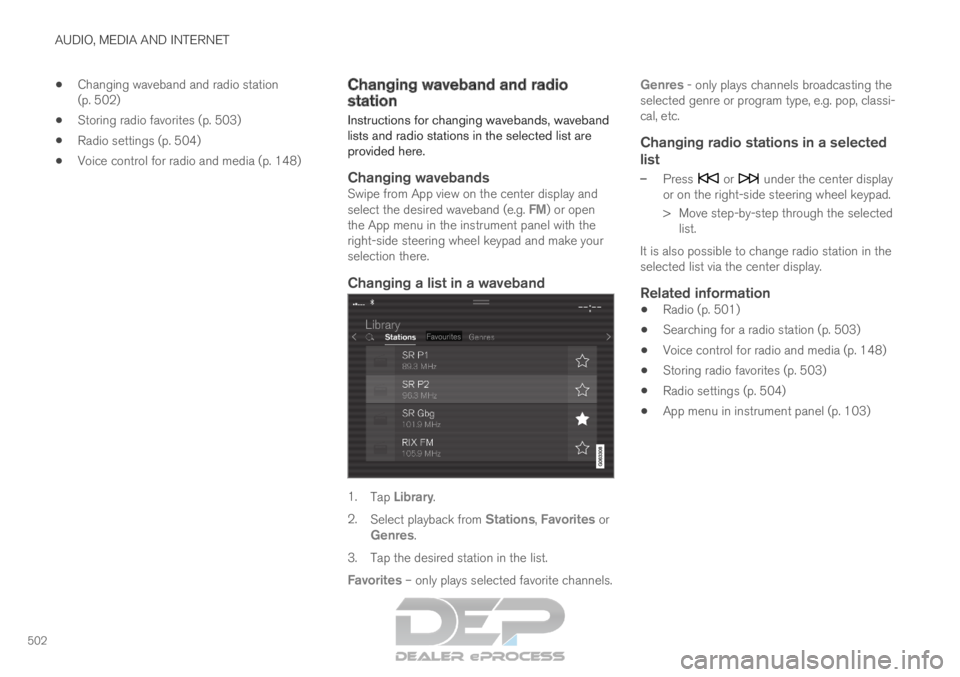
Changing a list in a waveband 1.
Tap Library.
2. Select playback from Stations, Favorites or
Genres.
3.
Tap the desired station in the list.
Favorites – only plays selected favorite channels. Genres - only plays channels broadcasting the
selected genre or program type, e.g. pop, classi-
cal, etc.
Changing radio stations in a selected
list
– Press or under the center display
or on the right-side steering wheel keypad.
>
Move step-by-step through the selected
list.
It is also possible to change radio station in the
selected list via the center display.
Related information
Radio (p. 501)
Searching for a radio station (p. 503)
Voice control for radio and media (p. 148)
Storing radio favorites (p. 503)
Radio settings (p. 504)
App menu in instrument panel (p. 103)
Page 505 of 697
AUDIO, MEDIA AND INTERNET
}}
503
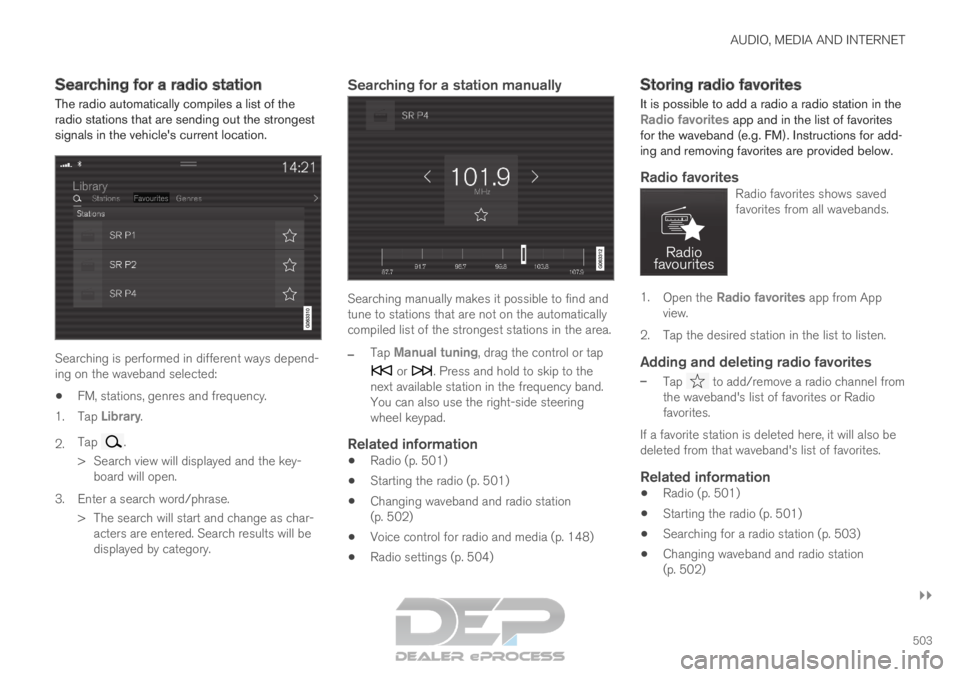
Searching for a radio station
The radio automatically compiles a list of the
radio stations that are sending out the strongest
signals in the vehicle's current location. Searching is performed in different ways depend-
ing on the waveband selected:
FM, stations, genres and frequency.
1. Tap Library.
2. Tap .
>
Search view will displayed and the key-
board will open.
3. Enter a search word/phrase. > The search will start and change as char-acters are entered. Search results will be
displayed by category.
Searching for a station manually Searching manually makes it possible to find and
tune to stations that are not on the automatically
compiled list of the strongest stations in the area.
–
Tap
Manual tuning, drag the control or tap or . Press and hold to skip to the
next available station in the frequency band.
You can also use the right-side steering
wheel keypad.
Related information
Radio (p. 501)
Starting the radio (p. 501)
Changing waveband and radio station
(p. 502)
Voice control for radio and media (p. 148)
Radio settings (p. 504) Storing radio favorites
It is possible to add a radio a radio station in the Radio favorites app and in the list of favorites
for the waveband (e.g. FM). Instructions for add-
ing and removing favorites are provided below.
Radio favoritesRadio favorites shows saved
favorites from all wavebands. 1.
Open the Radio favorites app from App
view.
2.
Tap the desired station in the list to listen.
Adding and deleting radio favorites
– Tap to add/remove a radio channel from
the waveband's list of favorites or Radio
favorites.
If a favorite station is deleted here, it will also be
deleted from that waveband's list of favorites.
Related information
Radio (p. 501)
Starting the radio (p. 501)
Searching for a radio station (p. 503)
Changing waveband and radio station
(p. 502)
Page 506 of 697
AUDIO, MEDIA AND INTERNET
* Option/accessory.
504
Voice control for radio and media (p. 148)
Radio settings (p. 504)
App menu in instrument panel (p. 103) Radio settings
There are a number of different radio functions
that can be activated and deactivated.
Canceling a traffic messageA current broadcast (e.g. a traffic message) can
be temporarily interrupted by pressing in the
right-side steering wheel keypad or tapping
Cancel in the center display.
Activating and deactivating radio
functions
Pull down Top view and select Settings Media and the desired waveband to see available
functions.
FM Radio
HD Radio FM: HD Radio
™
Technology:
makes it possible to achieve a sound quality
comparable with a CD.
Show Broadcast Information: shows
information on program content, artists, etc.
Freeze Program Name: select to stop the
program service name from scrolling continu-
ously. Instead it freezes after 20 seconds.
SiriusXM ®
Satellite radio*
Pull down Top view and select Settings Media SiriusXM
to show a list of available
options.
Related information
Radio (p. 501)
Settings for SiriusXM ®
Satellite radio*
(p. 511)
Symbols in the center display status bar
(p. 124)
Page 507 of 697
AUDIO, MEDIA AND INTERNET
}}
505
RBDS
RBDS
radio
RBDS (Radio Broadcast Data System) enables
certain functionality 2
, such as:
Searches for program types or new broad-
casts
Text information about currently broadcast
programs
Related information
Radio (p. 501)
Radio settings (p. 504) HD Radio
™
HD Radio is a brand name registered by the DTS,
Inc. 3
. They are the developer of a broadcasting
technology called IBOC or In Band On Channel,
which refers to the method of transmitting a digi-
tal radio broadcast signal centered on the same
frequency as the FM station's present frequency.
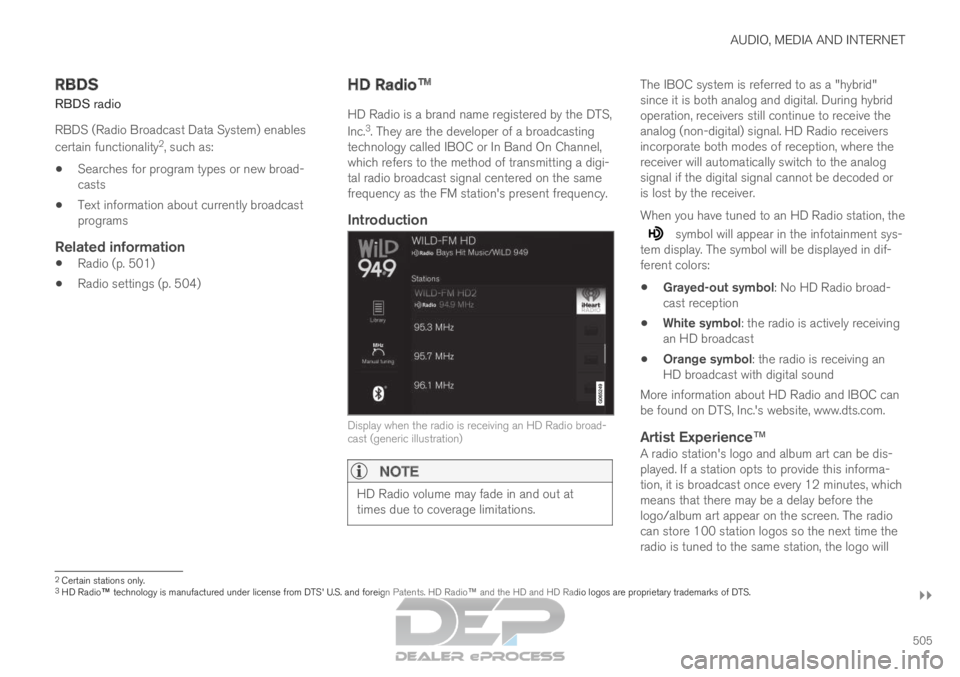
Introduction Display when the radio is receiving an HD Radio broad-
cast (generic illustration)
NOTE
HD Radio volume may fade in and out at
times due to coverage limitations. The IBOC system is referred to as a "hybrid"
since it is both analog and digital. During hybrid
operation, receivers still continue to receive the
analog (non-digital) signal. HD Radio receivers
incorporate both modes of reception, where the
receiver will automatically switch to the analog
signal if the digital signal cannot be decoded or
is lost by the receiver.
When you have tuned to an HD Radio station, the
symbol will appear in the infotainment sys-
tem display. The symbol will be displayed in dif-
ferent colors:
Grayed-out symbol: No HD Radio broad-
cast reception
White symbol: the radio is actively receiving
an HD broadcast
Orange symbol: the radio is receiving an
HD broadcast with digital sound
More information about HD Radio and IBOC can
be found on DTS, Inc.'s website, www.dts.com.
Artist Experience™A radio station's logo and album art can be dis-
played. If a station opts to provide this informa-
tion, it is broadcast once every 12 minutes, which
means that there may be a delay before the
logo/album art appear on the screen. The radio
can store 100 station logos so the next time the
radio is tuned to the same station, the logo will 2
Certain stations only.
3 HD Radio™ technology is manufactured under license from DTS' U.S. and foreign \
Patents. HD Radio™ and the HD and HD Radio logos are proprietary trademarks of DTS.
Page 508 of 697
||AUDIO, MEDIA AND INTERNET
506
be displayed immediately. Album art is synched
with the artist that you are currently listening to.
Ball game modeThis feature means that a main FM station (HD1)
will broadcast live events, where the content of
the programming is more important than sound
quality, in analog mode only to help prevent the
delay between analog and digital broadcasting.
The HD Radio symbol will be white during live
broadcasts and "Live" will be displayed next to
the symbol.
Benefits of digital broadcasting
Better sound (FM sounds near CD quality).
Some FM frequencies offer a greater num-
ber of listening choices through "multicast-
ing" (consisting of a frequency's main chan-
nel and any sub-channels that may also be
available on that particular frequency.)
When receiving a digital signal there is no
multipath disturbance or hisses/pops/crack-
ling due to outside influences.
How HD Radio ™ Technology
broadcasting works
HD Radio works similarly to conventional radio
and broadcasts of this type are available in many
areas of the United States. However, there are a
few key differences:
Instead of transmitting one analog signal,
stations send out a bundled signal - both
analog and digital.
An HD Radio receiver can receive both digi-
tal and analog broadcasts. Depending on the
terrain and location of the vehicle (which will
influence the signal strength), the receiver
will determine which signal to receive.
Related information
Radio (p. 501)
Activating and deactivating the HD Radio
™
(p. 506)
HD Radio™ sub-channels (p. 507)
HD Radio™ limitations (p. 508)
Changing waveband and radio station
(p. 502)
Searching for a radio station (p. 503) Activating and deactivating the HD
Radio
™
HD Radio is deactivated when the car leaves the
factory.
When listening to an HD Radio station and driv-
ing through areas with weak HD signals (fringe
areas), you may experience that the radio repeat-
edly switches between analog/digital and digital/
analog reception. If this happens, it may be desir-
able to switch HD off.
Carry out the following to activate or deactivate
HD Radio:
1.
Drag down the top view and tap on
Settings.
2. Press Media and FM Radio.
3. Press HD Radio FM to activate/deactivate
the function.
If HD radio is deactivated, the radio will be unable
to receive digital broadcasts but it will continue to
function as a conventional radio (analog FM
receiver). Please note that when HD is switched
off, it will not be possible to tune in to sub-chan-
nels.
Note that if you activate or deactivate HD Radio
only the selected wavelength band is affected.
Related information
HD Radio™ (p. 505)
HD Radio
™
sub-channels (p. 507)